A Moron's Guide to Eve HUD Basics: TL;DR Edition
Health Bars
THIS SET OF 3 WHITE BARS ARE YOUR HEALTHBARS:
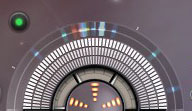
IF YOU DON'T KNOW WHAT A HEALTHBAR IS, CONGRATULATIONS! YOU ARE OFFICIALLY QUALIFIED TO READ THIS GUIDE!
Your Health is split up into THREE parts. Each bar shows you ONE of these parts:- Shields (Outermost bar)
- Armor (Middle bar)
- Hull Health (Inner bar)
If you hover your mouse over your healthbars, you will get a detailed description of what percent and how much HP you have left on what:
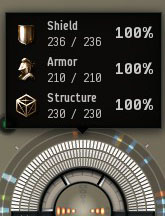
Your shields armor and hull all have resistances to different types of damage, but we'll get to that later.
Capacitors
THIS STAR IN THE MIDDLE OF YOUR HEALTHBARS IS YOUR CAPACITOR:
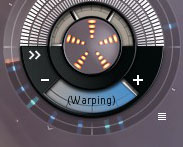
YOU NEED YOUR CAPACITOR TO POWER ALL THE LASERS AND JETS ON YOUR SHIP.
IF IT RUNS OUT, YOU'RE SCREWED.
HOWEVER!IF IT RUNS OUT, YOU'RE SCREWED.
YOUR CAPACITOR RECHARGES OVER TIME!
So if you can last long enough, you might not be screwed after all!
BUT WAIT!
you know what's even better than that?
THE LOWER YOUR CAPACITOR GETS, THE FASTER IT RECHARGES!
Just don't go around thinking that you have infinite energy because you got your energy down to 0.00000001%. It can only recharge so fast. (The amount varies on what ship you're in)
As I'm sure you've noticed already, the capacitors on different ships will look different from the one shown here. This is mainly because larger ships have more energy to burn. Otherwise this is purely aesthetic (Made for looks, not function...) and has little effect on your gameplay.
When fighting tougher enemies and/or literally any player with a brain, you will find that some people can NEUTRALIZE AND STEAL YOUR CAPACITOR ENERGY. So be careful with that.
And of course, kind of like your healthbars, the bright yellow dashes on your capacitor will turn grey as it gets lower.
Fitting Icons
THESE BUTTONS REPRESENT THE FITTINGS ON YOUR SHIP:
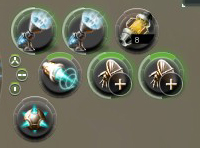
YOU CAN CLICK ON SOME OF THE PICTURES TO ACTIVATE OR DEACTIVATE THEM
Obviously, all of these buttons may not show up (and/or may look different) on your own ship, but that's because the amount and type of fittings vary based on what you set them to.If you see a flashing green highlight around (and a gray bar slithering its way across the outer edge of) the icon, the fitting is ACTIVE. If you do not see this, the fitting is currently INACTIVE.
The green bar above some of the icons means that the fitting can be OVERLOADED.
WHEN YOU OVERLOAD A FITTING, IT WORKS BETTER BUT TAKES OVERHEATING DAMAGE OVER TIME
We will discuss how to change fittings later.
Ship Safety Settings
THIS GREEN DOT IS FOR YOUR SHIP'S SAFETY SETTINGS
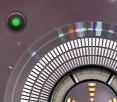
IF YOU CLICK IT THIS APPEARS:
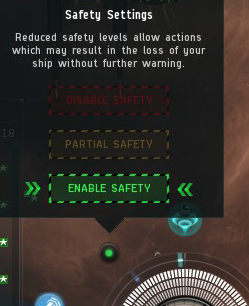
- IF ITS GREEN YOU'RE SAFE AND YOUR SHIP WILL PREVENT YOU FROM COMMITTING ILLEGAL ACTS
- IF ITS YELLOW YOU CAN STEAL OTHER PEOPLES' LOOT AND BECOME A SUSPECT
- IF ITS RED YOU CAN DO PRETTY MUCH ANYTHING YOU WANT... IF YOU WANT TO BECOME A CRIMINAL
(Screenshot coming soon)
You get yellow ones if you're a suspect:
(Screenshot coming soon)
PLAYERS WILL ALSO BE ALLOWED TO SHOOT AT YOU AS MUCH AS THEY WANT WITH NO CONCORD INTERVENTION IF YOU GET SUSPECT STATUS.
(This lasts for 10 min)CRIMINALS WILL BE ACTIVELY CHASED AND REPETITIVELY KILLED BY CONCORD SO LONG AS THEY STAY IN HISEC
(this one lasts for 15 min)ONLY MORONS, PSYCHOPATHS AND/OR BAD PEOPLE KEEP THEIR SAFETY ON RED. UNLESS YOU HAVE TO, DONT. IT RUINS EVERYONE'S DAY WHEN YOU KILL PEOPLE. YES, EVEN YOURS.
Local object list
THIS IS YOUR LOCAL LIST:
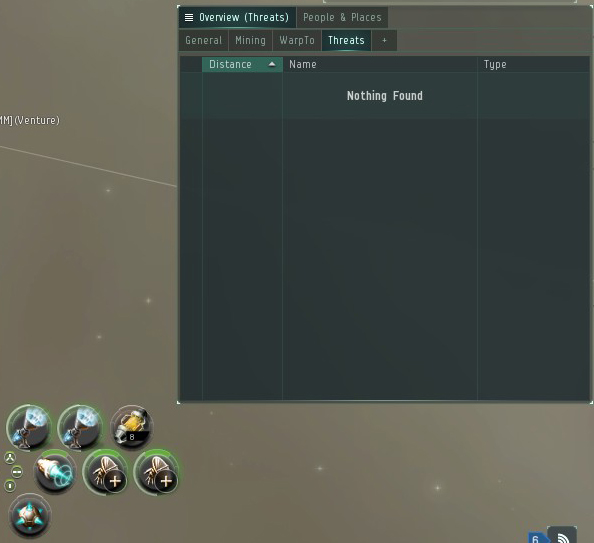
IT SHOWS YOU EVERYTHING THAT IS IN THE LOCAL AREA AND NOTABLE PLACES THAT ARE FAR AWAY
(This list tends to turn into a clusterf*k at times... That's why I edited it to include the "people and places" section and the "Threats section"... We'll discuss editing the HUD later.)ANYTHING YOU CAN DO TO AN OBJECT RIGHT IN FRONT OF YOU, YOU CAN DO TO OBJECTS FAR AWAY THROUGH RIGHT CLICKING THE OBJECT'S NAME ON THIS LIST
That's really all you need to know for now.
System, route & buff info
THIS IS YOUR LOCATION INFO
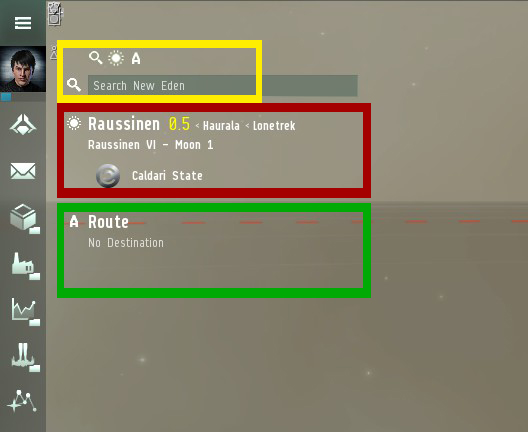
- THE BUTTONS BOXED IN YELLOW TOGGLE WHAT YOU SEE BELOW IT.
- YOU CAN ALSO SEARCH FOR ANYTHING IN THE GAME WITH THE SEARCH BAR, INCLUDING PLAYERS, SYSTEMS, ITEMS AND MORE
- THE STUFF IN RED IS INFORMATION ABOUT YOUR LOCATION.
- THE STUFF IN GREEN IS INFO ABOUT YOUR ROUTE. (There's no route shown here, but we'll get to that in a moment.)
Click on the buttons above the search bar to turn stuff off and on. Search for things in the search bar by clicking it and typing stuff into it. It's that simple
Here is the stuff shown inside the red box, put in reading order:
[System Name] [Security level] < [Constellation] < [Region]
[nearest location] (This can be a belt, star, planet, structure or more)
[Faction Owner of the area you're in]
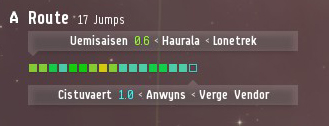 This is what the route overlay looks like when you right click something and select "Set destination" or "add waypoint". Each of those boxes represents a different system, and you can right click them as though they were the warpgate to that system.
Sidebar + HUD Customization
THIS IS YOUR CUSTOMIZABLE SIDEBAR:
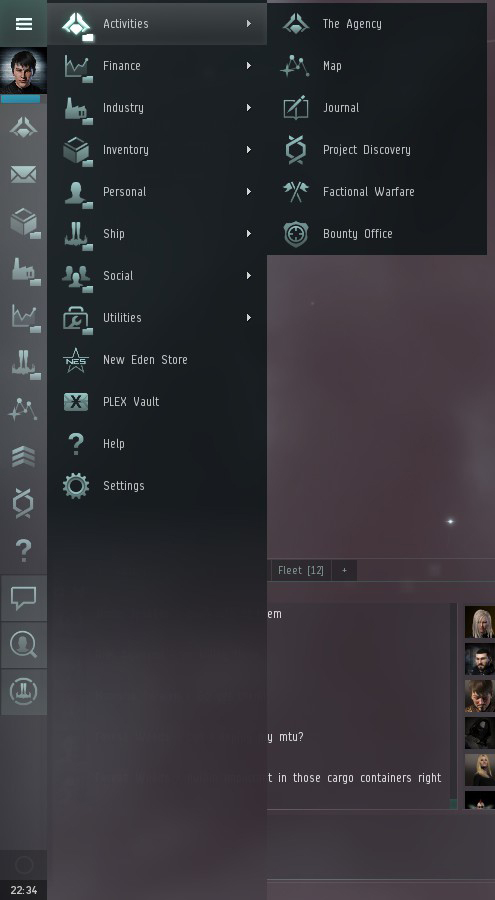
THIS BAR BRINGS YOU TO THE BULK OF THE HUD IN EVE.
EACH SYMBOL IS A BUTTON THAT BRINGS YOU TO A DIFFERENT WINDOW.
WE WILL GO OVER EACH ONE, INDIVIDUALLY, LATER.
EACH SYMBOL IS A BUTTON THAT BRINGS YOU TO A DIFFERENT WINDOW.
WE WILL GO OVER EACH ONE, INDIVIDUALLY, LATER.
For now though, we'll use this time to discuss how you can customize this and many other things about the EVE HUD.
HOW TO STACK WINDOWS ON YOUR HUD:
- Open the window that you want to add to your screen
- Click the very top of the menu that comes up, so that your mouse is in the same horizontal line with the X icon in the top right corner.
- CLICK and DRAG the menu over to the window stack you want to add it to
- Hover the top of the menu over the top of the window stack until the TOP BAR OF THE STACK TURNS WHITE
- Now simply release your mouse and the windows will stack.
- To remove a window you added to the stack, simply right click it and hit close
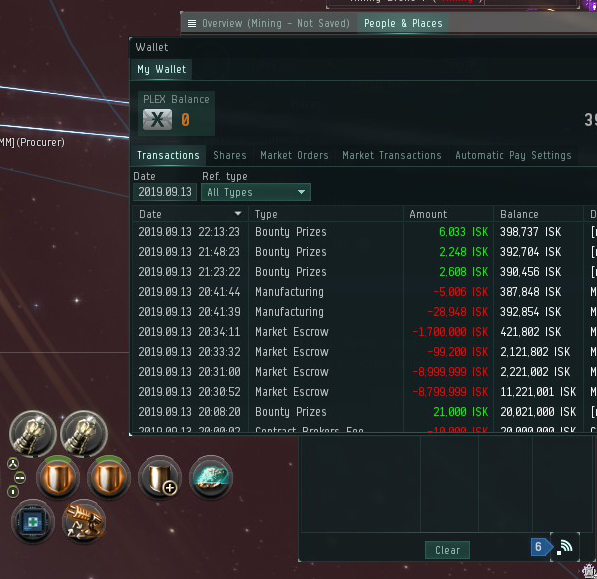
HOW TO ADD ICONS TO YOUR SIDEBAR:
- Click the E icon above your character portrait to open the options menu
- not too differently from before, CLICK and DRAG the ICON that you want to add to the bar... down to the bar.
- Simply release your mouse, and the icon will either snap between two other icons or get put into a folder with one.
- To remove icons, right click them and select "Remove Icon"
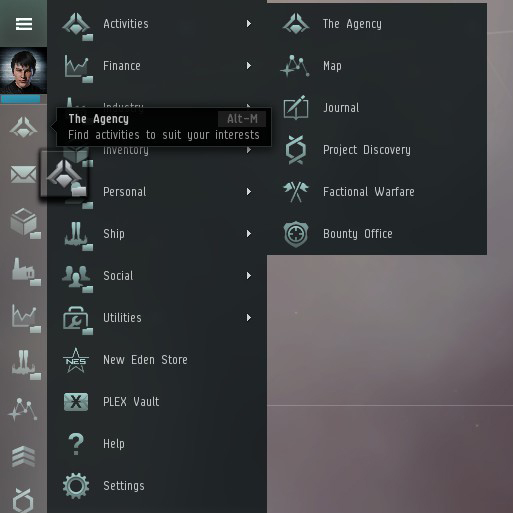 <<< This is what it looks like when you are putting an icon into a folder. Putting icons below eachother will show a white bar inbetween the icons it will snap next to.
Chat rooms
More EVE Online guides
- Начинаем играть EvE:Online★ 5 (521)25k views694 ♥15 minRussianUpdated Aug 17, 2023
- Quick guide to EVE Online★ 5 (376)25k views689 ♥20 minUpdated Feb 20
- 33 Совета начинающим игрокам★ 5 (322)17k views480 ♥10 minRussianUpdated Aug 17, 2023
- How to safely mine in Nullsec [Alpha Friendly]★ 4 (118)6.3k views144 ♥3 minUpdated Aug 9, 2021
- Gallente Factional Warfare★ 4 (96)6k views121 ♥10 minUpdated Jan 18, 2013
- Gnosis guide (α, PvE, hi-sec)★ 4 (74)5k views101 ♥35 minUpdated Feb 20, 2018



This guide was created by its original author on the Steam Community. Are you the author and want it removed? Request removal.