BETTER PERFORMANCE || JC3 || GRAPHIC+FPS
Introduction
Hello, I want to share some of the tweaks which helped me boost my frames. But yes, I do face stutters but it's a lot less as compared to what I got the first time I launched the game.
There will be significant reduction in stutters but you will still have them, as there is a suspected memory leak issue which should hopefully get fixed soon :)
It may or may not work for you - There's no harm in giving it a try :D
And, yes, lemme know your feedback!
There will be significant reduction in stutters but you will still have them, as there is a suspected memory leak issue which should hopefully get fixed soon :)
It may or may not work for you - There's no harm in giving it a try :D
And, yes, lemme know your feedback!
Windows Priority Tweak
1] Launch JC3
2] Open Task Manager (Ctrl+Alt+Del)
3] Go to "DETAILS"
4] Find "justcause3.exe"
5] Right click, set priority to "HIGH"
6] Continue with next tweak.
2] Open Task Manager (Ctrl+Alt+Del)
3] Go to "DETAILS"
4] Find "justcause3.exe"
5] Right click, set priority to "HIGH"
6] Continue with next tweak.
COMMANDLINE TWEAK [IMPORTANT]
This tweak is mainly for Rockstar RAGE engine but it seemed to work here too. Try this and lemme know if it worked or not...
1] Go to JC3 directory (The folder where JC3 is installed)
(By default, it is, C:\Program Files (x86)\Steam\steamapps\common\Just Cause 3)
2] Create a text file and rename it to "commandline" (without extension)
3] Add the following lines and save the file -
-noprecache
-nomemrestrict
-percentvidmem 99
-notimefix
-high
-usedirectinput
-framelimit 60
-framelockwindow 30
-noswapdelay
4] That's it! Thanks to Sheriff for this tweak :)
1] Go to JC3 directory (The folder where JC3 is installed)
(By default, it is, C:\Program Files (x86)\Steam\steamapps\common\Just Cause 3)
2] Create a text file and rename it to "commandline" (without extension)
3] Add the following lines and save the file -
-noprecache
-nomemrestrict
-percentvidmem 99
-notimefix
-high
-usedirectinput
-framelimit 60
-framelockwindow 30
-noswapdelay
4] That's it! Thanks to Sheriff for this tweak :)
In-game settings
These settings are just temporary in order to reduce the load on your GPU & RAM. Once, stuttering is fixed, you can revert them back to "VERY HIGH".
The following settings do not change your graphics drastically. Very little change which gets balanced off by SweetFX without frame loss.
-------------------------------------------------------------------------------------------------------------------
1] RESOLUTION -> "SET IT TO YOUR DEFAULT MONITOR RESOLUTION"
*2] "ANTI-ALIASING" -> "OFF"
3] "VSYNC" -> "OFF"
3] "WATER QUALITY" -> "MEDIUM"
[WATER STILL LOOKS STUNNING]
[HIGH/VERY HIGH ONLY ADDS NVIDIA WAVEWORKS WHICH REDUCES FPS]
*4] "SHADOW QUALITY" -> "HIGH"
5] "LOD RADIUS" -> "HIGH"
*6] EVERYTHING BELOW "SHADOW QUALITY" -> "OFF"
-------------------------------------------------------------------------------------------------------------------
* - These settings are taken care off by SweetFX.
The following settings do not change your graphics drastically. Very little change which gets balanced off by SweetFX without frame loss.
-------------------------------------------------------------------------------------------------------------------
1] RESOLUTION -> "SET IT TO YOUR DEFAULT MONITOR RESOLUTION"
*2] "ANTI-ALIASING" -> "OFF"
3] "VSYNC" -> "OFF"
3] "WATER QUALITY" -> "MEDIUM"
[WATER STILL LOOKS STUNNING]
[HIGH/VERY HIGH ONLY ADDS NVIDIA WAVEWORKS WHICH REDUCES FPS]
*4] "SHADOW QUALITY" -> "HIGH"
5] "LOD RADIUS" -> "HIGH"
*6] EVERYTHING BELOW "SHADOW QUALITY" -> "OFF"
-------------------------------------------------------------------------------------------------------------------
* - These settings are taken care off by SweetFX.
Steam Commands
This should add some more frames.
------------------------------------------------------------------------------------------------------------------
1] Launch Steam
2] Right click "Just Cause 3"
3] Go to "Properties"
4] Click "SET LAUNCH OPTIONS" and enter the following -
/borderless /windowed
5] That's it!
------------------------------------------------------------------------------------------------------------------
P.S: "/windowed" will still be a fullscreen.
------------------------------------------------------------------------------------------------------------------
1] Launch Steam
2] Right click "Just Cause 3"
3] Go to "Properties"
4] Click "SET LAUNCH OPTIONS" and enter the following -
/borderless /windowed
5] That's it!
------------------------------------------------------------------------------------------------------------------
P.S: "/windowed" will still be a fullscreen.
NVidia Inspector
If you have an AMD GPU, then if possible, try forcing these settings in CCC for justcause3.exe
Launch NVidia Inspector as "Administrator".
Apply the following settings -
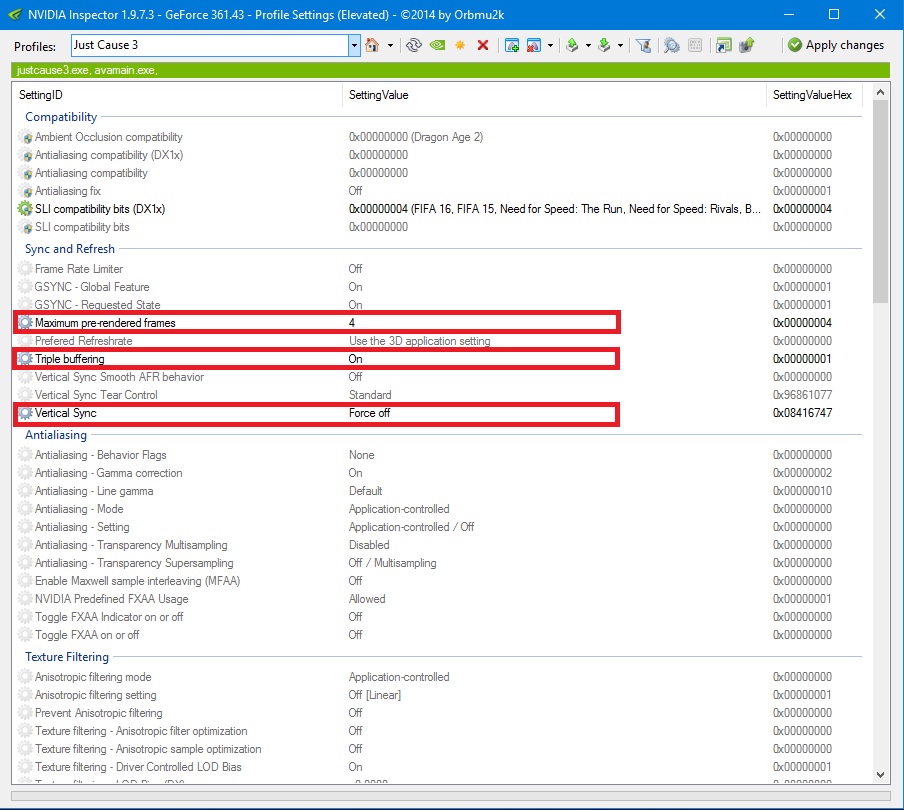
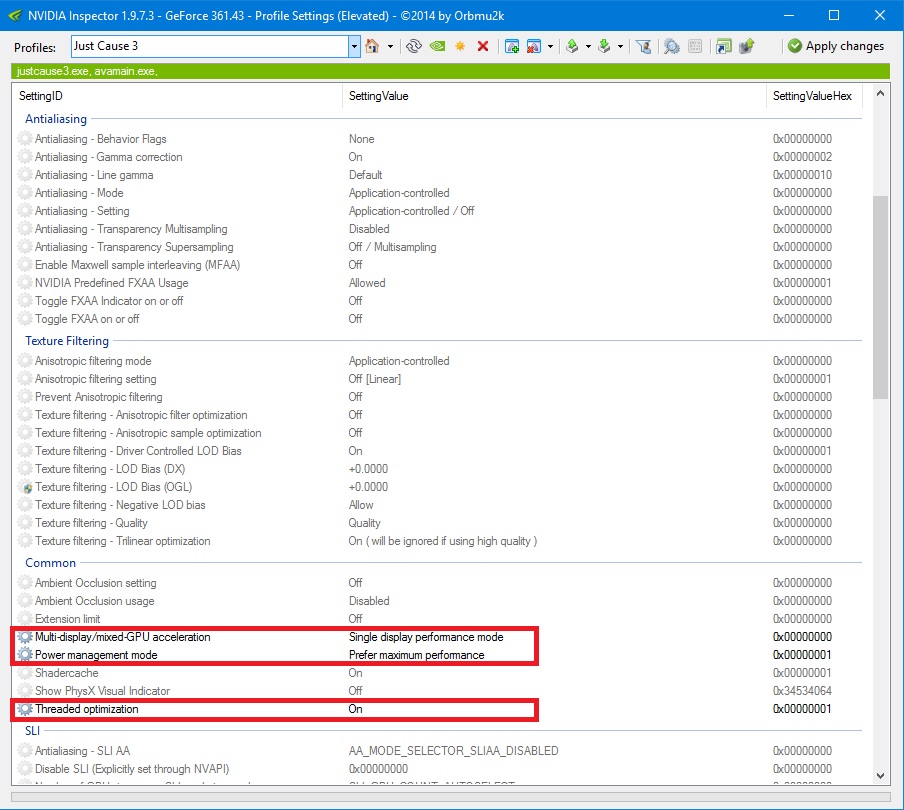
Launch NVidia Inspector as "Administrator".
Apply the following settings -
Borderless Tweak [OPTIONAL]
Download and install "Borderless Gaming" setup file from here - https://github.com/Codeusa/Borderless-Gaming/releases/tag/8.4
1] Launch JC3
2] Once the game has started, press "ALT+ENTER" and come to desktop.
3] Now, open "Borderless Gaming" as "Administrator", choose "Just Cause 3"
4] Click the first "RIGHT ARROW", then click the "THIRD ICON" from top.
5] Close "Borderless Gaming" and continue playing :)
You should now be able to come to desktop quickly by pressing "ALT+TAB" or quit the game by pressing "ALT+F4"
1] Launch JC3
2] Once the game has started, press "ALT+ENTER" and come to desktop.
3] Now, open "Borderless Gaming" as "Administrator", choose "Just Cause 3"
4] Click the first "RIGHT ARROW", then click the "THIRD ICON" from top.
5] Close "Borderless Gaming" and continue playing :)
You should now be able to come to desktop quickly by pressing "ALT+TAB" or quit the game by pressing "ALT+F4"
Offline Mode [OPTIONAL]
You will notice significant improvement in frames :)
------------------------------------------------------------------------------------------------------------------
1] Control Panel
2] System and Security
3] Window's Firewall
4] Advanced Settings
5] Outbound Rules
6] New Rule...
7] Program (Click Next and then browse to justcause.exe inside Steam folder)
8] Block connection.
You can also block the exe file via firewall using an antivirus software if you're using one.
------------------------------------------------------------------------------------------------------------------
P.S : This will obviously disable leaderboards.
------------------------------------------------------------------------------------------------------------------
1] Control Panel
2] System and Security
3] Window's Firewall
4] Advanced Settings
5] Outbound Rules
6] New Rule...
7] Program (Click Next and then browse to justcause.exe inside Steam folder)
8] Block connection.
You can also block the exe file via firewall using an antivirus software if you're using one.
------------------------------------------------------------------------------------------------------------------
P.S : This will obviously disable leaderboards.
SweetFX [OPTIONAL]
With this, you can get a lot better lighting and SMAA without much frame loss. There are many presets which you can choose from, link at the bottom of this section.
------------------------------------------------------------------------------------------------------------------
DOWNLOAD LINK -
SweetFX[www.guru3d.com]
Drag and drop these files into your JC3 directory.
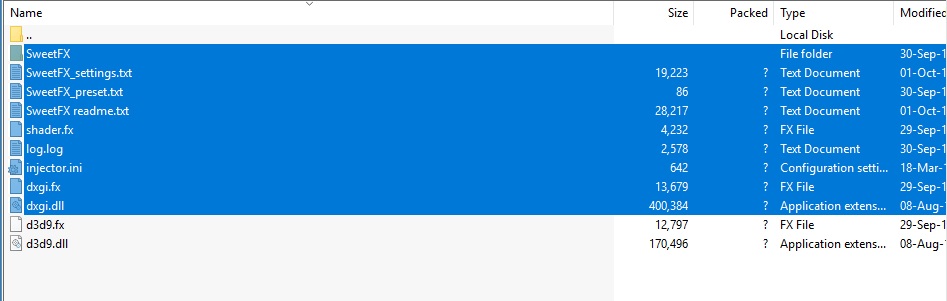
SWEETFX SETTINGS -
Visit https://sfx.thelazy.net/games/game/1175/ to find some good presets.
After downloading, replace it at "JC3DIRECTORY/SweetFX_settings.txt", and make sure the file name is "SweetFX_settings.txt"
------------------------------------------------------------------------------------------------------------------
DOWNLOAD LINK -
SweetFX[www.guru3d.com]
Drag and drop these files into your JC3 directory.
SWEETFX SETTINGS -
Visit https://sfx.thelazy.net/games/game/1175/ to find some good presets.
After downloading, replace it at "JC3DIRECTORY/SweetFX_settings.txt", and make sure the file name is "SweetFX_settings.txt"
VIDEO PROOF
Thanks
If it helped, don't forget to press the "Thumbs Up" button ;)
Let me know your feedback in the comments :D
And, subscribe to my Youtube channel - www.youtube.com/c/TechInfinityOfficial
Let me know your feedback in the comments :D
And, subscribe to my Youtube channel - www.youtube.com/c/TechInfinityOfficial
More Just Cause 3 guides
- How to skip the intro screen [DLC Support]★ 5 (1.1k)94k views1.1k ♥1 minBulgarianUpdated Jan 18, 2023
- Just Cause I want 100% [+DLC]★ 5 (864)46k views1.7k ♥13 minUpdated Dec 29, 2016
- Square Enix Offline (+Better Performance)★ 5 (696)45k views664 ♥1 minUpdated Sep 12, 2020
- FASTEST car and boat in the game location★ 5 (409)33k views599 ♥1 minUpdated Jul 29, 2016
- Все достижения в Just Cause 3★ 5 (1.1k)24k views1.6k ♥10 minRussianUpdated Jan 3, 2016
- Doge Easter Egg★ 5 (299)19k views323 ♥1 minUpdated Jun 8, 2020




This guide was created by its original author on the Steam Community. Are you the author and want it removed? Request removal.