Crash and Freeze Fix (Windows 10/11)
Introduction

After testing different fixes to get Call of Juarez: Gunslinger to launch, stop crashing, freezing, and immediately kicking me out of the game, I finally found a solution that worked for me. If you're struggling with the same issues, this guide outlines the steps I took to resolve them.
For reference, I'm running the game on a system with a GeForce RTX 4080 and an Intel Core i9 13900K with 24-cores. And these steps worked for me. I hope these steps work for you too.
Create a .bat File to Launch the Game
1. Open Notepad (or any plain text editor)
2. Copy and paste the following text:
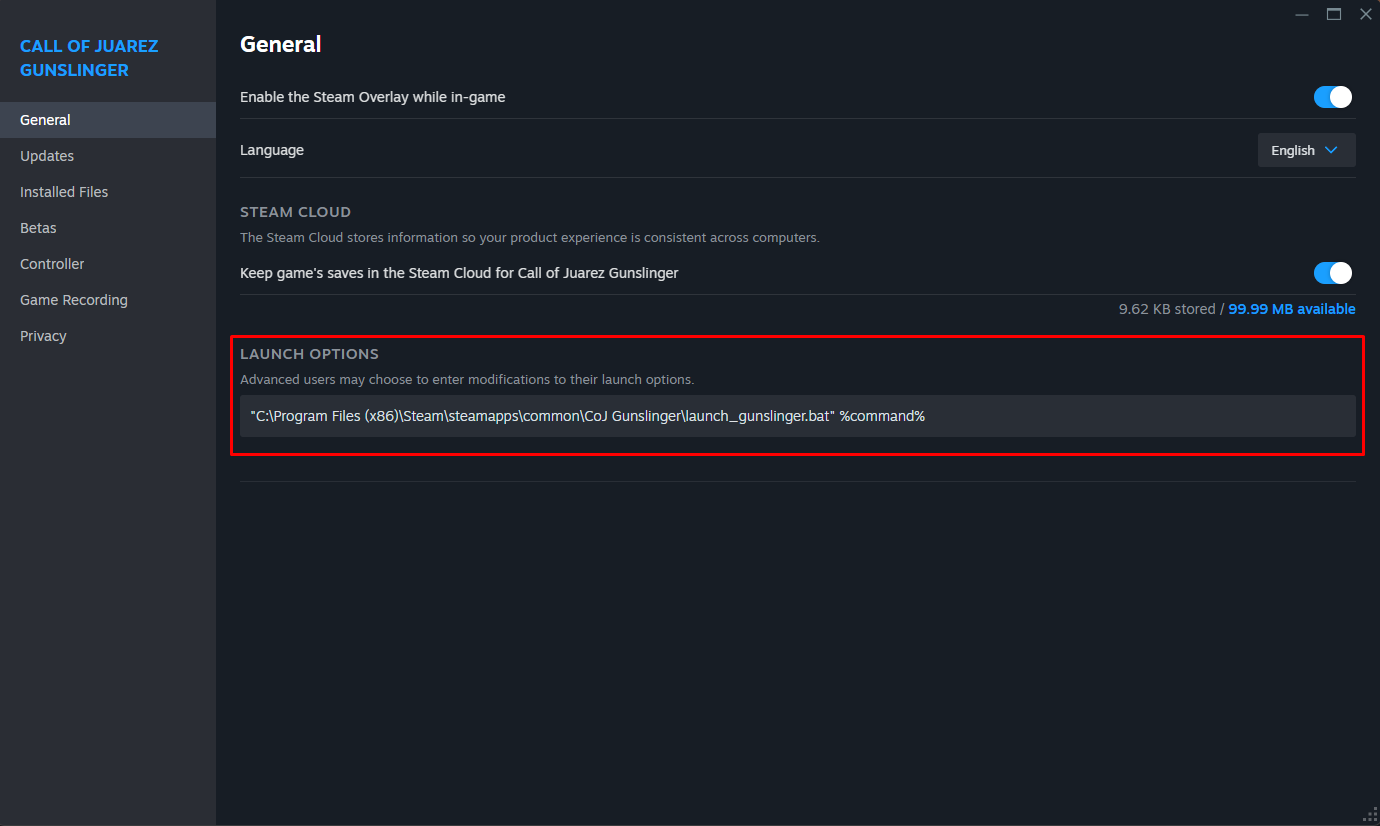
Update the Steam Launch Options
1. Open Steam and right-click on Call of Juarez: Gunslinger in your library
2. Select Properties and go to the Launch Options field
3. Add the following line:
2. Copy and paste the following text:
@ECHO
cmd /C start "" /normal /affinity 55 CoJGunslinger.exe
PAUSE
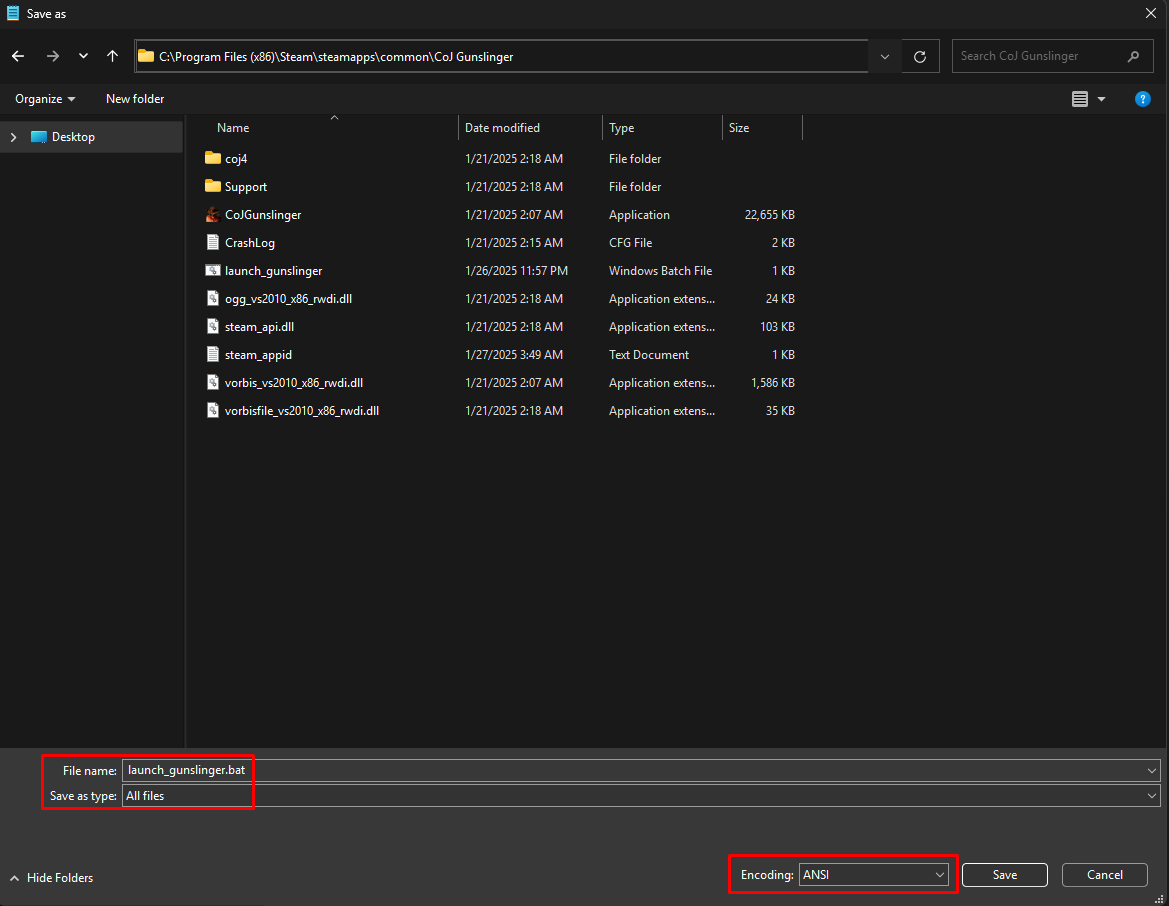
3. Save the file with the following settings:cmd /C start "" /normal /affinity 55 CoJGunslinger.exe
PAUSE
- Go to File > Save As
- Save it as launch_gunslinger.bat
- Change Save as type to All Files and set the Encoding option to ANSI before saving
- Save the file in the game’s installation folder, usually:
C:\Program Files (x86)\Steam\steamapps\common\CoJ Gunslinger\
Update the Steam Launch Options
1. Open Steam and right-click on Call of Juarez: Gunslinger in your library
2. Select Properties and go to the Launch Options field
3. Add the following line:
"C:\Program Files (x86)\Steam\steamapps\common\CoJ Gunslinger\launch_gunslinger.bat" %command%
Adjust the In-Game Graphics Settings
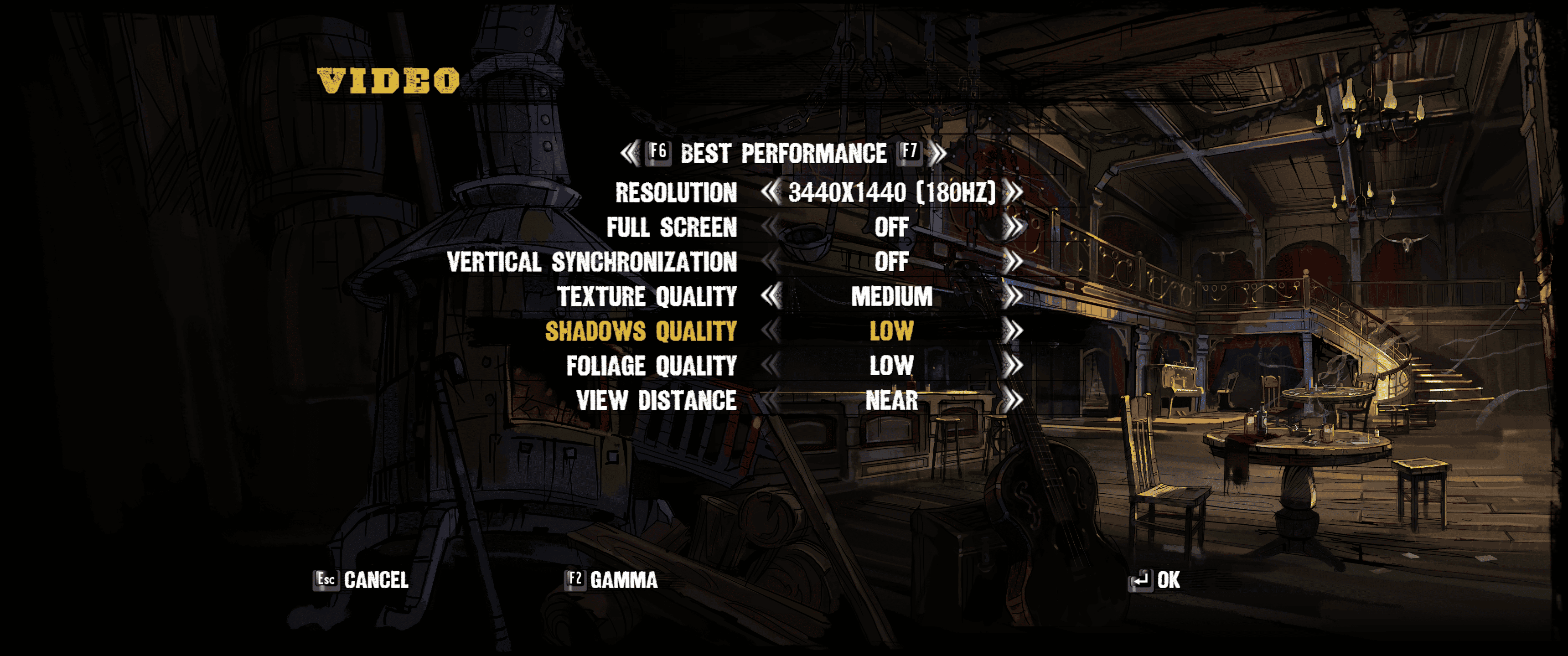
Launch the game and go to Help & Options > Video
Update the following settings:
Additional
The game can sometimes react poorly to tabbing out or using the Steam Overlay. If you run into any issues simply just tab out and back into the game. This simple fix should get everything going.
Update the following settings:
- Graphics Quality: Best Performance
- Fullscreen: OFF
- Vertical Synchronization (VSync): OFF
Additional
The game can sometimes react poorly to tabbing out or using the Steam Overlay. If you run into any issues simply just tab out and back into the game. This simple fix should get everything going.
Conclusion
By following these steps, Call of Juarez: Gunslinger should run without crashes or freezes. If you’re still encountering issues, you can adjust the /affinity setting in your .bat file to control how the game utilizes your CPU cores:
I hope this guide has been helpful in getting Call of Juarez: Gunslinger running for you.
If this guide worked for you, let me know in the comments. And if you’ve found other solutions, please share them as well.
- /affinity 55 restricts the game to only use CPU cores 0 and 1, offering a more limited but potentially more stable setup.
- /affinity ff allows the game to utilize all logical CPU cores, which can work better for some systems.
- /affinity 1 forces the game to use only core 0. While this is an extreme limitation, it can sometimes resolve issues on certain setups.
I hope this guide has been helpful in getting Call of Juarez: Gunslinger running for you.
If this guide worked for you, let me know in the comments. And if you’ve found other solutions, please share them as well.
More Call of Juarez Gunslinger guides
- Achievement Guide - Call of Juarez: Gunslinger★ 5 (974)31k views1.4k ♥17 minUpdated Aug 4, 2015
- How to Not Suck ♥♥♥♥ at Dueling★ 5 (518)26k views433 ♥12 minUpdated Dec 9, 2020
- Searching nuggets of truth (Ищем самородки истины)★ 5 (873)25k views856 ♥1 minUpdated Jun 29, 2013
- [Гайд по достижениям, RU] Call of Juarez: Gunslinger★ 5 (1.1k)23k views1.3k ♥3 minRussianUpdated Sep 13, 2015
- Call of Juarez Gunslinger - Nuggets Of Truth Collectible Guide "Video Guide"★ 5 (1k)21k views928 ♥1 minUpdated Jan 1, 2025
- Call of Juarez Gunslinger 简体/繁體中文汉化指南★ 5 (205)15k views236 ♥1 minSimplified ChineseUpdated May 27


This guide was created by its original author on the Steam Community. Are you the author and want it removed? Request removal.