Create a Mod for Steam Workshop
Download
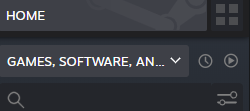
Click Library in Steam, Click "Games and Software" drop down and enable "Tools".
Install Sega Genesis & Megadrive Classics Workshop Tool

Install Sega Genesis & Megadrive Classics Workshop Tool
Rename your MOD
After all your hard work making your mod that you didn't download from an emulator rom site it will look like this;

Right click and rename the extension to .bin like this;

Right click and rename the extension to .bin like this;
Upload To Steam Workshop
Launch Sega Genesis & Megadrive Classics Workshop Tool;
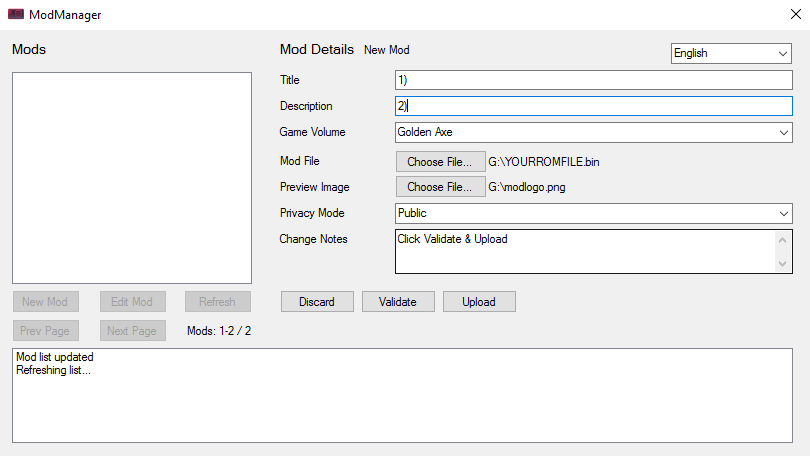
Select "New Mod".
1) Add a title to your mod.
2) Give it a description (sometimes this may cause validation errors), you can leave blank if you like.
3) Select a game volume that you wish to mod, pick a game that you have already purchased I used "Golden Axe".
4) Choose your mod file that you renamed previously (.bin format).
5) Choose an image for your game on the workshop.
6) Set privacy mode and add any change notes if you like.
Validate to make sure there are no errors, if followed correctly you can now Upload to the Steam Workshop.
Select "New Mod".
1) Add a title to your mod.
2) Give it a description (sometimes this may cause validation errors), you can leave blank if you like.
3) Select a game volume that you wish to mod, pick a game that you have already purchased I used "Golden Axe".
4) Choose your mod file that you renamed previously (.bin format).
5) Choose an image for your game on the workshop.
6) Set privacy mode and add any change notes if you like.
Validate to make sure there are no errors, if followed correctly you can now Upload to the Steam Workshop.
Subscribe and Play
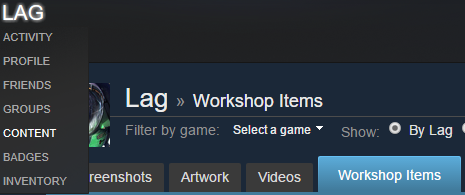
Subscribe to your mod by clicking your name in steam and selecting content. Then head over to Workshop Items and click your newly uploaded mod image. Then hit the subscribe button.
Launch Sega Genesis & Mega Drive Classics from steam, click your game on the shelf (that you selected from the drop down in the Workshop Tool) and choose mods. When you click your mod it will load up.
Enjoy.
Launch Sega Genesis & Mega Drive Classics from steam, click your game on the shelf (that you selected from the drop down in the Workshop Tool) and choose mods. When you click your mod it will load up.
Enjoy.
More SEGA Mega Drive & Genesis Classics guides
- SEGA Classics F.A.Q. & game list★ 5 (621)58k views665 ♥20 minBulgarianUpdated Nov 10, 2024
- All SEGA Genesis & Mega Drive Games★ 5 (272)29k views332 ♥25 minUpdated May 22, 2016
- Mods & ROMs for SEGA Genesis & Mega Drive Classics★ 5 (185)22k views317 ♥15 minUpdated May 27, 2016
- SEGA Genesis Classics - Codes & Secrets★ 5 (433)17k views626 ♥191 minUpdated Feb 17, 2016
- How to play full screen at full speed with your own emulator for FREE★ 4 (141)10k views155 ♥4 minUpdated Aug 10, 2023
- Добавление любых ROM'ов Sega Mega Drive в данный эмулятор. Второй метод.★ 4 (124)8.2k views144 ♥1 minRussianUpdated Apr 9, 2021


This guide was created by its original author on the Steam Community. Are you the author and want it removed? Request removal.