Custom PDA Photos
1. Take a screenshot in-game
Take a screenshot in Subnautica by pressing F11 (default key). We'll be replacing that screenshot with your custom image.
2. Open Subnautica's game folder
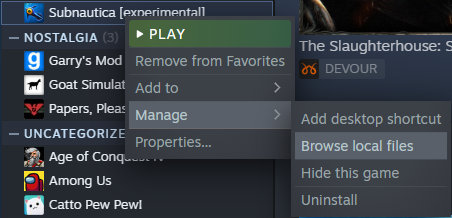
Go to your Steam library, right-click Subnautica, go to "Manage" and "Browse local files".
3. Locate your world's screenshots folder
Find your save folder by heading to SNAppData and from there to SavedGames.
Open the world where you want your image to show up. The folders are generated in the same order as your worlds with the oldest being "slot0000" and newer ones "slot0001", "slot0002", "slot0003" accordingly.
Head over to your world's screenshots folder.
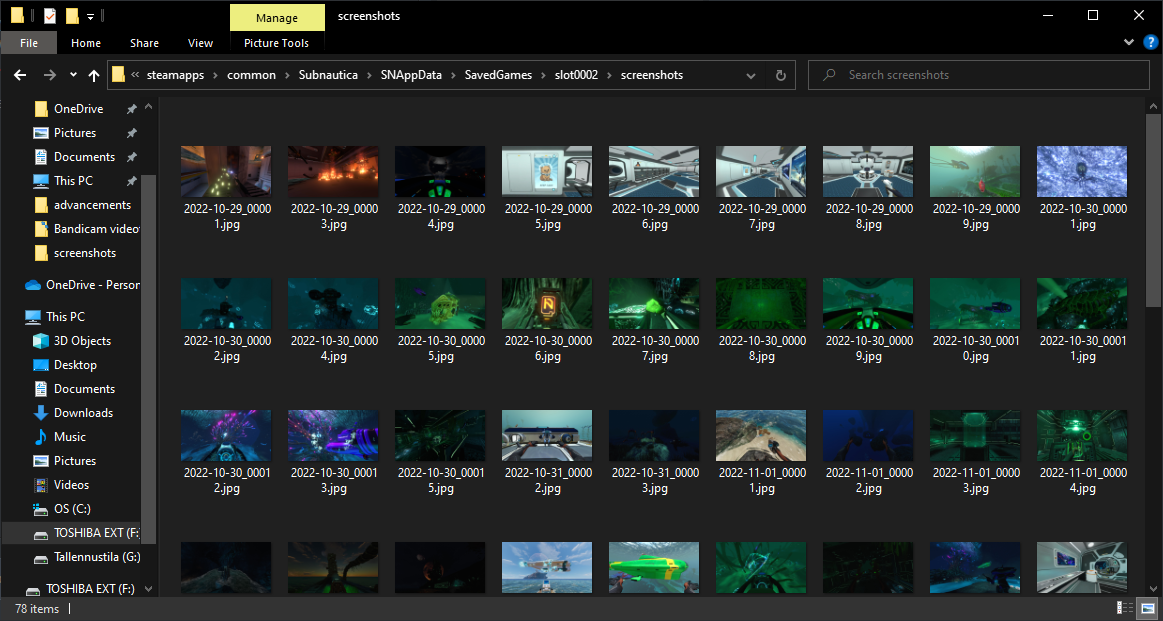
Open the world where you want your image to show up. The folders are generated in the same order as your worlds with the oldest being "slot0000" and newer ones "slot0001", "slot0002", "slot0003" accordingly.
Head over to your world's screenshots folder.
4. Replace the screenshot you took at step 1
Find the newest screenshot and copy it's name completely, including the file format (.jpg). Delete the screenshot, drag your custom image into the folder, and rename it with the same name you just copied.
Note that the screenshots must be in YYYY-MM-DD_(00001-99999).jpg format.
Note that the screenshots must be in YYYY-MM-DD_(00001-99999).jpg format.
5. View your custom image in-game
Restart Subnautica and load the correct world to see your custom image in your PDA's gallery.
Now you shall participate in a minuscule amount of tomfoolery with your newfound abilities!

Now you shall participate in a minuscule amount of tomfoolery with your newfound abilities!
You're welcome!
If you found this guide useful, dropping a like would help others to find it too!

More Subnautica guides
- Кооператив в Subnautica.★ 5 (480)121k views1.1k ♥9 minRussianUpdated 14 Aug, 2025
- Ultimate Guide to Everything★ 5 (1.6k)85k views3.8k ♥66 minUpdated 14 Jul, 2024
- Ingame Map with Resource sheet★ 5 (712)79k views1.5k ♥1 minUpdated 9 Nov, 2017
- Interactive Subnautica Map★ 5 (1.4k)71k views2.4k ♥1 minUpdated 3 Jul, 2018
- Русская озвучка Subnautica от GamesVoice★ 5 (1.6k)54k views2.1k ♥1 minRussianUpdated 6 Jan, 2023
- Subnautica - Прохождение / Гайд★ 5 (600)43k views1.6k ♥27 minRussianUpdated 5 May, 2019


This guide was created by its original author on the Steam Community. Are you the author and want it removed? Request removal.