Fixing the Out of Memory Error
The Problem
The 'Out of Memory' error can be triggered by various issues, and very often these may have nothing to do with memory (or lack of it) and might be the result of a corrupt scenario file or some other issue. This guide will cover these various possibilities.
Whatever the reason for its occurrence, the sudden appearance of the error message can have a seriously negative impact on your enjoyment of Train Simulator.
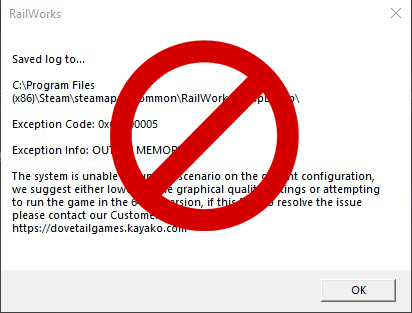
This guide has been written to help you banish it forever.
It is perhaps the most hated message ever to desecrate the screens of people using the program. I have added a "prohibited" symbol to express my disgust and determination to stamp it out. Fortunately I seldom if ever see it these days and it has become a rarity for the many people who have followed the various recommendations set out below.
By the way, the error message itself contains an error - a broken link.
The link dovetailgames.kayako.com no longer exists.
Instead you should use the following:
Dovetail Support[support.dovetailgames.com]
Whatever the reason for its occurrence, the sudden appearance of the error message can have a seriously negative impact on your enjoyment of Train Simulator.
This guide has been written to help you banish it forever.
It is perhaps the most hated message ever to desecrate the screens of people using the program. I have added a "prohibited" symbol to express my disgust and determination to stamp it out. Fortunately I seldom if ever see it these days and it has become a rarity for the many people who have followed the various recommendations set out below.
By the way, the error message itself contains an error - a broken link.
The link dovetailgames.kayako.com no longer exists.
Instead you should use the following:
Dovetail Support[support.dovetailgames.com]
The Multi-Part Solution
The various issues which may be causing the Out of Memory Error can be tackled in various ways, and all these steps can work together to help prevent the error occurring.
Don't forget that running certain other programs in the background (for example a memory-hungry web browser like Chrome) can sometimes have an adverse impact, so it is wiser to close them before running the game.
- Enabling Your Dedicated Video Card
- Hardware-accelerated GPU Scheduling
- Adjusting the Windows Paging File
- Automatically Clearing the Paging File on Shutdown.
- Clearing the Cache
- Verifying the Integrity of Game Files
- Turning Windows Game Mode Off
- Fixing Corrupt Workshop Scenarios
Don't forget that running certain other programs in the background (for example a memory-hungry web browser like Chrome) can sometimes have an adverse impact, so it is wiser to close them before running the game.
Enable Your Dedicated Graphics Card
Make sure your video card is configured so that the game uses it rather than using the CPU's integrated graphics. Otherwise your game will not make use of your video card's memory.
Here's how. In the Windows settings (might be different or not even apply for versions of Windows earlier than Windows 11), Choose System > Display > Graphics and you should see the following dialogue window. Type RailWorks in the search box and you should see the 32-bit and 64-bit versions of the game.
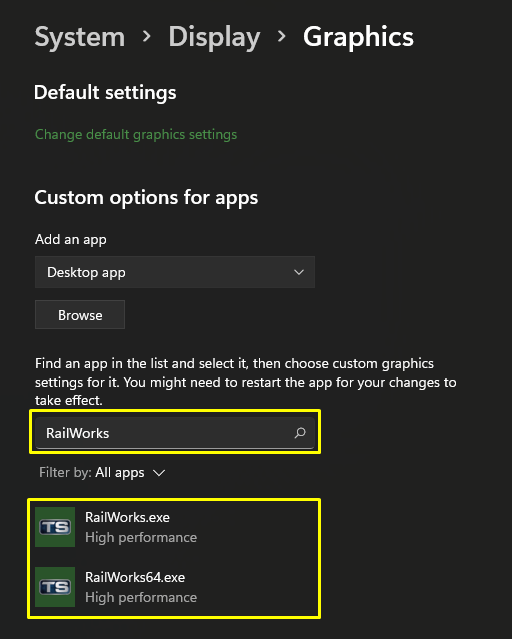
Click on the one you want to check, choose options and then select 'High performance.'
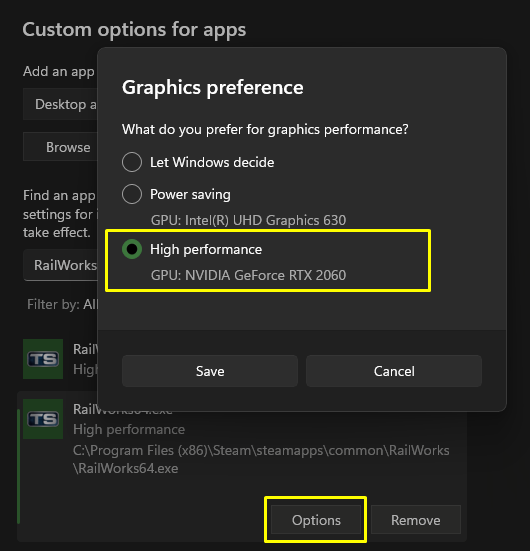
Then save and exit.
Also open the control panel of your graphics card and make sure it is enabled for both versions of the game (32-bit and 64-bit).
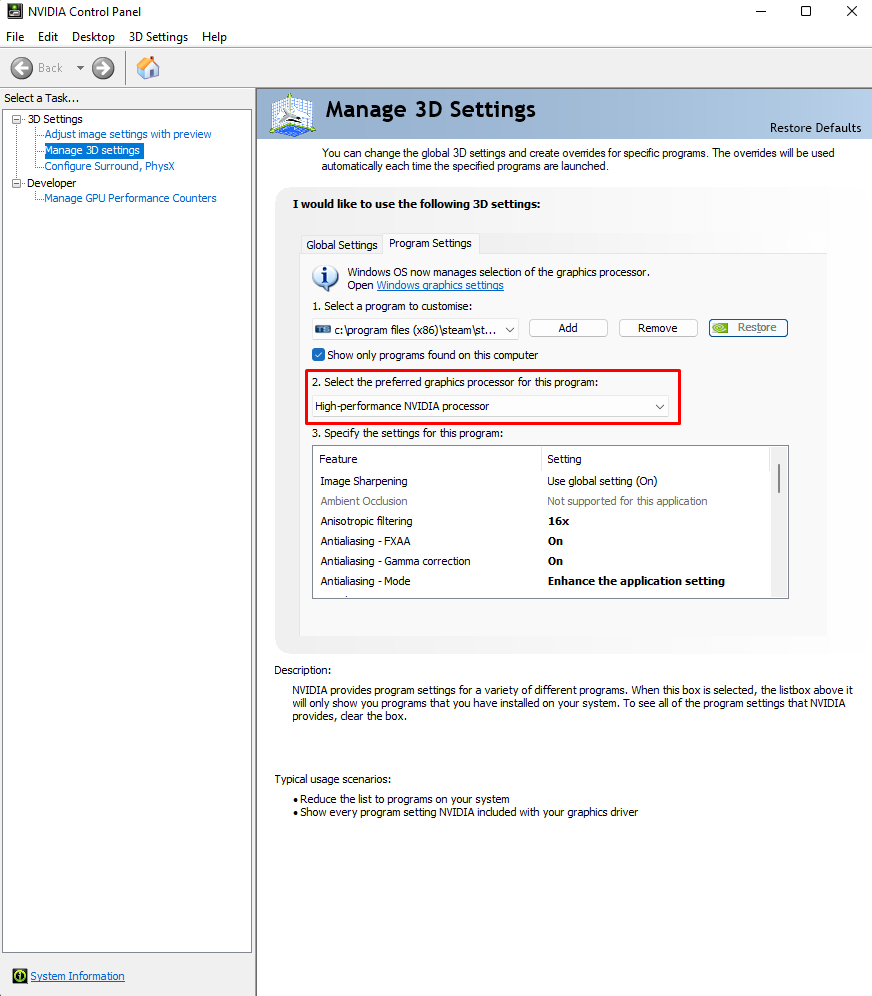
This ensures that the game will make full use of your video card's memory.
Here's how. In the Windows settings (might be different or not even apply for versions of Windows earlier than Windows 11), Choose System > Display > Graphics and you should see the following dialogue window. Type RailWorks in the search box and you should see the 32-bit and 64-bit versions of the game.
Click on the one you want to check, choose options and then select 'High performance.'
Then save and exit.
Also open the control panel of your graphics card and make sure it is enabled for both versions of the game (32-bit and 64-bit).
This ensures that the game will make full use of your video card's memory.
Hardware-accelerated GPU Scheduling
Turn on hardware-accelerated GPU scheduling.
With Windows 10 May 2020 update, Microsoft introduced a new GPU scheduler as a user opt-in, but off by default option. With the right hardware and drivers, Windows can now offload most GPU scheduling to a dedicated GPU-based scheduling processor.
To enable hardware-accelerated GPU scheduling using Windows 10 or Windows 11 Settings, follow this procedure:
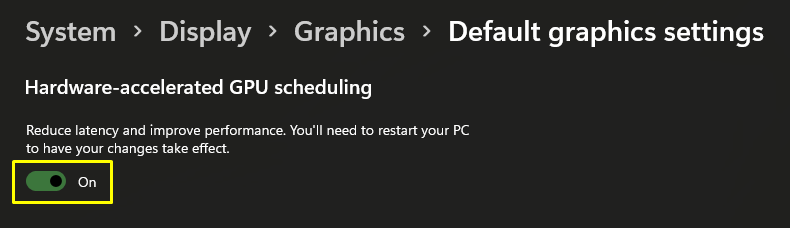
Reboot your Windows device to apply the changes.
With Windows 10 May 2020 update, Microsoft introduced a new GPU scheduler as a user opt-in, but off by default option. With the right hardware and drivers, Windows can now offload most GPU scheduling to a dedicated GPU-based scheduling processor.
To enable hardware-accelerated GPU scheduling using Windows 10 or Windows 11 Settings, follow this procedure:
- Open Settings
- Select System > Display tab.
- Locate Multiple displays
- Click on Graphics Settings.
- Select the Change Default Graphics Settings option.
- To enable the feature, toggle ON the button next to the Hardware-accelerated GPU scheduling.
Reboot your Windows device to apply the changes.
The Windows Paging File
Very often, the issue causing the Out of Memory Error message can be prevented simply by adjusting the minimum and maximum size settings of the Windows Paging File, which is part of the Windows operating system.
The paging file can expand the amount of system-committed memory, or virtual memory, that a system can utilise.
The paging file extends the RAM’s capacity, as it stores RAM data that has not been used or accessed lately. Additionally, operations that exceed your system's physical RAM space are automatically sent to the paging file to be stored to free up RAM. A paging file can be read as a connected chunk of data from RAM, which is much faster than reading the data from multiple locations.
All computers need a paging file, whether you have over 64 GB of System RAM, or just 4 GB, as Windows may need it for important processes that may not be immediately apparent. Train Simulator also requires you to have a paging file and, without one set, it can directly affect the smooth running of the software.
A system managed Page File will be adequate is most use cases, unless you are experiencing problems.
If you are experiencing problems, you may wish to manually configure the settings to adjust its size and placement.
As regards what settings to use for your paging file, there are several schools of thought.
1. The first method (which is used in this guide) completely matches that given by Dovetail Games themselves in their Train Simulator Knowledgebase. You can check this out at the following link.
Managing Your Computer's Virtual Memory (Page File) In Windows [support.dovetailgames.com]
Under method 1, ideally your paging file size should be 1.5 times your physical memory at a minimum and up to 4 times the physical memory at most to ensure system stability. For example, say your system has 8 GB RAM. You can calculate your minimum paging file size with this equation: 8 GB x 1.5, and your maximum paging file size with this one: 8 GB x 4. The totals would be 12 GB and 32 GB of RAM respectively. Windows needs the figures in MB instead of GB and uses the binary interpretation for disk capacity, so multiply them by 1024. In the dialogue box you should enter the settings as 12,288 MB and 32,768 MB.
2. The second method recommended by Dr Mark Russinovich bases the ideal paging file size on the maximum total commit charge for the programs you like to have running at the same time. He says if you want to have some breathing room for potentially large commit demands, set the maximum to double that number.
You can check this out at the following link.
Pushing the Limits of Windows: Virtual Memory [techcommunity.microsoft.com]
Mark Eugene Russinovich is a Spanish-born American software engineer who serves as CTO of Microsoft Azure. He was a cofounder of software producers Winternals before it was acquired by Microsoft in 2006. He says some feel having no paging file results in better performance, but in general, having a paging file means Windows can write pages on the modified list (which represent pages that aren’t being accessed actively but have not been saved to disk) out to the paging file, thus making that memory available for more useful purposes (processes or file cache). So while there may be some workloads that perform better with no paging file, in general having one will mean more usable memory being available to the system (never mind that Windows won’t be able to write kernel crash dumps without a paging file sized large enough to hold them).
3. The third method involves setting both the minimum and maximum paging file sizes to double the expected normal maximum commit charge. By having the minimum and maximum sizes the same, you effectively create a fixed paging file which never changes size and is less likely to become fragmented. I have tested this method, and it seems to be adequate for me. However, its effectiveness will depend on your system.
You could also try using various launch options.
The -disablepagefilecheck launch option in Train Simulator Classic disables the check for the page file. This can be useful if you are experiencing issues related to virtual memory or if you want to bypass the game's default settings for the page file.
The -FPSLimit=60 launch option in Train Simulator Classic sets the maximum frames per second (FPS) to 60. This can help in maintaining a smooth and consistent performance, especially if your system struggles with higher frame rates or if you want to reduce the load on your hardware.
The -refresh 144 launch option in Train Simulator Classic sets the refresh rate to 144 Hz. This can be particularly useful if you have a monitor that supports a high refresh rate, as it can provide a smoother and more responsive gaming experience.
The paging file can expand the amount of system-committed memory, or virtual memory, that a system can utilise.
The paging file extends the RAM’s capacity, as it stores RAM data that has not been used or accessed lately. Additionally, operations that exceed your system's physical RAM space are automatically sent to the paging file to be stored to free up RAM. A paging file can be read as a connected chunk of data from RAM, which is much faster than reading the data from multiple locations.
All computers need a paging file, whether you have over 64 GB of System RAM, or just 4 GB, as Windows may need it for important processes that may not be immediately apparent. Train Simulator also requires you to have a paging file and, without one set, it can directly affect the smooth running of the software.
A system managed Page File will be adequate is most use cases, unless you are experiencing problems.
If you are experiencing problems, you may wish to manually configure the settings to adjust its size and placement.
As regards what settings to use for your paging file, there are several schools of thought.
- The Dovetail Games recommended (Microsoft documentation) method.
- The Mark Russinovich (Microsoft expert) method.
- The Fixed Paging File method.
1. The first method (which is used in this guide) completely matches that given by Dovetail Games themselves in their Train Simulator Knowledgebase. You can check this out at the following link.
Managing Your Computer's Virtual Memory (Page File) In Windows [support.dovetailgames.com]
Under method 1, ideally your paging file size should be 1.5 times your physical memory at a minimum and up to 4 times the physical memory at most to ensure system stability. For example, say your system has 8 GB RAM. You can calculate your minimum paging file size with this equation: 8 GB x 1.5, and your maximum paging file size with this one: 8 GB x 4. The totals would be 12 GB and 32 GB of RAM respectively. Windows needs the figures in MB instead of GB and uses the binary interpretation for disk capacity, so multiply them by 1024. In the dialogue box you should enter the settings as 12,288 MB and 32,768 MB.
2. The second method recommended by Dr Mark Russinovich bases the ideal paging file size on the maximum total commit charge for the programs you like to have running at the same time. He says if you want to have some breathing room for potentially large commit demands, set the maximum to double that number.
You can check this out at the following link.
Pushing the Limits of Windows: Virtual Memory [techcommunity.microsoft.com]
Mark Eugene Russinovich is a Spanish-born American software engineer who serves as CTO of Microsoft Azure. He was a cofounder of software producers Winternals before it was acquired by Microsoft in 2006. He says some feel having no paging file results in better performance, but in general, having a paging file means Windows can write pages on the modified list (which represent pages that aren’t being accessed actively but have not been saved to disk) out to the paging file, thus making that memory available for more useful purposes (processes or file cache). So while there may be some workloads that perform better with no paging file, in general having one will mean more usable memory being available to the system (never mind that Windows won’t be able to write kernel crash dumps without a paging file sized large enough to hold them).
3. The third method involves setting both the minimum and maximum paging file sizes to double the expected normal maximum commit charge. By having the minimum and maximum sizes the same, you effectively create a fixed paging file which never changes size and is less likely to become fragmented. I have tested this method, and it seems to be adequate for me. However, its effectiveness will depend on your system.
You could also try using various launch options.
The -disablepagefilecheck launch option in Train Simulator Classic disables the check for the page file. This can be useful if you are experiencing issues related to virtual memory or if you want to bypass the game's default settings for the page file.
The -FPSLimit=60 launch option in Train Simulator Classic sets the maximum frames per second (FPS) to 60. This can help in maintaining a smooth and consistent performance, especially if your system struggles with higher frame rates or if you want to reduce the load on your hardware.
The -refresh 144 launch option in Train Simulator Classic sets the refresh rate to 144 Hz. This can be particularly useful if you have a monitor that supports a high refresh rate, as it can provide a smoother and more responsive gaming experience.
Changing the Windows Settings
Now you understand the function of the paging file (Page File), here's how to optimise it.
That's it. Your Windows paging file has now been optimised for Train Simulator (and other games), and this should help prevent those horrible Out of Memory errors.
- Go to the Windows Start Menu and click on Settings.
- Type performance.
- Choose Adjust the appearance and performance of Windows.
- In the new window, go to the Advanced tab and under the Virtual memory section, click on Change.
- Deselect the Automatically manage paging file size for all drives box at the top.
- Select the drive with your Windows operating system installed.
- Click Custom and enter a size range. Suppose your system has 32 GB or RAM. Your minimum paging file size can be calculated by 32 GB x 1.5, and your maximum paging file size can be calculated by 32 GB x 4. That's 48 GB minimum and 128 GB maximum. The dialogue box needs the figures in MB, so multiply by 1024. In this example, the system has a minimum paging file size of 49,152 and a maximum size of 131,072.
- Leave all the other drives alone.
- Click Set then Ok.
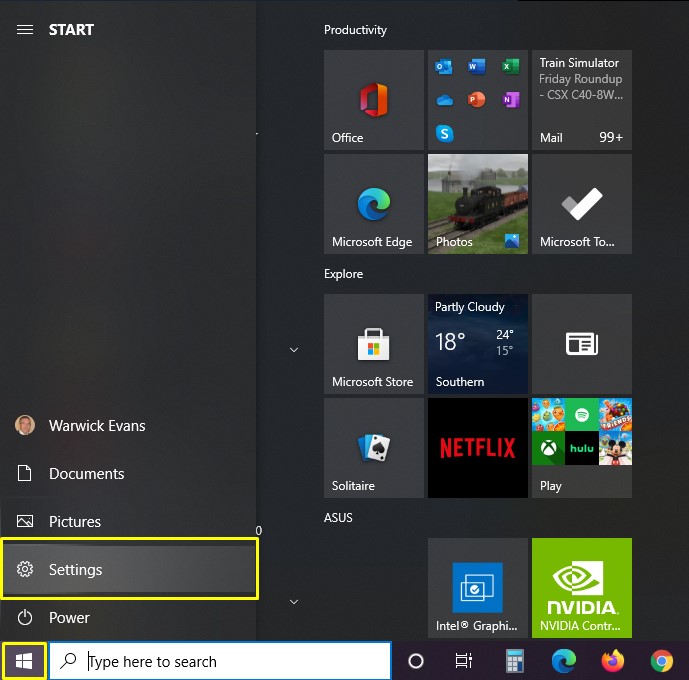
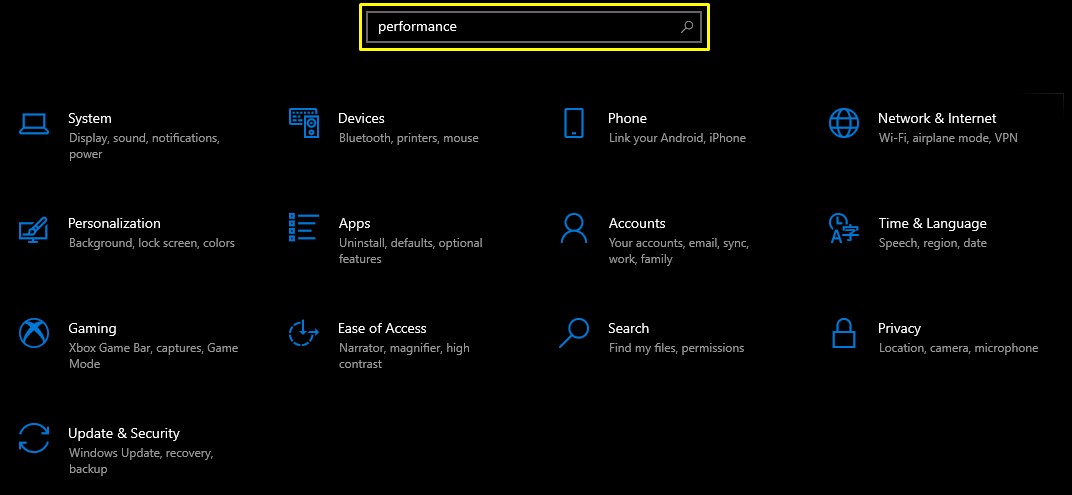
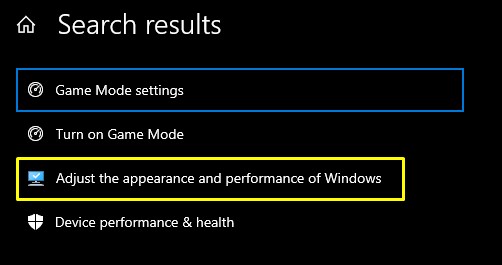
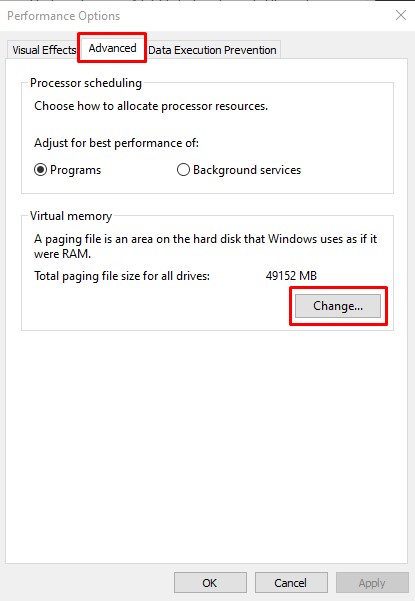
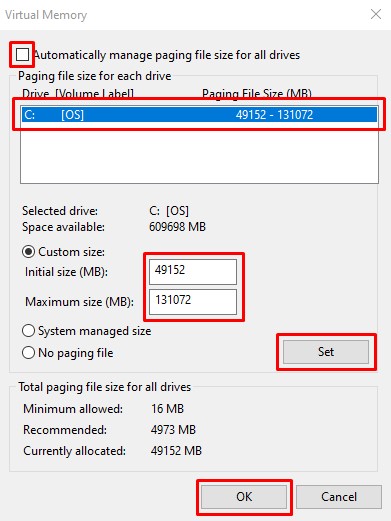
That's it. Your Windows paging file has now been optimised for Train Simulator (and other games), and this should help prevent those horrible Out of Memory errors.
Automatically Clearing the Paging File
It is possible to automatically clear the Windows Paging File at shutdown.
This is optional, but some reports say this is a good way to prevent the Out of Memory error. Peter Hayes, who is somewhat of an authority on Train Simulator with years of experience, says "the reason the paging file tweak works is not due to its size change but moving it to a different part of your disk drive. Remember the Paging File retains data (corrupt or otherwise) when Train Simulator shuts down and preferably should be emptied each time Windows closes."
*Please note, in some cases this automatic method can slow down the computer shutdown/restart process.
Here are the steps:
Start Regedit. (do this by typing regedit in the Windows Search box and clicking on Registry Editor)
Navigate to HKEY_LOCAL_MACHINE\SYSTEM\CurrentControlSet\Control\Session Manager\Memory Management
Find ClearPageFileAtShutdown from the list on the right.
Right click on it and select Modify.
Change the value to 1 to enable.
Reboot your computer.
This is optional, but some reports say this is a good way to prevent the Out of Memory error. Peter Hayes, who is somewhat of an authority on Train Simulator with years of experience, says "the reason the paging file tweak works is not due to its size change but moving it to a different part of your disk drive. Remember the Paging File retains data (corrupt or otherwise) when Train Simulator shuts down and preferably should be emptied each time Windows closes."
*Please note, in some cases this automatic method can slow down the computer shutdown/restart process.
Here are the steps:
Start Regedit. (do this by typing regedit in the Windows Search box and clicking on Registry Editor)
Navigate to HKEY_LOCAL_MACHINE\SYSTEM\CurrentControlSet\Control\Session Manager\Memory Management
Find ClearPageFileAtShutdown from the list on the right.
Right click on it and select Modify.
Change the value to 1 to enable.
Reboot your computer.
Clearing the Cache
It has been found that clearing the cache can greatly reduce the occurrence of the OOM error.
Clear the cache either before you start playing or editing, or after you finish. I do this as a matter of routine.
You can clear the cache via the Train Simulator settings/tools menu after the game loads.
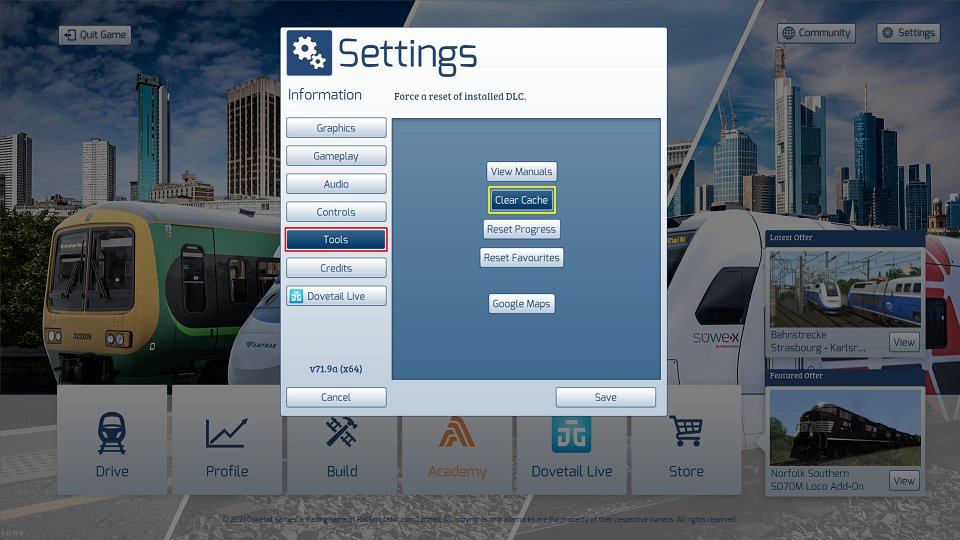
The in-game cache can become corrupted by crashes or by interrupting the loading process. If the cache has become corrupted, it may be necessary to force the game to rebuild the cache by deleting the existing cache files.
How to manually clear the cache outside of the game
You can create a batch file to do this.
Type the following in notepad (or any other text editor) and save the file as ClearCachcs.bat
Place this file in your Railworks\Content folder and run it to clear the cache manually.
You can create a shortcut to this batch file and place it on your desktop for convenience.
Clear the cache either before you start playing or editing, or after you finish. I do this as a matter of routine.
You can clear the cache via the Train Simulator settings/tools menu after the game loads.
The in-game cache can become corrupted by crashes or by interrupting the loading process. If the cache has become corrupted, it may be necessary to force the game to rebuild the cache by deleting the existing cache files.
How to manually clear the cache outside of the game
- Close Train Simulator.
- Open Steam, locate Train Simulator in the Library
- Right-click, go to Manage > Browse Local Files
- Open the folder Railworks\Content
- Delete every file with "cache" in the name
- Restart Train Simulator and allow it to rebuild the cache without interruption.
You can create a batch file to do this.
Type the following in notepad (or any other text editor) and save the file as ClearCachcs.bat
del SDBCache.bin
del SDBCache.bin.MD5
del RVDBCache.bin
del RVDBCache.bin.MD5
del TMCache.dat
del TMCache.dat.MD5
pause
Place this file in your Railworks\Content folder and run it to clear the cache manually.
You can create a shortcut to this batch file and place it on your desktop for convenience.
Verifying the Integrity of Game Files
Besides the paging file optimisation and clearing the cache, verifying the integrity of your game files can also prevent the Out of Memory error.
Verify Integrity of Game Files when you still have the OOM error or indeed any other unexplained problem..
It can be done via the Steam Library Page.
First right click on Train Simulator to bring up the dialogue, then select Properties
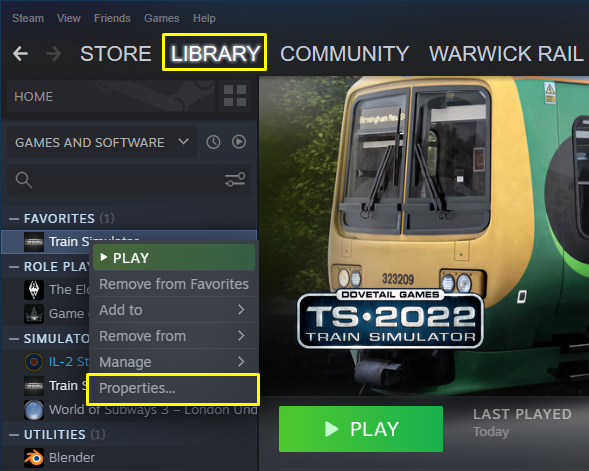
Now choose Local Files and then Verify Integrity of Game Files
![]()
Verify Integrity of Game Files when you still have the OOM error or indeed any other unexplained problem..
It can be done via the Steam Library Page.
First right click on Train Simulator to bring up the dialogue, then select Properties
Now choose Local Files and then Verify Integrity of Game Files
Turning Windows Game Mode OFF
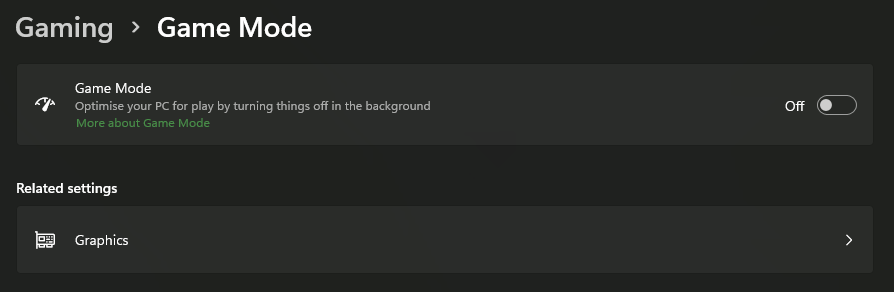
This is not directly related to the Out of Memory Error, but it can have an impact and also interfere with the smooth running of Train Simulator.
Although enabling Game Mode should usually prioritise games and minimise background tasks to improve performance, many games encounter poorer frame rates, stutters, and freezes.
In my experience, Train Simulator is one of these games, so I strongly advise you to turn Game Mode off.
Open the Start menu, select Settings, choose Gaming, Game Mode and under its settings turn Game Mode OFF.
Also under Gaming, choose Captures and make sure Background recording (Record what happened) is OFF - unless of course you actually need to do such recording.
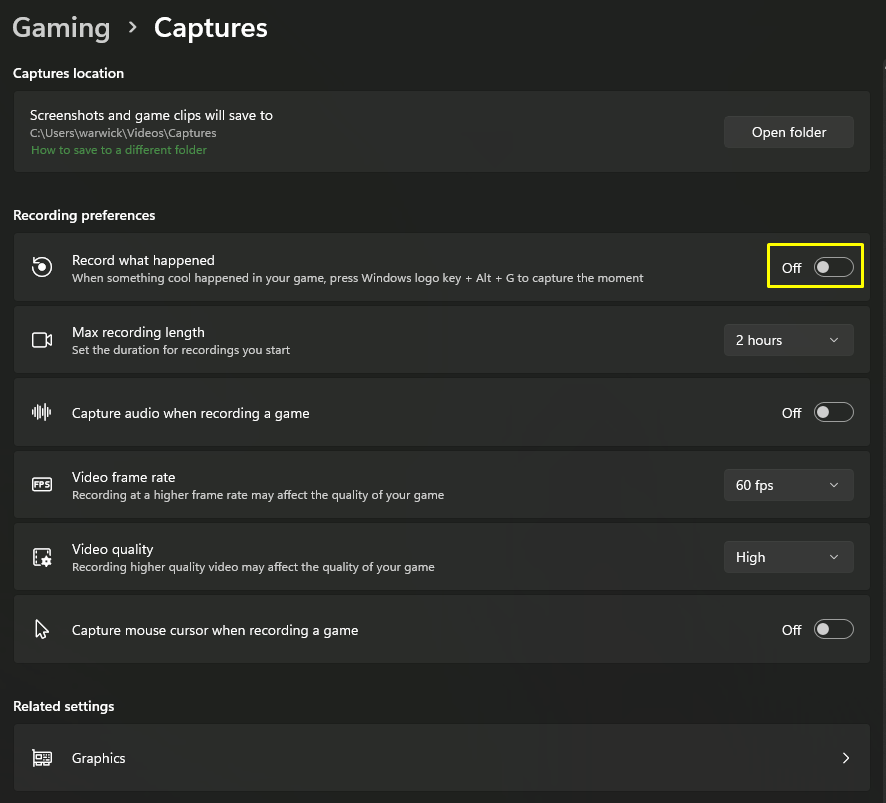
These changes should help to improve performance and result in better and smoother gameplay for Train Simulator, and may help prevent the OOM error.
Similar advice for Microsoft Flight Simulator is given at this website:
Flight Simulator Blog - Best Graphics Settings Guide [www.flightsimulator.blog]
Although enabling Game Mode should usually prioritise games and minimise background tasks to improve performance, many games encounter poorer frame rates, stutters, and freezes.
In my experience, Train Simulator is one of these games, so I strongly advise you to turn Game Mode off.
Open the Start menu, select Settings, choose Gaming, Game Mode and under its settings turn Game Mode OFF.
Also under Gaming, choose Captures and make sure Background recording (Record what happened) is OFF - unless of course you actually need to do such recording.
These changes should help to improve performance and result in better and smoother gameplay for Train Simulator, and may help prevent the OOM error.
Similar advice for Microsoft Flight Simulator is given at this website:
Flight Simulator Blog - Best Graphics Settings Guide [www.flightsimulator.blog]
Fixing Corrupt Workshop Scenarios
Those who encounter the Out of Memory Error and who cannot even start the game may in fact have a corrupt workshop scenario file on their system.
It is often recommended that they unsubscribe and delete their latest subscribed scenarios one by one until they can get the game restarted.
However, methodically unsubscribing from the scenarios in this fashion is not the best cure. It is much better to identify and deal with the specific scenario(s) causing the problem. You will find your workshop subscriptions under the following folder:
Program Files (x86)\Steam\steamapps\workshop\content\24010\
The well-known community contributor Cyclone has written excellent, clear and detailed instructions on how to proceed from here, so I shall simply provide the link:
Dealing With Corrupt Workshop Scenarios [forums.dovetailgames.com]
He very kindly informs me that if anyone has questions related to the handling of Workshop scenarios to avoid corrupt scenarios, he can possibly answer those questions.
It is often recommended that they unsubscribe and delete their latest subscribed scenarios one by one until they can get the game restarted.
However, methodically unsubscribing from the scenarios in this fashion is not the best cure. It is much better to identify and deal with the specific scenario(s) causing the problem. You will find your workshop subscriptions under the following folder:
Program Files (x86)\Steam\steamapps\workshop\content\24010\
The well-known community contributor Cyclone has written excellent, clear and detailed instructions on how to proceed from here, so I shall simply provide the link:
Dealing With Corrupt Workshop Scenarios [forums.dovetailgames.com]
He very kindly informs me that if anyone has questions related to the handling of Workshop scenarios to avoid corrupt scenarios, he can possibly answer those questions.
Give this Guide a Thumbs Up
If you have found the above advice and information useful, please rate this guide by giving it a thumbs up - and of course don't forget to add it to your favourites.
Thank You for the 43 Awards
I would just like to say a very big thank you for the 43 generous awards people have bestowed on this guide. Your kindness is most encouraging, and the awards are very much appreciated.
Our TSC Guides
We have written a range of guides for Train Simulator Classic
Click the link below to access them all:
Warwick Rail's TSC Guides
Here are the top 10.
https://steamcommunity.com/sharedfiles/filedetails/?id=2739089566
https://steamcommunity.com/sharedfiles/filedetails/?id=2365689194
https://steamcommunity.com/sharedfiles/filedetails/?id=2577919604
https://steamcommunity.com/sharedfiles/filedetails/?id=2361991441
https://steamcommunity.com/sharedfiles/filedetails/?id=2364751070
https://steamcommunity.com/sharedfiles/filedetails/?id=2205267954
https://steamcommunity.com/sharedfiles/filedetails/?id=2222378782
https://steamcommunity.com/sharedfiles/filedetails/?id=2297125586
https://steamcommunity.com/sharedfiles/filedetails/?id=2373171986
https://steamcommunity.com/sharedfiles/filedetails/?id=2940948768
Click the link below to access them all:
Warwick Rail's TSC Guides
Here are the top 10.
https://steamcommunity.com/sharedfiles/filedetails/?id=2739089566
https://steamcommunity.com/sharedfiles/filedetails/?id=2365689194
https://steamcommunity.com/sharedfiles/filedetails/?id=2577919604
https://steamcommunity.com/sharedfiles/filedetails/?id=2361991441
https://steamcommunity.com/sharedfiles/filedetails/?id=2364751070
https://steamcommunity.com/sharedfiles/filedetails/?id=2205267954
https://steamcommunity.com/sharedfiles/filedetails/?id=2222378782
https://steamcommunity.com/sharedfiles/filedetails/?id=2297125586
https://steamcommunity.com/sharedfiles/filedetails/?id=2373171986
https://steamcommunity.com/sharedfiles/filedetails/?id=2940948768
Copyright
This guide © Copyright Warwick Rail 2020-2025, all rights reserved. This item is not authorised for posting on Steam, except under the Steam account named Warwick Rail.
More Train Simulator Classic guides
- Driving and Firing Steam Engines★ 5 (1.1k)33k views1.1k ♥14 minUpdated Jan 3, 2013
- [ENG] TS2015 - Controls Overview★ 5 (641)26k views837 ♥3 minUpdated Mar 10, 2015
- Route maps★ 5 (408)22k views575 ♥28 minUpdated Mar 21
- Horn and Bell Use★ 5 (352)11k views345 ♥11 minUpdated Dec 26, 2025
- The Simple guide to - Scenario Creation★ 5 (278)10k views541 ♥15 minUpdated Nov 25, 2015
- Swapping the player's train in a scenario - no tools needed★ 4 (171)7.6k views289 ♥11 minUpdated Dec 26, 2025



This guide was created by its original author on the Steam Community. Are you the author and want it removed? Request removal.