How to Fix Resolution, Improve Graphics and Mouse Aim
Introduction
Call of Duty World at War is quite an old game, and it's starting to show its age. The graphics look a bit dated, it tends to crash when switching to high resolutions and the mouse control is a bit janky.
However, this doesn't have to be the case! In this guide we will look into how to fix those issues.
However, this doesn't have to be the case! In this guide we will look into how to fix those issues.
0. Prerequisites
In order to implement the fixes, we will need to do some changes to config files.
You can find the config files 'config.cfg'(for single player) and 'config_mp.cfg'(for multiplayer) in C:\Users\<your_username>\AppData\Local\Activision\CoDWaW\players\profiles\<profile_name>.
The folder 'AppData' is hidden, so make sure your Windows shows hidden files and folders.
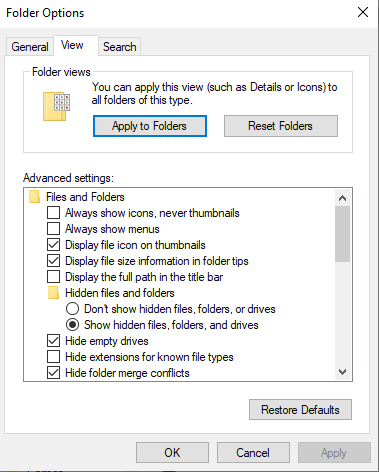
To do that, from a folder window go to View->Options->View tab and check the 'Show hidden files, folders and drivers' option, then hit Apply.
You can find the config files 'config.cfg'(for single player) and 'config_mp.cfg'(for multiplayer) in C:\Users\<your_username>\AppData\Local\Activision\CoDWaW\players\profiles\<profile_name>.
The folder 'AppData' is hidden, so make sure your Windows shows hidden files and folders.
To do that, from a folder window go to View->Options->View tab and check the 'Show hidden files, folders and drivers' option, then hit Apply.
1. Resolution and Refresh Rate Setup
To set up a custom resolution without risking a crash, change the value of 'seta r_mode' to your desired resolution.
- example: seta r_mode "2560x1600"
If the game doesn't pick up your monitor's aspect ratio, you can change 'seta r_aspectRatio' value to your desired ratio.
- example: seta r_aspectRatio "wide 16:10"
You can also set a custom monitor refresh rate by changing the value of 'seta r_displayRefresh' to your monitor's refresh ratre.
- example: seta r_displayRefresh "240 Hz"
If you want to play in Windowed mode, you can change the value of 'seta r_fullscreen' from "1" to "0" in 'config.cfg' and 'config_mp.cfg'.
- example: seta r_mode "2560x1600"
If the game doesn't pick up your monitor's aspect ratio, you can change 'seta r_aspectRatio' value to your desired ratio.
- example: seta r_aspectRatio "wide 16:10"
You can also set a custom monitor refresh rate by changing the value of 'seta r_displayRefresh' to your monitor's refresh ratre.
- example: seta r_displayRefresh "240 Hz"
If you want to play in Windowed mode, you can change the value of 'seta r_fullscreen' from "1" to "0" in 'config.cfg' and 'config_mp.cfg'.
2. Enhance Graphics
First off we will be uncapping the FPS. This can be done by changing 'seta com_maxfps' value to "0". If your GPU can output more FPS than your monitor's refresh rate, then you should also enable Fast-sync(Nvidia) or Enhanced Sync(AMD) from your GPU control panel for a smoother experience. Make sure to turn off V-sync in-game.
To obtain nicer, cleaner looking graphics, we can modify anti-aliasing type to supersampling by changing 'seta r_aaAlpha' value to "supersample (nice)". We'll also change 'seta r_aaSamples' value to "2", the maximum of 4 would be too expensive to use with supersampling.
On the note of graphics, I recommend disabling Specular Map from the graphics menu in game. I find the game looking much cleaner without it.
To obtain nicer, cleaner looking graphics, we can modify anti-aliasing type to supersampling by changing 'seta r_aaAlpha' value to "supersample (nice)". We'll also change 'seta r_aaSamples' value to "2", the maximum of 4 would be too expensive to use with supersampling.
On the note of graphics, I recommend disabling Specular Map from the graphics menu in game. I find the game looking much cleaner without it.
3. Mouse Smoothing Fix
If you found the aiming in this game to be a bit janky even after turning off mouse acceleration in the settings, you are not imagining things. The in-game mouse also has some sort of smoothing enabled, and we can get rid of it by forcing raw mouse input.
Before we do this, make sure that 'seta cl_mouseAccel' value is set to "0" in the configs.
In order to force mouse raw input, first make sure to enable the console from Game Options menu. Then, after starting a match, open the console(default key is `) and type 'cl_bypassMouseInput 1'.
Now the mouse aim will feel way better, but you won't be able to click things inside menus while this is active, so when you have to use the menu, first open the console and type 'cl_bypassMouseInput 0'.
Tip: You can use the console to bind the commands to keys for ease of use (props to conker):
bind O "cl_bypassMouseInput 1"
bind P "cl_bypassMouseInput 0"
Another way to improve the aiming experience is by turning on low-latency mode for this game in your GPU control panel.
Before we do this, make sure that 'seta cl_mouseAccel' value is set to "0" in the configs.
In order to force mouse raw input, first make sure to enable the console from Game Options menu. Then, after starting a match, open the console(default key is `) and type 'cl_bypassMouseInput 1'.
Now the mouse aim will feel way better, but you won't be able to click things inside menus while this is active, so when you have to use the menu, first open the console and type 'cl_bypassMouseInput 0'.
Tip: You can use the console to bind the commands to keys for ease of use (props to conker):
bind O "cl_bypassMouseInput 1"
bind P "cl_bypassMouseInput 0"
Another way to improve the aiming experience is by turning on low-latency mode for this game in your GPU control panel.
4. Improve Latency
The best thing you can do to improve connection quality in multiplayer is to add the application as exception to your firewall and to open the ports for CoD WaW in your router settings. You can consult this guide for more details: https://www.purevpn.com/port-forwarding/call-of-duty-world-at-war
Conclusion
These are all the improvements that I know for this game. I hope they were of use, let me know if you have some of your own that weren't mentioned in this guide.
More Call of Duty: World at War guides
- How to install and play custom zombie maps + other tips.★ 5 (927)101k views1.9k ♥3 minUpdated May 17, 2021
- Call of Duty: World at War Zombies Console Commands★ 5 (1.3k)77k views2.4k ♥2 minUpdated Jan 27, 2016
- Call of Duty: World at War Custom Zombies Map Links★ 5 (1.5k)60k views3.1k ♥5 minUpdated Feb 13, 2018
- CoD: WaW Commands.★ 5 (810)52k views1.6k ♥2 minUpdated Jun 24, 2016
- How to survive in round 2.★ 5 (1.1k)48k views297 ♥1 min
- How to get a Ray Gun in the campaign★ 5 (311)33k views444 ♥1 minUpdated Feb 11, 2016


This guide was created by its original author on the Steam Community. Are you the author and want it removed? Request removal.