How to Fix Texture and Graphical Issues
Fixing the Textures.
In your steam library, go to Batman Arkham Origins and click the “Manage” cog on the right. (It’s to the right of the “Play” button).
Click “Properties” and once the properties menu opens, choose the “Local Files” section and choose “Browse”.
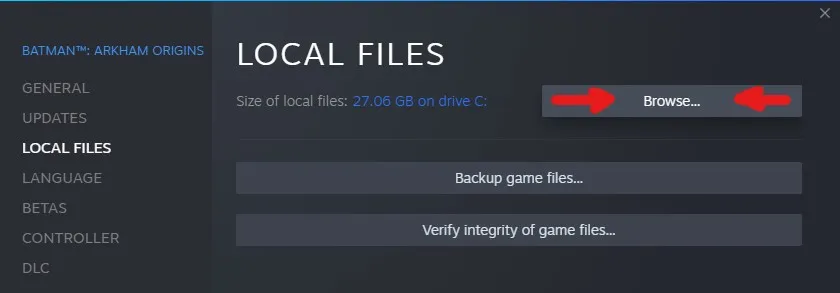
File explorer should open with two files available, “Online” and “SinglePlayer”.
- Open the “SinglePlayer” folder.
- Open the “BMGame” folder.
- Open the “Config” folder.
- Locate the “BmEngine.ini” and open it with Notepad.
Once you’ve opened “BmEngine.ini”, press the Ctrl key and F key at the same time, and search for “DetailMode”.
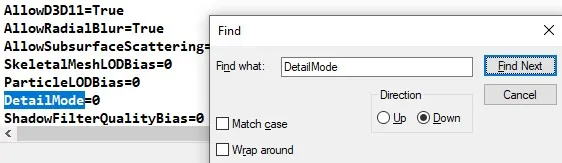
You should be moved to a line that states “DetailMode=0”. Change this line to “DetailMode=2, and then click “File” at the top left, and choose “Save”.
Click “Properties” and once the properties menu opens, choose the “Local Files” section and choose “Browse”.
File explorer should open with two files available, “Online” and “SinglePlayer”.
- Open the “SinglePlayer” folder.
- Open the “BMGame” folder.
- Open the “Config” folder.
- Locate the “BmEngine.ini” and open it with Notepad.
Once you’ve opened “BmEngine.ini”, press the Ctrl key and F key at the same time, and search for “DetailMode”.
You should be moved to a line that states “DetailMode=0”. Change this line to “DetailMode=2, and then click “File” at the top left, and choose “Save”.
Fixing the Shadows.
Open “BmEngine.ini” again, and once you’ve used Ctrl + F, search for “MaxShadowResolution=”.
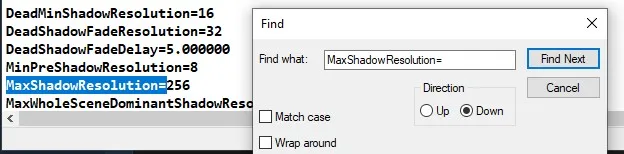
Once you come across it, change “MaxShadowResolution=256” to “MaxShadowResolution=1120”.
Click “Flie” at the top left and choose “Save”.
Once you come across it, change “MaxShadowResolution=256” to “MaxShadowResolution=1120”.
Click “Flie” at the top left and choose “Save”.
Comparison.
Original game running with vanilla settings:
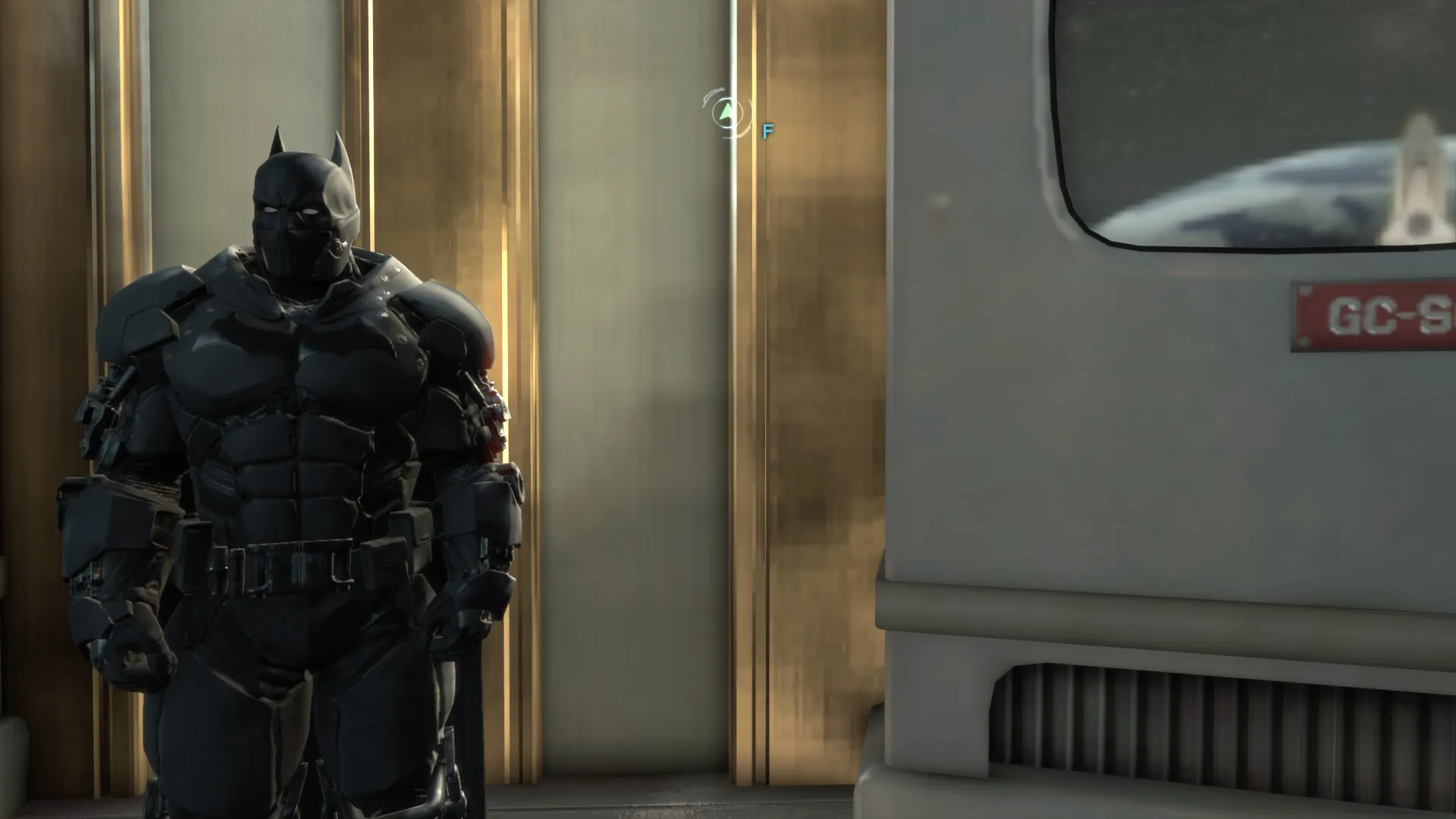
Settings changed / Higher detail level:
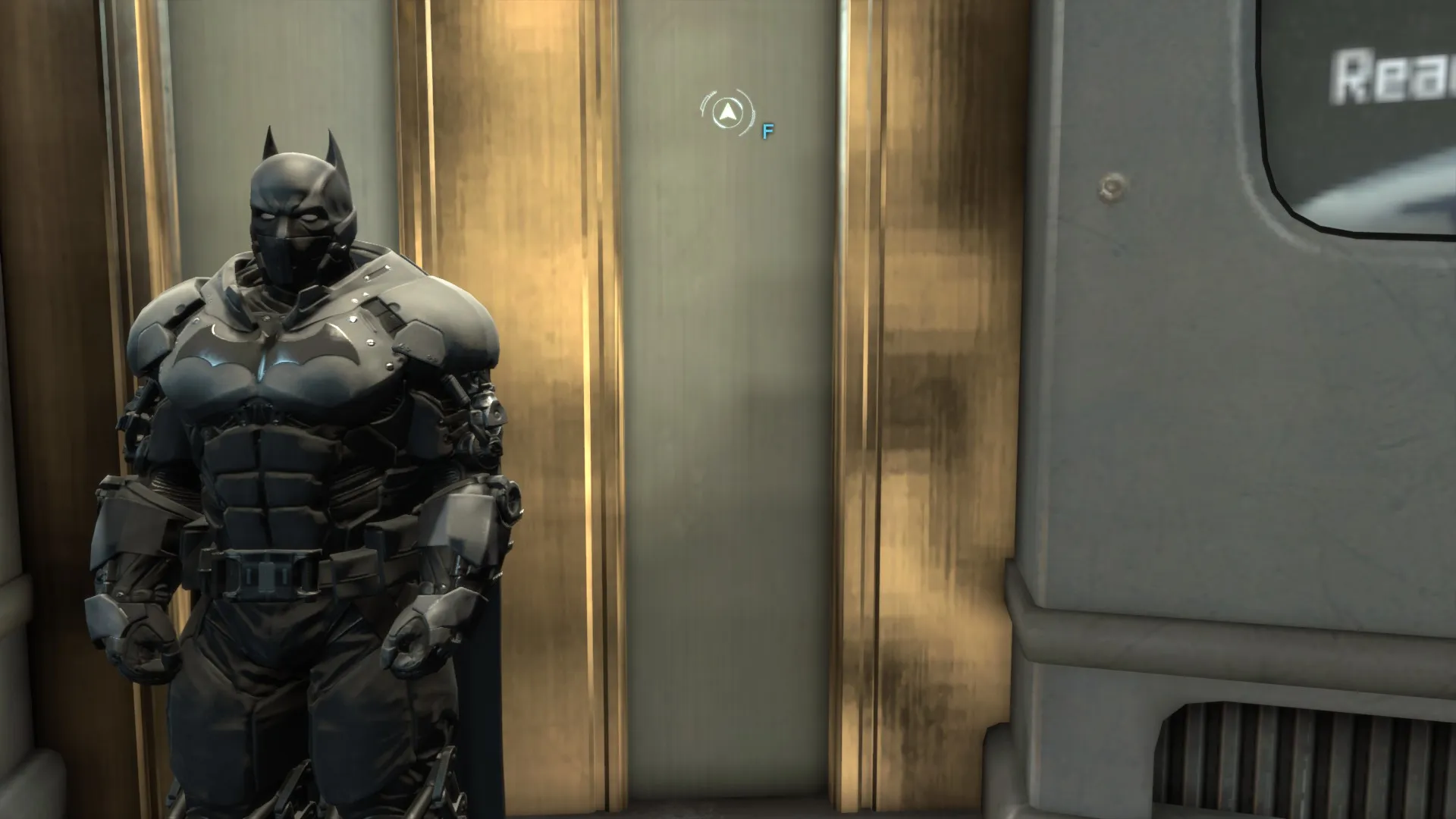
Written by HealthHazard
Settings changed / Higher detail level:
Written by HealthHazard
More Batman™: Arkham Origins guides
- How to Skip Intros★ 5 (974)35k views408 ♥1 minUpdated Jan 8, 2016
- Knightfall DLC on PC★ 5 (493)34k views928 ♥1 minUpdated Jan 28
- Arkham Origins - Missable Achievements★ 5 (508)25k views1.1k ♥25 minUpdated Apr 2, 2015
- ❤️ Re-Enable "MULTIPLAYER" in Arkham Origins ❤️★ 5 (445)21k views742 ♥2 minUpdated Apr 9, 2021
- Достижения : Batman AO★ 5 (1.1k)20k views1.2k ♥8 minRussianUpdated Jun 7, 2024
- Cold, Cold Heart DLC - All Achievements Screenshots & Video Guide★ 5 (638)16k views671 ♥5 minUpdated Mar 17, 2024


This guide was created by its original author on the Steam Community. Are you the author and want it removed? Request removal.