How to get Switch Joy-Cons working with VR!
Intro (real short)
This tutorial will guide you with using Switch joy-cons with your PCVR headset!
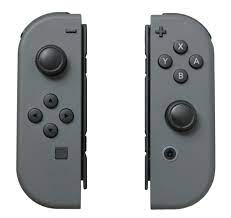
What you need
Switch Joy-cons (obviously)
SteamVR
Driver4VR
SteamVR
Driver4VR
The Tutorial!
1. Pair your joy-cons to Bluetooth. They can connect directly through the Windows Bluetooth menu.
2. Turn on the VR. Driver4VR should open!
3. Change 'Hand Tracking' to 'Virtual Tracker'
4. Press 'Tracker Manager' and 'Update List of devices'.
5. Press 'Device Support' (or whatever it is) and select Joy-cons. Change it to Yes.
6. Click on the Left Tracker and then choose Left Joy-con. Press assign. Do the same with Right Joy-con and tracker.
7. Start Driver4VR. Then let the Joy-cons calibrate.
... And that should be all!
2. Turn on the VR. Driver4VR should open!
3. Change 'Hand Tracking' to 'Virtual Tracker'
4. Press 'Tracker Manager' and 'Update List of devices'.
5. Press 'Device Support' (or whatever it is) and select Joy-cons. Change it to Yes.
6. Click on the Left Tracker and then choose Left Joy-con. Press assign. Do the same with Right Joy-con and tracker.
7. Start Driver4VR. Then let the Joy-cons calibrate.
... And that should be all!
Q&A
Q: Why are my controllers freezing so much?
A: Kinda depends on the Joy-cons. Not sure why, but it's an issue nonetheless.
Q: What do I do if the Tracking drifts?
A: Press the + or - (depending on the controller)
Q: What is the button mapping?
A: Press Tracker Manager and then VR Configuration. You'll see button mapping.
A: Kinda depends on the Joy-cons. Not sure why, but it's an issue nonetheless.
Q: What do I do if the Tracking drifts?
A: Press the + or - (depending on the controller)
Q: What is the button mapping?
A: Press Tracker Manager and then VR Configuration. You'll see button mapping.
The Driver4VR official tutorial
To better understand how to do this, I recommend this official tutorial from Driver4VR themself!
More Driver4VR guides


This guide was created by its original author on the Steam Community. Are you the author and want it removed? Request removal.