How to get the game to f**king work
Part 1: Compatibility
Short guide on what I had to do in order to get this game up and running. System is Windows 11 running on a 13900k. Dead Space does not like running on systems with a new OS (such as Windows 11), or on processors with a high core count (like a 13900k). So I got the worst of both worlds and had to manually fix the game in order to play it.
At this point, try to launch the game. If it works, great. That's it. You're done.
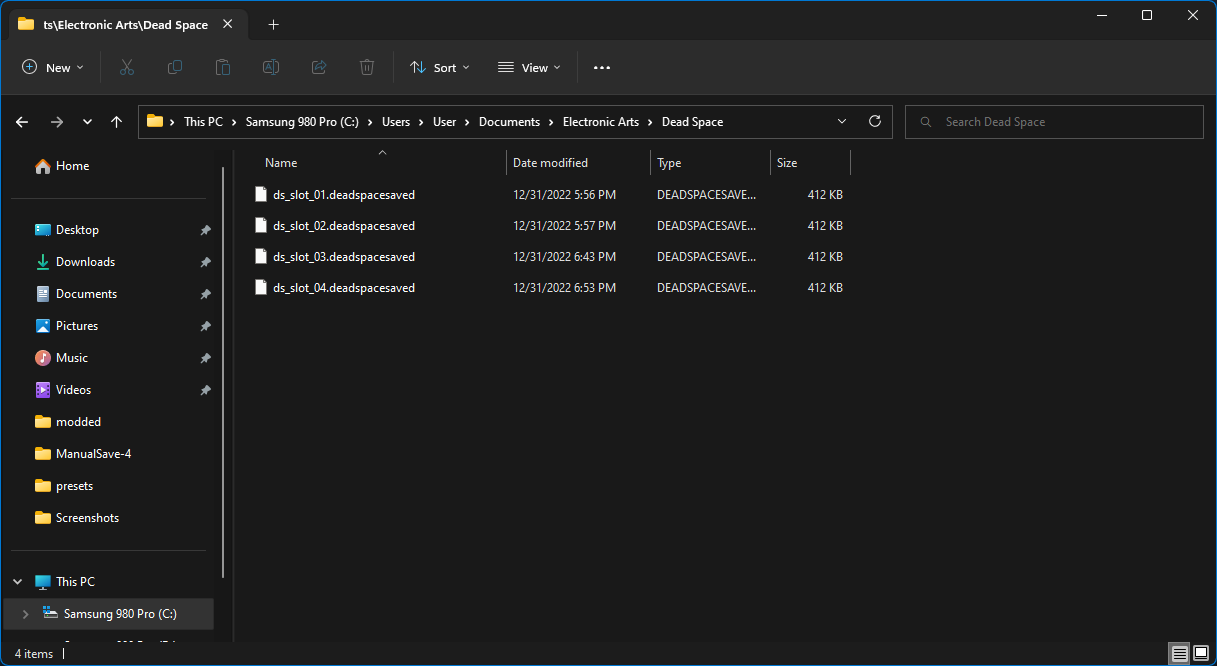
If you had save files, let the game go to the main menu, then exit out. Move the save files back into the C:\Users\[YOUR USERNAME]\Documents\Electronic Arts\Dead Space folder.
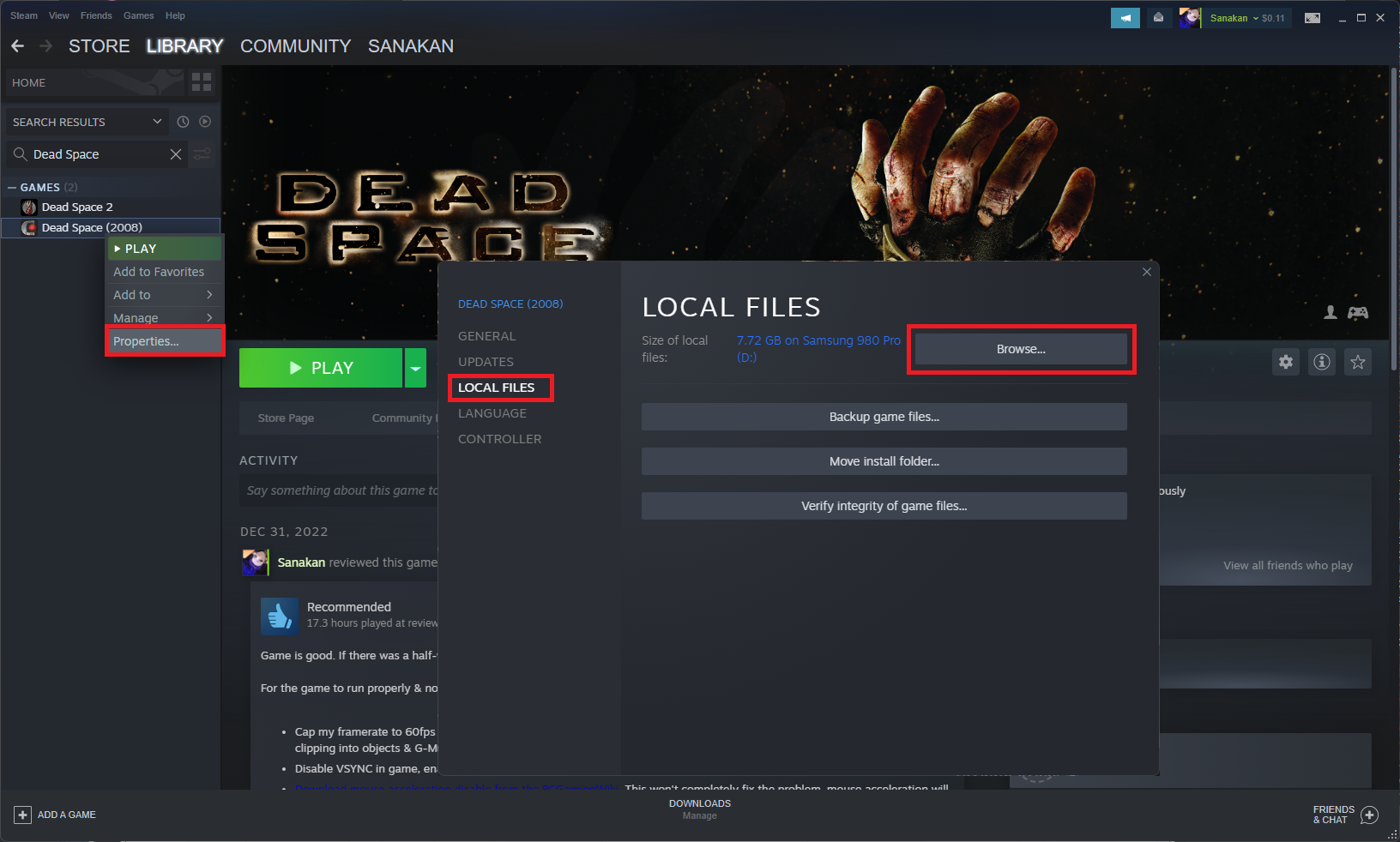
- Right click on the game in Steam, go to PROPERTIES/LOCAL FILES/BROWSE. This will take you to the main game directory.
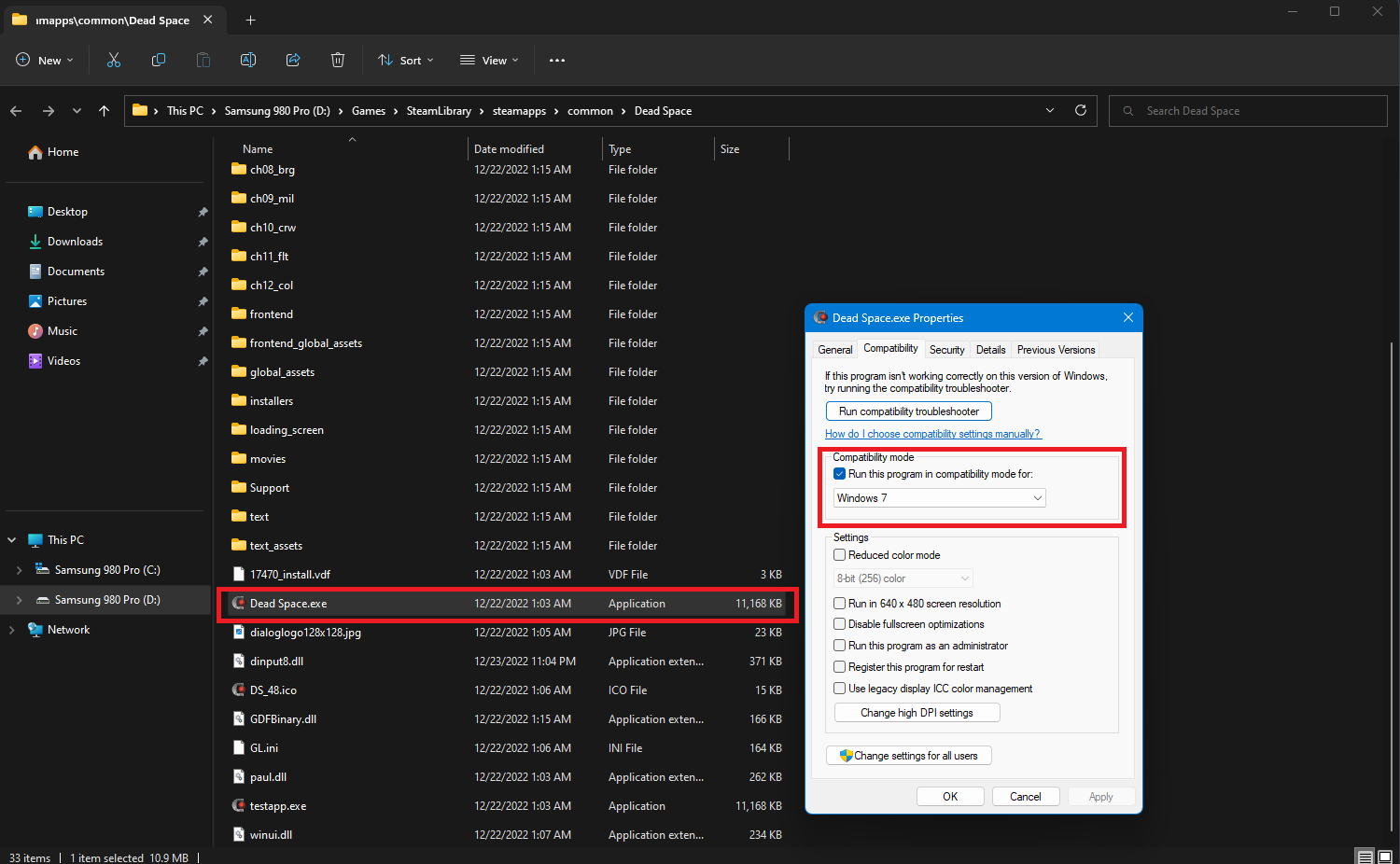
- Locate "Dead Space.exe," right click on it, PROPERTIES/COMPATIBILITY. Select "Run this program in compatibility mode for:" and in the drop-down menu immediately below it, select "Windows 7." NOTE: If Windows 7 does not work, try an older version. For me, both Windows 7 and Windows Vista worked.
- Hit APPLY, then OK.
- Go to C:\Users\[YOUR USERNAME]\Documents\Electronic Arts\Dead Space. IF YOU HAVE SAVES: copy your saves inside the Dead Space folder and paste them somewhere safe for now.
- Go back to C:\Users\[YOUR USERNAME]\Documents and delete "Electronic Arts" along with everything inside.
At this point, try to launch the game. If it works, great. That's it. You're done.
If you had save files, let the game go to the main menu, then exit out. Move the save files back into the C:\Users\[YOUR USERNAME]\Documents\Electronic Arts\Dead Space folder.
Part 2: IF THE GAME STILL DOESN'T LAUNCH
Author note: It's come to my attention that the free version of Process Lasso has an annoying pop-up. Check section 2.5 if you would prefer not to deal with this. I would PERSONALLY recommend against Process Lasso because of this change.
IF THE GAME DID NOT LAUNCH:
- Download Process Lasso[bitsum.com]. You only need the free version. This program allows you to control your CPU and how many cores processes can use. This is a useful functionality, as some games (like Dead Space) freak out when they detect a CPU with a lot of cores.
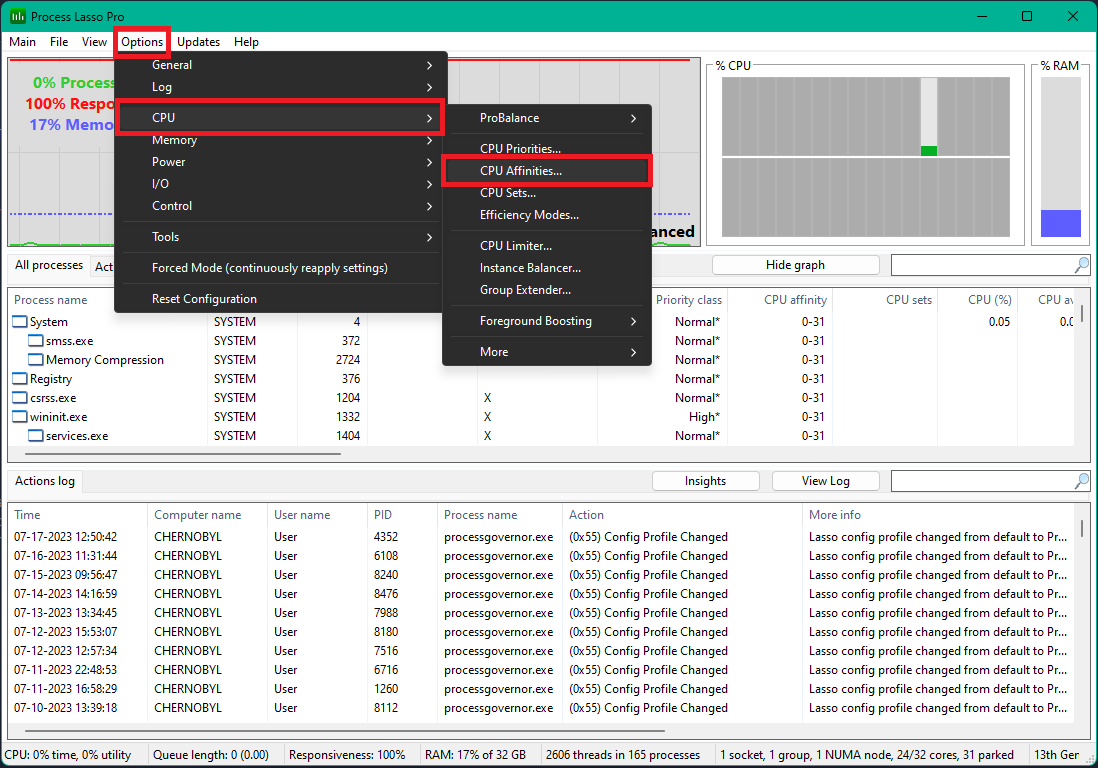
- Open Process Lasso. Don't freak out with the UI, what we're doing will be very simple. Go to OPTIONS/CPU/CPU AFFINITIES...
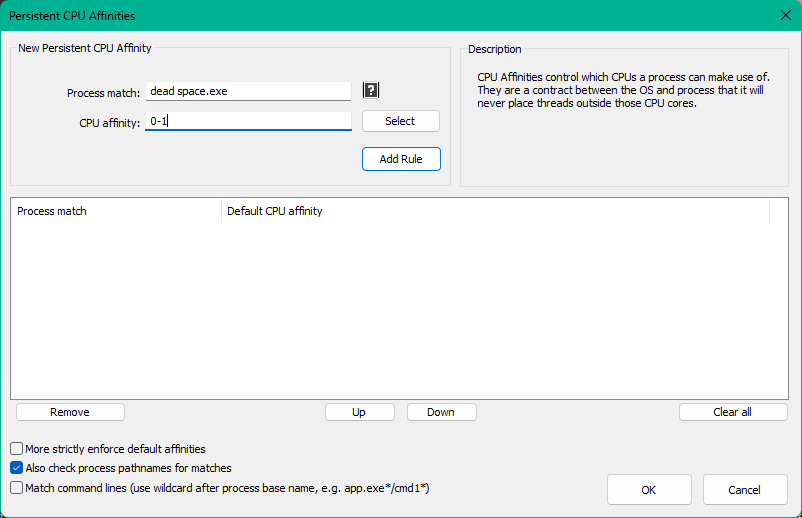
- Next we're going to designate cores for Dead Space to use. Dead Space only needs 2-4 cores to run properly. In the "Process match:" section, enter "Dead Space.exe" (without quotation marks). In "CPU affinity:" section, enter the cores you wish to assign.
- For basic users, enter 0-1 (this assigns core 0 & 1 to the process) or 0-3 (this assigns cores 0,1,2,3 to the process).
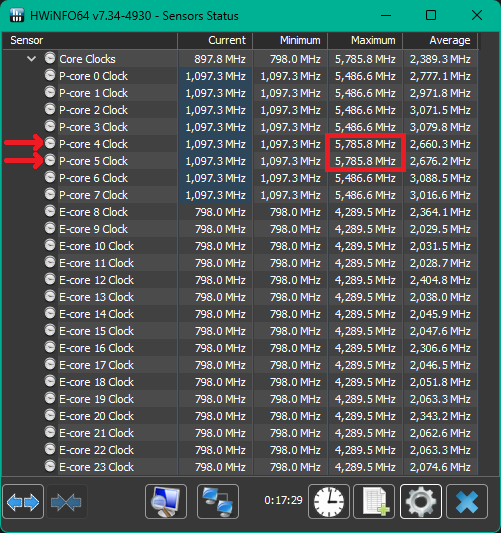
- For more advanced users, you can locate your fastest cores using software, such as HWiNFO64[www.hwinfo.com]. I can see that my fastest cores are 4 & 5, so I will assign cores 4,5,6,7 to the process, using the same process as described in step #3. This will allow Dead Space to access my 2 fastest cores, and 2 additional cores.
- Hit "Add rule" and then "OK".
Now try launching the game. If it is still returning an error, repeat the first set of instructions but with Windows Vista instead of Windows 7. Windows 7 worked for me, I've read that some people have needed to run it in compatibility mode with Windows Vista.
This is how I was able to get the game up and running.
Part 2.5: Process Lasso Alternative
It's come to my attention that the free version of Process Lasso has an annoying popup that users can not close for 10 seconds. That's unacceptable.
Here is an open-source alternative, Process Governor.[github.com] This program does not have that bullsh*t for free users. I've tested this program, and it works for the purposes of this guide.
NOTE 2: By default, Process Governor will not run on system start up. Create a shortcut to Process Governor.exe. Open "Run" on Windows (Windows key + R) and type shell:startup. Move the shortcut to the Startup folder.
Now try launching the game. If it is still returning an error, repeat the first set of instructions but with Windows Vista instead of Windows 7. Windows 7 worked for me, I've read that some people have needed to run it in compatibility mode with Windows Vista.
Here is an open-source alternative, Process Governor.[github.com] This program does not have that bullsh*t for free users. I've tested this program, and it works for the purposes of this guide.
- Download Process Governor[github.com]. Extract the files to a folder on your PC.
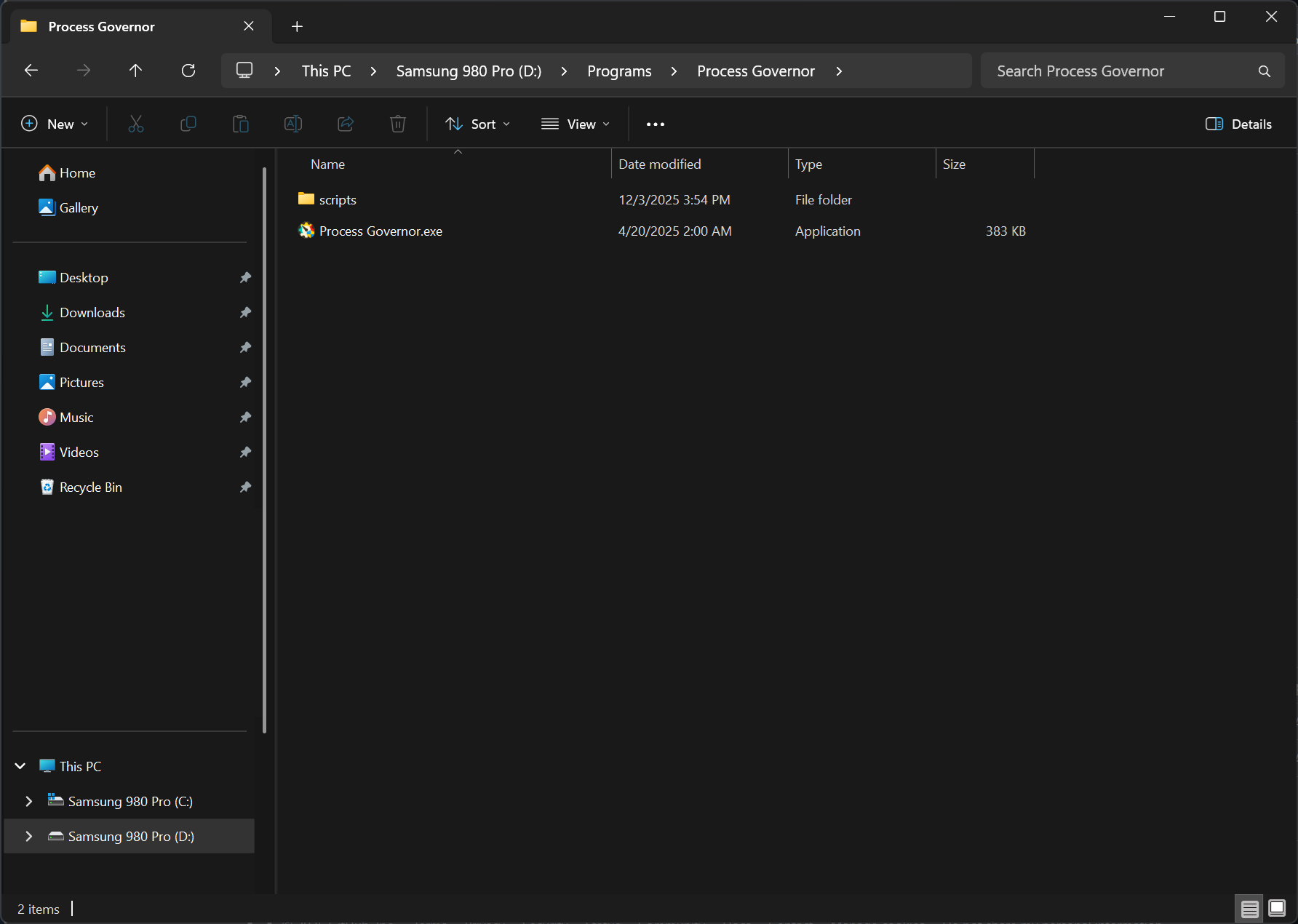
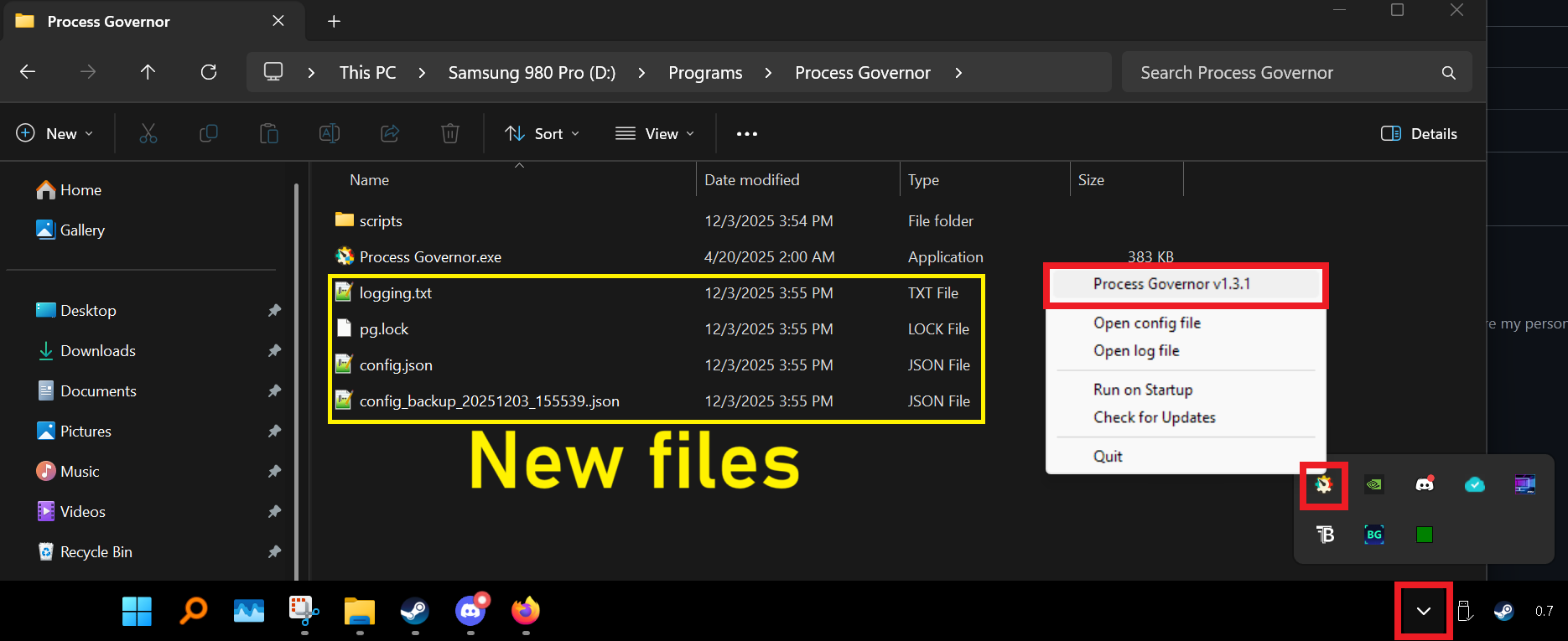
- Run Process Governor as administrator (it should by default). Note that it should generate additional files within the folder on running. It will also default to system tray, so you'll have to open it from there.
- Next we're going to designate cores for Dead Space to use. Dead Space only needs 2-4 cores to run properly. Head to the "Process Rules" section. Select "Add." A new, blank row should appear.
- For basic users, ensure that "Selector By" is "Name." For "Process Selector," enter "Dead Space.exe" (no quotations). Now whenever Process Governor detects a program "Dead Space.exe" running, it will apply the rule we're creating to that program. Leave "Priority" and "I/O Priority" empty, or default. For "Affinity," enter 0-1 (this assigns core 0 & 1 to the process) or 0-3 (this assigns cores 0,1,2,3 to the process). For "Force," select "Y."
- For more advanced users, you can locate your fastest cores using software, such as HWiNFO64[www.hwinfo.com]. I can see that my fastest cores are 4 & 5, so I will assign cores 4,5,6,7 to the process, using the same process as described in step #4. This will allow Dead Space to access my 2 fastest cores, and 2 additional cores.
- Hit "Save" and you're done. You can close out, the program will minimize to the tray.
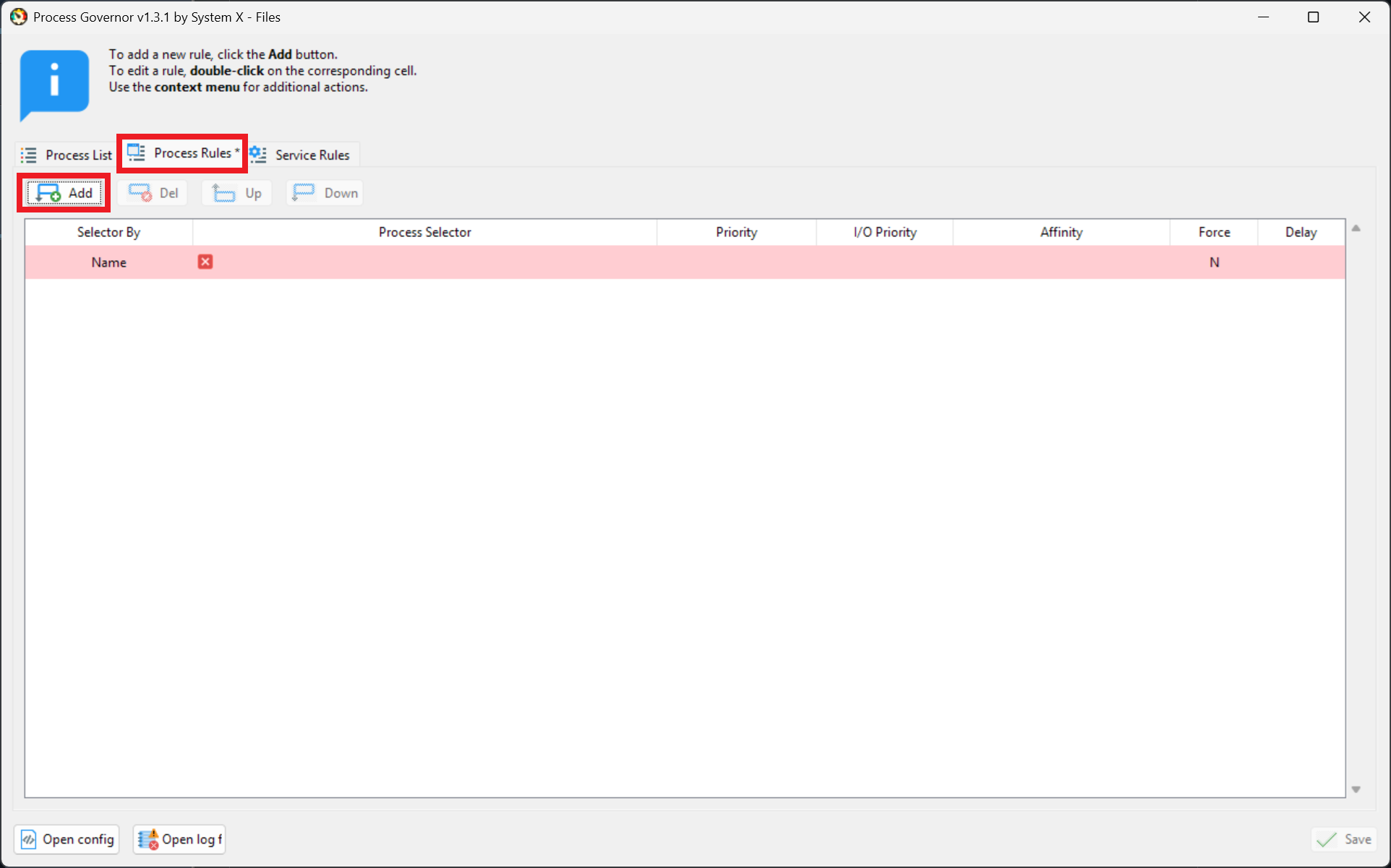
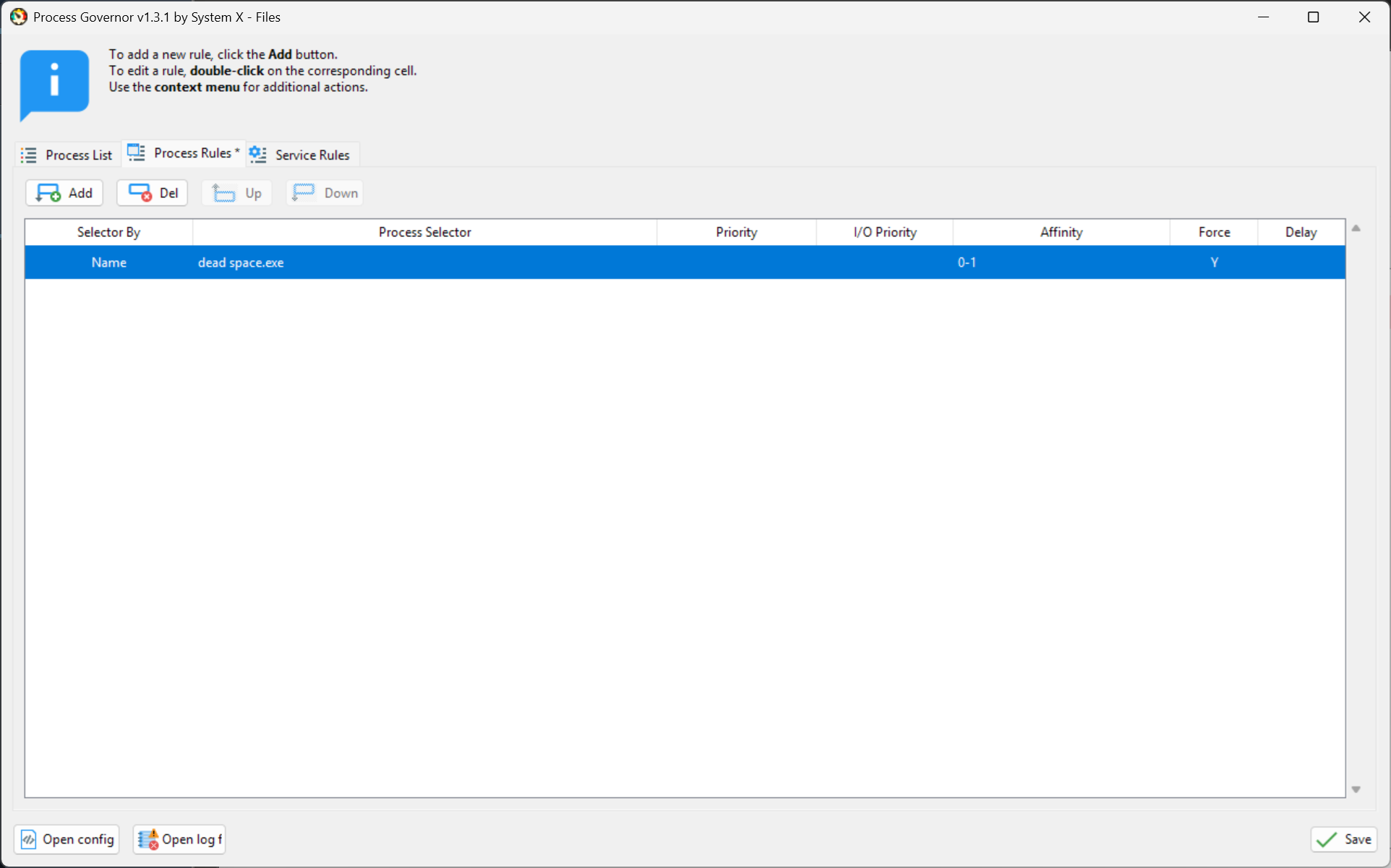
NOTE 2: By default, Process Governor will not run on system start up. Create a shortcut to Process Governor.exe. Open "Run" on Windows (Windows key + R) and type shell:startup. Move the shortcut to the Startup folder.
Now try launching the game. If it is still returning an error, repeat the first set of instructions but with Windows Vista instead of Windows 7. Windows 7 worked for me, I've read that some people have needed to run it in compatibility mode with Windows Vista.
Additional: Mouse Acceleration, PhysX
DO NOT USE IN-GAME VSYNC. It will halve your framerate and induce atrocious input lag.
Mouse Acceleration
Check out this guide to undo mouse acceleration in Dead Space:https://steamcommunity.com/sharedfiles/filedetails/?id=830188980
*Note that in certain sections, mouse acceleration will return briefly on certain surfaces.
PhysX
Dead Space is an old game, and an old console game at that. Running Dead Space at higher FPS can induce PhysX problems, most notably through my playthrough: a G-Mod like rag doll effect where the dead enemy ragdolls will consistently collide with other objects, creating a ton of noise and generally looking weird.The solution is simple. Use the in-game menu Options/Visuals/Resolution to select the appropriate resolution with 60 FPS.
More Dead Space (2008) guides
- How to fix mouse control problems★ 5 (651)45k views742 ♥3 minUpdated Jun 29, 2021
- Dead Space Weapons Guide - Best to Worst Weapons★ 5 (560)42k views467 ♥5 minUpdated Oct 11, 2014
- Русификатор текста и звука (доработанный)★ 5 (1.7k)38k views1.7k ♥1 minRussianUpdated Feb 28, 2019
- Dead Space 2K100: Mouse Fix, Anti Aliasing & Anisotropic Filtering, Fixed Brightness, Proper Vsync, Borderless Window, Bug Fixes★ 5 (468)31k views864 ♥5 minUpdated Jan 23, 2024
- Essential Fixes and Troubleshooting★ 5 (494)30k views746 ♥2 minUpdated Dec 1, 2024
- [RU] Полная русификация Dead Space★ 5 (366)22k views577 ♥1 minRussianUpdated Jan 6, 2020


This guide was created by its original author on the Steam Community. Are you the author and want it removed? Request removal.