How to run Project Brutality/Brutal DOOM on Steam for Windows! (UPDATED)
Getting Started
What you will need
*NOTE #1: This updated DOOM + DOOM II contains both versions.Please reference the visual guide as this is meant for the DOS version that has been packaged with the re-release update.
*NOTE #2: Please reference which version (pre or post April 10th 2025 update) you have. This will determine how you need to proceed with Step 8 of either guides.
▂▂▂▂▂▂▂▂▂▂▂▂▂▂▂▂▂▂▂▂▂▂▂▂▂▂▂▂▂▂▂▂▂▂▂▂▂▂▂▂▂▂▂
Project Brutality (For GZDoom only)*
- Project Brutality 3.0 (most recent version is located here [github.com].
- Latest GZDoom v4.5.0 here [zdoom.org]
- Doom WAD files and folders
▂▂▂▂▂▂▂▂▂▂▂▂▂▂▂▂▂▂▂▂▂▂▂▂▂▂▂▂▂▂▂▂▂▂▂▂▂▂▂▂▂▂▂
This is the updated guide from the guide that was created for the older versions: here
Project Brutality; GZDoom (post April 10th 2025 update)
- Have Doom purchased through Steam.
- Download the latest version of Project Brutality (currently 3.0)
- Download the latest version of GZDoom (currently v4.14.2)
- Install Doom then locate the folder in explorer (Steam/steamapps/common/(Ultimate Doom)/dosbox
- Open the GZDoom 7zip file you downloaded [e.g. gzdoom-4-12-2-Windows-64bit.zip]
- Open /dosbox folder (if you are in the Master Levels of Doom folder you will not see a /base folder. That's ok, just apply the following steps below in that folder -- as if you are treating it like it's a /dosbox folder)
- Copy all files from the GZDoom zip folder to your Steam Doom /dosbox folder
- April 10th 2025 UPDATE: Locate the Launcher.exe executable within the /dosbox folder, you will now need to delete Launcher.exe then rename gzdoom.exe to Launcher.exe
- Go to the GitHub Repository for Project Brutality 3.0 in the "Getting Started" Section
- Click on the Green Button that is labeled as "Code"
- Download as ZIP
- Once downloaded, rename "Project_Brutality-master.zip to "Project_Brutality-master.pk3 (it's important that you have File Name Extensions checked; in File Explorer, click the Ribbon dropdown > Go To View tab > Under Show/hide section > Make sure the "File Name Extentions" checkbox is enabled/checked)
- Copy/Move "Project_Brutality-master.pk3 over to the '/dosbox' folder located within the doom steam folder
- Run the game once to have the gzdoom-(YourPCUserNameHere).ini created automatically.
- Open the 'gzdoom-(YourPCUserNameHere).ini' and scroll down to where you see [doom.Autoload]
*NOTE: If the .ini file is not in this folder once you have launched the dosbox version of GZDoom, then it might be located in the following path: Documents»My Games»GZDoom. It may simply be named: gzdoom.ini (without your username).
- Type or Copy/Paste Path=Project_Brutality-master.pk3 right under [doom.Autoload], [doom.id.Autoload] and/or [doom.id.doom2.Autoload] if the autoload doesn't work for doom
- Rinse and repeat for however many Doom games you want to apply this to (The Ulitmate Doom, Doom II, Final Doom, and Master Levels of Doom)
- "Play" Doom through Steam, you will need to select the "Launch DOS version", and you will have Brutal Doom automatically loaded
- Enjoy
* - note (again) that you will need to run either Brutal Doom or Project Brutality, you cannot run both otherwise you will come across crashes
Project Brutality; GZDoom (pre April 10th 2025 update)
- Have Doom purchased through Steam.
- Download the latest version of Project Brutality (currently 3.0)
- Download the latest version of GZDoom (currently v4.14.2)
- Install Doom then locate the folder in explorer (Steam/steamapps/common/(Ultimate Doom)/dosbox
- Open the GZDoom 7zip file you downloaded [e.g. gzdoom-4-12-2-Windows-64bit.zip]
- Open /dosbox folder (if you are in the Master Levels of Doom folder you will not see a /base folder. That's ok, just apply the following steps below in that folder -- as if you are treating it like it's a /dosbox folder)
- Copy all files from the GZDoom zip folder to your Steam Doom /dosbox folder
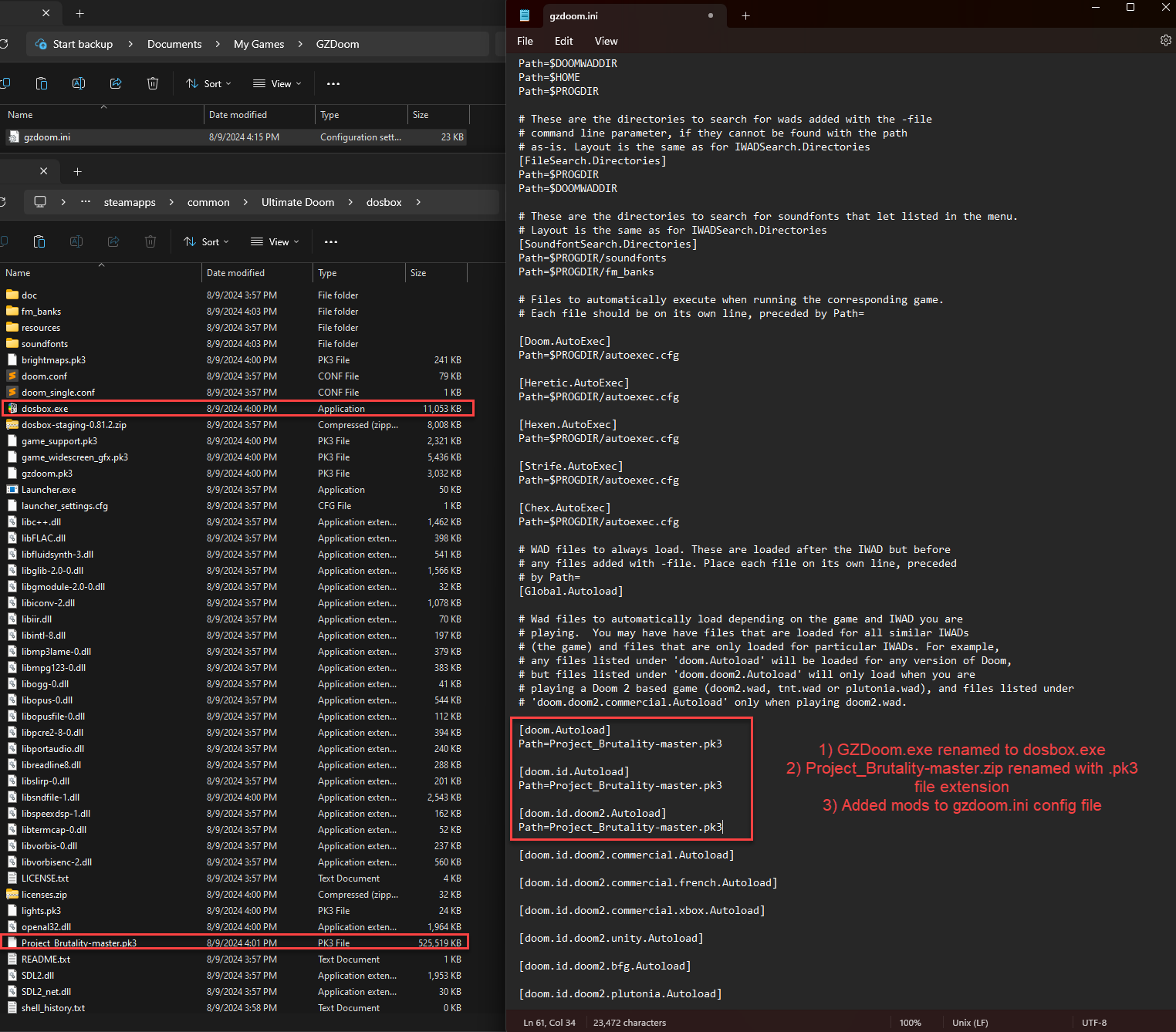
- Delete dosbox.exe, then rename gzdoom.exe to dosbox.exe
- Go to the GitHub Repository for Project Brutality 3.0 in the "Getting Started" Section
- Click on the Green Button that is labeled as "Code"
- Download as ZIP
- Once downloaded, rename "Project_Brutality-master.zip to "Project_Brutality-master.pk3 (it's important that you have File Name Extensions checked; in File Explorer, click the Ribbon dropdown > Go To View tab > Under Show/hide section > Make sure the "File Name Extentions" checkbox is enabled/checked)
- Copy/Move "Project_Brutality-master.pk3 over to the '/dosbox' folder located within the doom steam folder
- Run the game once to have the gzdoom-(YourPCUserNameHere).ini created automatically.
- Open the 'gzdoom-(YourPCUserNameHere).ini' and scroll down to where you see [doom.Autoload]
*NOTE: If the .ini file is not in this folder once you have launched the dosbox version of GZDoom, then it might be located in the following path: Documents»My Games»GZDoom. It may simply be named: gzdoom.ini (without your username).
- Type or Copy/Paste Path=Project_Brutality-master.pk3 right under [doom.Autoload], [doom.id.Autoload] and/or [doom.id.doom2.Autoload] if the autoload doesn't work for doom
- Rinse and repeat for however many Doom games you want to apply this to (The Ulitmate Doom, Doom II, Final Doom, and Master Levels of Doom)
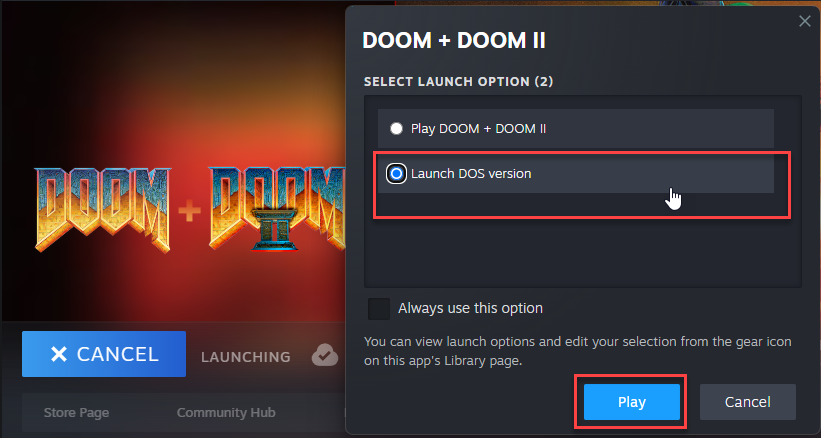
- "Play" Doom through Steam, you will need to select the "Launch DOS version", and you will have Brutal Doom automatically loaded
- Enjoy
* - note (again) that you will need to run either Brutal Doom or Project Brutality, you cannot run both otherwise you will come across crashes
Visual Guide (pre April 10th 2025 update)
More DOOM + DOOM II guides
- Secrets Guide for Episode 1: Knee-Deep in the Dead★ 5 (525)23k views905 ♥10 minUpdated Jan 17, 2020
- List of Doom Engine games on the Steam store★ 5 (593)22k views1.3k ♥3 minUpdated Jul 15
- 100% Steam Achievement Guide for Doom + Doom II★ 5 (966)19k views1.8k ♥6 minUpdated Jan 4, 2025
- DOOM + DOOM II 100% Achievements in 35 min!★ 4 (251)11k views456 ♥8 minUpdated Jun 30, 2025
- All Cheat Codes and Commands - DOOM + DOOM II (2024 remaster)★ 5 (170)8.6k views393 ♥3 minUpdated Oct 26, 2025
- 100% достижений в DOOM + DOOM II★ 5 (498)8.6k views867 ♥10 minRussianUpdated Oct 12, 2025


This guide was created by its original author on the Steam Community. Are you the author and want it removed? Request removal.