Mod-lists, Bypass Launcher, Restore Benchmarks, Skip Intro Movies, and Fixes for Common Issues
Installation
This is how you apply the fix:
- Download the fix as a self-extracting archive from this link[drive.google.com]
- Alternatively, you can download the fix as a standard zip-file[drive.google.com].
- Alternatively, you can download the fix as a standard zip-file[drive.google.com].
- Navigate to the game folder in File Explorer
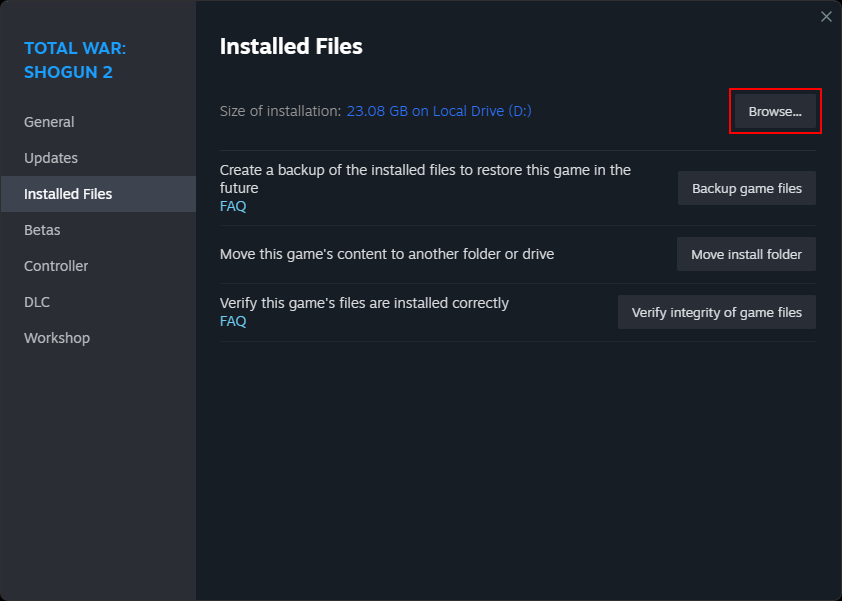
- To get to the main game folder, right-click the game in your Steam library, select the last option named “Properties…” and under the tab called either “Local Files” or “Installed Files” (depending on the version of the Steam client) click on the “Browse…” button.
- To get to the main game folder, right-click the game in your Steam library, select the last option named “Properties…” and under the tab called either “Local Files” or “Installed Files” (depending on the version of the Steam client) click on the “Browse…” button.
- Place the downloaded file directly into the main game folder.
- If you are using the exe-file, run "Total War SHOGUN 2 - Fix.exe", then click on "Extract".
- If you are using the zip-file, extract the contents of the archive into your main game folder (NOT into a separate folder within the game folder).
- If you are using the exe-file, run "Total War SHOGUN 2 - Fix.exe", then click on "Extract".
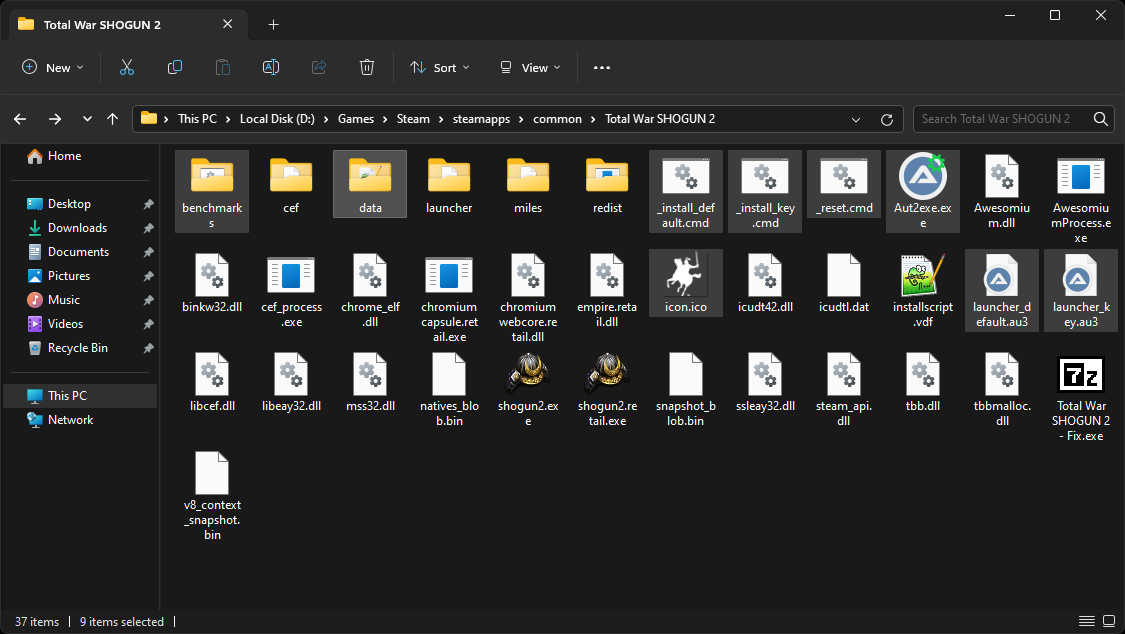
- Your game folder now should include "_reset.cmd" and other new files alongside the original ones such as "shogun2.exe" or the data folder. If you don't see the new files within the game folder itself, move them so that they are located in the base directory, as highlighted in the image above.
- If you want the Total War Launcher (TWL) to open by default, run "_install_default.cmd". In this case, holding a specific key (Shift by default) will directly run the game with the last selection of mods from the TWL. If you want the opposite behavior, whereby the Launcher opens only if you are holding a specific key (Shift by default) while starting the game, run "_install_key.cmd".
- To use a different key, before running the "_install_*.cmd", open "launcher_*.au3" with a text editor and in line 8 change the contents of the bracket for the "_IsPressed" function to the desired key based on this reference[www.autoitscript.com].
- To use a different key, before running the "_install_*.cmd", open "launcher_*.au3" with a text editor and in line 8 change the contents of the bracket for the "_IsPressed" function to the desired key based on this reference[www.autoitscript.com].
- After running the "_install_*.cmd" file, all unnecessary files of the fix are removed. However, note that the fix does not change any of the original game files, it merely renames the Total War Launcher folder. Furthermore, this modification is fully reversible, as described in the "Removal" section.
Mod-lists
In the new rework of the fix, I have made it possible to easily run a collection of mods simply by holding a specific key while the game is being launched. To set up a mod-list, follow the steps below:
Additionally, you can always decide to start the game in the vanilla state (no mods) by holding either the "0" (zero) or the "V" key.
- Run the game via the Total War Launcher (TWL) and load the mods in the order you want them to run
- After the game reaches the main menu, exit Shogun 2
- Navigate to the game folder in File Explorer
- To get to the main game folder, right-click the game in your Steam library, select the last option named “Properties…” and under the tab called either “Local Files” or “Installed Files” (depending on the version of the Steam client) click on the “Browse…” button.
- To get to the main game folder, right-click the game in your Steam library, select the last option named “Properties…” and under the tab called either “Local Files” or “Installed Files” (depending on the version of the Steam client) click on the “Browse…” button.
- Copy the "used_mods.txt" file to the "launcher\#_modlist" folder, where # stands for the number of the profile. For example, if you want to set up the 5th mod-list, you would copy the file into the "launcher\5_modlist" folder.
- To start the mod profile, hold a specific key (1-9) while launching the game.
Additionally, you can always decide to start the game in the vanilla state (no mods) by holding either the "0" (zero) or the "V" key.
Having Issues with "launcher.exe"?
If you are still having issues with "launcher.exe" it is likely because your AV considers it to be a harmful application due to issues with signed certificates. However, it is possible to check before running "_install_*.cmd" that the AutoIt code you are converting using Aut2exe ["launcher_*.au3"] to an executable is safe. After the included function for checking if a key is pressed (from "Misc.au3"), the script checks if you are holding specific key and launches the game with specific options based on your input.
Problems with sound and mods not loading?
Some users have reported that they are missing sound on the new version of the game. If this happens to you, try deleting both the the "preferences" and the "user" script files under "%APPDATA%\The Creative Assembly\Shogun2\scripts\" so that they can be regenerated by the game.
Bad game performance or limited graphics options
If you have both an integrated and a dedicated graphics card, the game might default to using the former. To change this, follow one of the following two guides depending on your OS (Win 10[pureinfotech.com] or Win 11[pureinfotech.com]) to set "shogun2.exe" located in the game directory to "High performance".
Secondly, to resolve the limited selection of graphics options caused by the game detecting only a small portion of the video memory, go to "%APPDATA%\The Creative Assembly\Shogun2\scripts" and open the "preferences.script.txt" file. Find the line specifying "gfx_video_memory" (for me it's line 13) and change the numerical value to -1. This should make it possible for the game to see up to 4 GB of video memory in the options menu.
Secondly, to resolve the limited selection of graphics options caused by the game detecting only a small portion of the video memory, go to "%APPDATA%\The Creative Assembly\Shogun2\scripts" and open the "preferences.script.txt" file. Find the line specifying "gfx_video_memory" (for me it's line 13) and change the numerical value to -1. This should make it possible for the game to see up to 4 GB of video memory in the options menu.
Multiplayer
If you want to play multiplayer against other players, you need to ensure that you are using the same mods. Unfortunately, due to the nature of the game, for the Skip Intro Movies function to work, its pack-file has to be of a specific type, making it not visible in the mod manager. As a result, the pack-file "$skip_intro.pack" is always loaded, which results in the game being considered modded. Thus, to play multiplayer against players that do not have this modification that skips introductory cinematics, you have to temporarily move the aforementioned file outside the game's data-folder. Alternatively, you can run the "vanilla" mod-list, which does this for you automatically and starts the game without any mods.
Removal
To revert the changes of this fix and remove all files it adds to the game, simply run "_reset.cmd" placed in the main game folder. Following this step, your game folder should be in the same state as it was prior to the application of this fix.
Conclusion
I hope the guide is clear and helps you enjoy the game. If you have any questions or feedback, don't hesitate to leave a comment or contact me directly.
More Total War: SHOGUN 2 guides
- The bonuses of all clans★ 5 (622)54k views710 ♥3 minUpdated Dec 28, 2020
- The Basics: Sun Tzu in Shogun 2★ 5 (1k)47k views1.5k ♥20 minUpdated Mar 20, 2021
- Shimazu - Everything you need to know★ 5 (564)44k views783 ♥10 minUpdated Jun 15, 2015
- Campaign Economy and Guidelines (S2, RotS, FotS) **Final version**★ 5 (564)38k views1.1k ♥20 minUpdated Oct 25, 2025
- On Rebels and Using Them to Your Advantage★ 5 (413)34k views454 ♥13 minUpdated Dec 5, 2021
- Ultimate Guide - Shogun 2★ 5 (274)21k views547 ♥25 minUpdated Nov 23, 2025




This guide was created by its original author on the Steam Community. Are you the author and want it removed? Request removal.