Optimization, Performance and Improvements
Introduction 📖
Hello, in this guide I will teach you how to play this amazing game in the best possible way, with just a few mods and changes made quickly and intuitively, do not be alarmed by the size of the guide or the number of steps, it is simple, I promise, after searching so much on the internet and finding complex tutorials, I decided to create a simplified and intuitive, These mods will guarantee you satisfactory performance, improved graphics, and plenty of bug fixes.
- To improve performance and fix issues and bugs, if that is your only goal, we will just follow these steps below, the rest are just optional and aesthetic improvements:
- Fusion Fix
- Various Fixes
- DXVK
- Increasing RAM usage
- Create the commandline File
- And if you've followed the entire guide, here it is a comparison of before and after applying all the mods in the guide, greatly improving graphics, increasing performance and being much more stable, both running at their maximum setting, external link as steam limits images up to 2MB: Imgur [imgur.com]
Important Notices
- It is essential that you perform a clean installation to avoid problems and incompatibility, especially if you have other mods installed, uninstall the game and delete the root folder, install the game again from steam, open the game once, steam will automatically install the necessary plugins, when you are in the menu, close the game and installing the mods from the guide, following the order, if you want to venture into installing other mods, just check compatibility with the current version of the game and patch mods, especially the Fusion Fix.
- YOU HAVE TO LOCK THE FRAMERATE AT 60, keeping frames above 60 can cause issues like: breaking game physics, causing glitches like incorrect acceleration, and issues with missions and strange behavior, like motorcycles skidding excessively, the Fusionfix mod adds an in-game tool to block.
- This guide is only focused on the latest version of the game, consequently popular mods like Liberty Rush and Zolika1351 are not compatible.
- Using the mods in this guide does not block achievements, only if you use codes and cheats.
- In all the tests carried out with the mods, installed individually, in pairs or in sets, I found no problems, but as each machine is different, there is no way to predict, in my tests I used Windows 11, with all drivers updated, I will not recommend graphics settings within the game as it depends on each setting.
For comparison purposes only, on my machine (Ryzen 7600, RTX 4060TI, and 32GB of RAM), at 2K/QHD resolution with all graphics settings maxed out and locked at 60 FPS, the game uses an average of 35% of the GPU, 2GB of RAM, and 2.5GB of VRAM.
I also recommend installing the game on an SSD; it GREATLY improves texture and screen loading times.
Known Bugs
- There is a bug in the game that causes some vehicles to have no engine sound for some time, this problem is related to the traffic density setting too high, I don't know of any solution, just decreasing the density of vehicles, the default value of consoles is 30, this bug has been known for years, Rockstar will not fix it.
Sorry for my terrible English, but I sincerely hope this helps you as much as it helped me, This is my first guide, I'm not familiar with the tools yet, I'll keep the guide updated often, sorry for any mistakes.
- If you have any questions, send comments in the guide, be polite.
- Updated guide and tested mods: 04/18/2026
Log update:
Console Visuals - mod added 04/18/2026
https://store.steampowered.com/app/12210/Grand_Theft_Auto_IV_The_Complete_Edition/
Fusion Fix
This is a mod that brings several improvements and fixes to the game, adding features and options to the menu, essential when playing GTA IV, in addition to allowing the installation of mods easily, almost the entire guide will be centered on this mod.
Note: This mod has an easter egg, between Christmas and New Year, the game activates a function automatically, it starts snowing, if you want to disable it manually, dial the number on the game phone: 766 555 0100.
Note 2: The creators included a version of DXVK in the mod package that they consider stable, it is up to you whether to use this version or a more updated one. If you want to use the one from the mod, just copy all the files. If not, I will teach you below how to download the most updated version.
Note: This mod has an easter egg, between Christmas and New Year, the game activates a function automatically, it starts snowing, if you want to disable it manually, dial the number on the game phone: 766 555 0100.
Note 2: The creators included a version of DXVK in the mod package that they consider stable, it is up to you whether to use this version or a more updated one. If you want to use the one from the mod, just copy all the files. If not, I will teach you below how to download the most updated version.
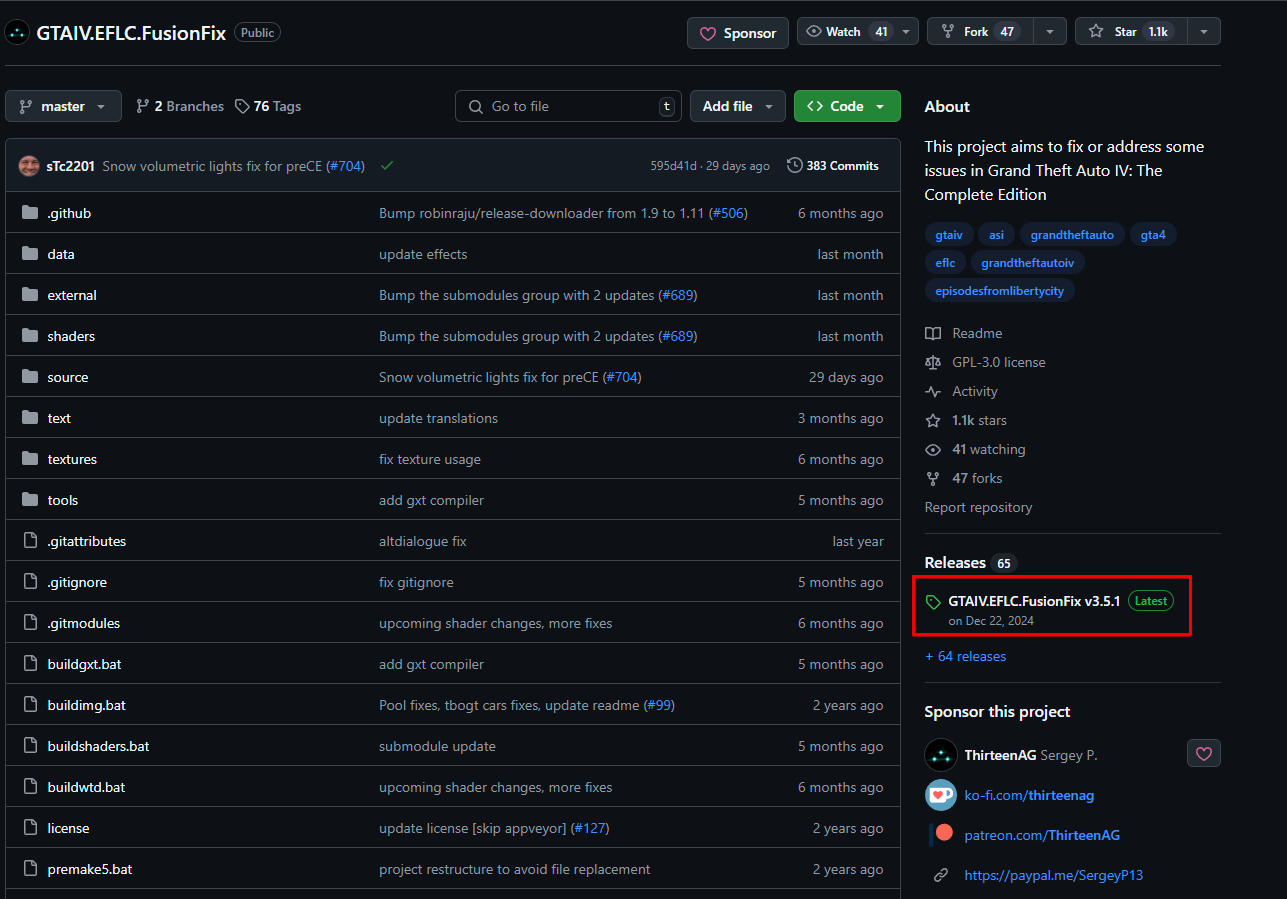
- First, download the mod from the link: Github [github.com]
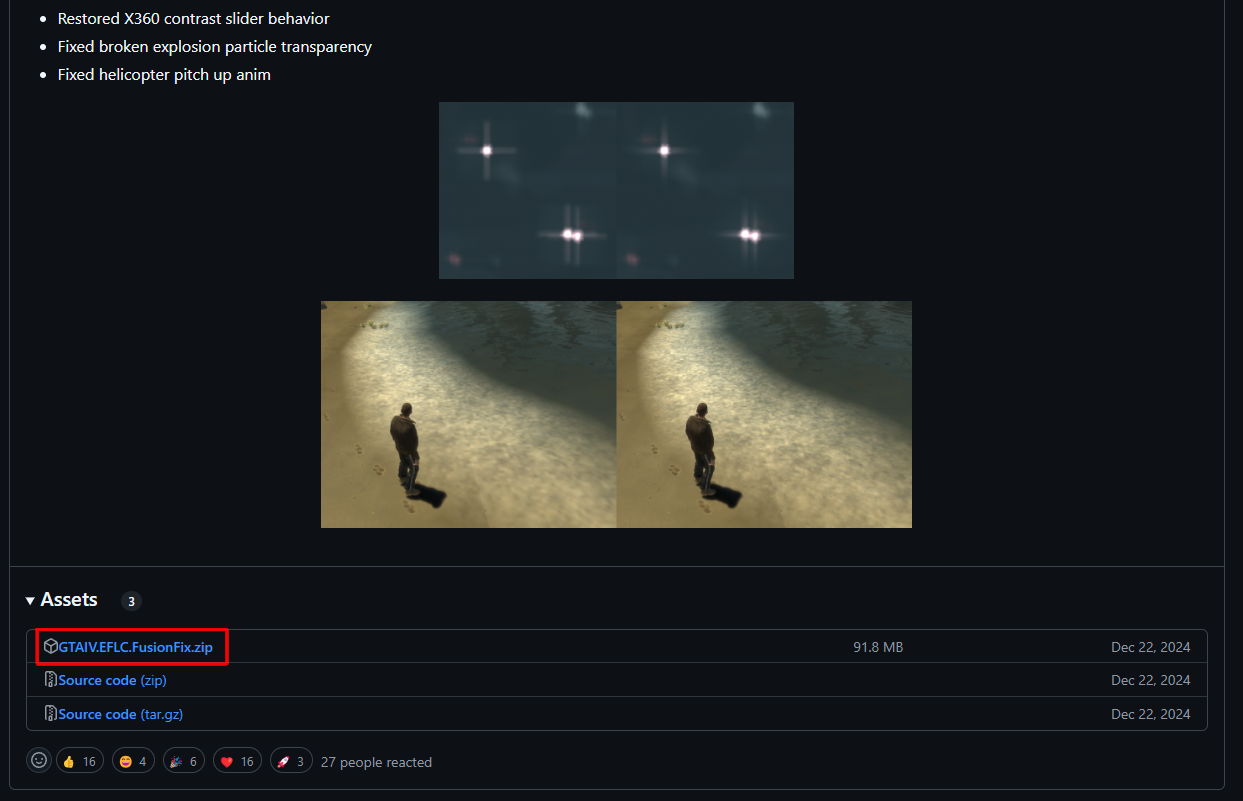
- Scroll to the bottom of the page and download the latest version:
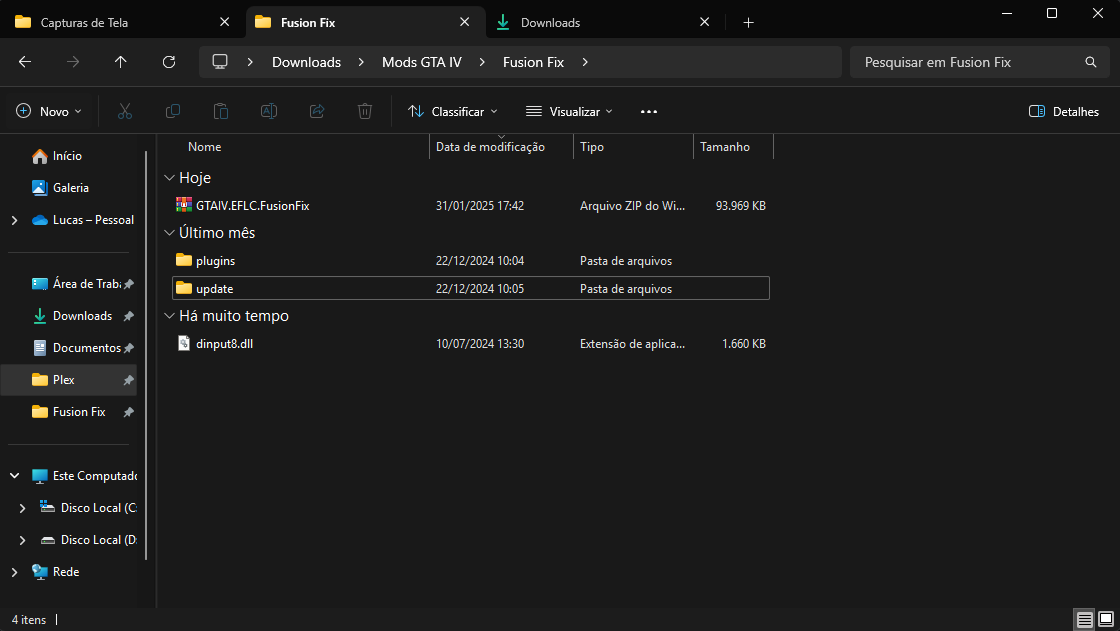
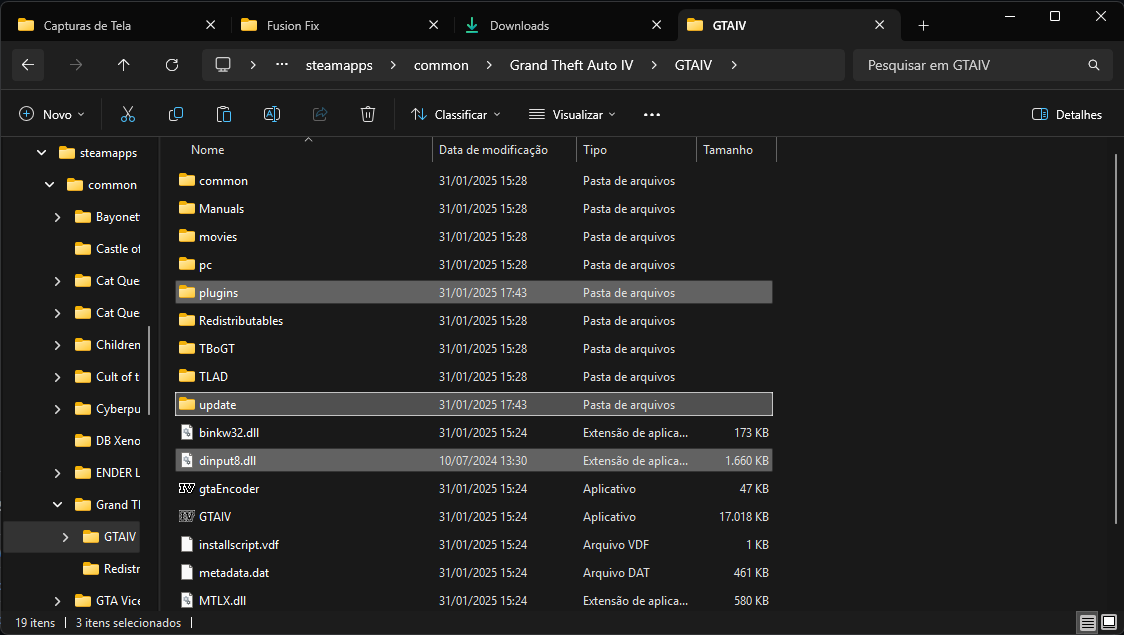
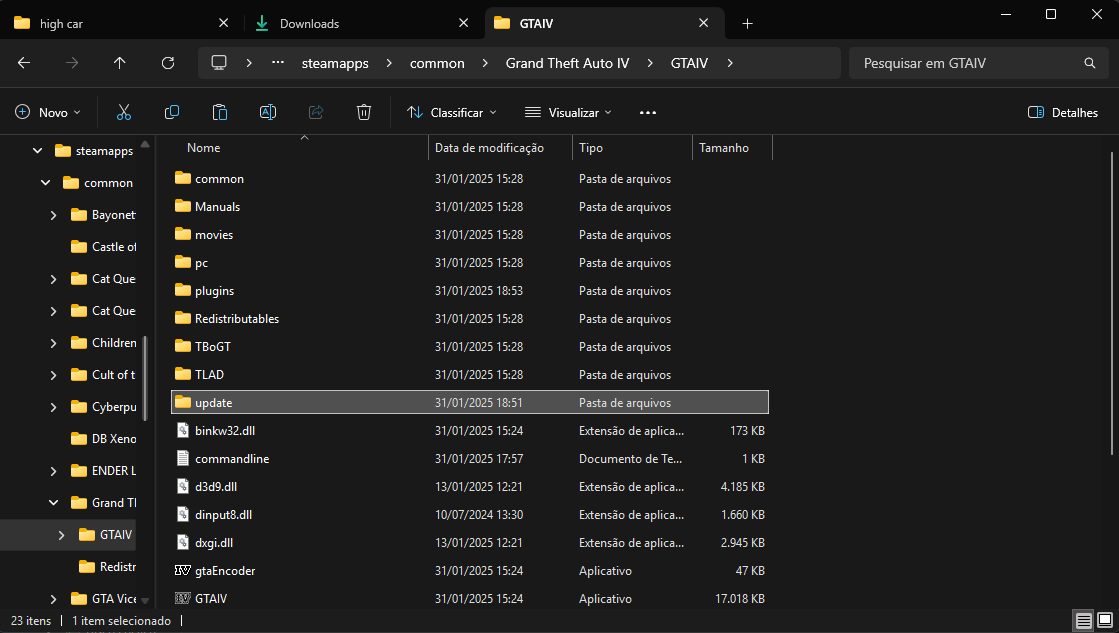
- After downloading, extract the compressed file and paste the files into the game's root folder:
- Steam\steamapps\common\Grand Theft Auto IV\GTAIV
Various Fixes
Various Fixes is a modification for Grand Theft Auto IV and EFLC, purpose of which is fix various kinds of bugs in game, this mod is not limited only on fixes, it also includes restoration of some things, console content, various texture improvements, etc.
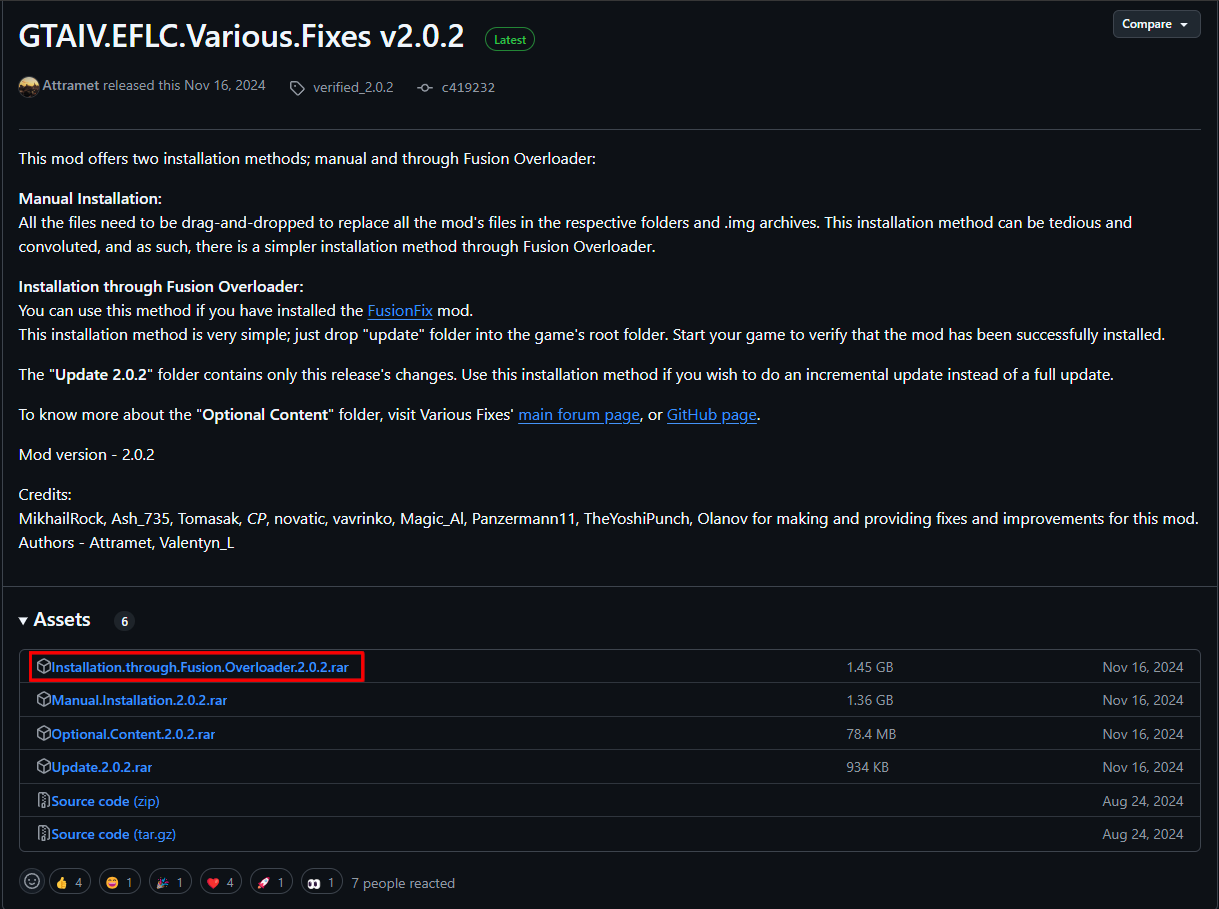
- First, download the mod from the link: Github [github.com]
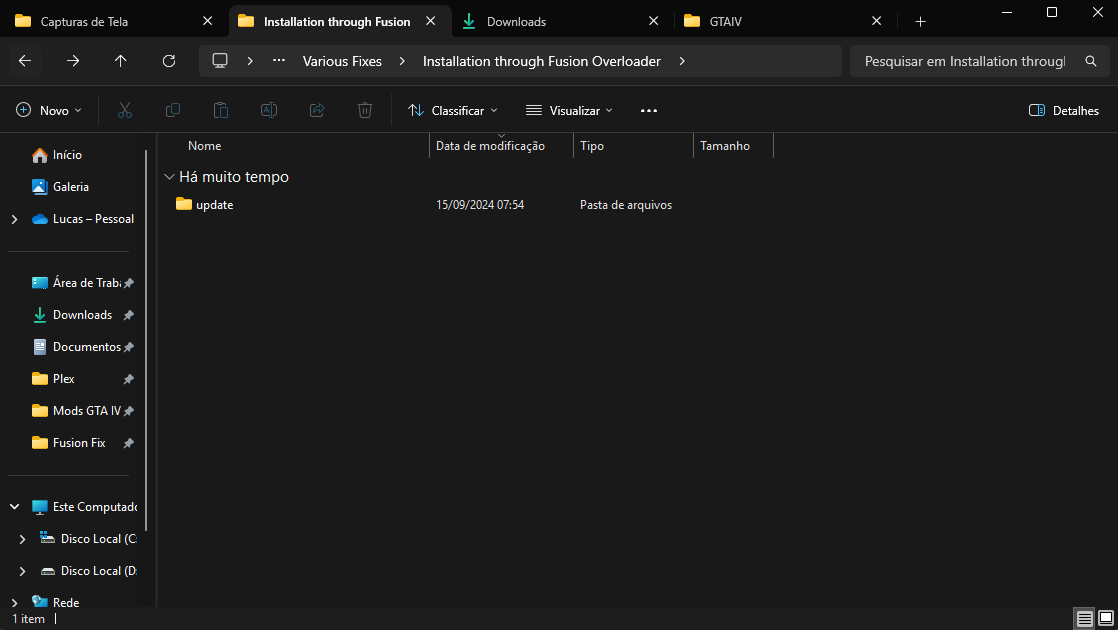
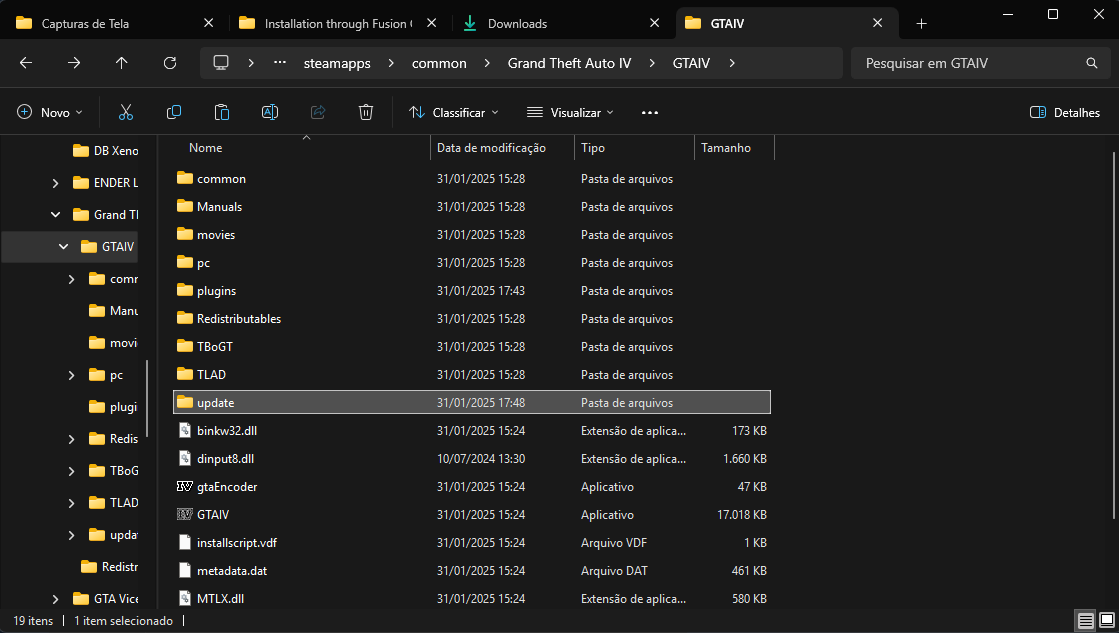
- After downloading, extract the compressed file, copy the update folder and paste it into the game's root folder:
- Steam\steamapps\common\Grand Theft Auto IV\GTAIV\update
Console Visuals
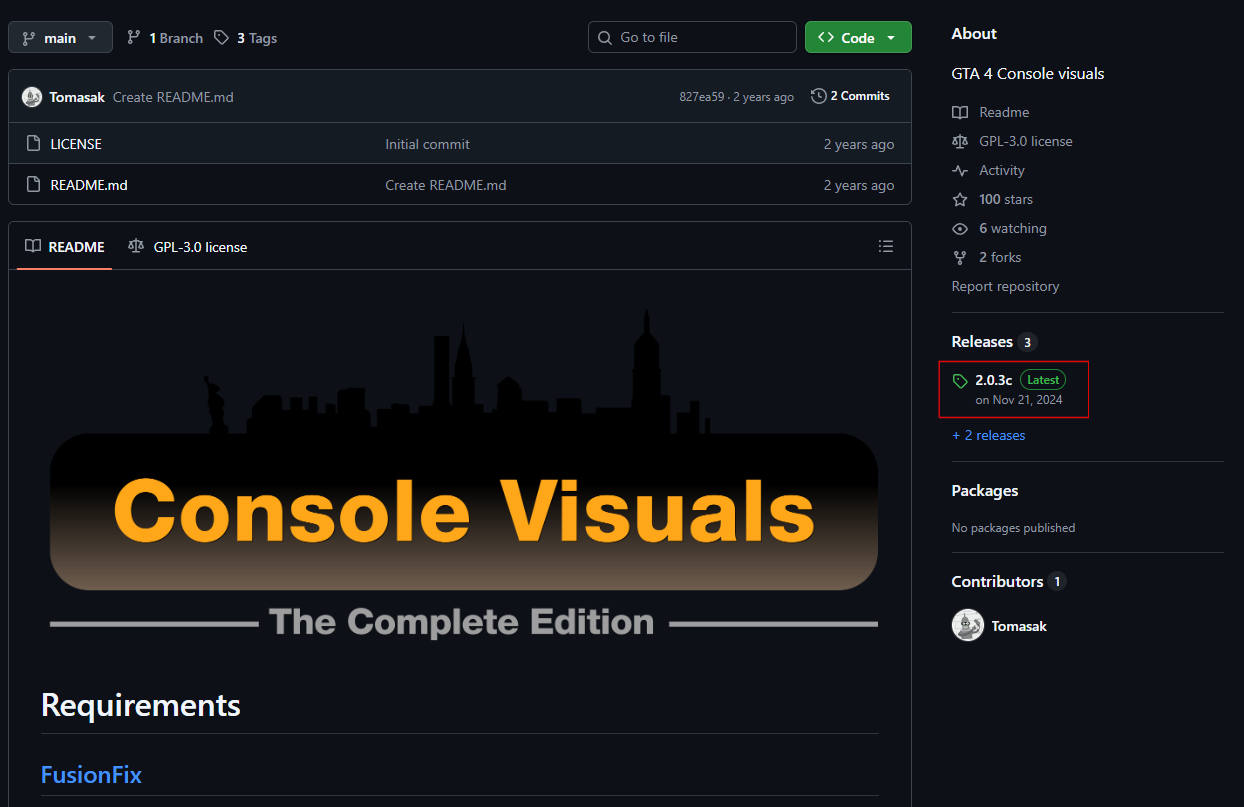
This mod restores some aspects of the console version that were altered in the PC version, such as vegetation, trees, suits, loading screen, fences, pedestrians, HUDs, select menu, and some animations.
Particularly, most of the changes are insignificant, the only thing that interests me is the vegetation, which has a noticeable difference, but the choice of which to install is up to you.
Particularly, most of the changes are insignificant, the only thing that interests me is the vegetation, which has a noticeable difference, but the choice of which to install is up to you.
- First, download the mod from the link: Github [github.com]
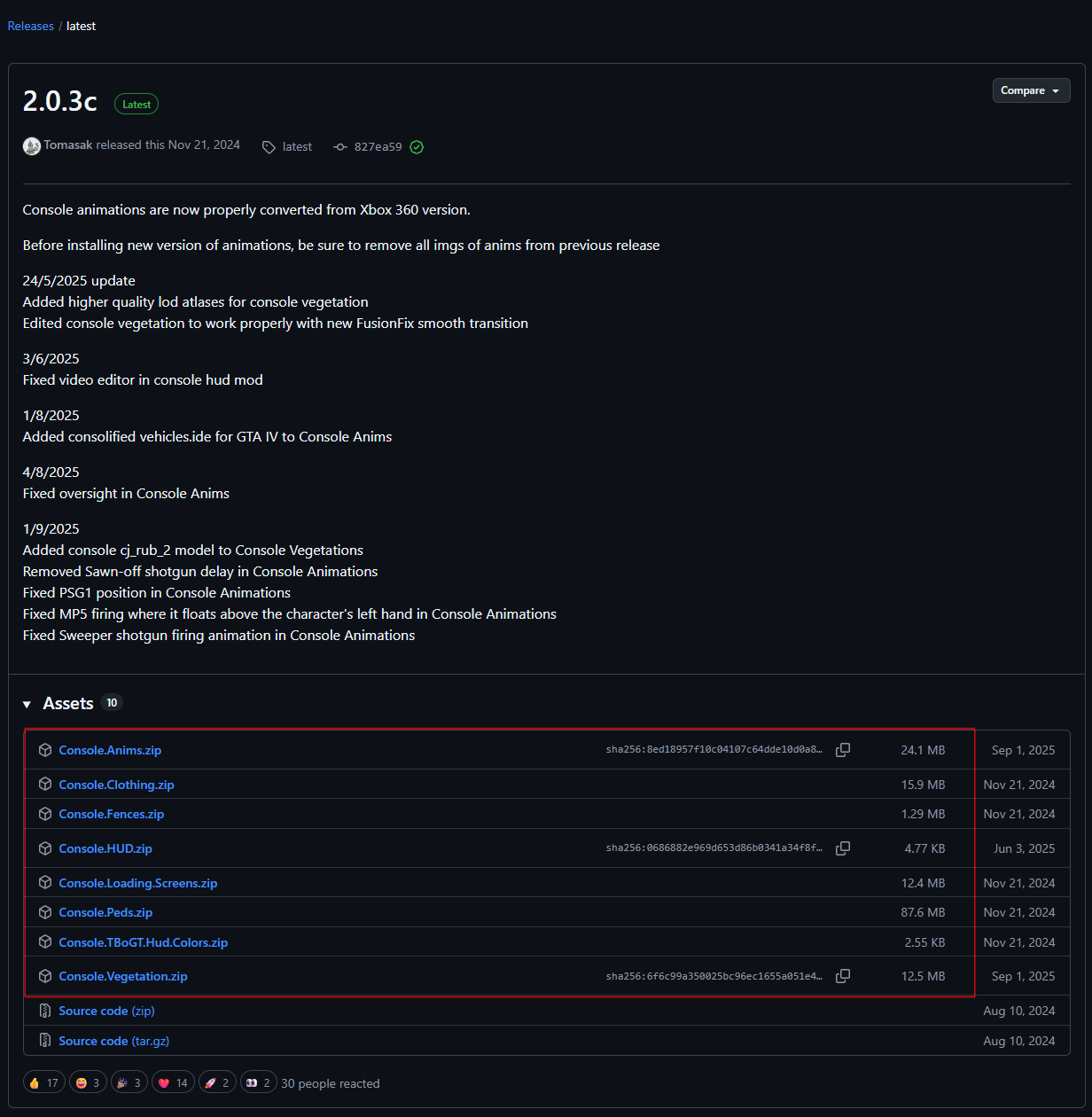
- Scroll to the bottom of the page and download the mod you want:
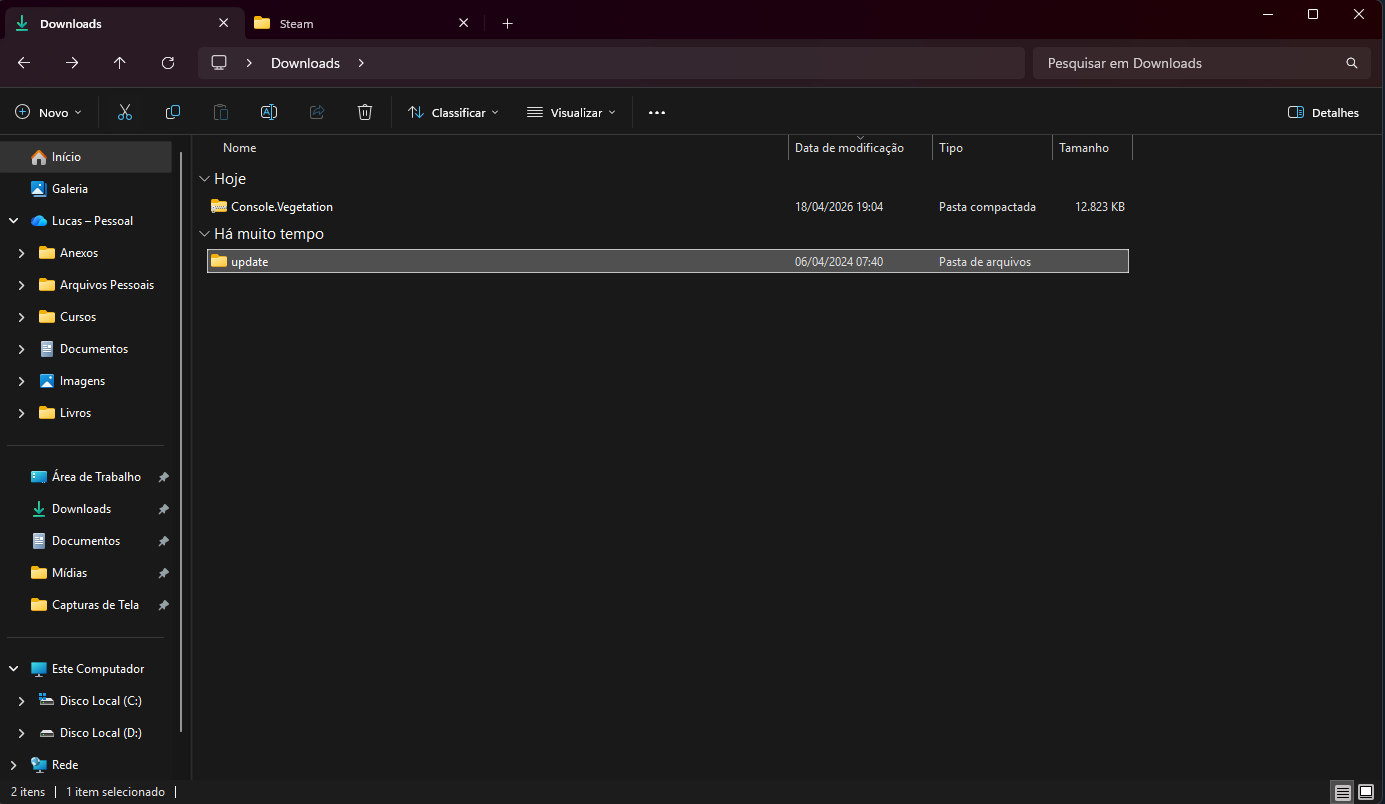
- After downloading, extract the compressed file, copy the update folder and paste it into the game's root folder, the installation process for all mods is the same.
- Steam\steamapps\common\Grand Theft Auto IV\GTAIV\update
DXVK
DXVK is a mod that converts DirectX 8,9,10 or 11 to Vulkan, which can significantly improve the performance on modern systems, check the compatibility of your VGA with Vulkan.
Important: Installing DXVK can result in a significant improvement in performance, but it can also cause incompatibilities with some mods or specific configurations. If you are experiencing issues, try deleting the files to revert the changes, delete only the files d3d9.dll and dxgi.dll.
Common mistakes:
Note: Do Not use the files in the x64 folder for DXVK. If you do this, your game will only run normal DirectX9, not Vulkan. If your game does not work properly with the DXVK mod, try uninstalling it, just delete both mod files to revert the changes.
Important: Installing DXVK can result in a significant improvement in performance, but it can also cause incompatibilities with some mods or specific configurations. If you are experiencing issues, try deleting the files to revert the changes, delete only the files d3d9.dll and dxgi.dll.
Common mistakes:
GTA IV FATAL ERROR: D3D Error - Please re boot your system
Common when your GPU doesn't support Vulkan
Note: Do Not use the files in the x64 folder for DXVK. If you do this, your game will only run normal DirectX9, not Vulkan. If your game does not work properly with the DXVK mod, try uninstalling it, just delete both mod files to revert the changes.
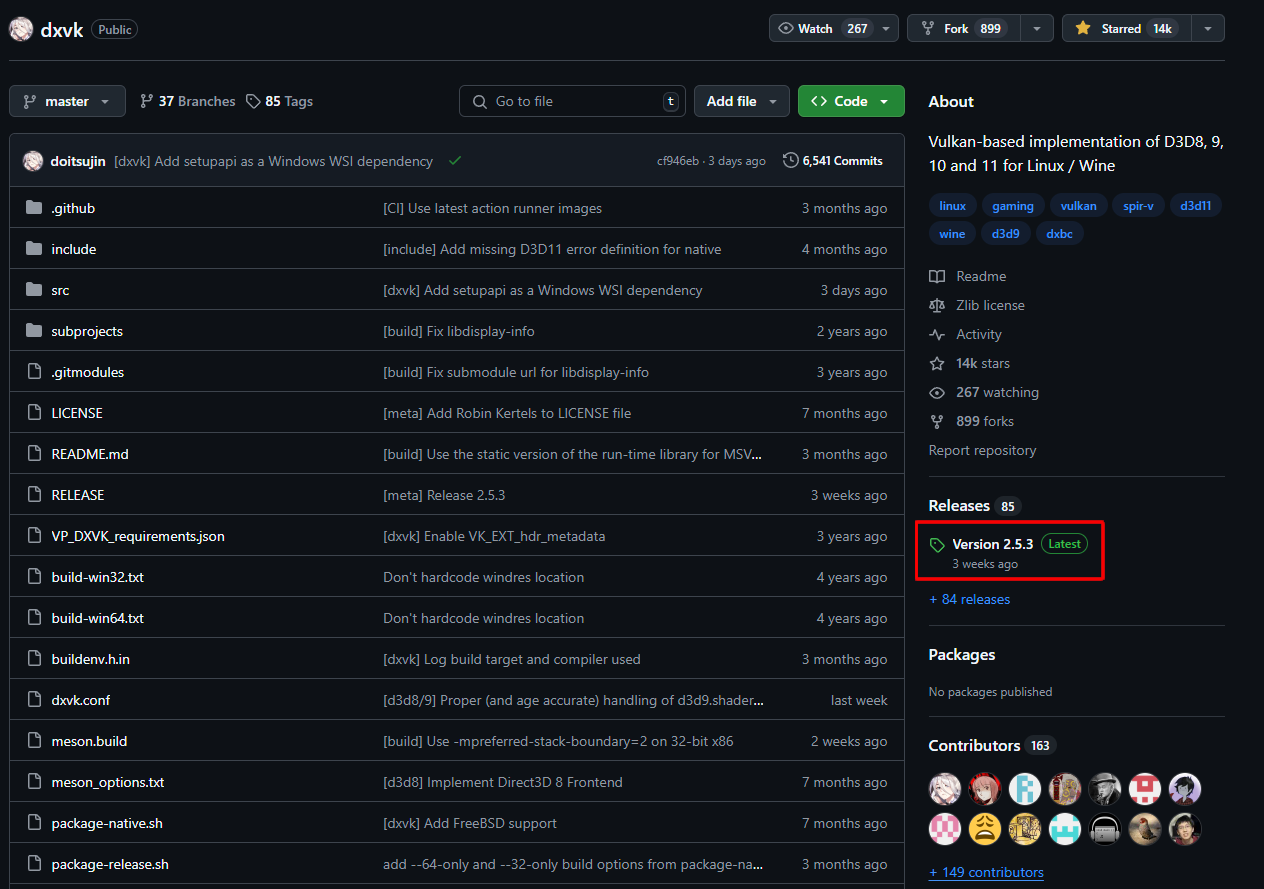
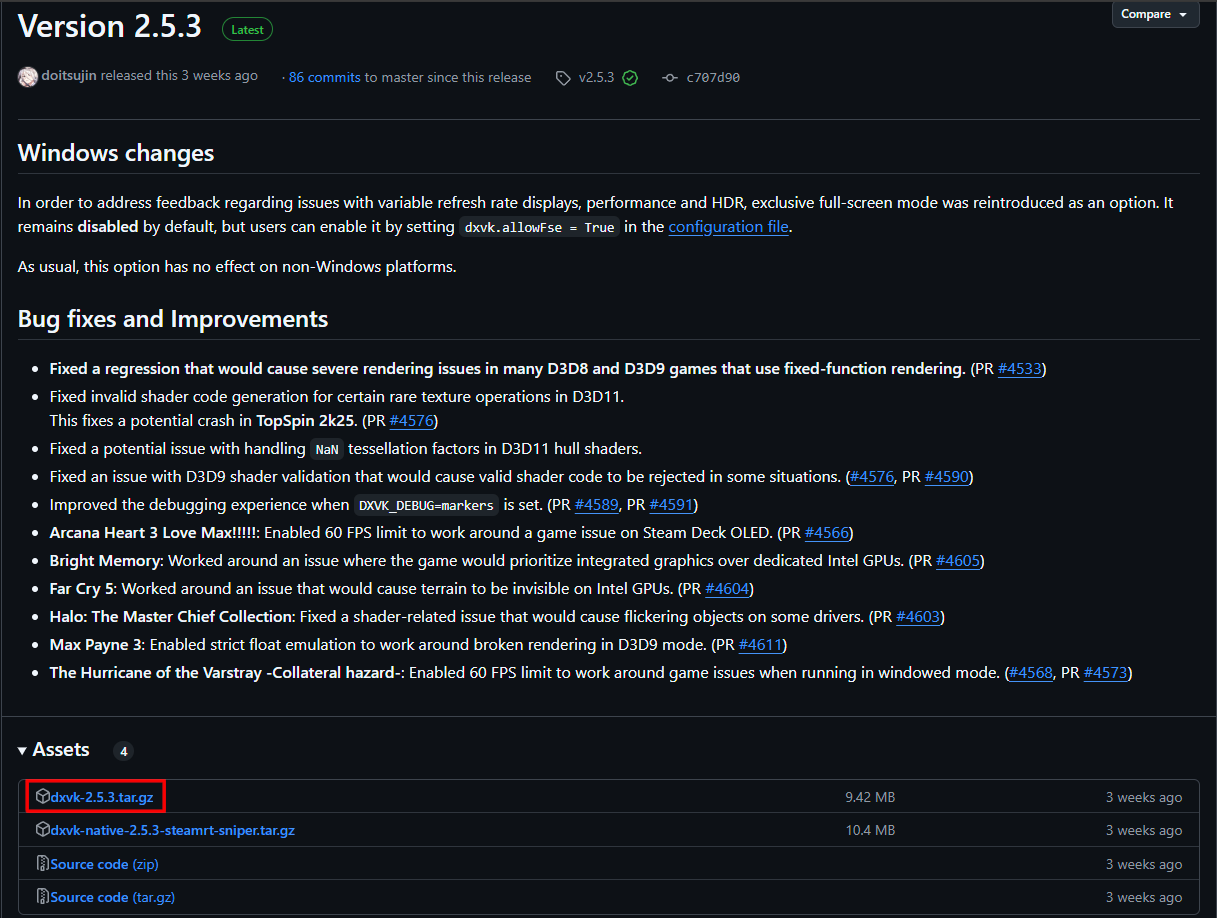
- First, download the mod from the link: Github [github.com]
- Scroll to the bottom of the page and download the latest version:
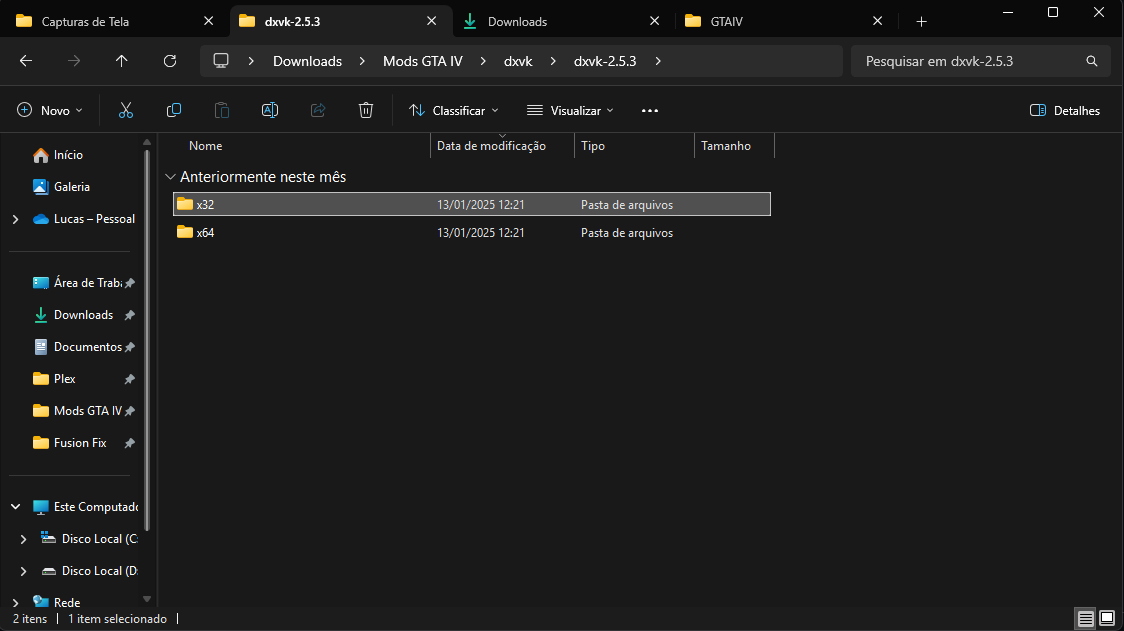
- After downloading, extract the compressed file, go to the x32 folder:
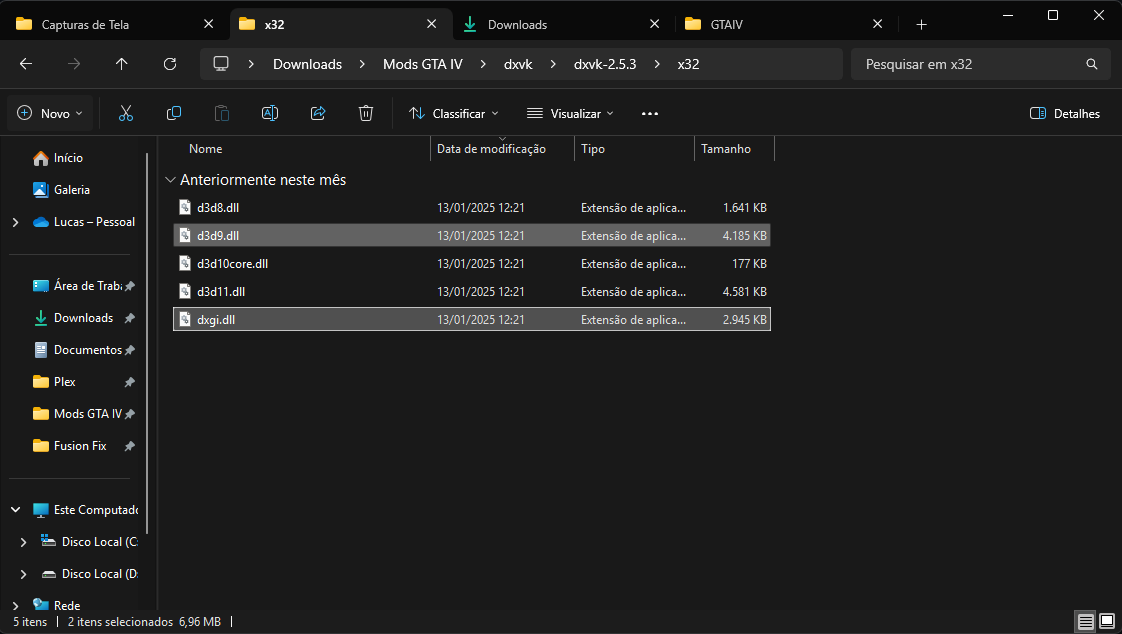
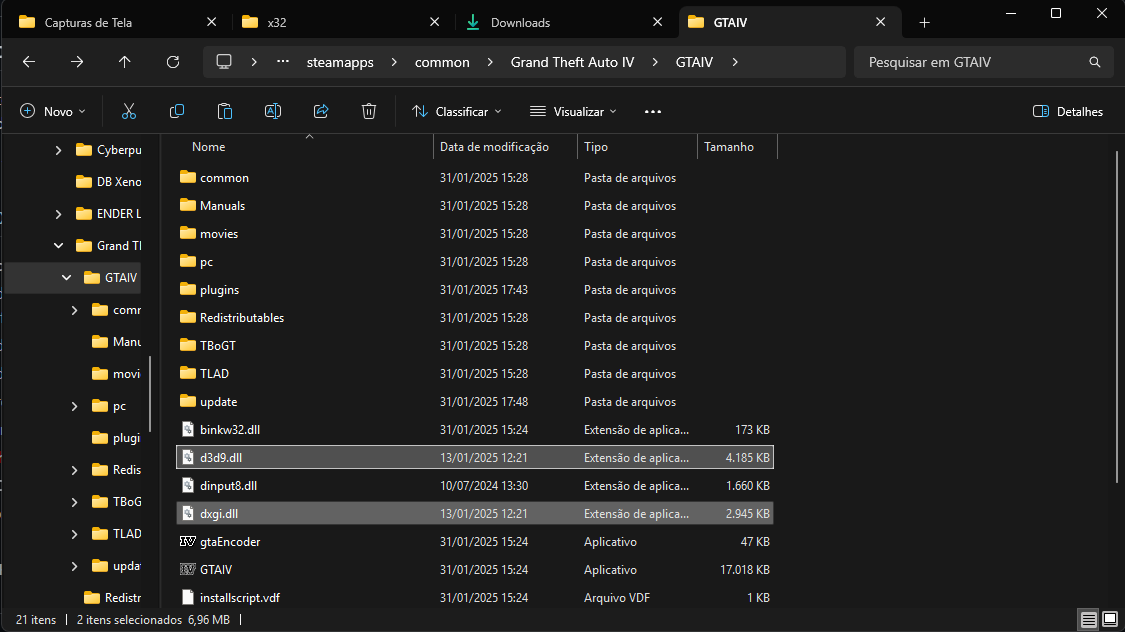
- Copy the d3d9.dll and dxgi.dll files to the game's root folder:
- Steam\steamapps\common\Grand Theft Auto IV\GTAIV
Increasing RAM usage
This change will allow the game to use 4GB of RAM instead of just 2GB, unfortunately because it is a 32bit game, this is the maximum it can use.
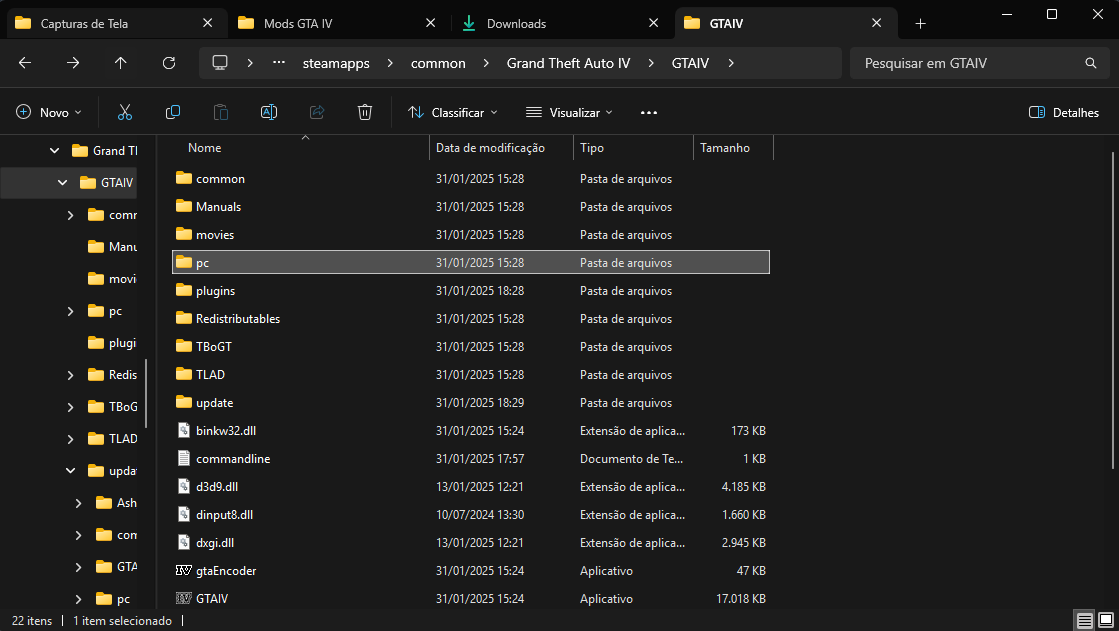
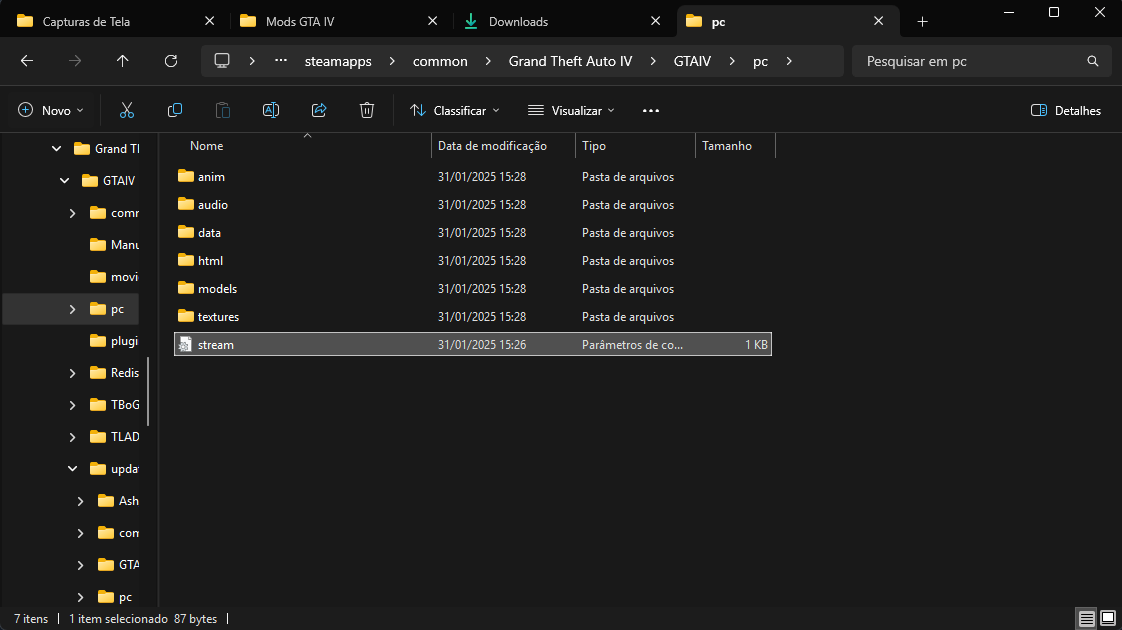
DON'T FORGET TO SAVE THE FILE AFTER EDIT
- Still in the root folder of your game, access the PC folder:
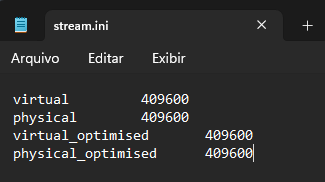
- Open the stream file with notepad and change the values manually to the same as below:
- Your file should look like this:
virtual 409600
physical 409600
virtual_optimised 409600
physical_optimised 409600
DON'T FORGET TO SAVE THE FILE AFTER EDIT
Create the Commandline File
- Still inside the root folder, create a text file and rename it to commandline
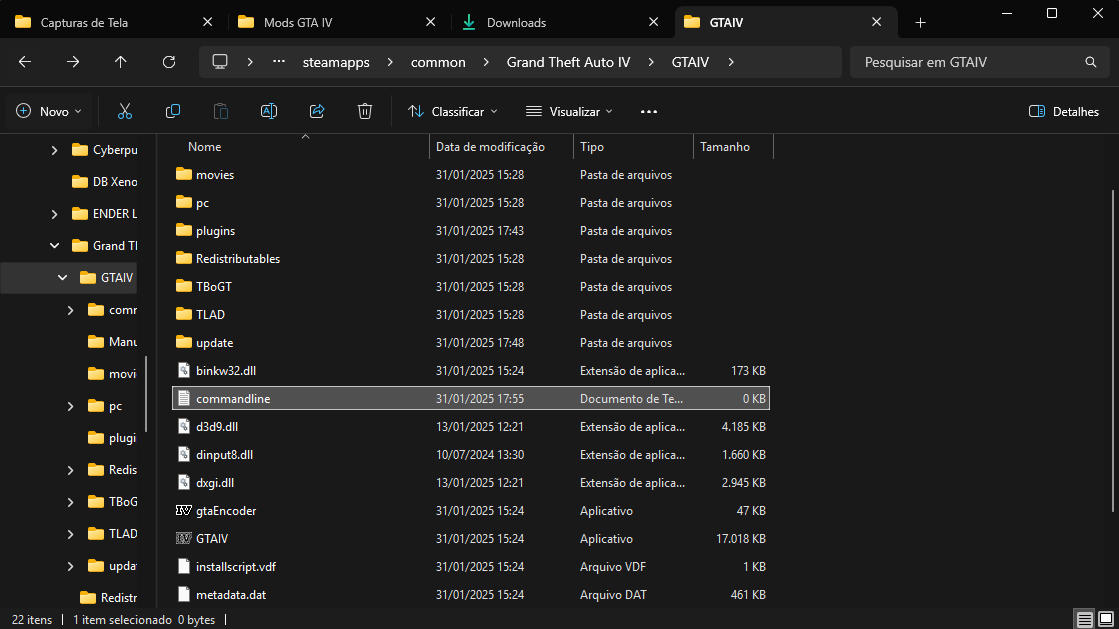
- Open the file and paste all the codes below:
-availablevidmem 8192
-nomemrestrict
-norestrictions
-reserve 1024
-forcer2vb
-forcehighqualitymirrors
-fullspecaudio
-frameLimit 1
-managed
-reservedapp 0
-highforFPS
Setting the VRAM value
Note: The new version of the Fusion Fix mod added automatic VRAM detection, so the command availablevidmem is no longer necessary, but I will leave this step in case the mod does not detect it correctly.
In the -availablevidmem command, change the value to the amount of VRAM of your GPU, this will ensure that the game recognizes the amount of vram available on your system, for example my RTX 4060ti has 8GB of VRAM, in my case would be -availablevidmem 8192, values below:
VRAM
Value
1 GB
1024
2 GB
2048
3 GB
3072
4 GB
4096
6 GB
6144
8 GB
8192
10 GB
10240
11 GB
11264
12 GB
12288
16 GB
16384
24 GB
24576
32 GB
32768
DON'T FORGET TO SAVE THE FILE AFTER EDIT
- Your file should look like this:
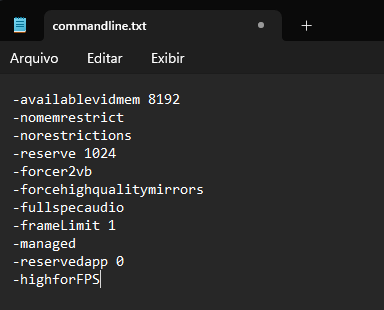
- After editing and saving the file, open the game properties on Steam:
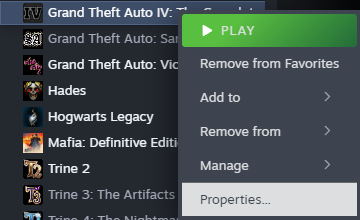
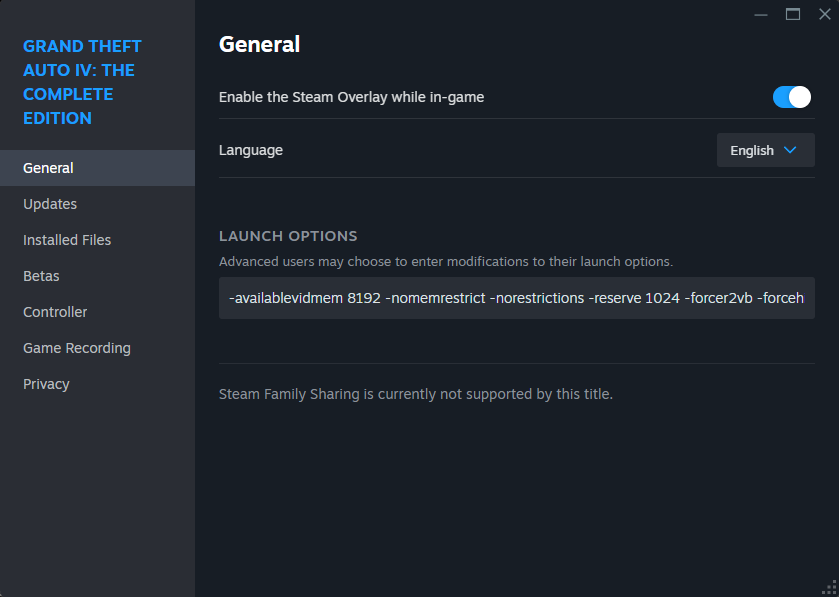
- After that, copy ALL the editor commands from the commandline file and paste it into the launch options space, located in general, This part is essential, don't forget.
DayL's Natural Timecycle
This is a time loop graphics mod that aims to make the game more natural, less dark/gray and more vibrant.
You must install this mod together with the FusionFix!
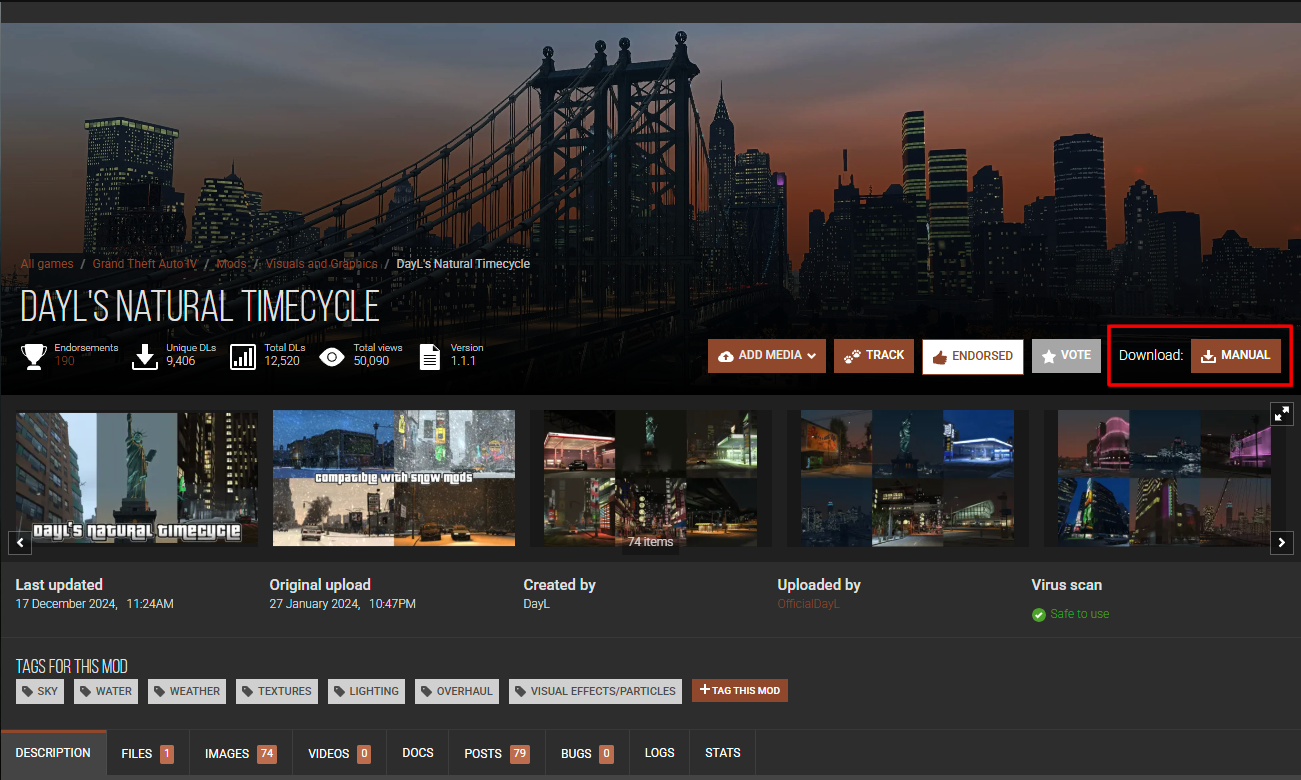
You must install this mod together with the FusionFix!
- First, download the mod from the link: Nexus Mod [www.nexusmods.com]
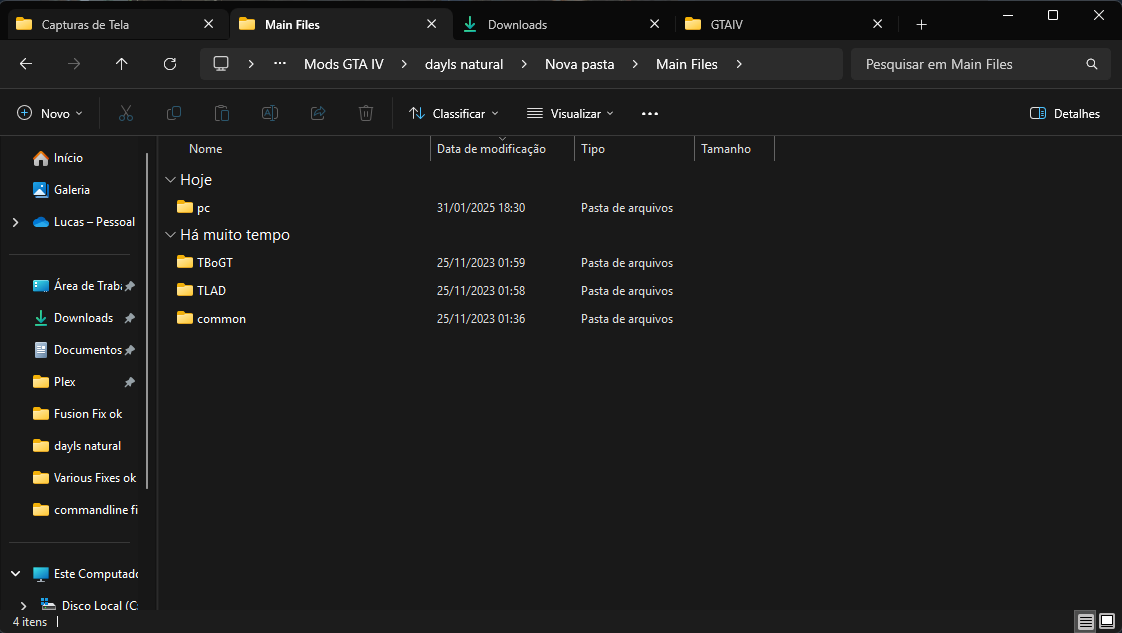
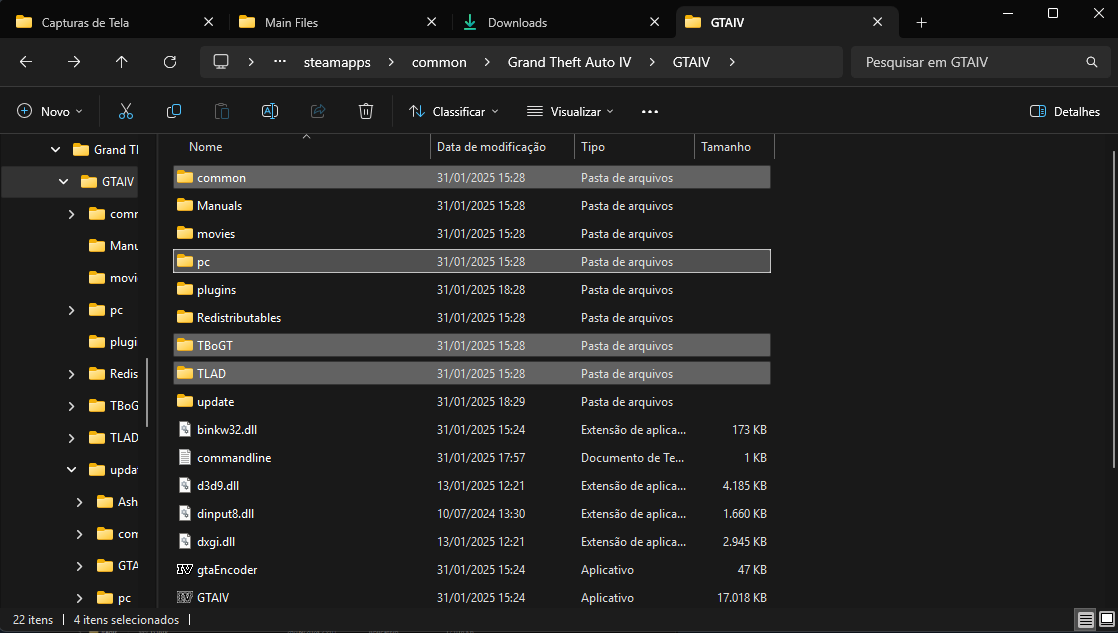
- After downloading, extract the compressed file, copy all the files from the Main files folder to the game's root folder, Make sure to replace the files:
- Steam\steamapps\common\Grand Theft Auto IV\GTAIV
Higher Resolution Miscellaneous Pack
This mod improves the resolution of several objects in the game.
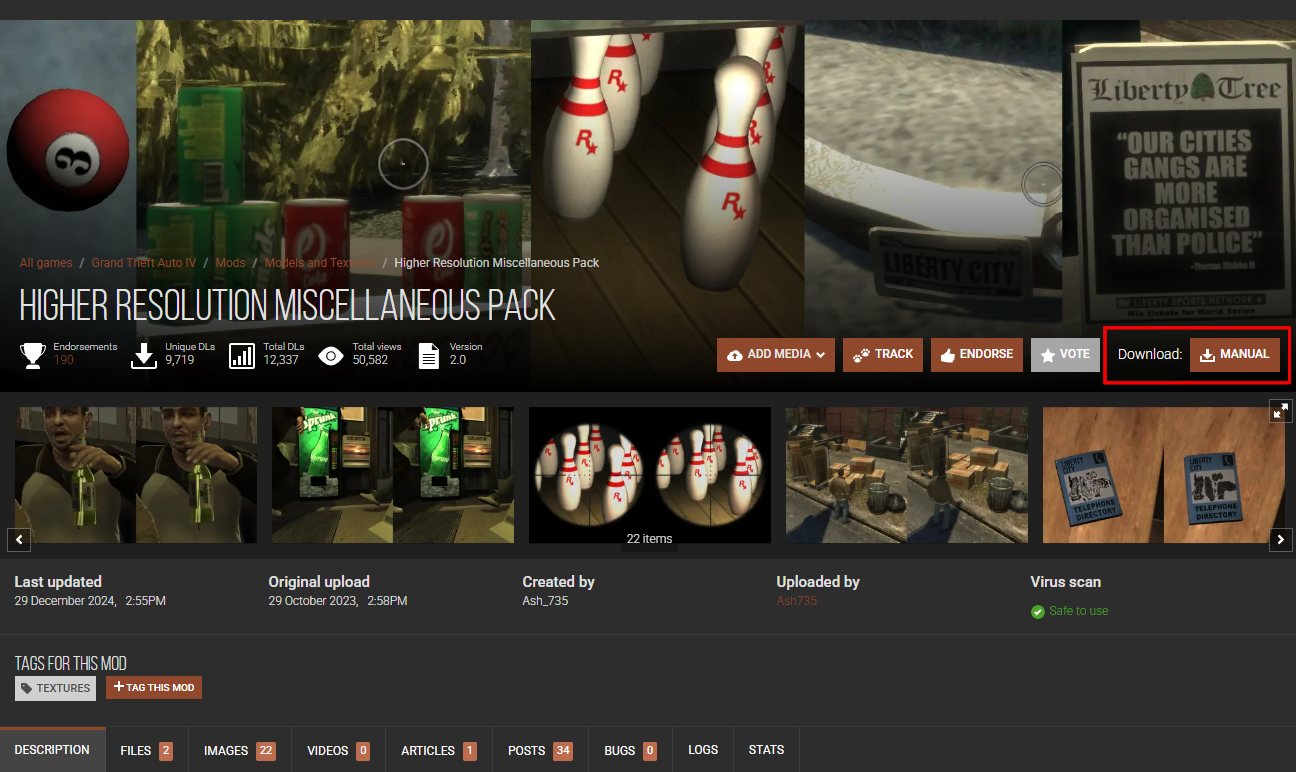
- First, download the mod from the link: Nexus Mod [www.nexusmods.com]
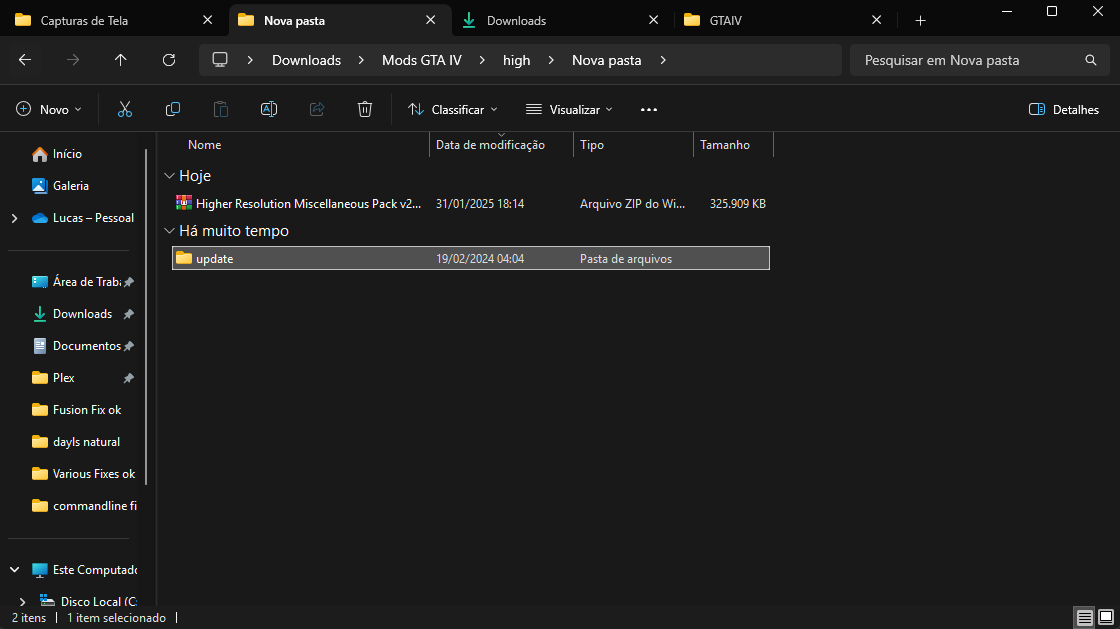
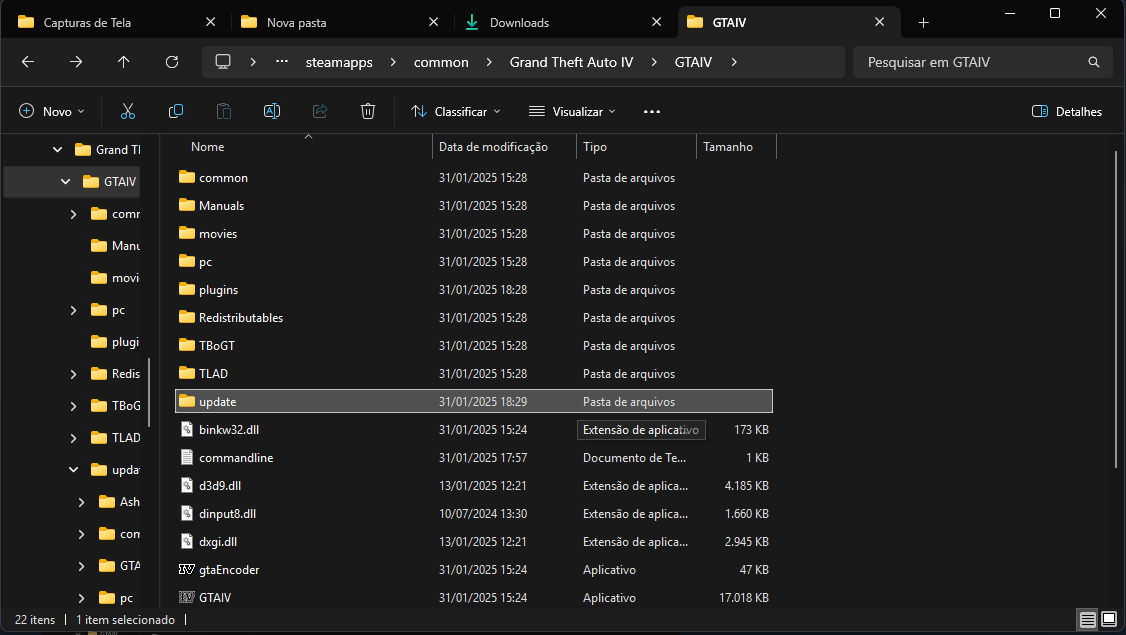
- After downloading, extract the compressed file and place the update folder inside your game's root folder:
- Steam\steamapps\common\Grand Theft Auto IV\GTAIV
Higher Resolution Vehicle Pack
This mod improves the resolution of all vehicles, includes interior and exteriors, graffiti, dirt, etc.
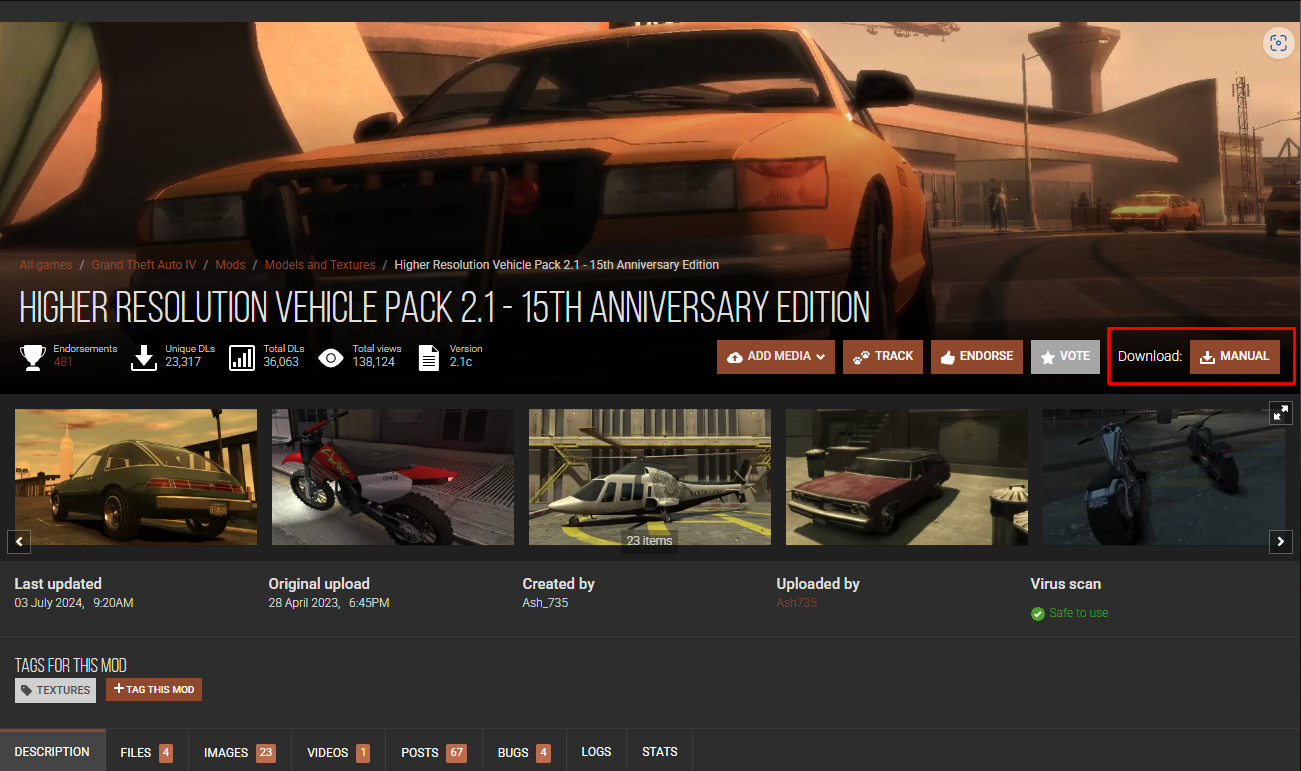
- First, download the mod from the link: Nexus Mod [www.nexusmods.com]
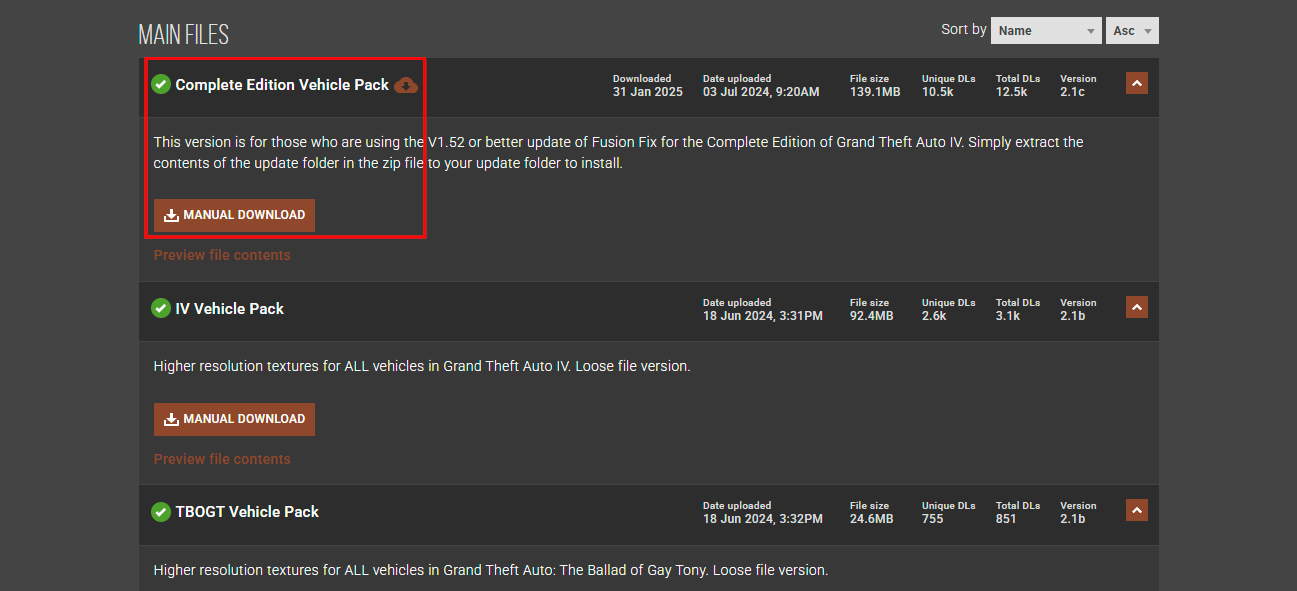
- Scroll to the bottom of the page and download the complete edition version:
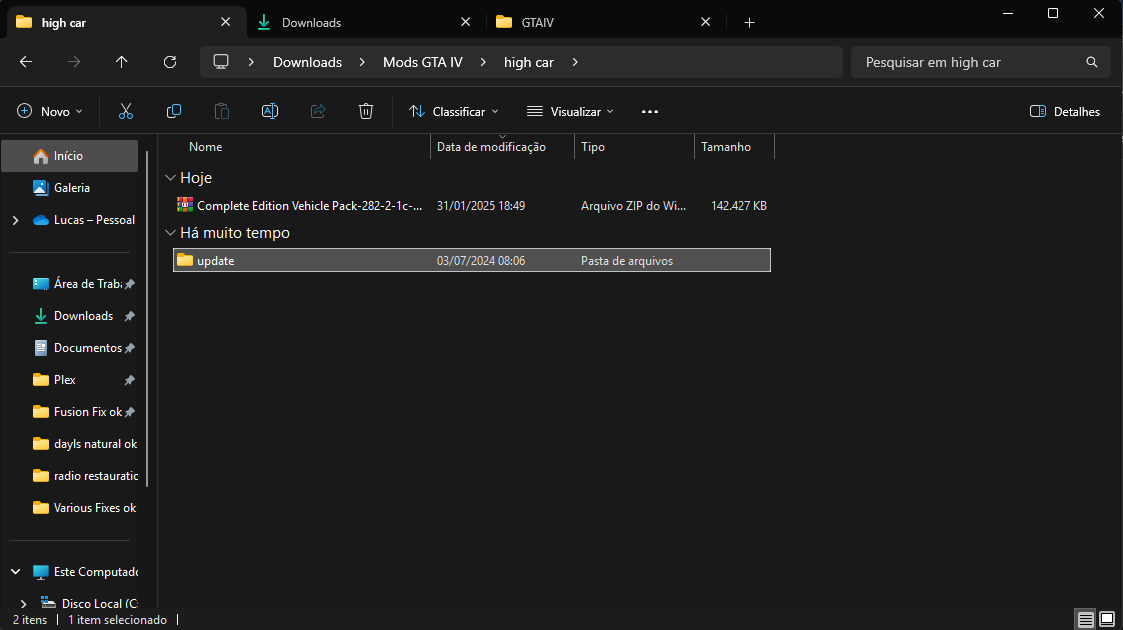
- After downloading, extract the compressed file and place the update folder inside your game's root folder:
- Steam\steamapps\common\Grand Theft Auto IV\GTAIV
Xbox Rain Droplets
This mod adds raindrops to your screen.
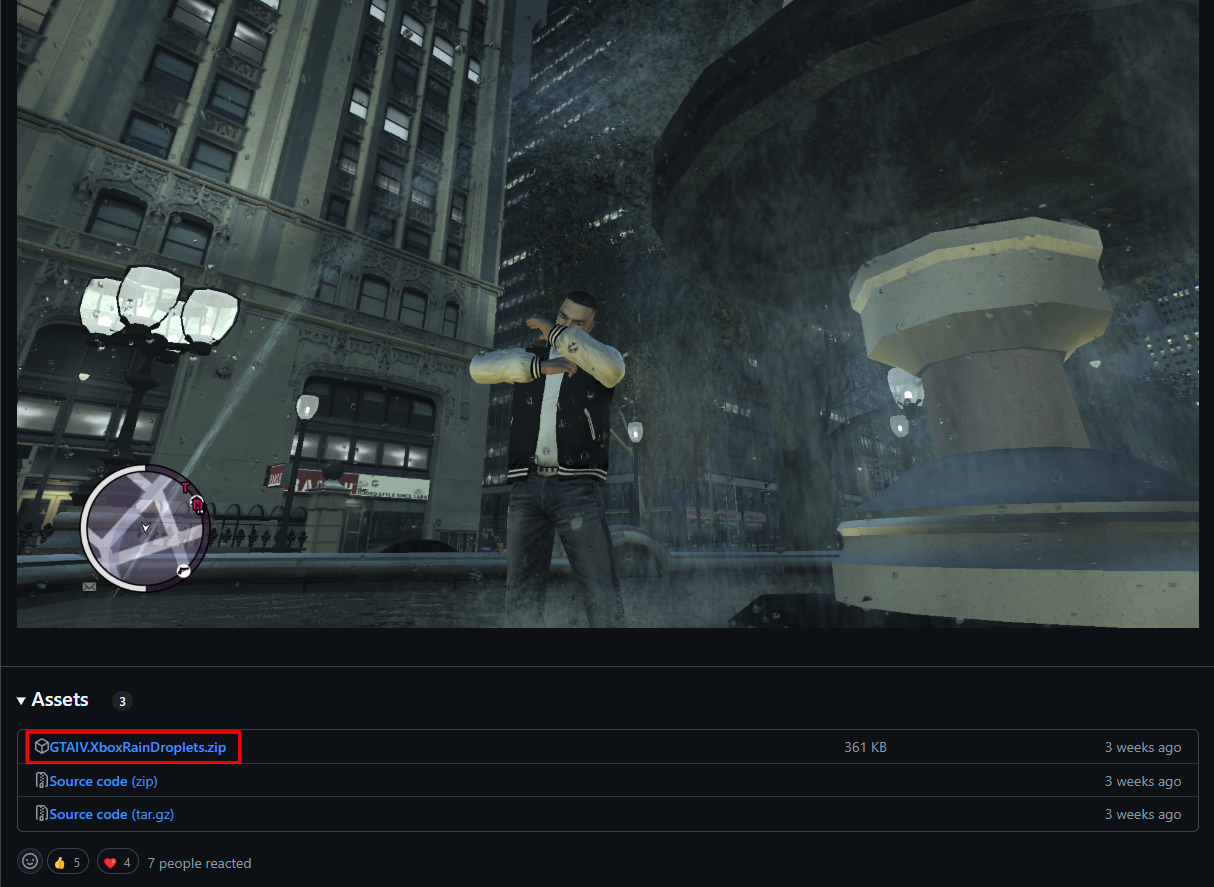
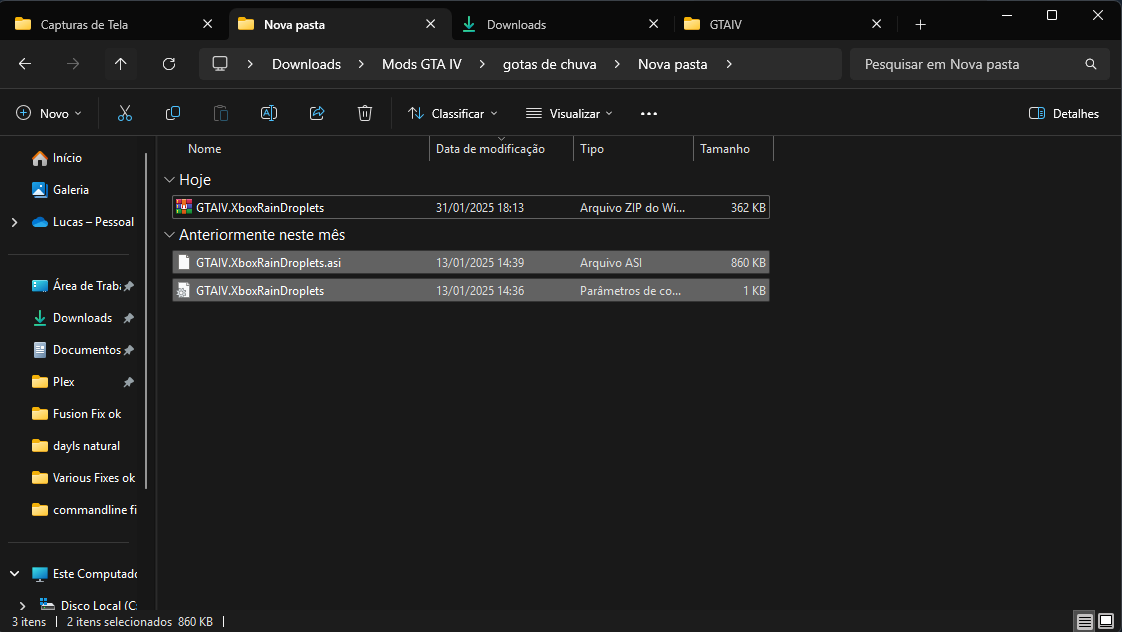
- First, download the mod from the link: Github [github.com]
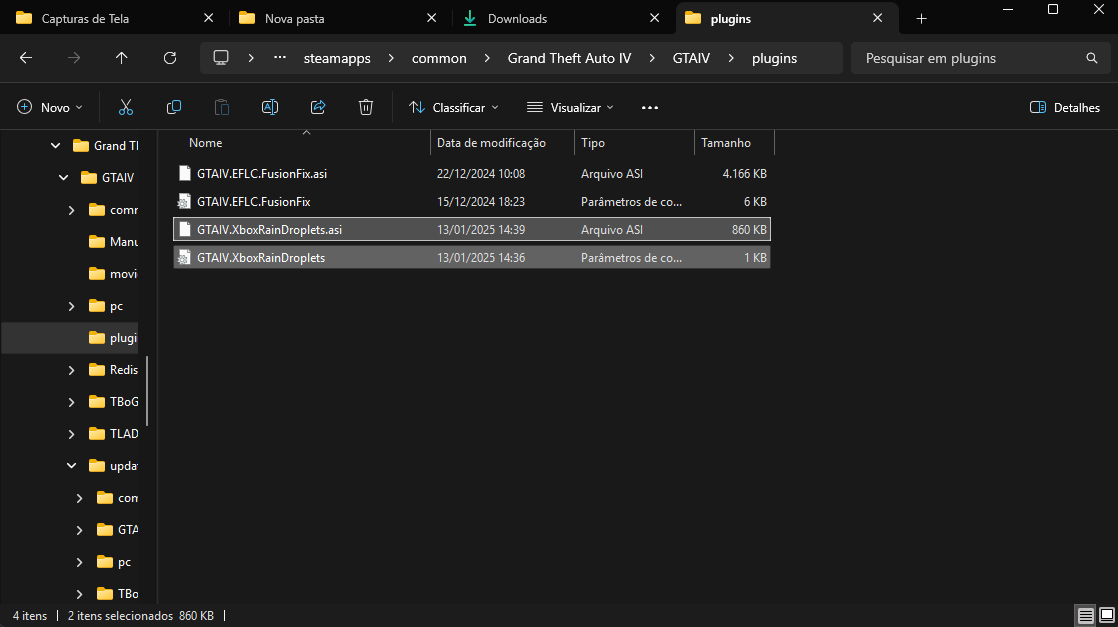
- After downloading, extract the compressed file and paste it into the plugins folder, found in the game's root folder:
- Steam\steamapps\common\Grand Theft Auto IV\GTAIV\plugins
Radio Restoration
This mod restores all deleted songs in GTA IV: The Complete Edition.
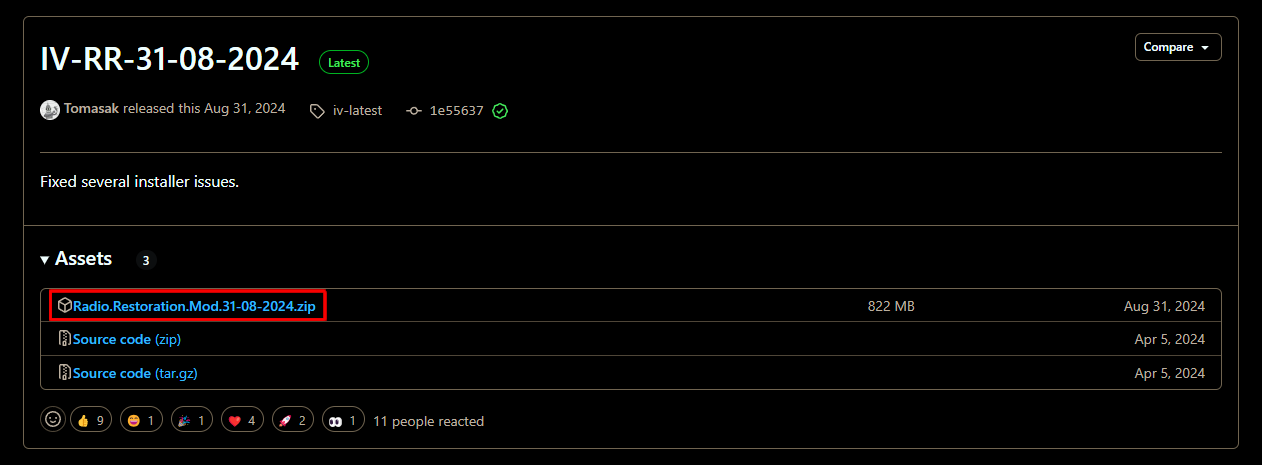
- First, download the mod from the link: Github [github.com]
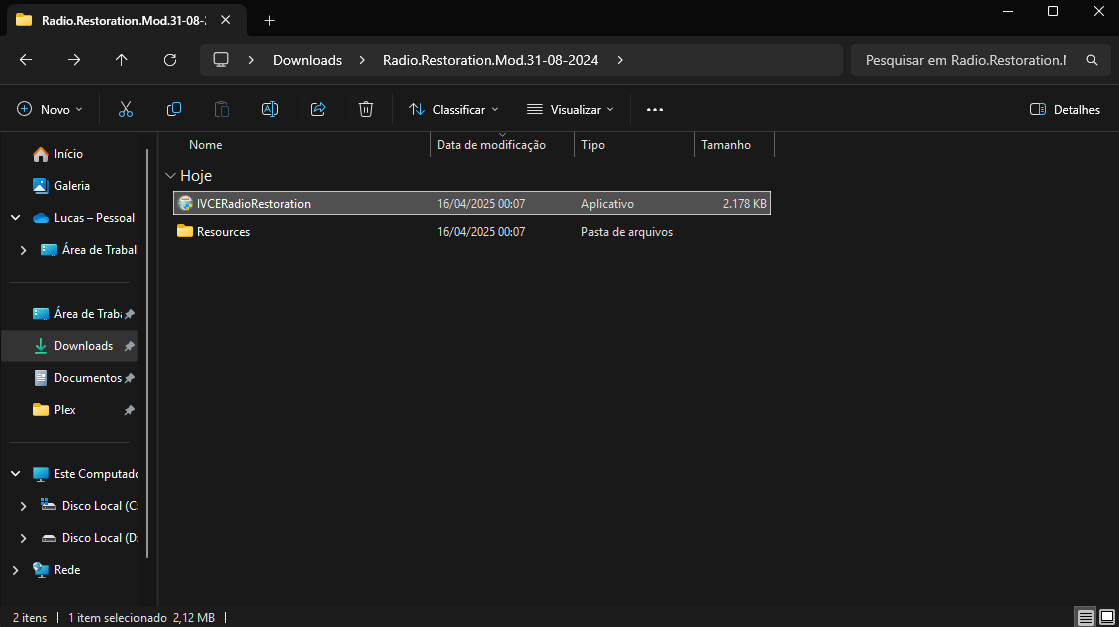
- After downloading, extract the compressed file, run IVCERadioRestorer.exe:
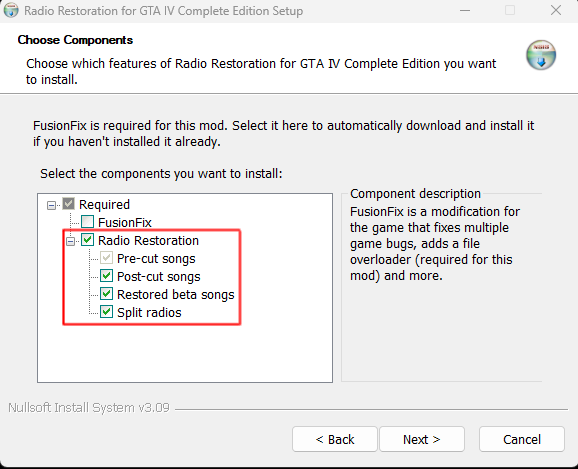
- Select all of the options below:
Tradução PT-BR
E para meus amigos conterrâneos, aqui esta uma tradução completa e atualizada do jogo, recomendo instalar a tradução após todos os mods.
Central de Traduções [www.centraldetraducoes.net.br]
Central de Traduções [www.centraldetraducoes.net.br]
Conclusion 💜
Did you find this guide helpful? Consider a like, adding to your favorites, and share. I would greatly appreciate it! Follow my profile or feel free to add me.

- The credits of all mods are in their respective links.
More Grand Theft Auto IV: The Complete Edition guides
- How to make GTA IV: The Complete Edition perfectly playable in 2026★ 5 (2.7k)106k views5.2k ♥11 minUpdated May 2
- Grand Theft Auto IV: CE - The Improved Classic★ 5 (1.4k)53k views3k ♥4 minUpdated May 4
- Fixing GTA IV with 4 Mods (2026 Guide)★ 5 (677)44k views1.4k ♥8 minUpdated Feb 2
- GTA IV: The Complete Edition Achievement Guide [2024]★ 5 (1.7k)32k views3.3k ♥15 minUpdated Jul 2, 2024
- GTA 4 COMPLETE EDITION: THE DEFINITIVE MOD GUIDE★ 5 (692)31k views1.3k ♥13 minUpdated Mar 11, 2024
- GTA 4 100% достижений★ 5 (1.4k)28k views3.5k ♥24 minRussianUpdated Sep 2, 2025


This guide was created by its original author on the Steam Community. Are you the author and want it removed? Request removal.