Performance Tweaks
Getting Started
The main config file responsible for your game settings is KillingFloor.ini. When you launch the game for the first time, this .ini file should be created.
It's located in System folder in the game directory.[..]\Steam\steamapps\common\KillingFloor\System
For me it's:C:\Program Files (x86)\Steam\steamapps\common\KillingFloor\System
Game Options
My current settings are as follows:
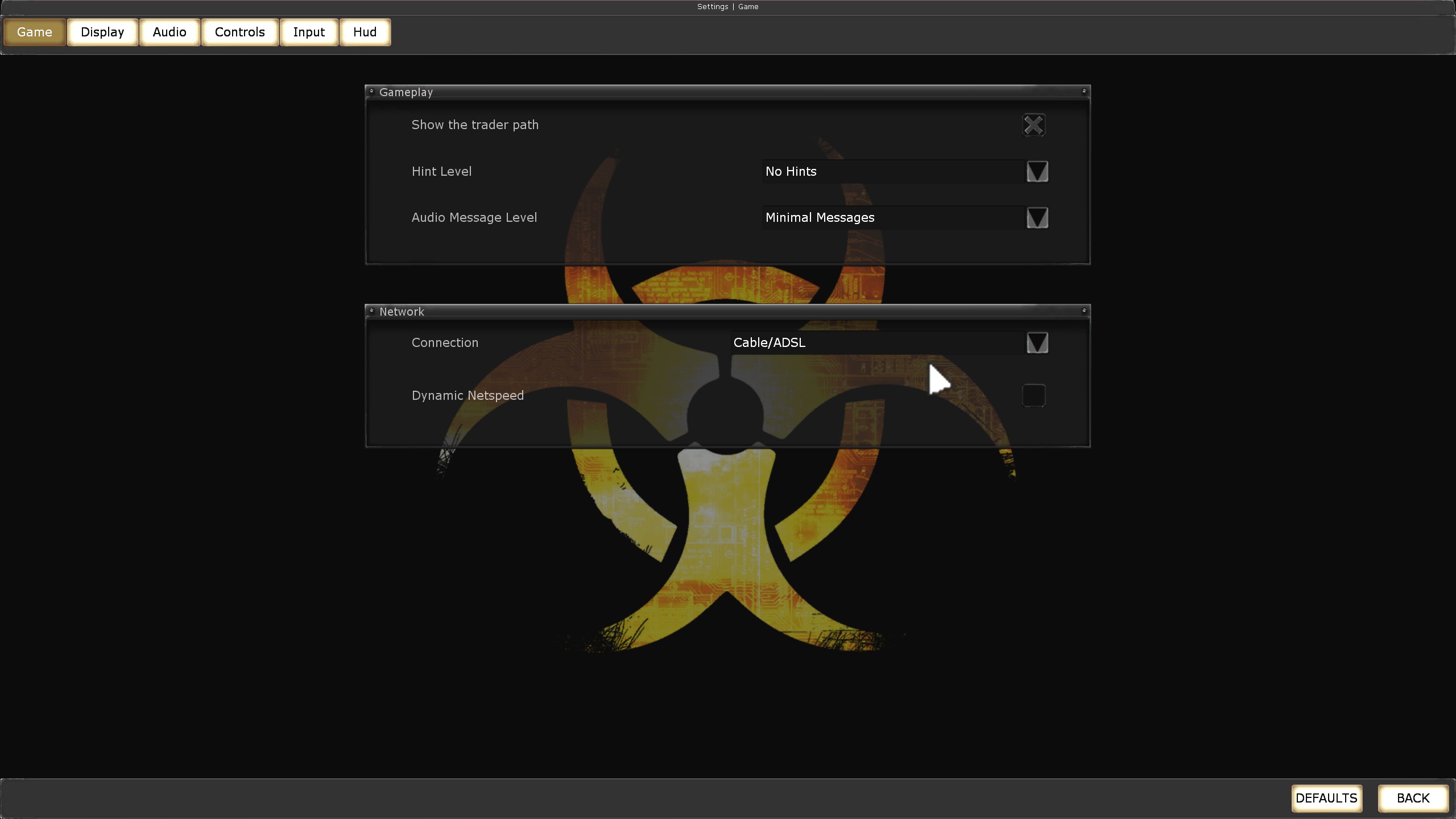
I disabled Hints and set Minimal Messages.
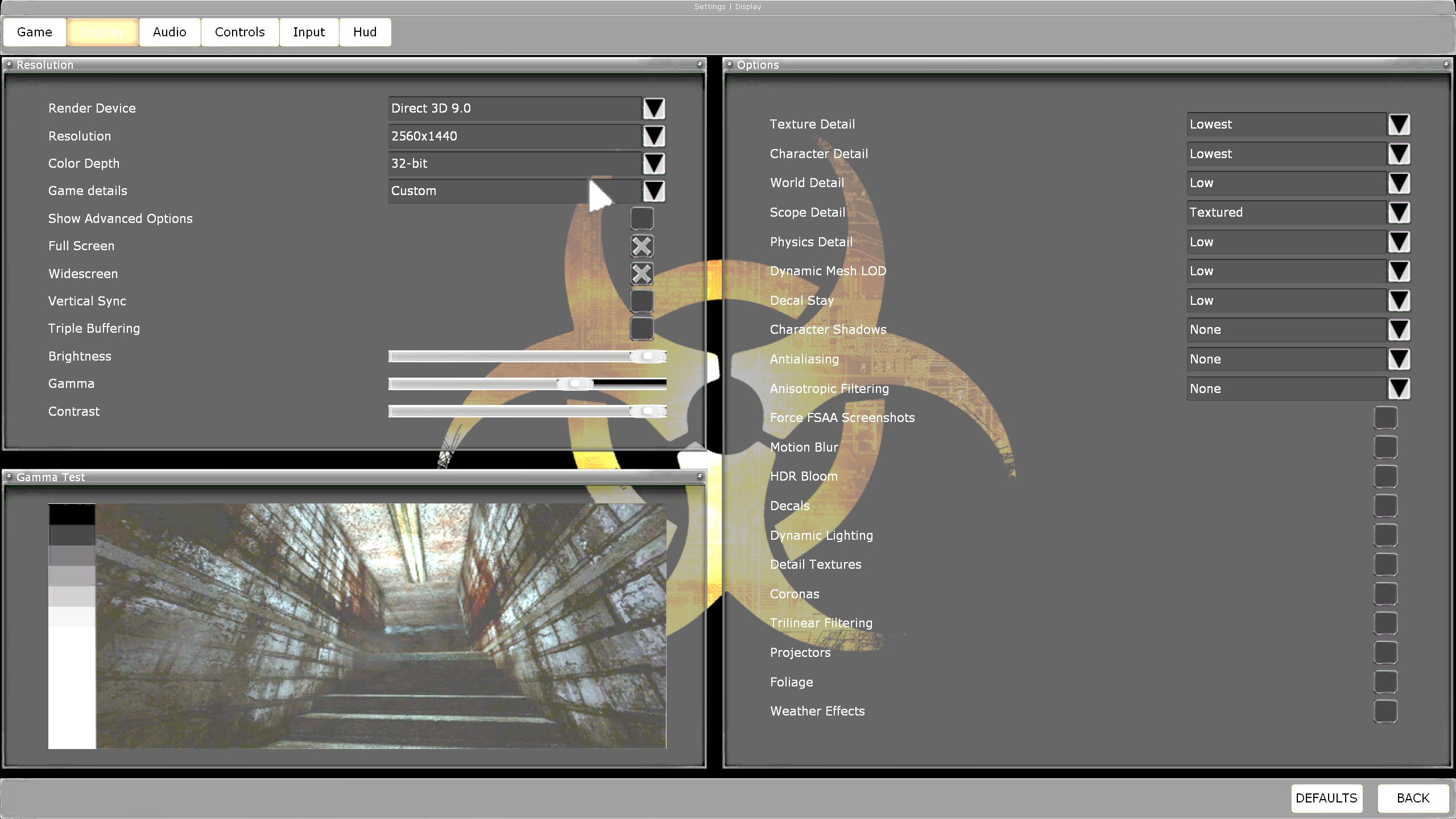
I set everything to low except Resolution, although the lower you have, the more FPS you get, but everything is smaller. Textured Scope is better visually, so I also left this option.
Brightness, Contrast and Gamma should be set quite high enough to make your vision better. It really helps on dark maps like Farm or Bedlam.
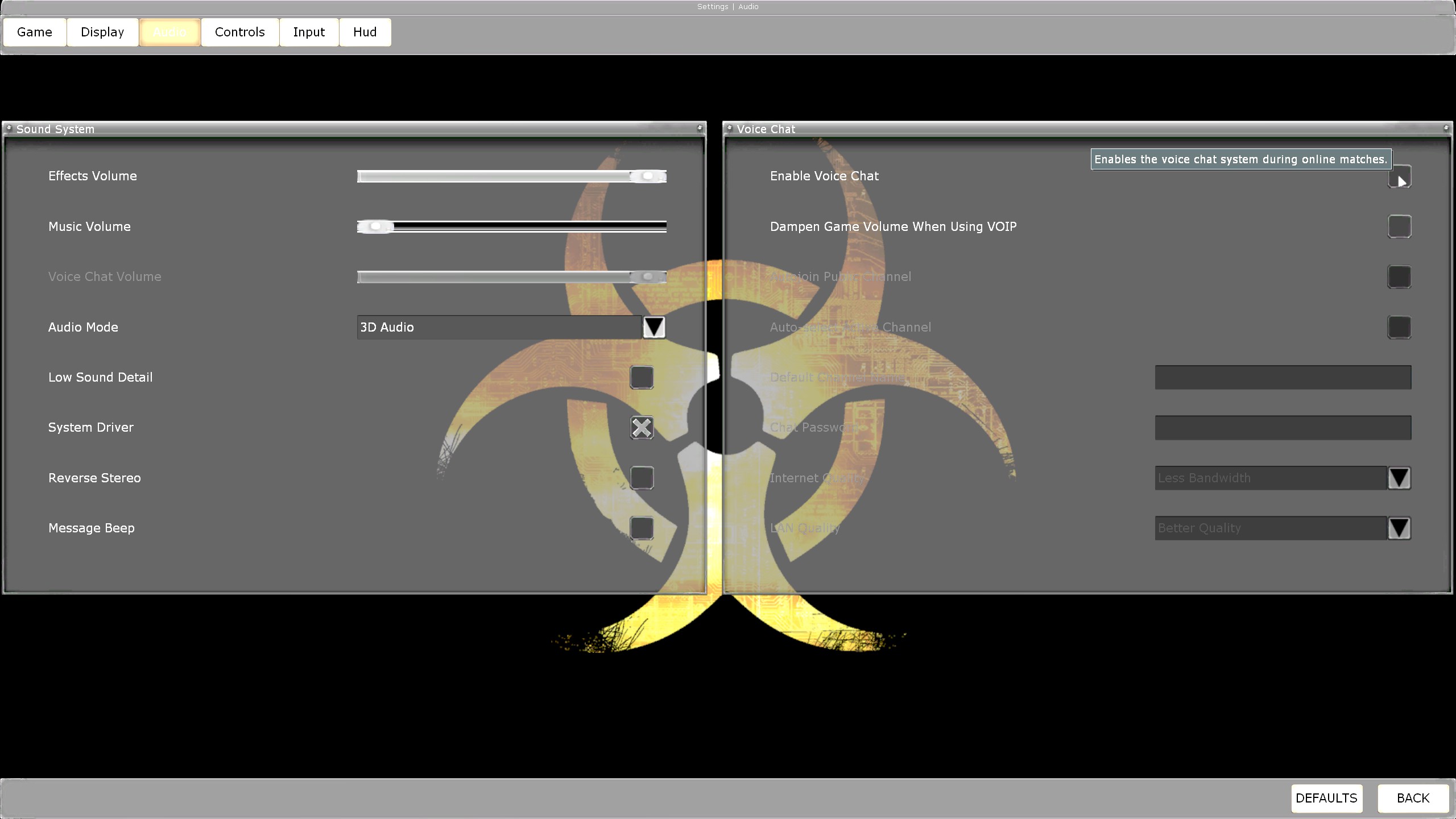
If you don't use Custom Music, having Music enabled is unecessary, because it's getting repetitive after a while.
I also turned off Voice Chat, because it has poor quality and I'm not really into listening trolls or kid screams. In addition, people mostly don't talk, so this option isn't really needed.
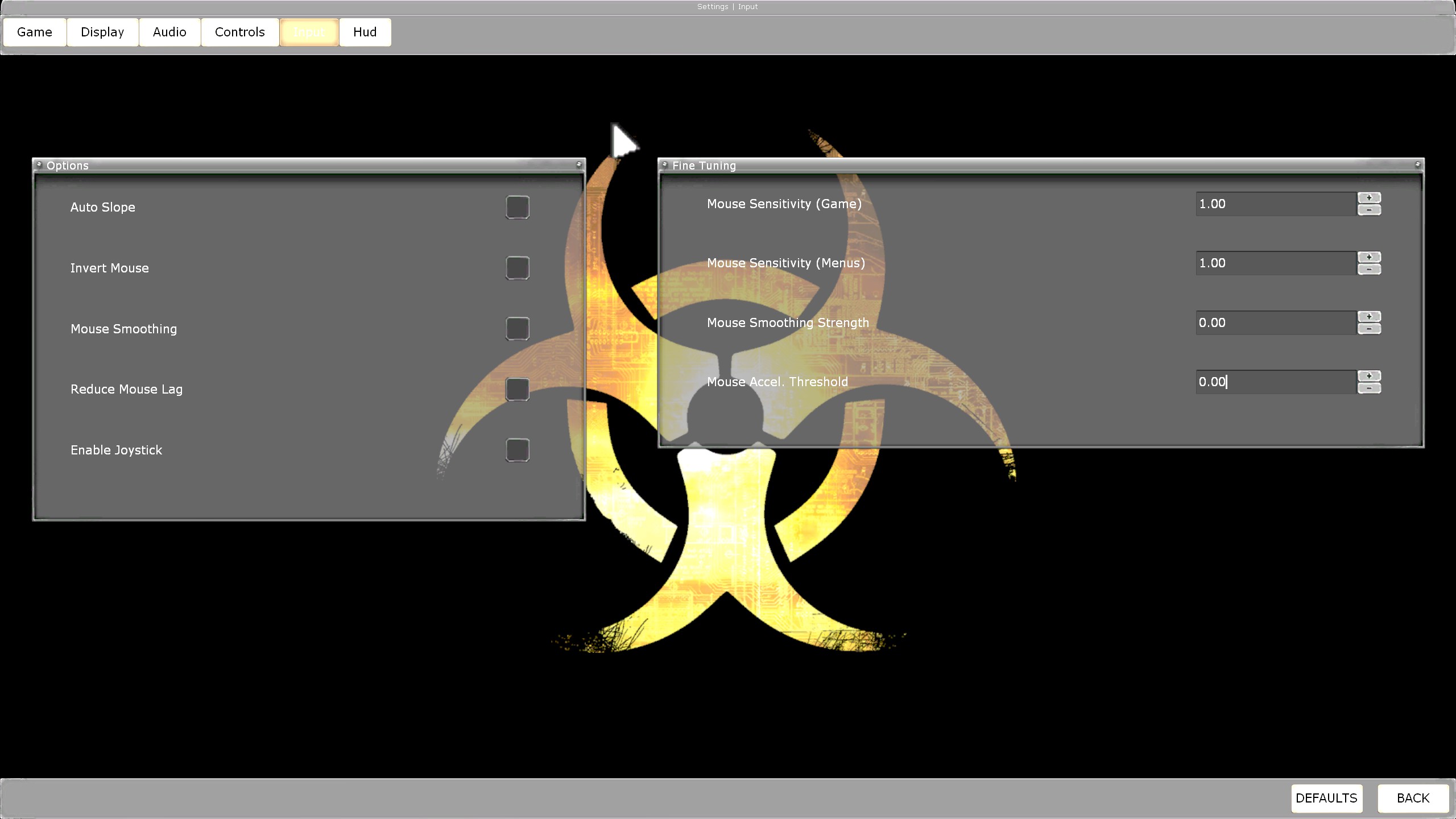
Mouse Smoothing doesn't help in FPS games at all. Mouse Lag Reduction uses some CPU usage, so I also disabled this option.
I found 1.00 Sensitivity much more accurate than something higher (although it really depends of personal preference).
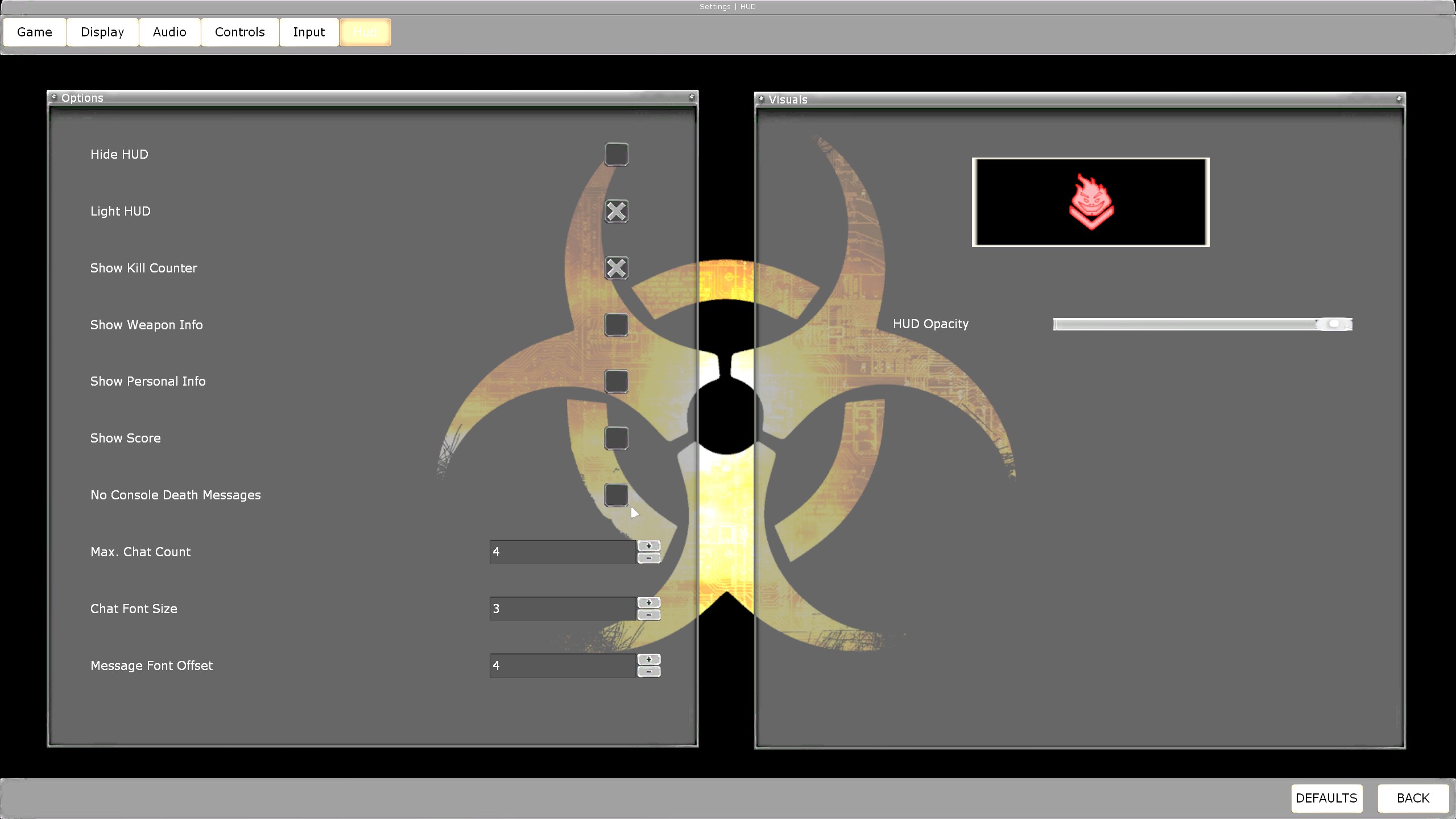
Light HUD looks better in my opinion. It doesn't have borderlines.
Kill Counter shows ZED kills and that's all about it.
If you hate thrash-talking in chat you can disable it by changing numbers on the bottom (and in case you wanted to see what somebody wrote, you can always open the console with ~ and see the game log).
Cache Size
We'll start our tweaking with adjusting value of CacheSizeMegs parameter in [Engine.GameEngine] section. It represents the amount of RAM for holding KF game information. The more game info is held in RAM, the smoother FPS are due to less freezes while playing. It can be set as high as 512, but it's recommended to set it at most to 256.
To do so, you need to open KillingFloor.ini, press CTRL+F and look for the first CacheSizeMegs parameter. When you find it just set the preferred value.
By default:CacheSizeMegs=32
After:CacheSizeMegs=256
Precaching
Precaching implies storing files that are expected to be used - textures, sounds etc. It's said to disable all precaching functions, but according to the guy from TWI forums who did some tests[forums.tripwireinteractive.com], he concluded that is not neccesarily needed to disable them all.
With that said, open KillingFloor.ini file, press CTRL+H and replace:UsePrecaching=True with UsePrecaching=FalsebNeverPrecache=false with bNeverPrecache=True
Additional commands
Guided by Steam thread there are also extra 3 useful commands to smooth the gameplay. Set all of them to True value. First line in following part of the config file states that any changes will be applied Direct3D 9.0 section, which is default rendering device of the game.
AvoidHitches parameter needs to be added manually.[D3D9Drv.D3D9RenderDevice] UseTripleBuffering=True CheckForOverflow=True AvoidHitches=True
Disabling FPS lock
Game by default locks FPS (frames per second) in multiplayer game to 90, but there is a way to disable this lock.
Open your KillingFloor.ini file and look for MaxClientFrameRate parameter and change it for something bigger, for example:From MaxClientFrameRate=90.000000 to MaxClientFrameRate=300Then join any game, open console with ~ key and type:netspeed 30000This command might resets everytime when you close the game, so it's better to just make a bind and it's easy.
Open console and type:set input <key> netspeed 30000where <key> needs to be replaced, so in my case it's:set input F6 netspeed 30000From now on, everytime I join the server I just click F6 and my FPS unlock.
Also I found quite useful commands, which display network and FPS statistics. You can bind it too if you like:set input F5 stat fps | stat net
More: https://www.utzone.de/forum/showthread.php?t=4326
Removing overloud lobby videos
Lobby videos are stored in Movies folder:(...)\Steam\steamapps\common\KillingFloor\MoviesI found them pretty outdated and I guess there are no plans for any "new works" in this aspect.
Replacing spectator grain texture with transparent, clean one
All what you need to do is downloading the texture from following workshop item (instructions are included in its description):
https://steamcommunity.com/sharedfiles/filedetails/?id=98000280
Final words
Thank you for reading my guide. I hope you found some useful information regarding performance improvement in Killing Floor.
When I got to know with these tweaks and implemented them to my config I saw a big difference in gameplay and I'm sure that it'll work for you the same way.
Have fun!
Used resources:
How to optimize Killing Floor[twistedserverkf.proboards.com]
To decrease loadtimes, turn off precaching and change game cache size[forums.tripwireinteractive.com]
Useful tweaks for Killing Floor
More Killing Floor guides
- How to fix technical problems, perk issues, achievement issues★ 5 (854)42k views1.1k ♥35 minUpdated Mar 24, 2020
- Получение достижений Killing Floor★ 5 (2.2k)20k views2.5k ♥62 minRussianUpdated May 11
- How To Be The Best Berserker Ever★ 5 (694)19k views727 ♥17 minUpdated Feb 2
- KNOWLEDGE IS POWER★ 5 (496)17k views559 ♥2 minBulgarianUpdated Dec 9, 2014
- Hell on Earth - Solo - All Maps★ 5 (1.3k)17k views1.6k ♥24 minUpdated Oct 5, 2025
- [Полное Руководство] Perks, Weapons & Anti-FP Tutorial★ 5 (1.2k)16k views1k ♥69 minRussianUpdated Jun 27, 2019





This guide was created by its original author on the Steam Community. Are you the author and want it removed? Request removal.