Shortcut Keys (Tips & Tricks)
*Important*
These are the *default* controls listed below. If you do not like any of the controls, they can be changed in the settings menu.
This guide is for keyboard and mice controls only. My controller does not work with Factorio. If anyone wants to send me a resource for controller controls, leave a comment.
This guide is for keyboard and mice controls only. My controller does not work with Factorio. If anyone wants to send me a resource for controller controls, leave a comment.
BEGINNER (0-50 HOURS)
--- Player Abilities & Managing Inventory
Shortcut Key(s), Press:
Effect
Shortcut Key(s), Press:
Effect
“Z”
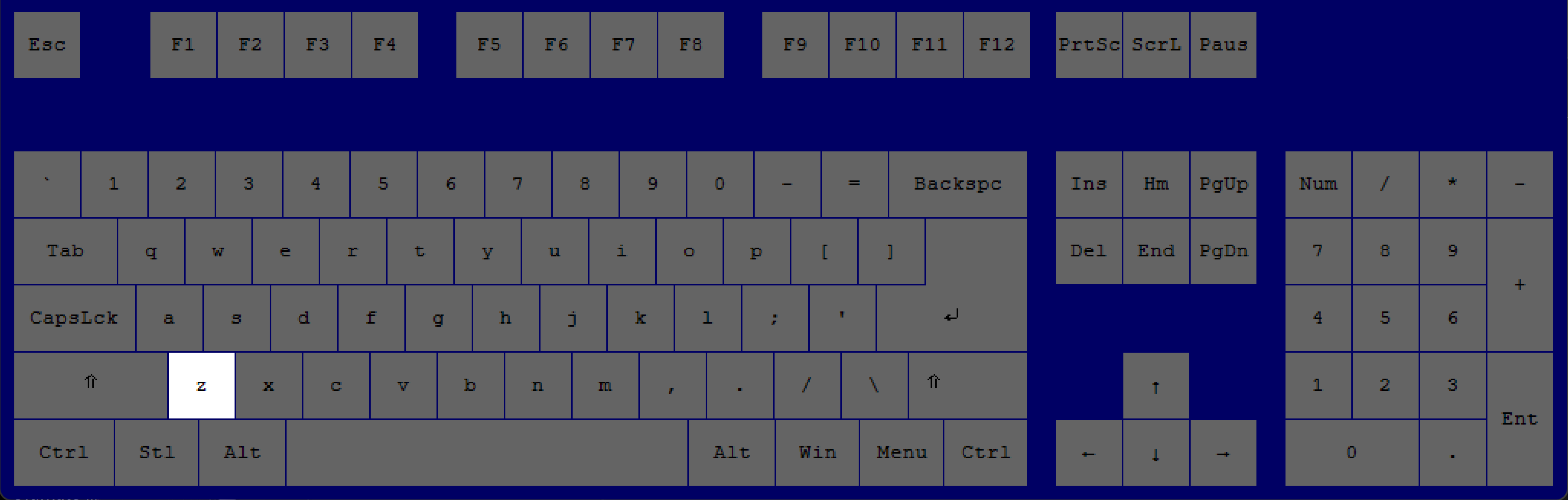
drop the item you are holding on the ground.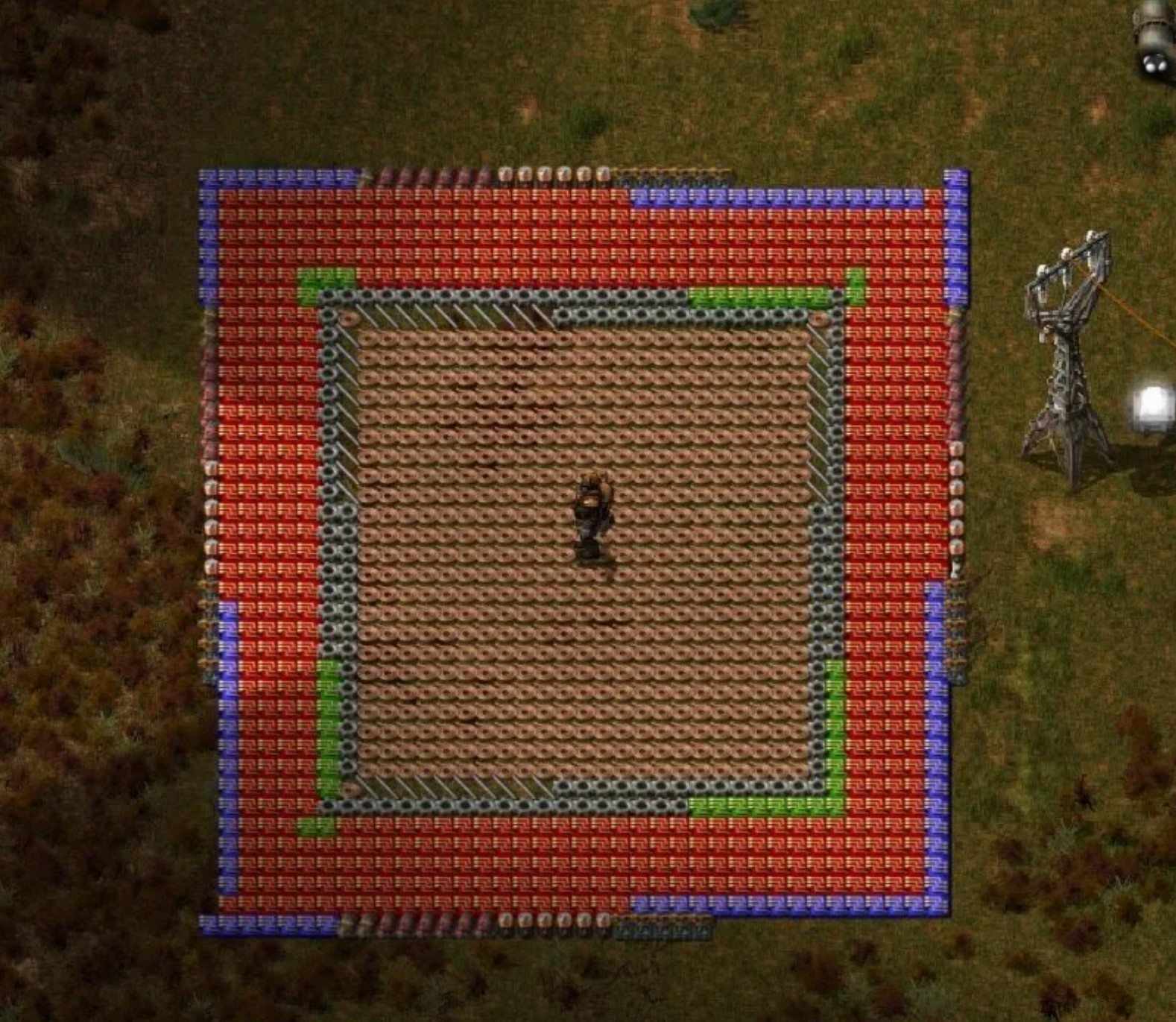
“F”
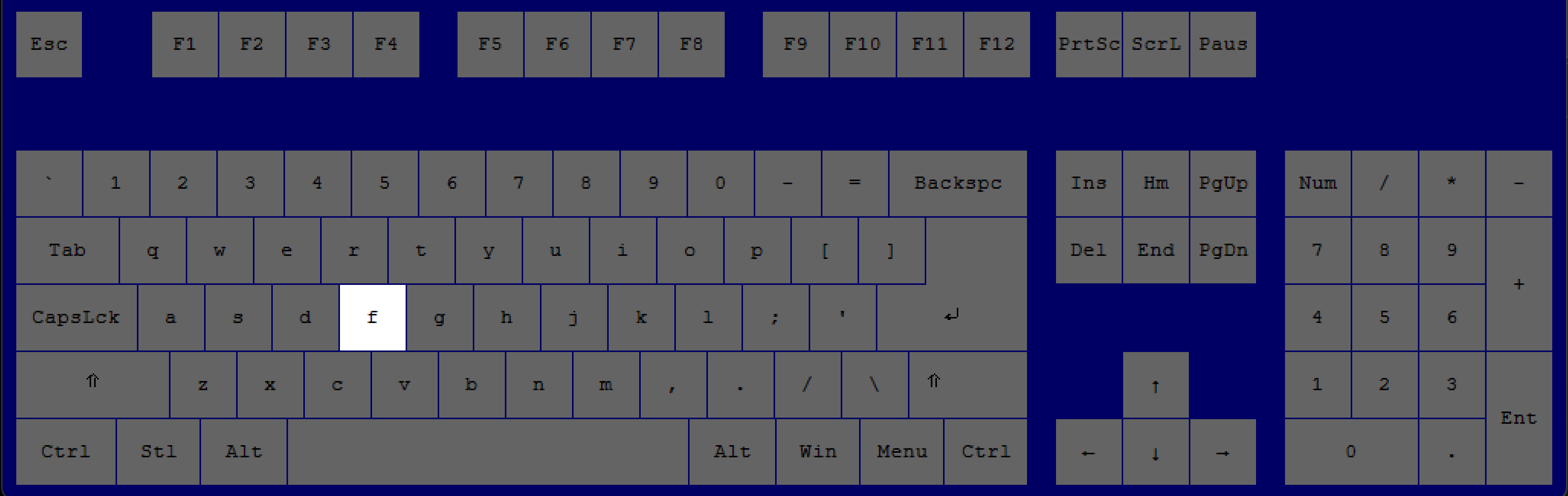
pick up the nearest item(s) on the ground.
“M"
-OR-
“TAB"
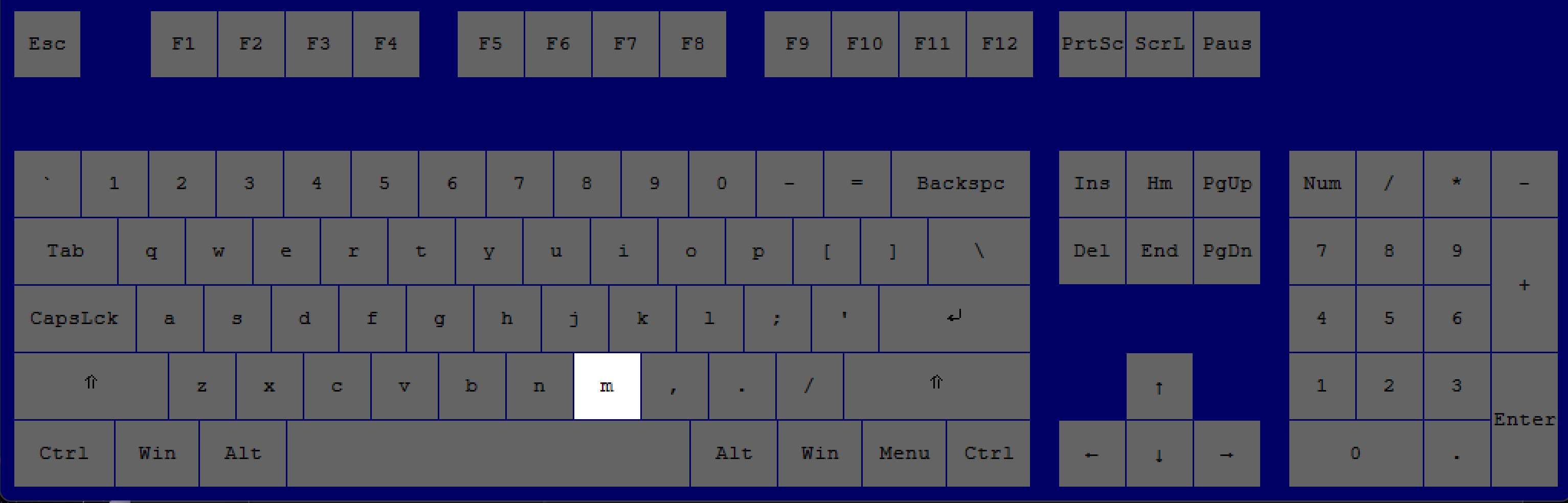
to access the in-game map.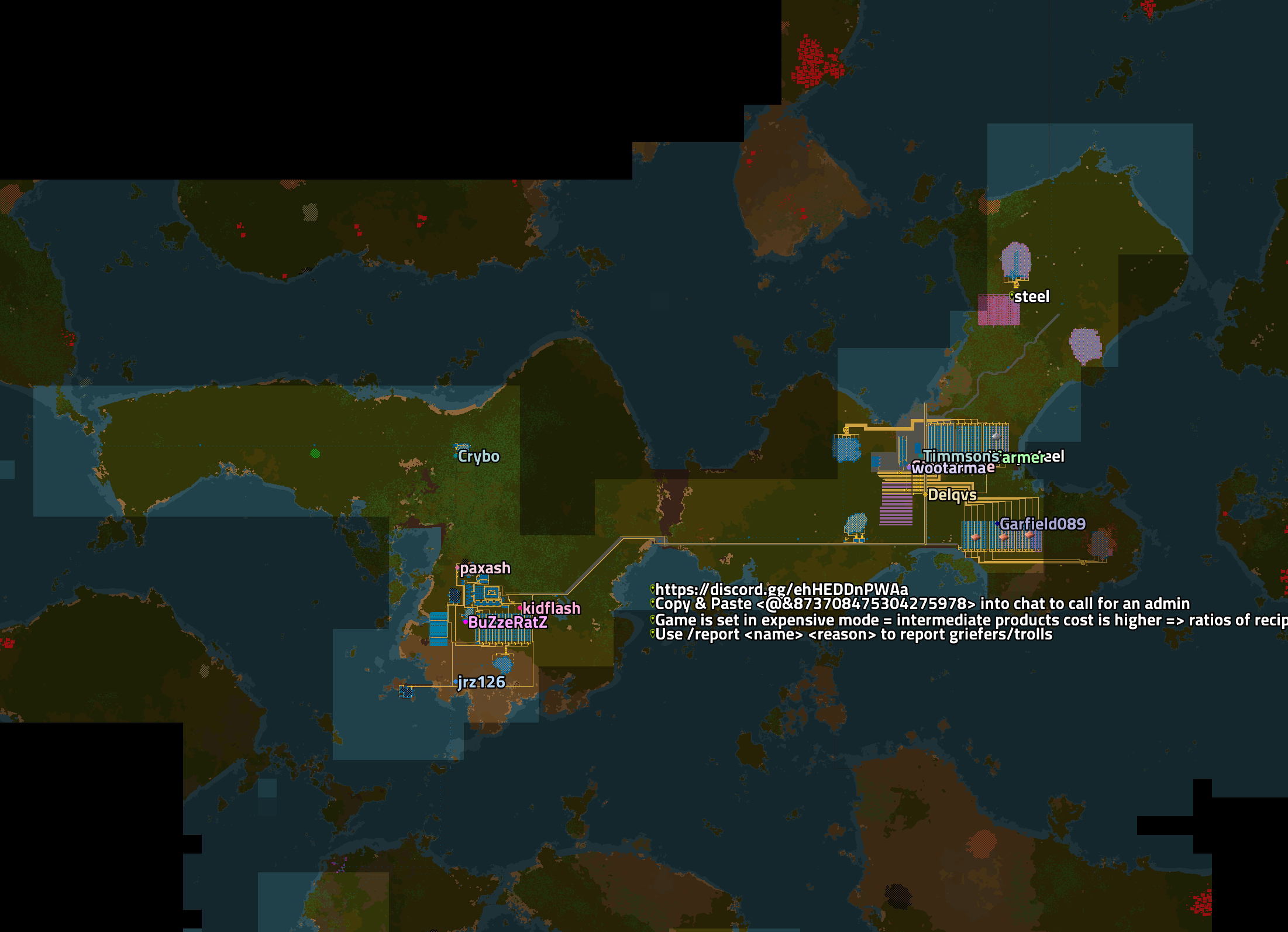
“~”
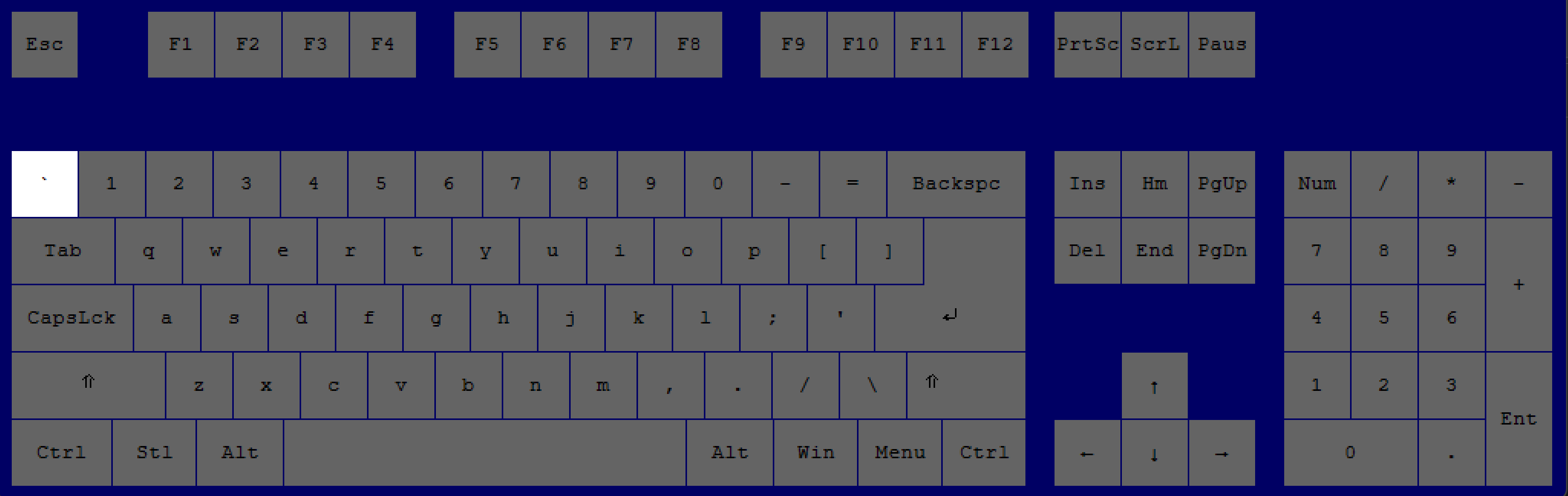
Open chat in multiplayer or the console in single-player.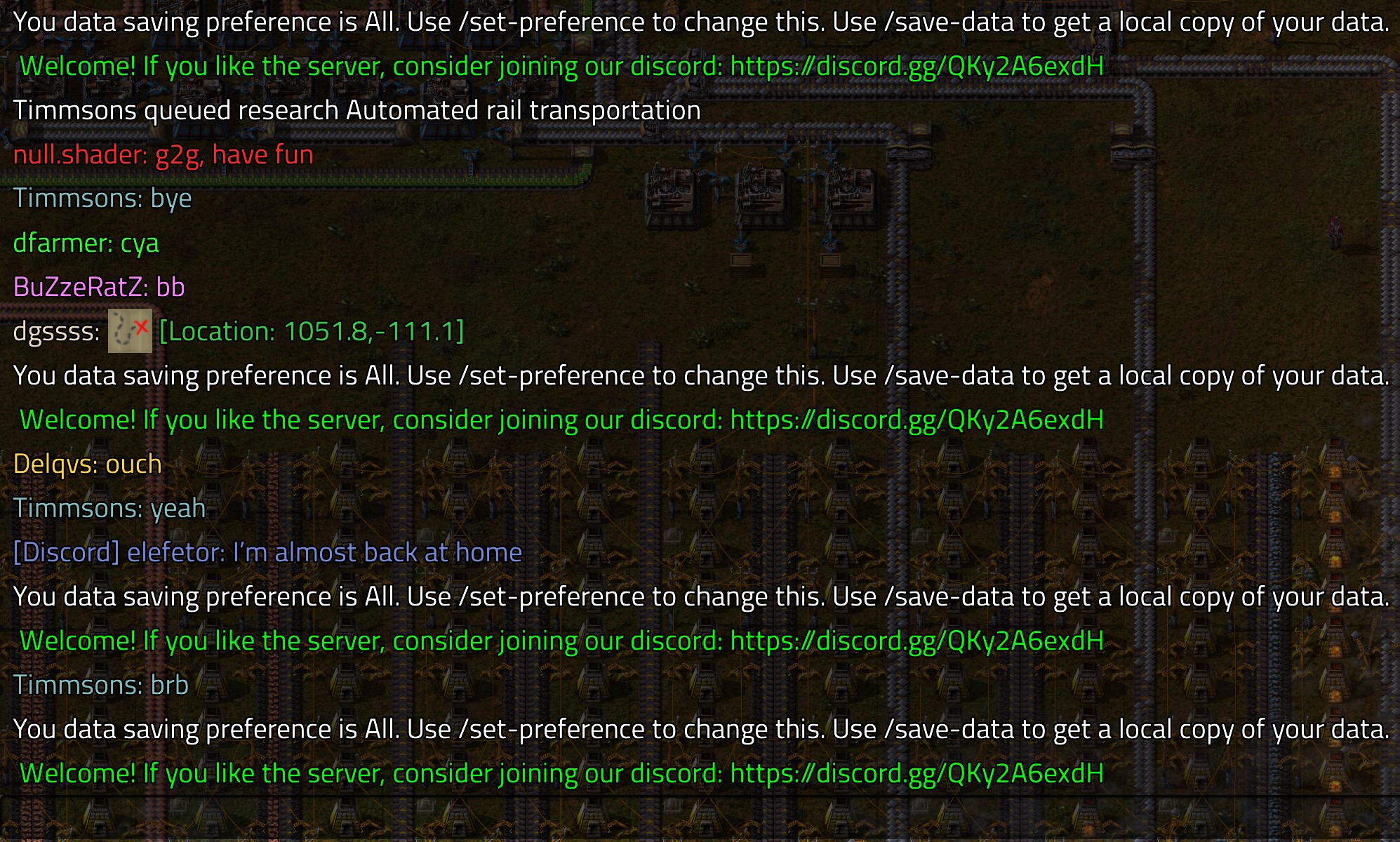
“Shift”
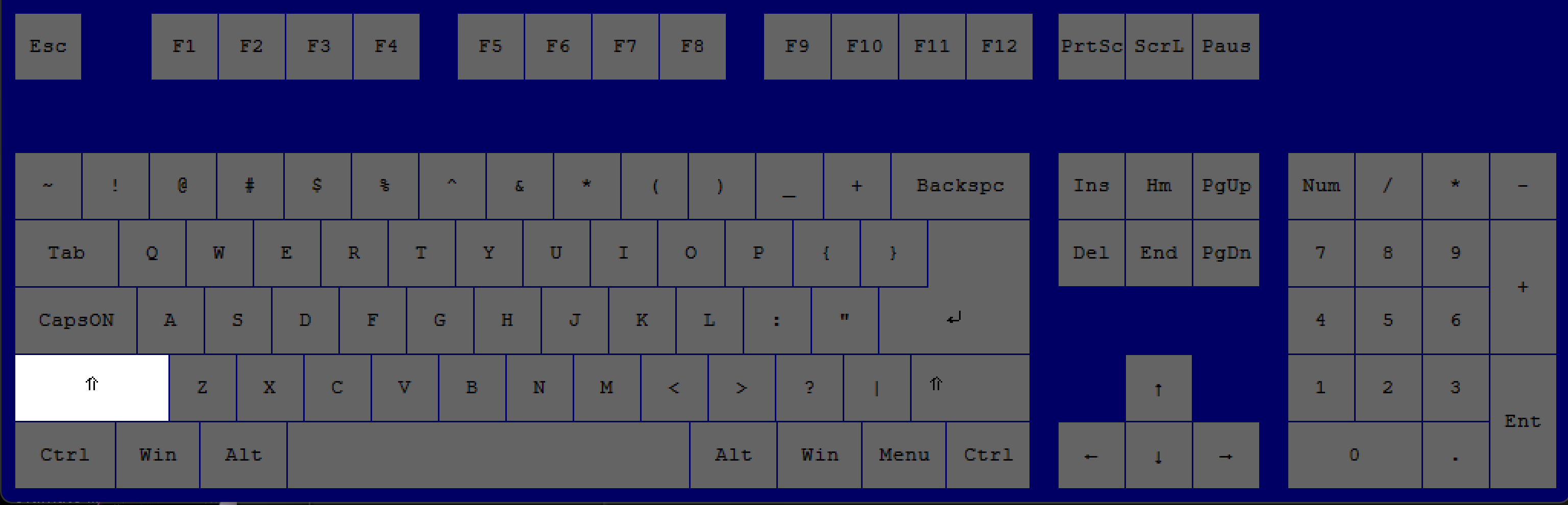 +
+
“Space”
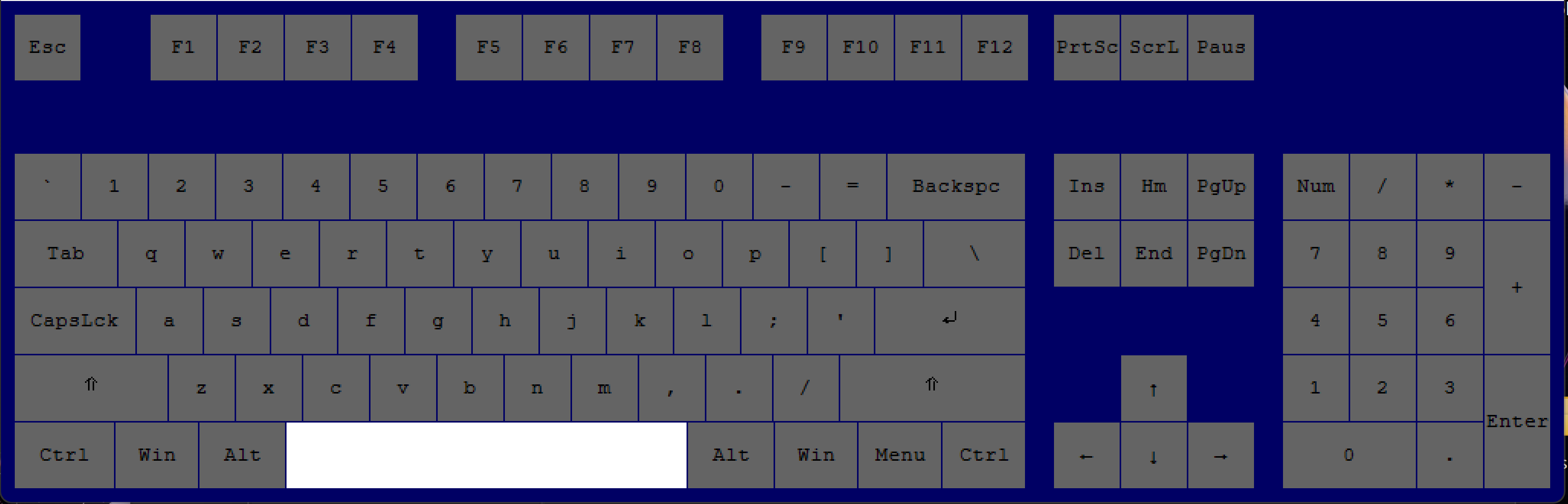
shoot the weapon you are holding (with ammo) at a target.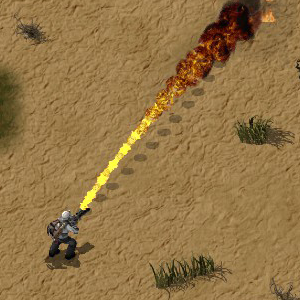
“C"
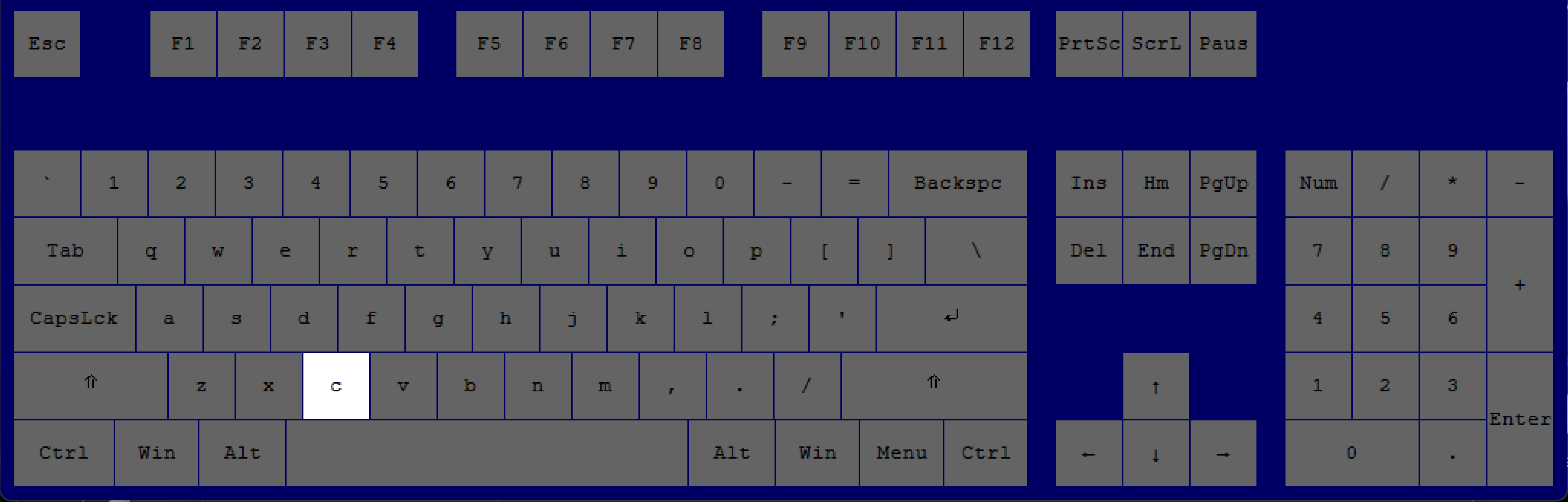
change weapons (you need to have multiple weapons equipped to change weapons).
“1"
"2"
"3"
"4"
"5"
"6"
"7"
"8"
"9”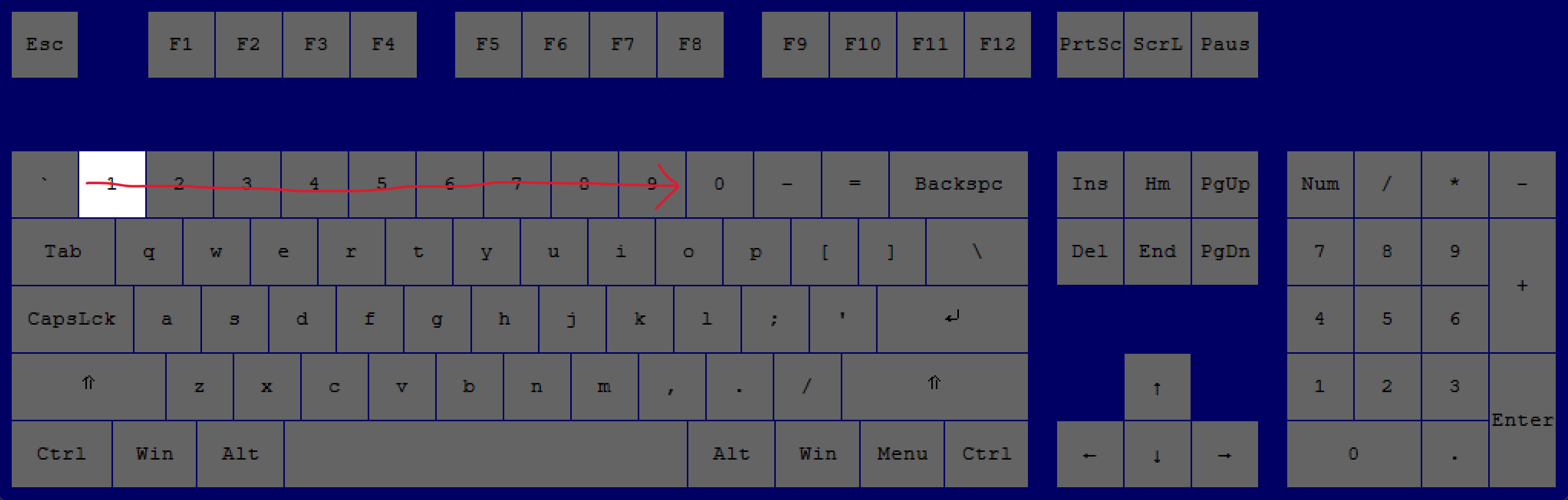
"2"
"3"
"4"
"5"
"6"
"7"
"8"
"9”
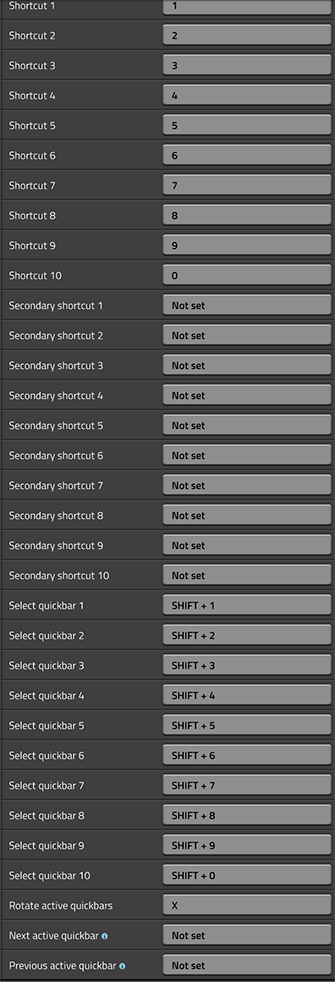
quick-select the item accordingly in your hotbar.
“Alt"
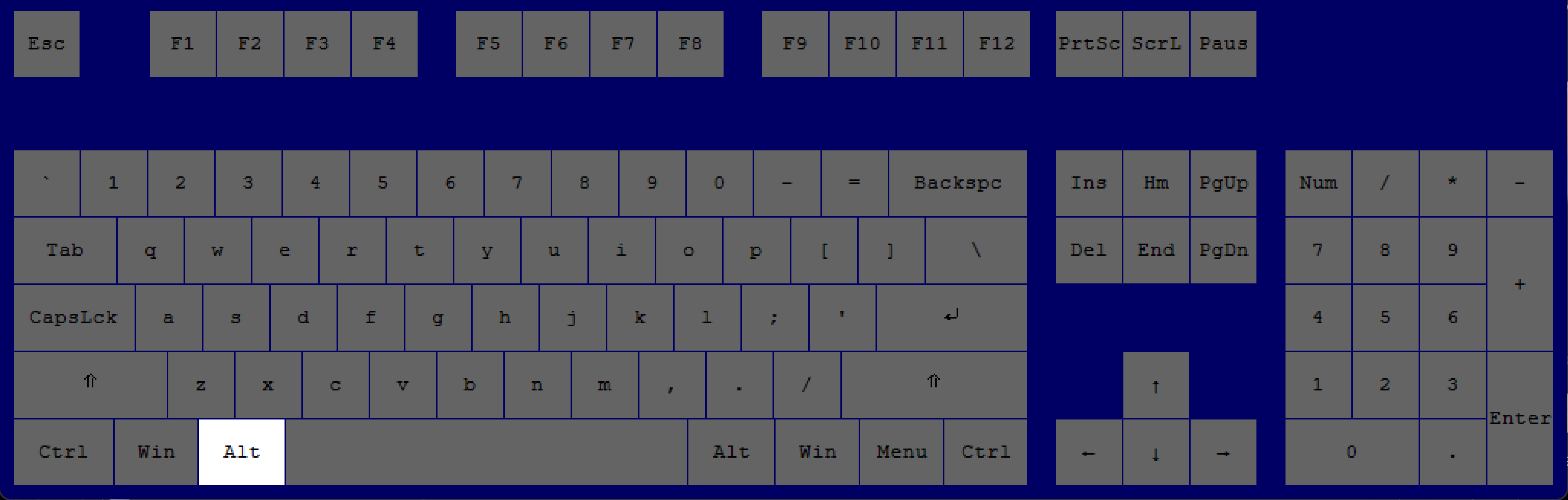
Show alternative view/layout. In chests or assembling machines, it'll show what is inside or what is being made. ALSO works on the in-game map.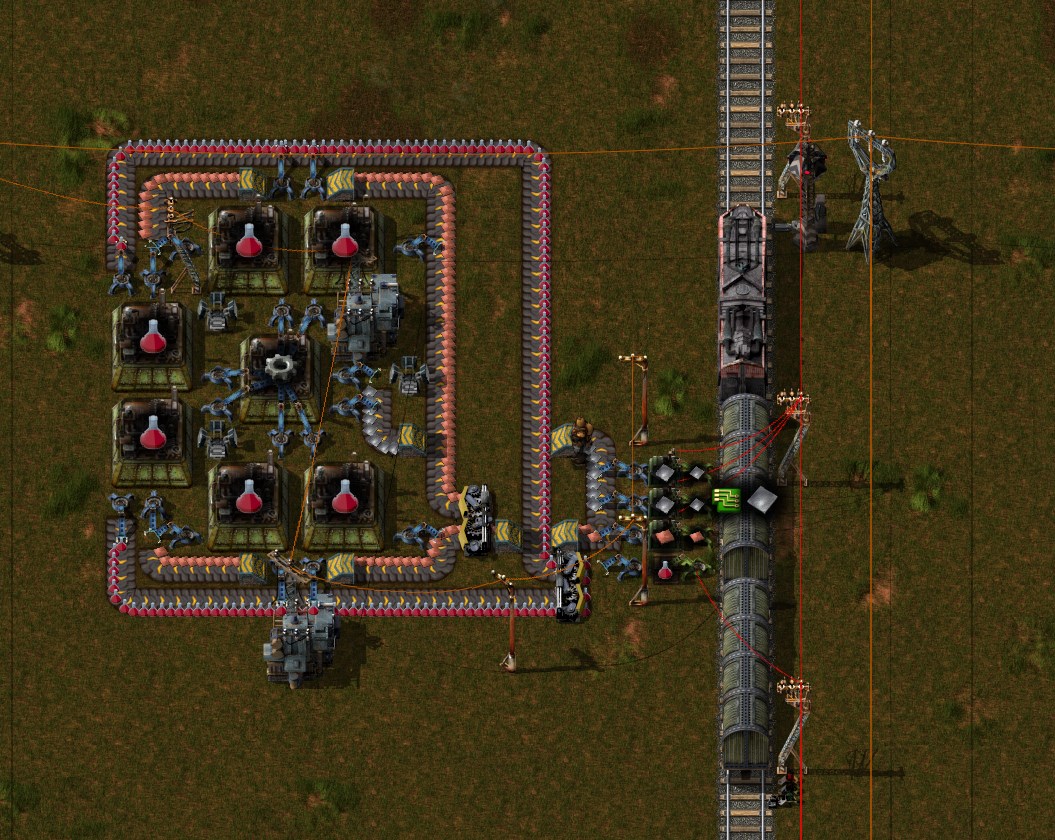
--- Construction Tips
Shortcut Key(s), Press:
Effect
Shortcut Key(s), Press:
Effect
“R”
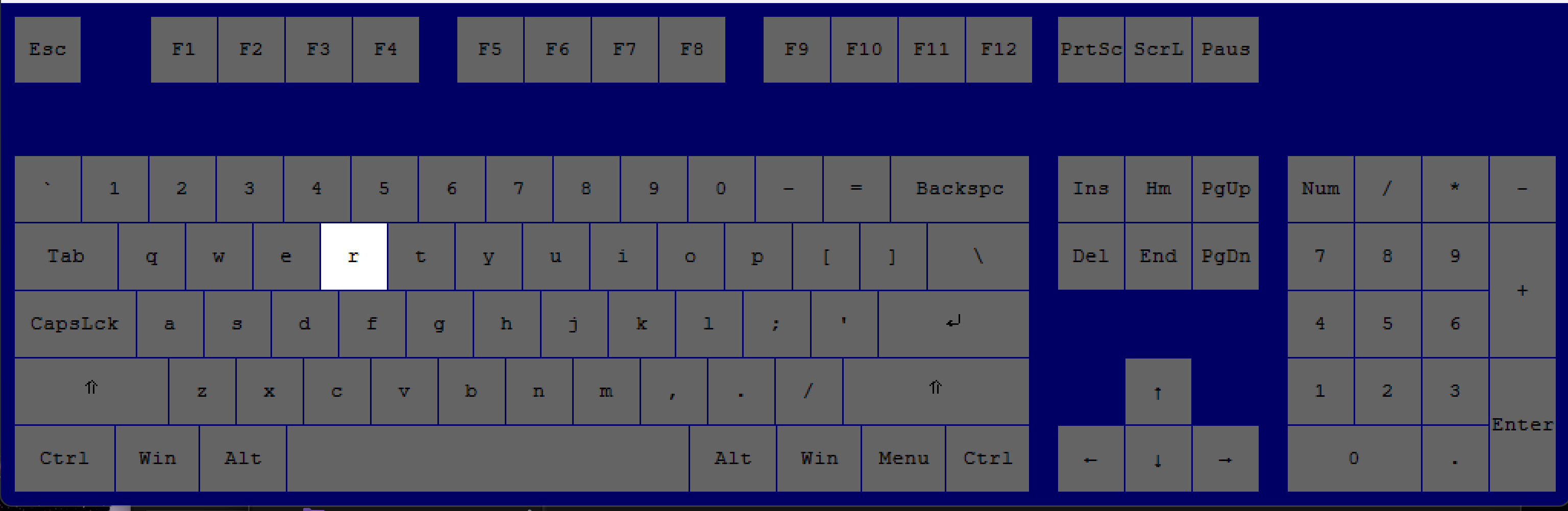
rotate or reverse that entity (clockwise).
“Shift"
+
"R”
reverse rotate an entity (counterclockwise).
“="
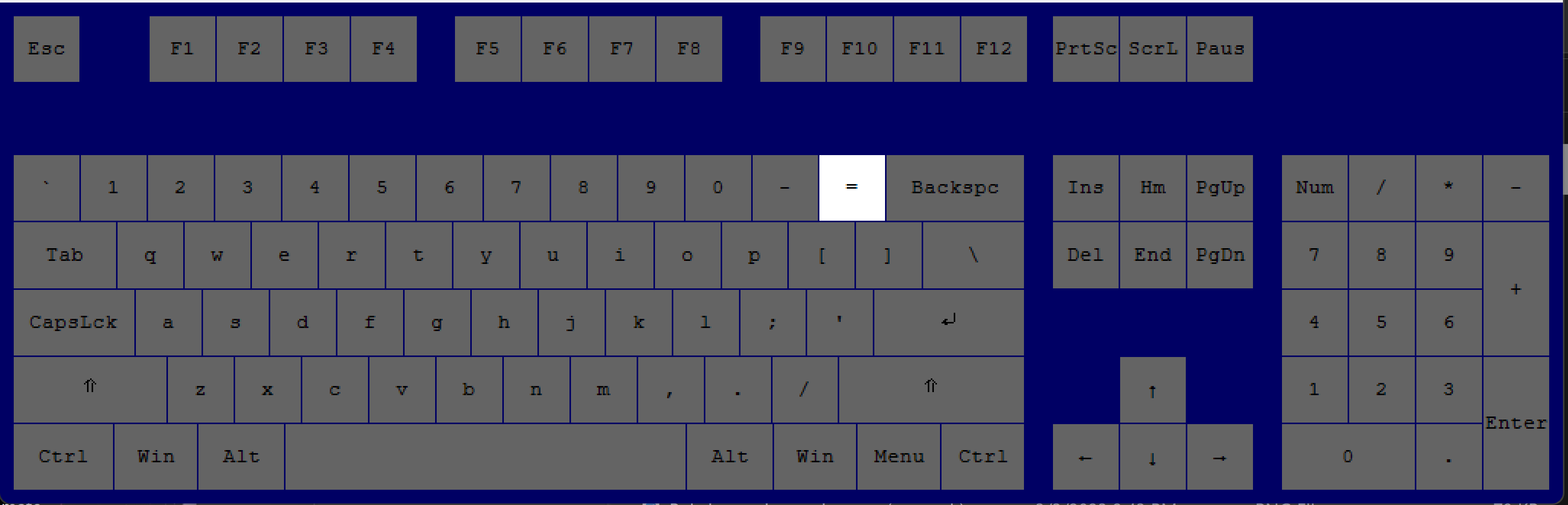
increase the size of the tile you want to place.
“-"
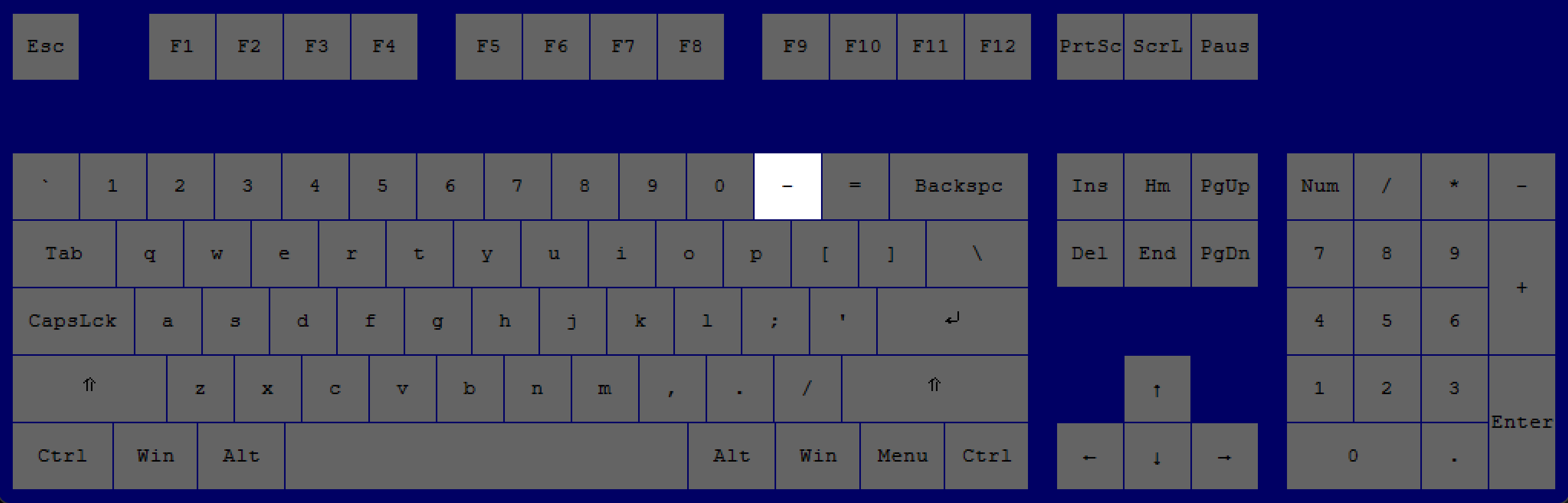
decrease the size of the tile you want to place.
Hold down
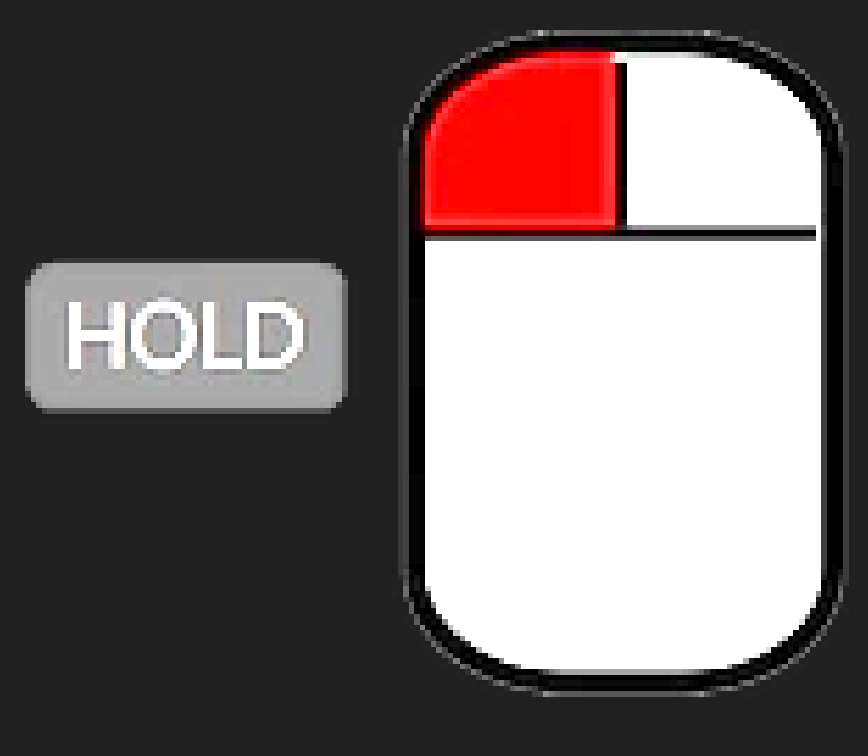 WHILE placing a blueprint or item and moving in any direction
"Left Click"
allow you to tile a blueprint or item easily.
“B"
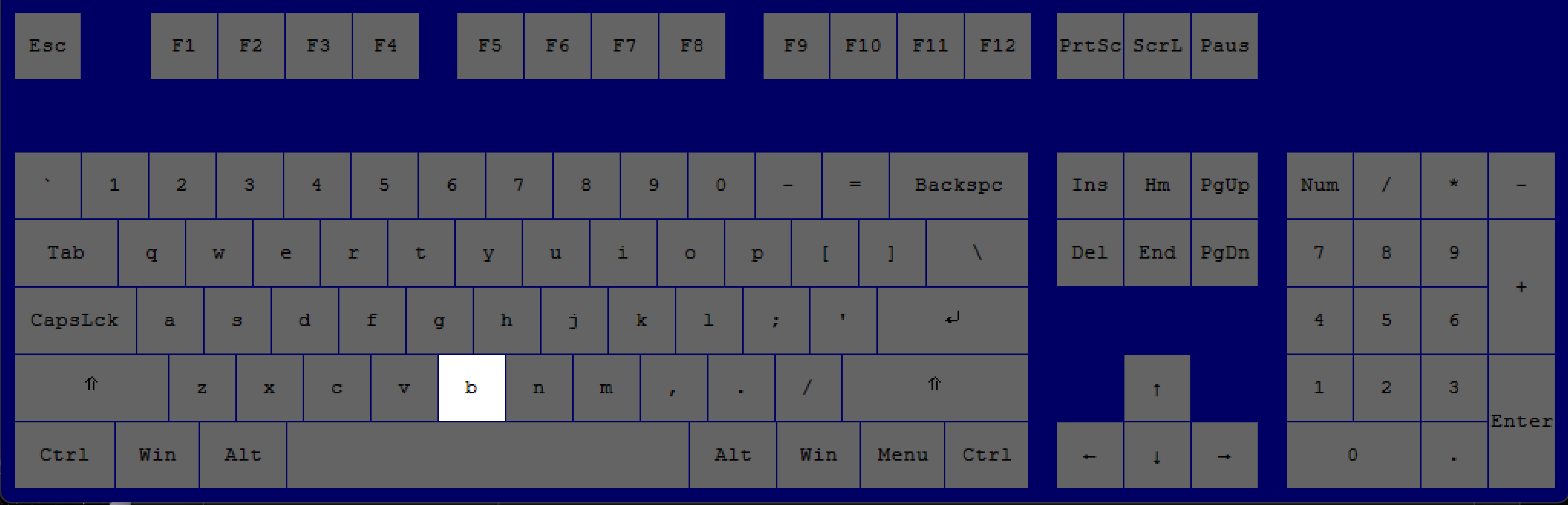
to access a list of your, stored blueprints.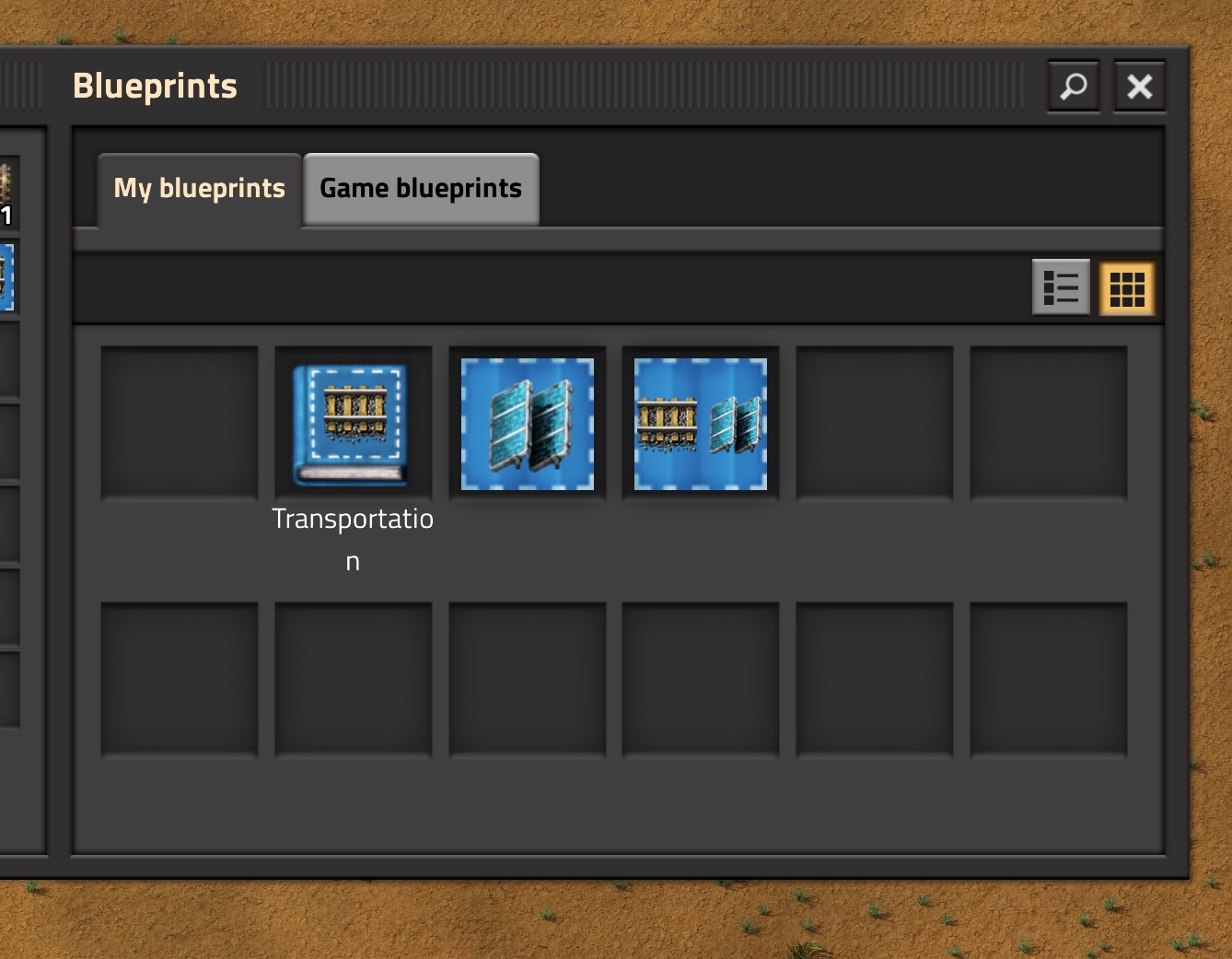
--- Blueprints & Managing Entities
Shortcut Key(s), Press
Effect
Shortcut Key(s), Press
Effect
"V"
flip the blueprint only left to right, on a vertical axis.
"H"
flip the blueprint only top to bottom, on a horizontal axis. Click to watch video.[cdn.factorio.com]
"R"
rotate or reverse that entity (clockwise).
"Shift"
+
"R”
reverse rotate an entity (counterclockwise).
Hold down
WHILE holding a deconstruction planner
"Shift”
to remove deconstruction flags.
"Right Click"
edit the blueprint.
(Upgrade and Deconstruction planners are edited this way too.)
(Upgrade and Deconstruction planners are edited this way too.)
Hold down
+
Press
WHILE holding a blueprint over water“Shift”
+
Press
“Left Click”
place a blueprint over water: automatically putting landfill underneath the objects.
--- Extras
Shortcut Key(s), Press
Effect
Shortcut Key(s), Press
Effect
Hold down WHILE placing an underground belt, underground pipe, or electric pole
"Left Click"
it will automatically be placed at the farthest away it can be while still being connected.
Hold down WHILE placing multiple belts in a direction AND having underground belts in your inventory
"Left Click"
"Ctrl"
 +
+
"Num +"
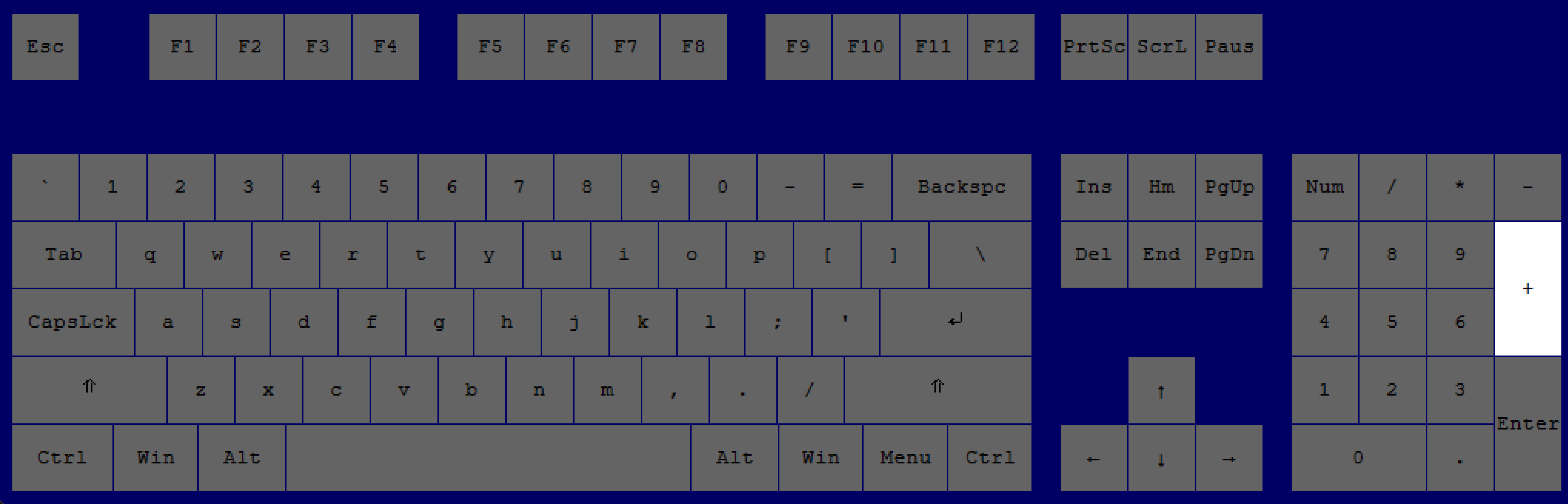
increase the size of your user interface. Also, when in the main menu, zooms IN the background.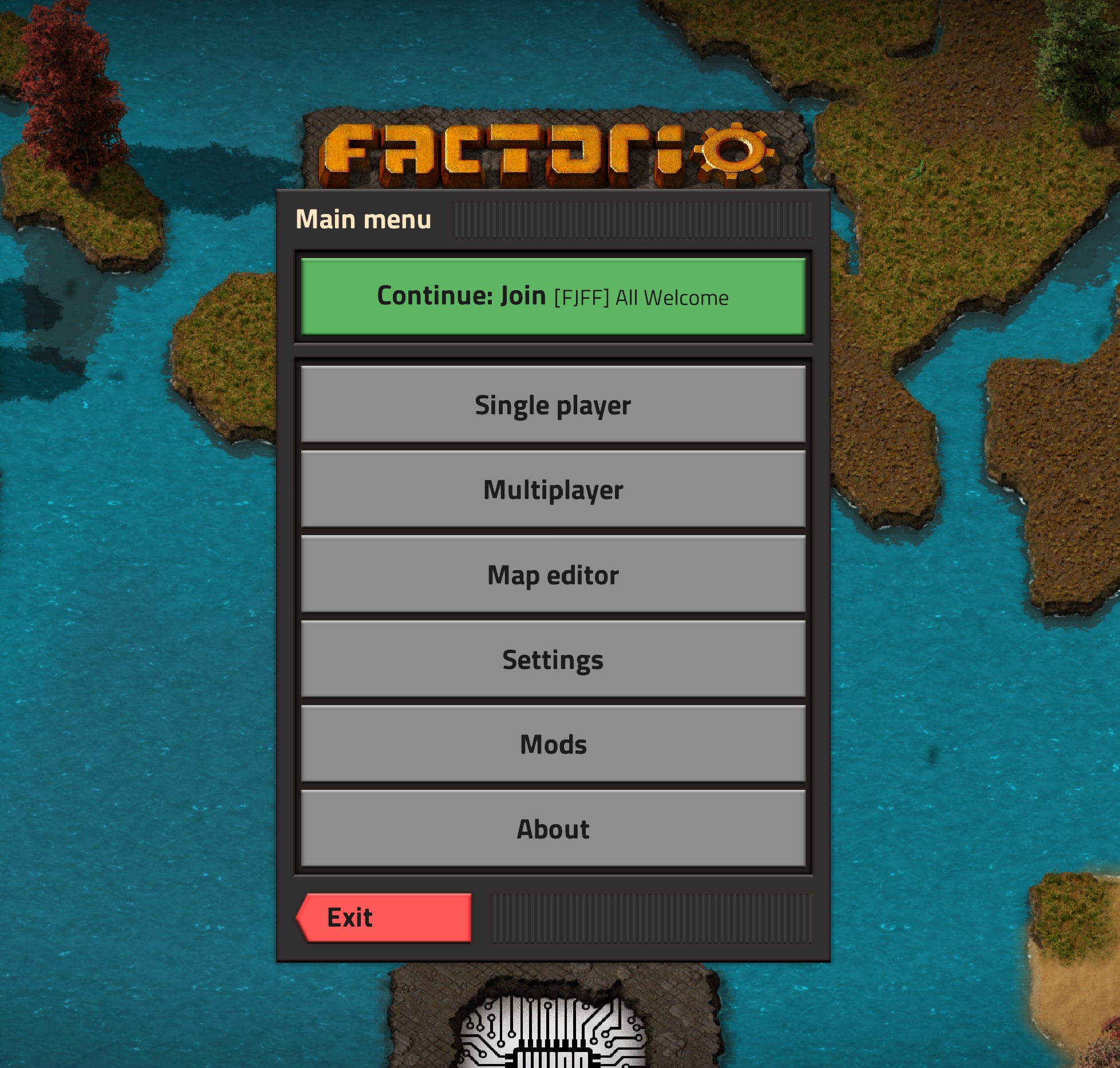
"Ctrl"
+
"Num -"
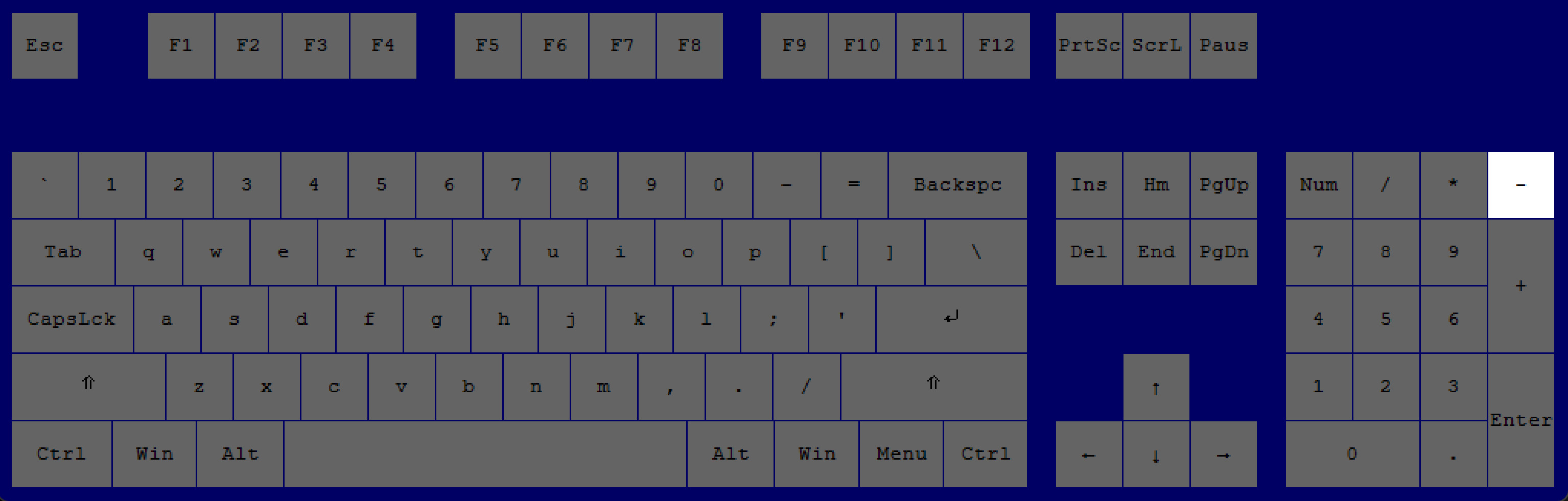
decrease the size of your user interface. Also, when in the main menu, zooms OUT the background.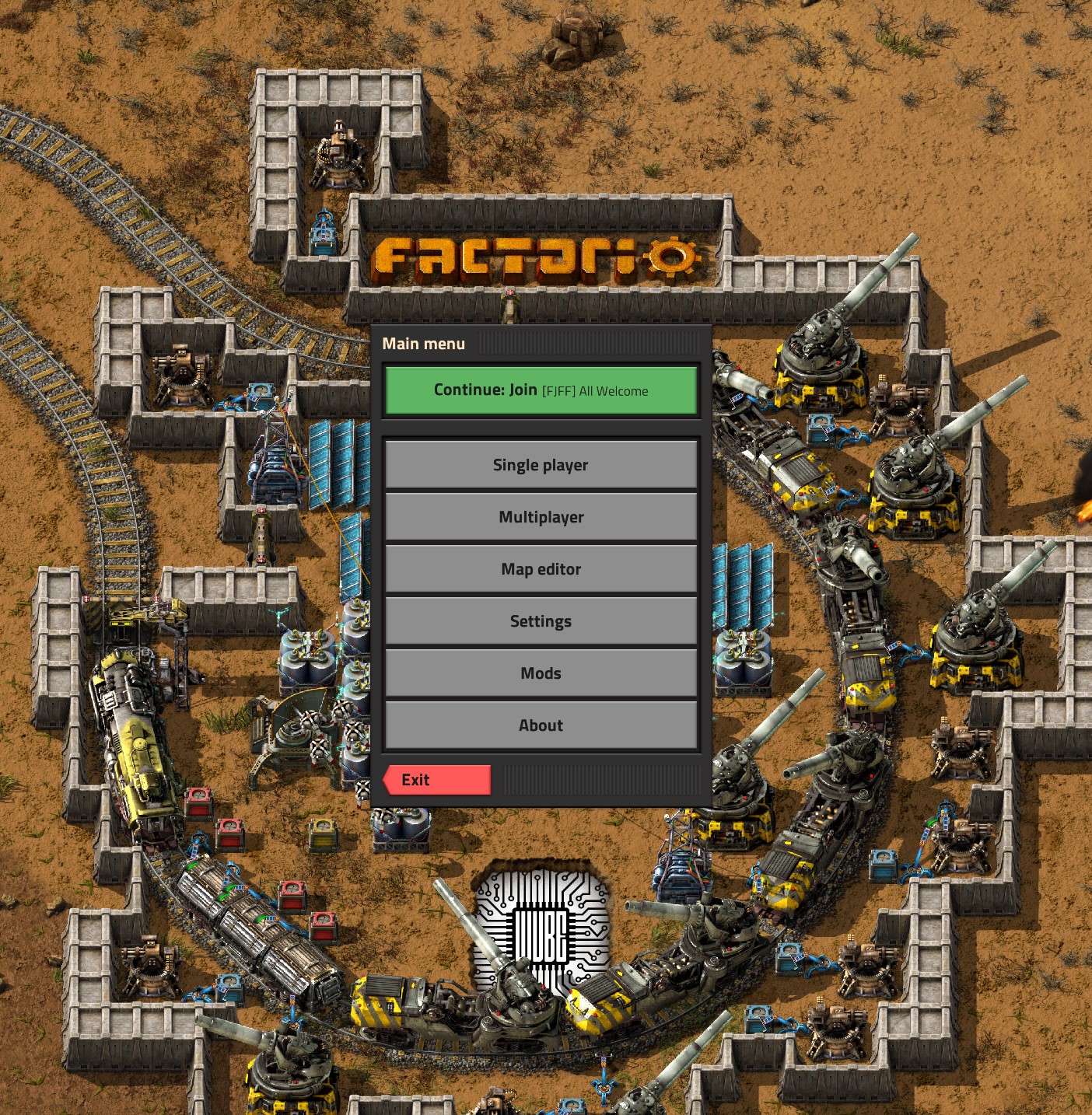
"Alt"
+
"Left Click"
open the Factoriopedia.
In the D.L.C. (Space Age), this allows you to see the effects of quality, by hovering over a blue diamond next a number, such as "Base Health".
In the D.L.C. (Space Age), this allows you to see the effects of quality, by hovering over a blue diamond next a number, such as "Base Health".
.
INTERMEDIATE (50-100 HOURS)
--- Player Abilities & Managing Inventory
Shortcut Key(s), Press:
Effect
Shortcut Key(s), Press:
Effect
“Shift"
+
"Left Click”
take or give that 1 item stack.
“Ctrl"
+
"Right Click”
empty chest inventory into your inventory; works on most inventories.
“Ctrl"
+
"Right Click”
take or give half of all stacks of that item.
“Ctrl"
+
"Right Click”
take or give half of all items.
“Ctrl"
+
"Left Click”
take or give all stacks of that item.
“Ctrl"
+
"Left Click”
take or give all items.
“Right Click”
split the stack of items in half.
--- Construction Tips
Shortcut Key(s), Press:
Effect
Shortcut Key(s), Press:
Effect
“Ctrl"
+
"C”
bring out the "Copy Blueprint Editor" to copy and paste a blueprint.
“Alt"
+
"B”
bring out a "Blueprint" to create a blueprint.
“Alt"
+
"D”
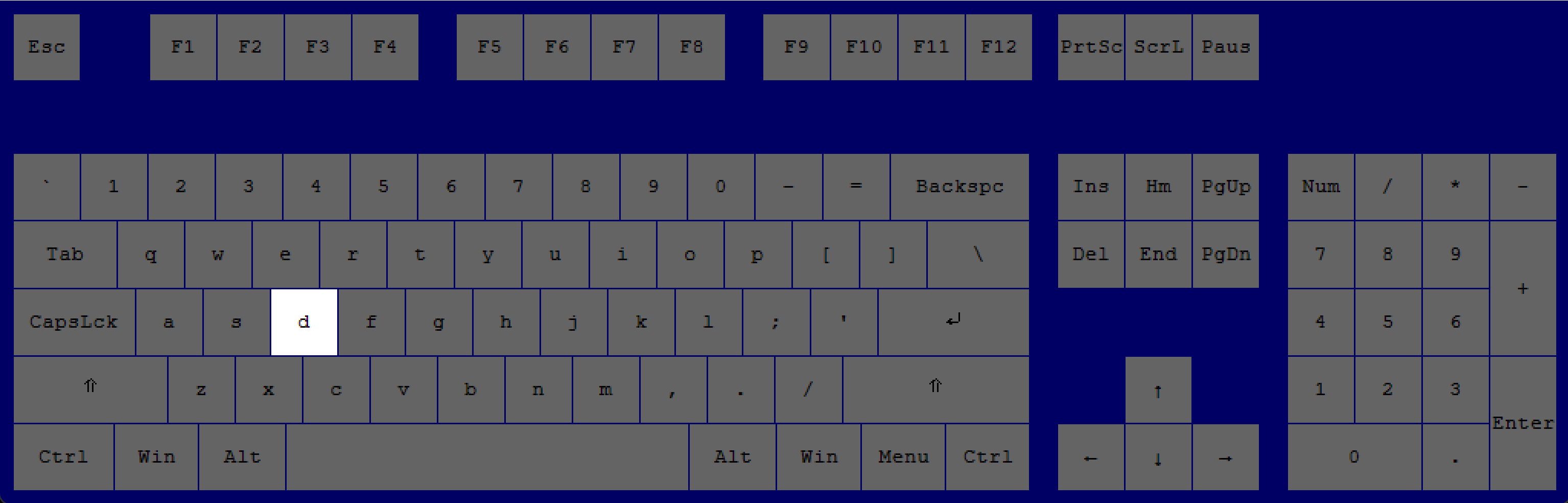
bring out a "Destruction Blueprint" to destroy things.
“Alt"
+
"U”
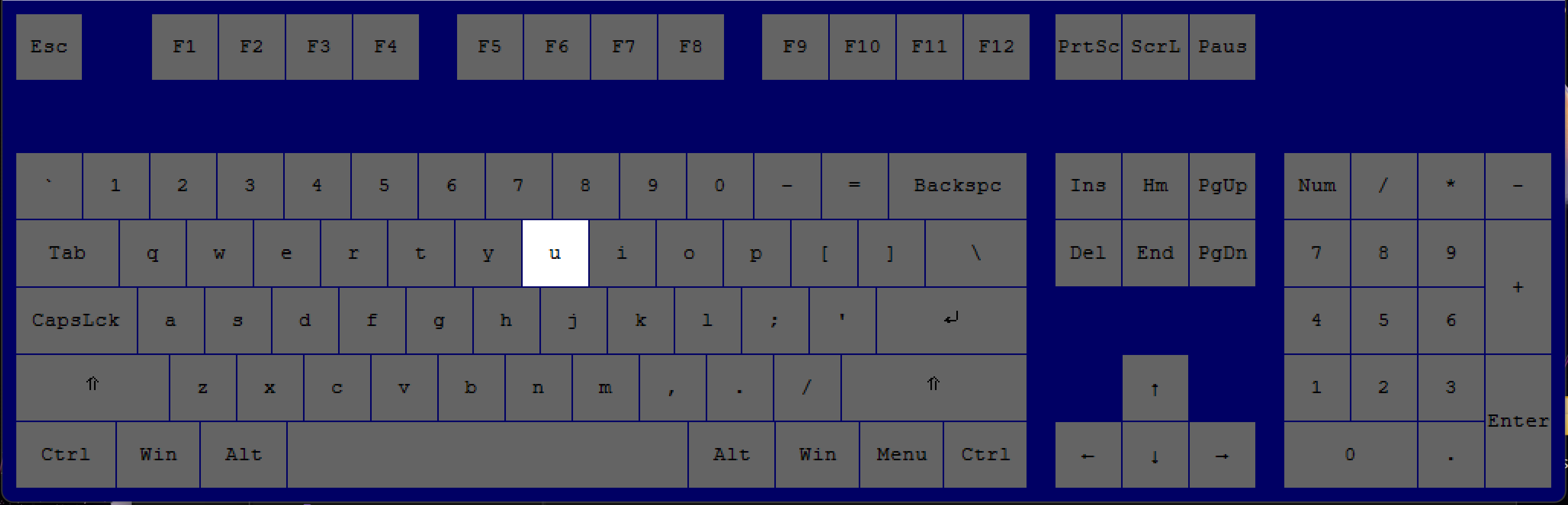
bring out the "Upgrade Planner" to upgrade things.
--- Blueprints & Managing Entities
Shortcut Key(s), Press
Effect
Shortcut Key(s), Press
Effect
“Shift"
+
"Scroll Up”
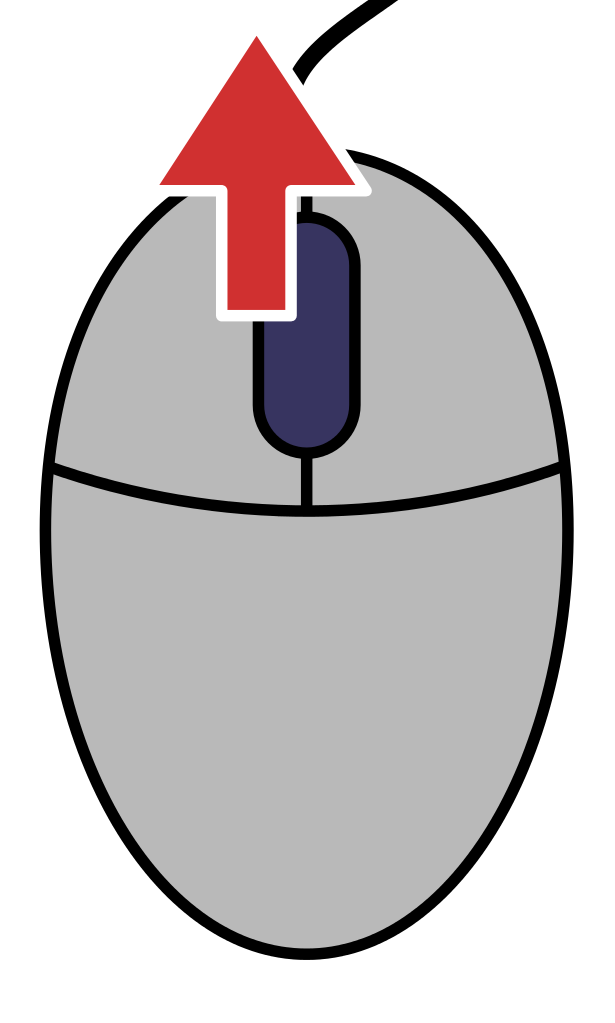
change to the next blueprint in the blueprint book.
“Shift"
+
"Scroll Down”
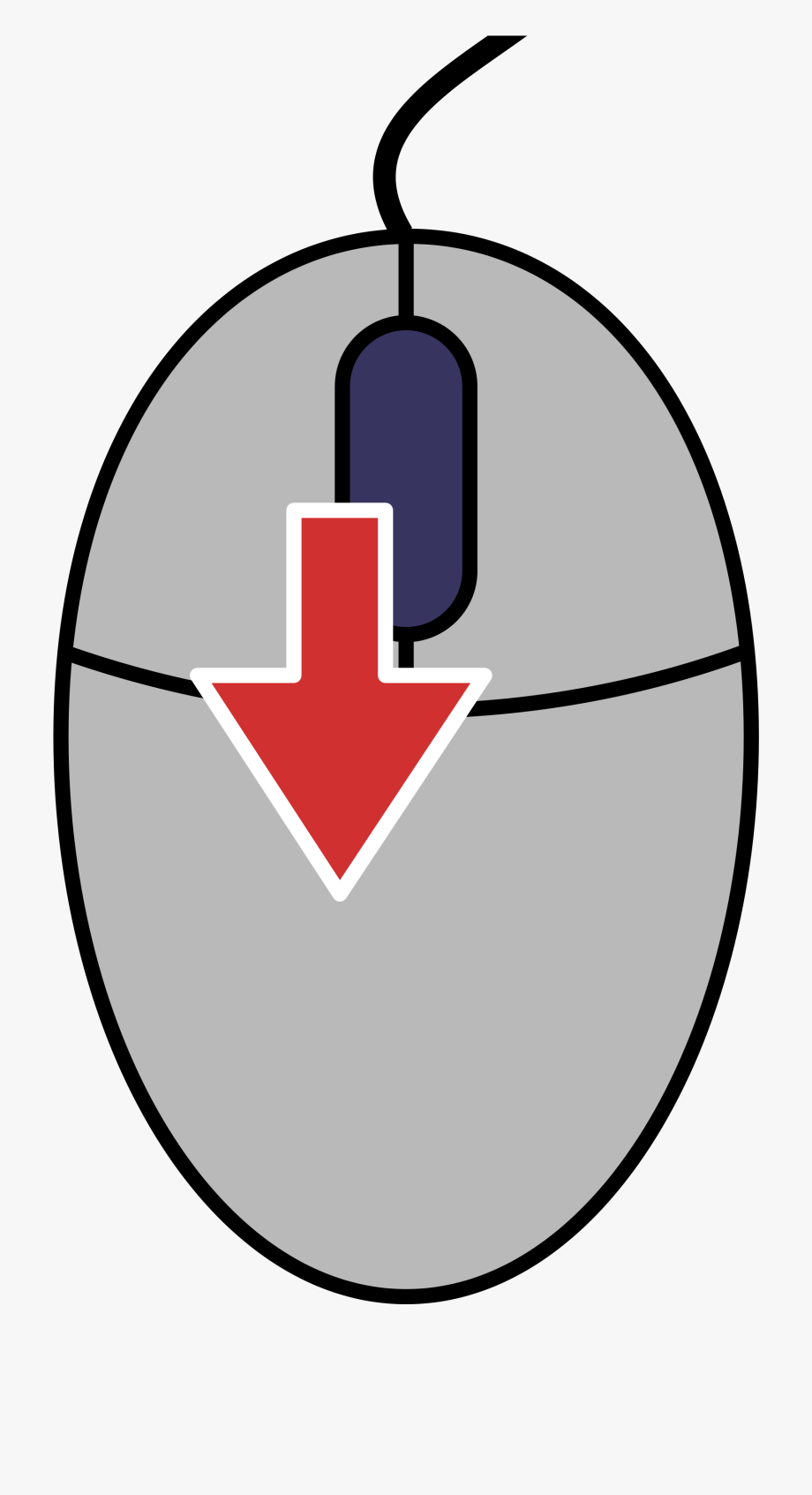
change to the previous blueprint in the blueprint book.
"Right Click"
delete the item in that blueprint.
"Left Click"
bring the item you deleted in a blueprint back.
Hold down
+
+
Press
WHILE holding an object over belts.“Ctrl”
+
“Shift”
+
Press
“Left Click”
place an object through belts, without disturbing the belts. Click to see example video.
--- Extras
Shortcut Key(s), Press
Effect
Shortcut Key(s), Press
Effect
"Ctrl"
+
"Left Click"
transfer all equipment items equipped to the player inventory (vice versa works too).
Inside a chest's inventory, by moving the red x in the bottom right corner of the chest's inventory
Limit the number of available slots in that chest.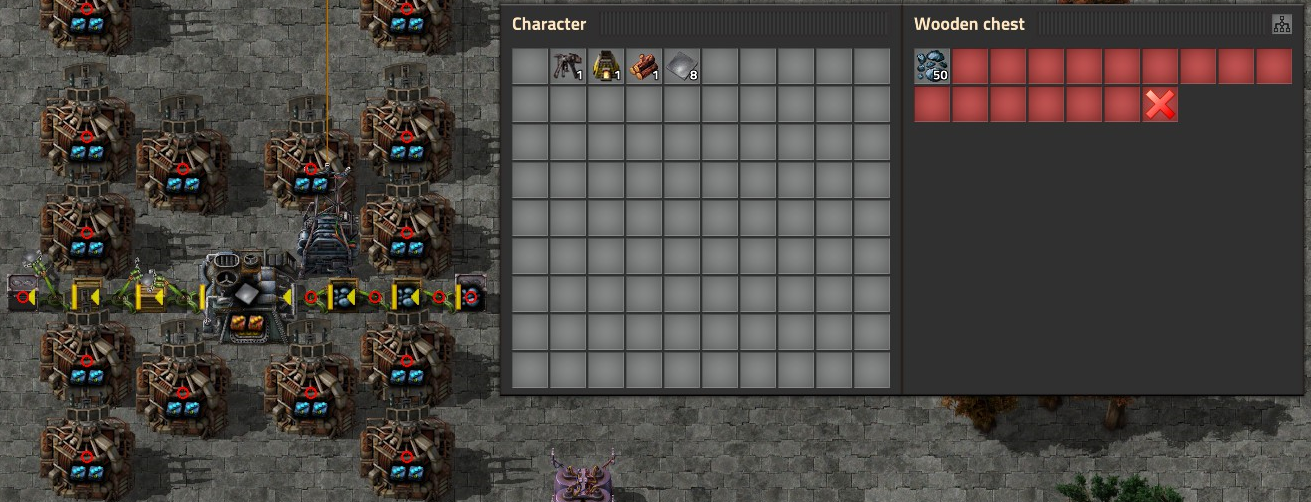
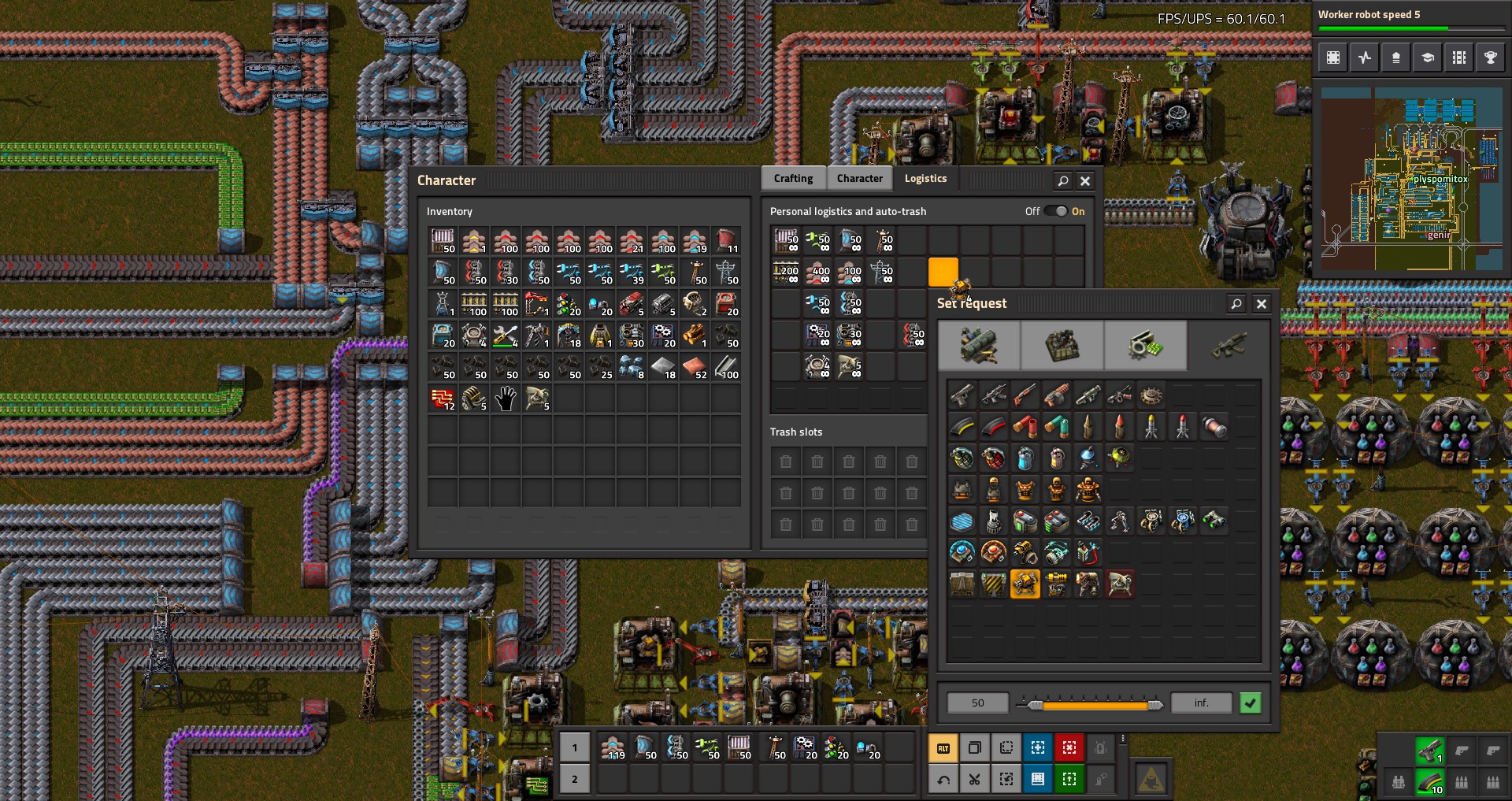
Inside a requestor chest's inventory, take any item and place it in the request slot
To request that item quickly.
Hold an item in your hand and press 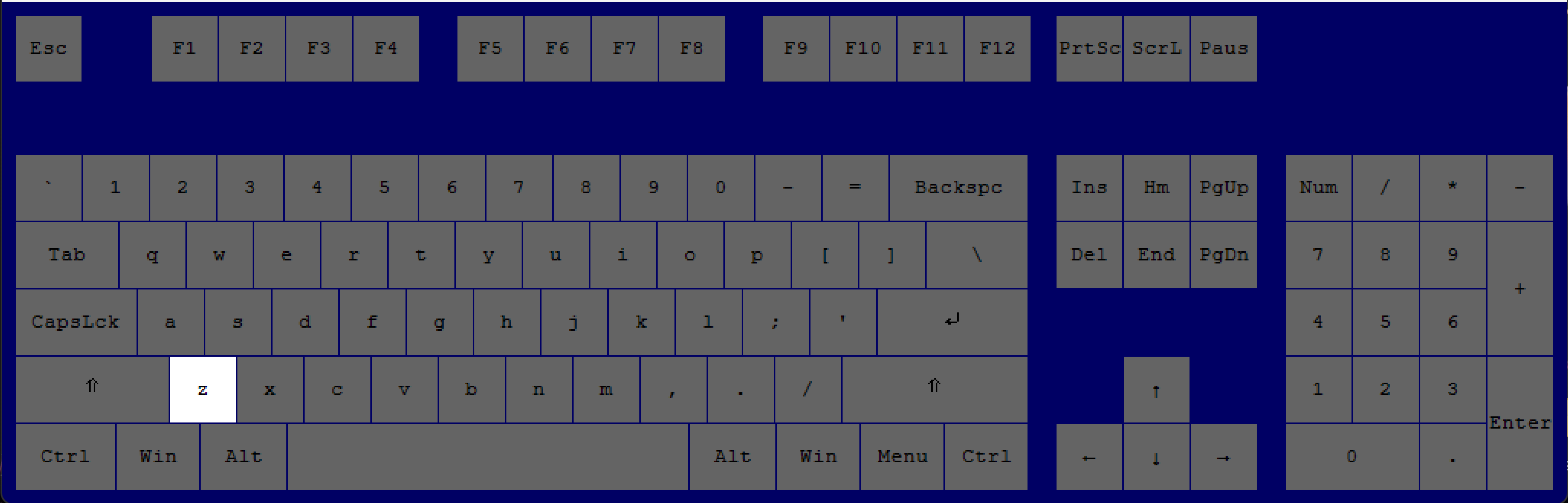 next to chest, furnace, or other container
"Z"
To drop that item into the container.
“Ctrl"
+
"F”
open the map and find any object on the map, including resources. Click to see example video.
.
EXPERT (100+ HOURS)
--- Player Abilities & Managing Inventory
Shortcut Key(s), Press:
Effect
Shortcut Key(s), Press:
Effect
"Shift"
+
"Left Click"
queue commands for the spiderton. Click to watch video.[cdn.factorio.com]
"Ctrl"
+
"Left Click"
spiderton will follow any entity that is clicked on.[cdn.factorio.com]
“Ctrl"
+
"F”
search for an item in an inventory.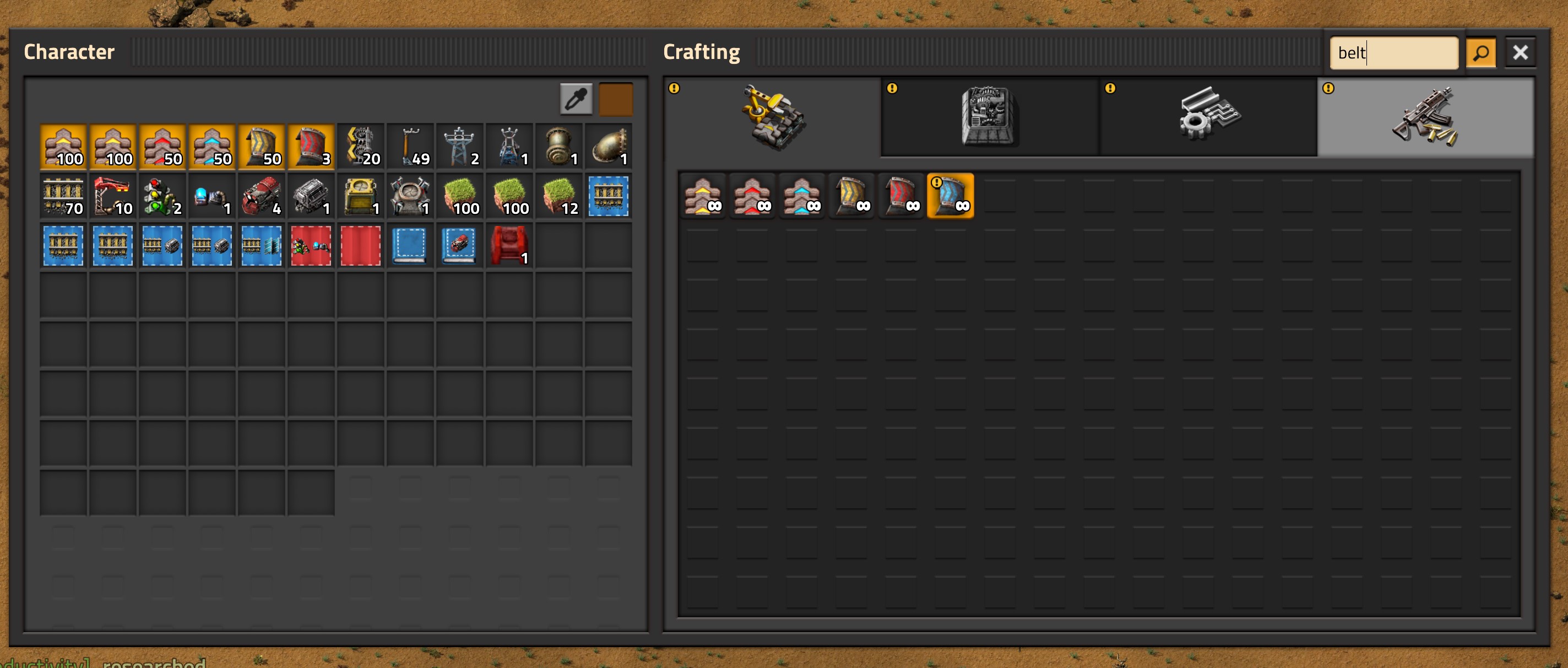
“Ctrl"
+
"Alt”
+
"Left Click”
Designate a spot on the map (most useful for pointing things out in multiplayer). The mod "Recipe Logistic Request" disables currently this. Check discussions to see if it's been fixed. 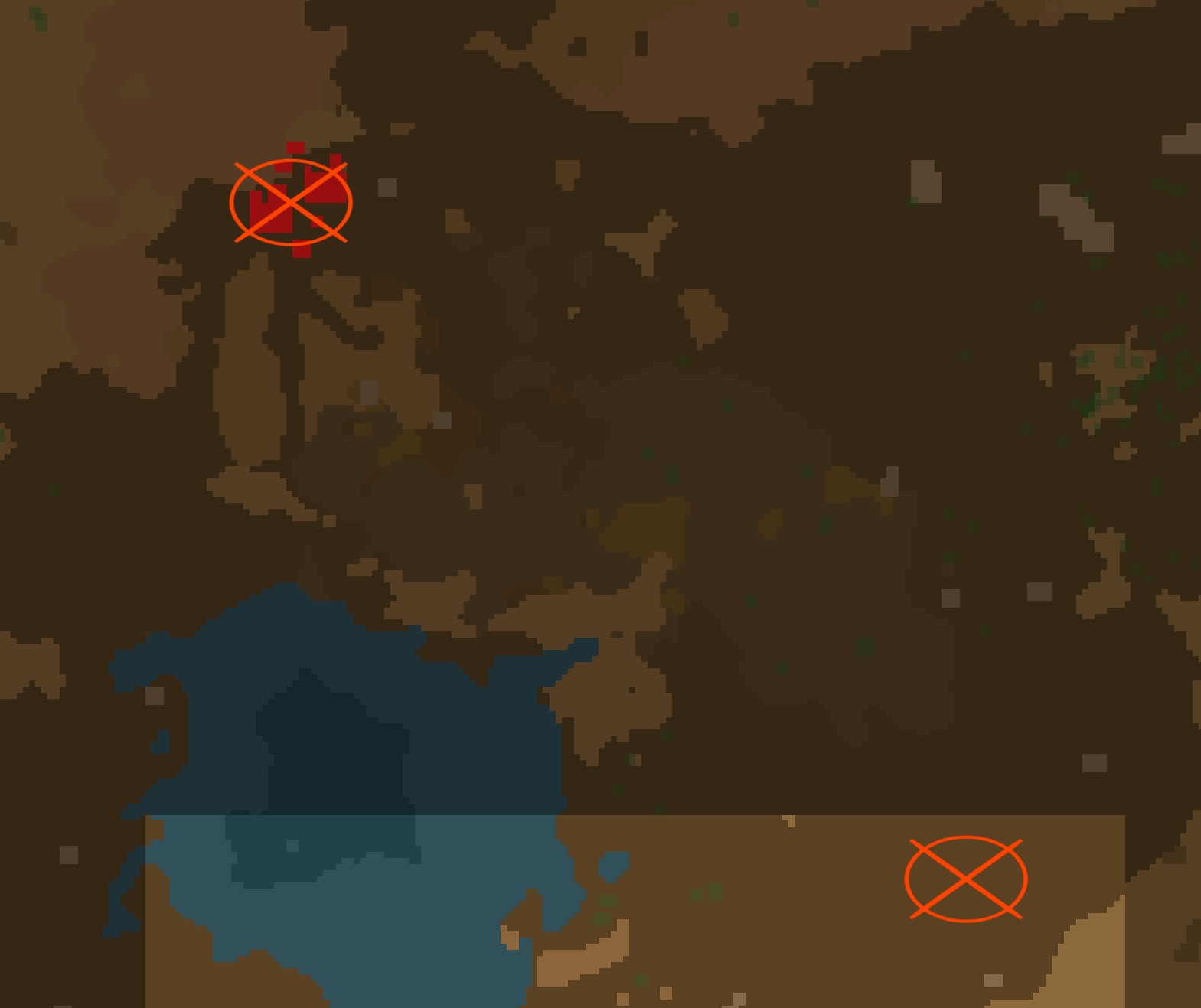
“L"
Open "Logistics Menu"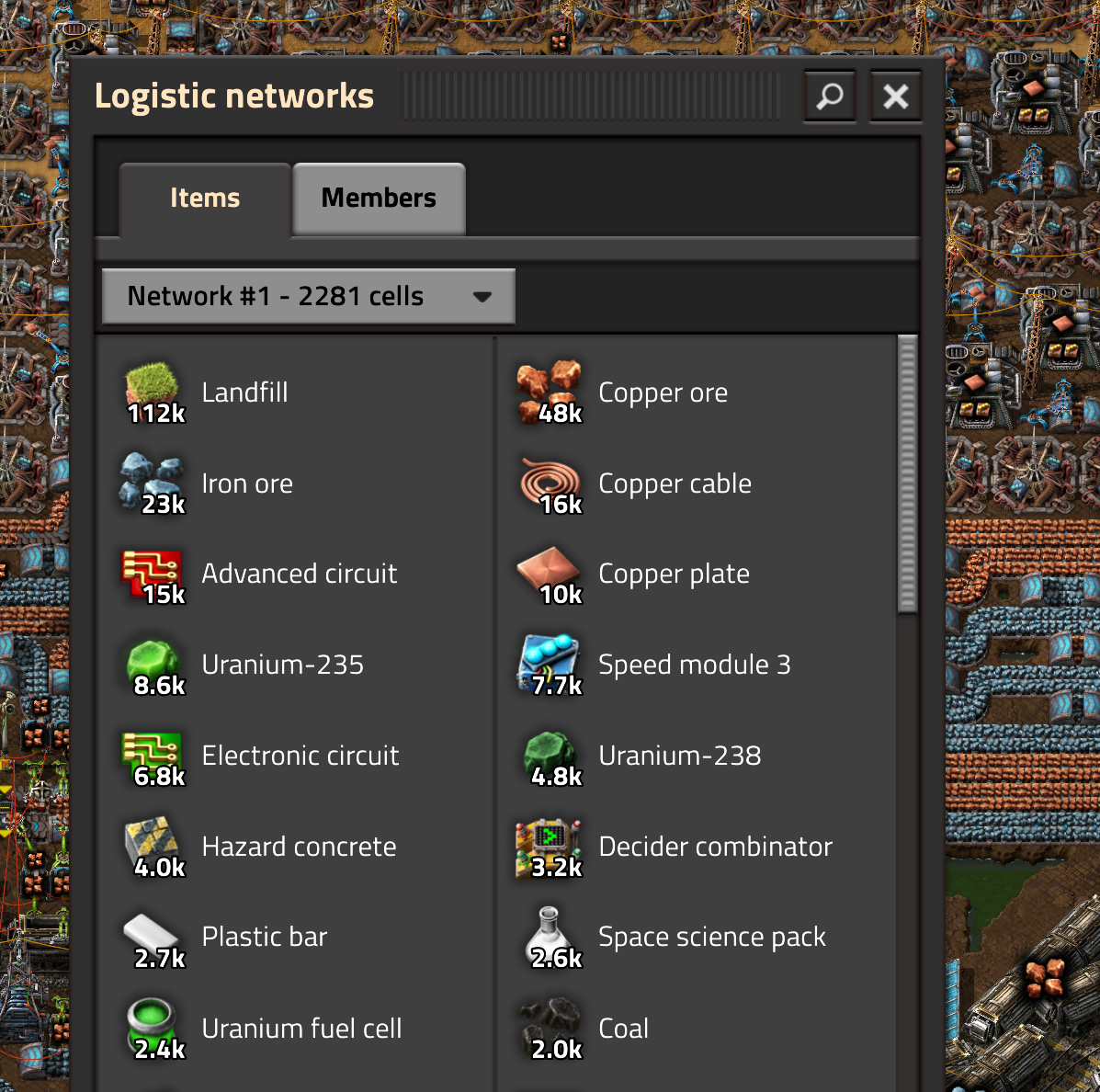
“Alt"
+
“A"
Control Spidertron. Click to see demonstration[cdn.factorio.com].
Use this picture below to see further controls.
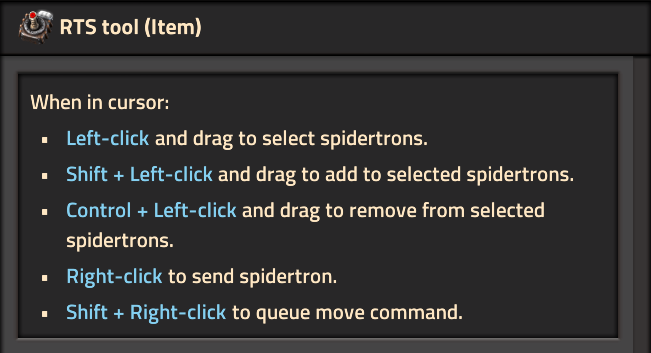
Use this picture below to see further controls.
“Right Click”
WHILE a grenade is selected
throw grenade (you need to have one equipped).
--- Construction Tips
Shortcut Key(s), Press:
Effect
Shortcut Key(s), Press:
Effect
“F5”
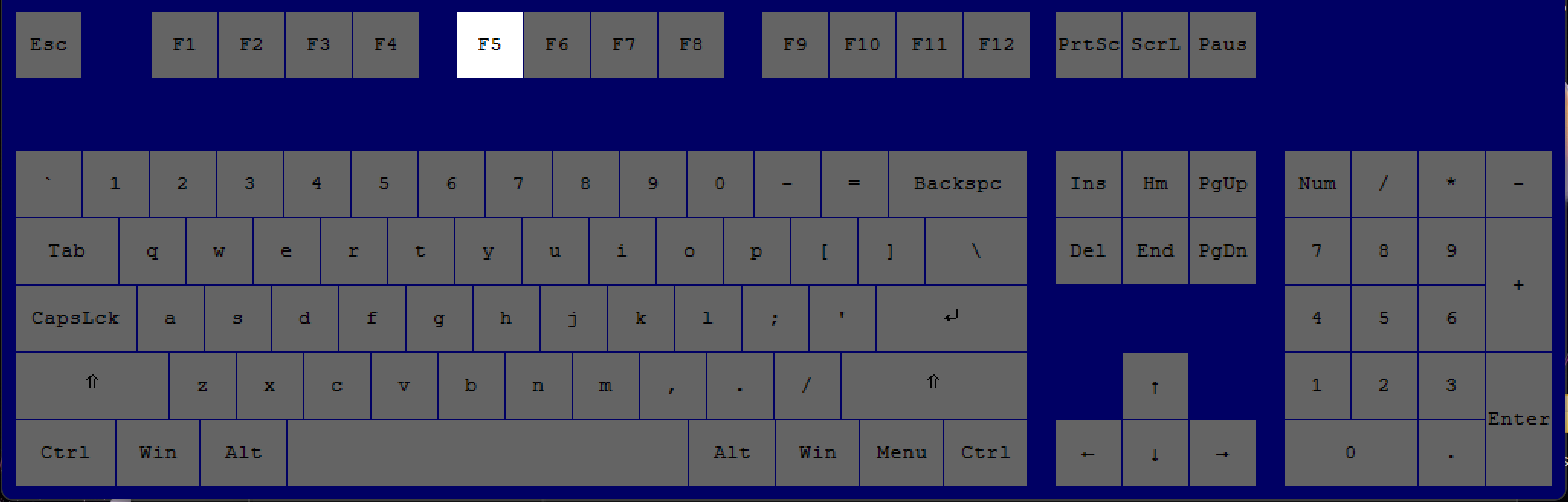
see the in-game grid without pausing.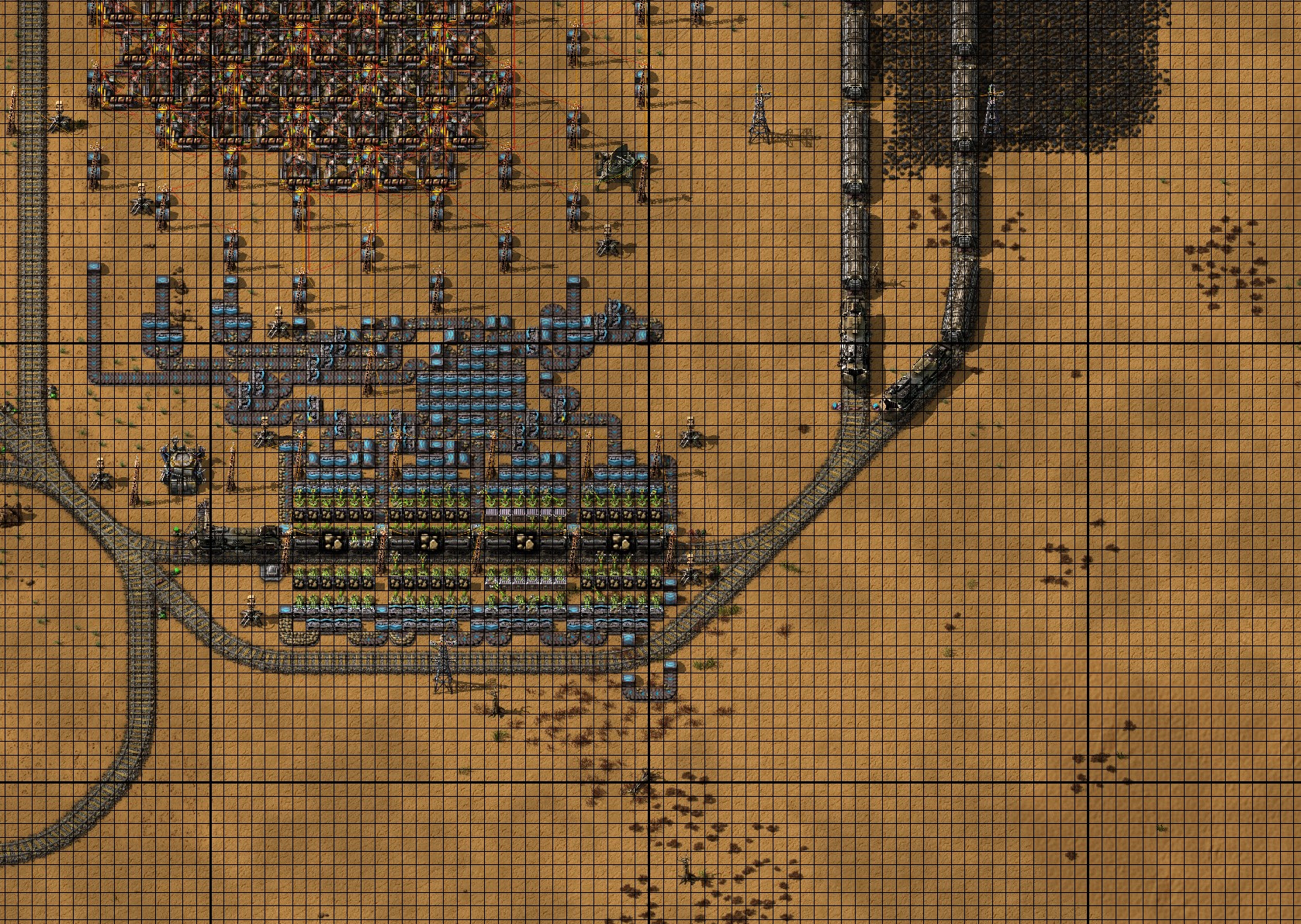
(Credit: Aika_Innet)
(Credit: Aika_Innet)
“Pause”
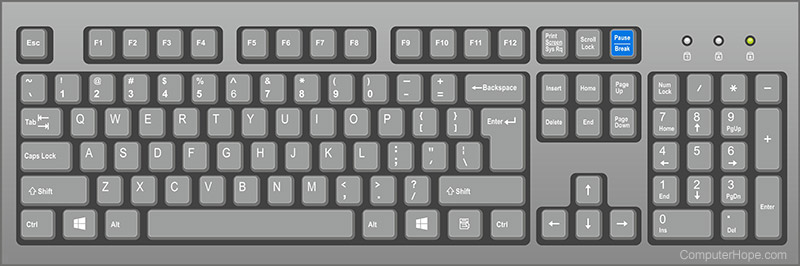
WHILE in singleplayer or hosting a multiplayer session, only. Most laptops don't have this button, and it will need to be reprogrammed.
see the in-game grid while paused.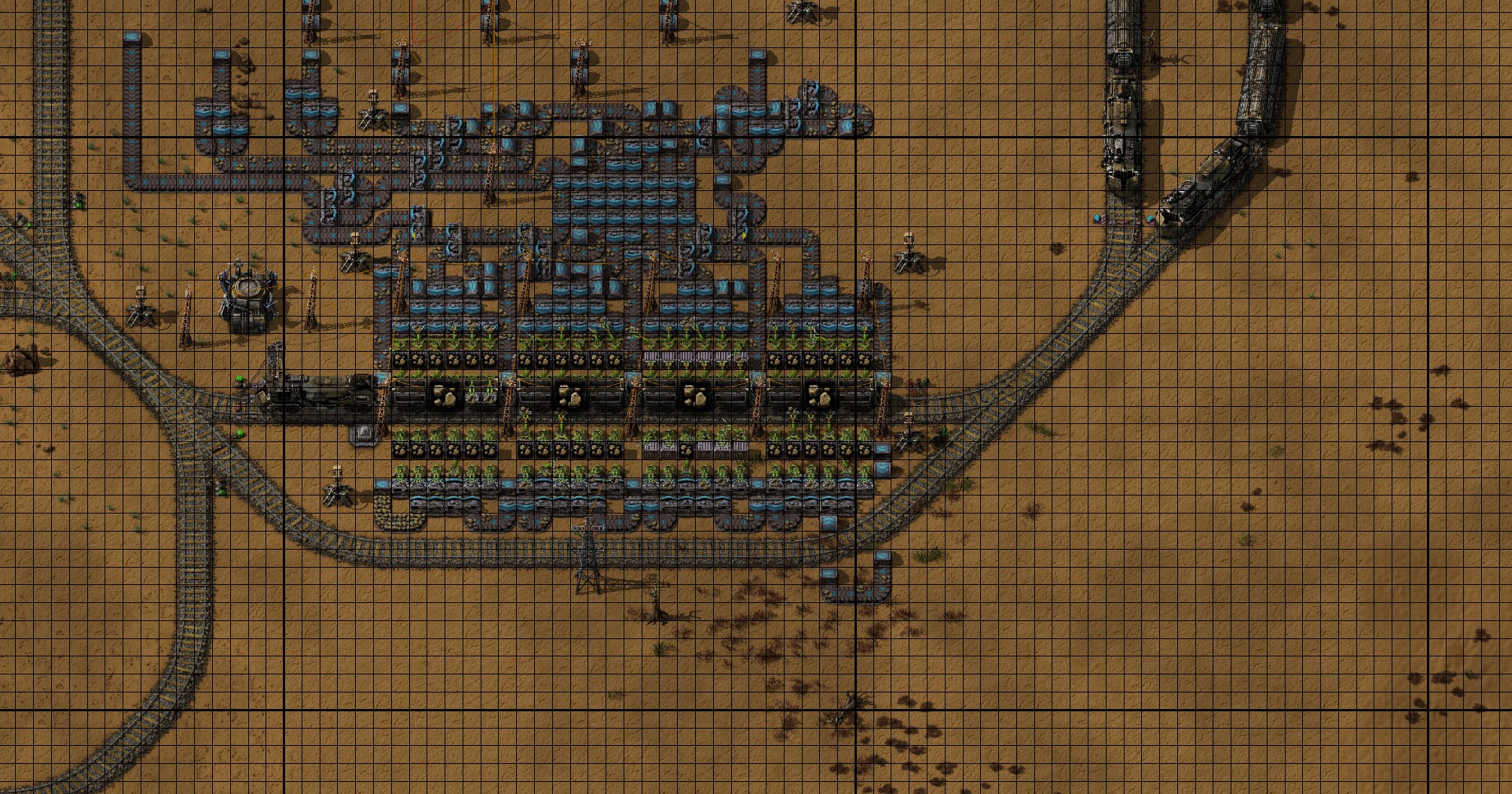
“Ctrl"
+
"Z"
undo construction OR deconstruction of the last 160 entities.
“Ctrl"
+
"X”
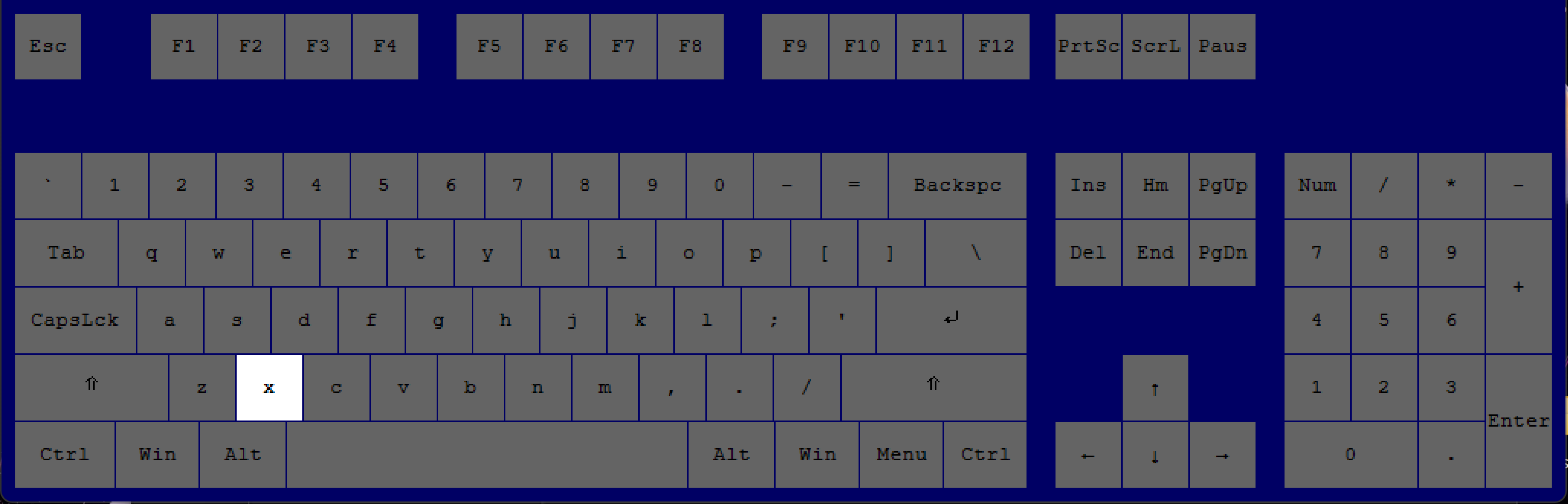
bring out the "Cut Blueprint Editor" to cut and paste a blueprint.
“Q”
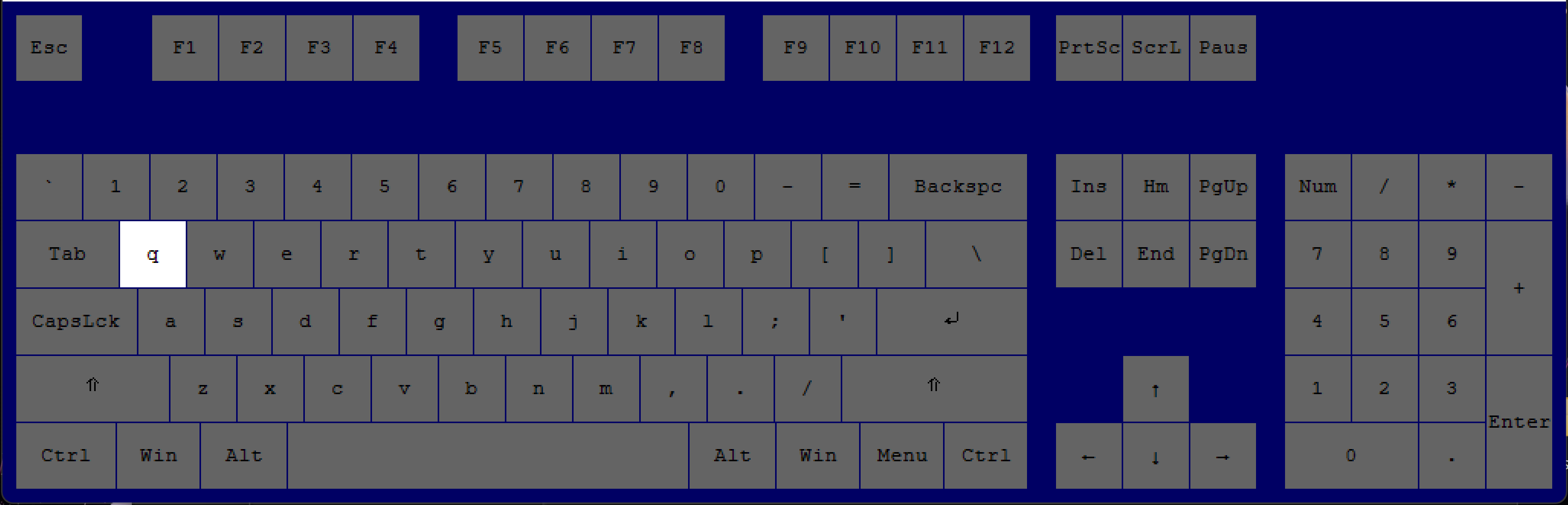
bring that item out of your inventory on top of the blueprint (most useful during early-game).
“Q”
(Credit: Hicsy)
bring that item out of your inventory.
“Alt”
+
“R”
-OR-
"G"
-OR-
"C"
bring out in the following order:
Red Wire,
-OR-
Green Wire
-OR-
Copper Wire
Press "Q" to get rid of the cursor.
Red Wire,
-OR-
Green Wire
-OR-
Copper Wire
Press "Q" to get rid of the cursor.
--- Blueprints & Managing Entities
Shortcut Key(s), Press
Effect
Shortcut Key(s), Press
Effect
“Shift"
+
"Right Click”
copy an entity’s contents to be pasted on an entity that is the same.
For example, a requester chest to another requestor chest, an assembly machine to another assembly machine, a combinator to another combinator, one train to another train, one train station to another train station, or anything else.
For example, a requester chest to another requestor chest, an assembly machine to another assembly machine, a combinator to another combinator, one train to another train, one train station to another train station, or anything else.
“Shift"
+
"Left Click”
paste an entity’s contents to an entity that is the same.
For example, a requester chest to another requestor chest, an assembly machine to another assembly machine, a combinator to another combinator, one train to another train, one train station to another train station, or anything else.
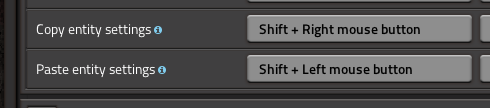
For example, a requester chest to another requestor chest, an assembly machine to another assembly machine, a combinator to another combinator, one train to another train, one train station to another train station, or anything else.
"Q"
deselect the blueprint you are holding. With "CTRL + C" or "CTRL + X", it will not save the blueprint.
(CREDIT: Tacobell_Sniper)
(CREDIT: Tacobell_Sniper)
Hold down while holding a deconstruction, upgrade, or downgrade planner, and then highlighting some entities
"Shift"
+
"Right Click"
+
"Right Click"
de-mark the things you just marked for deconstruction/upgrade/downgrade.
For example, you highlight a bunch of objects with the deconstruction planner. Then, you decide you want to keep the power poles. Hold shift and highlight the powerpoles (with the deconstruction planner in hand), and it will cause those objects to not be marked for deconstruction. If you have a deconstruction/upgrade/downgrade planner specifically made to highlight certain objects, like powerpoles, then when you press shift it will only de-highlight those certain objects.
(Thank you: @sOvr9000)
For example, you highlight a bunch of objects with the deconstruction planner. Then, you decide you want to keep the power poles. Hold shift and highlight the powerpoles (with the deconstruction planner in hand), and it will cause those objects to not be marked for deconstruction. If you have a deconstruction/upgrade/downgrade planner specifically made to highlight certain objects, like powerpoles, then when you press shift it will only de-highlight those certain objects.
(Thank you: @sOvr9000)
Hold down WHILE holding an upgrade/downgrade planner and highlighting objects
Right Click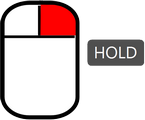
reverse "upgrade" or reverse "downgrade" objects. So, actually downgrade or upgrade instead.
For example, you have an upgrade planner that upgrades speed module 1 to speed module 2. By holding down right click, with that upgrade planner in hand, and then highlighting objects, you will go from speed module 2 to speed module 1.
(Thanks: @sOvr9000)
For example, you have an upgrade planner that upgrades speed module 1 to speed module 2. By holding down right click, with that upgrade planner in hand, and then highlighting objects, you will go from speed module 2 to speed module 1.
(Thanks: @sOvr9000)
With a blueprint in the cursor:
"SHIFT"
+
"Arrow Keys"
adjust the Grid position. Click to see demonstration[cdn.factorio.com].
CONTROL + Arrow keys - adjusts the Absolute grid offset.
CONTROL + Arrow keys - adjusts the Absolute grid offset.
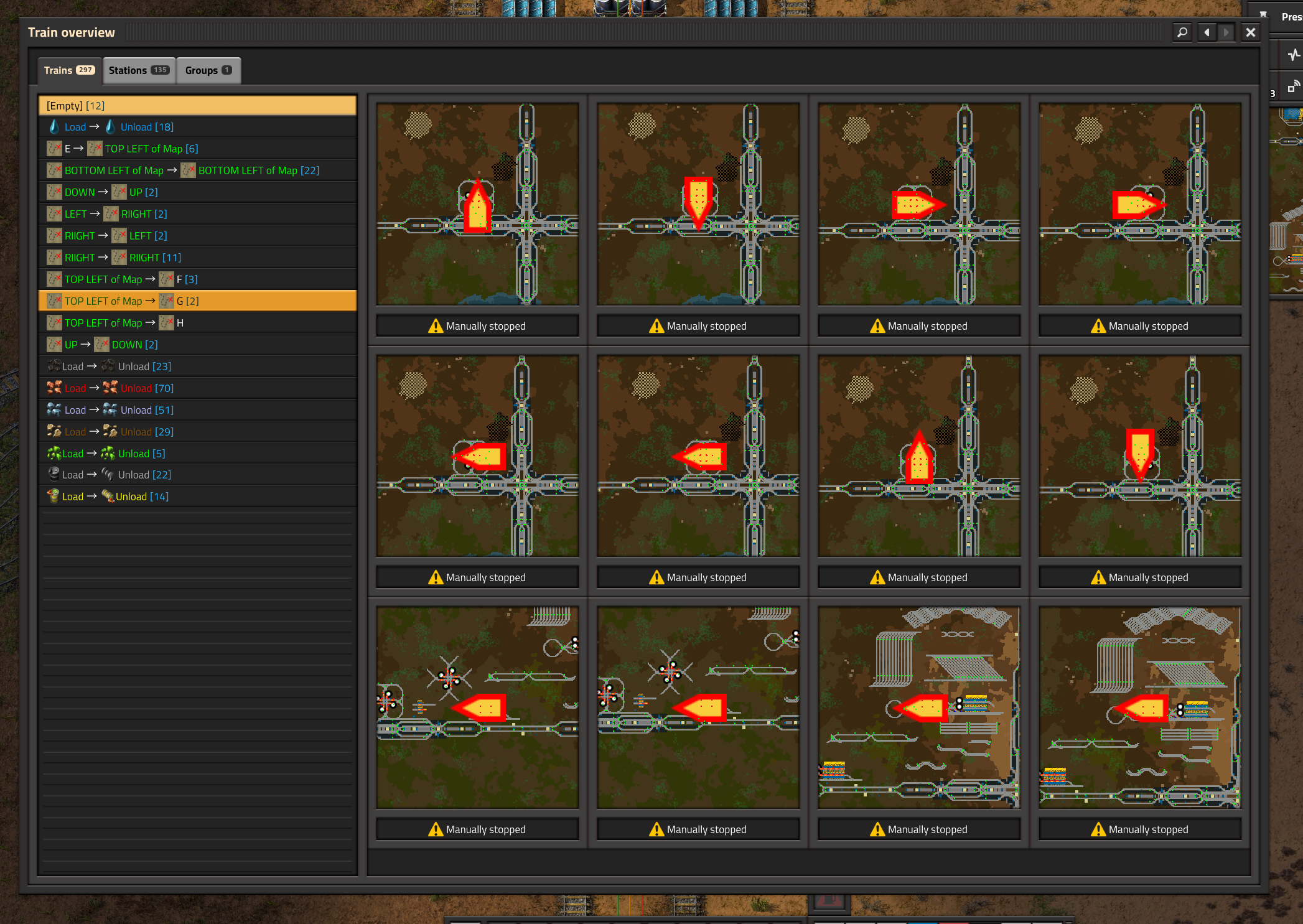
“O”
open the train manager menu.
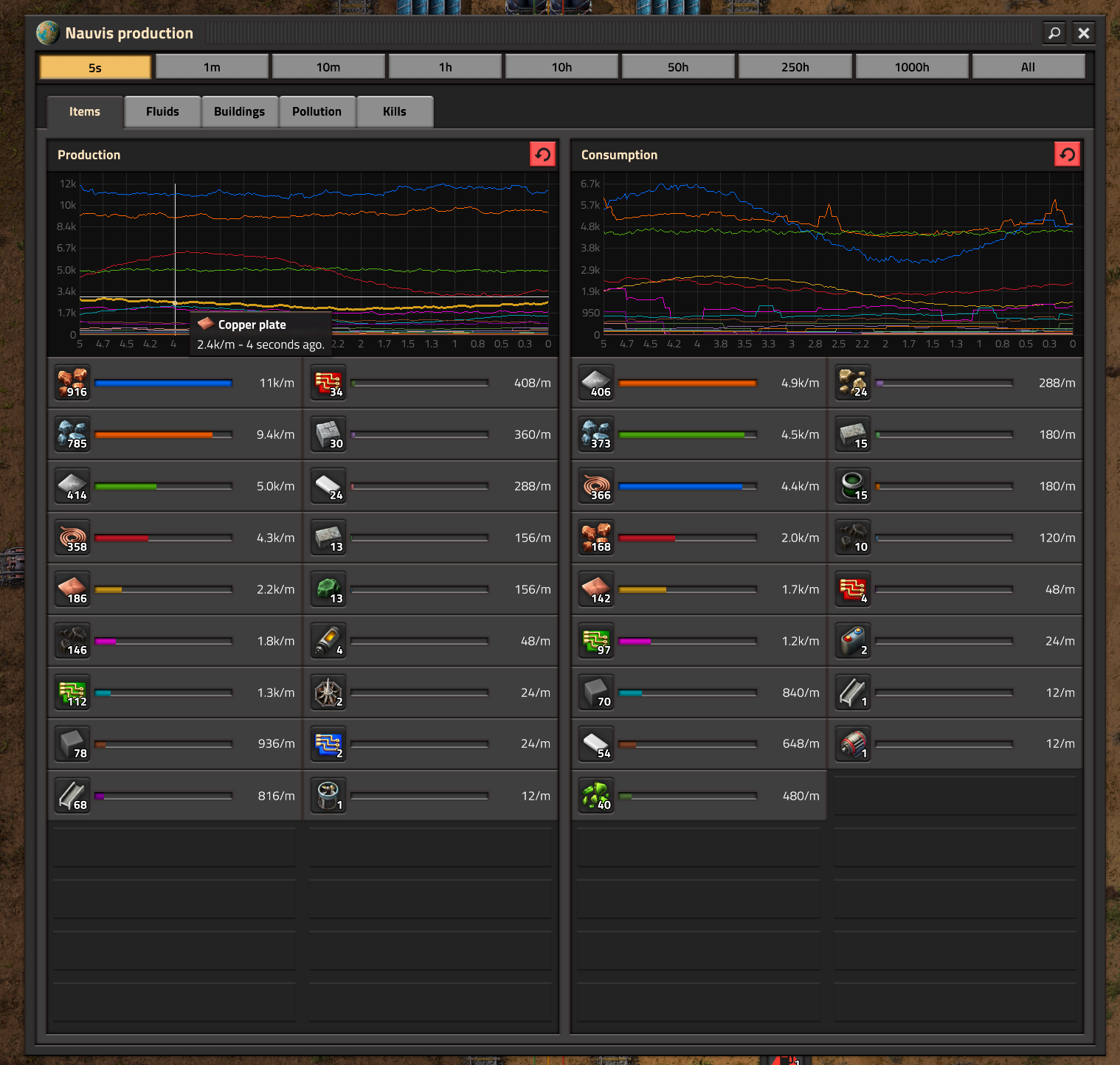
“P"
open the production stats menu.
“Edit a blueprint outside of a roboport reach”
in order to create a blueprint with fuel/ammo inside it. Click to watch video.
"Shift"
+ "Right Clicking with the copy/paste tool"
allows you to edit the selection before saving it to the clipboard. Click to see example video.
--- Extras
Shortcut Key(s), Press
Effect
Shortcut Key(s), Press
Effect
Use a stack size of 8 with the green stack inserter with belts
Use the copy and paste function mentioned in "Blueprints & Managing Entities" section
ON an assembler (copy) TO a requester chest (paste) to request all the needed items for that assembler quickly.
"Middle Click"
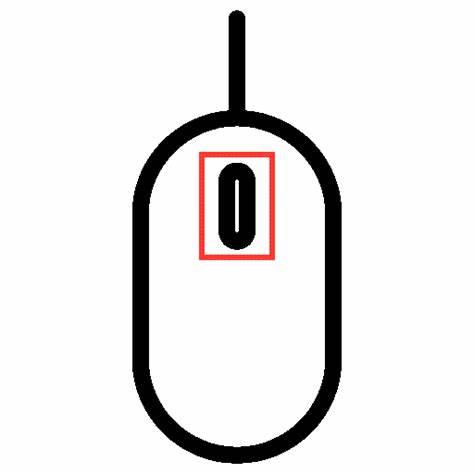
filter train cargo or player inventory slots.
Works just like request slots on logistic chests, but with "Middle Click", instead of "Left Click". You can copy and paste that filter with the "Shift + Right Click" and "Shift + Left Click" or save it in a blueprint.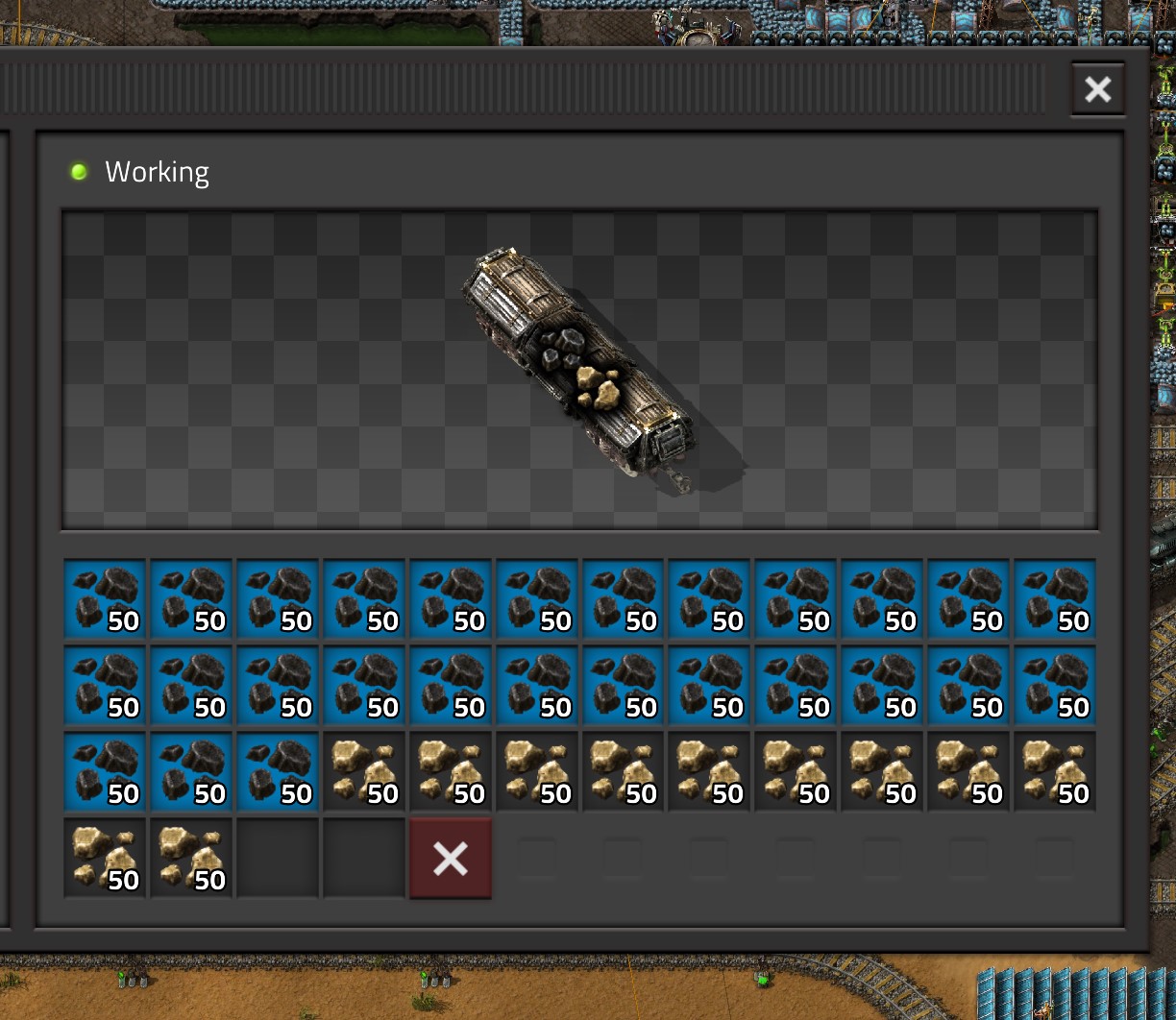
Thanks: @Sandbox Enjoyer
Works just like request slots on logistic chests, but with "Middle Click", instead of "Left Click". You can copy and paste that filter with the "Shift + Right Click" and "Shift + Left Click" or save it in a blueprint.
Thanks: @Sandbox Enjoyer
Hold down
+
WHILE editing inside 1 blueprint and "snap to grid" is checked
"Shift"
+
"Right Click"
manipulate the location of the "snap to grid", green box.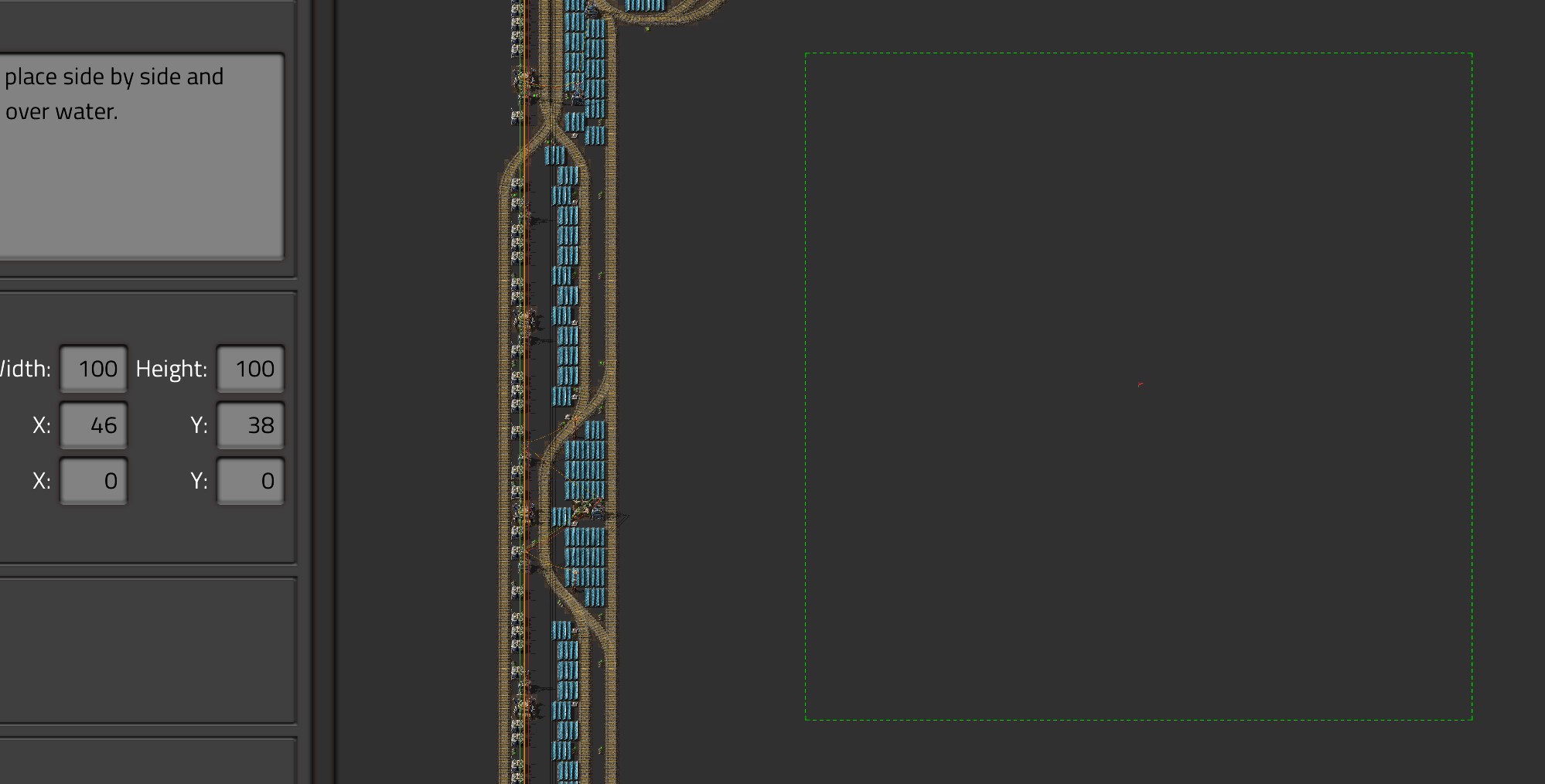
Inside your character logistics menu (click on your character to open the menu)
Drop a blueprint onto the "Add Section" button
to automatically order all the parts for that blueprint. Click to watch example video.
Don't use too many train signals
for a higher train throughput; click to see demonstration.
Highlight entities more than once with the upgrade or downgrade planner
to upgrade or downgrade those entities more than once, before bots can replace them.
So, for example, if you want to go from speed module 1 to speed module 3, you can highlight the object 2 times, to upgrade it twice.
So, for example, if you want to go from speed module 1 to speed module 3, you can highlight the object 2 times, to upgrade it twice.
Inside the train interface and mousing over the tracks on map Hold down
+
press
"Ctrl"
press
"Right Click"
show the path your train will take to get somewhere.
Pressing "right click" on the map, while holding "Ctrl", makes the selected train take the highlighted route.
If you are inside a train and open the map, the train you are in is automatically selected and you travel to any track.
Pressing "right click" on the map, while holding "Ctrl", makes the selected train take the highlighted route.
If you are inside a train and open the map, the train you are in is automatically selected and you travel to any track.
while in the logistics request menu, having an item selected,
Hold down
+
+
Hold down
"Shift"
+
"Alt"
+
"Scroll Wheel down/up"
to change the quality of the item being requested. Click to watch example video.
WHILE renaming your train stations hold down
"Ctrl"
To rename all train stops with that same name.
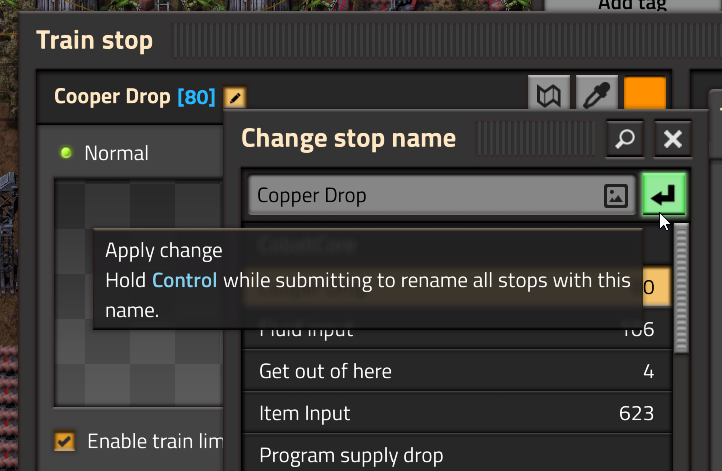
Clicking a text field while holding an item
adds it to the text. Click to watch example video.
.
Other Player Resources
- Ingame, press "Exit", then "Settings", then "Controls", a list of controls will appear.
- Factorio Wiki, Shortcut-Key Page[wiki.factorio.com]
- A Long Guide to the New Quickbar (.17)
- A guide for naming things with special characters such as blueprints or train stations.[wiki.factorio.com]
- Alt-F4, Alternative Friday Fun Facts[alt-f4.blog]
- Visualization of priorities of logistics chests
- How to compact belts for limited space gameplay.
- Quality Tier List
Did I miss Anything?
Please let me know in the comments!
More Factorio guides
- Factorio: How to Build a Main Bus★ 5 (6k)231k views15k ♥15 minUpdated Aug 31, 2025
- Factorio: Observations, Tips, Tricks, & Efficiency★ 5 (3.2k)111k views7.1k ♥85 minUpdated Aug 4, 2020
- Blueprints for early, mid and lategame (updated)★ 5 (757)83k views2.4k ♥3 minUpdated Sep 3, 2022
- Factorio - Everything To Do With Smelting: Belt & Bot Based★ 5 (629)80k views1.6k ♥16 min
- Factorio Builds★ 5 (1.1k)63k views2.7k ♥5 minUpdated Jun 7, 2021
- High-Level Strategy for New Players★ 5 (880)62k views2.8k ♥43 minUpdated Oct 15, 2025

This guide was created by its original author on the Steam Community. Are you the author and want it removed? Request removal.