Trouble Shooting Crashes and Connection Issues Possible Fixes for COH 1 NSV
Retail DVD KEY RETRIEVAL TOOL
Forgot your old DVD key get it from this tool relic made for sega to convert it to steam
https://cohtool.sega.co.uk/
https://cohtool.sega.co.uk/
Connection to steam
Check router ports are open for steam ( Game port 6112 UDP ) and UPNP is enabled.
Check Router firmware is up to date.
Turn the power off on your router for 1 min then switch back on might be jammed up. (Also might help if the game starts to lag units do not respond ).
Try reinstalling net framework.
Disable your antivirus / firewall or simular programs.
Check Router firmware is up to date.
Turn the power off on your router for 1 min then switch back on might be jammed up. (Also might help if the game starts to lag units do not respond ).
Try reinstalling net framework.
Disable your antivirus / firewall or simular programs.
Invisable Units
Turn your graphics settings up or down and it will bring the invisable units back again.
Update directx, sound and video drivers for your machine.
Change the resolution of the screen also if having problems with slow starting.
If all else fails delete the configuration.lua
C:\Users\YOUR_USER_NAME\Documents\My Games\Company of Heroes Relaunch
Update directx, sound and video drivers for your machine.
Change the resolution of the screen also if having problems with slow starting.
If all else fails delete the configuration.lua
C:\Users\YOUR_USER_NAME\Documents\My Games\Company of Heroes Relaunch
Connecting to Multiplayer Problem
Do a clean boot: http://support.microsoft.com/kb/929135
You can rename the steam folder ( Orginal_Steam ) and just copy steam.exe and the steamapps folder in to a new folder rename it Steam, so you can keep everything as a backup if it does not work, Execute the steam.exe it will update and try logging in.
How reverse if it did not work
Just delete the new steam folder you made, you can then rename the orginal steam folder to put it back as before.
or try rolling back your operating system it might have added an update that conflicts it might be the answer.
also try
It has been sugested that also try deleting your temp.rec file.
C:\Users\UserName\Documents\My Games\Company of Heroes Relaunch\Playback\temp.rec
To make a perminant change make a new.txt file and rename it temp.rec put that file in your playback folder and set it to read only.
You may also look for firmware updates to your router which may have a problem, fireware updates can fix issues.
Programs to check that they are not blocking even though disabled.
auto-sandbox of comodo internet security
disable a feature antivirus which scans encrypted connections
You can rename the steam folder ( Orginal_Steam ) and just copy steam.exe and the steamapps folder in to a new folder rename it Steam, so you can keep everything as a backup if it does not work, Execute the steam.exe it will update and try logging in.
How reverse if it did not work
Just delete the new steam folder you made, you can then rename the orginal steam folder to put it back as before.
or try rolling back your operating system it might have added an update that conflicts it might be the answer.
also try
It has been sugested that also try deleting your temp.rec file.
C:\Users\UserName\Documents\My Games\Company of Heroes Relaunch\Playback\temp.rec
To make a perminant change make a new.txt file and rename it temp.rec put that file in your playback folder and set it to read only.
You may also look for firmware updates to your router which may have a problem, fireware updates can fix issues.
Programs to check that they are not blocking even though disabled.
auto-sandbox of comodo internet security
disable a feature antivirus which scans encrypted connections
Crash at Launch
First try validating your game cache
right click company of heroes (new steam version)
left click
Properites > Local Files tab > Verify integrity of game cache
If you installed a mod take away the switch in the startup command in steam.
Game properties > general > startup options.
Goto the root folder
(C:\Program Files (x86)\Steam\steamapps\common\Company of Heroes Relaunch\)
right-click "RelicCOH" > properties > Compatibility tab > check "Disable High Scaling"
This will fix the crash at launch some of you are having, its a window update that COH has trouble with uninstalling it fixes the issue but this is up to you do you need the security fix or would you rather not play coh, if you want to play try uninstalling this is a automatic update so it may try and install itself again.
Start Menu > Control Panel > Uninstall a Program > View Installed Updates > Search for Update for Microsoft Windows (KB2670838). > Uninstall It > Allow computer to restart >
Also try renaming the Company of Heroes Relaunch folder
C:\Users\UserName\Documents\My Games\Company of Heroes Relaunch
change screendevice to directx9
C:\Users\UserName\Documents\My Games\Company of Heroes Relaunch\local.ini
[]
background=0
force_watch_movies=0
playerprofile=
screendevice=DirectX9 rendering device
or try deleting the spDx10.dll
Also if you have a new dual cpu with graphics and processor in one and have a program that switches off you discrete (dedicated) graphic card, so to save power and then uses the processor graphics to display the output.
There maybe software that needs updating or has a conflict like mine did with a logo when starting games, the logo over lay would crash at launch till I went in to my Luic Virtu MPV program and set it to Hide Lucid logo.
Programs with over lays:
Steam
Fraps
Lucid MVP
EVEA Precision
D3DOverrider
sweetfx ( the file that crashes the game is called dxgi.dll)
Nvidia Shadowplay
right click company of heroes (new steam version)
left click
Properites > Local Files tab > Verify integrity of game cache
If you installed a mod take away the switch in the startup command in steam.
Game properties > general > startup options.
Goto the root folder
(C:\Program Files (x86)\Steam\steamapps\common\Company of Heroes Relaunch\)
right-click "RelicCOH" > properties > Compatibility tab > check "Disable High Scaling"
This will fix the crash at launch some of you are having, its a window update that COH has trouble with uninstalling it fixes the issue but this is up to you do you need the security fix or would you rather not play coh, if you want to play try uninstalling this is a automatic update so it may try and install itself again.
Start Menu > Control Panel > Uninstall a Program > View Installed Updates > Search for Update for Microsoft Windows (KB2670838). > Uninstall It > Allow computer to restart >
Also try renaming the Company of Heroes Relaunch folder
C:\Users\UserName\Documents\My Games\Company of Heroes Relaunch
change screendevice to directx9
C:\Users\UserName\Documents\My Games\Company of Heroes Relaunch\local.ini
[]
background=0
force_watch_movies=0
playerprofile=
screendevice=DirectX9 rendering device
or try deleting the spDx10.dll
Also if you have a new dual cpu with graphics and processor in one and have a program that switches off you discrete (dedicated) graphic card, so to save power and then uses the processor graphics to display the output.
There maybe software that needs updating or has a conflict like mine did with a logo when starting games, the logo over lay would crash at launch till I went in to my Luic Virtu MPV program and set it to Hide Lucid logo.
Programs with over lays:
Steam
Fraps
Lucid MVP
EVEA Precision
D3DOverrider
sweetfx ( the file that crashes the game is called dxgi.dll)
Nvidia Shadowplay
Connection Timed out in lobby
This is to help you with connection time out in lobby when trying to connect to a game.
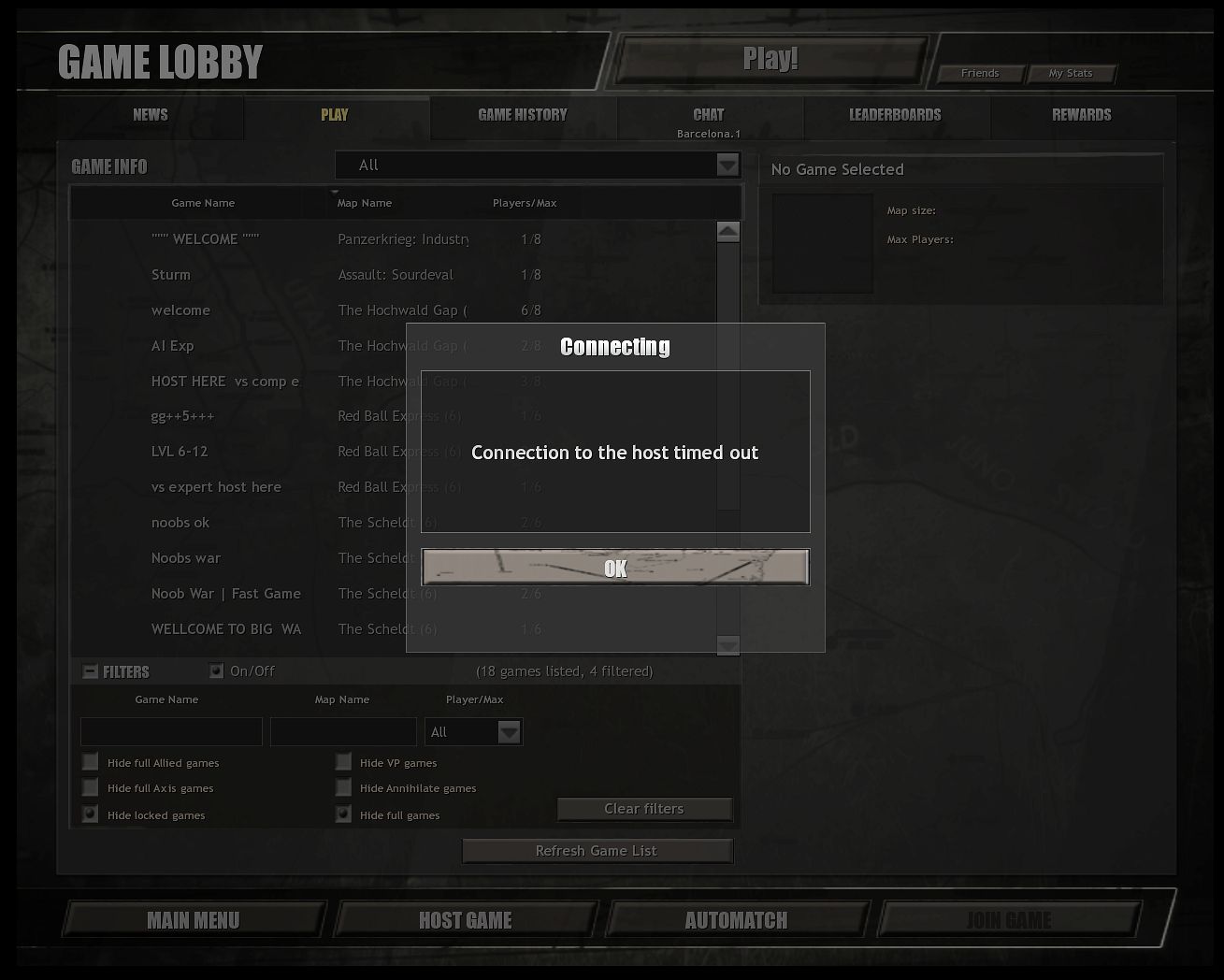
Try renaming your playercfg.lua file this will be remade when the game starts which can be found
C:\Users\UserName\Documents\My Games\Company of Heroes Relaunch
Please put your own username in the path as everyone has there own username.
Restart steam and the game.
You can also try unsetting your TOV reward system in the game on the tabs at the top in multi player .
Rewards > Vehicales > uncheck all
So you have stock vehicals this is said to fix the issue of connection time out as well.
Then close coh and reopen then host a game close it then try and connect to a game.
Also try deleting the Playback or temp.rec file how to in next section below.
Try renaming your playercfg.lua file this will be remade when the game starts which can be found
C:\Users\UserName\Documents\My Games\Company of Heroes Relaunch
Please put your own username in the path as everyone has there own username.
Restart steam and the game.
You can also try unsetting your TOV reward system in the game on the tabs at the top in multi player .
Rewards > Vehicales > uncheck all
So you have stock vehicals this is said to fix the issue of connection time out as well.
Then close coh and reopen then host a game close it then try and connect to a game.
Also try deleting the Playback or temp.rec file how to in next section below.
Crash or blank lobby entering the Multiplayer Lobby
To fix the crash at entering multiplayer or skirmish or opertaions but you can play campaign or have just played a campaign game, rename or delete the temp.rec file.
Which can be found here
It has been sugested that also try deleting your Playback folder to if no temp.rec file is found it will be remade when the game starts.
C:\Users\UserName\Documents\My Games\Company of Heroes Relaunch\Playback
Please change the UserName in the path for your own.
Also try renaming the playercfig.lua or the "Company of Heroes Relaunch" folder.
C:\Users\UserName\Documents\My Games\Company of Heroes Relaunch
Restart steam and coh 1
Also you can delete the whole company of heroes relaunch folder from your documents but you will lose your saved games and customer maps, so just try renaming this instead if it works then move your saved games/maps files from the old to the new folder.
Which can be found here
It has been sugested that also try deleting your Playback folder to if no temp.rec file is found it will be remade when the game starts.
C:\Users\UserName\Documents\My Games\Company of Heroes Relaunch\Playback
Please change the UserName in the path for your own.
Also try renaming the playercfig.lua or the "Company of Heroes Relaunch" folder.
C:\Users\UserName\Documents\My Games\Company of Heroes Relaunch
Restart steam and coh 1
Also you can delete the whole company of heroes relaunch folder from your documents but you will lose your saved games and customer maps, so just try renaming this instead if it works then move your saved games/maps files from the old to the new folder.
Connecting to games in lobby Issue
Some people cannot connect to each other or friends.
Try moving to the same chat room.
use "cmd", open the Command Prompt, write "ipconfig/renew"
Ports must be opened on your router to be able to play coh 1.
Now that it has been moved to steam I am sure only port
6112 UDP
is needed now as the other was for the old THQ connection to there servers.
If your router supports UPNP then enable this as well.
Steam has ports that need opening for that.
Steam Client
UDP 27000 to 27015 inclusive (Game client traffic)
UDP 27015 to 27030 inclusive (Typically Matchmaking and HLTV)
TCP 27014 to 27050 inclusive (Steam downloads)
UDP 4380
(As a side note I did a netstat -abno and found that the only port open on the TCP / UDP range was 27036 TCP which is not in the range that steam has said it should be in 27000 to 27015 TCP,
Also I have a UDP connection which is 27036 which is also out of the steam range so maybe try and open up a few more ports to see if its the problem with your connection but it might be my router trying to hide which ports are open and closed test it and find out, let me know if it helps)
The images below show the ports that seem to be used but could be my router reasigning the ports to protect itself.


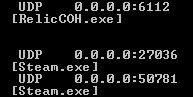
http://www.Portforward.com will help you with your router and how to configure it.
it also has a program that will tell if the port is open or not
Download Program click HERE[portforward.com].
[They seemed to have change the port checker to be utility and put it in to a bundle, but if you install it then go to the install folder just click on the port checker.exe, it will open no need to buy or add your email addess to use it.]
Makes sure other prgrams are not blocking the game like :
Norton Endpoint
Norton Security
Norton 360
Peerblock
Netlimiter
Windows Firewall
Disable a feature antivirus which scans encrypted connections
Most antivirus have firewalls now try disabling the antivirus firewall to see if it is the problem then re-enable it, if it is not do not leave it disabled 100% of the time this is only for testing.
Also put RELCOH.exe and steam.exe in the exclusion list of your antivirus program.
Some firewalls even though disabled will still block ports.
Do a clean boot: http://support.microsoft.com/kb/929135
Try moving to the same chat room.
use "cmd", open the Command Prompt, write "ipconfig/renew"
Ports must be opened on your router to be able to play coh 1.
Now that it has been moved to steam I am sure only port
6112 UDP
is needed now as the other was for the old THQ connection to there servers.
If your router supports UPNP then enable this as well.
Steam has ports that need opening for that.
Steam Client
UDP 27000 to 27015 inclusive (Game client traffic)
UDP 27015 to 27030 inclusive (Typically Matchmaking and HLTV)
TCP 27014 to 27050 inclusive (Steam downloads)
UDP 4380
(As a side note I did a netstat -abno and found that the only port open on the TCP / UDP range was 27036 TCP which is not in the range that steam has said it should be in 27000 to 27015 TCP,
Also I have a UDP connection which is 27036 which is also out of the steam range so maybe try and open up a few more ports to see if its the problem with your connection but it might be my router trying to hide which ports are open and closed test it and find out, let me know if it helps)
The images below show the ports that seem to be used but could be my router reasigning the ports to protect itself.
http://www.Portforward.com will help you with your router and how to configure it.
it also has a program that will tell if the port is open or not
Download Program click HERE[portforward.com].
[They seemed to have change the port checker to be utility and put it in to a bundle, but if you install it then go to the install folder just click on the port checker.exe, it will open no need to buy or add your email addess to use it.]
Makes sure other prgrams are not blocking the game like :
Norton Endpoint
Norton Security
Norton 360
Peerblock
Netlimiter
Windows Firewall
Disable a feature antivirus which scans encrypted connections
Most antivirus have firewalls now try disabling the antivirus firewall to see if it is the problem then re-enable it, if it is not do not leave it disabled 100% of the time this is only for testing.
Also put RELCOH.exe and steam.exe in the exclusion list of your antivirus program.
Some firewalls even though disabled will still block ports.
Do a clean boot: http://support.microsoft.com/kb/929135
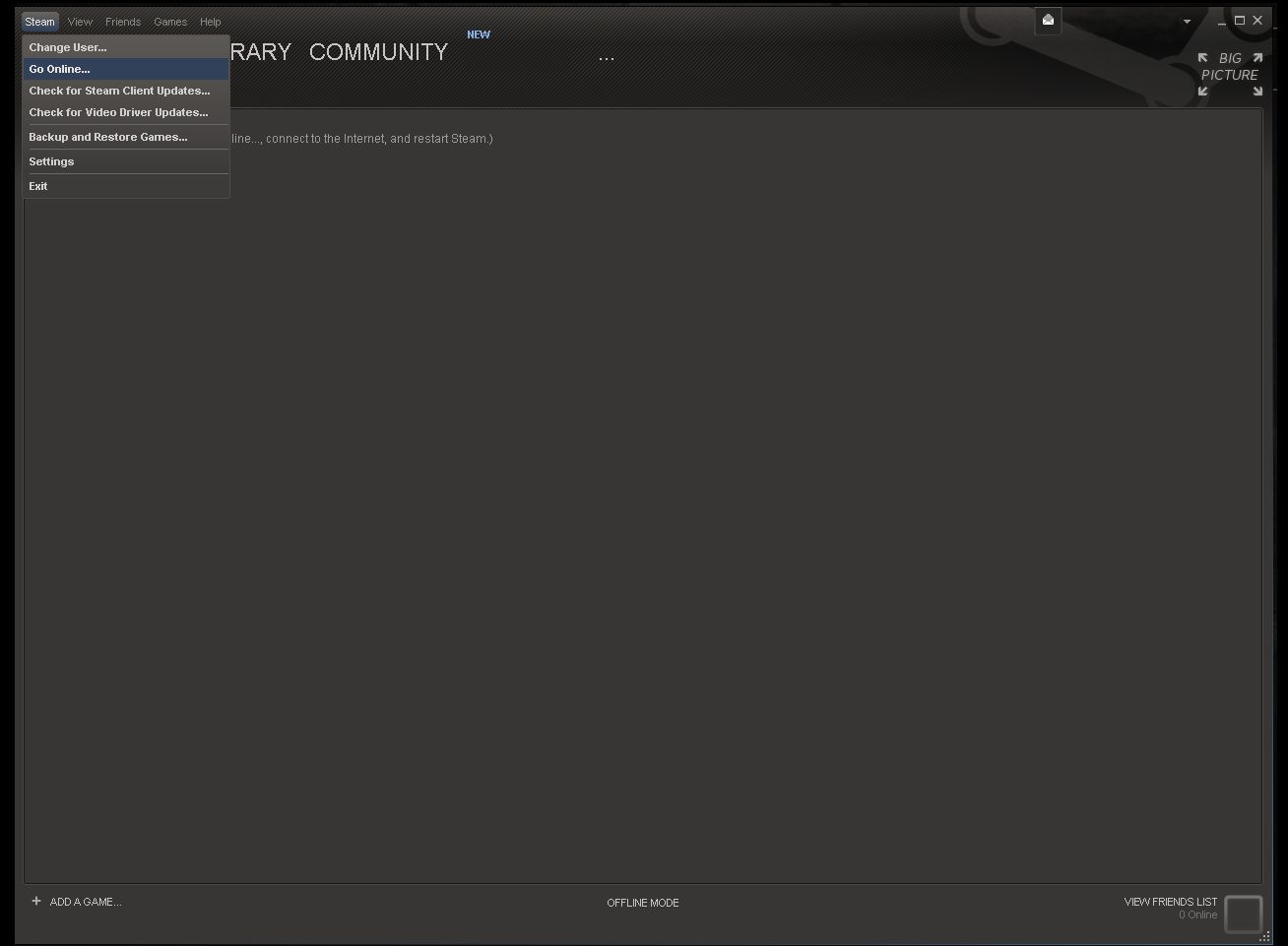
No Games in Lobby to choose from.
Make sure you are online in steam.
Invisible Units
Turn up or down the settings depending where yours is may work.
Just go to the settings in the main menu and Graphix tab turn down / up your graphix card settings usualy does the trick there is also a slider to turn down as well also could try screen size.
( Not the menu in the game while playing but in the main menu before starting any game )
Update the drivers to your Graphix card if not.
Update Directx.
Just go to the settings in the main menu and Graphix tab turn down / up your graphix card settings usualy does the trick there is also a slider to turn down as well also could try screen size.
( Not the menu in the game while playing but in the main menu before starting any game )
Update the drivers to your Graphix card if not.
Update Directx.
Crash on map load
If the game crashes while loading a map or at the end try changing your decimal symbol from . to ,
Control Panel > Clock, Language, and Region > Additional Settings
This may or may not work I am not sure if its only for the US selected language or for others to try worth a go.
Control Panel > Clock, Language, and Region > Additional Settings
This may or may not work I am not sure if its only for the US selected language or for others to try worth a go.
Campaign Crashing after 5 minutes
The game can crash after a short time while playing the campaign, this can be due to Graphics being set to ultra or to high for your system try lowering from ultra to high.
This will change from DirectX 10 to DirectX 9 which has less problems.
Or delete spDx10.dll
This will change from DirectX 10 to DirectX 9 which has less problems.
Or delete spDx10.dll
Crashes
Delete the temp.rec in your documents folder or the playback folder it self if no temp.rec file is found.
Turn down your memory and gfx settings in the main menu.
Turn down your memory and gfx settings in the main menu.
All else fails read this
If all above fails
Make these folders to get rid of the missing folder error's so its easier to read
DLC1 \ Movies
DLC2 \ Movies
DLC3 \ Movies
put them in here
C:\Users\YOUR_USER_NAME\Documents\My Games\Company of Heroes Relaunch\
Find your warnings.log from within the folder
Documents > My Games > Company Of Heroes Relaunch
Open it copy and paste the content to a new thread also copy and paste your crash log from windows also use dxdiag.exe and save the all information and upload it to
( http://pastebin.ca/upload.php ) then paste the link to the thread, these might give you and us help in fixing your problem in the forum.
Make these folders to get rid of the missing folder error's so its easier to read
DLC1 \ Movies
DLC2 \ Movies
DLC3 \ Movies
put them in here
C:\Users\YOUR_USER_NAME\Documents\My Games\Company of Heroes Relaunch\
Find your warnings.log from within the folder
Documents > My Games > Company Of Heroes Relaunch
Open it copy and paste the content to a new thread also copy and paste your crash log from windows also use dxdiag.exe and save the all information and upload it to
( http://pastebin.ca/upload.php ) then paste the link to the thread, these might give you and us help in fixing your problem in the forum.
Windows 10
Try disabling compability mode
or
PERMISSION ISSUE
follow below:
-right click game exe (not the shortcut)
-Properties
-Compability tab
-"Change this settings for all users"
**a new window will pop up with same previous settings**
-Check the box "Run as Administrator"
-Apply and OK
-again Apply and OK
try also Compability Mode (Windows 7 SP1)
Note: Do not use this method for applications/games you don't trust.
(steam games are trust-able)
Next Try
Goto the root folder
(C:\Program Files (x86)\Steam\steamapps\common\Company of Heroes Relaunch\)
and right-click/properties "RelicCOH",
under Compatibility tab,
tick "Disable High Scaling" - nothing else.
Not "Run in Compatability mode for SP2" etc, just disable the high scaling.
Or
Put a check in the box for "Disable full-screen optimisation".
For those of you experiencing problems in CoH after this latest windows update go into the game directory and find RelicCOH.exe. Right click > properties of the RelicCOH.exe go to tab compatibility. Check "Disable fullscreen optimizations." Hit "Apply" then "Ok".
or
PERMISSION ISSUE
follow below:
-right click game exe (not the shortcut)
-Properties
-Compability tab
-"Change this settings for all users"
**a new window will pop up with same previous settings**
-Check the box "Run as Administrator"
-Apply and OK
-again Apply and OK
try also Compability Mode (Windows 7 SP1)
Note: Do not use this method for applications/games you don't trust.
(steam games are trust-able)
Next Try
Goto the root folder
(C:\Program Files (x86)\Steam\steamapps\common\Company of Heroes Relaunch\)
and right-click/properties "RelicCOH",
under Compatibility tab,
tick "Disable High Scaling" - nothing else.
Not "Run in Compatability mode for SP2" etc, just disable the high scaling.
Or
Put a check in the box for "Disable full-screen optimisation".
For those of you experiencing problems in CoH after this latest windows update go into the game directory and find RelicCOH.exe. Right click > properties of the RelicCOH.exe go to tab compatibility. Check "Disable fullscreen optimizations." Hit "Apply" then "Ok".
AI not doing anything
Delete the game cache folder
C:/Users/*****/My Documents/My Games/Company of Heroes Relaunch/Cache
C:/Users/*****/My Documents/My Games/Company of Heroes Relaunch/Cache
Game is not being run as known company heroes product please launch from steam
Close steam and reopen it
Try also reboot.
Try also reboot.
Lagging
If your lagging in the game then turn off "AA" and "Vsync"
World Builder Not saving
Renamed "pozovatelya name" in English, and save path chose this:
"D: \ SteamLibrary \ steamapps \ common \ Company of Heroes Relaunch \ WW2 \ Data \ Scenarios \ MP"
save success!
"D: \ SteamLibrary \ steamapps \ common \ Company of Heroes Relaunch \ WW2 \ Data \ Scenarios \ MP"
save success!
More Company of Heroes guides
- How to use console commands on Company of Heroes★ 5 (367)25k views720 ♥3 minUpdated Jan 29, 2021
- Big D*** Boss' Guide to Company of Heroes - The Basics★ 5 (274)19k views313 ♥28 minUpdated Jul 26, 2015
- Bootcamp: What you need to know★ 5 (271)18k views240 ♥12 minUpdated Nov 30, 2016
- FPS BOOST TUTORIAL★ 5 (267)17k views343 ♥11 minUpdated Feb 14, 2018
- FAQ: New Steam Version, Legacy Edition, DLCs, Mods★ 5 (176)15k views148 ♥6 minUpdated Nov 9, 2025
- Company of Heroes 1 Unit Portraits★ 5 (374)14k views380 ♥1 minUpdated Mar 18, 2024


This guide was created by its original author on the Steam Community. Are you the author and want it removed? Request removal.