Audio Guide for Attila 1212MK Mod
Chapter 1
Step 1
Let's start your game sound settings in your operation system PC option. You need two main conditions for a good sound on this step way:
- Your system is output sound for your audio-device and input your voice if you need a microphone.
- Your system gives all of one hundred volume percents for your audio-device.
Step 2
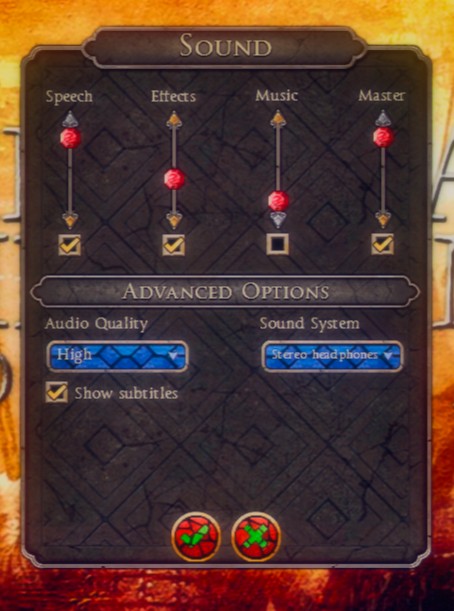
Enter in Attila sound settings. Checking all of sound options to enable them:
Speech, Effects, Music, Master.
Now checking your Music sound option to have an optimal volume level. In a Native version of the mod music volume are too many more strongly and you can't to listen the Speech voice sounds cleare.
So setting your sound options like that:
Speech- 100
Effects- 40
Music- 40 or disabled
Master- 100
Chapter 2
Music Apps
If you has your personal collection of your favorite medieval music you can disable Music option in the settings and run your waves in the browser or any else app.
https://www.youtube.com/watch?v=7p2uOix1p3M&list=PLYI3gUjakc2hr5uhm3Pcdbt5AlcoT6QwD&index=37
Press Alt+Tab in Attila game and choose your apps on a system panel or a desktop.
When you returns in a game window your music plays as an App under Attila.exe
Voice Apps
Try to use voice apps in Attila like a Voicebot app . You can setting your voice orders in a game like a command to “Run” by voice pressing R, “Stop” by Backspace and many others things and commands.

Device Apps
There are too many apps for sound quality in your audio device , and you can using them for more impression game experience.
You can using for example a Windows Sonic for Headphones + FxSound app for your headphones.

More Total War: ATTILA guides
- Western Roman Empire: Opening Moves★ 5 (1.2k)40k views1.6k ♥26 minUpdated Mar 5, 2015
- The Obscure mechanics of Attila.★ 5 (302)34k views408 ♥6 minUpdated Sep 27, 2020
- Total War: Attila - The Overall Guide★ 5 (582)33k views1.1k ♥30 minUpdated Mar 16, 2018
- Understanding politics in Attila★ 5 (275)32k views241 ♥3 min
- A Basic Religious Primer★ 5 (418)24k views513 ♥18 min
- Campaign Battles★ 5 (621)22k views1.1k ♥18 minUpdated Mar 31, 2015





🔥 Popular guides
- Upgrading to PremiumTeam Fortress 2★ 5 (20k)1441k views11k ♥6 minUpdated May 11, 2022
- No More Room in Hell Official ManualNo More Room in Hell★ 5 (2.8k)569k views2.1k ♥29 minUpdated Apr 22, 2019
- NMRiH Community Hosting GuidesNo More Room in Hell★ 5 (526)351k views653 ♥1 minUpdated Aug 10, 2022
- ULTIMATE GUIDE FOR GAME DEV TYCOONGame Dev Tycoon★ 5 (5.8k)326k views10k ♥4 minUpdated 23 Jan, 2014
- How to 'Git Gud' Soon™MORDHAU★ 5 (2k)318k views3k ♥68 minUpdated Nov 16, 2024
- Лучшие кооперативные игры SteamPAYDAY 2★ 5 (1.5k)315k views2.1k ♥56 minRussianUpdated Apr 27, 2025






This guide was created by its original author on the Steam Community. Are you the author and want it removed? Request removal.