Automated Save Game Backup
Intro
If you have like me run into a save game corruption issue - you've most likely experienced the horro of losing hours of progress by having to start the game all over again.
No longer.
This is just a Quick guide on how to set up a powershell script that does 2 things:
- Runs the game.
- remains active while the game is running - periodically backing up the save file to a specified location.
The script will exit after the game closes automatically.
The Script
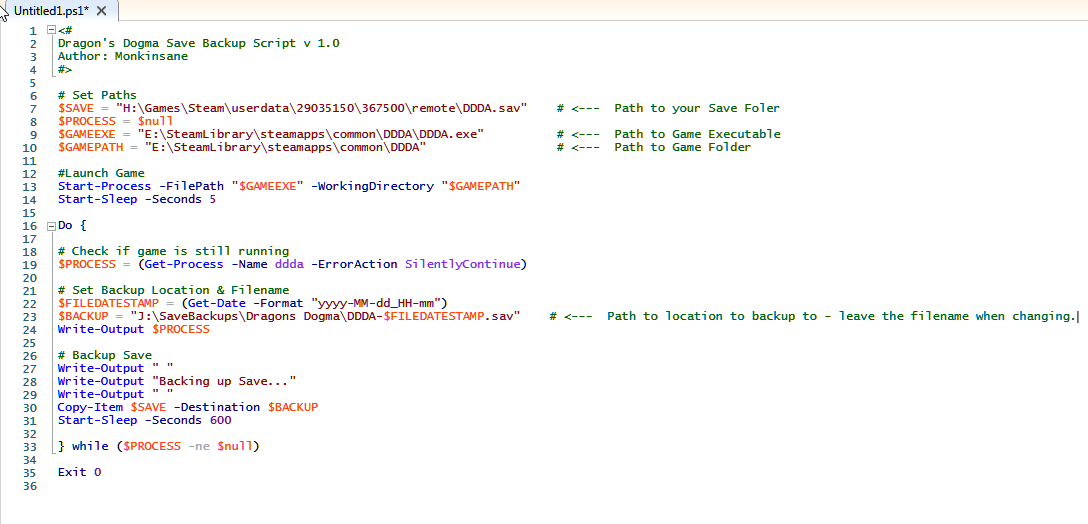
<#
Dragon's Dogma Save Backup Script v 1.0
Author: Monkinsane
#>
# Set Paths
$SAVE = "H:\Games\Steam\userdata\29035150\367500\remote\DDDA.sav"
$PROCESSNAME = "ddda"
$GAMEEXE = "E:\SteamLibrary\steamapps\common\DDDA\DDDA.exe"
$GAMEPATH = "E:\SteamLibrary\steamapps\common\DDDA"
[int]$SAVEINCREMENT = 600
[int]$COUNT = 0
# Launch Game
Start-Process -FilePath "$GAMEEXE" -WorkingDirectory "$GAMEPATH"
Start-Sleep -Seconds 5
Do {
# Check if game is still running
$PROCESS = (Get-Process -Name $PROCESSNAME -ErrorAction SilentlyContinue)
# Set Backup Location & Filename
$FILEDATESTAMP = (Get-Date -Format "yyyy-MM-dd_HH-mm")
$BACKUP = "J:\SaveBackups\Dragons Dogma\DDDA-$FILEDATESTAMP.sav"
# Backup Save
Write-Output " "
Write-Output "Backing up Save..."
Write-Output " "
Copy-Item $SAVE -Destination $BACKUP
if ($PROCESS -ne $null) {
do {
$PROCESS = (Get-Process -Name $PROCESSNAME -ErrorAction SilentlyContinue)
sleep 1
$COUNT = $COUNT + 1
} while (($PROCESS -ne $null) -and ($COUNT -ne $SAVEINCREMENT))
[int]$COUNT = 0
}
} while ($PROCESS -ne $null)
Exit 0
Instructions for Script
- Open Powershell ISE (Search on Start) and paste script into new file.
- Set $SAVE variable to Save file location.
- Set $GAMEEXE to Game EXE path & $GAMEPATH to Root folder of game installation.
- Set $SAVEINCREMENT to how often you would like it to backup your saves (in seconds - 600 for 10 minutes - for example)
- Create Folder where u want saves backed up.
- Set $BACKUP to path created above - keep the \DDDA-$FILEDATESTAMP.sav though.
- Save script and run it to launch game as well as backup saves.
Conclusion
And that's that.
Easy as pie.
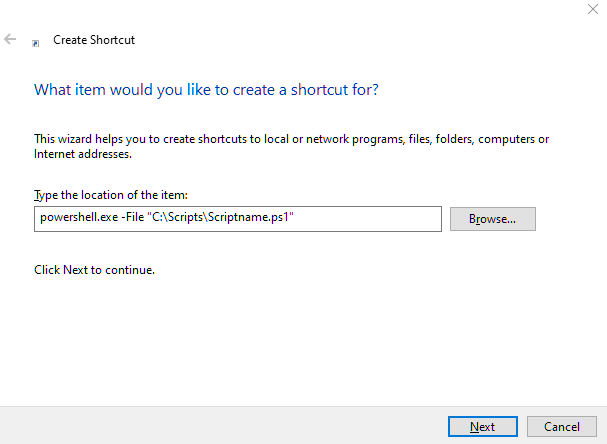
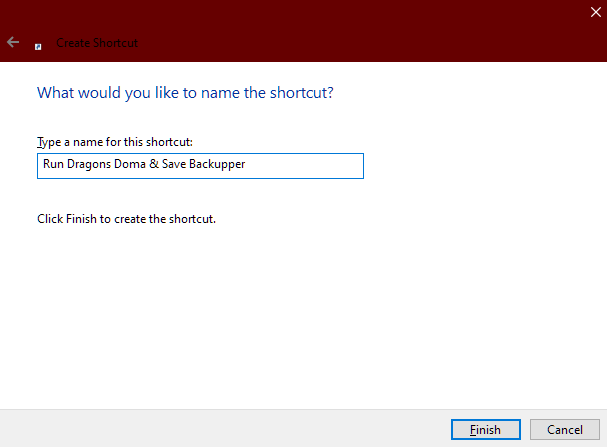
To Execute the script - you can either right-click it and click "run with powershell" or create a shortcut using this as the app to launch: powershell.exe -File "C:\Scripts\Scriptname.ps1"
- Hero Achievement and Missable Quests Guide★ 5 (3.5k)58k views7.1k ♥30 minUpdated Aug 2, 2016
- Dragon's Dogma: Dark Arisen. Getting started 101 and "did you know's?"★ 5 (918)53k views1.1k ♥17 minUpdated Jan 20, 2016
- The Arisen's Handbook: A Guide to Adventuring in Gransys★ 5 (1.7k)42k views3.4k ♥91 minUpdated Oct 8, 2023
- The Guide to Vocations and Skills★ 5 (806)42k views1.9k ♥86 minUpdated Jan 1, 2020
- Chronological Quest Guide for dd:da★ 5 (779)33k views2k ♥54 minUpdated Jul 5, 2023
- Vocations, Strengths and Weaknesses, all Part of a Whole - Writings of an Aged Arisen★ 5 (575)32k views873 ♥33 minUpdated Jan 3, 2021



- Upgrading to PremiumTeam Fortress 2★ 5 (20k)1441k views11k ♥6 minUpdated May 11, 2022
- No More Room in Hell Official ManualNo More Room in Hell★ 5 (2.8k)569k views2.1k ♥29 minUpdated Apr 22, 2019
- NMRiH Community Hosting GuidesNo More Room in Hell★ 5 (526)351k views653 ♥1 minUpdated Aug 10, 2022
- ULTIMATE GUIDE FOR GAME DEV TYCOONGame Dev Tycoon★ 5 (5.8k)326k views10k ♥4 minUpdated 23 Jan, 2014
- How to 'Git Gud' Soon™MORDHAU★ 5 (2k)318k views3k ♥68 minUpdated Nov 16, 2024
- Лучшие кооперативные игры SteamPAYDAY 2★ 5 (1.5k)315k views2.1k ♥56 minRussianUpdated Apr 27, 2025






This guide was created by its original author on the Steam Community. Are you the author and want it removed? Request removal.