Creating Quality Workshop Cover Images for Total War: Three Kingdoms Mods
1. Generate a 512x512 Image
I used ChatGPT to generate high-quality artwork. If you don’t have access to AI-generated images, you can use any 512x512 image relevant to your mod.
- Ensure the image is clear and fits the theme of your mod.
- Within the prompt ensure you make it clear not to include text, have it also including that you want the image generated to make the theme "Ensure its Three Kingdoms Themed"
- You can use AI tools or manually create an image in Photoshop, GIMP, or similar software.
2. Convert the Image to PNG Format
 Once you have your image:
- Go to ezgif.com.
- Select Convert > WebP to PNG.
- Upload your image and convert it.
- Download the PNG file.
- This ensures compatibility with Steam Workshop’s display format.
- Also double check that after the conversion to PNG to resize it to 512x512 for some reason it sometimes reverts after changing from WebP.
3. Add Text Using PicFont
Now, you need to add clear, readable text to your image:
- Visit picfont.com.
- Upload your PNG image.
- Click Add Text and enter your mod’s title.
- Use a bold, easy-to-read font.
- Adjust size and position for visibility.
- Download the final image.
Final Tips
- Keep text minimal but informative.
- Avoid overly bright or dark backgrounds.
- Ensure all elements are centered and properly aligned.
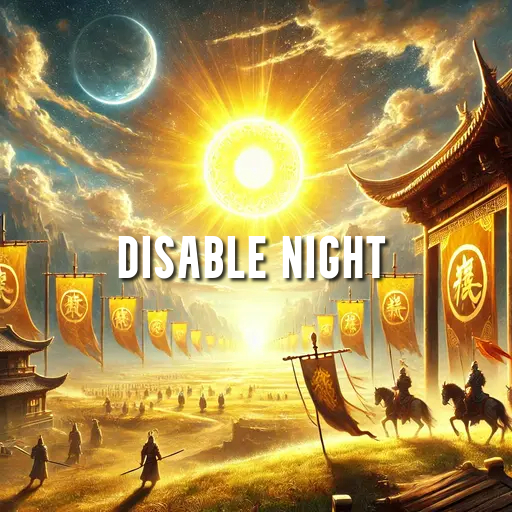
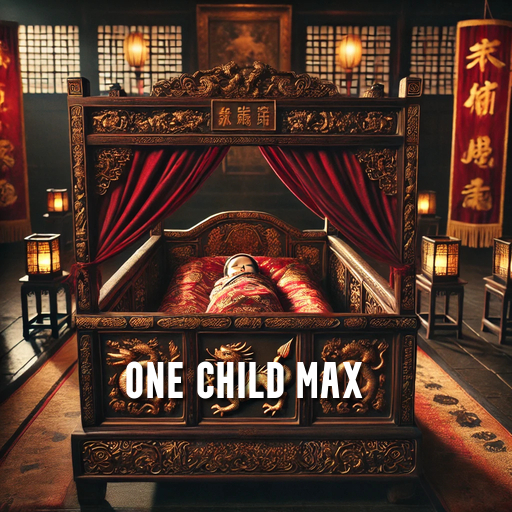
Previously Produce Images using the above guide.
More Total War: THREE KINGDOMS guides
- 《全面战争:三国》全方位懒人攻略★ 5 (684)39k views961 ♥3 minSimplified ChineseUpdated Mar 26, 2021
- Total War 3K: TheGathering sandbox mod★ 5 (312)37k views727 ♥76 minUpdated Jun 2, 2021
- 【更新日志】黑熊的非官方DLC (最后更新2024/6/28)★ 5 (312)36k views387 ♥3 minSimplified ChineseUpdated Jun 28, 2024
- Guide for TROM mod★ 5 (166)36k views395 ♥20 minUpdated Aug 7, 2023
- Three Kingdoms: Income guide★ 5 (382)27k views986 ♥17 minUpdated Jun 21, 2022
- Advanced Tips and Tricks★ 5 (329)25k views640 ♥42 minUpdated Jun 14, 2019


🔥 Popular guides
- Upgrading to PremiumTeam Fortress 2★ 5 (20k)1441k views11k ♥6 minUpdated May 11, 2022
- No More Room in Hell Official ManualNo More Room in Hell★ 5 (2.8k)569k views2.1k ♥29 minUpdated Apr 22, 2019
- NMRiH Community Hosting GuidesNo More Room in Hell★ 5 (526)351k views653 ♥1 minUpdated Aug 10, 2022
- ULTIMATE GUIDE FOR GAME DEV TYCOONGame Dev Tycoon★ 5 (5.8k)326k views10k ♥4 minUpdated 23 Jan, 2014
- How to 'Git Gud' Soon™MORDHAU★ 5 (2k)318k views3k ♥68 minUpdated Nov 16, 2024
- Лучшие кооперативные игры SteamPAYDAY 2★ 5 (1.5k)315k views2.1k ♥56 minRussianUpdated Apr 27, 2025






This guide was created by its original author on the Steam Community. Are you the author and want it removed? Request removal.