Deus Ex Modern Setup Guide
Notes
NOTE: Since this guide was originally written, the Deus Ex Community Update was released, incorporating many patches and mods. However, because the Community Update is buggy and runs poorly on my computer, I have updated this guide with some new information as an alternative way to get Deus Ex running. The steps here still work well on my computer as of November 2021.
This guide is aimed at the vanilla Deus Ex experience (no texture packs, gameplay mods, etc.). It will help you run this game smoothly even on low-end modern hardware. Everything has been tested on my system and works fine for me, although your setup may give you different results.
Before replacing any files in your Deus Ex installation, you may want to consider storing backup copies in a separate folder. While you could always re-download the files via Steam, if you screw something up or something doesn’t work it will be much faster to copy the files back from your own hard drive than re-download them.
I did not create any of these patches or files, and for in-depth information you should contact their respective creators.
This guide is aimed at the vanilla Deus Ex experience (no texture packs, gameplay mods, etc.). It will help you run this game smoothly even on low-end modern hardware. Everything has been tested on my system and works fine for me, although your setup may give you different results.
Before replacing any files in your Deus Ex installation, you may want to consider storing backup copies in a separate folder. While you could always re-download the files via Steam, if you screw something up or something doesn’t work it will be much faster to copy the files back from your own hard drive than re-download them.
I did not create any of these patches or files, and for in-depth information you should contact their respective creators.
Installing Patches
Before doing anything else, I recommend launching the game once to ensure it is installed correctly.
In this step we will install various fan-made patches which fix annoying bugs in the GOTY Edition release.
First, navigate to this ModDB page and download the Deus Ex v2 patch ZIP archive. Unzip this archive and replace the DeusEx.u file in your Deus Ex>System folder with the DeusEx.u file you just downloaded.
Next, we will fix version issues with the Game of the Year Edition's (GOTY) map files. Go to this page[www.dxm.be] and download the "DeusEx_MapsPatch13.exe" file. Run the downloaded EXE file and hit "Next" until you are prompted to enter your Deus Ex installation directory. The installer should already have detected the proper directory, but if it hasn’t then tell it to use the Deus Ex installation directory discussed earlier in this guide. From there, hit "Next >" and let the installer do its thing.
In this step we will install various fan-made patches which fix annoying bugs in the GOTY Edition release.
First, navigate to this ModDB page and download the Deus Ex v2 patch ZIP archive. Unzip this archive and replace the DeusEx.u file in your Deus Ex>System folder with the DeusEx.u file you just downloaded.
Next, we will fix version issues with the Game of the Year Edition's (GOTY) map files. Go to this page[www.dxm.be] and download the "DeusEx_MapsPatch13.exe" file. Run the downloaded EXE file and hit "Next" until you are prompted to enter your Deus Ex installation directory. The installer should already have detected the proper directory, but if it hasn’t then tell it to use the Deus Ex installation directory discussed earlier in this guide. From there, hit "Next >" and let the installer do its thing.
Installing the New Launcher
In this step we will install a new launcher for the game called Deus Exe, created by Kentie, which will provide additional bugfixes and other options. Go to this page[kentie.net] and download the "DeusExe-vX.Y.zip" file and the Visual Studio 2015 runtime installer. First, run the Visual Studio runtime installer in case the runtime isn't present on your system yet. Then, extract the ZIP file and copy the contents into your Deus Ex\System directory (this will overwrite the old files, remember to back up). Launch Deus Ex from Steam again, and you should see a new launcher pop up.
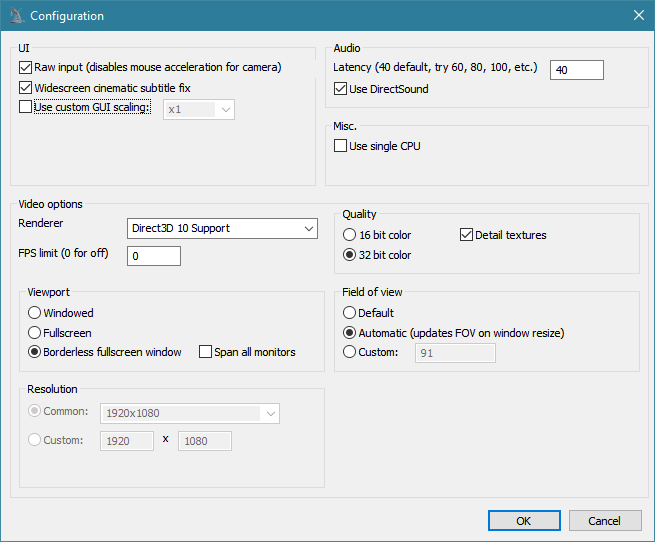
The Configure button will take you to a screen where you can select your preferred graphics renderer (choose "Direct3D 10 Support" once again) as well as change other graphical options such as resolution, color and texture quality, field of view, and raw mouse input (which you should definitely enable). The “GUI scaling fix” option can be used if the user interface appears too small while playing the game at a high resolution.
NOTE: the "FPS limit" option in the launcher is bugged. You should set it to 0 or else the game may freeze for a moment whenever a menu opens.
Kentie's site contains more info on all of the launcher options.
The Configure button will take you to a screen where you can select your preferred graphics renderer (choose "Direct3D 10 Support" once again) as well as change other graphical options such as resolution, color and texture quality, field of view, and raw mouse input (which you should definitely enable). The “GUI scaling fix” option can be used if the user interface appears too small while playing the game at a high resolution.
NOTE: the "FPS limit" option in the launcher is bugged. You should set it to 0 or else the game may freeze for a moment whenever a menu opens.
Kentie's site contains more info on all of the launcher options.
Installing a Renderer
To improve performance, you'll need to download a better graphics renderer for the game. I recommend Kentie’s Direct3D 10 Unreal renderer. This guide will cover only the installation of Kentie’s renderer, but the process for installing any others you find online will be similar.

Start the game. You should see a prompt to select a graphics renderer (if the game starts up without the prompt, head to the game’s display options menu and select "Choose rendering device". The game will restart and show the prompt). Select the "Show all devices" option. You should then see "Direct3D 10" support in the menu. Select this option and start the game.

Press Enter, and the game will switch to windowed mode and a small window will pop up:
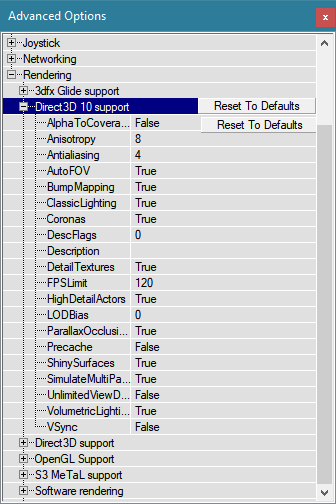
Expand the "Rendering" heading, then expand "Direct3D 10 support". Make the following changes:
Downloading the Renderer
Download the Direct3D 10 renderer from Kentie's site[kentie.net], as well as the DirectX update and the VS2010 runtime installer. Run the DirectX and VS2010 installers first, then extract the ZIP archive and copy everything that is inside the Deus Ex subfolder (which should be two files and a folder with more files in it) into your Deus Ex installation’s "Deus Ex\System" folder. This folder is usually at "C:\Program Files (x86)\Steam\SteamApps\common\Deus Ex\System".Start the game. You should see a prompt to select a graphics renderer (if the game starts up without the prompt, head to the game’s display options menu and select "Choose rendering device". The game will restart and show the prompt). Select the "Show all devices" option. You should then see "Direct3D 10" support in the menu. Select this option and start the game.
Configuring the Renderer
Load a saved game or start a new game and skip through until you are in the environment, looking around. You will need to press the "Send message to all" key (which is "T" by default, you can check this in Settings>Keyboard/Mouse). A small line of text should pop up in the lower left corner of the screen which reads "> Say ". Use backspace to delete "Say" and instead type “preferences”:Press Enter, and the game will switch to windowed mode and a small window will pop up:
Expand the "Rendering" heading, then expand "Direct3D 10 support". Make the following changes:
- Set "Classic Lighting" to "true" (this will improve the framerate)
- Set "DetailTextures" to "true"
- Set "FPSLimit" to some number if you want to cap the framerate without VSync
- Set "SimulateMultiPassRendering" to "true"
- Set "VSync" to "true" if you want vertical sync
Other Fixes
If you have an NVIDIA graphics card and the game is hitching and stuttering badly with the Direct3D 10 renderer, do the following to fix it:
- Open the NVIDIA Control Panel
- Go to "Manage 3D Settings" and click the "Program Settings" tab
- Add the Deus Ex executable to the list and set "Low Latency Mode" to "Ultra" and "Power management mode" to "Prefer maximum performance"
- Apply the changes
Conclusion
That's it! to play the game, just launch it as normal and click the big "play" button in the launcher.
I created this guide so people could enjoy one of the best games ever created without the hassle it took for me to get it running right.
Enjoy Deus Ex!
I created this guide so people could enjoy one of the best games ever created without the hassle it took for me to get it running right.
Enjoy Deus Ex!
More Deus Ex: Game of the Year Edition guides
- Deus Ex Setup Guide for modern systems★ 5 (2k)82k views3.5k ♥11 minUpdated Aug 15, 2025
- Running (Vanilla) Deus Ex in 2026★ 5 (969)42k views2.1k ♥7 minUpdated May 27
- Ultimate beginner's guide to Deus Ex★ 5 (743)38k views1.5k ♥7 minUpdated Jan 3, 2019
- Русификатор для "Deus Ex: Game of the Year Edition"★ 5 (3.1k)33k views1.2k ♥1 minRussianUpdated May 23, 2017
- Deus Ex Руководство по настройке графики★ 5 (1.3k)25k views1.6k ♥4 minRussianUpdated Jan 7, 2024
- The Single Most Important Tool You Have★ 5 (428)24k views292 ♥2 minUpdated Apr 30, 2020


This guide was created by its original author on the Steam Community. Are you the author and want it removed? Request removal.