DIY GUI
Defining a GUIScript
GUIDIY.lua
key can be compared to any "InputKey" value, down corresponds to whether the key is pressed or released.
class 'GUIDIY' (GUIScript)
GUIDIY:Initialize()
end
GUIDIY:Uninitialize()
end
GUIDIY:Update(deltaTime)
end
GUIDIY:OnResolutionChanged(oldX, oldY, newX, newY)
end
GUIDIY:SendKeyEvent(key, down)
end
end
Initialize()
A constructor, Initialize is called when the GUIScript is created. This is a good place to initialize variables.Uninitialize()
A destructor, Uninitialize is called when the GUIScript is destroyed. This is the place to destroy all your things so they don't leak. I'll cover how to destroy stuff in the next section.Update(deltaTime)
Called every tick by the GUIManager.OnResolutionChanged(oldX, oldY, newX, newY)
Called when the client resizes the screen. This is a when you should resize or rescale your GUI to better fit their new screen size.SendKeyEvent(key, down)
Called on key events. Return true if you'd like to "consume" the event.key can be compared to any "InputKey" value, down corresponds to whether the key is pressed or released.
Creating and Destroying a GUI
Creating a GUIScript
Create your GUI.GetGUIManager():CreateGUIScriptSingle("GUIDIY")
GetGUIManager():DestroyGUIScriptSingle("GUIDIY")
Create an instance of your GUI. Create and destroy as many as you want!
local script = GetGUIManager():CreateGUIScript("GUIDIY")
GetGUIManager():DestroyGUIScript(script)
Creating a GUIItem
item = GUIManager:CreateGraphicItem()text = GUIManager:CreateTextItem()
GUI.DestroyItem(item)
All GUI items must be destroyed using DestroyItem or they will "leak". If you lose your reference to the GUI item before destroying it you will end up with phantom GUI items on the screen. These can only be removed by rejoining a server. DestroyItem will also destroy any children of the item you're destroying.
Position, Size, and Scale
SetPosition(Vector(x,y,0))
Set the position (in pixels) of the item. Positioning is based on the top left corner. This works based on standard computer positioning rules. Increasing X goes Right across the screen. Increasing Y goes Down across the screen. Use of negative numbers is allowed. Use Client.GetScreenHeight() and Client.GetScreenWidth() to get the size of the current screen.SetSize(Vector(w,h,0))
Set the size (in pixels) of the item. Negative numbers can be used to flip the item across an axis (origin at top left corner).SetScale(Vector(i,j,0))
Set the scale of the item.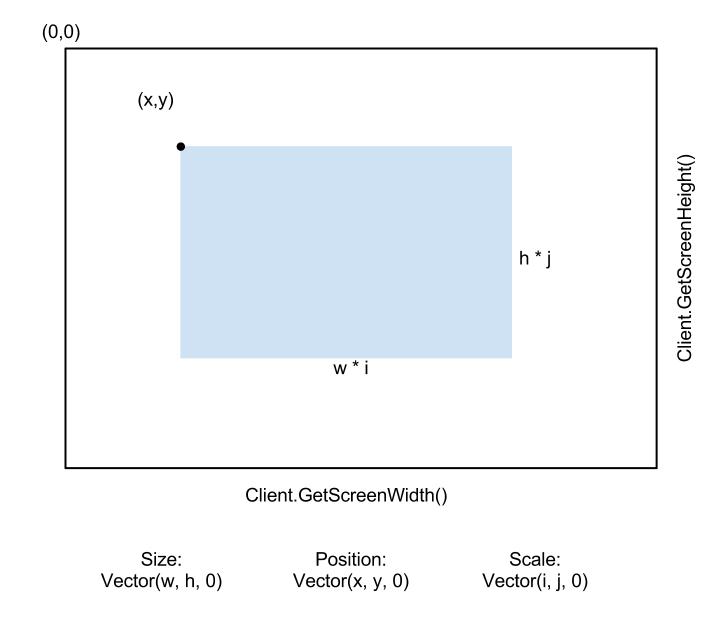
Anchor
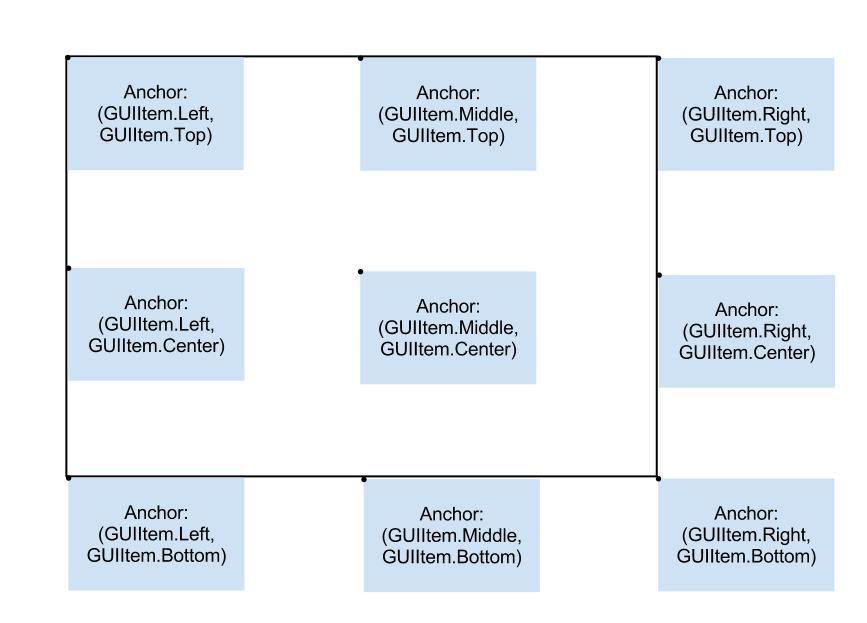
item:SetAnchor(xAnchor, yAnchor)
Set the Anchor of a GUI item. The anchor determines where the GUI will base its positioning from. The image below demonstrates where you can set your anchors.X Anchors
GUIItem.Left
GUIItem.Middle
GUIItem.Right
Y Anchors
GUIItem.Top
GUIItem.Center
GUIItem.Bottom
Color and Texture
SetColor(Color(r,g,b,a))
Set the color of the GUI. If a texture is set the color will be multiplied into the texture. Use white to keep your texture the default color.SetTexture("ui/texture.dds")
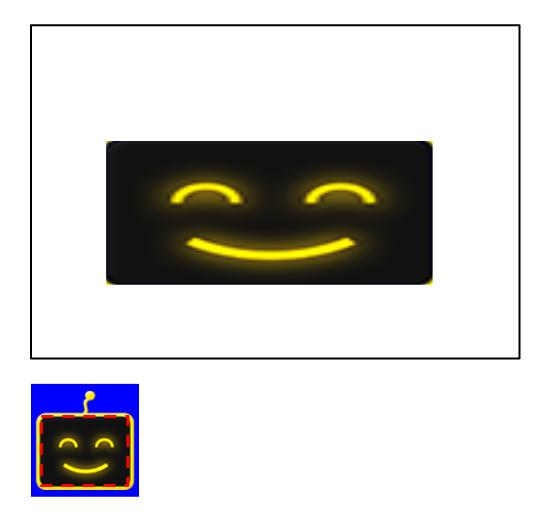
Set the texture to the given texture. Can be assigned to dds, psd, or png(?) images.SetTexturePixelCoordinates(x,y,w,h)
Set the texture's sample coordinates. Example below, the red dotted box represents the coordinates sampled on the texture. Negative values can be used to mirror the image.Use "unpack({x,w,w,h})" to pass in a single table, or pass in each parameter seperately.
Text
Text works similar to other GUI elements, but there are some differences
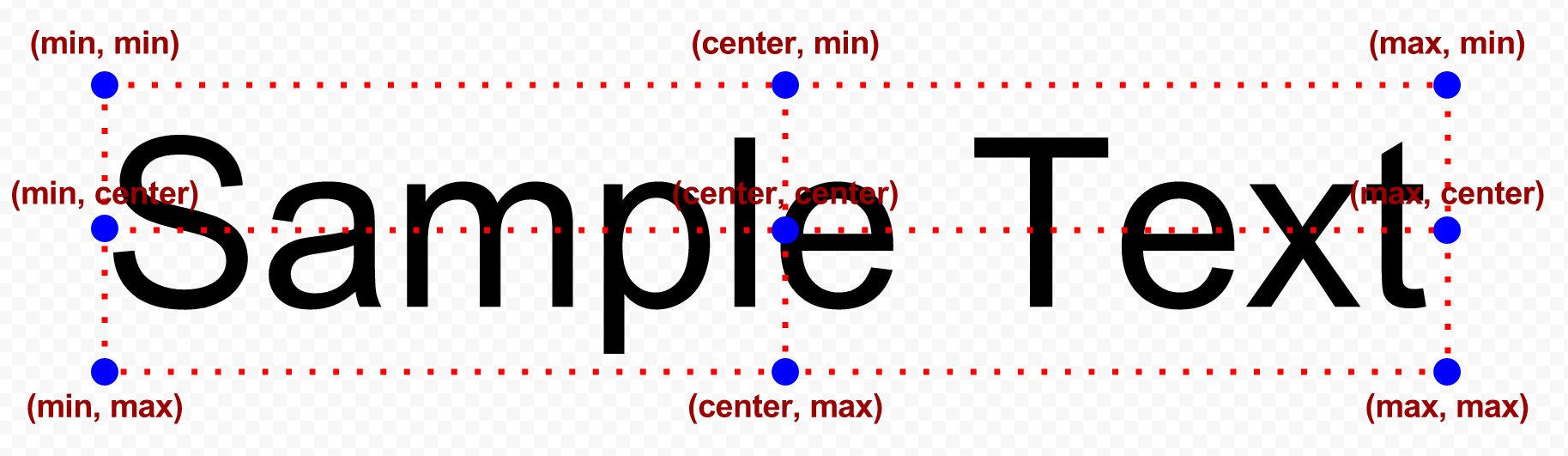
Alignments will change the positioning of the item from the top left (min, min) corner to whatever values are set.
GUIManager:CreateTextItem()
Creates a new Text ItemSetFontName("fonts/Font_size.fnt")
Set the font. Look in your "natural selection 2/core/fonts" directory to see existing NS2 fonts. // TODO make a tutorial on creating fontsSetText("String")
Set the text to be displayedSetScale(Vector(xScale, yScale, 0))
Set the scale. There is no "SetSize" for text items, you must use SetScale to change the size of your text items.SetTextAlignmentX(Alignment)
Set the x Alignment.SetTextAlignmentY(Alignment)
Set the y AlignmentAlignments will change the positioning of the item from the top left (min, min) corner to whatever values are set.
Alignments
GUIItem.Align_Min
GUIItem.Align_Center
GUIItem.Align_Max
Lines
Lines can only be 1 px thick right now.
Most of the regular GUI functions will work: Anchor, Position, Color, Visible, Layer, Parent, etc
Line Specific functions:
lineItem = GUIManager:CreateLinesItem()
Create a new Lines Graphic Item
AddLine(VectorPosition1, VectorPosition2, Color)
Draws a line from position1 to position2 with color
ClearLines()
Clears all the lines from a Lines Item
Most of the regular GUI functions will work: Anchor, Position, Color, Visible, Layer, Parent, etc
Line Specific functions:
lineItem = GUIManager:CreateLinesItem()
Create a new Lines Graphic Item
AddLine(VectorPosition1, VectorPosition2, Color)
Draws a line from position1 to position2 with color
ClearLines()
Clears all the lines from a Lines Item
Other Commands
AddChild(GUIItem)
Adds a child to the gui item. A child will use its parent's position as its origin instead of (0,0). Children/Parents are covered elsewhere in the guide
SetRotation(radian float)
Set rotation, //TODO I think this rotates around the top left corner.
SetLayer(int)
Sets the layer of the item. 0 is the lowest layer. Check GUIManager.lua to see some layer constants.
SetIsVisible(boolean)
Sets the item and all children invisible
GetScreenPosition(Client.GetScreenWidth(), Client.GetScreenHeight())
Gets the absolute screen position of the item. If the item is a child, GetPosition() will return its relative position, not its absolute position.
SetInheritsParentAlpha(true)
Item will inherit its parent's alpha.
Adds a child to the gui item. A child will use its parent's position as its origin instead of (0,0). Children/Parents are covered elsewhere in the guide
SetRotation(radian float)
Set rotation, //TODO I think this rotates around the top left corner.
SetLayer(int)
Sets the layer of the item. 0 is the lowest layer. Check GUIManager.lua to see some layer constants.
SetIsVisible(boolean)
Sets the item and all children invisible
GetScreenPosition(Client.GetScreenWidth(), Client.GetScreenHeight())
Gets the absolute screen position of the item. If the item is a child, GetPosition() will return its relative position, not its absolute position.
SetInheritsParentAlpha(true)
Item will inherit its parent's alpha.
Examples
Drawing Overhead camer projection lines from GUIMinimap.lua
self.cameraLines = GUIManager:CreateLinesItem()
self.cameraLines:SetAnchor(GUIItem.Center, GUIItem.Middle)
self.cameraLines:SetLayer(kPlayerIconLayer)
self.minimap:AddChild(self.cameraLines)
...
local topLeftPoint, topRightPoint, bottomLeftPoint, bottomRightPoint = OverheadUI_ViewFarPlanePoints()
topLeftPoint = Vector(PlotToMap(self, topLeftPoint.x, topLeftPoint.z))
topRightPoint = Vector(PlotToMap(self, topRightPoint.x, topRightPoint.z))
bottomLeftPoint = Vector(PlotToMap(self, bottomLeftPoint.x, bottomLeftPoint.z))
bottomRightPoint = Vector(PlotToMap(self, bottomRightPoint.x, bottomRightPoint.z))
self.cameraLines:ClearLines()
local lineColor = Color(1, 1, 1, 1)
self.cameraLines:AddLine(topLeftPoint, topRightPoint, lineColor)
self.cameraLines:AddLine(topRightPoint, bottomRightPoint, lineColor)
self.cameraLines:AddLine(bottomRightPoint, bottomLeftPoint, lineColor)
self.cameraLines:AddLine(bottomLeftPoint, topLeftPoint, lineColor)
More Natural Selection 2 guides
- The Ultimate NS2 Basics Tutorial: From Noob to Vet (Updated!)★ 5 (676)31k views784 ♥1 minUpdated Aug 28, 2013
- Natural Selection 2: Beginner Tips★ 4 (157)14k views117 ♥12 minUpdated Nov 30, 2014
- Большая энциклопедия по Natural Selection 2. Том 1: Боевая часть★ 5 (646)10k views385 ♥57 minRussianUpdated Jun 11, 2019
- Commander's Bible [UPDATED 6/5/2016]★ 4 (112)5.8k views110 ♥35 minUpdated Jun 5, 2016
- HOW TO DANCE★ 2 (79)2.6k views9 ♥1 minDanishUpdated Dec 23, 2015
- Spectator Controls★ 4 (48)1.8k views30 ♥1 minUpdated Feb 27, 2013



This guide was created by its original author on the Steam Community. Are you the author and want it removed? Request removal.