Downsampling Tutorial (NVIDIA)
Introduction
First of all it is pretty easy!
It takes you only 2mins to set up 2880x1620 and therefor to achieve a far more crisp picture!


=> This guide also works for The Walking Dead Season 1
& all other games which support high resolutions.
It takes you only 2mins to set up 2880x1620 and therefor to achieve a far more crisp picture!
=> This guide also works for The Walking Dead Season 1
& all other games which support high resolutions.
Tutorial
Everything is set & configured in the Nvidia Control Panel (as shown below)...
1. Go to Display ->Adjust desktop size & position ||| 1.1 Go to Display -> Change Resolution
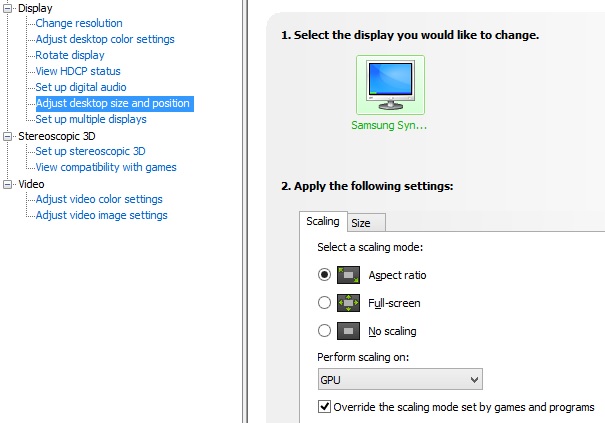
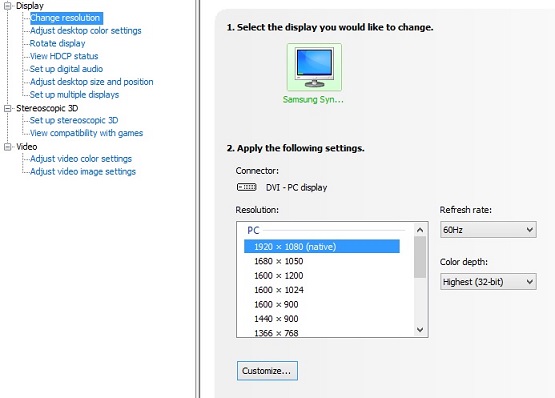 1. Set everything as shown above and click Apply.
1.1 Select your native resolution and click Customize.
=> There you tick Enable resolutions not exposed by the display & press Create Custom Resolution.
2. Create your custom resolution:
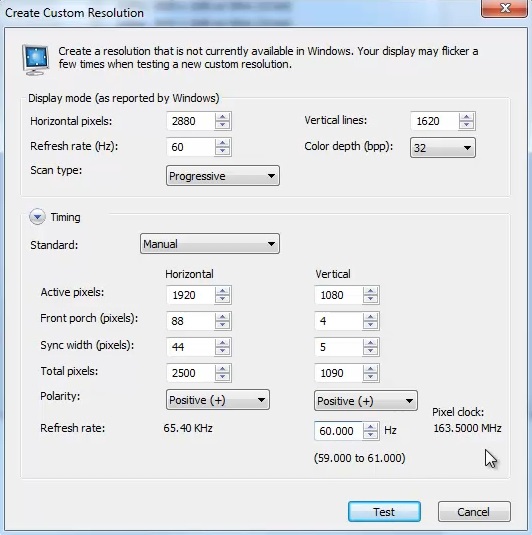
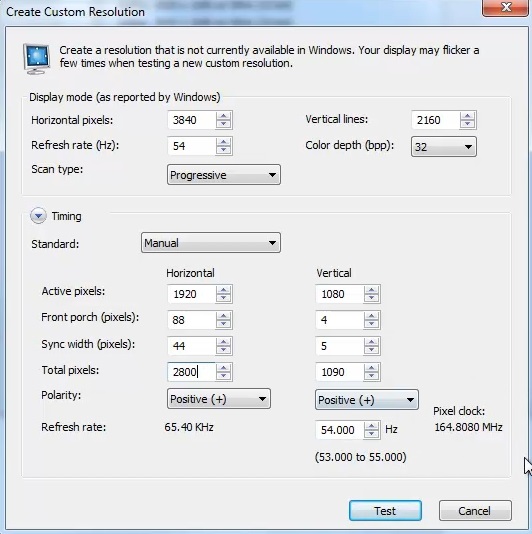 It is important that you set the timings "Manual" as shown above.
(The Pixel Clock should not go above 165MHZ!)
2.1 click TEST
If you set everything correct, your Desktop will be shown in the resolution you chose!
(It is important: that you click Yes if you see your Desktop in the desired resolution.
=> This is for adding the resolution and not for setting it up for your desktop.)
3. Set your custom resolution ingame

Note: @3840x2160
Some monitors do not go beneath 56Hz, even if they are able to! That is driver related & can be fixed!
(My 24" Samsung e.g. needs the EDID Monitor Hz FIX[www.oc-burner.de] for 3840x2160 @54Hz, to work properly!)
1. Go to Display ->Adjust desktop size & position ||| 1.1 Go to Display -> Change Resolution
1. Set everything as shown above and click Apply. 1.1 Select your native resolution and click Customize.
=> There you tick Enable resolutions not exposed by the display & press Create Custom Resolution.
2. Create your custom resolution:
It is important that you set the timings "Manual" as shown above. (The Pixel Clock should not go above 165MHZ!)
2.1 click TEST
If you set everything correct, your Desktop will be shown in the resolution you chose!
(It is important: that you click Yes if you see your Desktop in the desired resolution.
=> This is for adding the resolution and not for setting it up for your desktop.)
3. Set your custom resolution ingame
Note: @3840x2160
Some monitors do not go beneath 56Hz, even if they are able to! That is driver related & can be fixed!
(My 24" Samsung e.g. needs the EDID Monitor Hz FIX[www.oc-burner.de] for 3840x2160 @54Hz, to work properly!)
Comparison
Before (1920x1080 @1920x1080)

After (2880x1620 @1920x1080)

Before (1920x1080 @1920x1080)

After (2880x1620 @1920x1080)

(Those are *.jpeg screenshots, they actual cannot represent the total&final image quality ingame...but it's a prospect.)
After (2880x1620 @1920x1080)
Before (1920x1080 @1920x1080)
After (2880x1620 @1920x1080)
(Those are *.jpeg screenshots, they actual cannot represent the total&final image quality ingame...but it's a prospect.)
Attention
Unfortunately after installing a new Nvidia Driver, you have to set your custom resolution again! Even with the "Express Installation". (on some systems)
Note
This Guide works for all Games which support high resolutions!

http://steamcommunity.com/sharedfiles/filedetails/?id=224207176
--------------------------------------------------------------------
PLZ Rate if you like... :)
& follow me for more SLI Fix Guides => click
http://steamcommunity.com/sharedfiles/filedetails/?id=224207176
--------------------------------------------------------------------
PLZ Rate if you like... :)
& follow me for more SLI Fix Guides => click
Tutorial for AMD-user Edit
More The Walking Dead: Season Two guides
- Русификатор The Walking Dead: Season 2 | PC/Mac/iOS/Android★ 5 (504)39k views480 ♥1 minRussianUpdated 10 Jan, 2025
- Варианты развития сюжета и пасхалки The Walking Dead★ 5 (666)24k views405 ♥9 minRussianUpdated 28 Mar, 2022
- Аргументы: Почему не нужно убивать Кенни/Arguments: Why it isn't necessary to kill Kenny.★ 4 (301)11k views42 ♥1 minUpdated 3 May, 2015
- Русификатор The Walking Dead:Season Two★ 4 (158)9.6k views168 ♥1 minRussianUpdated 22 Aug, 2023
- Traduccion al Español - The Walking Dead: Season Two - FULL★ 5 (267)8.4k views166 ♥1 minSpanishUpdated 27 Jan
- Перевод The Walking Dead: Season Two (v1.41 от 26.01.16) от Tolma4 Team / ZoneOfGames.ru★ 5 (197)8.3k views90 ♥1 minRussianUpdated 12 Jun, 2023


🔥 Popular guides
- Upgrading to PremiumTeam Fortress 2★ 5 (20k)1441k views11k ♥6 minUpdated May 11, 2022
- No More Room in Hell Official ManualNo More Room in Hell★ 5 (2.8k)569k views2.1k ♥29 minUpdated Apr 22, 2019
- NMRiH Community Hosting GuidesNo More Room in Hell★ 5 (526)351k views653 ♥1 minUpdated Aug 10, 2022
- How to 'Git Gud' Soon™MORDHAU★ 5 (2k)318k views3k ♥68 minUpdated Nov 16, 2024
- Лучшие кооперативные игры SteamPAYDAY 2★ 5 (1.5k)315k views2.1k ♥56 minRussianUpdated Apr 27, 2025
- Desert Eagle Heat Treated | Blue GemCounter-Strike 2★ 5 (1.6k)293k views1.5k ♥2 minUpdated Jan 16





This guide was created by its original author on the Steam Community. Are you the author and want it removed? Request removal.