Editing Keys in the Config file
Locating the Config file.
The config file is located in:
C:\Users\USERNAME HERE\Appdata\Local\Capcom\Dragons Dogma Dark Arisen
A quick way to access this without adjusting settings is to pull up the Run dialogue (Windows button+R) and type the above in, replacing "USERNAME HERE" with the username for your computer. (near the top right when you open the start menu in Win 7)
C:\Users\USERNAME HERE\Appdata\Local\Capcom\Dragons Dogma Dark Arisen
A quick way to access this without adjusting settings is to pull up the Run dialogue (Windows button+R) and type the above in, replacing "USERNAME HERE" with the username for your computer. (near the top right when you open the start menu in Win 7)
Editing the Config file
BEFORE GOING FURTHER MAKE A COPY OF YOUR CONFIG FILE.
What I generally do is copy it with the exact same name and add ".backup" at the end so that it looks like "Config.ini.backup".
This won't be touched, and all you have to do is make a new copy, remove the .backup, and overwrite. This helps to avoid mistyping when you rename in case of problems.
Change the number following the "=" for the control you want to change (listed in next section).
When finished save and close.
To set the file as read only:
- Right click on config.ini
- Click properties
- Click the checkbox next to "read only" at the bottom.
- Click OK
Key Codes
(If you know others let me know and I'll add with credit.)
Mouse Button Bindings:
(middle mouse code: Aquadisk)
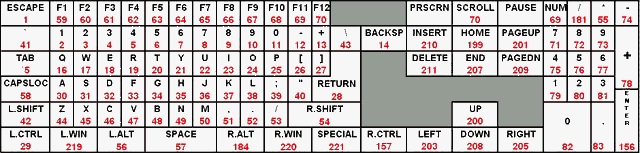
Keyboard Bindings:
Mouse Button Bindings:
Mouse Button
Key Code
Left Mouse
256
Right Mouse
512
Middle Mouse
1024
Mouse 4
2048
Mouse 5
4096
(middle mouse code: Aquadisk)
The more buttons you have on your mouse the more key code increases with their quantity
Keyboard Bindings:
More Dragon's Dogma: Dark Arisen guides
- Hero Achievement and Missable Quests Guide★ 5 (3.5k)58k views7.1k ♥30 minUpdated Aug 2, 2016
- Dragon's Dogma: Dark Arisen. Getting started 101 and "did you know's?"★ 5 (918)53k views1.1k ♥17 minUpdated Jan 20, 2016
- The Arisen's Handbook: A Guide to Adventuring in Gransys★ 5 (1.7k)42k views3.4k ♥91 minUpdated Oct 8, 2023
- The Guide to Vocations and Skills★ 5 (806)42k views1.9k ♥86 minUpdated Jan 1, 2020
- Chronological Quest Guide for dd:da★ 5 (779)33k views2k ♥54 minUpdated Jul 5, 2023
- Vocations, Strengths and Weaknesses, all Part of a Whole - Writings of an Aged Arisen★ 5 (575)32k views873 ♥33 minUpdated Jan 3, 2021



🔥 Popular guides
- Upgrading to PremiumTeam Fortress 2★ 5 (20k)1441k views11k ♥6 minUpdated May 11, 2022
- No More Room in Hell Official ManualNo More Room in Hell★ 5 (2.8k)569k views2.1k ♥29 minUpdated Apr 22, 2019
- NMRiH Community Hosting GuidesNo More Room in Hell★ 5 (526)351k views653 ♥1 minUpdated Aug 10, 2022
- ULTIMATE GUIDE FOR GAME DEV TYCOONGame Dev Tycoon★ 5 (5.8k)326k views10k ♥4 minUpdated 23 Jan, 2014
- How to 'Git Gud' Soon™MORDHAU★ 5 (2k)318k views3k ♥68 minUpdated Nov 16, 2024
- Лучшие кооперативные игры SteamPAYDAY 2★ 5 (1.5k)315k views2.1k ♥56 minRussianUpdated Apr 27, 2025






This guide was created by its original author on the Steam Community. Are you the author and want it removed? Request removal.