"Fallout 3 - GOTY" not launching on Windows 11 & 10
Step: 1
In Documents\MyGames\Fallout3 open the file "FalloutPrefs.ini" (it could just be called "FalloutPrefs") with Notepad.
Important!!!
If your path to Documents is through OneDrive like here:
"OneDrive\Documents\MyGames\Fallout3"
Then use the answer in this Discussion:
https://steamcommunity.com/app/377160/discussions/0/3247565033759006127/?ctp=2
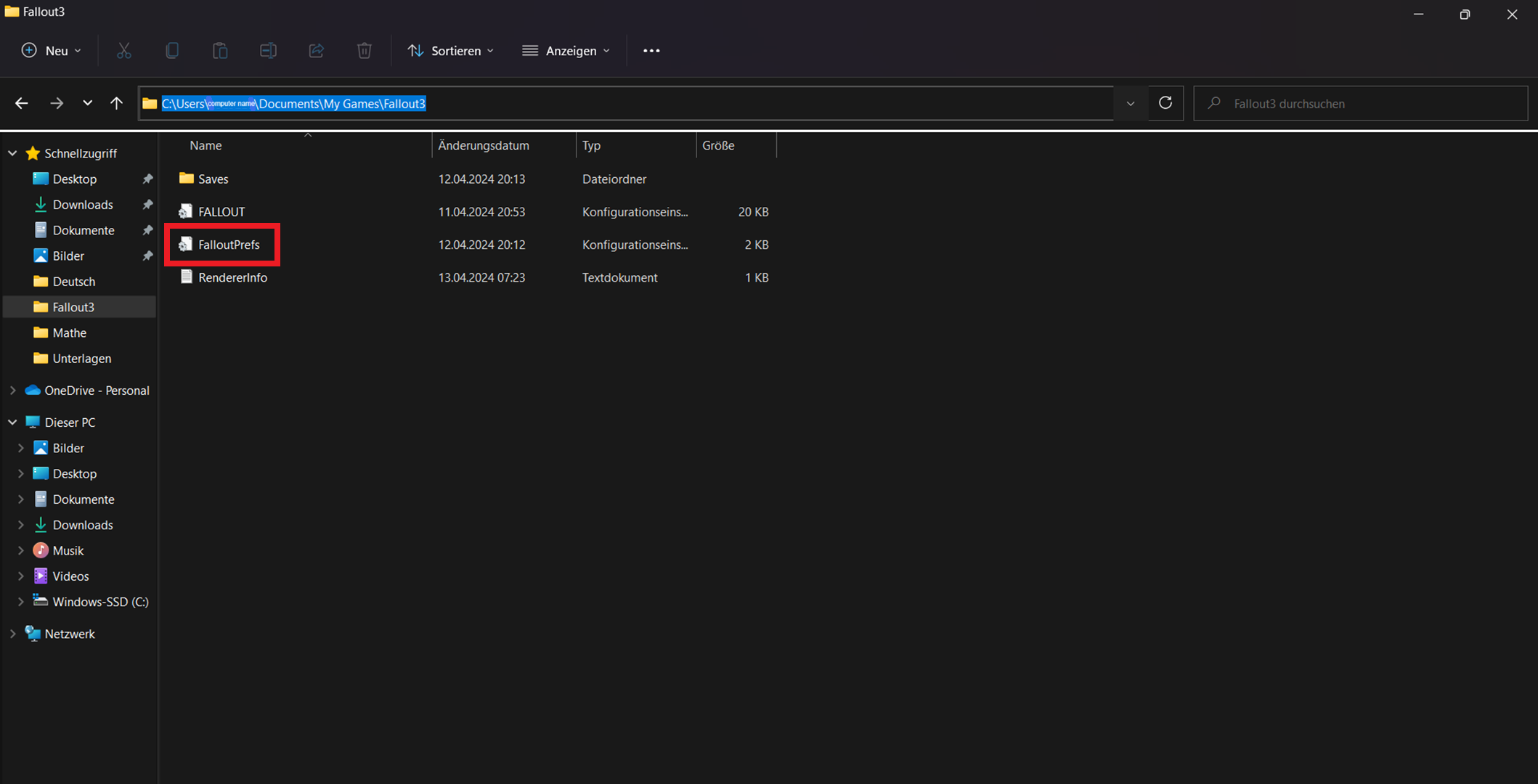
to open this FalloutPrefs file with Notepad, we need to:
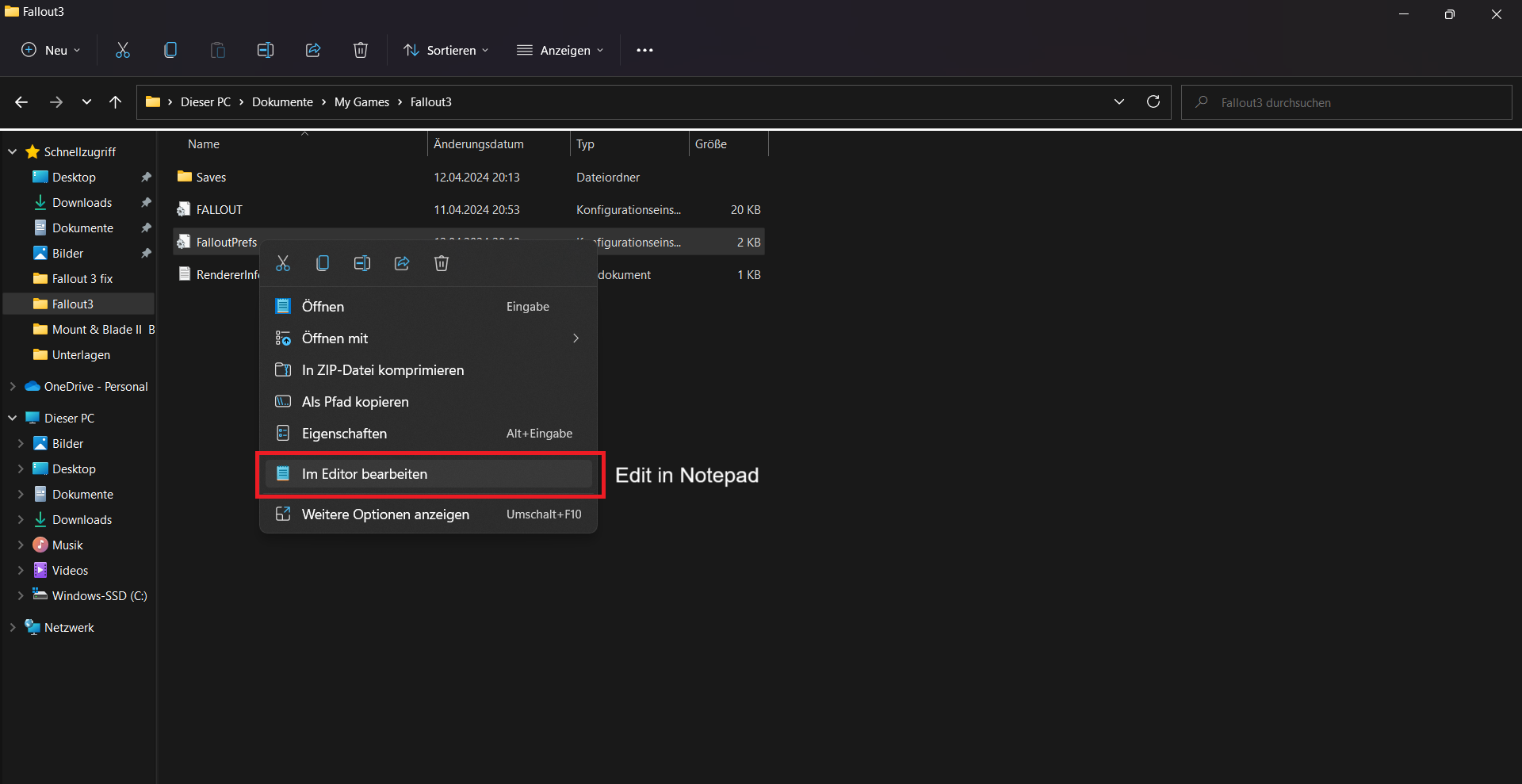
Important!!!
If your path to Documents is through OneDrive like here:
"OneDrive\Documents\MyGames\Fallout3"
Then use the answer in this Discussion:
https://steamcommunity.com/app/377160/discussions/0/3247565033759006127/?ctp=2
to open this FalloutPrefs file with Notepad, we need to:
- right-click on the "FalloutPrefs.ini"
- click on the line with "Edit in Notepad"
Step: 2
First, search for the string sD3DDevice="your graphics card" in Notepad:
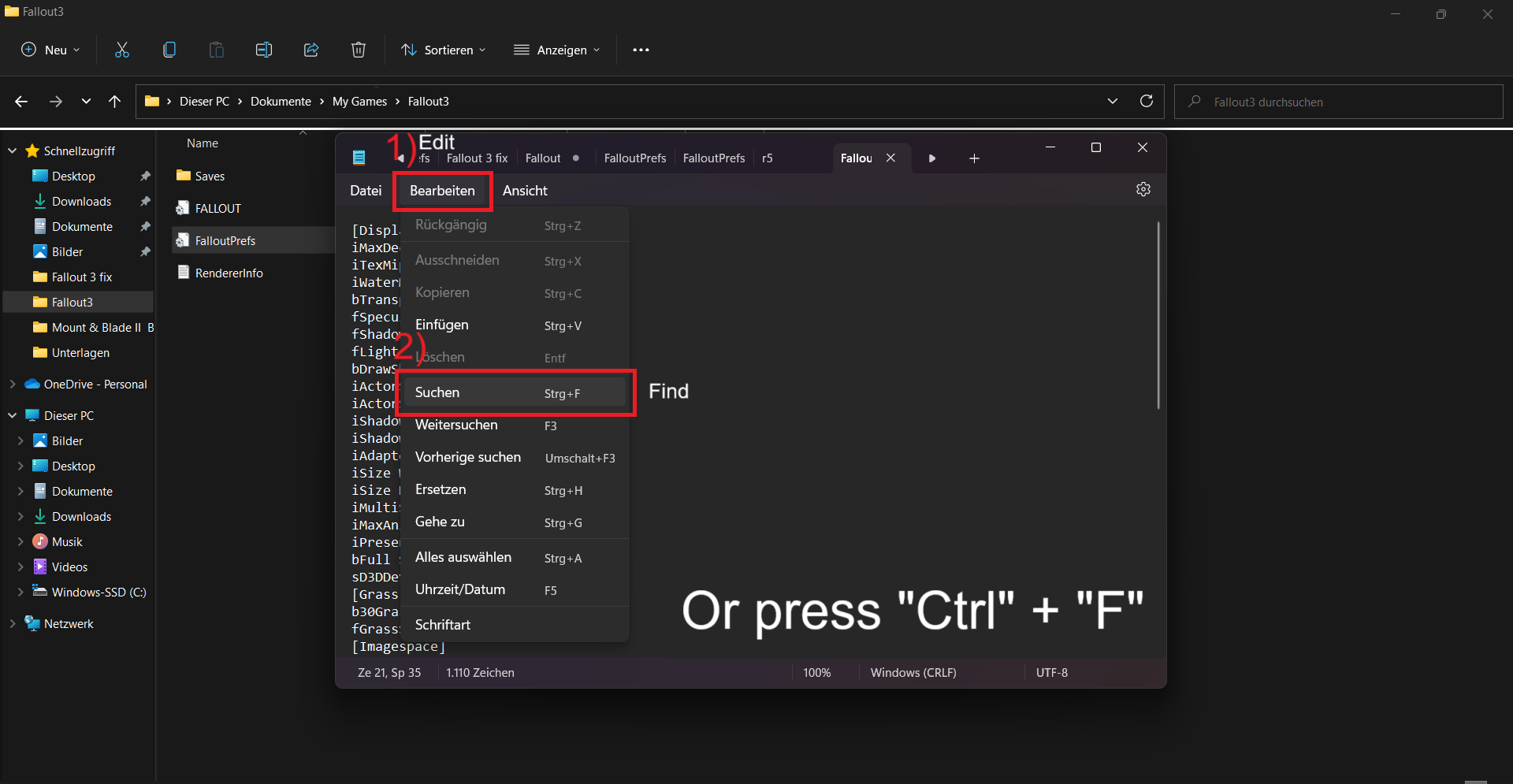
A search box should appear at the top of Notepad:
Attention!!!
Sometimes that line can't be in the file "FalloutPrefs.ini".
Then you'll have to enter this line manually: sD3DDevice="NAME OF YOUR VIDEO CARD"
(or copy it from here)
!!!Pay attention to where exactly this line is located relative to other lines!!!
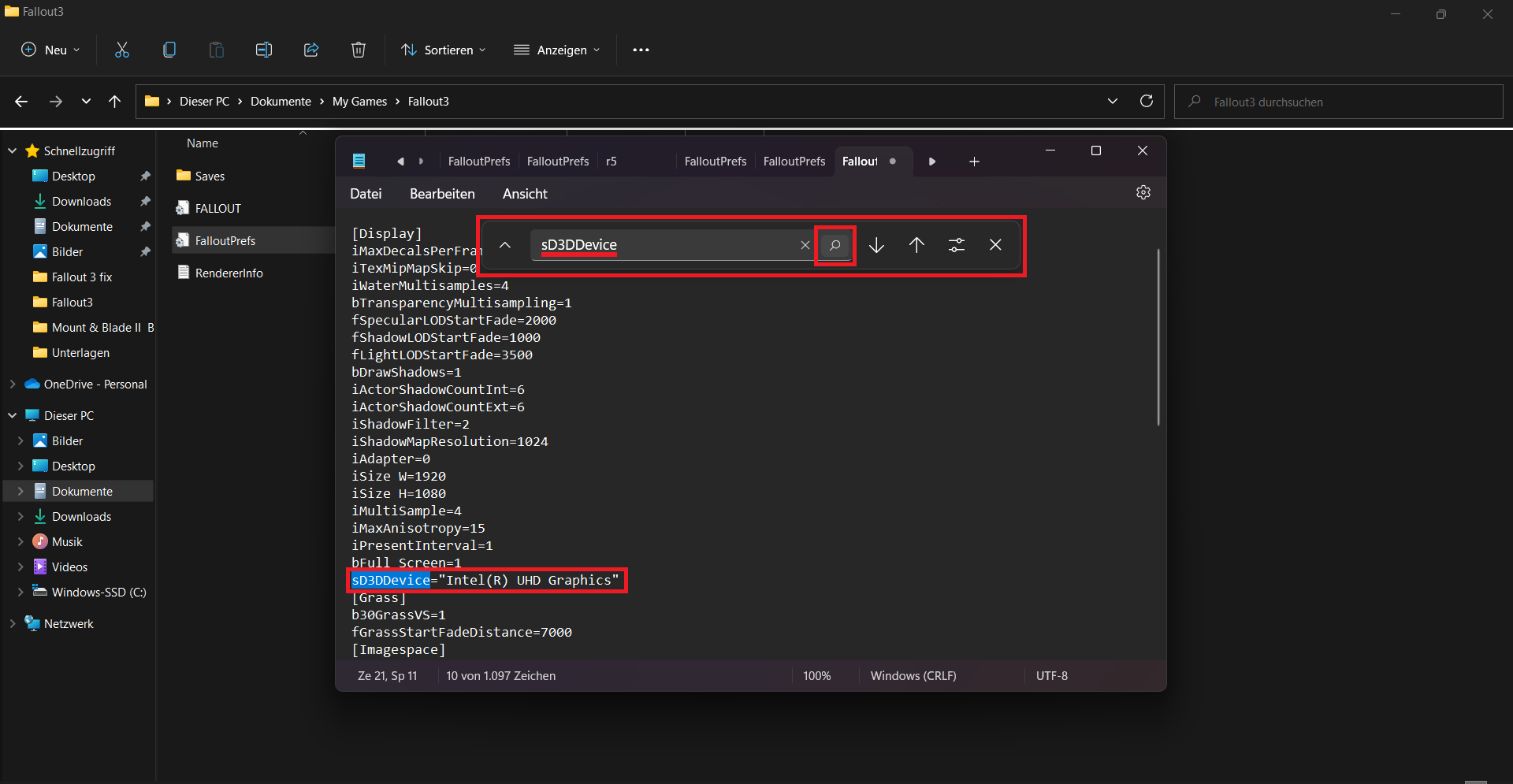
Change sD3DDevice="Intel(R) UHD Graphics" to the name you have in device manager for your video card. In my case, it's "NVIDIA GeForce RTX 3060 Laptop GPU".
If you don't know the exact name of your graphics card go to "Name of your graphics card"
![]()
Now you need to save your changes, so on the top left of the Notepad, click on "File".
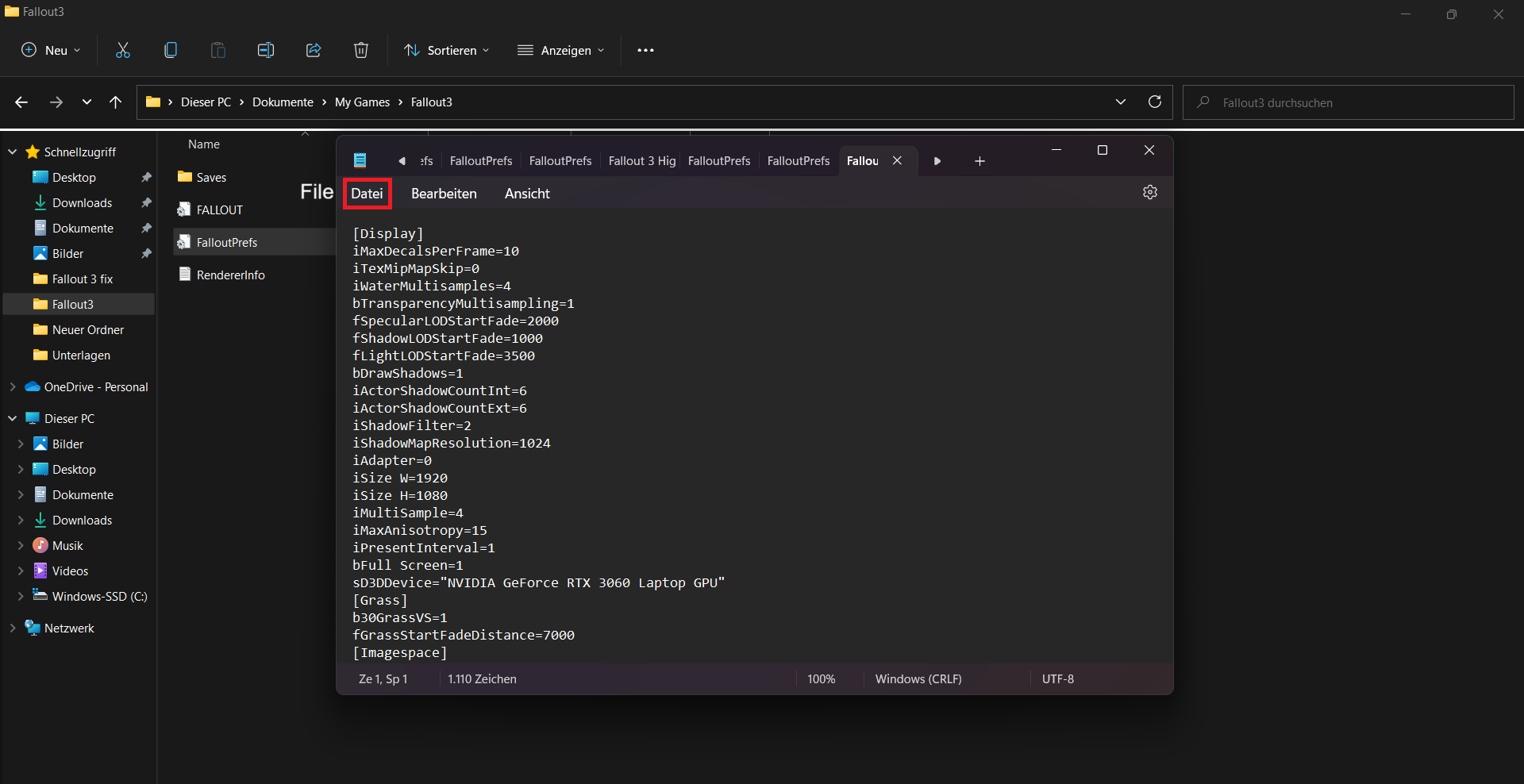
Then click "Save" in the options provided. (You can also do it by pressing "Ctrl" + "F")
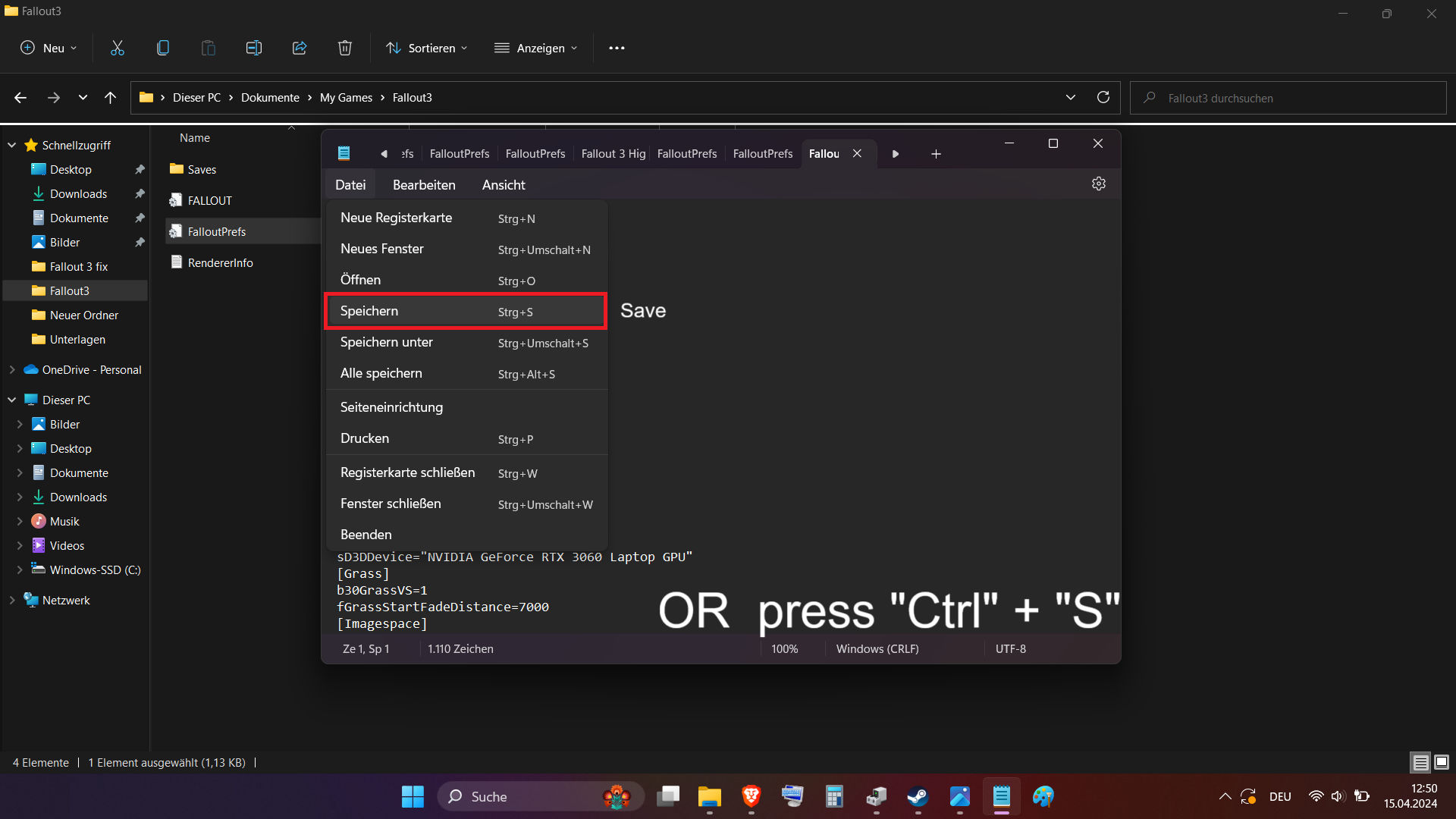 *Thanks to tk1154
When you've done that, you can close Notepad.
- in the Notepad on the top left click "Edit"
- in the list that opens, click "Find"
A search box should appear at the top of Notepad:
- type "sD3DDevice" without the quotes (you can also copy here and paste it into the search field of Notepad)
- press the small magnifying glass icon or the Enter-key
Attention!!!
Sometimes that line can't be in the file "FalloutPrefs.ini".
Then you'll have to enter this line manually: sD3DDevice="NAME OF YOUR VIDEO CARD"
(or copy it from here)
!!!Pay attention to where exactly this line is located relative to other lines!!!
Change sD3DDevice="Intel(R) UHD Graphics" to the name you have in device manager for your video card. In my case, it's "NVIDIA GeForce RTX 3060 Laptop GPU".
If you don't know the exact name of your graphics card go to "Name of your graphics card"
Now you need to save your changes, so on the top left of the Notepad, click on "File".
Then click "Save" in the options provided. (You can also do it by pressing "Ctrl" + "F")
*Thanks to tk1154When you've done that, you can close Notepad.
Step: 3
And then set this file to "Read-only" through the Properties.
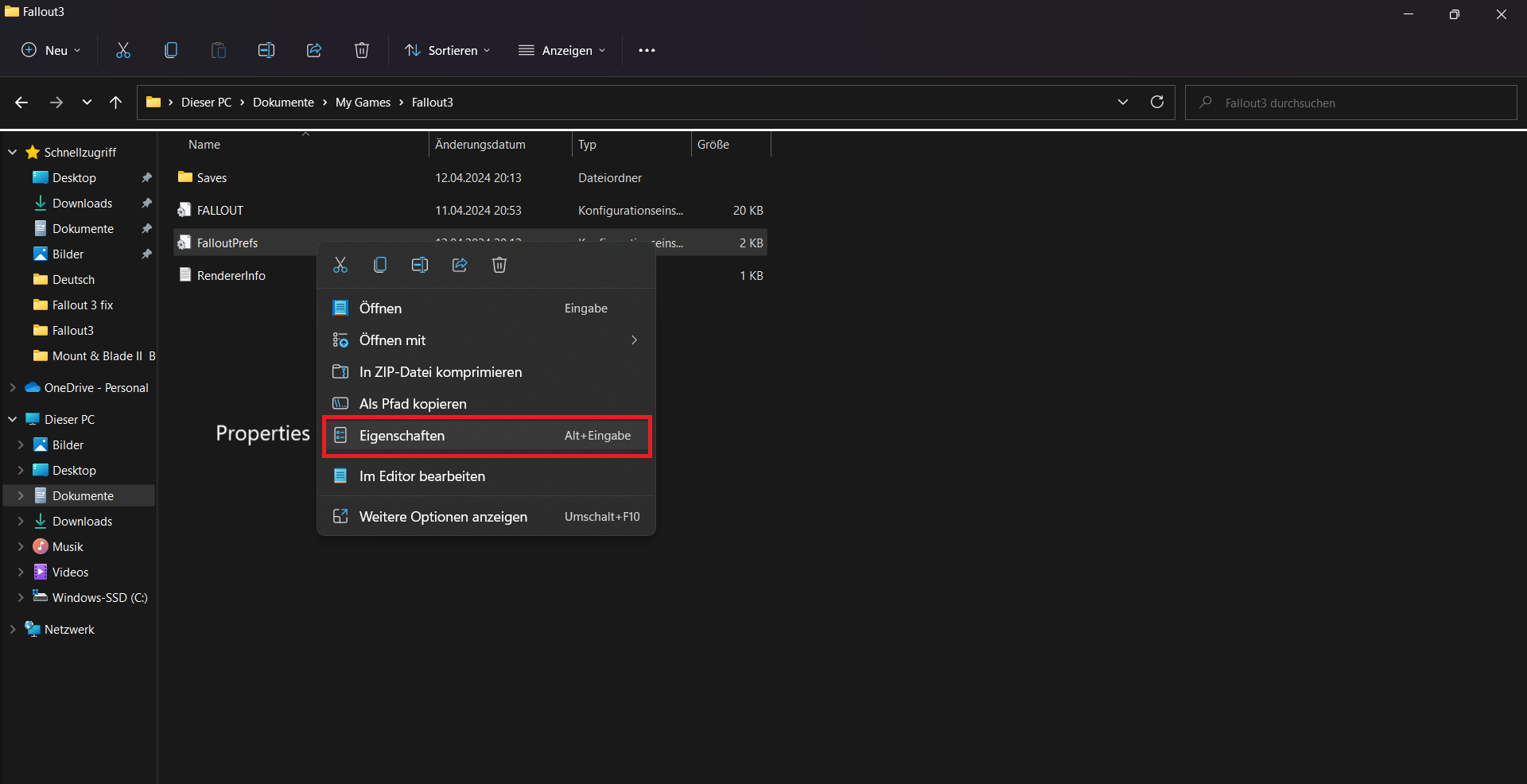
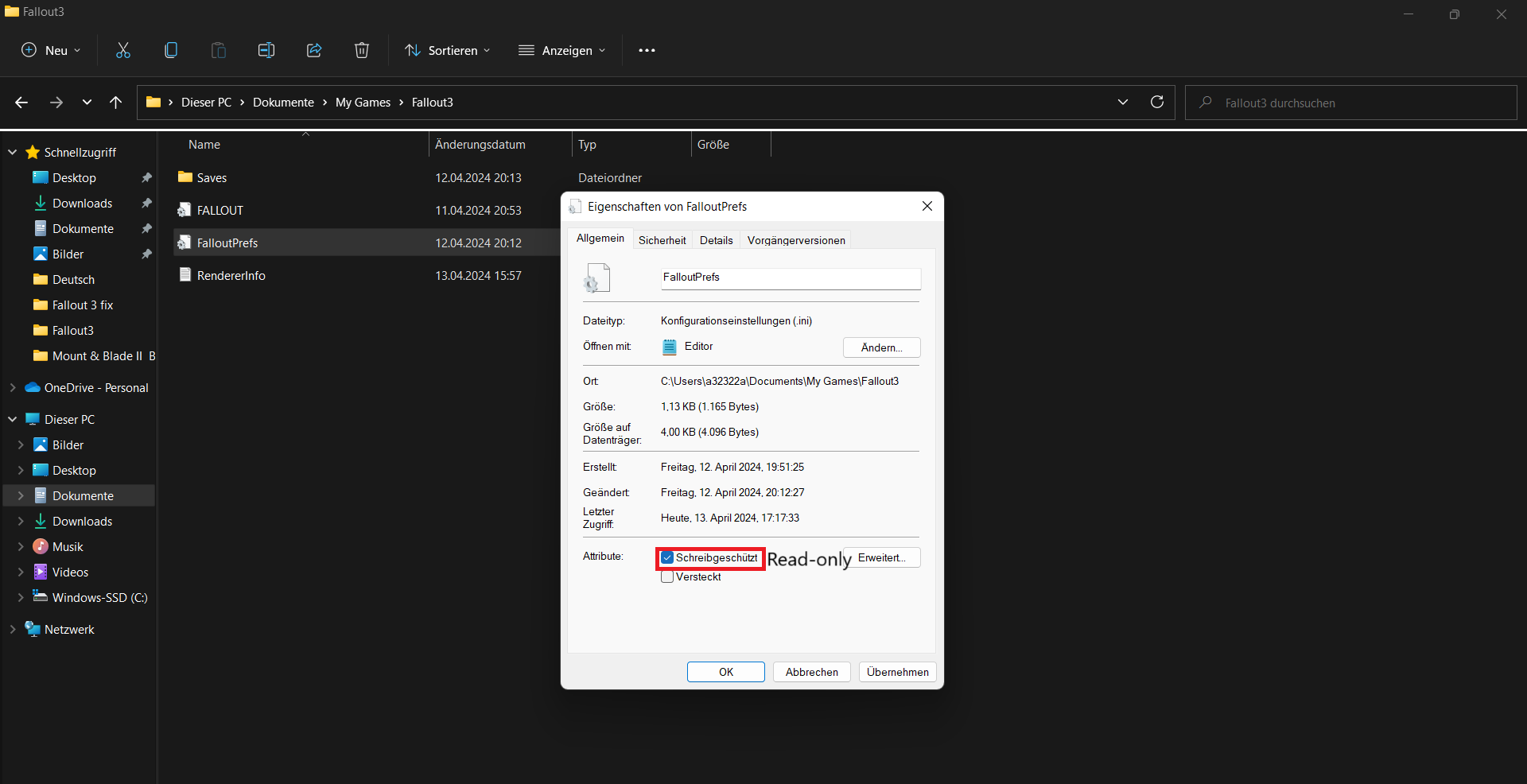
and then don't forget to click the "Apply" button.
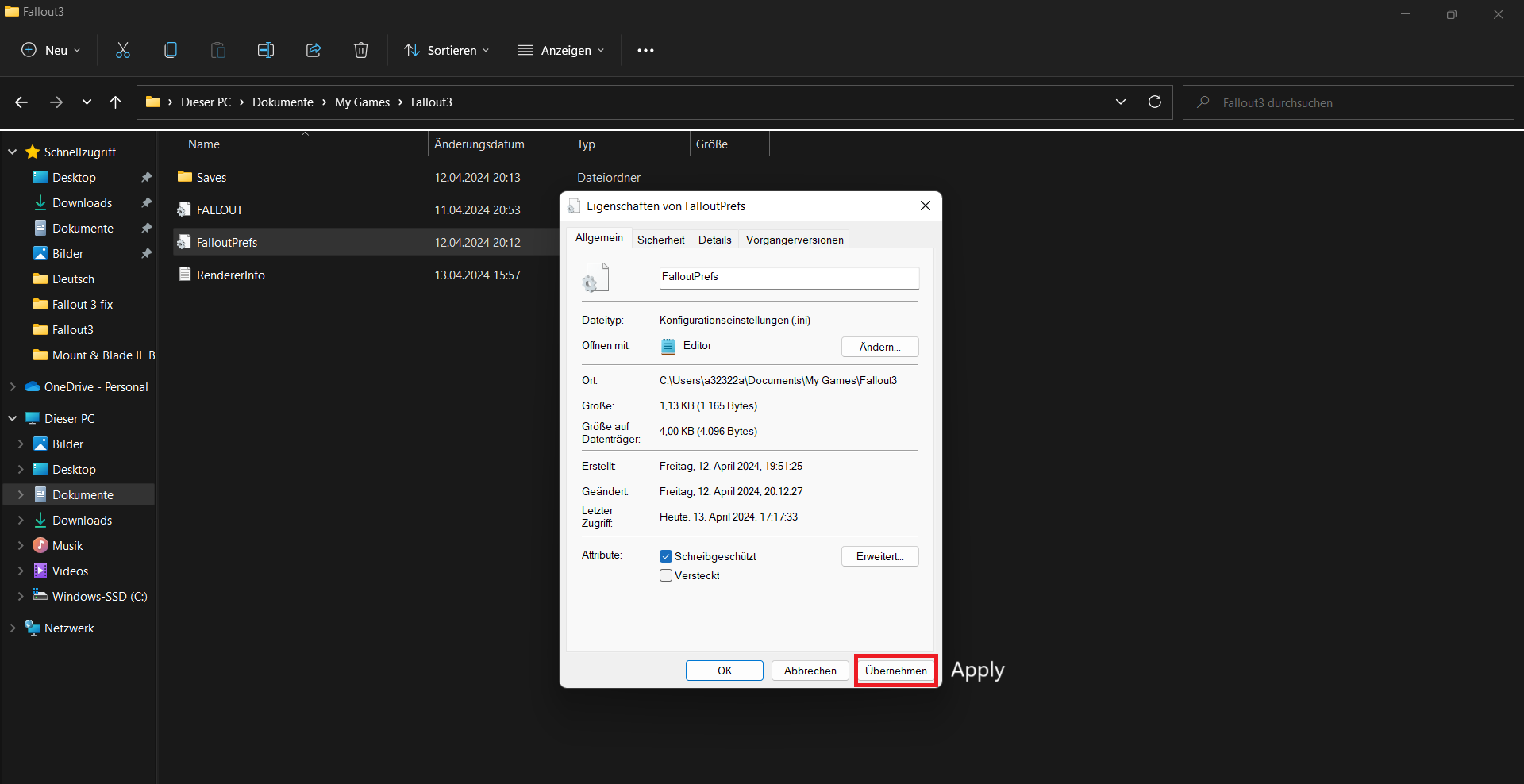
and then don't forget to click the "Apply" button.
Now you can confidently run the game in any way you want!
Name of your graphics card
Here I will show you the quickest and easiest way to find the name of your graphics card.
First, you need to right-click on the "Windows" ("Start") icon at the bottom of the desktop on the taskbar.
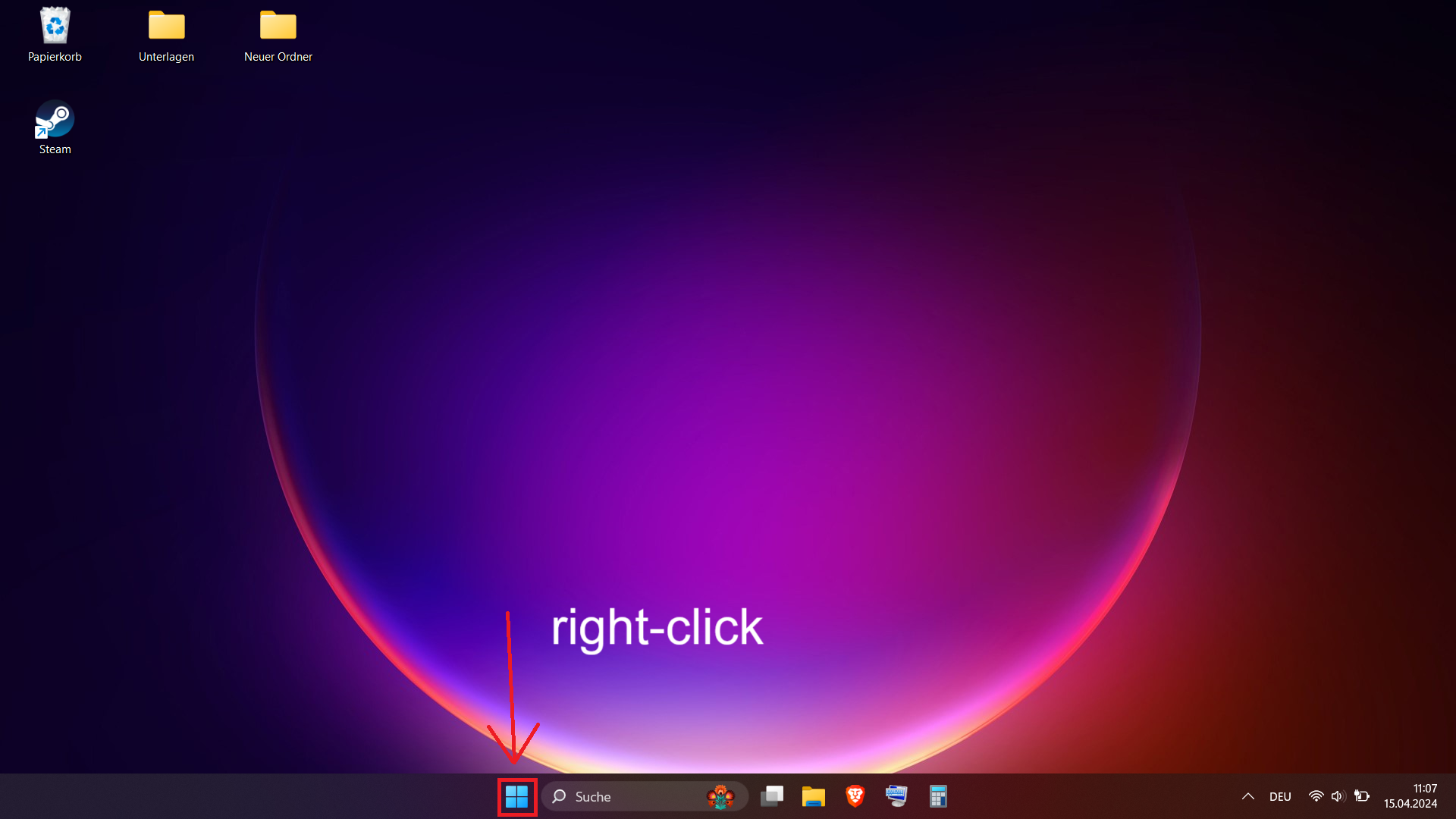
Then select the line named "Device Manager".
![]()
After that a Device Manager window will appear, in it open "Display adapters" by double clicking the left mouse button.
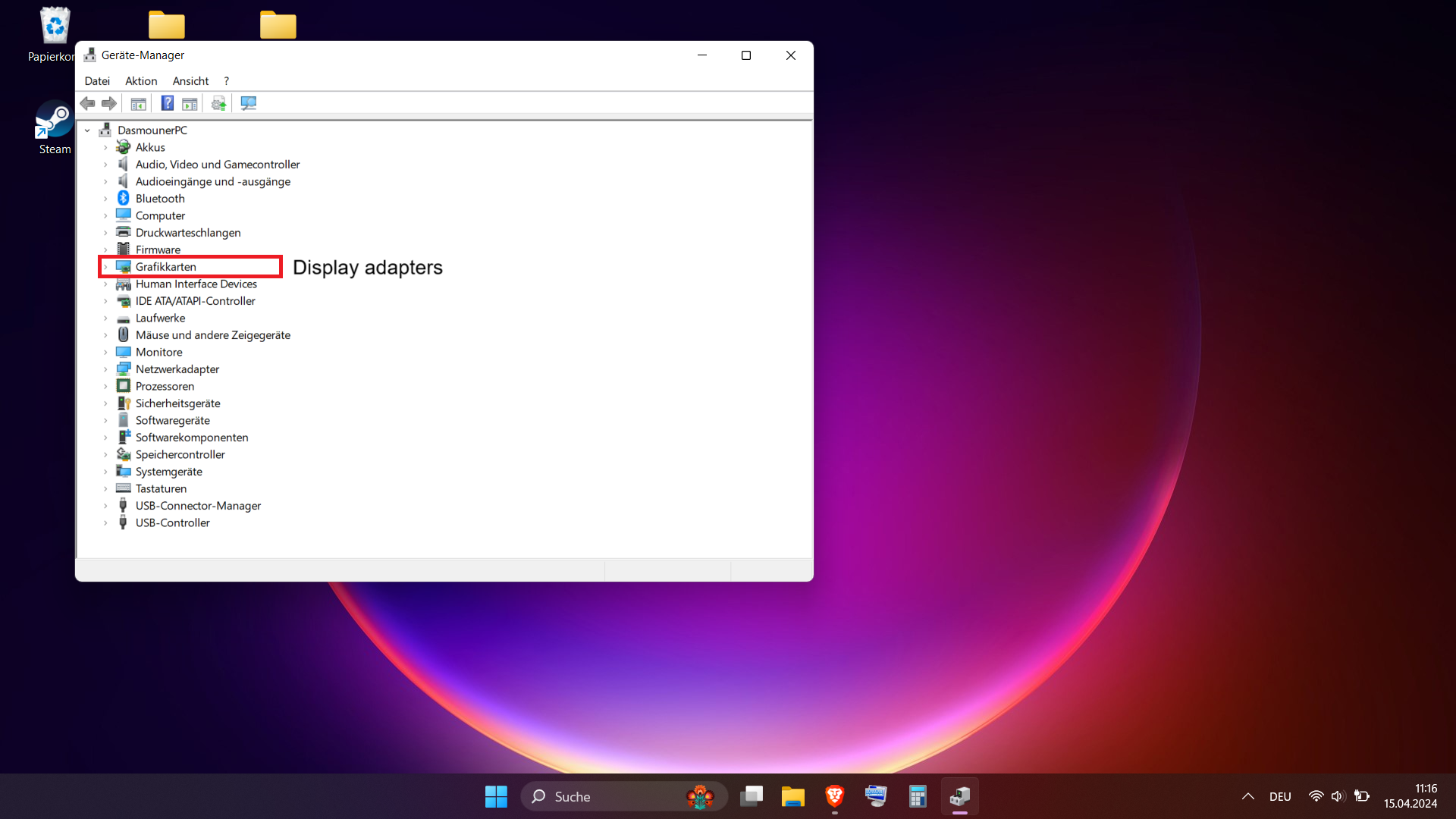
Under "Display adapters" your graphics cards will be shown.
For example, I had my "Intel(R) UHD Graphics" integrated graphics card wrongly selected by the game. I had to change it to "NVIDIA GeForce RTX 3060 Laptop GPU" to get the game to run.
![]()
First, you need to right-click on the "Windows" ("Start") icon at the bottom of the desktop on the taskbar.
Then select the line named "Device Manager".
After that a Device Manager window will appear, in it open "Display adapters" by double clicking the left mouse button.
Under "Display adapters" your graphics cards will be shown.
For example, I had my "Intel(R) UHD Graphics" integrated graphics card wrongly selected by the game. I had to change it to "NVIDIA GeForce RTX 3060 Laptop GPU" to get the game to run.
If it didn't work for you
Attention!!!
If you did all the steps correctly and it didn't help you OR you only have one video card then do the following:
1) Go to this site:
https://www.dll-files.com/xlive.dll.html
2) Download a file with this Description: "Games for Windows - LIVE DLL"
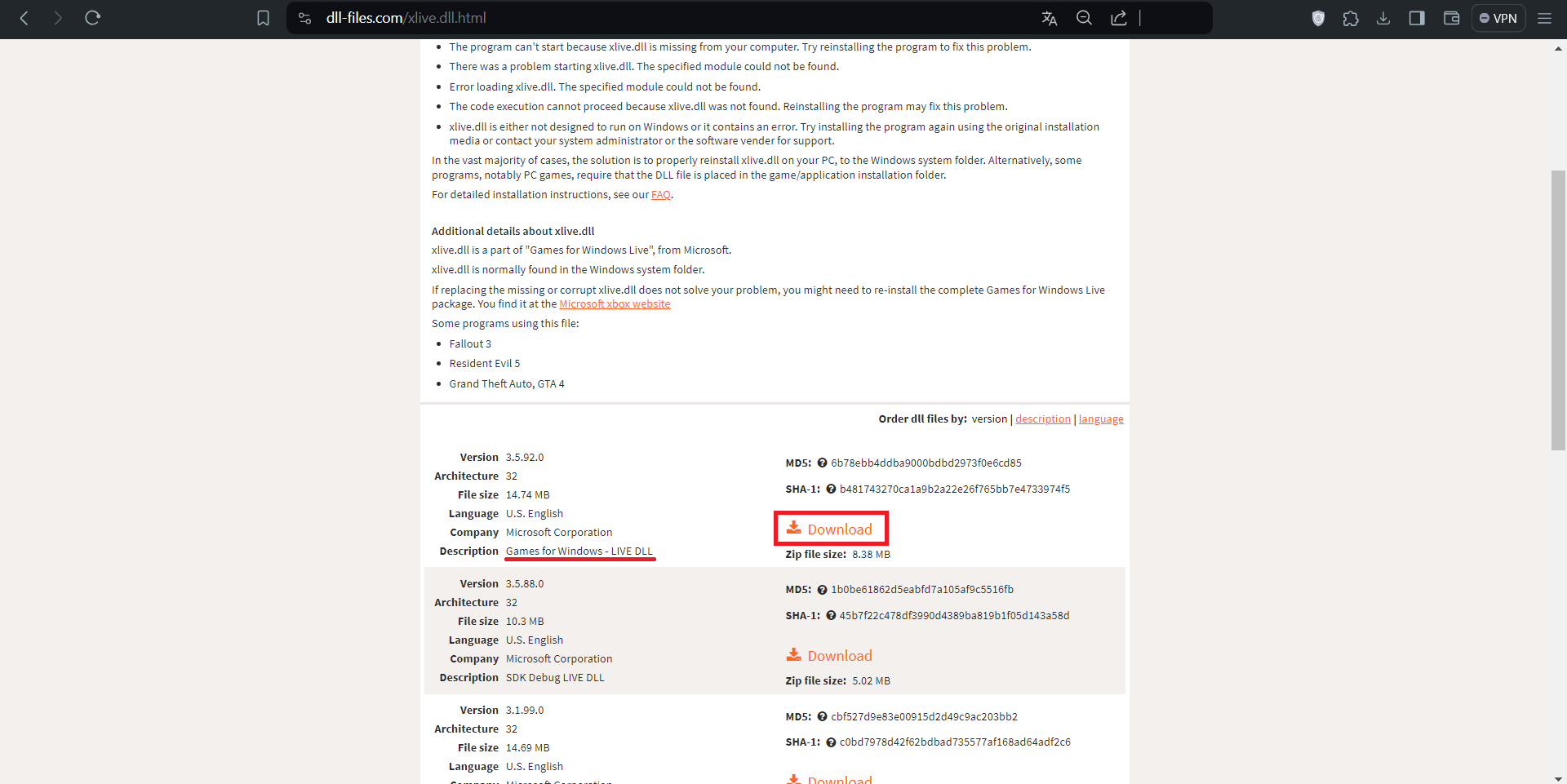
3) Open the downloaded archive "xlive.zip" there will be a file "xlive.dll".
4) This file "xlive.dll" move to the folder with the game "Fallout 3 goty".
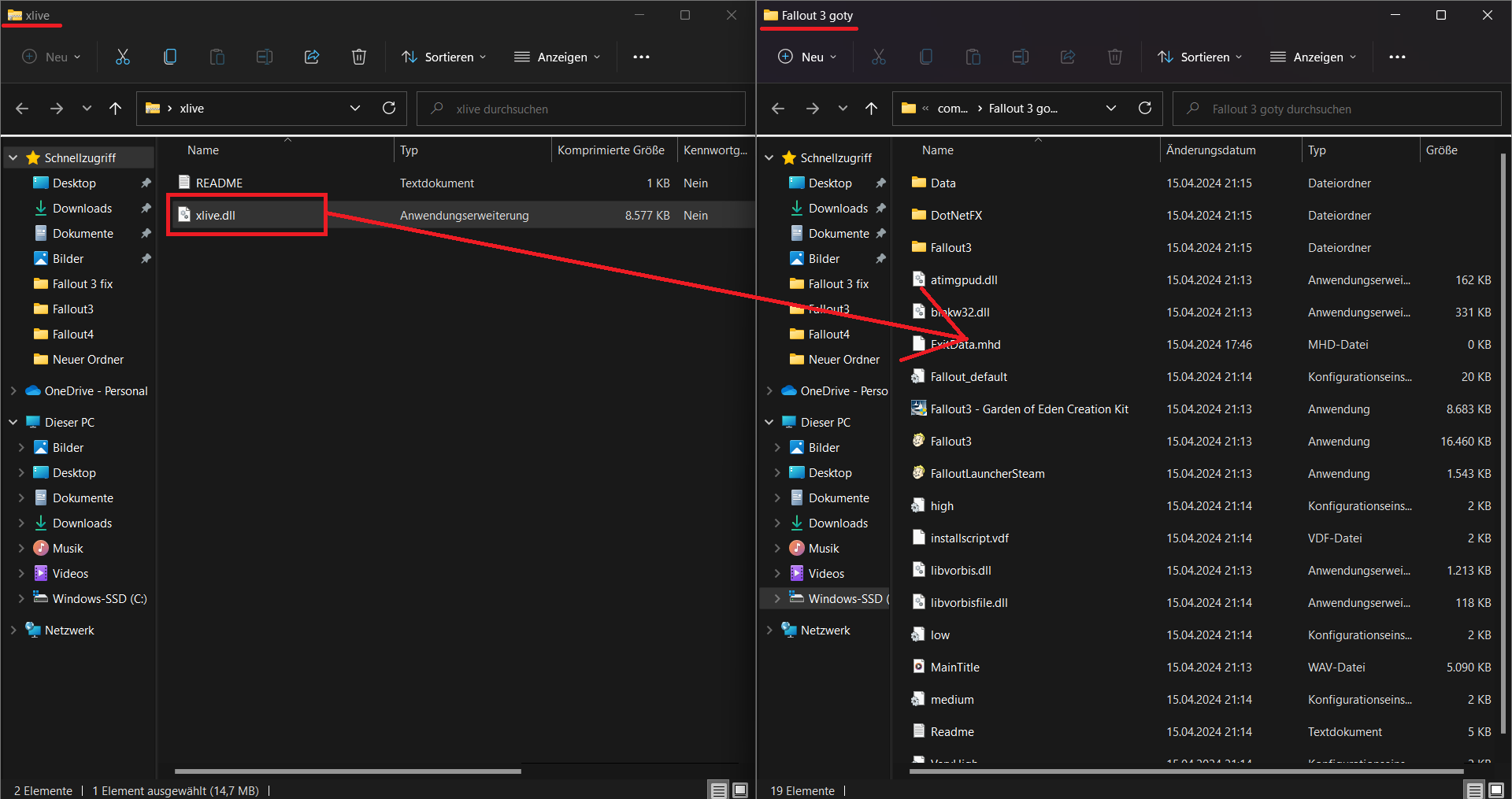 *Thanks to Jagdfalke and AKADodgeZero
After that, try running the game again.
If the steps described earlier did not help you:
- Go to Settings > System > Display > Graphics settings
- Then click Browse and select Windows > Program Files (x86) > Steam > steamapps > common > Fallout 3 goty > Fallout3.exe
- Once you selected Fallout3.exe it should appear under the “Browse” button, click it and then choose options under it. Select High performance and save
- Then click Browse again and choose Windows > Program Files (x86) > Steam > steamapps > common > Fallout 3 goty > FalloutLauncherSteam.exe
- FalloutLauncherSteam.exe should now also appear under the “Browse” button. Click it and select High performance and save again. (Be sure to do this to both Fallout3.exe and FalloutLauncherSteam.exe, otherwise it might not work).
- Nvidia control panel manually set to use high performance for Fallout 3
- Fallout3.exe and FalloutLauncherSteam.exe run as administrator
- Fallout3.exe and FalloutLauncherSteam.exe run in compatibility mode: XP Service Pack 3
After that, try running the game again.
If that doesn't work for you either, check out the "User Solutions"
User solutions
Here's the solution to the game's launch from the users:
Hi! Nothing was working for me (Windows 10 and AMD graphic card) until I found this:
https://steamcommunity.com/app/22370/discussions/0/864975632285339028/
It worked exactly the STEP 7 ;)
I have a mini pc with integrated graphics. The game would crash after choosing the New Game option.
This right here worked for me, Step 7:
https://steamcommunity.com/app/22370/discussions/0/864975632285339028/
Thank youuuuu.
ended up just deleting the whole MyDocuments/FO3 folder, verifying files and it works fine now. no mods at all as even adding FOSE makes it crash again.
I ended up getting it to work. I had to delete the entire contents of the fo3 folder In the "this computer/documents/my games" booted right up no problem.
While DELETING the .ini files out of \Documents\My Games\Fallout3\ and restarting didn't work, copying the Fallout_default.ini out of the Steam \Fallout 3 goty\ folder and into that Documents folder, and renaming it Fallout.ini (deleting the previous version) DID work for me.
I found another thread on Fallout 4's discussions page that could also potentially fix this issue in Fallout 3 and New Vegas.
https://steamcommunity.com/app/377160/discussions/0/3247565033759006127/?ctp=2
The problem is OneDrive. The above thread should help address it.
This should help you guys actually launch the game and get into the menu. However, I still have issues with the game instantly crashing when I click "New Game"
Turns out the reason why my game would crash immediately when I click "New Game" was because I am running an AMD GPU with the latest driver, which cannot compile shaders in Fallout 3 and New Vegas. I've heard that rolling back the driver back to the last one of 2023 would fix the issue, however, that would mean newer features and other games that I play would not be supported.
I found a modpack called Begin Again - Tale of Two Wastelands. This modpack pretty much combines Fallout 3 and Fallout New Vegas into one singular playable game, along with various quality of life, additions and bug fixes. This modpack includes something called DXVK, which actually allowed me to play the game without immediately crashing. More info on this here:
https://performance.moddinglinked.com/falloutnv.html#DriversAndOS
Here's the link to the modpack in case anyone is interested:
https://www.nexusmods.com/newvegas/mods/79547?tab=description
Fix: Crashes, Stuttering, Bugs
Fallout 3 (2024 Edition)
This guide fixes almost all problems with the game.Be sure to install ALL patches in this guide for stable game play
https://steamcommunity.com/sharedfiles/filedetails/?id=2210333885
Fallout 3 GOTY instant crash fix
*Use only when the "Fallout 3 (2024 Edition)" guide hasn't solved the crashing problem for youhttps://steamcommunity.com/sharedfiles/filedetails/?id=2667221447
More Fallout 3 - Game of the Year Edition guides
- The (almost) Perfect Start to a New Game★ 5 (1.5k)102k views3.8k ♥30 minUpdated Mar 2, 2017
- Fallout 3 GOTY Edition: Русификатор★ 5 (3.8k)93k views5.1k ♥1 minRussianUpdated Jan 16, 2024
- Fallout 3 GOTY Edition: Полный Русификатор★ 5 (1.8k)74k views3.4k ♥2 minRussianUpdated Mar 2, 2024
- Perfect Character Guide★ 5 (1.3k)59k views3.6k ♥6 minUpdated Aug 23, 2023
- Fallout 3 GOTY instant crash fix after patch 1.7.0.4★ 5 (700)53k views809 ♥1 minUpdated Dec 5, 2021
- Fallout 3 (2026 Edition)★ 5 (1k)52k views2.5k ♥5 minUpdated Feb 25


This guide was created by its original author on the Steam Community. Are you the author and want it removed? Request removal.