Fallout1in2 on Steam Deck or Linux The Easy Way
Installing Fallout1in2 with Proton and undat.exe
Get the latest version (or a development package) of Fallout1in2 by rotators & contributors @ GitHub here[github.com]
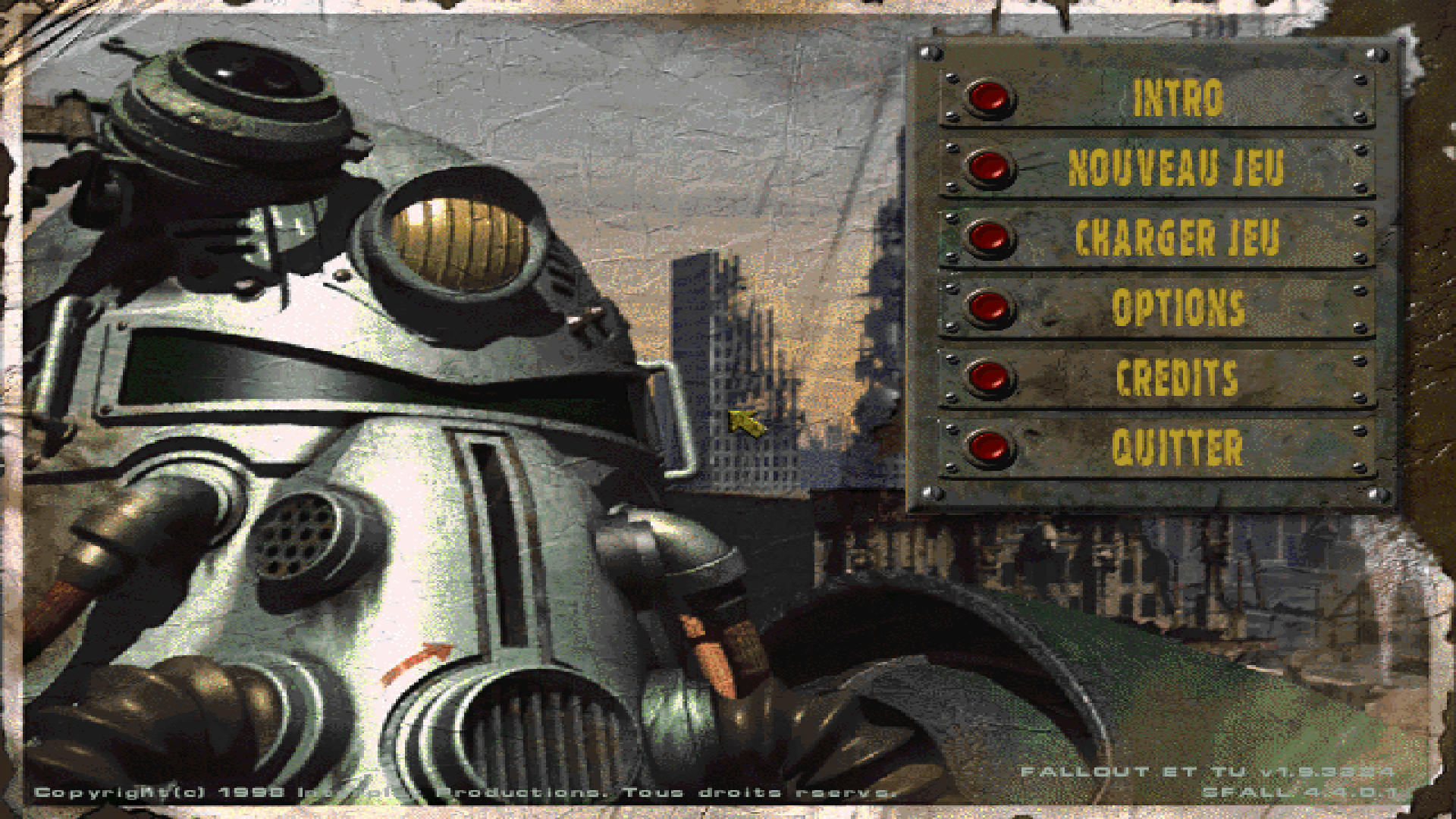
Normally if all as been executed properly you will be in your max desktop resolution with no black bars as here on 1920x1080
- Install Fallout on Steam
- Install Fallout2 on Steam
- Extract Fallout1in2.zip to /home/deck/.local/share/Steam/steamapps/common/Fallout 2 so that Fallout, Fallout2, and Fallout1in2 are arranged as follows:
- /home/deck/.local/share/Steam/steamapps/common/Fallout
- /home/deck/.local/share/Steam/steamapps/common/Fallout 2
- /home/deck/.local/share/Steam/steamapps/common/Fallout 2/Fallout1in2
- /home/deck/.local/share/Steam/steamapps/common/Fallout
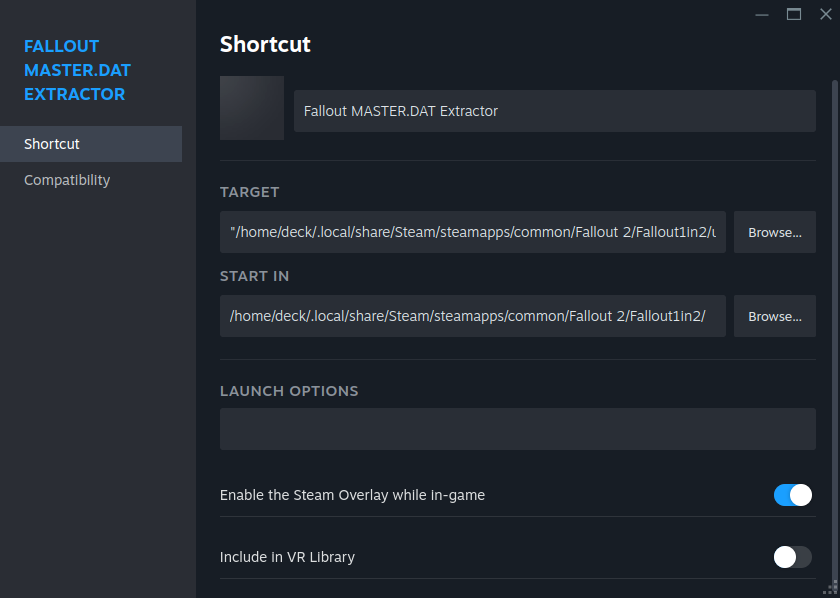
- Add a non-Steam game, Browse, select Fallout1in2/undat.exe
- Name : Fallout DAT Extractor
- Target : "/home/deck/.local/share/Steam/steamapps/common/Fallout 2/Fallout1in2/undat.exe"
- Start In : /home/deck/.local/share/Steam/steamapps/common/Fallout 2/Fallout1in2/
- Compatibility : Force the use of your preferred version of Proton
- Name : Fallout DAT Extractor
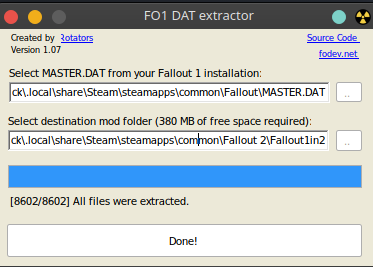
- Run Fallout DAT Extractor, select the MASTER.DAT, normally the destination is already selected and Extract :
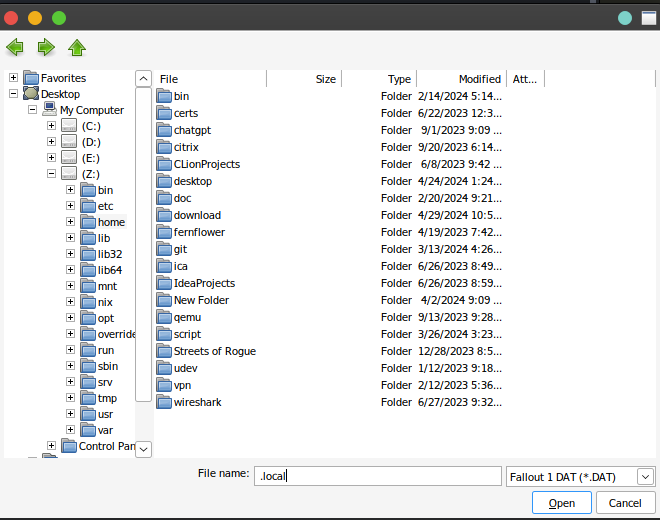
- Source (.local is a hidden folder, type ".local" and Enter to open it from the home folder) Z:\home\deck\.local\share\Steam\steamapps\common\Fallout\MASTER.DAT
- Destination : Z:\home\deck\.local\share\Steam\steamapps\common\Fallout 2\Fallout1in2
- Source (.local is a hidden folder, type ".local" and Enter to open it from the home folder) Z:\home\deck\.local\share\Steam\steamapps\common\Fallout\MASTER.DAT
- Set Fallout1in2 (and Fallout2 if you want to play later to it) with the appropriate settings for a modern display with no black bars for your resolution
- For example , using an external display of 1920x1080
- ddraw.ini : Mode=4
- ddraw.ini : GraphicsWidth=1920 (update to your display width)
- ddraw.ini : GraphicsHeight=1080 (update to your display height)
- ddraw.ini : TextureFilter=0
- f2_res.ini : UAC_AWARE=0
- f2_res.ini : GRAPHICS_MODE=2
- f2_res.ini : SCALE_2X=1
- f2_res.ini : SCR_WIDTH=960 (update to your display width / 2)
- f2_res.ini : SCR_HEIGHT=540 (update to your display height / 2)
- f2_res.ini : COLOUR_BITS=32
- f2_res.ini : REFRESH_RATE=0
- Fallout2.cfg : language=french (update to your language)
- Or using the Steam Deck built-in screen 1280x800, same as above except for :
- ddraw.ini : GraphicsWidth=1280
- ddraw.ini : GraphicsHeight=800
- f2_res.ini : SCR_WIDTH=640
- f2_res.ini : SCR_HEIGHT=400
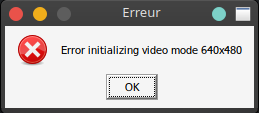
WARNING : Keep in mind, a mistake at this step can result in the following error when launching the game - ddraw.ini : Mode=4
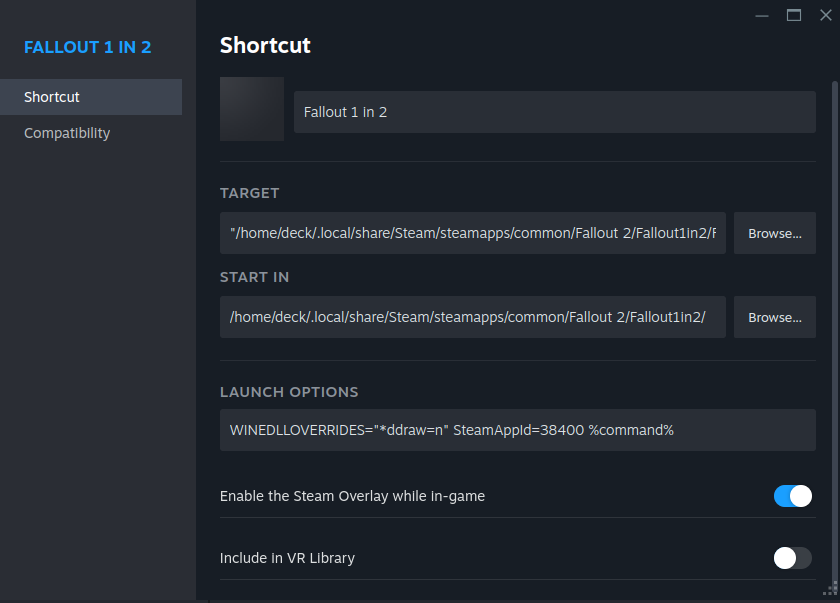
- Add Fallout1in2 as a non-Steam game
- Name : Fallout 1 in 2
- Target : "/home/deck/.local/share/Steam/steamapps/common/Fallout 2/Fallout1in2/Fallout2.exe"
- Start In : /home/deck/.local/share/Steam/steamapps/common/Fallout 2/Fallout1in2/
- Compatibility : Force the use of your preferred version of Proton
- Launch options
- WINEDLLOVERRIDES="*ddraw=n" SteamAppId=38400 SteamOverlayGameId=38400 %command%
- Name : Fallout 1 in 2
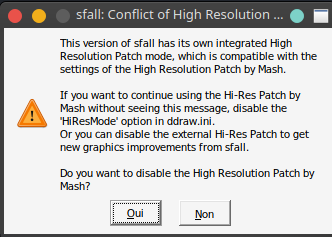
- Run Fallout1in2 and answer Yes to the Conflict Warning (it asserts WINEDLLOVERRIDES is read and the install is successful)
Normally if all as been executed properly you will be in your max desktop resolution with no black bars as here on 1920x1080
Tips & FAQ
Help, when I move the game window in windowed mode, the display resolution changes on the Linux desktop!
This issue is known and was reported by @Retrograde_i486. The workaround is to force the window to the target display resolution- ALT+TAB out of the game
- Right click the header bar where it mention FALLOUT II @sfall ...
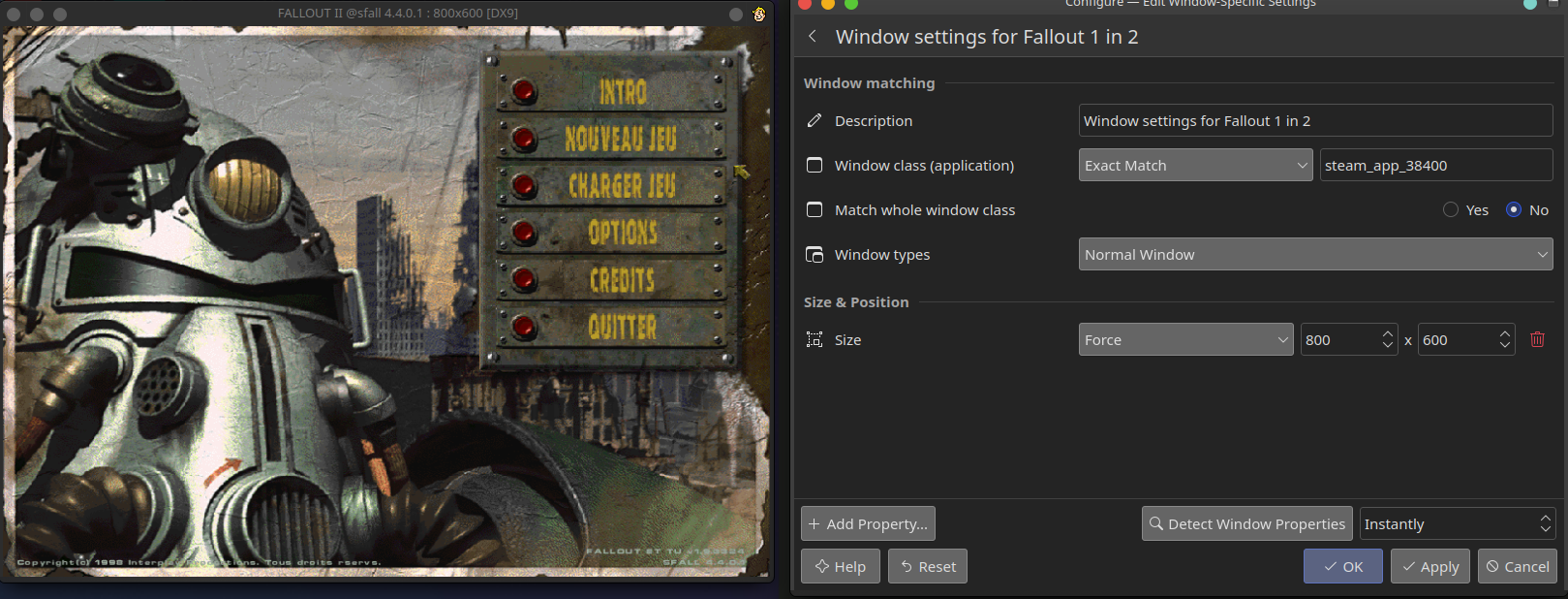
- In More Actions > Configure Special Window Settings and configure it as in the picture below
- Description: Window settings for Fallout 1 in 2
- Window class: Exact Match -> steam_app_38400
- Delete the line Window Title (the window class suffice and is unique to Fallout 1)
- Click +Add Property -> Size
- Set Size to Force at targetWidth x targetHeight
- Click Apply
- Description: Window settings for Fallout 1 in 2
When I run Fallout 1 in 2, Fallout also turns green in Steam! How does this happen?
This comes from a personal choice I make by including SteamAppId=38400 and SteamOverlayGameId=38400 in the Launch options, which allows, when launching Fallout1in2, to redirect the Steam playtime counter to Fallout 1. You should also check, but I think for your friends, you will appear briefly in Fallout 1 in 2 and then quickly on Fallout. The overlay is functional, screenshots too, and since Guide v2.3, are linked to Fallout 1 with SteamOverlayGameId=38400.If this behavior bothers you, simply remove 'SteamAppId=38400' from the launch options and you will return to a more traditional operation but with a playtime counter on Fallout 1 in 2 and that will only work locally on your Steam installation.
Initial deprecated instrutions of guide v1
I'm leaving the initial launch options I posted in v1 of the guide below because they still work if you run them from the command line prompt:
SteamAppId=38400 SteamGameId=38400 STEAM_COMPAT_DATA_PATH="/home/deck/.local/share/Steam/steamapps/compatdata/38400" STEAM_COMPAT_CLIENT_INSTALL_PATH="/home/deck/.local/share/Steam" "/home/deck/.local/share/Steam/steamapps/common/Proton - Experimental/proton" run "/home/deck/.local/share/Steam/steamapps/common/Fallout 2/Fallout1in2/Fallout2.exe"
However, doing so runs Fallout1in2 hidden as Fallout, and it uses the Fallout prefix which could potentially corrupt a Fallout installation. Therefore, I recommend creating a new prefix with the new guide procedure, creating a new non steam Game ensure the prefix is dedicated to 1in2
I have Rainbow pixels all over my screen all over the screen, what do I do ?
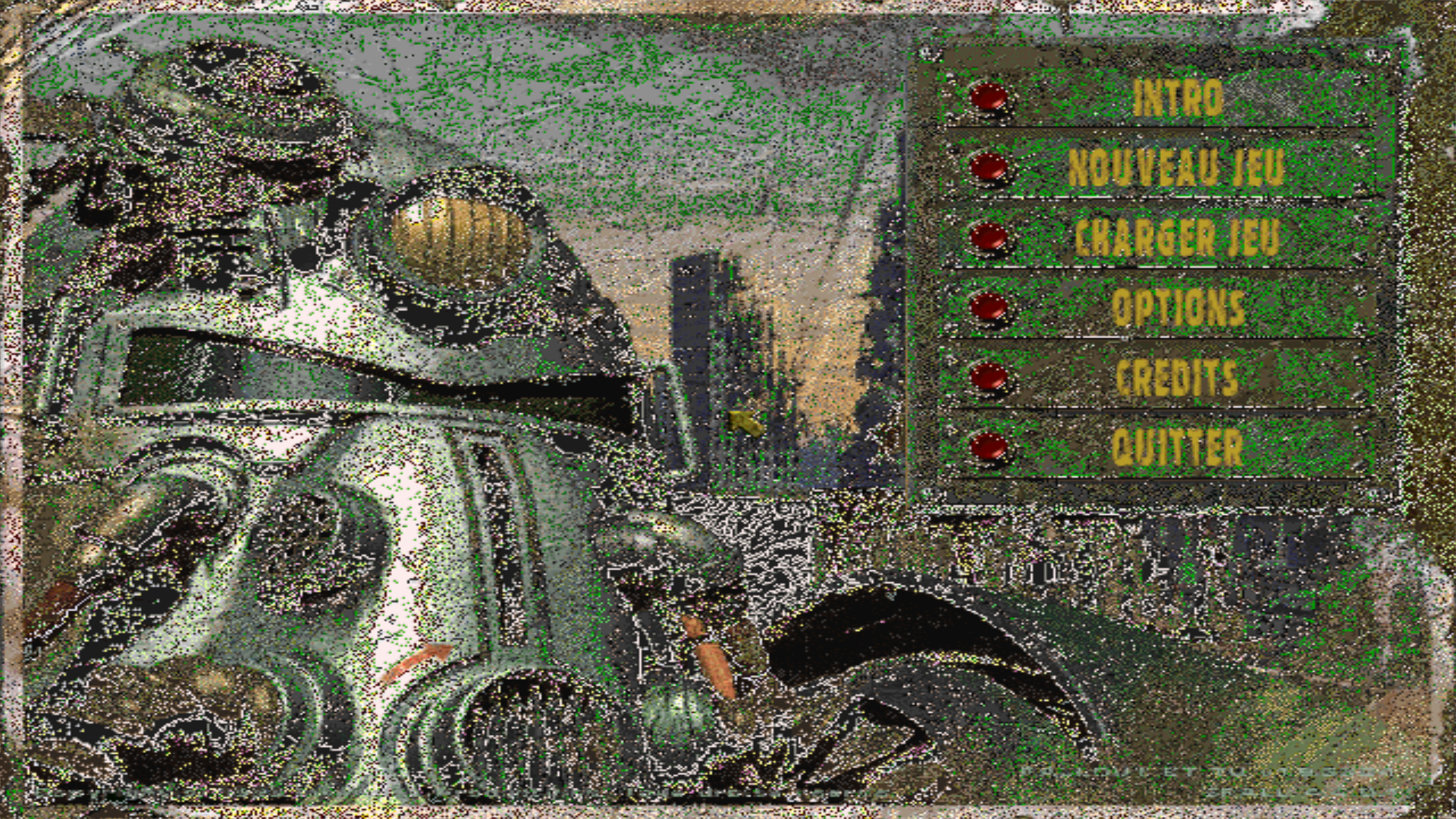
Here it was caused by TextureFilter=1 with SCALE_2X=1, try to set TextureFilter=0
Some logos to make Fallout 1 in 2 more sexy in Steam
v2.2, I've added some images that will allow you to customize the appearance of Fallout1in2 in Steam, feel free to share your icons, I created them quickly from the official images I found by searching for 38400 and 38410 in the root of my Steam installation. But if you enjoy creating your own and sharing them, don't hesitate; I will publish them in the section along with mine :)
I was thinking of adding some information to remove just the bare minimum to restart the installation without having to redownload everything. Feel free to ping me if you need the procedure. Steam allows you to do this easily with only a re-download of the .ini files necessary.







More Fallout guides
- Ultimate Fallout High Resolution/Modding Guide★ 5 (1.4k)83k views2.5k ♥3 minUpdated Sep 22, 2023
- Полный русификатор Fallout (текст, озвучка, интерфейс)★ 5 (1.2k)49k views1.7k ♥1 minRussianUpdated Dec 20, 2024
- Fallout | Keyboard Controls w/ Screenshots★ 5 (519)47k views920 ♥3 minUpdated Oct 28, 2016
- Fallout 1 Wasteland Survival Guide (All Quests)★ 5 (1.3k)45k views3.3k ♥47 minUpdated Oct 5, 2018
- Mastering Fallout 1 Guide★ 5 (1.2k)39k views3.2k ♥43 minUpdated Jun 26, 2017
- Русификатор Fallout 1 (1C)★ 5 (351)31k views565 ♥1 minRussianUpdated May 18, 2023






This guide was created by its original author on the Steam Community. Are you the author and want it removed? Request removal.