Fixing innability to move after the combat on 120Hz+ monitors
The bug
This guide was written back in 2015, when neither Nvidia, nor AMD had exposed settings for limiting framerate without engaging Vsync or locking refresh rates to 60Hz, so RivaTuner was most convenient way to achieve framerate lock.
In 2024 both AMD and Nvidia have new apps and driver settings where you can limit framerates on game-by-game basis. The whole idea of this guide is to limit framerate to something that won't break the game during battles. For me it was around 72FPS.
TL;DR Limit framerate the most convinient way to around 70-75FPS. Be it RivaTuner or native AMD/Nvidia apps. If you decide to go with RivaTuner and MSI Afterburner, this guide is still very helpful.
Are you experiencing bug that causes your game to essentially break after each combat sequence? Is you character not responding to movement controls? Are you playing on higher refresh monitor (120Hz+)? Then I might have a fix for you.
After encountering this bug myself and researching it on the internet, the only apparent solution was to toggle Vsync ON in settings. That did nothing for me and game kept breaking after each combat sequence, since it kept running at 144FPS even with Vsync.
Cause of the bug
For people with modern gaming monitors Vsync wouldn't work due to the fact that game even with Vsync would refresh at 120/144FPS causing engine to bug out. The exact breaking point appears to be around 90FPS.
The Fix
In order to fix this issue you need to limit your framerate.
There is couple of methods of doing so, but I will discuss the easiet one.
You need to install RivaTuner Statistics Server. If you have overclocking utilities for your GPU such as MSI Afterburner, RivaTuner comes included by default.
Steam has "EVGA Precision X" tool, which also includes RivaTurner Server as part of it package. You can download it from Steam here: http://store.steampowered.com/app/268850/
Open RTSS, then follow 3 easy steps:
- Press "+" or "Add" button in the bottom left corner of the window
- Locate KOTOR2 executable in your Steam folder and add it.
- Find option called "Frame Limit". Next set it either 60FPS limit or 72FPS limit in game. Limit should depend on your monitor refresh rate and should be half of that to eliminate stutter. So if you have 144Hz monitor, select 72FPS limit.
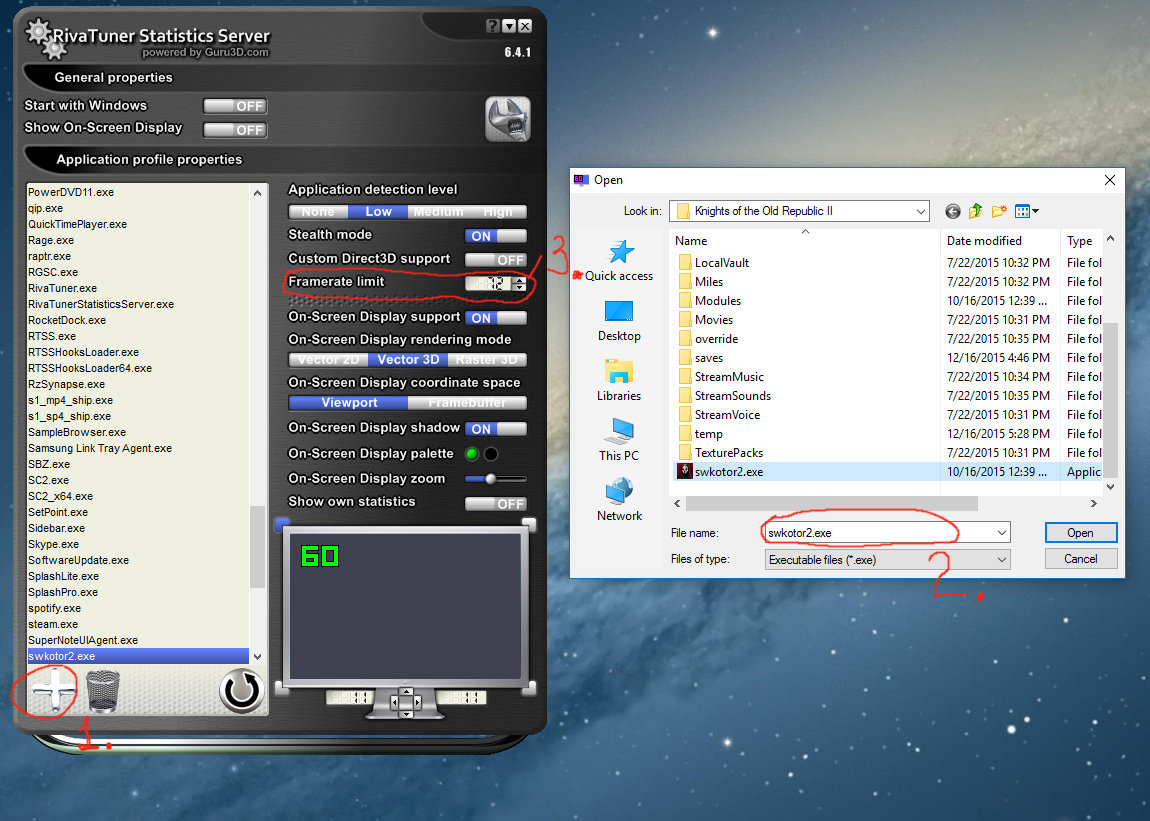
After you do it, you should be done and no longer experience any movement issues after combar in KOTOR2.
- KotOR II Cheat Codes★ 5 (1.6k)116k views4.4k ♥17 minUpdated Jul 20, 2017
- KOTOR II: The Sith Lords - Go-To Essential Mods★ 5 (768)56k views2.2k ♥13 minUpdated Feb 28
- Character and Party Optimizing Guide - Archival★ 5 (1.1k)56k views2.7k ♥51 minUpdated Apr 24, 2024
- KotOR II Steam Workshop Modding Guide★ 5 (499)46k views1.1k ♥9 minUpdated Dec 20, 2015
- KOTOR: Tips and Tricks★ 5 (386)42k views756 ♥5 minUpdated Jun 12, 2023
- Ultima Pearl (Code)★ 5 (329)32k views749 ♥1 minUpdated Nov 25, 2025


- Upgrading to PremiumTeam Fortress 2★ 5 (20k)1441k views11k ♥6 minUpdated May 11, 2022
- No More Room in Hell Official ManualNo More Room in Hell★ 5 (2.8k)569k views2.1k ♥29 minUpdated Apr 22, 2019
- NMRiH Community Hosting GuidesNo More Room in Hell★ 5 (526)351k views653 ♥1 minUpdated Aug 10, 2022
- ULTIMATE GUIDE FOR GAME DEV TYCOONGame Dev Tycoon★ 5 (5.8k)326k views10k ♥4 minUpdated 23 Jan, 2014
- How to 'Git Gud' Soon™MORDHAU★ 5 (2k)318k views3k ♥68 minUpdated Nov 16, 2024
- Лучшие кооперативные игры SteamPAYDAY 2★ 5 (1.5k)315k views2.1k ♥56 minRussianUpdated Apr 27, 2025






This guide was created by its original author on the Steam Community. Are you the author and want it removed? Request removal.