FPS Boost + Stuttering Mitigation + Force HDR
Launch Parameter
On Payday 3's game properties you can add a launch parameter so the game will use DX12 instead of DX11.
In some Systems this can boost FPS up to 50% on CPU limited configurations
However this can introduce Shader Compilation stutters when first opening the game / playing a heist but will mitigate once it has been running for a while.
Use the following parameter to enable DX12 Mode:
-dx12
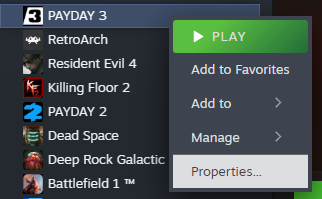
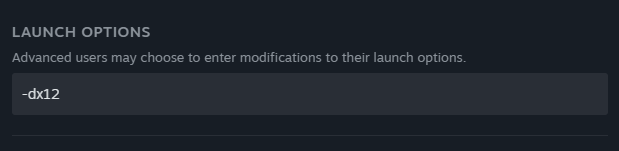
Note: This may cause crashes for users with the Skull of Liberty Mask as stated by various comments
Note 2: A temporary crash fix is available on ModWorkshop as stated by users in the comments
In some Systems this can boost FPS up to 50% on CPU limited configurations
However this can introduce Shader Compilation stutters when first opening the game / playing a heist but will mitigate once it has been running for a while.
Use the following parameter to enable DX12 Mode:
-dx12
Note: This may cause crashes for users with the Skull of Liberty Mask as stated by various comments
Note 2: A temporary crash fix is available on ModWorkshop as stated by users in the comments
Unreal Engine CVARs
In order to edit these values, you need to find the game's configuration files, which are located on:
%LOCALAPPDATA%\PAYDAY3\Saved\Config\WindowsClient\
In there you will find several configuration files, but we are looking for Engine.ini
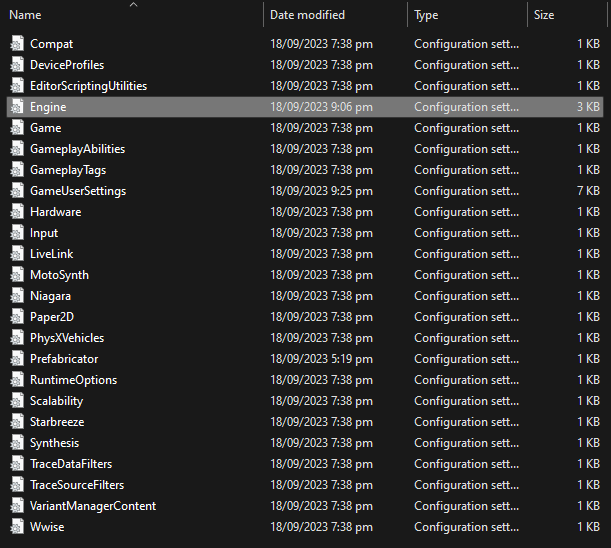
In that file you can add:
[/script/engine.renderersettings]
r.CreateShadersOnLoad=1
niagara.CreateShadersOnLoad=1
and
[SystemSettings]
r.TextureStreaming=0
at the end of the file so the game will compile shaders on loading screens instead of when actually playing and will disable texture streaming so all textures will be loaded on RAM and VRAM instead of when needed, which can potentially decrease stuttering.
This is recommended for users with a SSD, large ammount of RAM, VRAM and a beefy CPU
%LOCALAPPDATA%\PAYDAY3\Saved\Config\WindowsClient\
In there you will find several configuration files, but we are looking for Engine.ini
In that file you can add:
[/script/engine.renderersettings]
r.CreateShadersOnLoad=1
niagara.CreateShadersOnLoad=1
and
[SystemSettings]
r.TextureStreaming=0
at the end of the file so the game will compile shaders on loading screens instead of when actually playing and will disable texture streaming so all textures will be loaded on RAM and VRAM instead of when needed, which can potentially decrease stuttering.
This is recommended for users with a SSD, large ammount of RAM, VRAM and a beefy CPU
HDR Force Enable
There is a hidden configuration that forces HDR output on all Unreal Engine 4 games.
In the case of PAYDAY 3, HDR configurations exists but are not implemented yet and we can "enable" them by editing the file GameUserSettings.ini
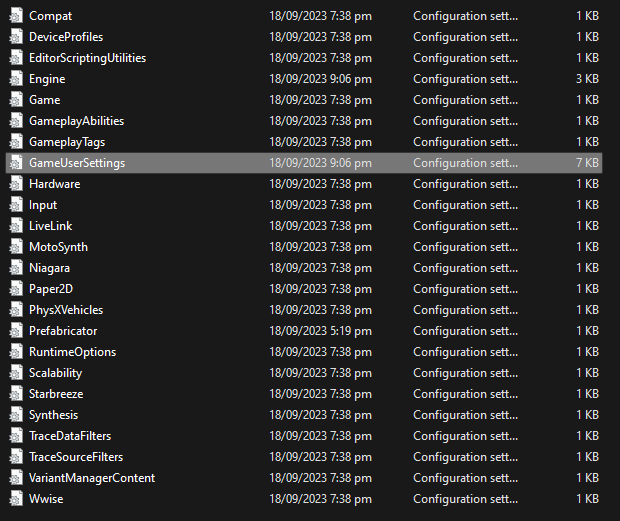
In there we must find the following values:
bUseHDRDisplayOutput=False
HDRDisplayOutputNits=1000
and set bUseHDRDisplayOutput= to True and HDRDisplayOutputNits= to whatever you want but not exceeding the maximum of your display.
For example:
bUseHDRDisplayOutput=True
HDRDisplayOutputNits=600
We can Force HDR Output by adding the following lines on Engine.ini:
[SystemSettings]
r.AllowHDR=1
r.HDR.EnableHDROutput=1
r.HDR.Display.OutputDevice=5
r.HDR.Display.ColorGamut=2
r.HDR.UI.CompositeMode=1
r.FullScreenMode=0
r.HDR.UI.Level=1
We can put a line on Engine.ini let Windows' AutoHDR be enabled as it uses a Flip Mode Presentation, which is needed for AutoHDR on DX12 to work.
On Engine.ini add the following line under [SystemSettings]:
r.D3D12.UseAllowTearing=1
Note: Option 2 only works when the game is running on DX11 mode, as with DX12 it fails to engage FullScreen Mode. Also there may be tonemapping issues on images and UI elements as the game is not intended to use HDR at all.
Edit: Added extra option to force HDR Output. This works on all Unreal Engine 4 Games running on DX11
Edit 2: Added option to allow Windows' AutoHDR to be enabled
Option 1:
In the case of PAYDAY 3, HDR configurations exists but are not implemented yet and we can "enable" them by editing the file GameUserSettings.ini
In there we must find the following values:
bUseHDRDisplayOutput=False
HDRDisplayOutputNits=1000
and set bUseHDRDisplayOutput= to True and HDRDisplayOutputNits= to whatever you want but not exceeding the maximum of your display.
For example:
bUseHDRDisplayOutput=True
HDRDisplayOutputNits=600
Option 2:
We can Force HDR Output by adding the following lines on Engine.ini:
[SystemSettings]
r.AllowHDR=1
r.HDR.EnableHDROutput=1
r.HDR.Display.OutputDevice=5
r.HDR.Display.ColorGamut=2
r.HDR.UI.CompositeMode=1
r.FullScreenMode=0
r.HDR.UI.Level=1
Option 3:
We can put a line on Engine.ini let Windows' AutoHDR be enabled as it uses a Flip Mode Presentation, which is needed for AutoHDR on DX12 to work.
On Engine.ini add the following line under [SystemSettings]:
r.D3D12.UseAllowTearing=1
Note: Option 2 only works when the game is running on DX11 mode, as with DX12 it fails to engage FullScreen Mode. Also there may be tonemapping issues on images and UI elements as the game is not intended to use HDR at all.
Edit: Added extra option to force HDR Output. This works on all Unreal Engine 4 Games running on DX11
Edit 2: Added option to allow Windows' AutoHDR to be enabled
Thanks
Thank you very much for reading this guide and leave a comment if you want to make a correction or note.
Until then, Happy Heisting!
Until then, Happy Heisting!
More PAYDAY 3 guides
- Payday 3 Full Achievement Guide★ 5 (298)18k views657 ♥12 minUpdated Sep 1, 2024
- Best MODS List - Improvements and fixes [PAYDAY 3]★ 4 (129)13k views256 ♥4 minUpdated Sep 1, 2024
- How to install MODS [PAYDAY 3]★ 4 (61)9.4k views139 ♥6 minUpdated Sep 1, 2024
- The Lengthy Guide★ 5 (286)7.9k views522 ♥282 minUpdated Oct 2, 2024
- [ОБНОВЛЕНИЕ ПРИОСТАНОВЛЕНО] САМЫЙ ЛУЧШИЙ ЛАУД БИЛД★ 5 (193)7.3k views380 ♥10 minRussianUpdated Oct 27, 2025
- The 𝐔𝐋𝐓𝐈𝐌𝐀𝐓𝐄 Build for 𝑺𝒕𝒆𝒂𝒍𝒕𝒉 [Overkill] ˡᵛˡ¹⁰⁰★ 4 (87)6.1k views266 ♥1 minUpdated Oct 5, 2023




This guide was created by its original author on the Steam Community. Are you the author and want it removed? Request removal.