Gorgeous Screenshots
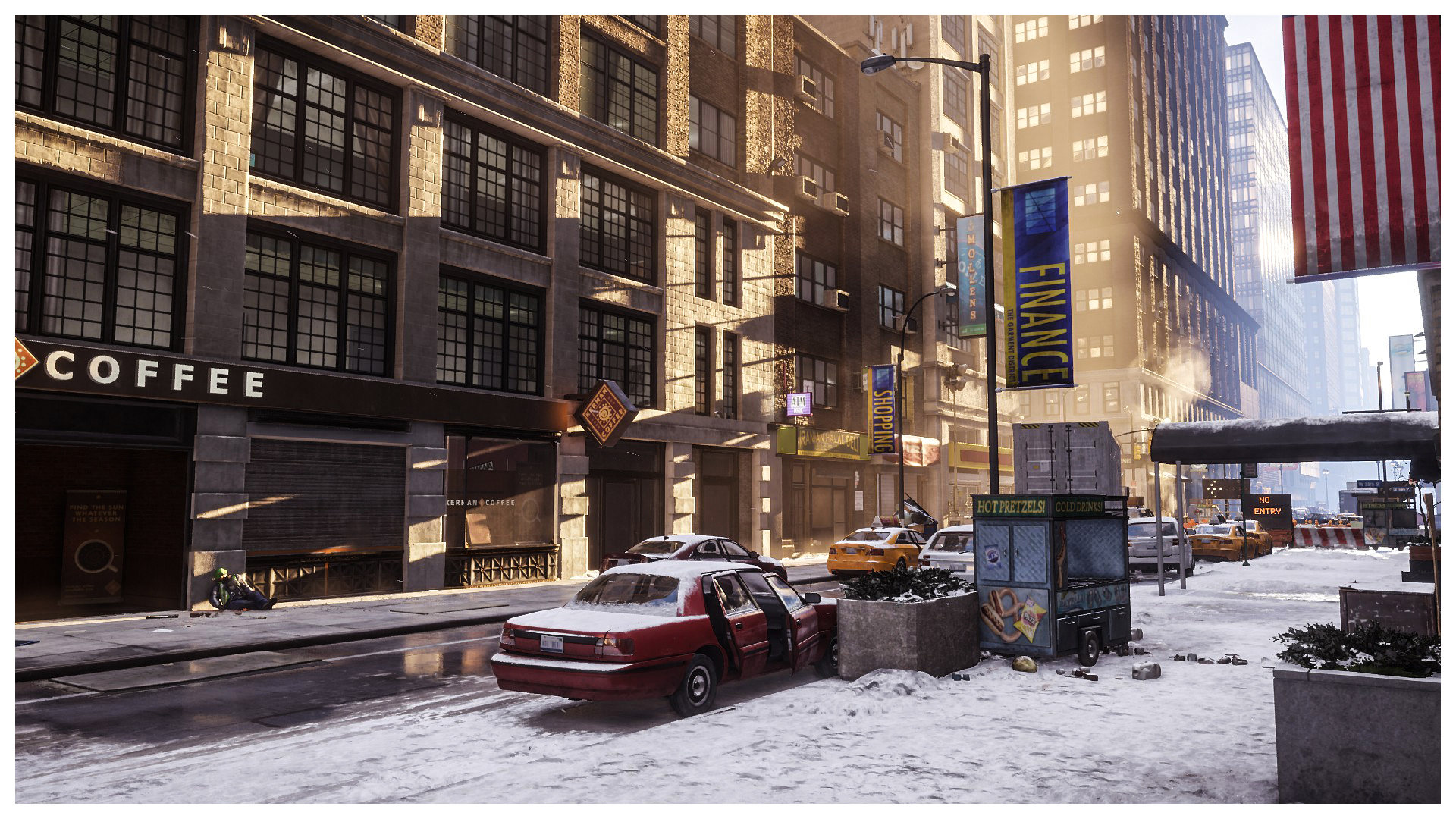 After a lot of people asked me how I take my screenshots, I decided to write this short guide. It is actually an extremely easy way to take much better looking screenshots!
The idea is to find a wall/high obstacle near the location you want to take a screenshot of and turn your camera in a way to hide your character. This makes it look like a fake first person view.
If you would like to know how that's done, keep reading and also check the video at the bottom of the guide for a demonstration!
STEP 1 - Location

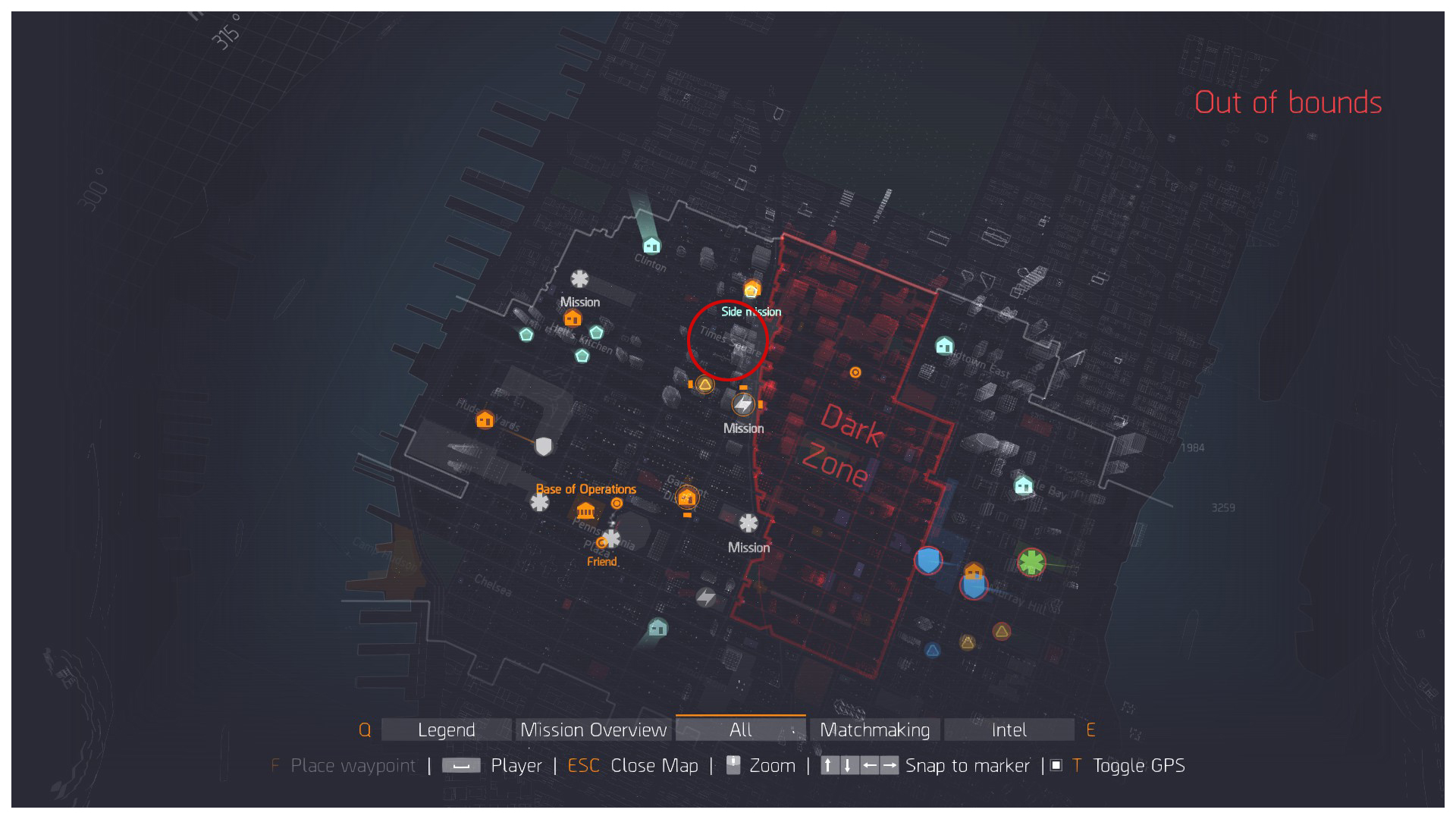
Firstly, if you plan to take screenshots of a specific location, just go there first before doing any of the other steps. I personally love Times Square (marked below).
HINT: Alternatively, you can just play your game and stop for a minute to do the other steps, take your screenshot and go back to what you were doing.
STEP 2 - Hide the HUD

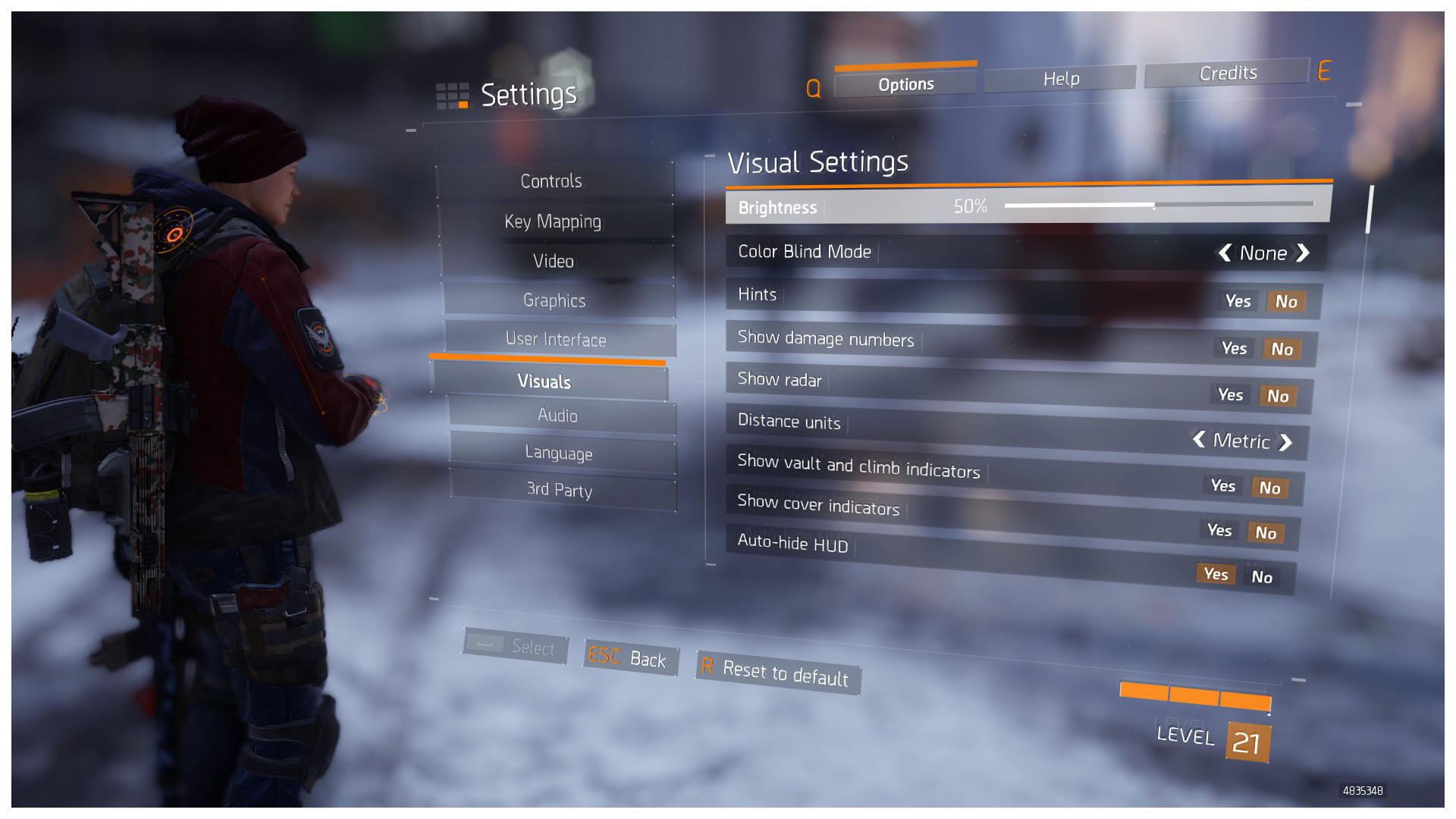
The next step is to hide the HUD. This can be easily done in the settings.
Go to Settings > Visuals and change the settings accordingly (see below).
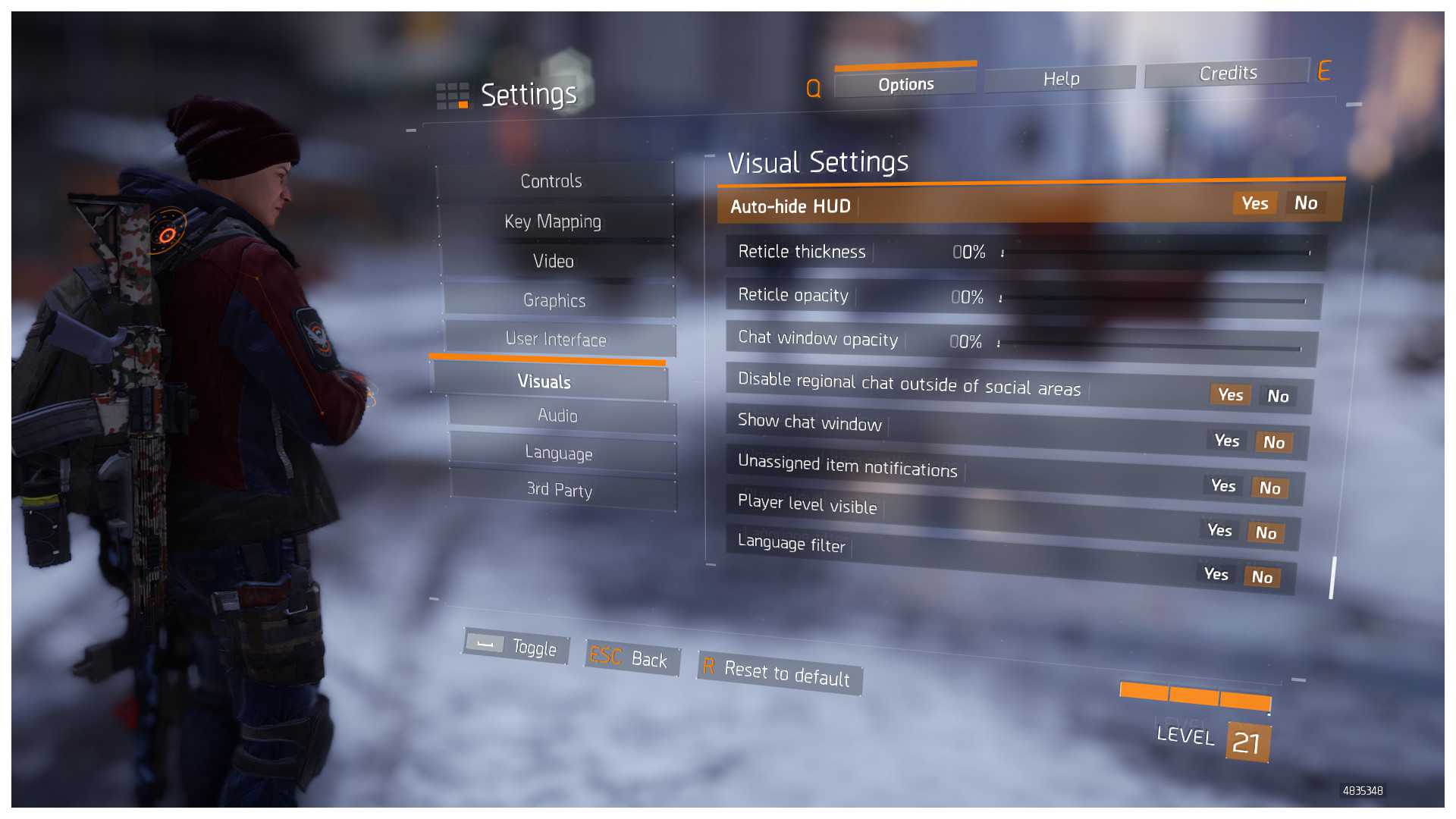
HINT: Make sure you have no waypoints set. Otherwise it will show the annoying waypoint and text at the top of the screen.
STEP 3 - The Trick

Now to the main trick.
Find a wall, obstacle or anything higher than your character and stand right in front of it (as shown below).
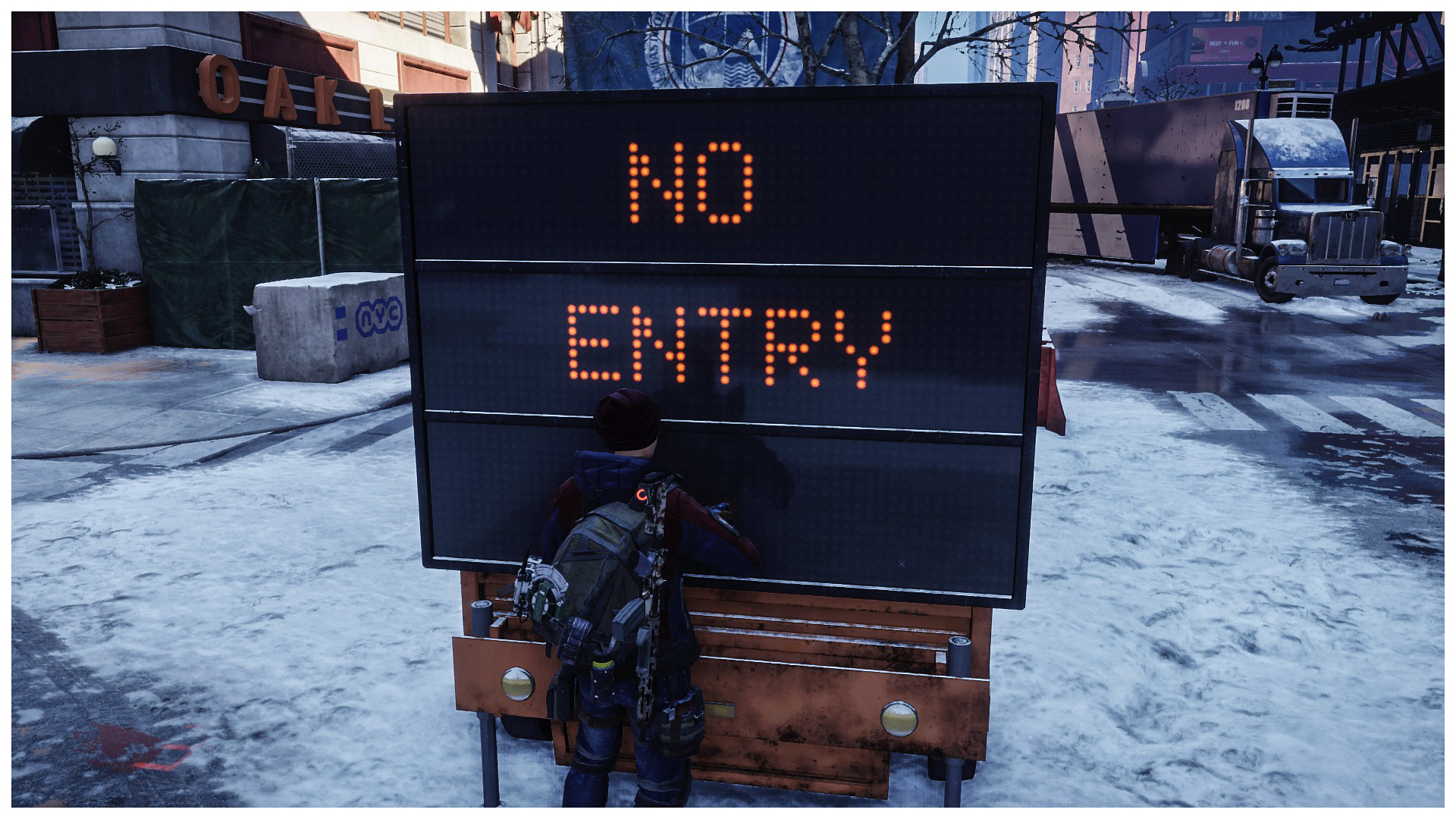
Now, turn your camera to the left or right and maybe slightly up. This will force the view into a fake first person view. You will have to play around with where you are standing and keep moving the mouse/your character around until your character is completely hidden and, of course, until you are happy with the view for your screenshot.
Once you are happy, just take the shot!
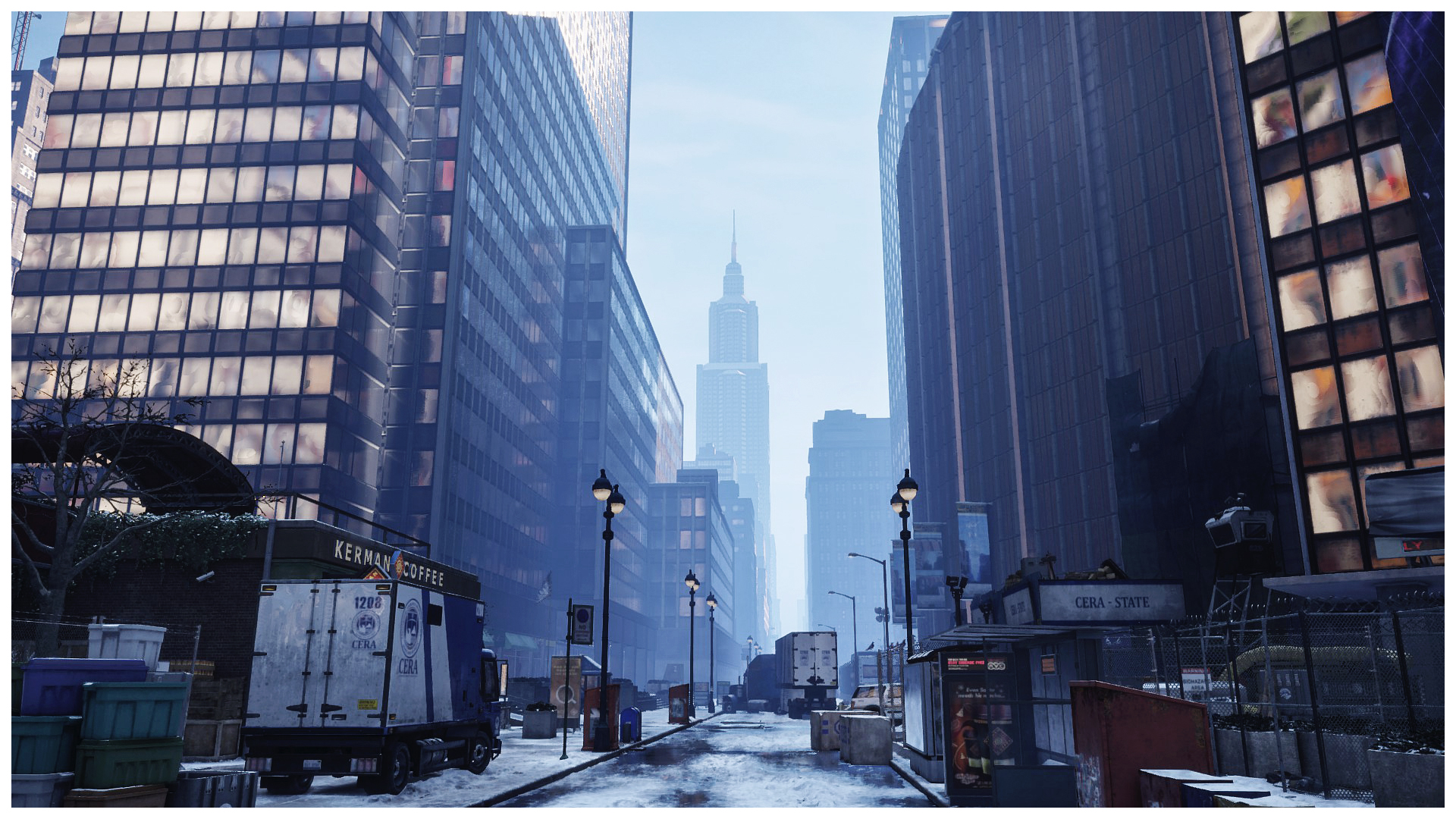
Voilá! That's literally all!
HINT: Sometimes the HUD can be buggy and your ammo counter won't disappear. That usually happens when your weapon has no ammo. Just reload your weapon/s and it should be fixed. If that doesn't help, you'll have to log out and back in or even restart your game to fix it.
Check my demonstration video on YouTube!
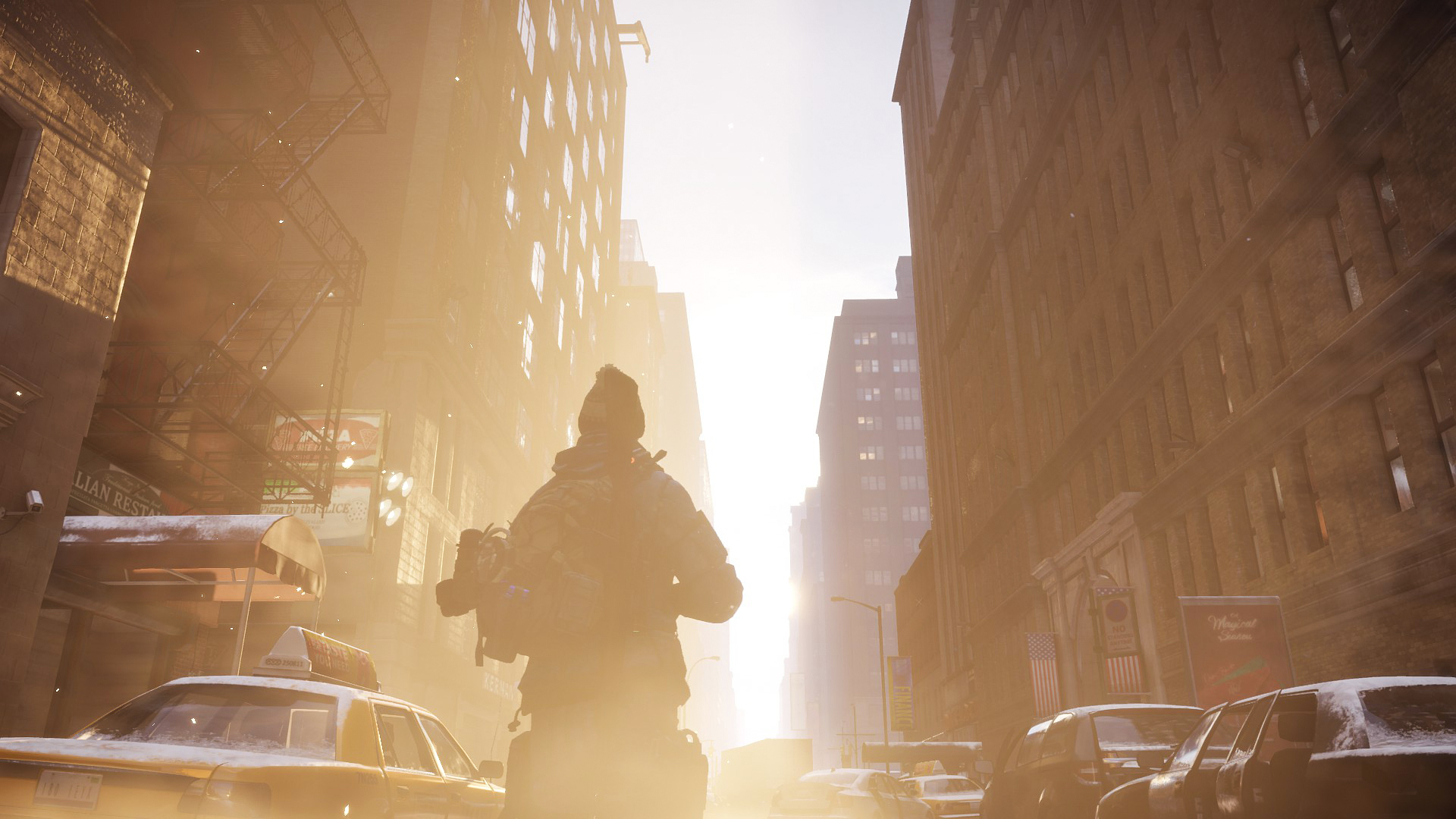
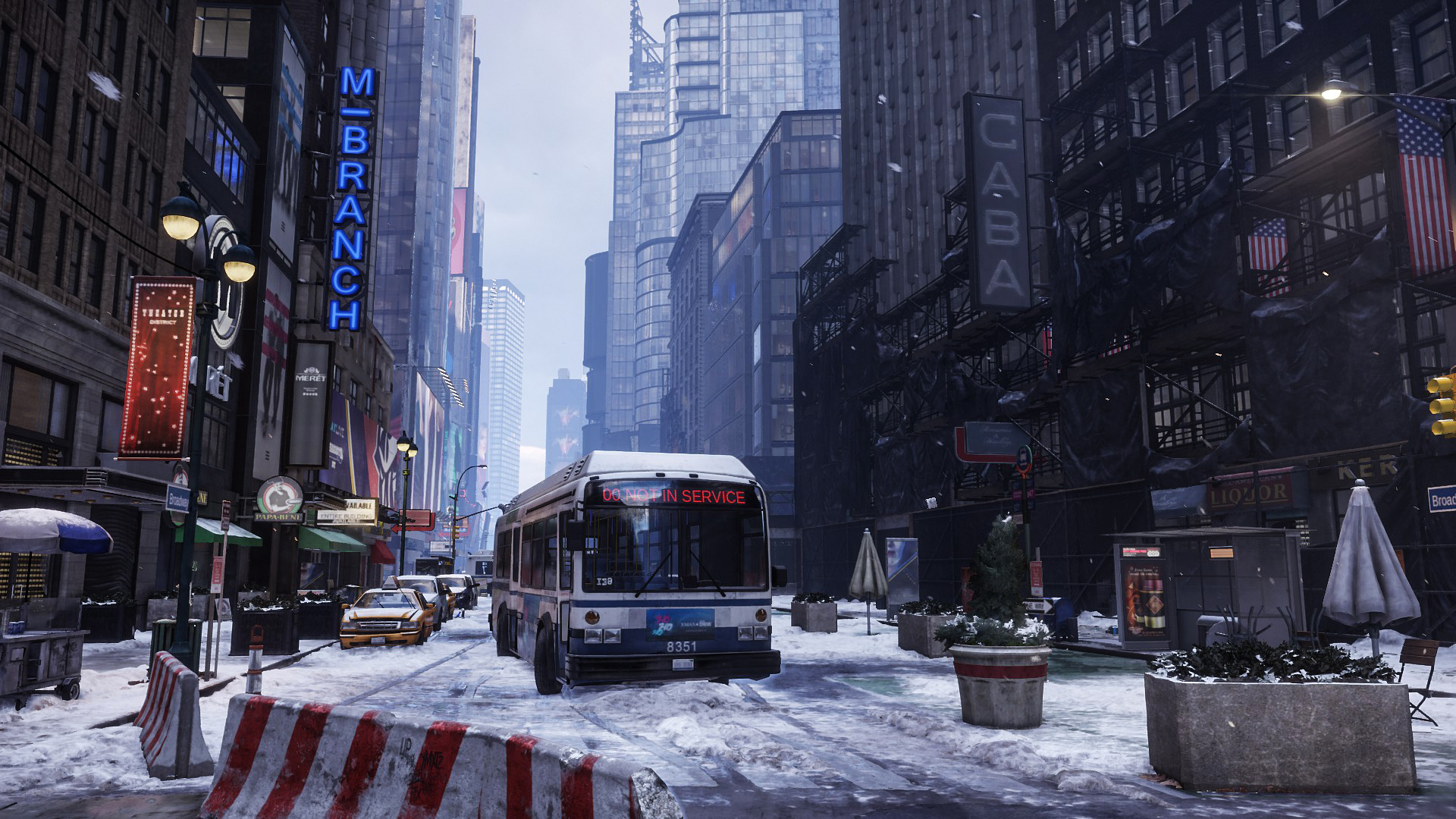
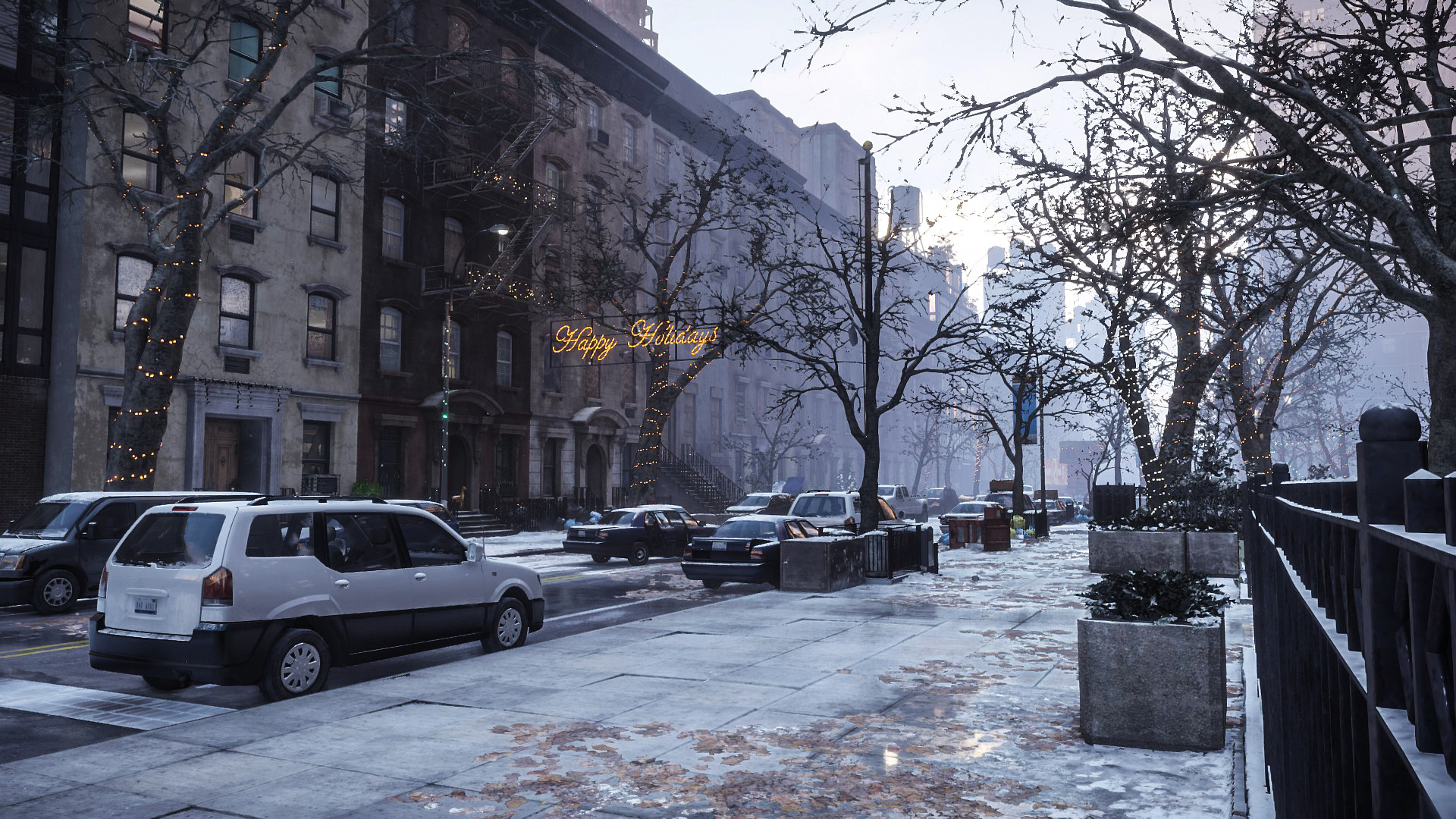
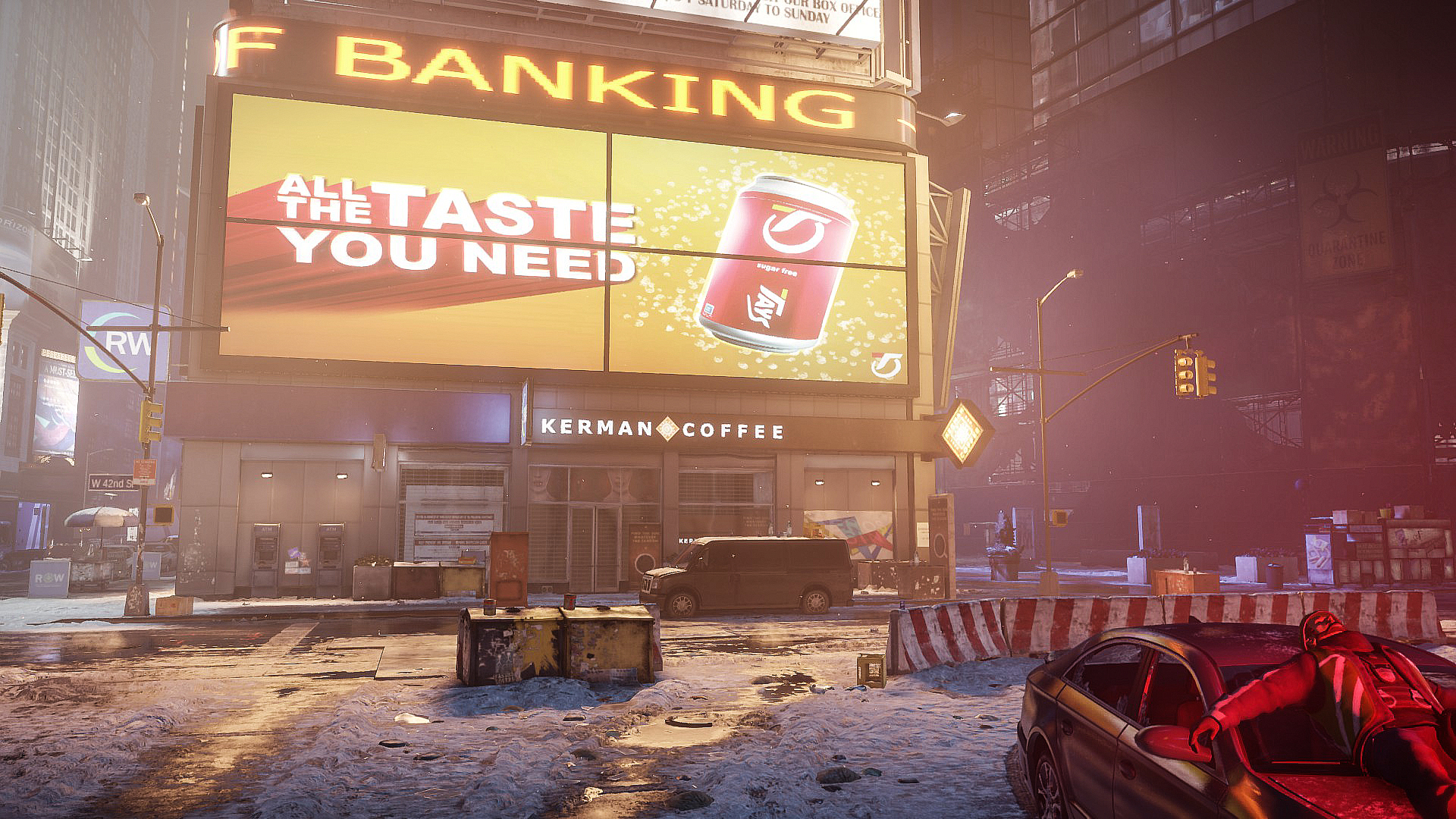
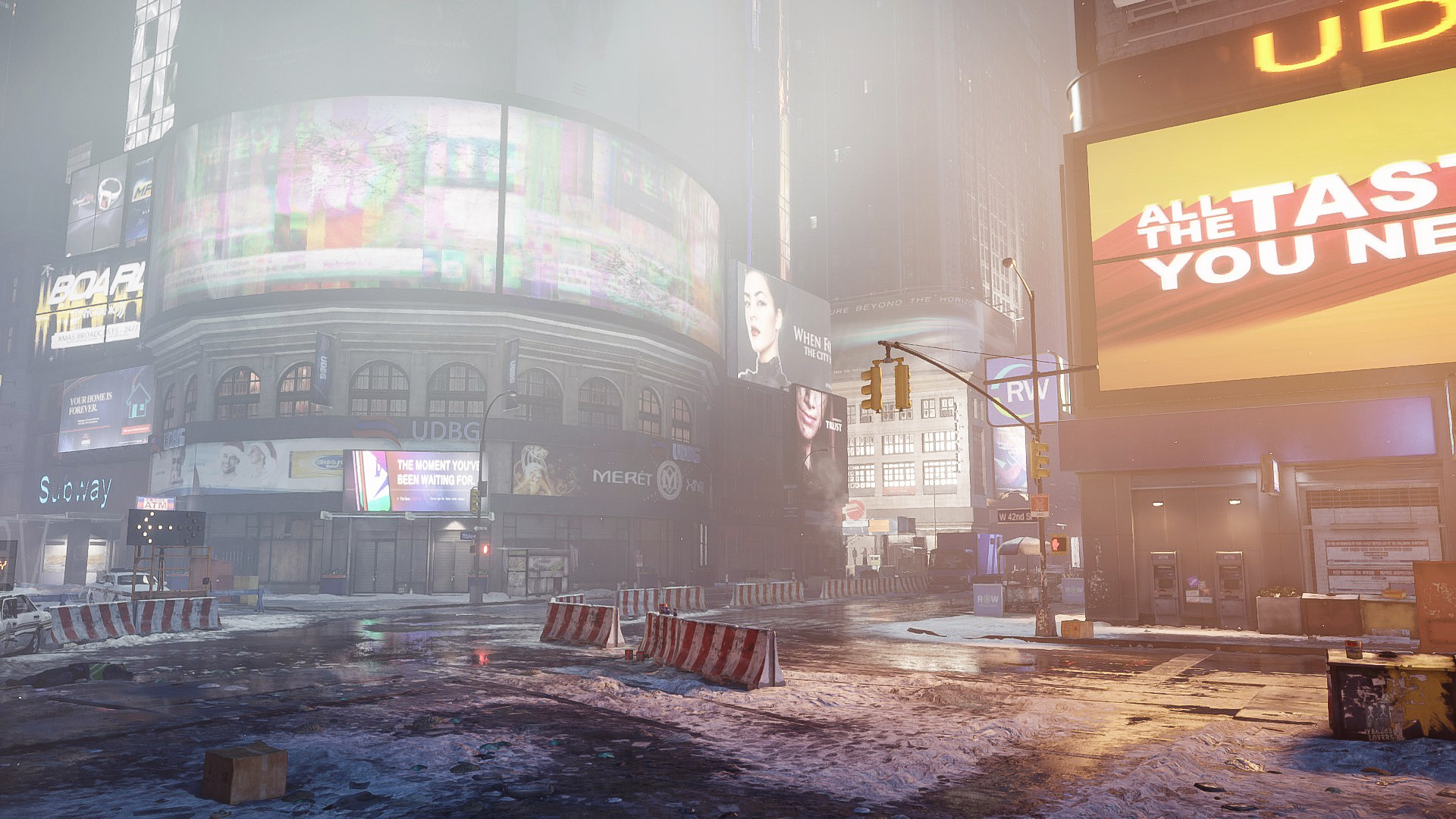
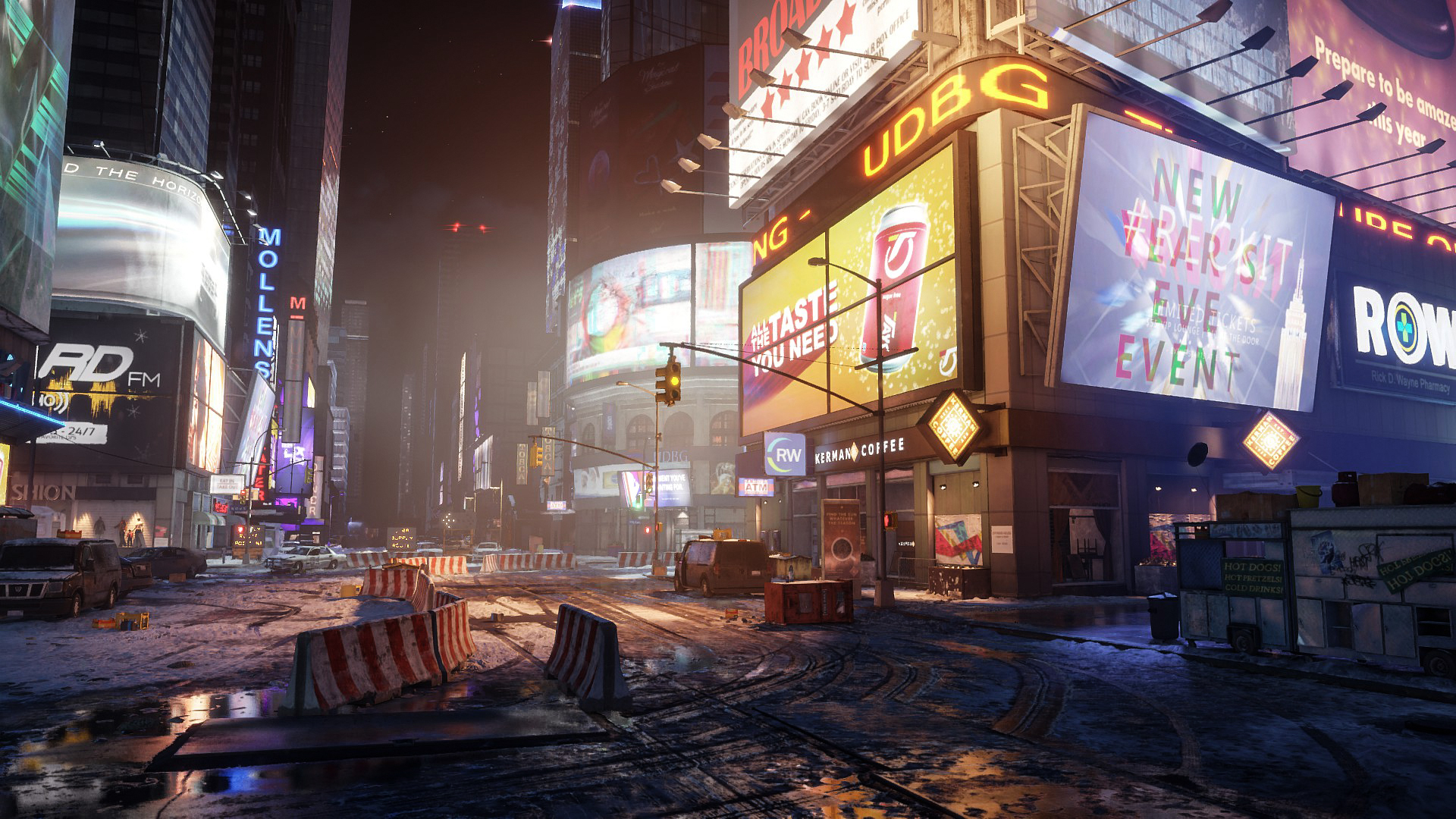
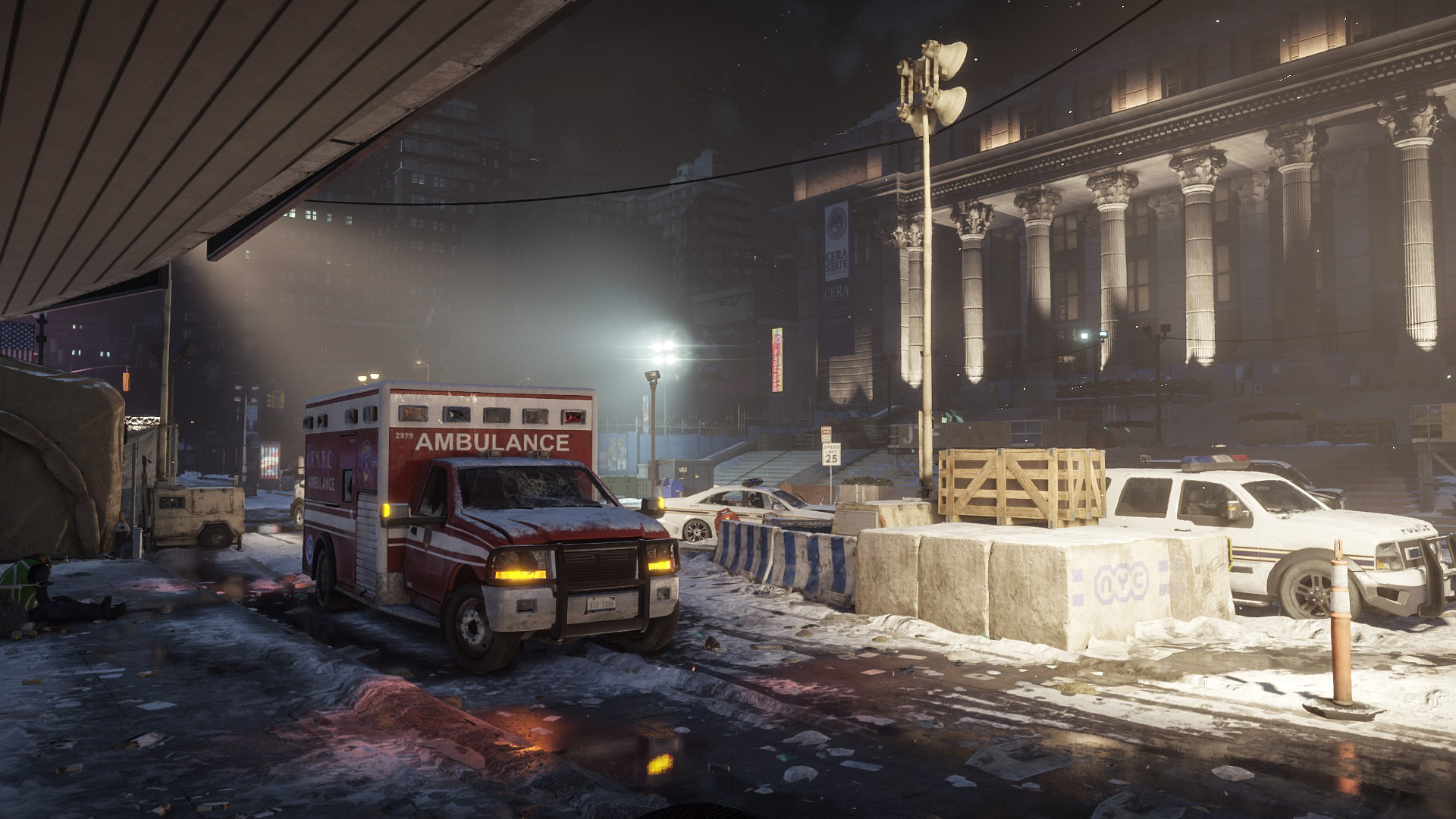
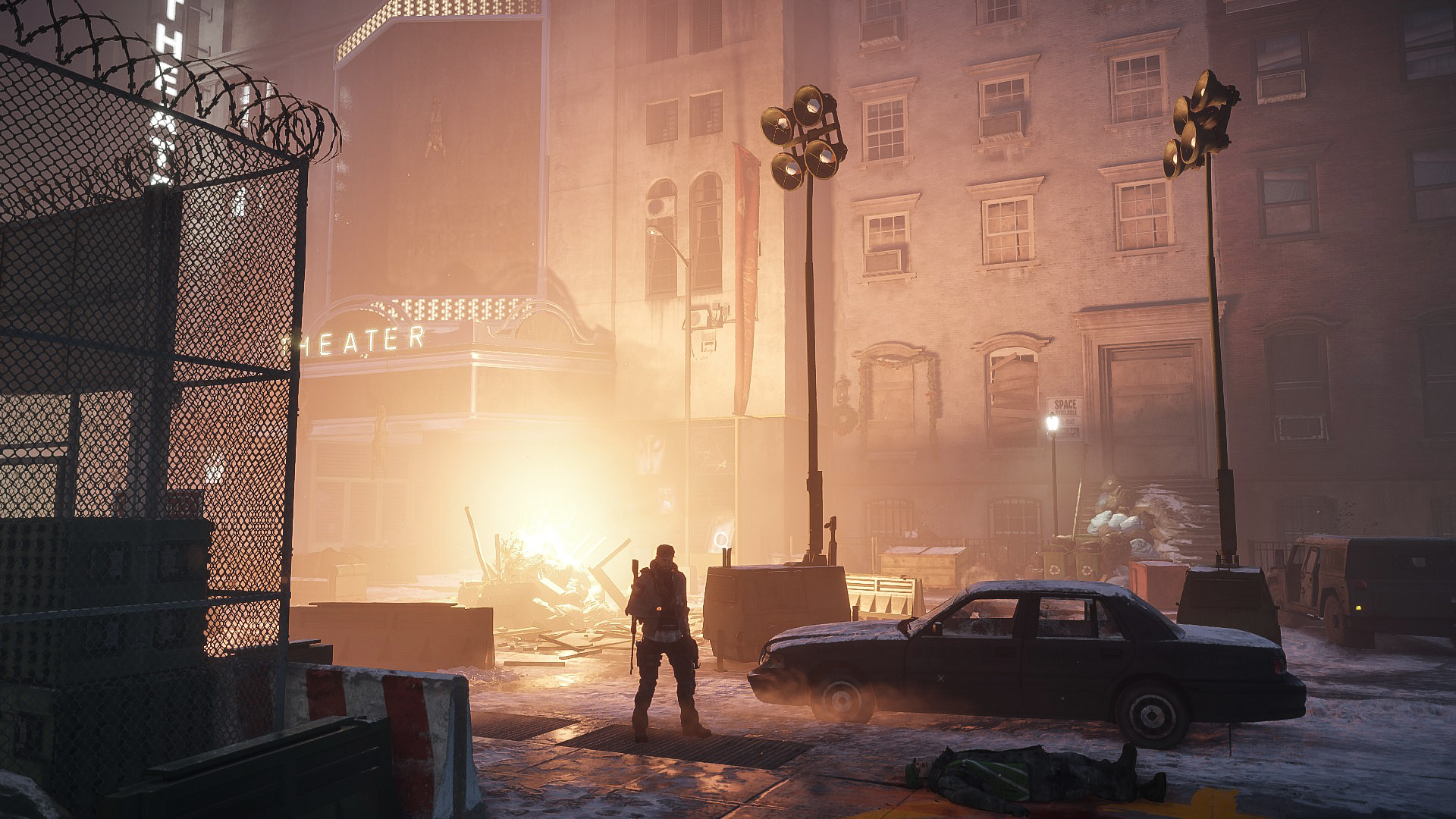
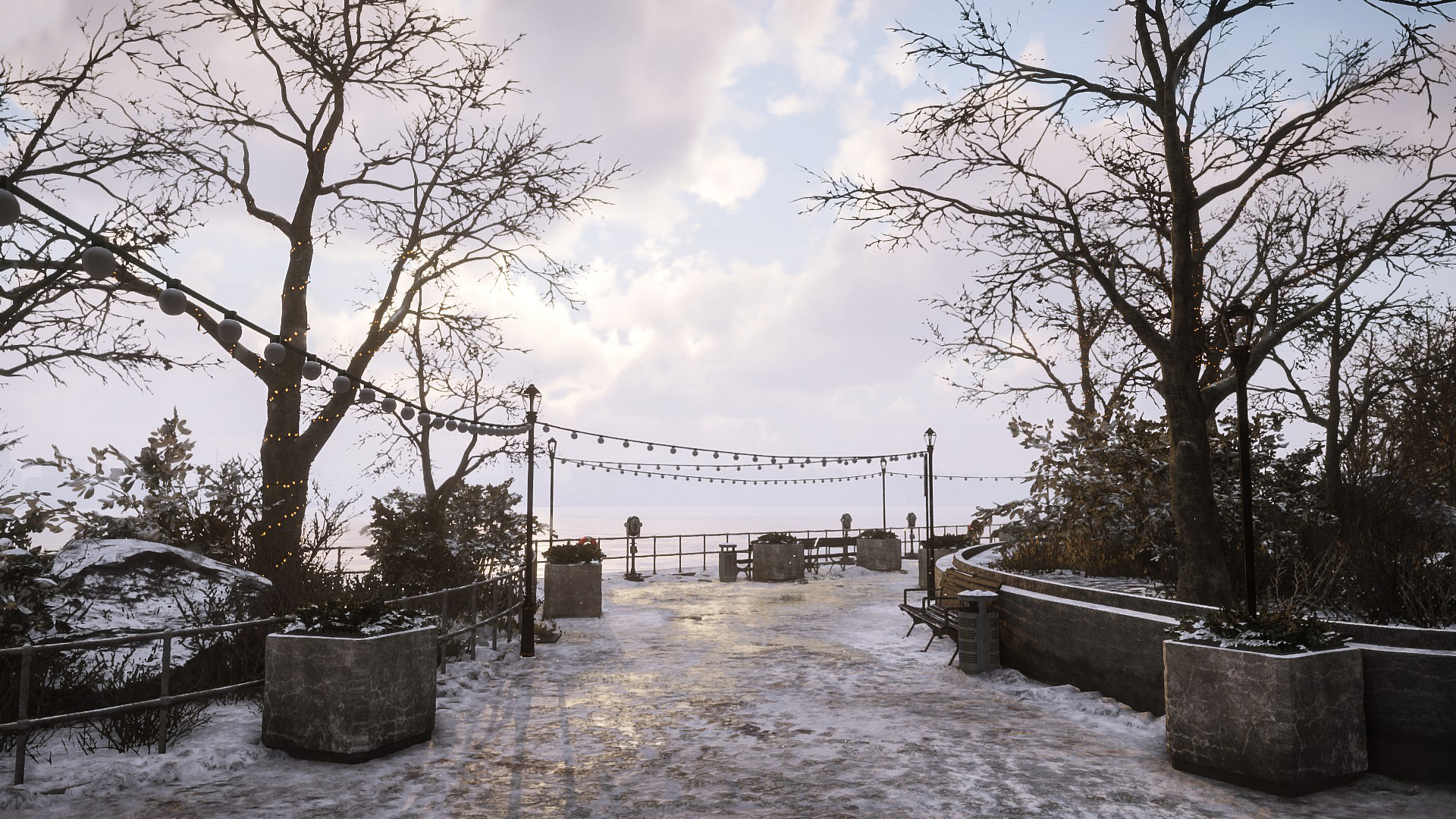
And this is all you have to do in order to take beautiful and interesting shots!
If you have any questions, please ask me and I will do my best to help you!
Make sure to check the video if you don't fully understood how this trick works.
Special thanks to my friend G-Mnky for making me aware of this easy trick!
Thank you for reading!

- Наборы экипировки (Сеты). Описание. Версия 1.8.3★ 5 (1k)28k views1.4k ♥18 minRussianUpdated Jan 22, 2019
- All Open World Boss Locations/ Карта PvE боссов★ 5 (693)27k views1.3k ♥1 minBulgarianUpdated Jan 31, 2017
- САМЫЙ ПОЛНЫЙ КРАТКИЙ ГАЙД ПО ИГРЕ★ 5 (617)26k views962 ♥36 minRussianUpdated Aug 15, 2016
- Сеты экипировки.(Division1/2)★ 5 (490)22k views893 ♥21 minRussianUpdated Jul 5, 2020
- Поднимает FPS + Решение проблем, вопросы.★ 5 (428)22k views509 ♥24 minRussianUpdated Jul 8, 2017
- Все маски и способы их получения.★ 5 (393)20k views680 ♥3 minRussianUpdated Jan 7, 2019


- Upgrading to PremiumTeam Fortress 2★ 5 (20k)1441k views11k ♥6 minUpdated May 11, 2022
- No More Room in Hell Official ManualNo More Room in Hell★ 5 (2.8k)569k views2.1k ♥29 minUpdated Apr 22, 2019
- NMRiH Community Hosting GuidesNo More Room in Hell★ 5 (526)351k views653 ♥1 minUpdated Aug 10, 2022
- ULTIMATE GUIDE FOR GAME DEV TYCOONGame Dev Tycoon★ 5 (5.8k)326k views10k ♥4 minUpdated 23 Jan, 2014
- How to 'Git Gud' Soon™MORDHAU★ 5 (2k)318k views3k ♥68 minUpdated Nov 16, 2024
- Лучшие кооперативные игры SteamPAYDAY 2★ 5 (1.5k)315k views2.1k ♥56 minRussianUpdated Apr 27, 2025






This guide was created by its original author on the Steam Community. Are you the author and want it removed? Request removal.