High res "No GUI" Screenshots NFS HP
Just taking screenshots:
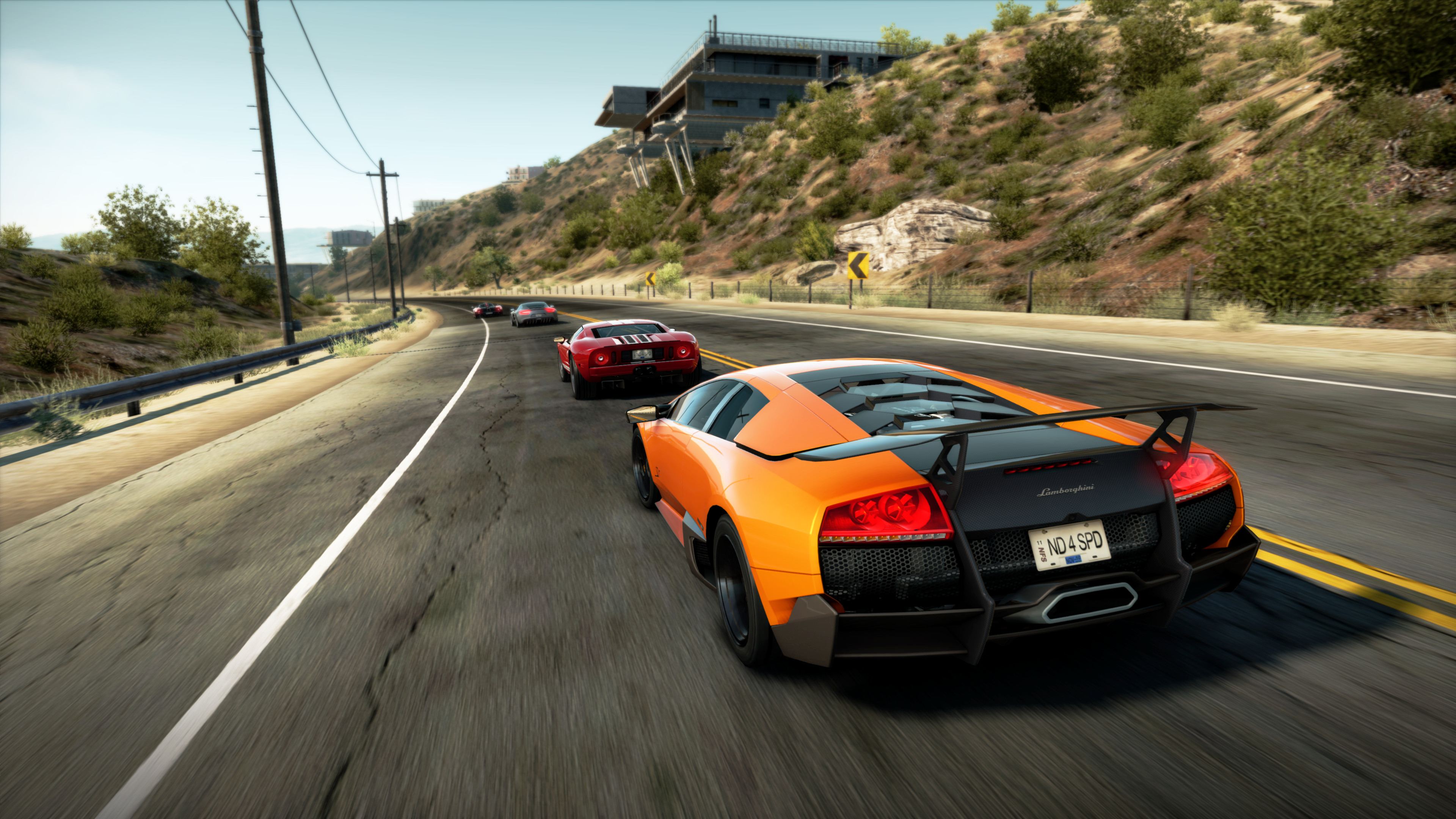
-It is pretty simple, just rebind steam screenshot button to "enter" :) Just remember to rebind it back to default when done.
When in game use "enter" in photo mode to take the screenshots, some rare cases gui is still added but taking two screenshots each time with a tiny delay between will in most cases show both without gui and some rare cases just one without (of course there may be some super rare cases where both show gui).
Just ignore and/or delete the pictures taken by the game itself. Pictures you want is found in your steam screenshots for NFS HP ^^
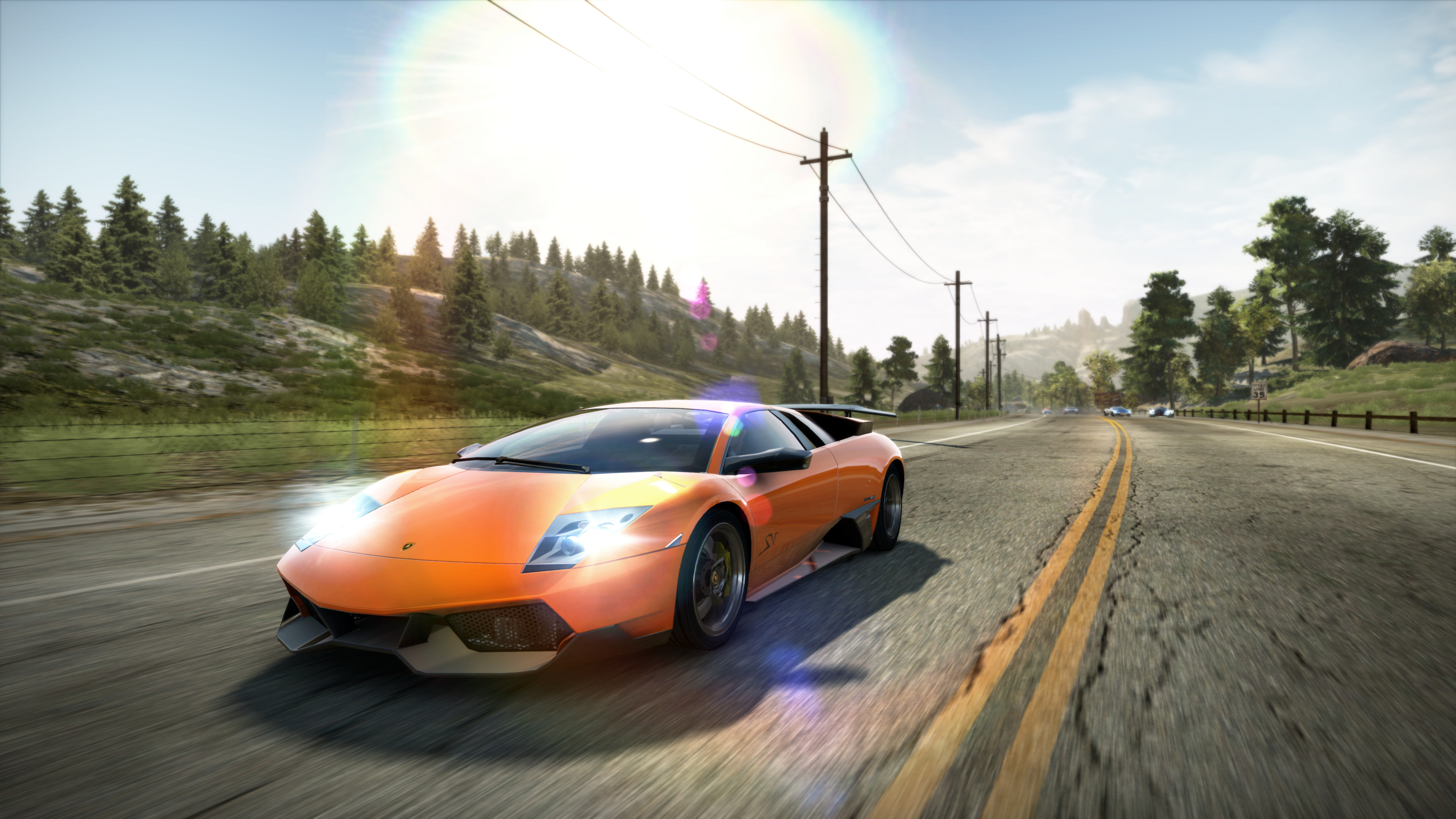
Take screenshots with enb generic/sweetfx:
-If using enb generic or sweetfx you might need a 3rd party tool for screenshots to show effect on screenshots (like FRAPS and so on), just rebind to "enter" within that tool. Again remember to rebind back to your default when done. >Very important when taking pictures here is to make sure steam gui do not show when taking the second shoot.<
If you want to upload these to Steam there is alittle more work to it, and you must have taken pictures with both steam and the 3rd party tool :>
Before uploading unless these are jpg, you will need to convert them to jpg. Make sure your 3rd party screenshoot file have same name as the original steam screenshoot file and replace them.
(Easy way to find screenshots taken by steam, is to open the screenshot window. Mark one screenshot and click "Show On Disk".) If you want it to show on thumbnails you need to replace those too, they are found in a sub folder within the screenshot folder. Usualy I skip those myself ^^
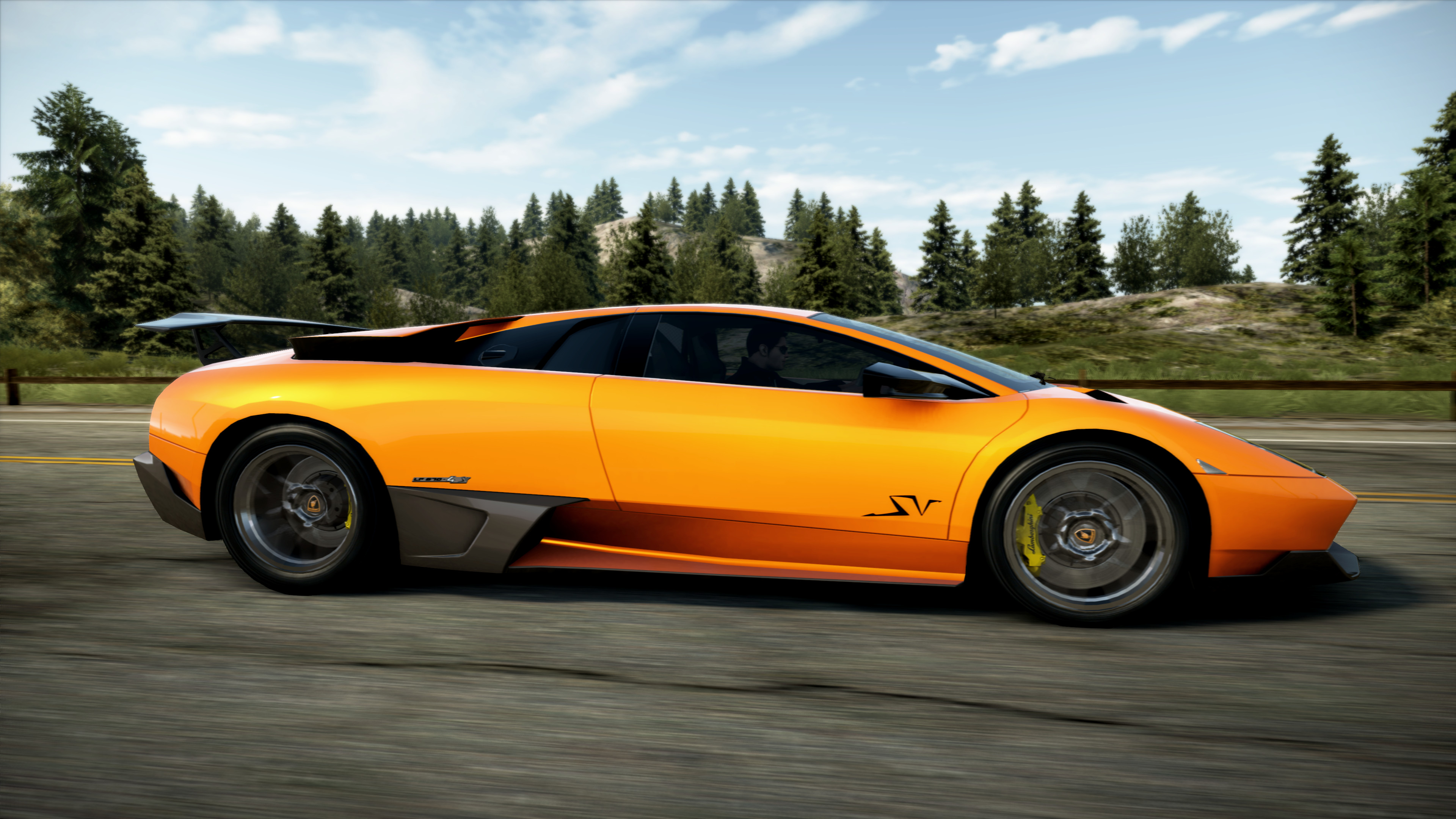
Excellent free software with batch convert and viewing images in general is found here FastStone Image Viewer[www.faststone.org]. Many people that upload screenshots on ENBSeries forums for the gallery there, use this image tool to resize and convert with minimal to almost no quality loss. >Just mark files wanted, right click and select batch convert< :)
Have a nice day ^^
-Nana
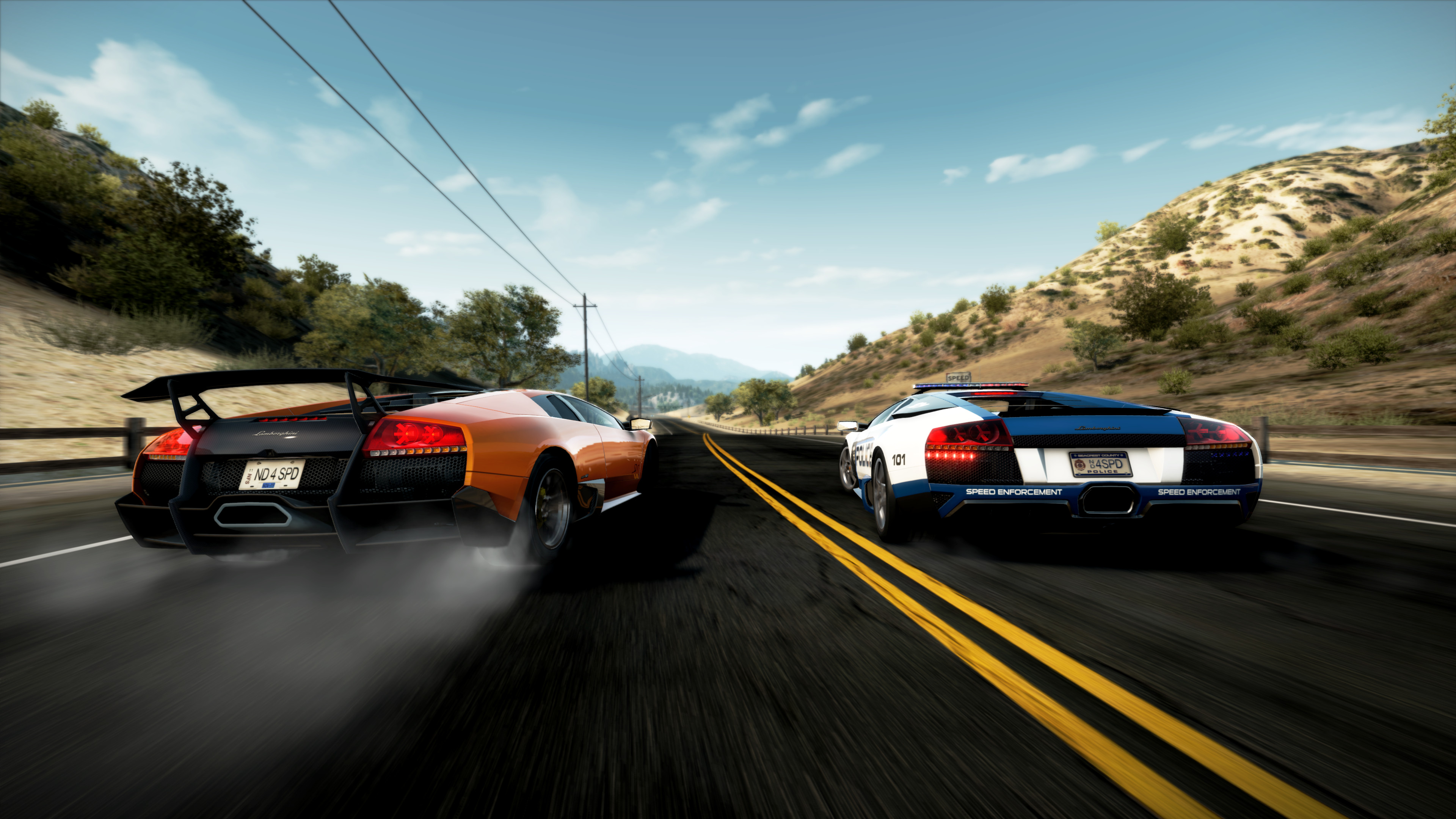
If you want to upload these to Steam there is alittle more work to it, and you must have taken pictures with both steam and the 3rd party tool :>
Before uploading unless these are jpg, you will need to convert them to jpg. Make sure your 3rd party screenshoot file have same name as the original steam screenshoot file and replace them.
(Easy way to find screenshots taken by steam, is to open the screenshot window. Mark one screenshot and click "Show On Disk".) If you want it to show on thumbnails you need to replace those too, they are found in a sub folder within the screenshot folder. Usualy I skip those myself ^^
Excellent free software with batch convert and viewing images in general is found here FastStone Image Viewer[www.faststone.org]. Many people that upload screenshots on ENBSeries forums for the gallery there, use this image tool to resize and convert with minimal to almost no quality loss. >Just mark files wanted, right click and select batch convert< :)
Have a nice day ^^
-Nana
More Need for Speed: Hot Pursuit guides
- (USELESS) Need for Speed: Hot Pursuit PC - How to get DLC events and DLC cars★ 5 (443)19k views439 ♥3 minUpdated Sep 29, 2021
- Разблокировка/Unlocking SCPD Rebels Pack DLC★ 5 (530)17k views439 ♥1 minRussianUpdated Jul 21, 2018
- Улучшение графики в Need for Speed: Hot Pursuit [Обновление от 06.05.2024]★ 5 (308)15k views248 ♥6 minRussianUpdated May 6, 2024
- GUIDE TO GOING FAST★ 5 (554)13k views283 ♥3 minUpdated Jul 16, 2013
- Ищем себе игроков для мультиплеера★ 5 (539)11k views393 ♥1 minRussianUpdated Aug 23, 2025
- Reduce Stuttering, Tweaking CPU Cores & Hyper-Threading★ 5 (173)10k views200 ♥14 minUpdated Dec 1, 2017




This guide was created by its original author on the Steam Community. Are you the author and want it removed? Request removal.