How 2: Change the Menu Music in TS Classic
Programs Needed
DISCLAIMER: I am not going to teach you how to make a .wav file in this guide, but there are plenty of youtube videos on it. Anyway, onto the required programs:
- Serz, which can be found in the Railworks Directory
- Audacity, for making your new theme (if you choose to make your own) [audacityteam.org]
IMPORTANT NOTE:
I have noticed that as of late 2020, that Audacity no longer works, and if that is the case just find a standard wav converter on the web. Don't worry, there's plenty to choose from.
Step 1: Getting Your New Menu Theme
To start, go find a .wav file of whatever music you want as your menu theme.
For my tutorial, I will be refering to my TSRemix theme that I made myself.
For my tutorial, I will be refering to my TSRemix theme that I made myself.
Step 2: Locating the Menu Music's Location
In the normal Railworks directory, go to the following
(Wherever you installed steam to)\Steam\steamapps\common\RailWorks\Assets\Kuju\RailSimulatorCore\Audio
Place your .wav file inside this directory.
(Wherever you installed steam to)\Steam\steamapps\common\RailWorks\Assets\Kuju\RailSimulatorCore\Audio
Place your .wav file inside this directory.
Step 3: PROXYXML File Editing
Go into the UIAudioControl PROXYXML File (if you have a PROXYBIN File run the PROXYBIN File through Serz).
Press Ctrl + F and find UI_FrontEndLoop . When you find it it should say the following (in the green box)
(yes, it does say UF_FrontEndLoop as I forgot to take a image before I changed it and rushed it back without noticing the mistake)
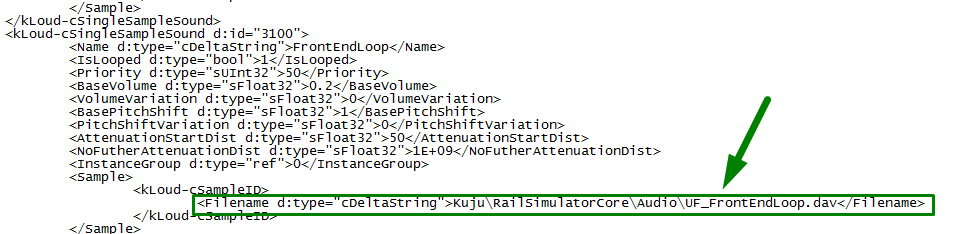
Change this line, removing the UI_FrontEndLoop.dav to (whatever the name of the .wav file is).wav
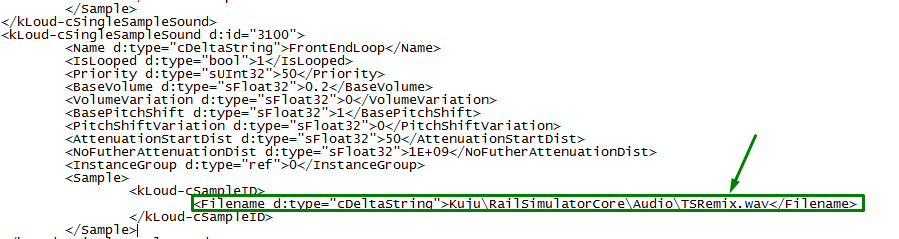
My example is above.
You could just keep the UI_FrontEndLoop but all you would have to do is change the name for the .wav file to UI_FrontEndLoop and the .dav to .wav .
Press Ctrl + F and find UI_FrontEndLoop . When you find it it should say the following (in the green box)
(yes, it does say UF_FrontEndLoop as I forgot to take a image before I changed it and rushed it back without noticing the mistake)
Change this line, removing the UI_FrontEndLoop.dav to (whatever the name of the .wav file is).wav
My example is above.
You could just keep the UI_FrontEndLoop but all you would have to do is change the name for the .wav file to UI_FrontEndLoop and the .dav to .wav .
Step 4: Testing
Save all changes, then run the PROXYXML File through Serz (it will edit the PROXYBIN File for you). Then load up the game and make sure your menu music is on. If it doesn't work be sure to make sure everything has been done correctly.
Final Remarks
Well, that's all there is to it, I hope this guide helps you in changing the menu music. If you have any issues feel free to drop a comment and I will try to help you out. Enjoy your new music!
- Mattg17
- Mattg17
More Train Simulator Classic guides
- Driving and Firing Steam Engines★ 5 (1.1k)33k views1.1k ♥14 minUpdated Jan 3, 2013
- [ENG] TS2015 - Controls Overview★ 5 (641)26k views837 ♥3 minUpdated Mar 10, 2015
- Route maps★ 5 (408)22k views575 ♥28 minUpdated Mar 21
- Fixing the Out of Memory Error★ 5 (206)13k views302 ♥12 minUpdated Jun 15
- Horn and Bell Use★ 5 (352)11k views345 ♥11 minUpdated Dec 26, 2025
- The Simple guide to - Scenario Creation★ 5 (278)10k views541 ♥15 minUpdated Nov 25, 2015



This guide was created by its original author on the Steam Community. Are you the author and want it removed? Request removal.