■ How to Configurate "Ryse: Son of Rome" for the best gaming experience! Nvidia + AMD 11.2022 Ver. 1.3
Prolog
What is our Intention?
- It should look as good as possible and run as smoothly as possible !!
What did You need?
- If You have problems with a Game, always verify Your Files and update Your Graphic Card Driver to the newest version!
- You need ALL A+B+C ( InGame Setting and "autoexec.cfg" and Nvidia/AMD Driver Profil Setting)
The autoexec.cfg file is automatically used, if it is located in the same folder as config.cfg.
When you open the console you will see the active values written in green! - You need all "BLUE" Settings!! Grey/White Settings can be changed!!
All settings and measures must be active at once (same time) !!
Why can You not use the Console?
- You can use, but ever You try a CVar you get nothing, almost all CVars are blocked!!
- I made an autoexec.cfg in which all unlocked CVars are taken into, so everyone has an overview of what is possible or not!!
A - InGame Menue Values
It is important that all settings are used as listed below. Of course, some values can be adjusted if necessary!
But Playing in the window, with Desktop Resolution, has to remain unchanged because the fullscreen mode costs ~ 30 FPS.
I also recommend that all blue values remain as they are, as they are tested and are important for stability!
Goto Ingame Menu:
High End Setting:Low Setting:
- Resolution - ....1920x1080, 2560x1440..... ----->
You must use Your Desktop Resolution!!- GraphicQual. - very High ( Custom )
- TextureResolution - very High
- Shader - High
- Object - High
- Shadow - High
- Particle - High
- Animation - High
- AF - 16x
- Resolution - ....1920x1080, 2560x1440..... ----->
You must use Your Desktop Resolution!!- GraphicQual. - Low ( Custom )
- TextureResolution - Low
- Shader - Low
- Object - Low
- Shadow - Low
- Particle - Low
- Animation - Low
- AF - 8x
B - autoexec.cfg
Best we can do with this unlocked CVar´s!!
All other CVar are Locked and can not be used!!
- Make a autoexec.cfg in your Root Game Folder:
C:\.........\Steam\Steamapps\common\Ryse Son of Rome - The autoexec.cfg file is automatically used, if it is located in the same folder as config.cfg.
When you open the console you will see the values written in green! - Copy and Paste my Values in autoexec.cfg.
- Change the Values for your Hardware, I used the best settings for 60Hz = 60FPS gaming with a 3 - 24 GB VRam Graphic Card!!
- use your favorite FOV!! -------> ( unfortunately doesn't work for me at the moment!! )
https://www.pcgamingwiki.com/wiki/Glossary:Field_of_view_(FOV)PS: A change in the unlocked CVar " cl_FOV " seems to run into the nothingness and I cannot see any change, although it accepts the change without errors in the Console!
C - NVIDIA / AMD Driver-Options:
- Ambient Occlusion / Off
- Anisotropic filtering / 16x
- Antialiasing - FXAA / Off
- Antialiasing - Mode / Application Setting
- Antialiasing - Setting / Application Setting
- Antialiasing - Gamma correction / On
- Antialiasing - Transparency / Off
- Background Application Max Frame Rate / 75
----> or 135, 150..... for 120Hz, 144Hz - Max Frame Rate / 75
----> or 135, 150..... for 120Hz, 144Hz - Triple buffering / On
- Power management mode / Prefer maximum performance
- Sharpening / Off
- Low Latency Mode / Ultra -------> or Low - Anti Lag / On for AMD
- Texture filtering - Anisotropic sample optimization / On
- Texture filtering - Negative LOD bias / Clamp
- Texture filtering - Quality / High performance
- Texture filtering - Trilinear optimization / On
- Threaded optimization / Auto
- Vertical sync / Adaptive
If all will not WORK!!
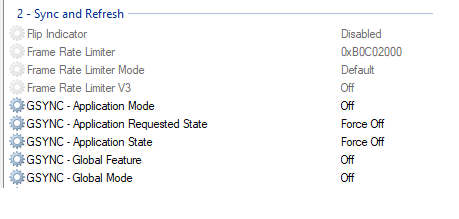
- Do not use GSync / FreeSync!!
e.g.
You must use NVIDIA Profilinspector, so you can SHUT OFF all GSync Modes for the Ryse Profile!! - Link for NVIDIA ProfileInspector:
https://github.com/Orbmu2k/nvidiaProfileInspector/releases
- Install/Remove the Game at Your "First" HDD, where the System is installed!!
-
Try changing the processor affinity of Ryse.exe in Task Manager for cpu-0, cpu-2, cpu-9, and cpu-11 (simulate 4 cores/threads).
That solves the fps drops a bit for me. I have a R5 2600 and RX590, all ultra.
Sorry for my English.
Attachment - only Info - did not work: autoexec.cfg How it should be!!
Best Graphic without stutter:
I use a 2560x1440 Resolution on a 1920x1080 Monitor with Nvidia DSR via Downsampling!
FPS limit to 61 FPS, so you can shut off VSync!
Command Line Parameter - used in Steam Launch Option+exec autoexec.cfg
Make a Autoexec.cfg in your Root Game Folder:
C:\.........\steamapps\common\Ryse Son of Rome
Copy and Paste my Values in autoexec.cfg.
Change the Values for your Hardware!
https://docs.cryengine.com/display/CRYAUTOGEN/CONSOLEPREFIXSYS#AnchorSYSBUDGETVIDEOMEM r_AntialiasingMode
r_AntialiasingTAAMode
r_AntialiasingTAASharpening
sys_MaxFPS
log_Verbosity
Attachment - only Info - did not work: Command Line Arguments
-DX9
-DX11
-GL CE5
-autodetect // Auto-detect system spec (overrides profile settings).
-anygpu // If CRYENGINE detects an unsupported GPU
-anycpu CE5
-logfile
-logfile game.log CE5
- [Решение/Fix] Как убрать лимит в 30 fps(FPS limit)★ 5 (317)20k views320 ♥1 minUpdated 4 Aug, 2025
- Путеводитель по достижениям в игре★ 5 (796)18k views785 ♥3 minRussianUpdated 29 Oct, 2014
- May help increase performance with Nvidia cards★ 5 (320)18k views348 ♥1 minUpdated 23 Feb, 2022
- Всем тем у кого лагает или фризит на топовых ПК★ 5 (283)14k views217 ♥1 minRussian
- No more Stutter or FPS drop.★ 4 (131)13k views86 ♥1 minUpdated 24 May
- Ryse: Son of Rome - руководство по сетевым достижениям★ 5 (356)10k views397 ♥10 minRussianUpdated 30 Sep, 2023


- Upgrading to PremiumTeam Fortress 2★ 5 (20k)1441k views11k ♥6 minUpdated May 11, 2022
- No More Room in Hell Official ManualNo More Room in Hell★ 5 (2.8k)569k views2.1k ♥29 minUpdated Apr 22, 2019
- NMRiH Community Hosting GuidesNo More Room in Hell★ 5 (526)351k views653 ♥1 minUpdated Aug 10, 2022
- How to 'Git Gud' Soon™MORDHAU★ 5 (2k)318k views3k ♥68 minUpdated Nov 16, 2024
- Лучшие кооперативные игры SteamPAYDAY 2★ 5 (1.5k)315k views2.1k ♥56 minRussianUpdated Apr 27, 2025
- Desert Eagle Heat Treated | Blue GemCounter-Strike 2★ 5 (1.6k)292k views1.5k ♥2 minUpdated Jan 16





This guide was created by its original author on the Steam Community. Are you the author and want it removed? Request removal.