How to fix server error and resolution upon startup.
How to fix the error upon logging in:
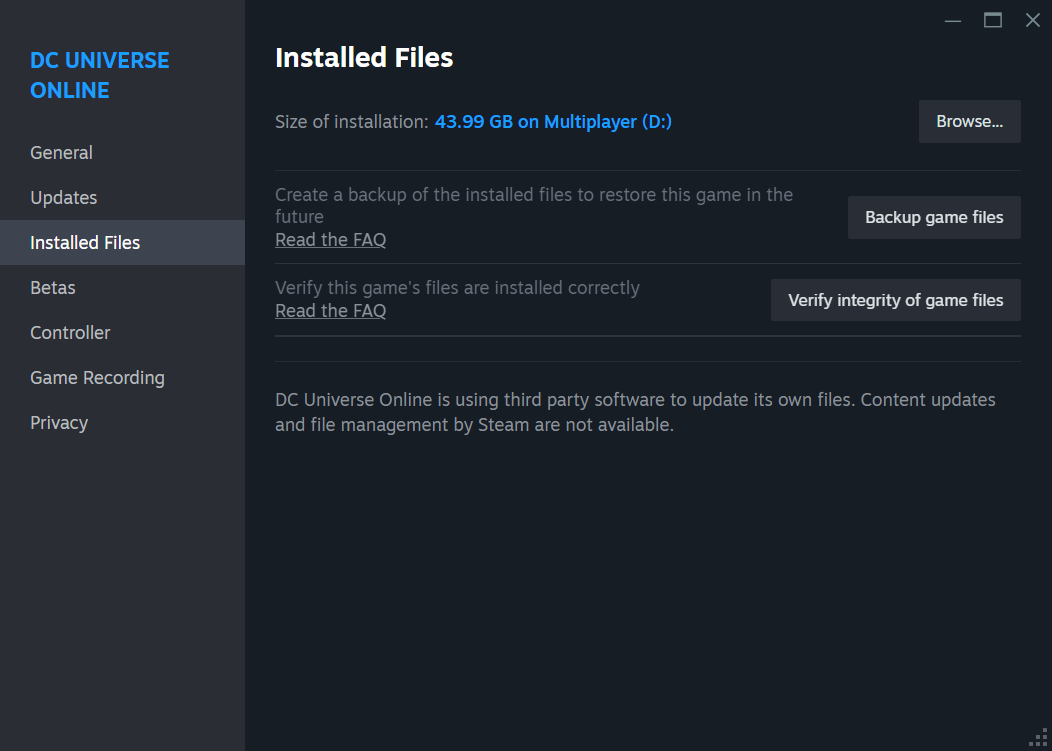
- Go to DC Universe Online in your library > click Properties and click over to the "Installed Files" section > Click Browse
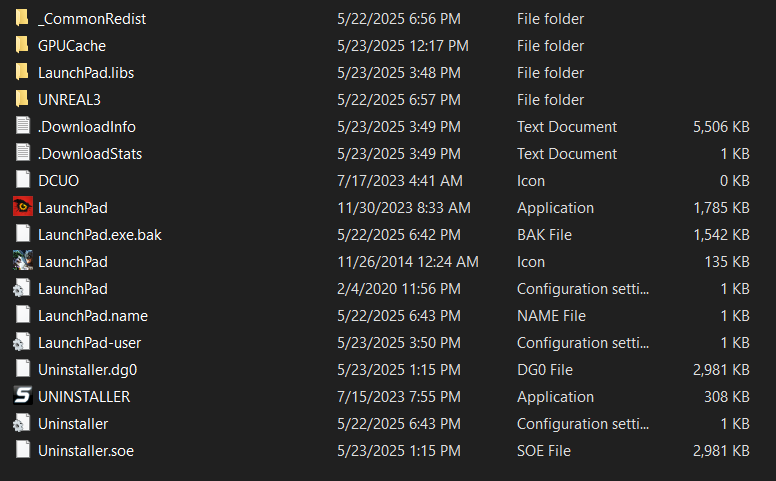
then you should navigate to the game's directory to look for an executable called "Launch Pad"
Click on the Launch Pad executable twice and then you should be presented with the normal launcher as usual. Log in and you should be able to download the files required.
How to fix the resolution
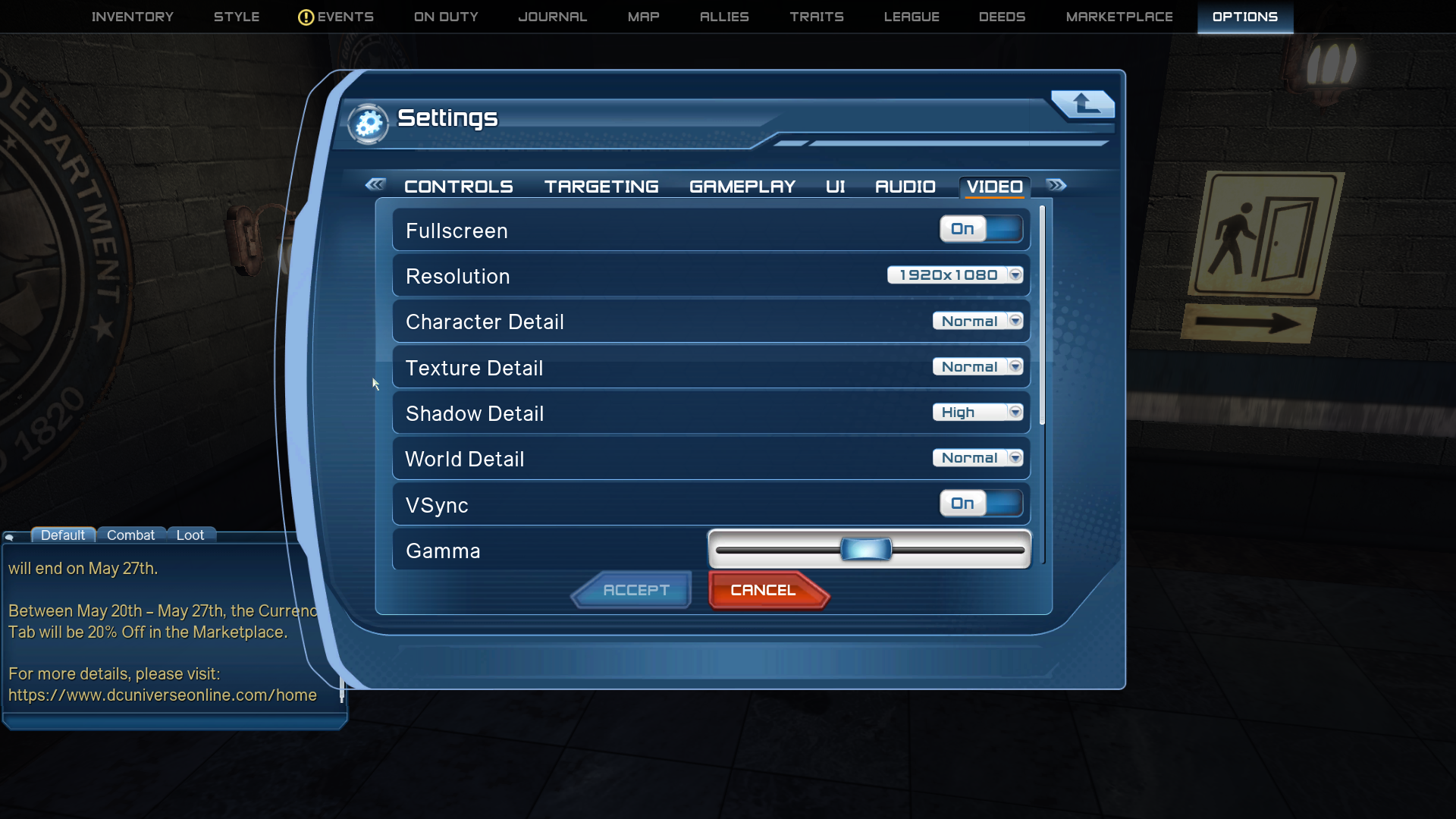
- Once you're in-game at the character customization screen, you'll realize that the game screen is cropped. Alt-Enter to Windowed mode until you go to the tutorial and then go to the settings tab by pressing the ESC button. Navigate to the "Video" tab and you should see a resolution box. Choose your favoured resolution and toggle the Fullscreen slider.
The settings are saved after you apply them meaning you won't have a cropped screen anymore!
More DC Universe Online guides
- Episodes and DLC content.★ 5 (533)36k views527 ♥15 minUpdated May 11
- Casual Solo Player's Guide From Fresh Level 30, to CR 84★ 5 (250)17k views485 ♥85 minUpdated Aug 17, 2014
- Easy/Fast Treasure Chest Farming★ 4 (116)10k views147 ♥1 minUpdated Feb 17, 2016
- BECOMING A TANK!★ 4 (105)6.8k views116 ♥7 minUpdated Jan 11, 2014
- BECOMNG A TROLLER!★ 4 (60)6.6k views70 ♥3 minUpdated Jan 10, 2014
- Coordinate your wardrobe★ 4 (74)5.4k views109 ♥4 minUpdated Nov 25, 2019



This guide was created by its original author on the Steam Community. Are you the author and want it removed? Request removal.