How To Fix Stuttering In COD Ghosts (2013)
Step (1) Windowed No Border
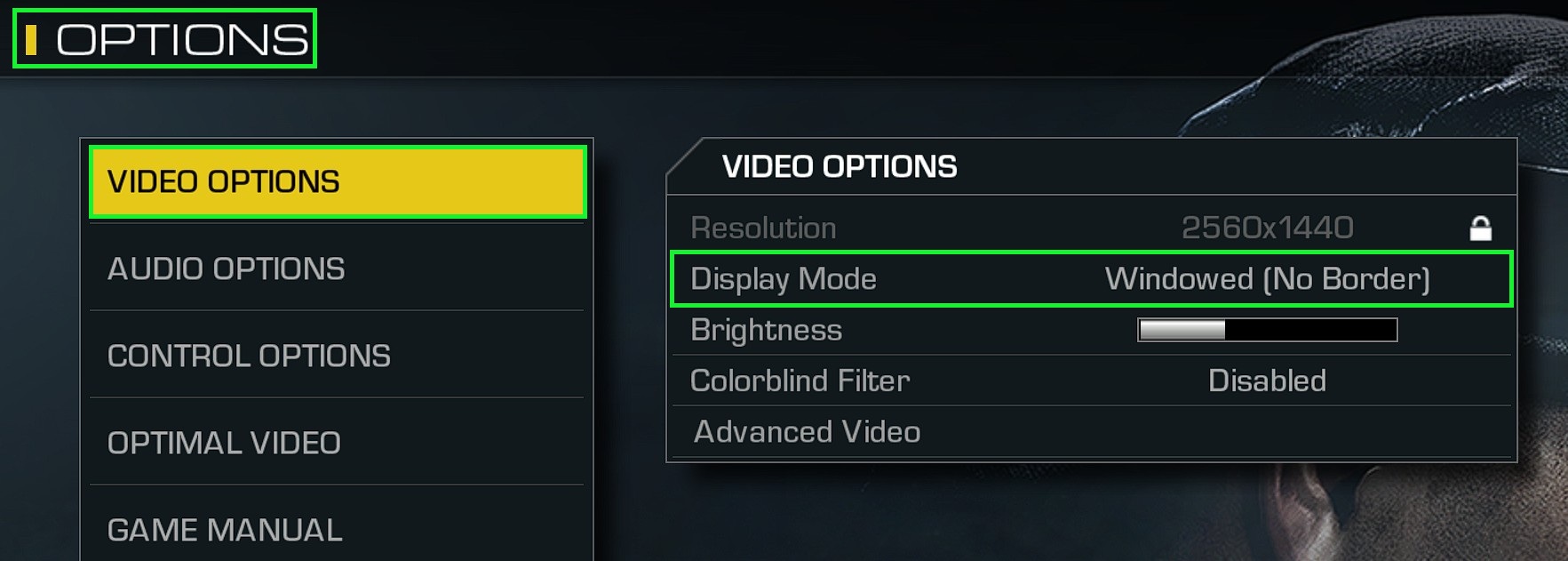
Open Up Your Call Of Duty Ghosts Game Go To "Options Then Video Options" And Set "Display Mode" To "Windowed (No Border)" Then Close Out Of Your Games!
Step (2) Download DXVK-GPLAsync - Download Link
DXVK-GPLAsync Download Link > https://gitlab.com/Ph42oN/dxvk-gplasync
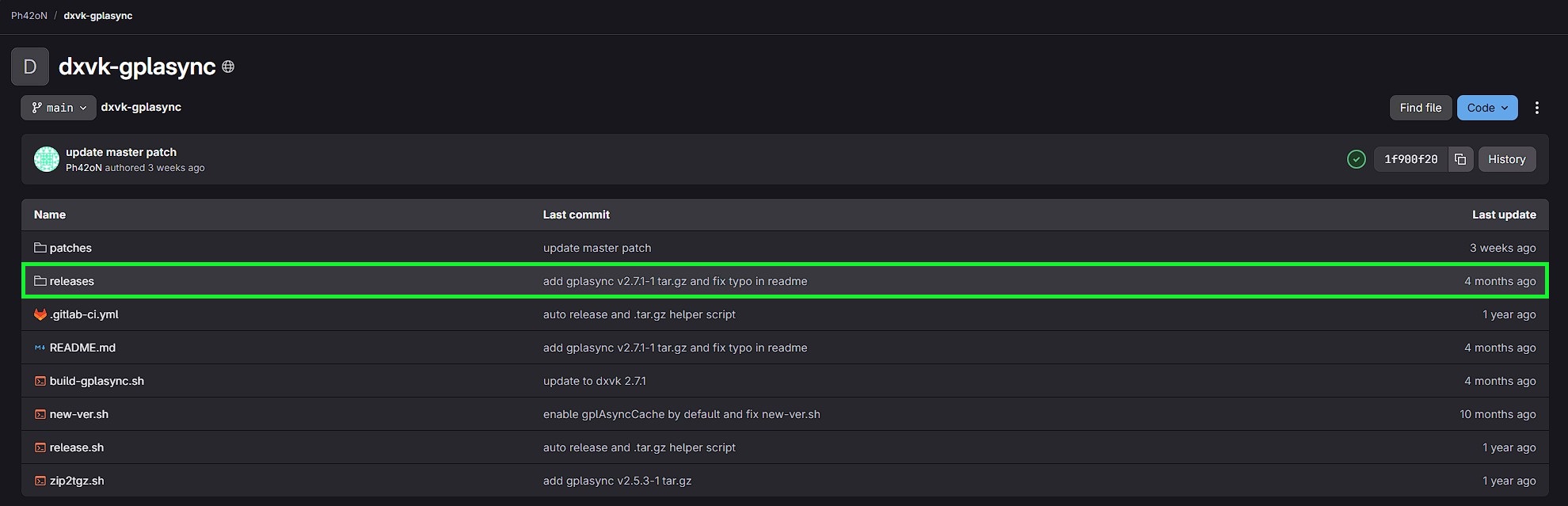
Click On The "Releases" That You See!
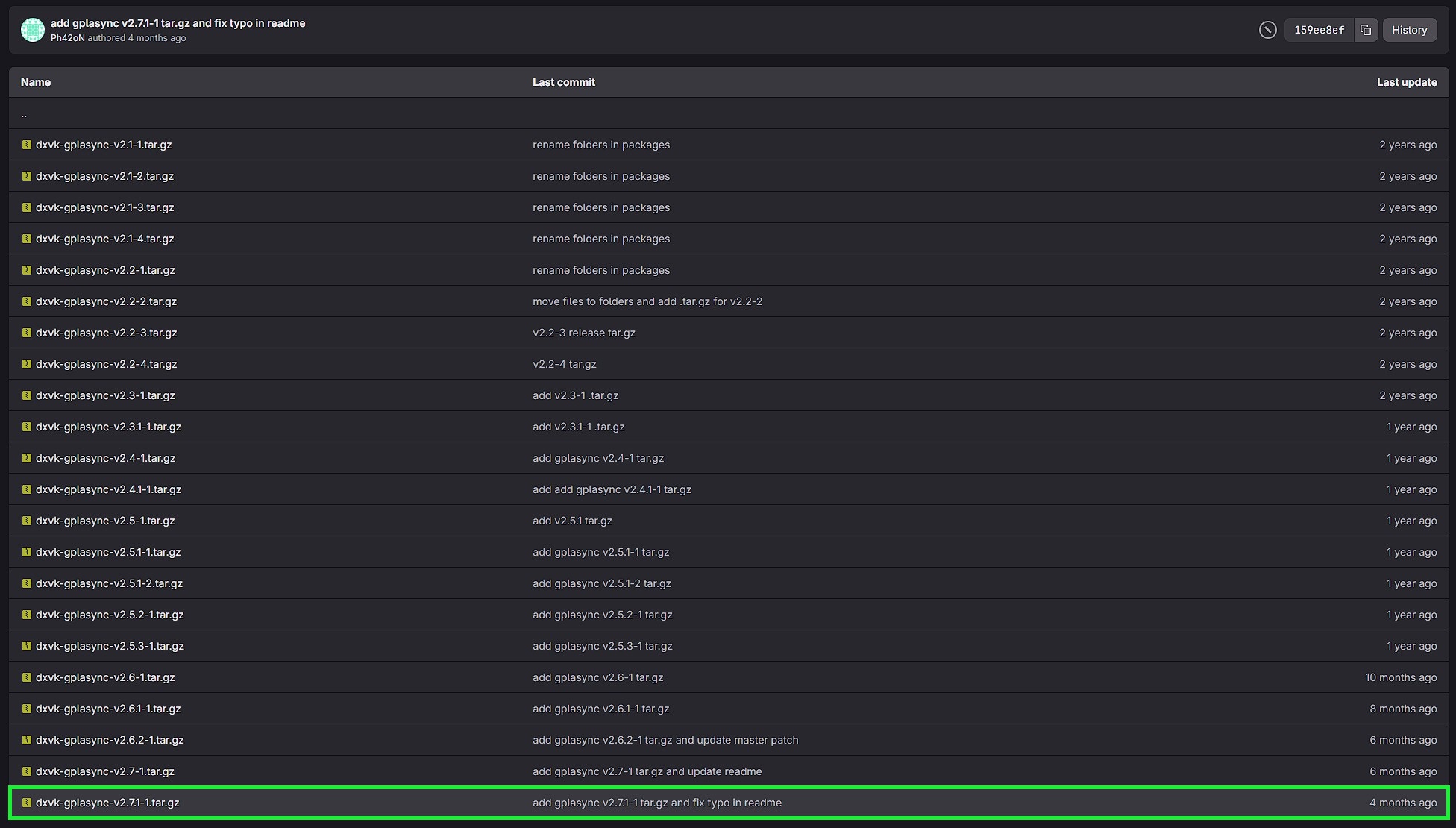
Scroll All The Way Down On The Website And Find The Latest Version That You See "dxvk-gplasync-(Version).tar.gz" And Click On It

Download DXVK-GPLAsync!
Step (3) Download 7-Zip - Download Link
7-Zip Download Link > https://www.7-zip.org
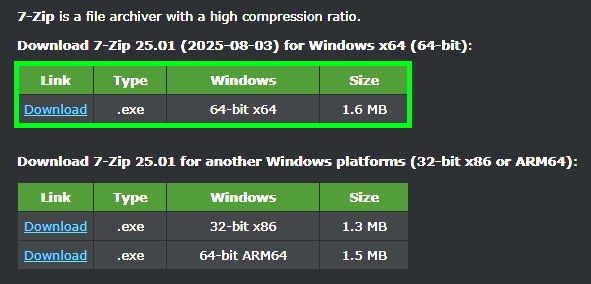
Donwload 7-Zip If You Don't Already Have A File Extracter!
Step (4) Extract DXVK-GPLAsync
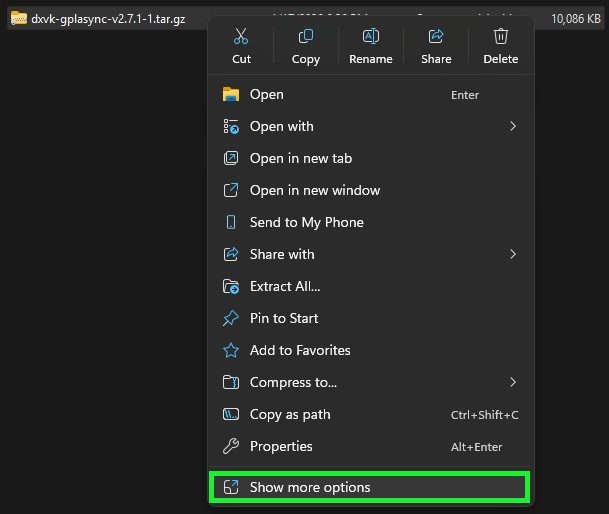
Right Click On DXVK-GPLAsync And Click On "Show More Options"
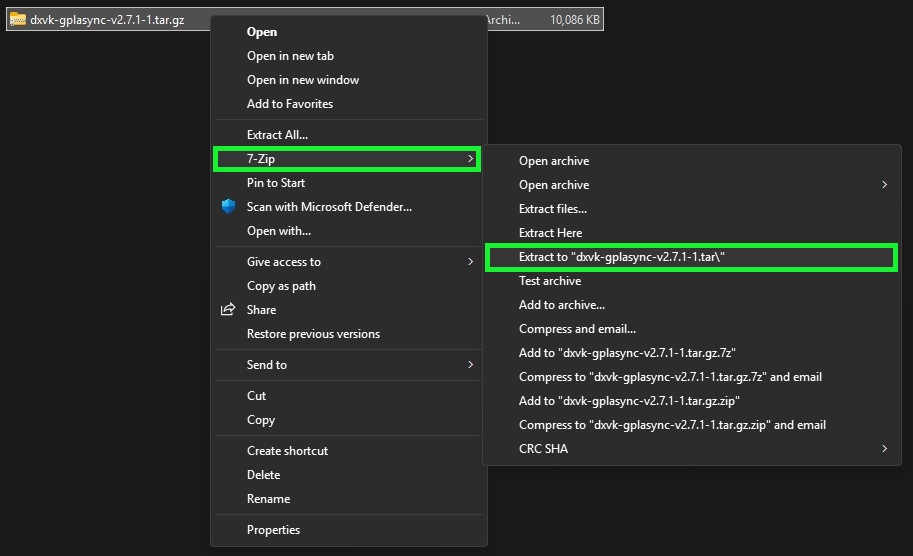
Then Click 7-Zip And After Click "Extract To dxvk-gplasync-2.7.1-1.tar/" After Go Into The Folder That You Just Extracted And Extract The Next Folder With The Same Name Again!
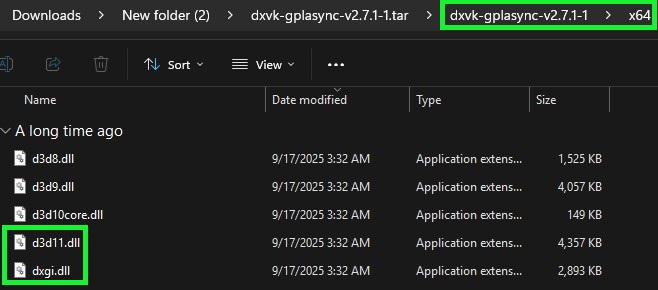
Go Into The dxvk-gplasync-v2.7.1-1 & x64 Folder And Copy Both d3d11.dll & dxgi.dll Files!
Step (5) Call of Duty Ghosts Folder
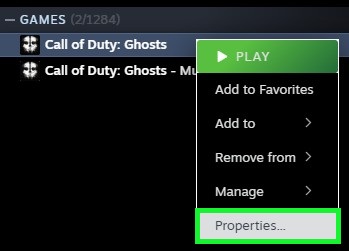
Go To Your Steam Library & Right Click On Call of Duty Ghosts And Click On Properties...
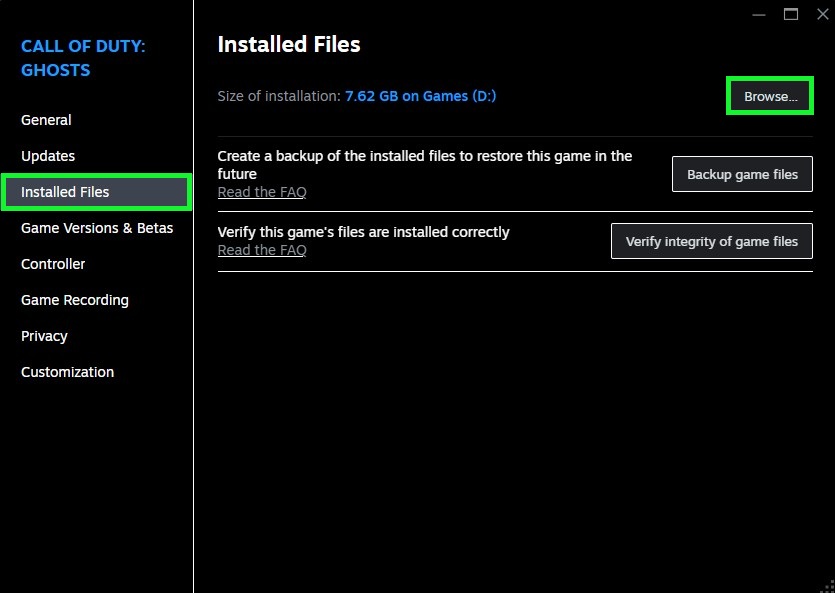
Click On Installed Files & Then Click On Browse.. After Right Click In Your Call of Duty Ghosts Folder And Paste Both d3d11.dll & dxgi.dll Files Into It!.
Step (6) Make A Text Document
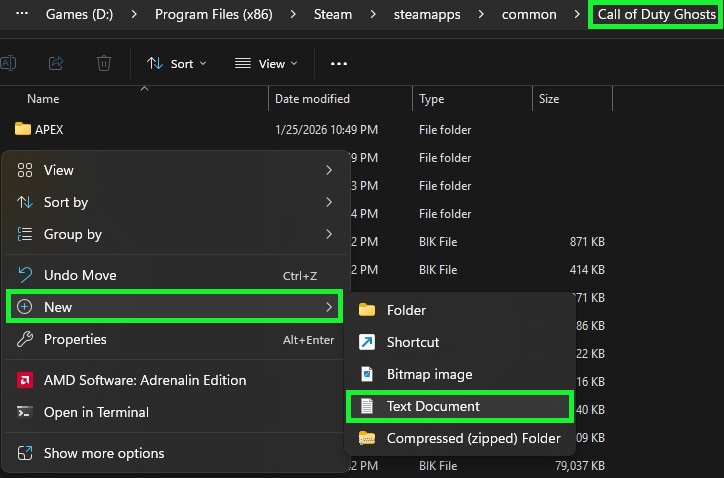
"Right Click" In Your "Call Of Duty Ghosts Folder" And Click "New" Then Click "Text Document"
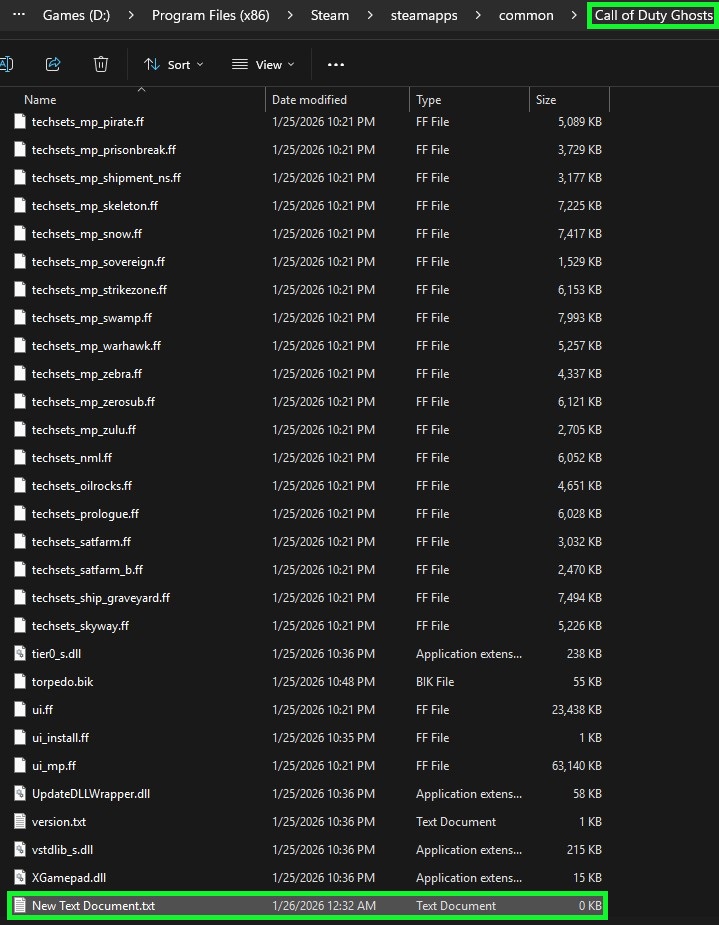
Now Open Up The Text Document That You Just Made!
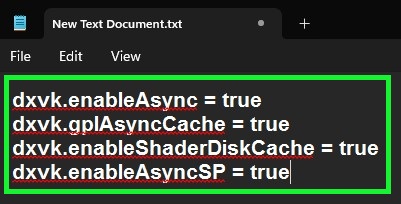
Now Type Are Copy And Paste These Commands Into The Text Document After Save The Text Document!
dxvk.enableAsync = true
dxvk.gplAsyncCache = true
dxvk.enableShaderDiskCache = true
dxvk.enableAsyncSP = true
dxvk.gplAsyncCache = true
dxvk.enableShaderDiskCache = true
dxvk.enableAsyncSP = true
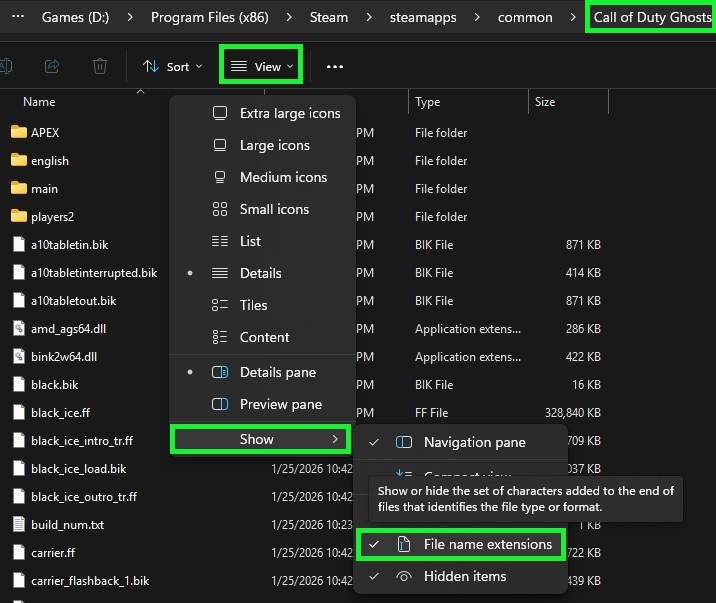
At The Top Click On "View" Then "Show" And Make Sure "File Name Extensions" Has A Check Mark On It!
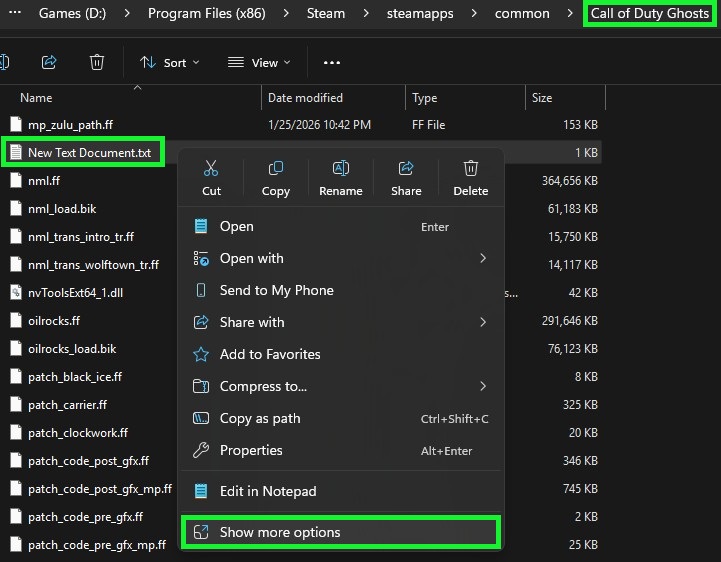
Right Click On The Text Document And Click On Show More Options!
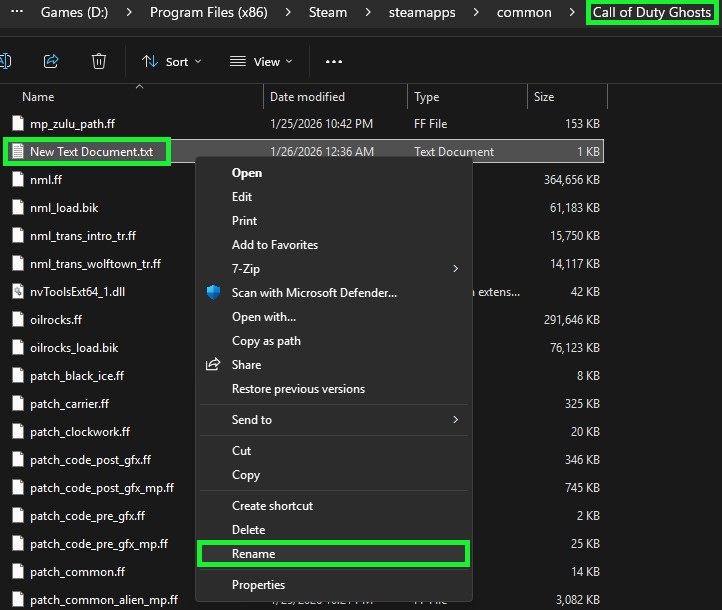
Next Click On "Rename"
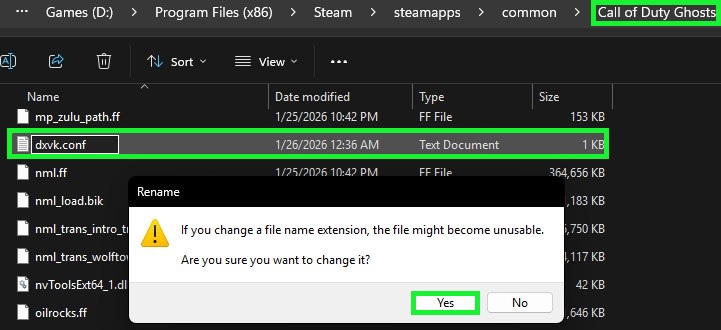
Rename The "Text Document.txt" To > dxvk.conf Then After Click "Yes"
Step (7) Environment Variable
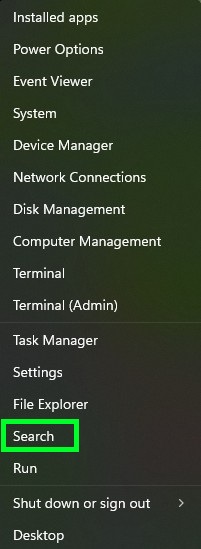
Right Click On Your Windows Start Button And Click On Search!
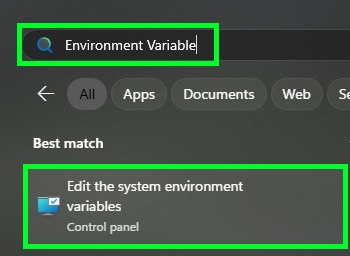
Type Environment Variable In The Search Bar!
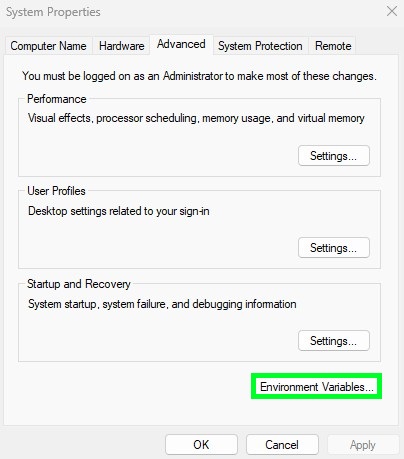
Click On Environment Variable!
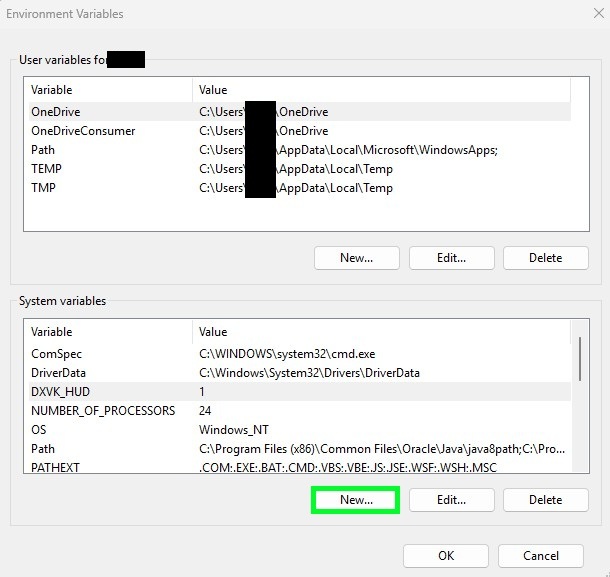
Click On New... At The Bottom!
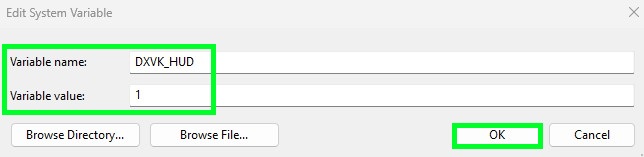
Variable name: DXVK_HUD
Variable value: 1
After You Type That All In Click OK > OK > OK!
Step (8) Download RTSS Rivatuner Statistics Server - Download Link
RTSS Rivatuner Statistics Server Download Link > https://www.guru3d.com/download/rtss-rivatuner-statistics-server-download/
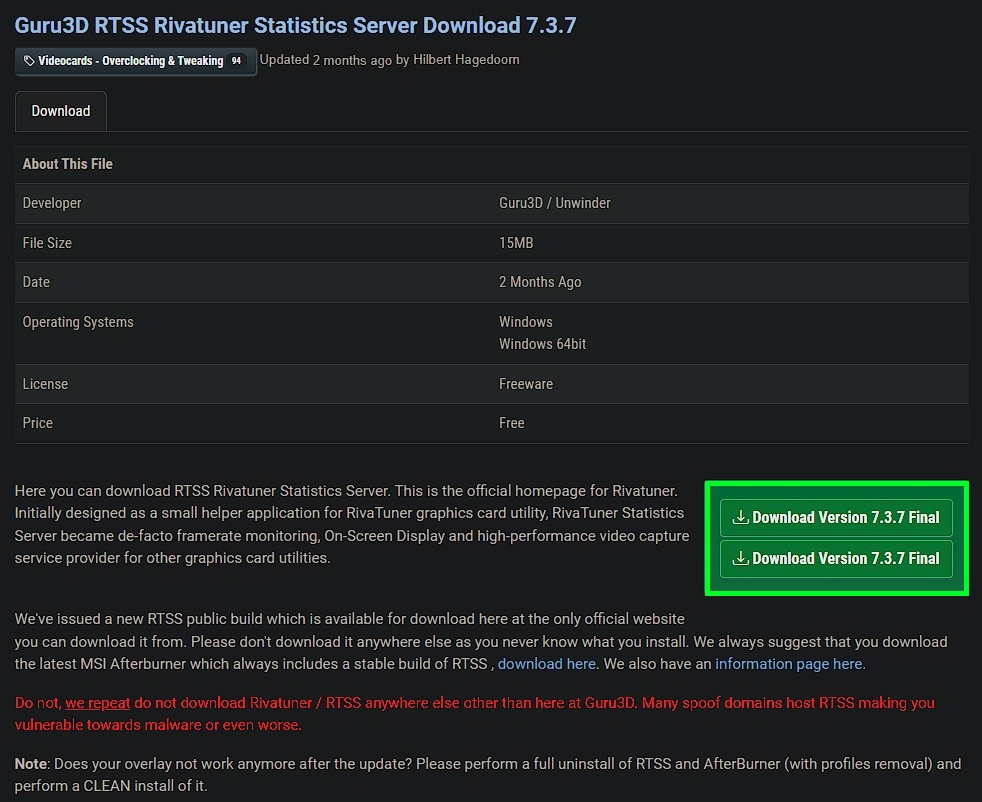
Click On "Download (Version) Final" And Download RTSS Rivatuner Statistics Server! After Extract, Install and Then Open Up RTSS Rivatuner Statistics Server!
Step (9) Setup RTSS Rivatuner Statistics Server
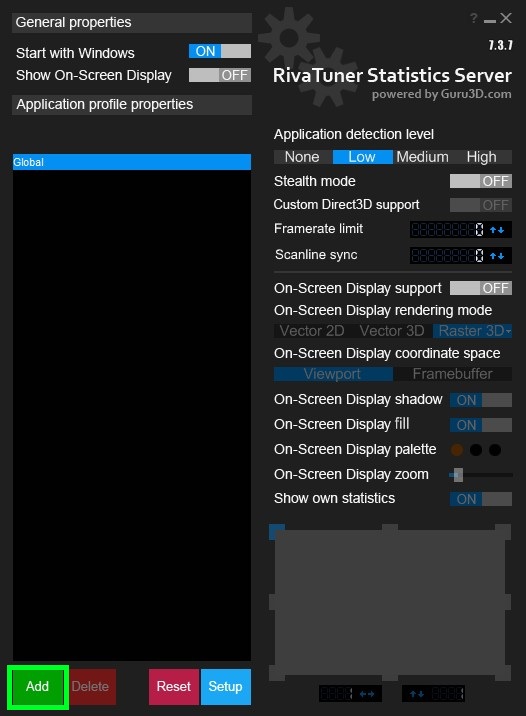
After You Open Up RTSS Rivatuner Statistics Server Click On "Add"
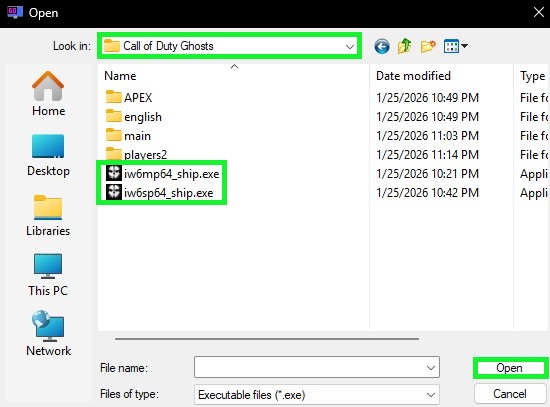
Find Your "Call of Duty Ghosts Folder" W/E You Have It Installed At! Click On "iw6sp64_ship.exe are iw6mp64_ship.exe" & Then Click On "Open"
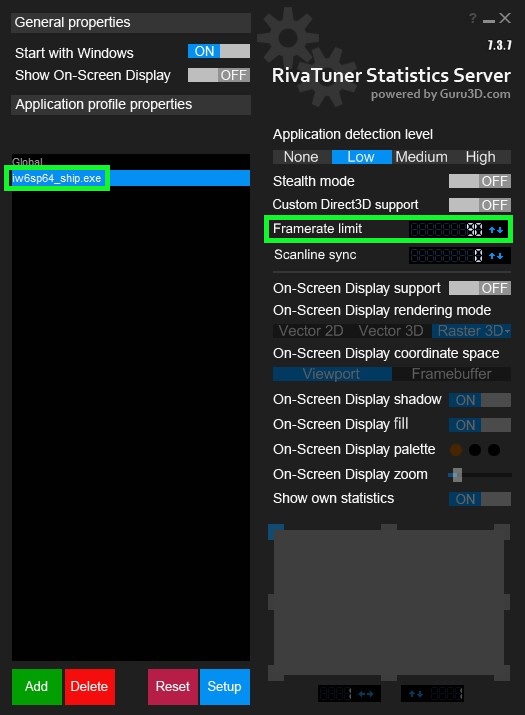
Click On The ".exe" And Type In "90" Under "Framerate limit" & Then Press Enter! After Make Sure You Minimize It And Keep It Running In The Background!
***WARNING*** Do Not Go Higher Then 90 FPS COD Ghosts Does Not Like More Frames!
For Whatever Reason If You Actually Do Get Stutters Even At 90 FPS I Highly Recommend To Cap It At 60 FPS!
Step (10) Make Sure DXVK-GPLAsync Is Working

Open Up Your COD Ghosts Game At The Top Left Corner Of Your Screen You Should See Something Similar To This Picture!
If You See It, It's Working If Not You Did Something Wrong!
Now Go Have Fun Without Any Stuttering Anymore! Happy Gaming!!!
If You See It, It's Working If Not You Did Something Wrong!
Now Go Have Fun Without Any Stuttering Anymore! Happy Gaming!!!
More Call of Duty: Ghosts guides
- Call of Duty: Ghosts - Rorke File Locations (with images)★ 5 (635)13k views775 ♥5 minUpdated Feb 25, 2014
- Achivement Guide :D Campaign Guide!★ 5 (527)13k views657 ♥17 minUpdated Jan 15, 2014
- FOV changer for Call of Duty: Ghosts★ 4 (60)12k views61 ♥1 minUpdated Jul 15, 2022
- Достижение "Аудиофил" Нахождение всех файлов Рорка!★ 5 (380)7.4k views333 ♥1 minRussianUpdated Jan 4
- [RU] Полная русификация Call of Duty: Ghosts★ 4 (92)7.1k views188 ♥1 minRussianUpdated Jan 8, 2020
- Гайд по всем достижениям к CoD:Ghosts★ 5 (479)6.8k views446 ♥5 minRussianUpdated Mar 8, 2016


This guide was created by its original author on the Steam Community. Are you the author and want it removed? Request removal.