How to get the Playstation interface instead of Xbox in Ori and the Blind Forest
What you Need
You would need to download 2 things in order for this mod to work
The First thing that you need to do is the
"PS4 Button Prompts for Ori and the Blind Forest Definitive Edition" Mod
Link to the mod[www.nexusmods.com]
The Second thing that you would need to download is something called UnityEx
The Link to UnityEx[www.dropbox.com]
I am not sure if this is required, but I would recommend running the game once if you can. You do not need to do anything, just load into the menu, and just exit the game.
The Steps
- The first thing that you need to do is to Download the two things mentioned above. I would recommend putting them in a folder. I would recommend that you would put the files in a place where you can find them easily
- The next step is for you to extract both files. Extract them to a place where you can find them easily.
- Next, open steam, go to your library, and then press on Ori, and the Blind Forest. Press on the manage button (the cog wheel) on the right-hand side and then press properties. Press the local files tab, and then the Browse button
- Once you are in the file explore, you want to open the "oriDE_Data" folder.
- Now, make a new window of file explore by pressing it in your taskbar while shifting (if you have a newer version of windows 11, you can just open a new tab of file explore)
- Navigate to where you extracted the mod, and UnityEx.
- Open UnityEx and cut the .exe file (ctrl x)
- Now, in your first window (or tab) paste (ctrl v) the exe in. This would leave you with the .exe in the "oriDE_Data" folder
- Go into the location where you extracted "OriDE_PS4Buttons_v2-5-2-0-1586531928" in your first window of file explore and open the file. Then cut the "Unity_Assets_Files" folder.
- Then you will want to paste the folder in the "oriDE_Data" folder
Continue on to the next section
UnityEx steps
These next steps might get a little bit more complicated. But you are a big girl, and you will figure it out. I will include images to assist.
- Open UnityEx.exe file which now should be located in the "oriDE_Data" file
- Next, you will want to press on the "Open Archive" button on the top left.
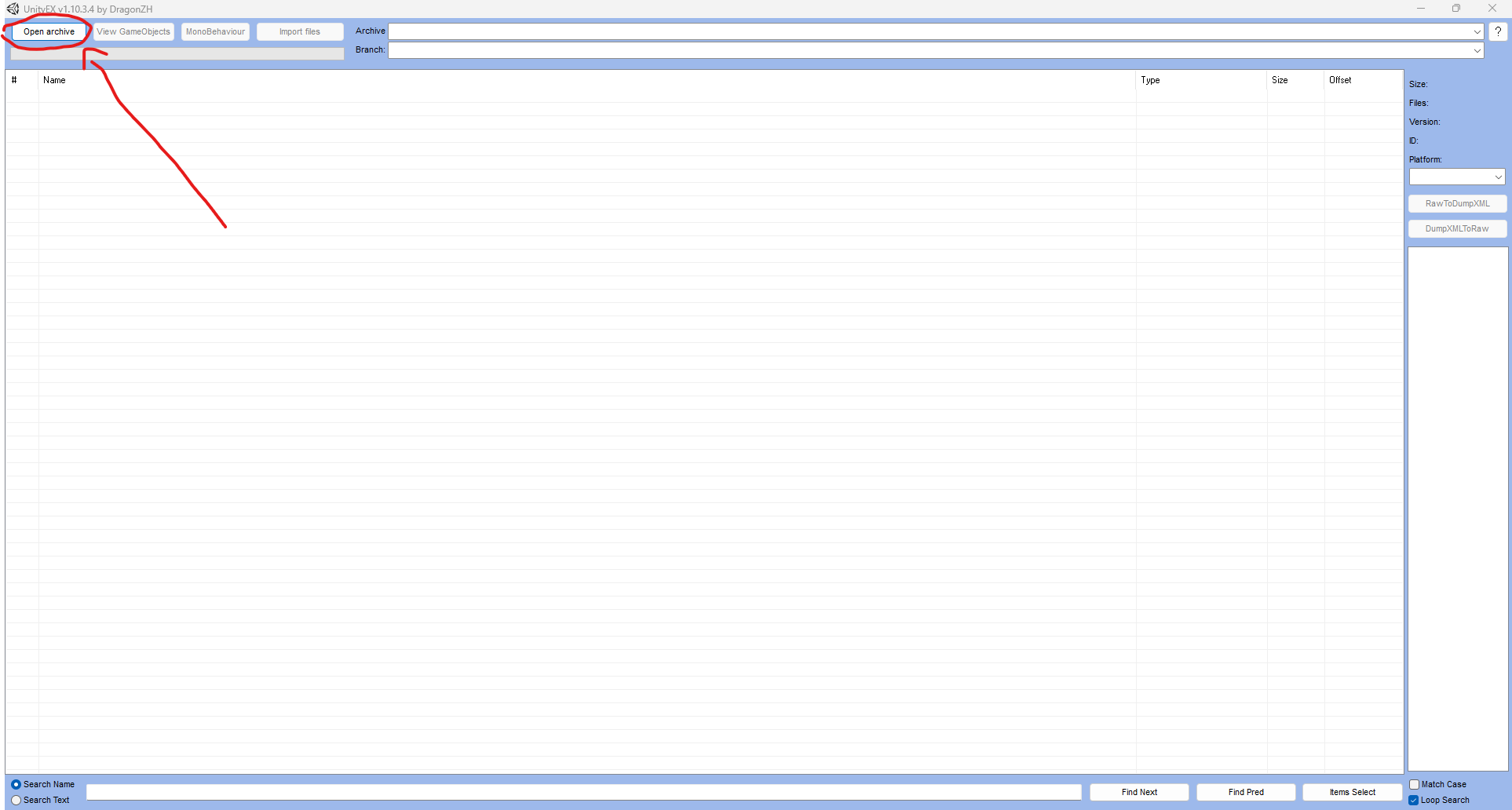
- When you press the button, you will want to navigate to the "oriDE_Data" It should look like this
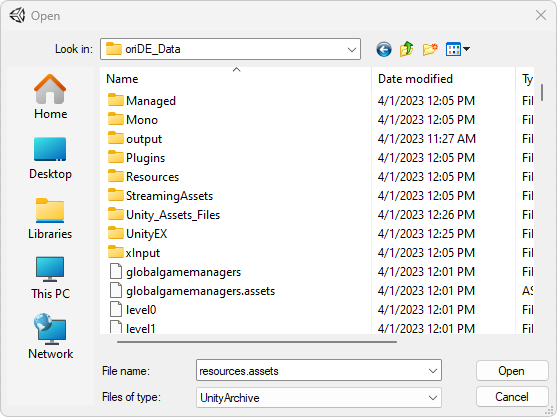 =Letterbox&imcolor=%23000000&letterbox=false
4. Now, there is two ways to do the Next step
=Letterbox&imcolor=%23000000&letterbox=false
4. Now, there is two ways to do the Next step- The first method is that you can just simply scroll until you find the "resources.assets" file
- Or, what I prefer, just simply paste the phrase "resources.assets" into the file name line
- No matter what step you did, when you find the file, press the "open" button
- Once you press the open button. You will see a ton of lines, fill the window. Do not mind any of that, because all you are gonna do is press the "Import Files" button near the top
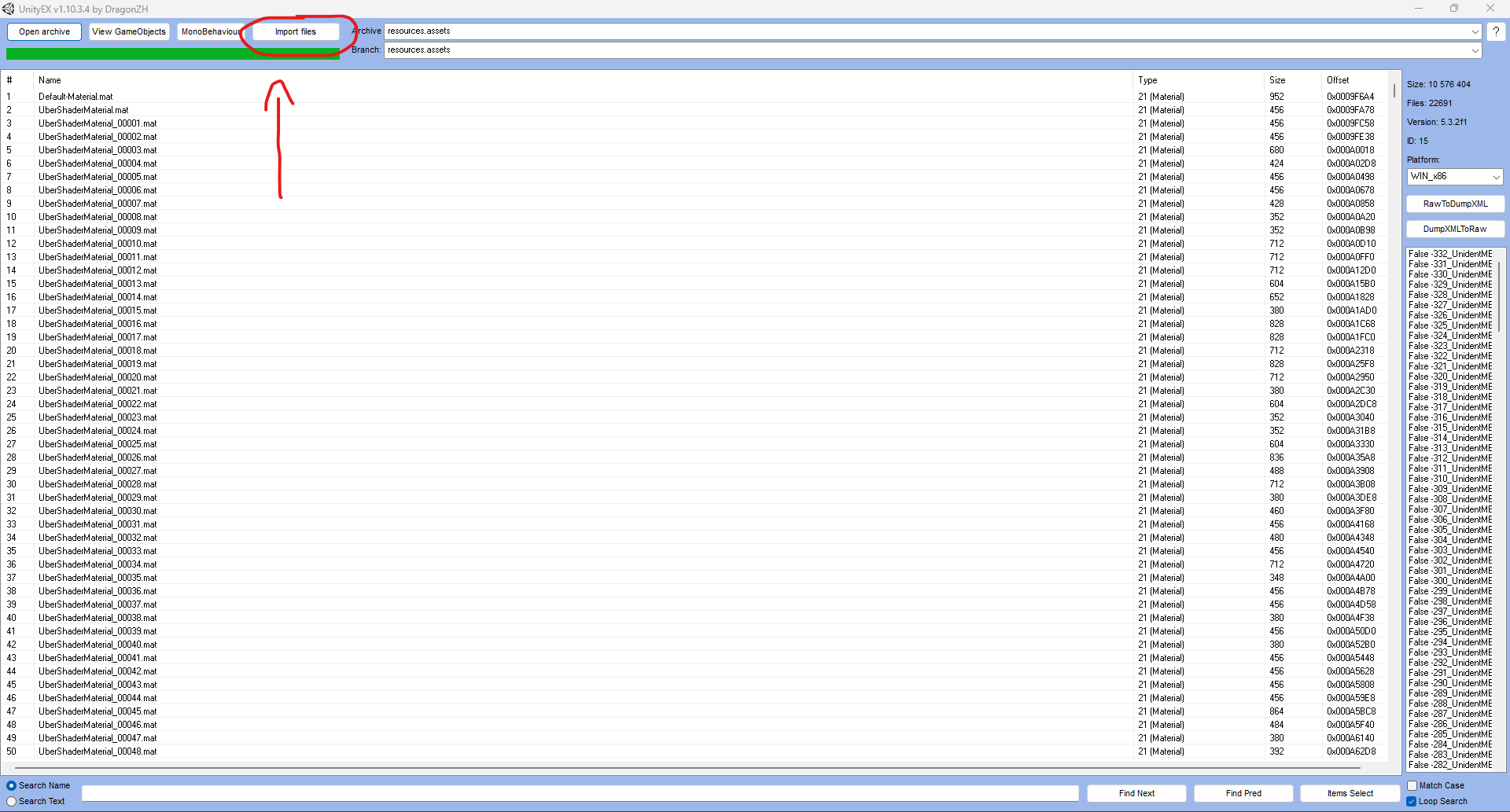
- Repeat step 4 and five 5, but instead of finding "resources.assets" You are now going to do the "sharedassets0.assets" file.
- Once, you do steps 4 and 5 with both files. You can exit out the program and launch up Ori. But there is one step, that I would recommend, if you are having issues with your controller inputs
Fixing Your controller inputs (Optional)
When I first used my controller for this game my inputs were all weird, for some reason, my X was my O and My square was my x. If you are having this issue, please follow along.
- Open steam, go to your library, and then press on Ori, and the Blind Forest. Press on the manage button (the cog wheel) on the right-hand side and then press the controller.
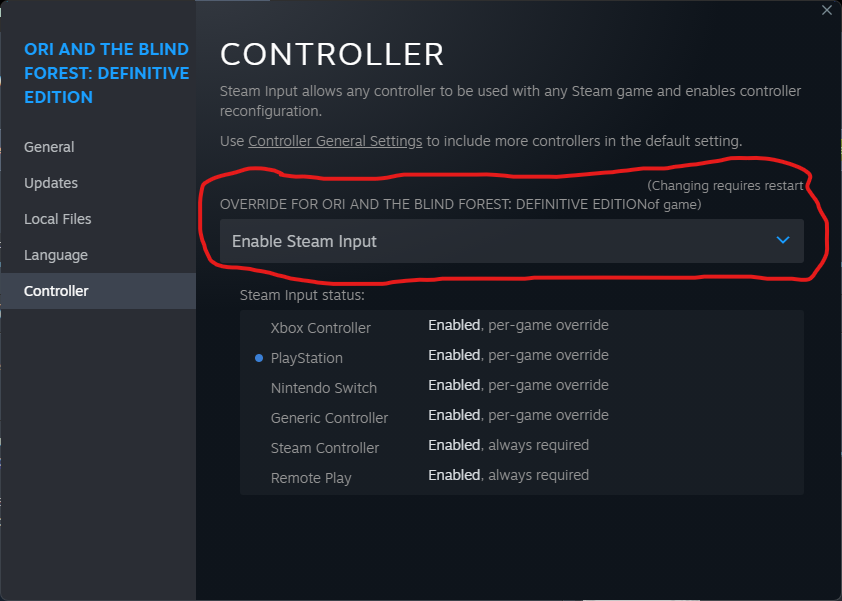
- You should be good to go after that.
In conclusion
This is my first guide. So let me know anything, to improve on
- Full Achievement Guide for Ori and the Blind Forest: Definitive Edition★ 5 (901)41k views1.2k ♥4 minUpdated May 6, 2016
- One Life Difficulty and Unhinged Achievement★ 5 (500)27k views733 ♥11 minUpdated Mar 14, 2021
- Ori 1终极版最全简体/繁體汉化指南★ 5 (416)25k views467 ♥1 minSimplified ChineseUpdated Oct 19, 2023
- Ori and the Blind Forest: Definitive Edition collectible map\奥日终极版全收集地图★ 5 (372)22k views423 ♥1 minSimplified ChineseUpdated May 5, 2016
- Карта мира и пояснения к достижениям "Лесничий" и "Под каждым камушком"★ 5 (349)21k views405 ♥1 minRussianUpdated Aug 16, 2024
- Простой фарм опыта★ 5 (261)16k views205 ♥1 minRussianUpdated Mar 1, 2021




- Upgrading to PremiumTeam Fortress 2★ 5 (20k)1441k views11k ♥6 minUpdated May 11, 2022
- No More Room in Hell Official ManualNo More Room in Hell★ 5 (2.8k)569k views2.1k ♥29 minUpdated Apr 22, 2019
- NMRiH Community Hosting GuidesNo More Room in Hell★ 5 (526)351k views653 ♥1 minUpdated Aug 10, 2022
- How to 'Git Gud' Soon™MORDHAU★ 5 (2k)318k views3k ♥68 minUpdated Nov 16, 2024
- Лучшие кооперативные игры SteamPAYDAY 2★ 5 (1.5k)315k views2.1k ♥56 minRussianUpdated Apr 27, 2025
- Desert Eagle Heat Treated | Blue GemCounter-Strike 2★ 5 (1.6k)293k views1.5k ♥2 minUpdated Jan 16





This guide was created by its original author on the Steam Community. Are you the author and want it removed? Request removal.