How to Mod in Gorilla Tag!
Quest Users/Quest Link/Steam Link:
For any ONLY Meta Quest users out there, this guide is NOT for you. For using Gorilla Tag mods, you need a PC and a headset capable of connecting to your PC. You CAN in fact use a Meta Quest headset with Quest Link, or Steam Link. Quest Link is built in to the Meta Quest, but not built in to your PC. To download the Quest PC app on your PC, go to https://www.meta.com/quest/setup/, and scroll down to Air Link and Meta Quest Link Cable, then click Download Software. To use it, click on Quick Settings on your Quest. Then click Quest Link. If it doesn't show up, you might need to enable it in settings. DO NOT buy Gorilla Tag on the Oculus App for PC, as it does not work with this guide. you HAVE to use Steam.
To use Steam Link, download it from the Meta Quest Store. Open it, then select the PC you want to run it with. You AND your PC have to be on the same Wi-Fi connection. Once you select your PC, you would have to put in a code for the first time. It shows a code on your headset, then type the code into the pop-up on your PC. It should boot into SteamVR once you entered the code.
Follow the rest of the steps after doing this to actually get mods.
Step 1:
(if you have recently tried getting mods, go to "PARTITION:\SteamLibrary\steamapps\common", find Gorilla Tag, and DELETE the folder. Go back to Steam, then Gorilla Tag, then Manage (the cog icon) > Manage > Uninstall. Then reinstall your game for your game to be COMPLETELY free of any recently used modding files. You will not lose cosmetics.
When you launch the game, you SHOULD NOT be in tutorial. The mods will be broken.
Step 2:
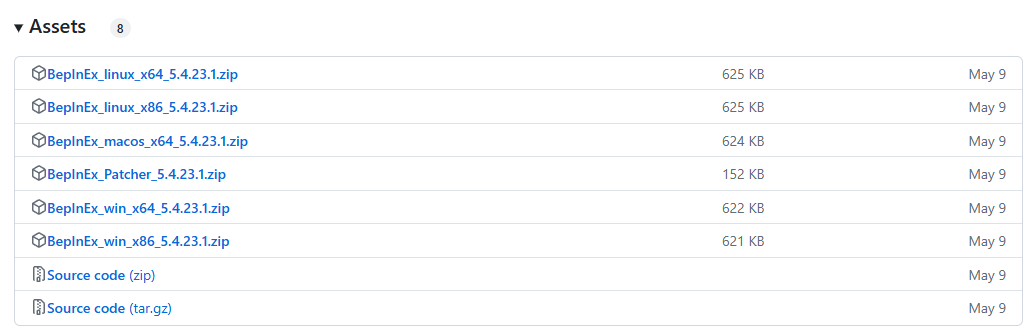
Choose BepInEx_win_[x64]_X.X.XX.X.zip" (the Xs' are the version numbers, and x86 is not compatible with Gorilla Tag, as it is made for older systems.
Step 3:
Once you click on one, view the file in your File Manager. Right-click on the file, then click Extract. You are going to click the Browse button, then find your Gorilla Tag Folder: "PARTITION":\SteamLibrary\steamapps\common\Gorilla Tag, inside it. Then you click OK, then Extract. It's going to move all BepInEx files to your Gorilla Tag folder. If you are having trouble using the Browse & Extract method. Just right-click the .zip, then Extract, then extract once again. Then move the un-zipped folder into your Gorilla Tag folder. This folder IN the Gorilla Tag folder, should contain ONLY a core folder for now. You also should have moved:
".doorstop_version"
"changelog.txt"
"doorstop_config.ini"
"winhttp.dll"
into your Gorilla Tag folder as well. If it says some files already exist, just click to replace them.
YOUR GORILLA TAG FOLDER SHOULD NOW CONTAIN:
"BepInEx"
"Gorilla Tag_Data"
"MonoBleedingEdge"
".doorstop_version"
"changelog.txt"
"doorstop_config.ini"
"Gorilla Tag.exe"
"UnityCrashHandler64.exe"
"UnityPlayer.dll"
"winhttp.dll"
Step 4:
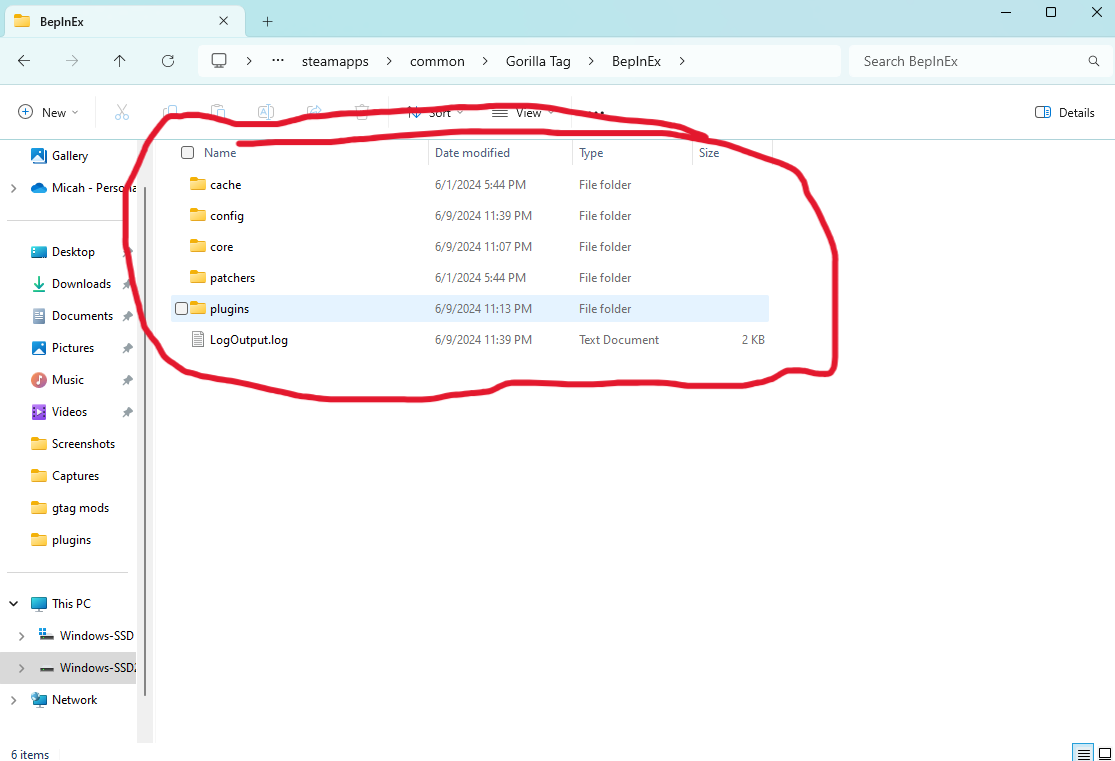
Once it's moved, launch Gorilla Tag once. Doing this will install all BepInEx files onto the BepInEx folder in the Gorilla Tag folder. You will not need to connect a headset just yet. Oncethe game has FULLY loaded, click on the X in the top-right corner. You have to close SteamVR too if it opens. Then check back in the BepInEx folder, and it should have:
a "cache" folder
a "config" folder
a "core" folder (that should have been there)
a "patchers" folder
a "plugins" folder
a "LogOutput.log" file
Step 5:
Step 6:
HOW TO INSTALL MODS (important!)
Useful/Fun Mods
I have a GitHub page with a TON of mods to use!! Go here: https://github.com/Micah1101/Gorilla-Tag-Mods/releases/ then click on any .dll file!
Mono Sandbox Mod: This mod is very cool for placing objects in Gorilla Tag! You can place blocks, gorillas, bEanS, and more! You can also get weapons such as a rifle and an AK-47. It's very cool, and legal! Download: https://github.com/Monosphere/Mono-Sandbox-Mod/releases/
ii's Stupid Menu: This mod menu is VERY insane. it has every single mod menu, almost anyone could think of! Guess how many mods it has. I bet you never guessed OVER 600 MODS! Long arms, size changer, LITERALLY EVERYTHING. Sometimes your computer thinks the .dll file is a virus, but not to worry, you can allow your virus protection to keep the file. Download: https://github.com/iiDk-the-actual/iis.Stupid.Menu/releases/
Yizzi's Camera Mod: This isn't exactly a mod menu, but it's a great camera for recording YouTube/TikTok videos! You could make it face you, face the other way, go into first person, and much more! Download: https://github.com/Yizzii/YizziCamModV2/releases/
Shiba GT Gold: This mod menu is so cool! This was my first mod menu that I ever used! I even wrote a song about it! (what) There is over 100 mods on this thing!! Download: https://github.com/7zennos/Gorilla-Tag-ShibaGT-Gold-Mod-Menu/releases/
MonkeTunes: This mod is definitely one of my favorites! You can play your favorite music in this one! Just extract the .zip, put it in your plugins, and there should be a "music" folder. This is where your .ogg files go! (If your music is not .ogg format, use a .ogg converter online). But this mod also needs a folder called TMPLoader. You must extract TMPLoader AND MonkeTunes to use it.
Download for TMPLoader: https://github.com/AHauntedArmy/TMPLoader/releases/
Download for MonkeTunes: https://github.com/Frogrilla/MonkeTunes/releases/
- How to install [MODS]★ 4 (270)27k views241 ♥2 minUpdated 27 Jun
- How to fly [Using HACKS and EXPLOITS]★ 4 (186)14k views48 ♥1 minUpdated 20 Feb, 2022
- How to become a monke★ 5 (240)14k views90 ♥1 minUpdated 27 Feb, 2022
- How to setup Gorilla Tag PCVR★ 4 (110)8.6k views64 ♥1 min
- How to git gud in Gorilla Tag★ 4 (126)8.2k views138 ♥3 minUpdated 18 Nov, 2023
- How to get mods in gtag!★ 4 (110)8k views60 ♥2 min





- Upgrading to PremiumTeam Fortress 2★ 5 (20k)1441k views11k ♥6 minUpdated May 11, 2022
- No More Room in Hell Official ManualNo More Room in Hell★ 5 (2.8k)569k views2.1k ♥29 minUpdated Apr 22, 2019
- NMRiH Community Hosting GuidesNo More Room in Hell★ 5 (526)351k views653 ♥1 minUpdated Aug 10, 2022
- How to 'Git Gud' Soon™MORDHAU★ 5 (2k)318k views3k ♥68 minUpdated Nov 16, 2024
- Лучшие кооперативные игры SteamPAYDAY 2★ 5 (1.5k)315k views2.1k ♥56 minRussianUpdated Apr 27, 2025
- Desert Eagle Heat Treated | Blue GemCounter-Strike 2★ 5 (1.6k)293k views1.5k ♥2 minUpdated Jan 16





This guide was created by its original author on the Steam Community. Are you the author and want it removed? Request removal.