How to play GTA Online on Linux (post BattlEye)
Linux Users
Linux users cannot, without extra work, access the online features (GTA Online) of Grand Theft Auto V due to BattlEye's Linux compatibility not being toggled for the game.
While it is incredibly unlikely you face any risk of being banned from playing normally with or without other players, you accept the inherent risk of Rockstar Games being an a$$hole.
Before reading the below information, verify If you have previously modified the game or included third-party tools such as trainers. If you have, you may want to delete such related files before continuing. If you are unsure of the locations of the files, you can perform a clean re-installation of the game and/or delete all related data folders of the game manually and use steam's file integrity check to reacquire the necessary files.
To access GTA Online, specifically private sessions, users must follow the below steps irregardless of which of the game platforms they use. The two steps boil down to the following:
- Block BattlEye DNS
- Allow BattlEye to function
For the first step, the user must navigate to their system hosts file or related configuration file for networking management on specific distros. You can open the file quickly and directly through the terminal with an editor such as nano or similar with a command like sudo nano /etc/hosts or use your GUI file manager and navigate to and open the file. The hosts file will need the below addresses. The first and third are for legacy and enhanced edition, respectively:
0.0.0.0 test-s1.battleye.com
0.0.0.0 paradiseenhanced-s1.battleye.com
Anything written in the file preceded by a '#' will be commented and ignored, thus not blocked. You may comment either of the two if you do not play both versions such as the example below:
If you are using the Steam Deck, you will need to unlock the filesystem for editing the hosts file due to SteamOS being an immutable operating system. While not necessarily required, it will prevent system updates from deleting your modifications to the file, requiring reapplication. If you have set your sudo password you can skip the first step below, else you can follow from the top:
- Enter your desktop mode and open your terminal (Konsole). Enter passwd and execute. Set the password you wish to use and note it down or ensure you can remember it
- Enter sudo steamos-readonly disable and execute
- Edit the hosts file with the aforementioned data
Do note that all participating users in your session, mission, heist, etc. must apply the above changes. It is important to reiterate that you cannot play in public sessions for any reasonable length of time as a Linux player, thus making them essentially inaccessible.
Steam
This section of the guide assumes you have purchased GTA V through the steam marketplace. This is the likely situation for the vast majority of users. Assuming you followed the instructions in the above Linux section, you can continue here. For either game version you must follow the below steps:
- Have the game installed on your system.
- Install the Proton BattlEye Runtime through your steam library
- Add the following line to your launch options under game properties for GTA: PROTON_BATTLEYE_RUNTIME=~/.local/share/Steam/steamapps/common/Proton\ BattlEye\ Runtime/ %command%While you may very likely have this directory where BattlEye is saved, please verify the directory of the BattlEye Runtime by right clicking the library entry --> Manage --> Browse local files and check to see if it is different. If it is, paste it replacing the above path. Note: If you copy-paste the path, you must either place it all in quotes or when spaces are present use the "\" like above to avoid needing quotations.
If on the Steam Deck or handheld distros, add the SteamDeck=0 launch parameter as well. Place it before the Battleye runtime target command. It would look something like the following:
The above instructions are intended if you are running the standard package of Steam. If you are, however, running the Flatpak package of Steam, you will need to provide the app access to the runtime directory path through Flatseal. The path for the runtime will differ from the above and will need to be input similar to the following:
If you are unfamiliar with using Flatseal, consult the following video and flatseal documentation:
https://www.youtube.com/watch?v=IfDUXZfDhEI
https://github.com/tchx84/Flatseal/blob/master/DOCUMENTATION.md
Lutris / Heroic
If you have purchased your game through the Rockstar launcher and are not tied to a steam account, you will simply need to enable the BattlEye Runtime under game properties in Lutris. If you encounter an error, try adding the environment variable. Ensure you are using proton for launching the game on these and not Wine as it will give you errors.
If you are using heroic, the same principle applies. Simply set the targeting variable of the Battleye runtime in its respective location while also blocking DNS connections.
Given I do not utilize the aforementioned software, I cannot provide in-depth explanations. If you have any issues or wish for further aid, consult ProtonDB for your respective game version provided in the sources section.
Possible Issues
GTA V itself is a very buggy game even on Windows. You may encounter some issues during your gameplay. While not an extensive list of all possible issues you may encounter, I have listed the below issues I've encountered when playing normally using Proton Experimental:
- BattlEye can kick you for various reasons. I have determined these following scenarios where BattlEye will kick you back to story mode:
- Returning to the game and accepting the message after AFK'ing too long
- Quickly following a mission completion. It is probably due to you being put into a public session as the game isn't consistent in retaining participating players in the same private session
- Launching immediately into online, aka a public session
- A player did not correctly apply the necessary changes in their hosts file or similar software solution
- After the tutorial and character creation you will be kicked by BattlEye, however it will still process normally. Simply enter story mode and rejoin into a private online session.
- Returning to the game and accepting the message after AFK'ing too long
- Performance may not perfect with some spikes here or there. Try switching between different protons until you have a more stable experience if experimental does not suffice and change around settings. Additional protons such as Proton-GE can be easily acquired and managed by tools like ProtonUp-QT.
- Using the in-game steam overlay can be problematic if you're a 1 monitor user or just like to alt+tab a lot. I have experienced that if you open your steam overlay and then alt+tab out of the game it will lock all future inputs in the game if you do not interact with the in-game steam overlay before closing it again. It might be good practice if you do also suffer this issue to disable it completely.
- Visual objective markers were invisible for a while then shortly afterwards in like a week or so, with a fix unknown to me, the markers were once again visible.
- Pressing HOME to bring up the rockstar social club menu may have your mouse cursor be invisible. This is a known issue for years and is likely not going to be fixed. You can use the in-game friends sub-menu if your only intent is to invite friends. You can overlay a smaller window above the game or shake the mouse to enlarge the cursor to be visible and continue movement to retain the size and visibility for your intended tasks.
Note that bugs present in the main game's missions, heists, etc. such as the mantrap bug, doomsday mastermind reset, etc. are still present and will appear at the same random occasion as if on a Windows machine. Such bugs will not be discussed here and you can search on how to avoid them or post a community forum discussion post for assistance on Steam or other social platforms.
127.0.0.1 test-s1.battleye.com
127.0.0.1 paradiseenhanced-s1.battleye.com
In your terminal you can attempt to ping any of these to see if it returns any response. If you receive an error, then it's working correctly. You can try in your terminal the following command:
Ensure there is no user error such as an incorrect character or wrong case on a certain character in your launch arguments written below. This would likely cause your game to not start. Ensure you are using Proton, not Wine.
Windows Users
This section is intended for users remaining on Windows that wish to play with their Linux friends. Linux players cannot join public sessions, so any of the players participating in an activity can host a private lobby, i.e. friends-only, invite-only or crew sessions and use that for activities. The only modification you must make is entering of three (3) lines onto a system text file. Alternatively, if you do not wish to edit a system file, you can use trusted third-party software such as Portmaster or similar.
Note: Performing these changes will not limit your access to the game like a Linux player. You can remove the modifications at any time if you encounter issues in an effort to diagnose.
If you choose to modify the hosts file, it requires administrator privileges. You can grant yourself administrator privileges in various ways:
- In your search bar, type Notepad and right click on its entry. Run the program as administrator then click on File --> Open and navigate to the directory for the hosts file. It will be defaulted to filter for only text files, so on the bottom-right dropbox, ensure All files (*.*) is selected. You may now select and freely modify the file without restriction.
- If you primarily use programs such as Notepad++, you can also run them as administrator then open the file and freely modify it.
- You can also grant yourself permanent modify permissions by following the below steps with an included GIF demonstration of the below steps:
- Right click the file and click 'Properties'
- Under the security tab, press 'Edit', which shows an administrator shield icon
- Tick the modify permission for Users <PC name>, which will also grant write, and apply
- Now, you can freely modify the file until permissions are reversed without running programs as administrator
You should reverse the changes of permissions granted for personal security after modifications.
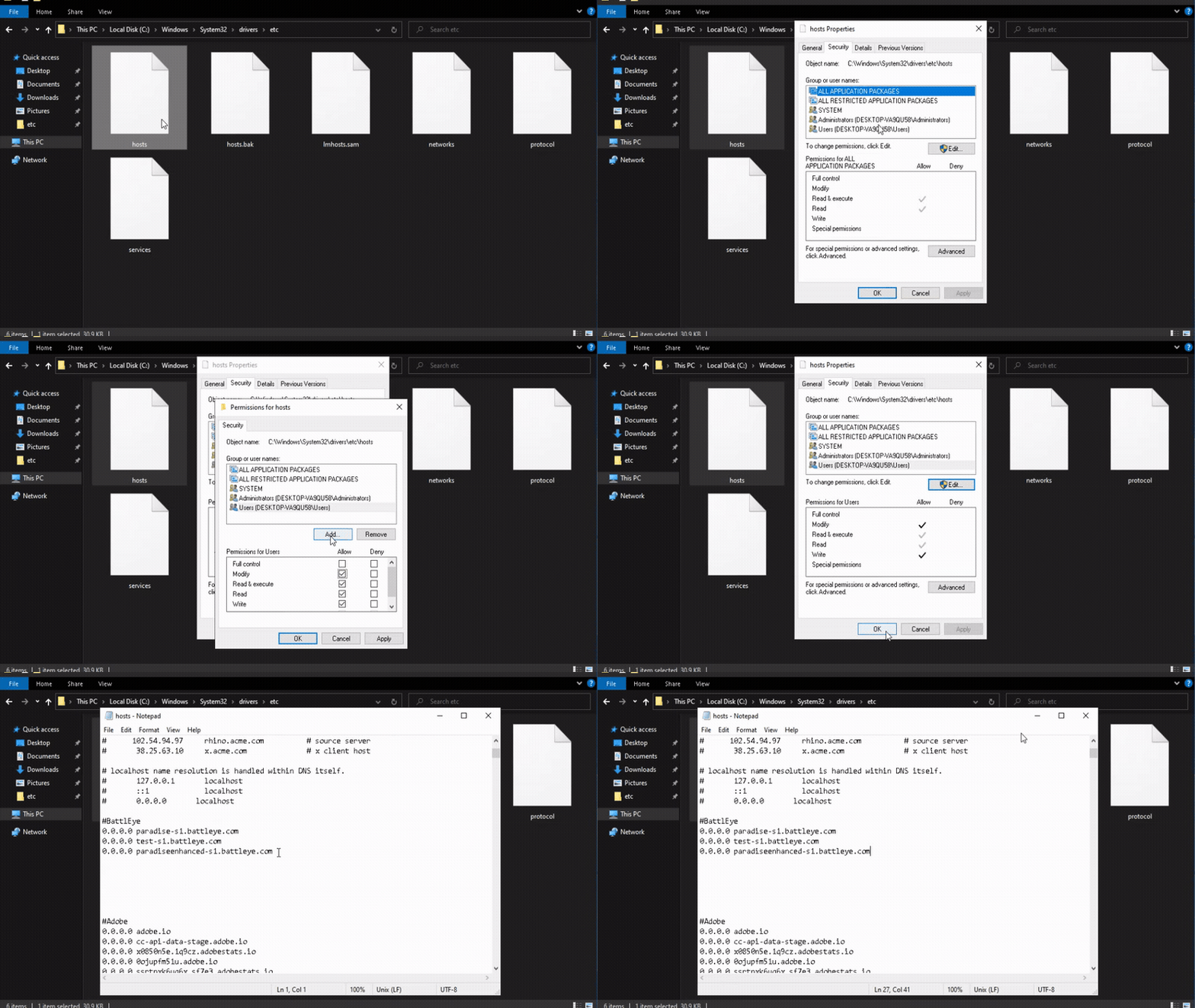
Below is what you must enter after having granted yourself administrative access:
0.0.0.0 test-s1.battleye.com
0.0.0.0 paradiseenhanced-s1.battleye.com
If you do not play both versions of Grand Theft Auto V, you can comment out, or delete, the first or third address. Placing a # before any of the lines will be commented and ignored by the system. The first address is used in Legacy edition, while the third is only used in Enhanced. Leave the second one alone for either version. These modifications will have not affect your gameplay aside from allowing Linux users to have a reasonable experience.
If you have applied all the above changes and still struggle to join your Linux friends, attempt a full system restart and try again. You can attempt to ping these servers to see if you get any response, thereby showing if it is working. You can type the following into your terminal:
e.g: ping paradise-s1.battleye.com
If all else fails, see the sources provided to seek additional guidance.
Is this some "---ware?"
Modifying your hosts file is not dangerous so long as you know what you are modifying. The anti-cheat that is required by the game likely presents greater security breach risks than the modification of this file. This file is what you'd modify manually or through a script to block Adobe servers if pirating their software to block activation and telemetry servers.
Possibilities of using this file maliciously can include redirection to fake versions of popular sites, search engines, etc. when infected with malware to scrape user account information, payment details, or personally identifiable information.
For a simple demonstration, close open browsers then enter the following into the file and apply:Further reading:
Explaining what the hosts file is
Accessing any web page accesses a specific IP address and domain name. This domain name is a string of text, such as google.com, that leads to the IP address such as 192.168.1.1. The DNS or domain name system is a 'phonebook' of the internet. DNS translates the domain names to IP addresses so the computer is able to access the internet resources. The hosts file can let us control where domain names direct us to either for our own purposes or (if you have malware) for someone's nefarious intent.
Explaining what is required
The simple, most elementary explanation, is that we essentially need you to route the locations of the addresses already required for Linux users to just access online as well. 0.0.0.0 is considered the location of your computer, so inputting these addresses and then once playing the game it will attempt to find them and fail, then skipping it and thus blocked it.
Additional Considerations
Community
Unfortunately, a large quantity of content is blocked behind additional players needing to join you to complete them. This includes many things such as the original apartment heists, doomsday heists, and a lot more. It is unreasonable to believe every Windows user will be convinced to make the change for Linux users. The next logical step is building community through steam groups, discord servers, social club community, etc. for all Linux and Windows participants interested in playing together.
To ensure no issues, confirm you have your settings applied correctly as either a Linux or Windows player if you wish to stay in these community groups to provide everyone a good experience and to read, understand, & follow the rules set by the administrators and moderators of each one. You can even make your own if you wish. Crew sessions will become the new public lobbies for these groups.
- https://steamcommunity.com/groups/GTA_Online_Linux (Enhanced Edition Steam Group)
- Source: Comment in this guide
- https://socialclub.rockstargames.com/crew/linux_crew/ (Rockstar SC Crew | Search in the in-game SC menu "Linux Crew")
- Source: https://www.youtube.com/watch?v=w6O3VKbU4KA (content in video description)
- https://discord.com/invite/WEYrcUQv88 (GTA:O Linux Discord Server)
- Source: https://www.youtube.com/watch?v=w6O3VKbU4KA (content in video description)
Sources
- https://steamcommunity.com/games/271590/announcements/detail/6356356787200715685?snr=2___
- https://wiki.archlinux.org/title/Steam/Game-specific_troubleshooting#Grand_Theft_Auto_V
- https://www.reddit.com/r/linux_gaming/comments/1gsnm3k/gta_online_battleye/
- https://www.youtube.com/watch?v=w6O3VKbU4KA
- https://bbs.archlinux.org/viewtopic.php?id=303710
- https://www.reddit.com/r/SteamDeck/comments/1mw5if0/gta_v_battleye_on_steamdeck/
- https://store.steampowered.com/news/group/4145017/view/3104663180636096966=
- https://twitter.com/TheBattlEye/status/1441477816311291906
- https://www.protondb.com/app/271590 [Legacy]
- https://www.protondb.com/app/3240220 [Enhanced]
- https://areweanticheatyet.com/?search=grand+theft+auto+v&sortOrder=&sortBy=
- https://www.reddit.com/r/linux_gaming/comments/1qpvh8g/comment/o2cs7mj/
- Создание женского персонажа в GTA ONLINE | Женский персонаж 1.0★ 5 (1.7k)91k views2.1k ♥2 minRussianUpdated 23 Jan, 2019
- [RUS] Достижения в Grand Theft Auto V. Руководство по получению 100%★ 5 (5k)77k views5.7k ♥43 minRussianUpdated 22 Oct, 2021
- Grand Theft Auto V 100% Achievement Guide★ 5 (2.6k)66k views4.1k ♥69 minUpdated 18 Jun, 2015
- Гайд по обновлению "Ограбление Кайо Перико"★ 5 (719)65k views1.5k ♥6 minRussianUpdated 25 Dec, 2022
- Руководство по The Cayo Perico Heist★ 5 (598)61k views1.2k ♥24 minRussianUpdated 20 Oct, 2021
- Заначки Джеральда в онлайн-режиме★ 5 (397)58k views901 ♥3 minRussianUpdated 5 May




- Upgrading to PremiumTeam Fortress 2★ 5 (20k)1441k views11k ♥6 minUpdated May 11, 2022
- No More Room in Hell Official ManualNo More Room in Hell★ 5 (2.8k)569k views2.1k ♥29 minUpdated Apr 22, 2019
- NMRiH Community Hosting GuidesNo More Room in Hell★ 5 (526)351k views653 ♥1 minUpdated Aug 10, 2022
- ULTIMATE GUIDE FOR GAME DEV TYCOONGame Dev Tycoon★ 5 (5.8k)326k views10k ♥4 minUpdated 23 Jan, 2014
- How to 'Git Gud' Soon™MORDHAU★ 5 (2k)318k views3k ♥68 minUpdated Nov 16, 2024
- Лучшие кооперативные игры SteamPAYDAY 2★ 5 (1.5k)315k views2.1k ♥56 minRussianUpdated Apr 27, 2025






This guide was created by its original author on the Steam Community. Are you the author and want it removed? Request removal.