How to Play Old Versions of Below Zero
Preface
Luckily, you can still play the old versions, it's just a bit more difficult. I made this guide to help walk people through it, so these versions of the game will remain accessible.
Downpatching Tutorial
Step 0: Back up your saves (SNAppData folder).
- Press Windows Key + R, or manually open the Run program. Paste in: steam://nav/console
- Paste the download_depot code you want (see below) into the Steam console.
- The game will download for a few minutes. There is no progress bar. When it's finished, it will tell you where it installed to. In my case: C:\Program Files (x86)\Steam\steamapps\content\app_848450\depot_(depot ID)
- Navigate to wherever you have Below Zero installed: \steamapps\common\SubnauticaZero
- Delete everything except SNAppData (this is your save folder), and paste in the files you downloaded.
On Mac or Linux, look up how to open the Steam console and the steps should be roughly the same from there.
download_depot Codes
These should work with Legacy mods.
This version is tagged with "legacy", and may have been the version that loaded when you selected "Legacy" in the Betas tab. However, it does not download for me, and I don't know if it's functionally different from the 4 October version.
The last public build before the final story rework.
This is EA8.1, the actual last build before the story rework, but does not download for me. It only adds Snowballs, anyway.
EA5 and its hotfix. This is the first version of the story, which was reworked in EA6.
The first released version of the game.
How to Download Any Version
This section is not necessary for most people, but if you want to play any version of Below Zero (not just the ones I provided above), it requires some extra work. The Update History[subnautica.fandom.com] page can be helpful here.
Note: You may need to log in with your Steam account on SteamDB.
First, find the SteamDB page for Below Zero[steamdb.info]. Look to the tabs on the left and click Depots. Ignore the Shared Install/VC Redistributable ones.
Click on the depot ID you want to check, then click the Manifests tab on the left. You'll see a list of previous versions, the dates, and ManifestID. If there aren't any manifests or they aren't the right version, go back and check a different depot.
For me, I need to click Filter branch and select public, as experimental versions refuse to download. But you can try for yourself.
Once you find the version of the game you want, click the copy button on the right of the manifest ID, and paste that into the Steam console.
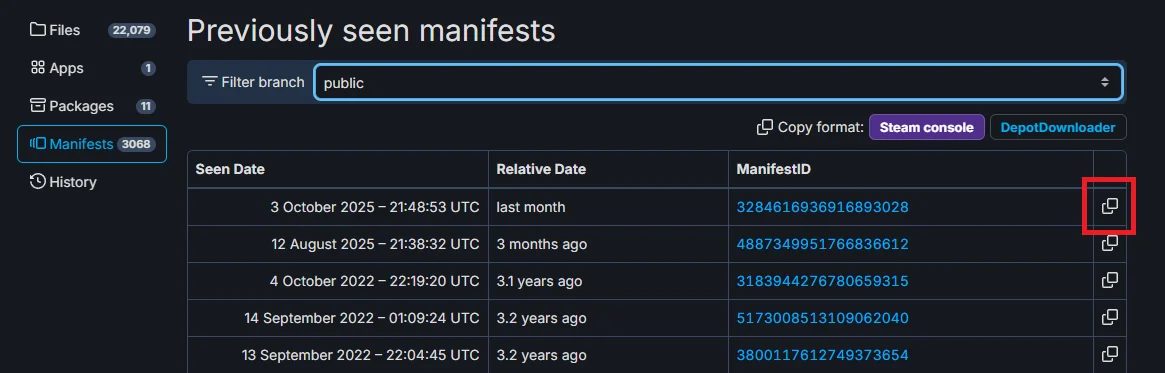 Or if you want to do it manually, copy the depot and manifest ID yourself and paste them in as so:
 Troubleshooting
Try ALL of the following:
- Redownload the same version again, paying attention to the notes below.
- Download a different version, to see if the problem is with a specific version of the game.
- Whenever you download a file, make sure you delete everything in your \Steam\steamapps\content\app_xxx folder first. The download may get corrupted if there are already files in that folder.
- Make sure the Steam console tells you the download is complete before you move the files.
- When you paste the files into \steamapps\common\SubnauticaZero, make sure you delete the files there first. That folder should be entirely empty (except for your saves folder, SNAppData) before you paste.
- When you paste into \steamapps\common\SubnauticaZero, make sure you're pasting the game files directly, not the depot_xxx folder the files came in.
- Make sure you used the right code for your operating system (Mac or Windows).
- Go to Steam Library > Right click Subnautica: Below Zero > Updates > Automatic Updates > Select Wait until I launch the game. Then redownload the old version.
Final Notes
Instead of all this, you could also try using DepotDownloader[github.com]. This will possibly allow you to download experimental builds, but I haven't tried it myself.
If you have trouble, ask me, I'll try to help you.
Original Subnautica version of this guide: https://steamcommunity.com/sharedfiles/filedetails/?id=3613280186
- Complete Walkthrough [Subnautica Below Zero]★ 5 (438)32k views1.1k ♥26 minUpdated Jun 11
- Material Locations★ 5 (631)31k views1.3k ♥5 minUpdated Aug 29, 2025
- Subnautica: Below Zero 100% Achievement Guide★ 5 (514)27k views949 ♥8 minUpdated Jun 26
- Console Commands (Cheats)★ 5 (526)22k views1.3k ♥9 minUpdated Sep 24, 2021
- Simple Walkthrough★ 5 (314)20k views649 ♥9 minUpdated Jul 11, 2023
- Прохождение Subnautica Below Zero★ 4 (141)19k views369 ♥5 minRussianUpdated Nov 11, 2020


- Upgrading to PremiumTeam Fortress 2★ 5 (20k)1441k views11k ♥6 minUpdated May 11, 2022
- No More Room in Hell Official ManualNo More Room in Hell★ 5 (2.8k)569k views2.1k ♥29 minUpdated Apr 22, 2019
- NMRiH Community Hosting GuidesNo More Room in Hell★ 5 (526)351k views653 ♥1 minUpdated Aug 10, 2022
- ULTIMATE GUIDE FOR GAME DEV TYCOONGame Dev Tycoon★ 5 (5.8k)326k views10k ♥4 minUpdated 23 Jan, 2014
- How to 'Git Gud' Soon™MORDHAU★ 5 (2k)318k views3k ♥68 minUpdated Nov 16, 2024
- Лучшие кооперативные игры SteamPAYDAY 2★ 5 (1.5k)315k views2.1k ♥56 minRussianUpdated Apr 27, 2025






This guide was created by its original author on the Steam Community. Are you the author and want it removed? Request removal.