How to set up a "Listen Server"!?
Intro / basics
 • As the Steam release is near this Steam guide will help us getting more server filled[steamcharts.com] when officialy launch! (at least i hope! ^^)
• Easier than dedicated one to create, Listen servers are run on the same machine as the game client.
When the client disconnects, the server is shut down, as the server and host client are run together.
So check game cache integrality (game properties) before host it in order to avoid crashs.
• Listen servers usually cannot support too many players, due to bandwidth and CPU requirements.
So please optimize your internet connection so close others useless programs and run only the minimal requiered.
(Do not even try if you are on the neighbourhood wireless!)
How to proceed?!
• Launch the command prompt (executable name cmd.exe )
Enter:
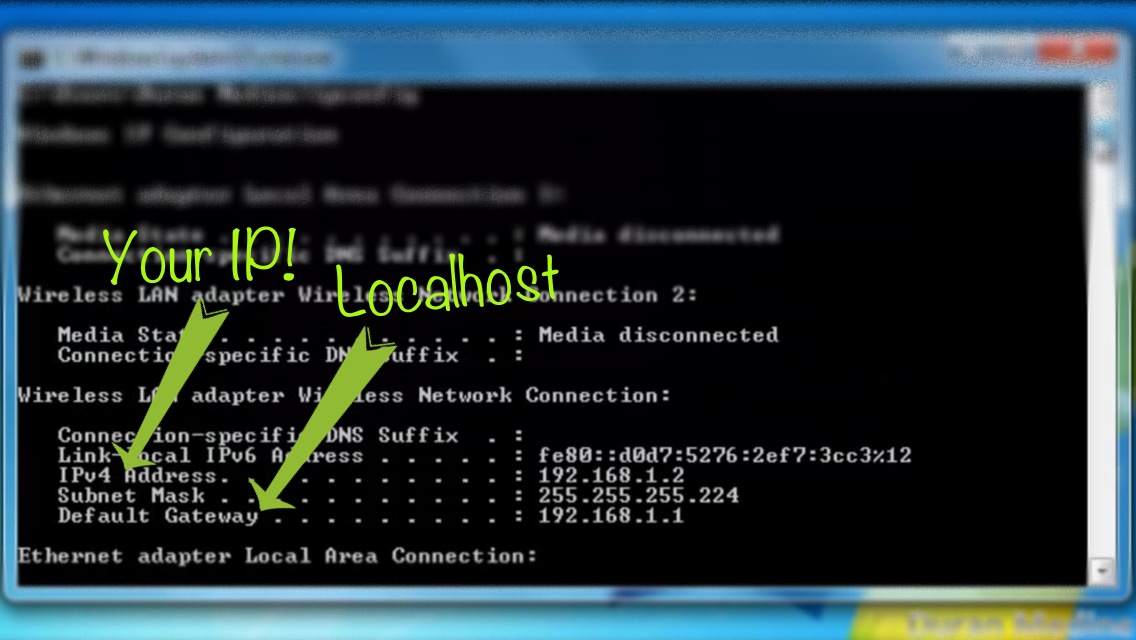
Port Forwarding:
• Copy/paste your default gateway IP in your web browser: (url tab)
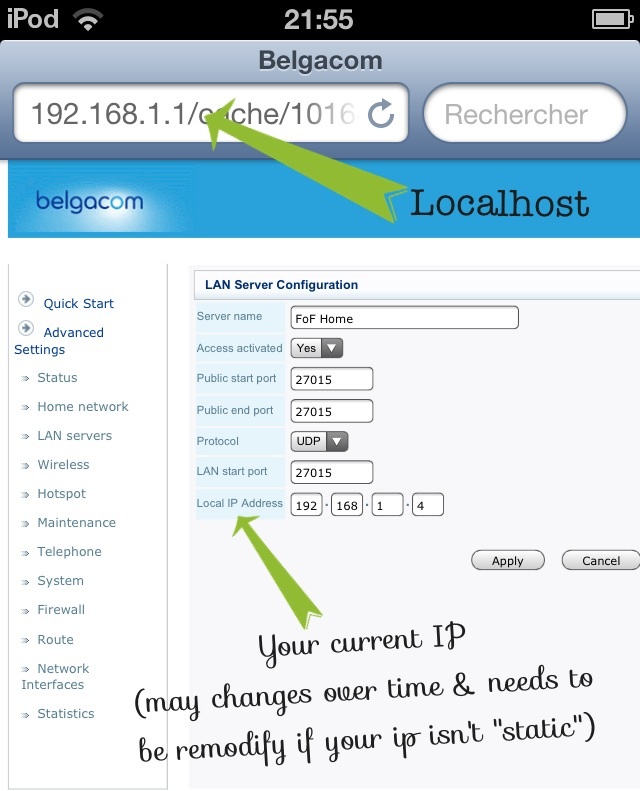
Fistful of frags requieres only the port for the Steam Server:
• port: 27015 UDP & your IPv4 address
• Right click on the game on your steam library and click "Properties". Once you're there, click on "Set Launch Options". An empty caption box will show up.
In it, simply type:
• You will notice that a console has now appeared on the main menu. Keep it there! (Dev-console is used to submit some commands variables == cvar)
• You can also pop it up when needed by binding it (F11 as an example) with the following cvar: (with quotes)
• Then select "Create a server"
• If you go above your limit all the other players in your server will see their ping increased to extreme heights.
• You just have to test how many players your network can handle but most of the times 8+ slots becomes harder to manage.
• Type in:
(*Current map list: fof_fistful, fof_desperados, fof_revenge, fof_robertlee,..you must changelevel to apply changes and avoid clients (class C) error.) • Once it's done display console again and type in:
• There you go! You have a fully working server now! Invite your friends in! (most of the time they are able to join you directly from steam friend list or internet server browser as usual)
• Keep in mind that you'll have to enter those commands in the console everytime you create a Listen Server.
• If it still doesn't work or you're having other issues see the troubleshooting section bellow:
Server Configuration and Handy Tweaks
kick BOT <name>
bot (add bot)
connect <IP>;password <passwd> (And how your steam friend join it later once secured)[/td][/tr][/table]
cl_cmdrate 30
cl_updaterate 30
nextlevel <fof_>
set next lvl
• Keep in mind to overwrite "autoexec.cfg" files each time you want to switch from one user config to an another one!
But you can also rename name.cfg to whatever you wish , and type in console exec name.cfg to apply them separately.
http://steamcommunity.com/sharedfiles/filedetails/?id=235664741
Download autoexec.cfg file & add it in your CFG folder (SteamApps/common/Fistful of Frags/fof/cfg)
•Grab it here![www.dropbox.com]http://steamcommunity.com/sharedfiles/filedetails/?id=294806772
Download autoexec.cfg file & add it in your CFG folder (SteamApps/common/Fistful of Frags/fof/cfg)
•Download it here! [www.dropbox.com]http://steamcommunity.com/sharedfiles/filedetails/?id=644931178
http://steamcommunity.com/sharedfiles/filedetails/?id=261156532
Loothill_a5 unofficial map & tp_aim re-release grab them & extract files from zip archive in your 'maps'[/url] folder located in your fof directory (SteamApps/common/Fistful of Frags/fof/maps)
•Download them here! [www.dropbox.com]Create a Listen Server with cheats enable..
http://steamcommunity.com/sharedfiles/filedetails/?id=260142663
http://steamcommunity.com/sharedfiles/filedetails/?id=293971447
• Keep in mind to overwrite "autoexec.cfg" files each time you want to switch from one user config to an another one![/quote]
host_timescale (1 default value, try 1.5 for fun!)
sv_gravity 225
(Dropbox deposit if shared links are outdated)[www.dropbox.com][/td][/tr][/table]
Troubleshooting
If your friends still cannot join your server even after you've set it up properly it's most likely because something is blocking network traffic coming from outside. Many anti-virus and firewalls do that by default and you'll have to either temporarily disable them or add Steam and Fistful of Frags to the restrictions.[www.dummies.com]
If it still doesn't work you might want to try these ports too:UDP 1200
UDP 27000 to 27015
UDP 27020
TCP 27030 to 27039
TCP 27015
If you don't know how you just have to follow the instructions on this website[portforward.com]
There you simply have to enter your router's brand and model and then ports for what game you want to forward.
http://steamcommunity.com/sharedfiles/filedetails/?id=259767197
& enjoy my FoF review!
(Dropbox deposit if shared links are outdated)[www.dropbox.com]
Outro
- Fistful of Frags Console Commands★ 5 (313)21k views542 ♥4 minUpdated Feb 6, 2016
- The Weapons of FOF★ 5 (247)13k views243 ♥23 minUpdated Dec 3, 2024
- A dumb FoF player-types guide (No pictures, sorry!)★ 5 (315)11k views280 ♥15 minUpdated Jan 6, 2018
- Создание сервера для игры с друзьями★ 4 (150)9.2k views254 ♥1 minRussianUpdated Jun 19, 2018
- "Курс Молодого Ковбоя" от русского сообщества по FoF★ 5 (210)9k views208 ♥30 minRussianUpdated Nov 14, 2018
- How to upload your add-on to Workshop★ 4 (151)8.9k views144 ♥3 minUpdated Jun 21, 2021




- Upgrading to PremiumTeam Fortress 2★ 5 (20k)1441k views11k ♥6 minUpdated May 11, 2022
- No More Room in Hell Official ManualNo More Room in Hell★ 5 (2.8k)569k views2.1k ♥29 minUpdated Apr 22, 2019
- NMRiH Community Hosting GuidesNo More Room in Hell★ 5 (526)351k views653 ♥1 minUpdated Aug 10, 2022
- ULTIMATE GUIDE FOR GAME DEV TYCOONGame Dev Tycoon★ 5 (5.8k)326k views10k ♥4 minUpdated 23 Jan, 2014
- How to 'Git Gud' Soon™MORDHAU★ 5 (2k)318k views3k ♥68 minUpdated Nov 16, 2024
- Лучшие кооперативные игры SteamPAYDAY 2★ 5 (1.5k)315k views2.1k ♥56 minRussianUpdated Apr 27, 2025






This guide was created by its original author on the Steam Community. Are you the author and want it removed? Request removal.