Logitech / Kalkan Tak Çıkar / Shield Equip Unequip
Adımlar / Steps
Adım 1
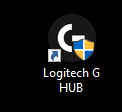
Ghub uygulamasını yönetici olarak çalıştırın.Step 1
Run Ghub app as administrator.
Adım 2
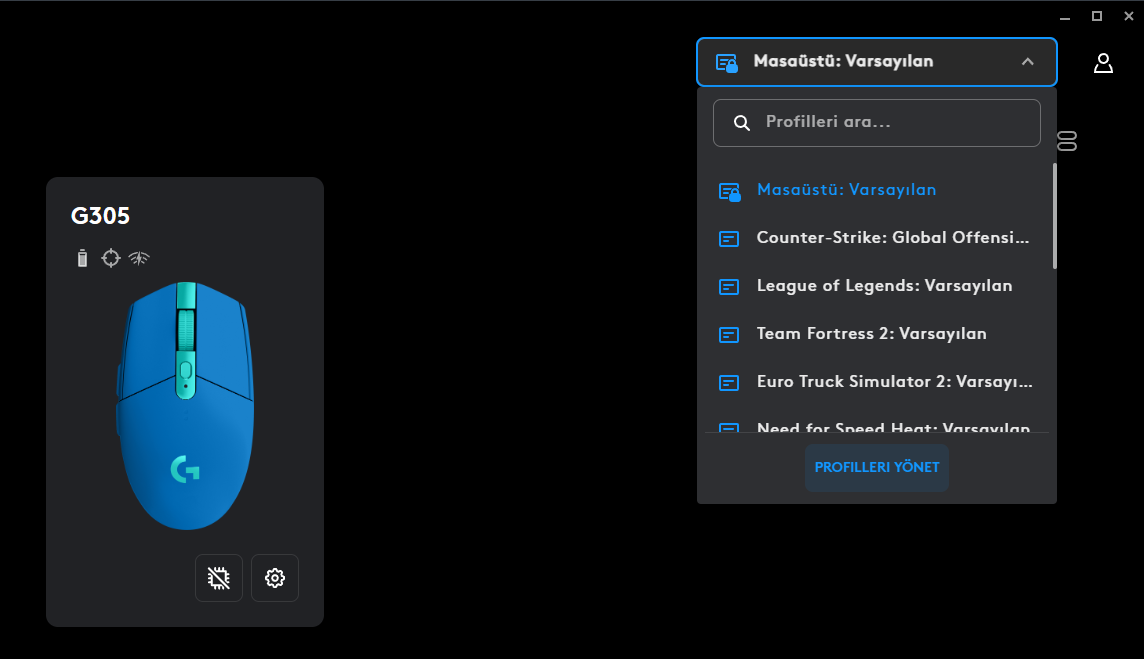
Profil yönetici sekmesinden profilleri yönet seçeneğine tıklayın.
Step 2
From the profile manager tab, click on manage profiles.
Adım 3
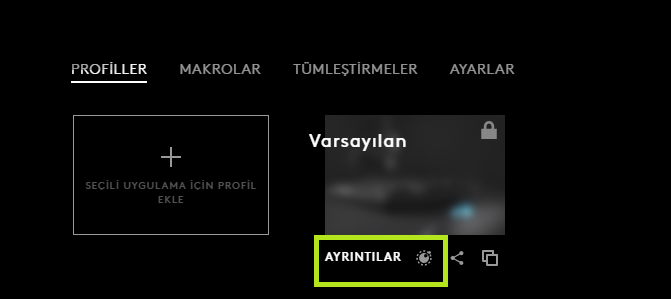
Ayrıntılar sekmesinin sağında komut yöneticisi seçeneği var ona tıklayın.
Step 3
Click on the command manager option on the right of the Details tab.
Adım 4
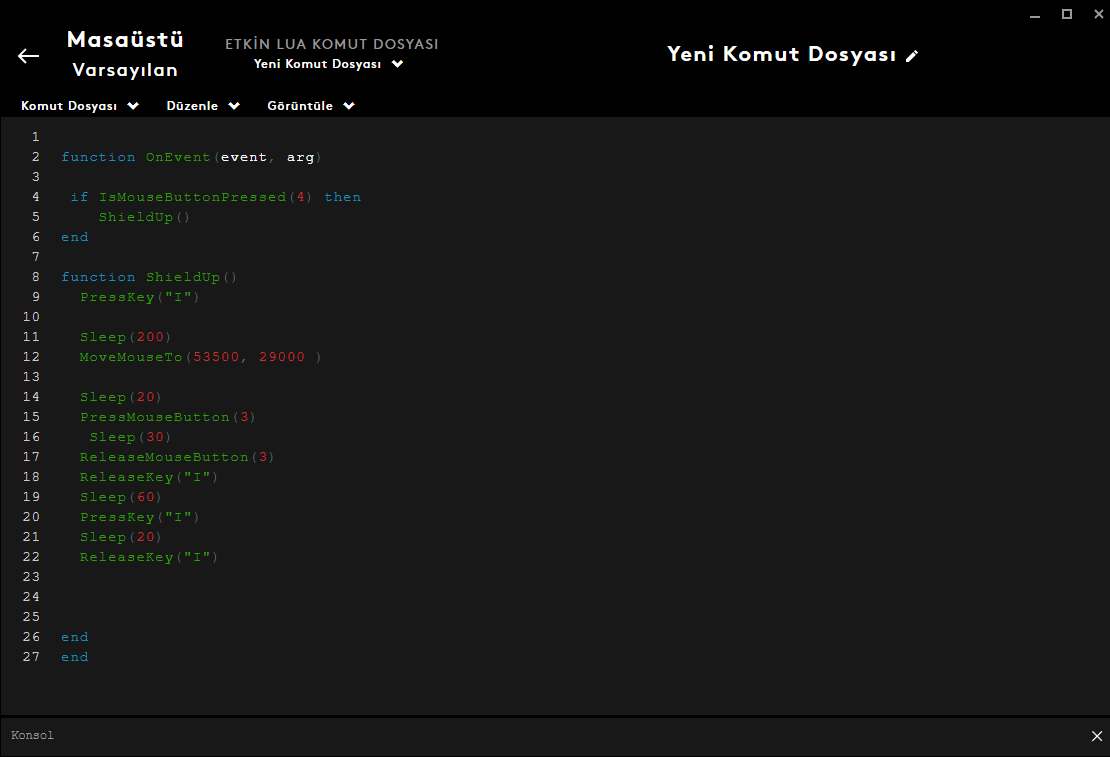
Görseldeki kodları aynen yazdığım gibi yazın. ismousebutton kısmında yazan değer farenin o tuşuna karşılık gelir. Movemouseto kısmında yazan değerler ise soldaki değeri azalttığımızda ekranın yukarısını sağdaki değeri azalttığımızda ise ekranın sağına karşılık gelir soldaki ve sağdaki değerlerin ikiside 0 olduğunda ekranın en üst ve en sağ kısmına denk gelir benim kod satırlarında yazmış olduğum değer 1920x1080 çözünürlük içindir değerleri kendi ekranınıza göre değiştirebilirsiniz.
Step 4
Write the codes in the image exactly as I wrote them. The value written in the ismousebutton part corresponds to that button of the mouse. The values written in the Movemouseto section, on the other hand, correspond to the right of the screen when we decrease the value on the left, and when we decrease the value above the screen, they correspond to the right of the screen when both the values on the left and right are 0, they correspond to the top and right part of the screen. The value I wrote in my code lines is for 1920x1080 resolution.
Adım 5
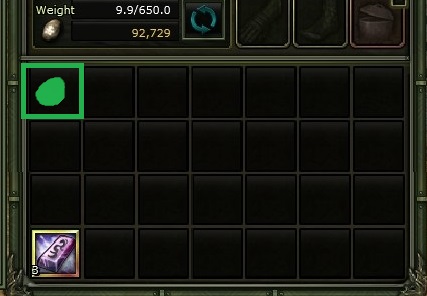
Bu ayarlar envanterin sol en üst kısmı içindir görselde kalkanı ya da tak çıkar yapmak istediğiniz eşyayı koymanız gereken yeri yeşil kutu içinde gösterdim.
Step 5
These settings are for the top left part of the inventory. In the image, I have shown the place where you should put the shield or the item you want to make out in the green box.More Knight Online guides
- Knight Online Guide [For Beginners and Experts]★ 4 (68)5k views38 ♥12 min
- Old Takılar ve Monster Stone Nedir, Nereden Çıkar Detaylı Anlatım.★ 3 (29)3.2k views11 ♥3 minTurkish
- Magician Item and builds guide.★ 4 (30)1.8k views18 ♥9 minUpdated 10 Oct, 2017
- SteamKO Cash ve Premium Yükleme ve Steam Bakiye İade Sistemi1.8k views4 ♥1 minTurkishUpdated 5 Feb, 2016
- [Crack Of all Means] What is the problem? (170M EXP Quest)1.2k views18 ♥4 min
- Making Money Tips1.1k views12 ♥4 min


🔥 Popular guides
- Upgrading to PremiumTeam Fortress 2★ 5 (20k)1441k views11k ♥6 minUpdated May 11, 2022
- No More Room in Hell Official ManualNo More Room in Hell★ 5 (2.8k)569k views2.1k ♥29 minUpdated Apr 22, 2019
- NMRiH Community Hosting GuidesNo More Room in Hell★ 5 (526)351k views653 ♥1 minUpdated Aug 10, 2022
- How to 'Git Gud' Soon™MORDHAU★ 5 (2k)318k views3k ♥68 minUpdated Nov 16, 2024
- Лучшие кооперативные игры SteamPAYDAY 2★ 5 (1.5k)315k views2.1k ♥56 minRussianUpdated Apr 27, 2025
- Desert Eagle Heat Treated | Blue GemCounter-Strike 2★ 5 (1.6k)293k views1.5k ♥2 minUpdated Jan 16





This guide was created by its original author on the Steam Community. Are you the author and want it removed? Request removal.