Make Game Intros Never Play
Make Game Intros Never Play
Tired of having your ears blasted out by the Big Huge Games logo video when you start up the game? Don't want to have to click through all of that junk just to get to the main menu and start playing? While it isn't a setting you can change in game, it's actually incredibly simple to make these videos never play again and to have the game menu pop up right when you hit play.
1. Press Win+R, or go to your start menu, type in Run, and click the app.
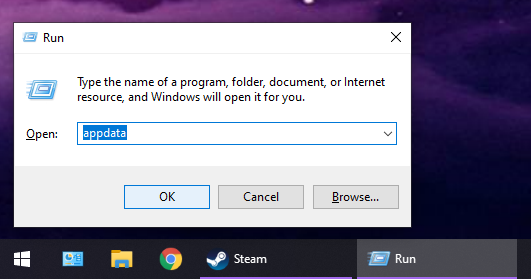
2. Type in "appdata" (without the quotes) and click OK
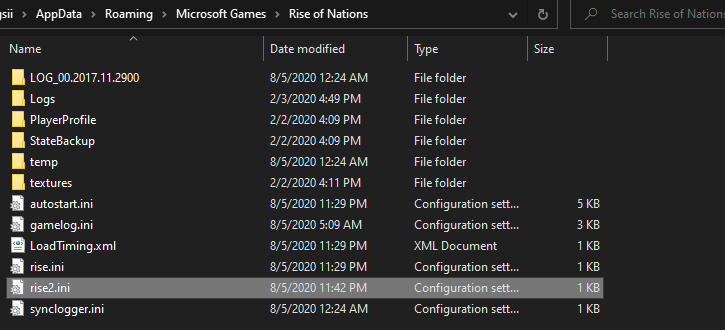
3. Open the following folders: Roaming > Microsoft Games > Rise of Nations
4. Open the rise2.ini file. This should pull up a text document.
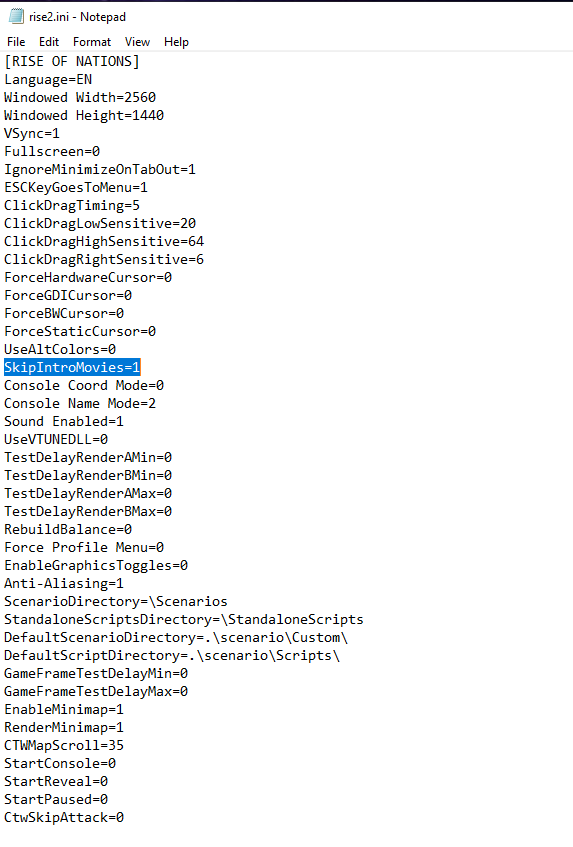
5. Locate the line that says SkipIntroMovies=0.
Change the zero to a one so it reads SkipIntroMovies=1
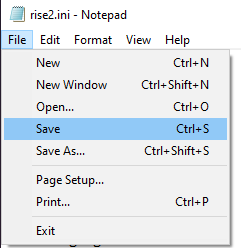
6. Make sure to press CTRL+S to save the changes, or click File > Save in the top left.
Enjoy your streamlined game launch! If you ever want to see the videos again for some reason, just change that 1 back to a zero.
Special thanks to the friend I play this game with all the time for digging through the game files and finding this :)
1. Press Win+R, or go to your start menu, type in Run, and click the app.
2. Type in "appdata" (without the quotes) and click OK
3. Open the following folders: Roaming > Microsoft Games > Rise of Nations
4. Open the rise2.ini file. This should pull up a text document.
5. Locate the line that says SkipIntroMovies=0.
Change the zero to a one so it reads SkipIntroMovies=1
6. Make sure to press CTRL+S to save the changes, or click File > Save in the top left.
Enjoy your streamlined game launch! If you ever want to see the videos again for some reason, just change that 1 back to a zero.
Special thanks to the friend I play this game with all the time for digging through the game files and finding this :)
More Rise of Nations: Extended Edition guides
- Rise of Nations Русификатор 1.20★ 5 (316)19k views370 ♥1 minRussianUpdated Apr 30, 2020
- Efficiency and Hot Key Guide★ 5 (625)19k views822 ♥26 minUpdated Apr 10, 2015
- How to: Increase the population cap★ 4 (155)15k views221 ♥1 minUpdated Jan 16, 2018
- Taunt Guide★ 5 (288)15k views331 ♥3 minUpdated Jul 16, 2014
- Rise of Nations : Extended Edition - To Achieve 100%★ 5 (533)13k views686 ♥15 minUpdated Jan 1, 2018
- Economic goals for a good base start for a decent mid game★ 5 (212)11k views336 ♥3 minUpdated Jun 16, 2014



This guide was created by its original author on the Steam Community. Are you the author and want it removed? Request removal.