[MOD GUIDE] Custom Character Creation
Introduction
Hi, I'm the author of the Total War Dynasty Warriors mod and I'm here to show you how to make quick and easy custom portraits
Nexus Mod link: https://www.nexusmods.com/totalwarthreekingdoms/mods/103
Steam Workshop link: https://steamcommunity.com/sharedfiles/filedetails/?id=1812602859
This guide will cover how to make a custom character in Total War: Three Kingdoms. Currently I'll only give out the instructions for doing this with RPFM and without touching the ceos_data and startpos data. This mean that we will not be making custom titles, traits, etc.
This guide assumes you generally know what you are doing or at least know your way around computers and programs as I will not be going into great detail on what exactly each step is. I will give an example pack file and art files and general information and guidance on what should be done.
In the future I will add a section for assembly kit as well as ceos and startpos data editing. The main reason for this is that it's a magnitude more work and involved and I have a lot of things on my plate currently.
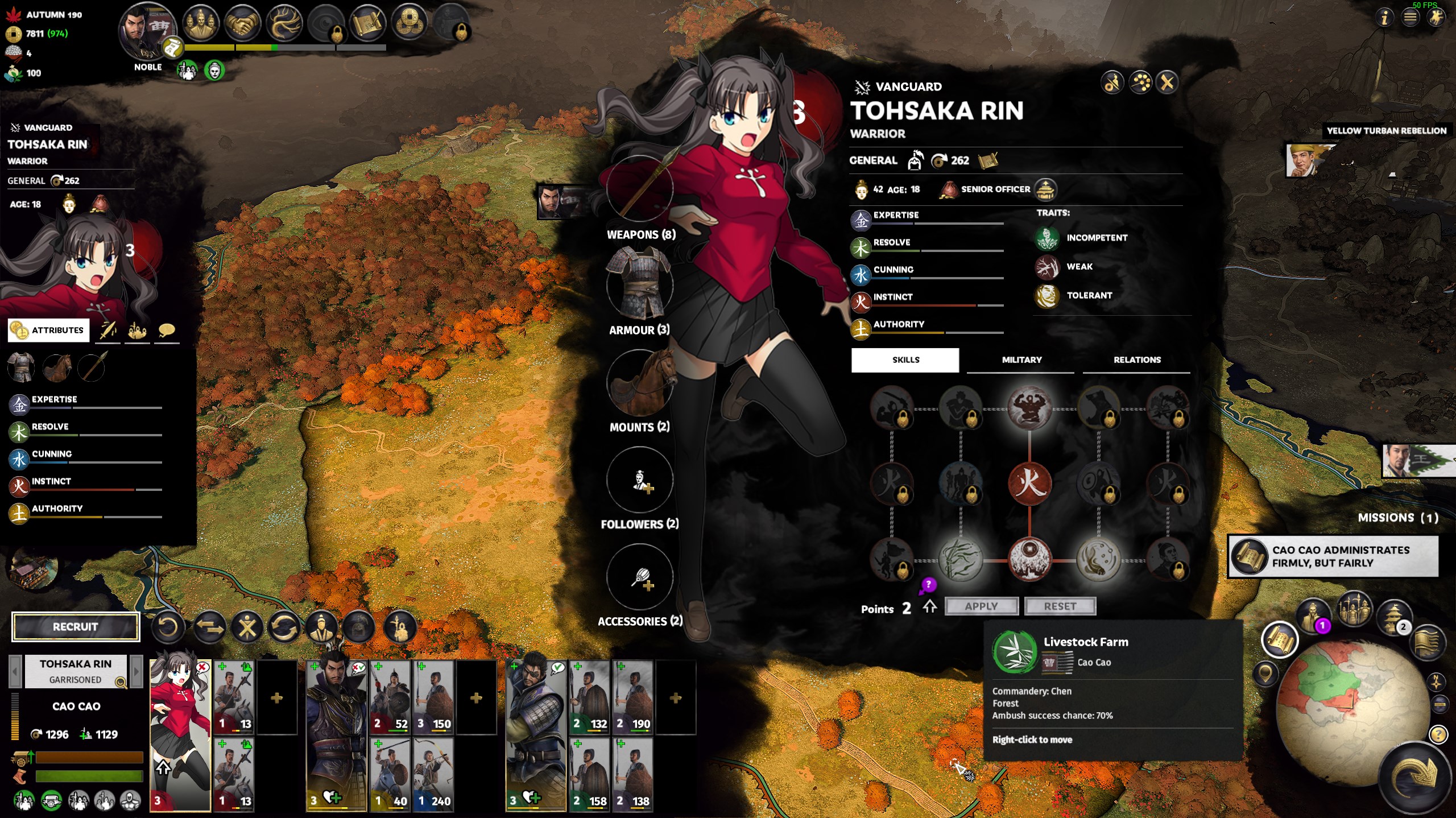
For this guide I will be adding Tohsaka Rin of Fate/Stay Night fame into the game. Why? Because I feel like it.
Requirements and Scope
https://drive.google.com/file/d/1TRcnKQTlMxk1Jbwb2InV1brKayEuMogi/view?usp=sharing
UPDATE: Added Iskandar from Fate as a male example. DO NOT LOAD BOTH RIN AND ISKANDAR AT THE SAME TIME, BOTH EVENTS WILL MOST LIKELY NOT FIRE CORRECTLY.
Includes:- Pack file for creating Tohsaka Rin and event to spawn her
- Art for Rin
- Art for Xin Xianying from my mod to compare against a generic
- Added Iskandar for for a male example since people requested
RPFM Github Page: https://github.com/Frodo45127/rpfm
PPFM direct download link for Windows: https://github.com/Frodo45127/rpfm/releases/download/v1.6.1/rpfm-1.6.1-windows.7z
You will also need TweakPNG for adding metadata: http://entropymine.com/jason/tweakpng/
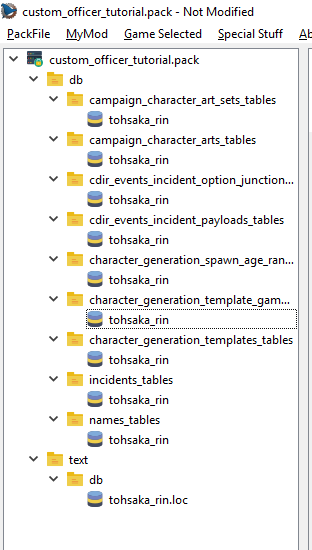
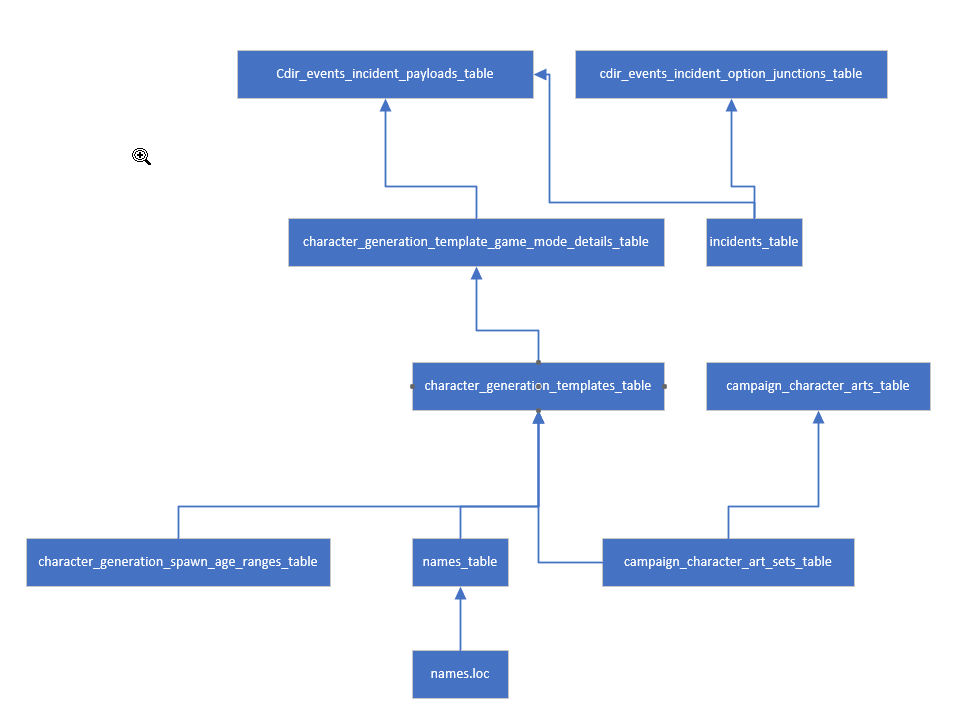
If a block has an arrow pointing to it, it means it depends on it. So for example, character_generation_templates_table depends on character_generation_spawn_age_ranges_table, names_table, and campaign_character_art_sets_table
Tables
The tables editing is pretty straight forward, we will start at the bottom. Note that I like to keep things standard and keeping with standards, so a lot of the names for variables and stuff will look at CA's default values. This is intentional and you can technically name things whatever you want.
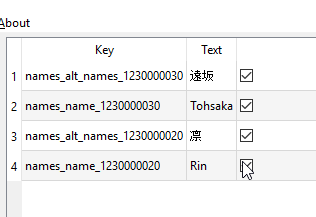
- key lists the id of each value. There are 2 types of key here, one is for the english name and the other is the alt name (chinese in the base game, I put Rin's Japanese name here). Format must be names_alt_names_<ID> or names_name_<ID>. I don't believe the alt_name is required.
- Text is the text that shows up in game
- checkbox I don't actually know what this does. Just leave it checked
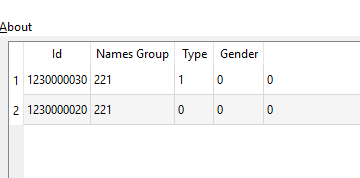
- Id this is the ID from before, keep them the same
- Names Group There is only one names group and that is 221 and it refers to Han Chinese I beleive
- Type This is if this name is a firstname, last name, courtesy name, or other. 0 is first name, 1 is last name, 2 is courtesy I believe, and 3 is other.
- Gender Gender of the name, I believe 0 is both, 1 is male, and 2 is female
- Frequency I think this pertains to the random character generator

- Key Key for this row, name it whatever, don't use spaces or special characters
- Birth Year Year that the character is born, set it to 172 if you want them to spawn to turn 0
- Max Age For Birth Year This deals with random geneartion of character, leave as is
- Max Random Age This deals with random geneartion of character, leave as is
- Min Age For Birth Year This deals with random geneartion of character, leave as is
- Min Random Age This deals with random geneartion of character, leave as is
- Has Valid Birth Year Check this box if you want it to have a valid birth year

- Art Set Id Key for this row, name it whatever, don't use spaces or special characters
- Is Custom Check this box
- Is Male Check this box if your character is male
- Leave everything else as is

- Key Key for this row, name it whatever, don't use spaces or special characters
- Name Checkboxes Check them all, even if they are not used
- Names Fill in the ids of the names you made above, if you are not using a name, leave it 0
- Unique Check this
- Art Set Override Make sure this is what you made above
- Is Male Check if your character is male
- Voices Set this to the correct gender/element. None exist for generic fire/wood females
- Keep everything else the same

You need three rows, one for baby art, one for child/teen art, and one for adult
- Id Put in some random number. Number must be unique, do not put the same number as another row, another mod, or anything from vanilla.
- Art Set Id This is the id you made before, put it here for all 3 rows
- Level Level limit for art, just keep this 0
- Age Age limit for art, just keep this the same (0, 6, 18)
- Portrait This is the folder it will try to pull from. Keep baby and child the same (if you want a male child just do child_02_ male or any other number). For the adult one you can either follow my naming scheme (which is also CA's naming scheme) or whatever you want, just remember what it is and put a / at the end
- Uniform This controls the 3d model, keep everything the same except for the adult one, you can just pick the a generic that has the element of your character (note that female fire and wood ones do not have generic models in the game)
- Card The image it pulls, keep everything the same except for the adult row, same principal as the Portrait row above
- Has Come of Age Check only the Adult row
- Keep everything else the same

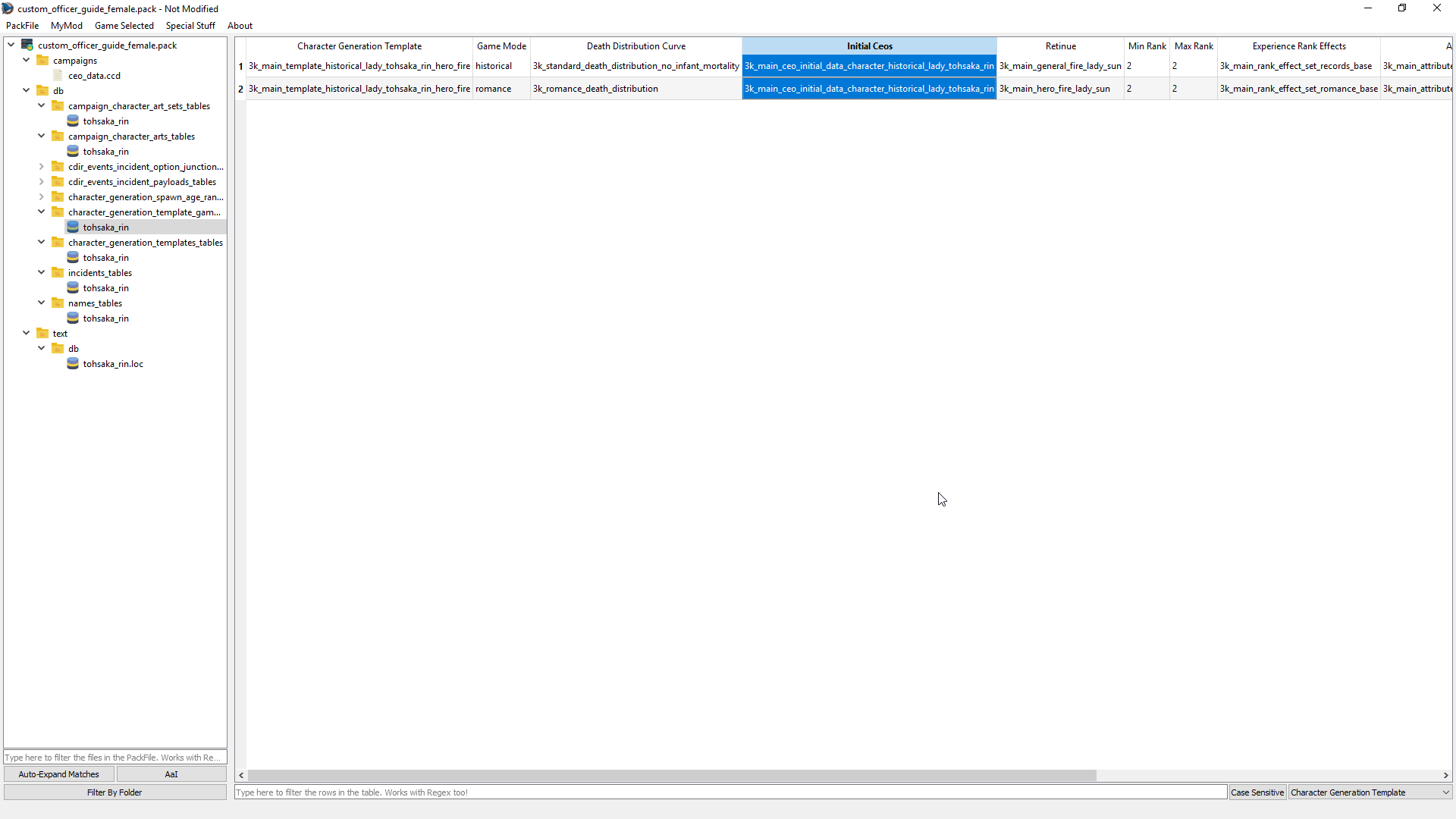
One row is for historical mode and the other is romance mode. You need both if you want your character to be able to show up in both
- Character Generation Template same value as above
- Initial Ceos This controls stuff like starting title, items, traits, etc. Note that if you set this to a unique character, whoever spawns first will have the items and the one that spawns later will not. I usually just set it to a generic of the element of the character
- Retinue Starting retinue
- Min and Max Rank Minimum and Maximum starting level
- Attribute Set Controls base attributes. You can make your own attribute set and set it to that if you want.
- Skill Set Override Sets the skill tree for your character
- Undercover Character Chance Multiplier Not 100% sure that this does, either keep it the same or set it to 1
- Keep everything else the same
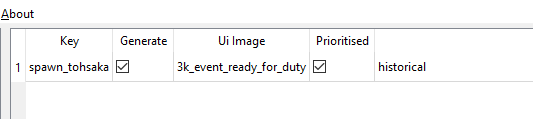

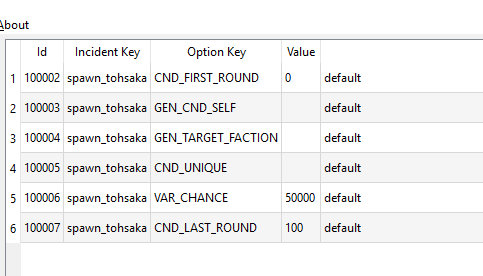
Change the value for the payload keep SPAWN_AGENT_OFF_MAP. Make sure the 3k_general_fire is changed to the element of your character and make sure the CHARACTER_TEMPLATE has your template in it
 Set your pack type to Movie if you havn't already. Then move the file to your <TT3K_folder>/data/ and launch your game. You should now get a blank event turn 1, and your character should pop up in your court with no art.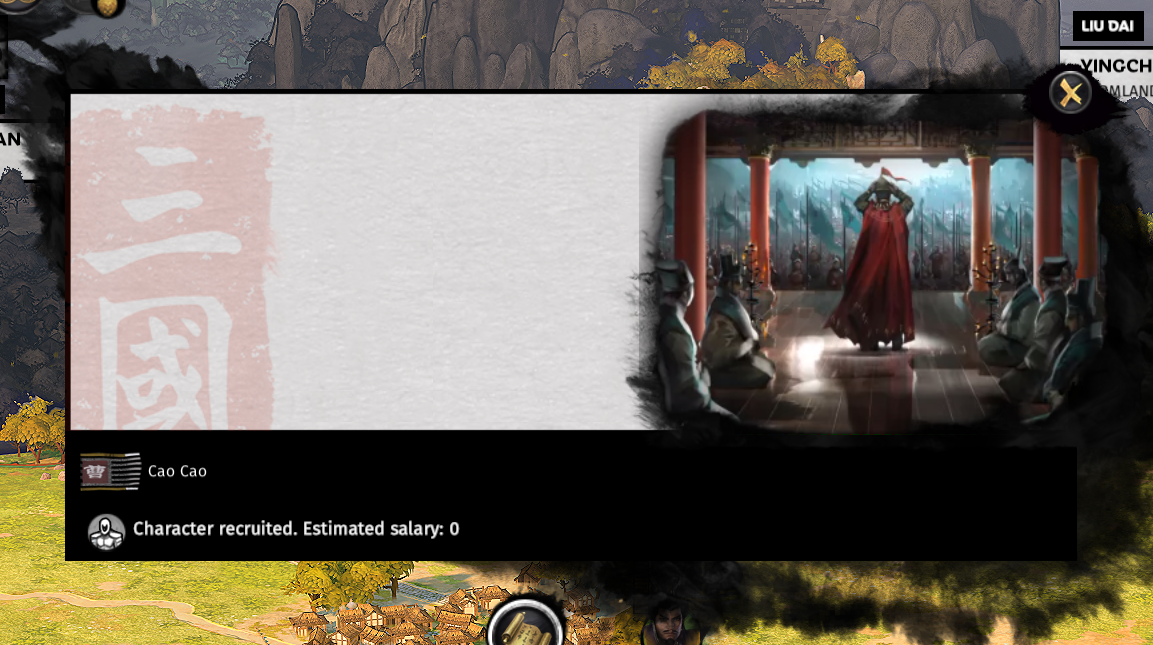
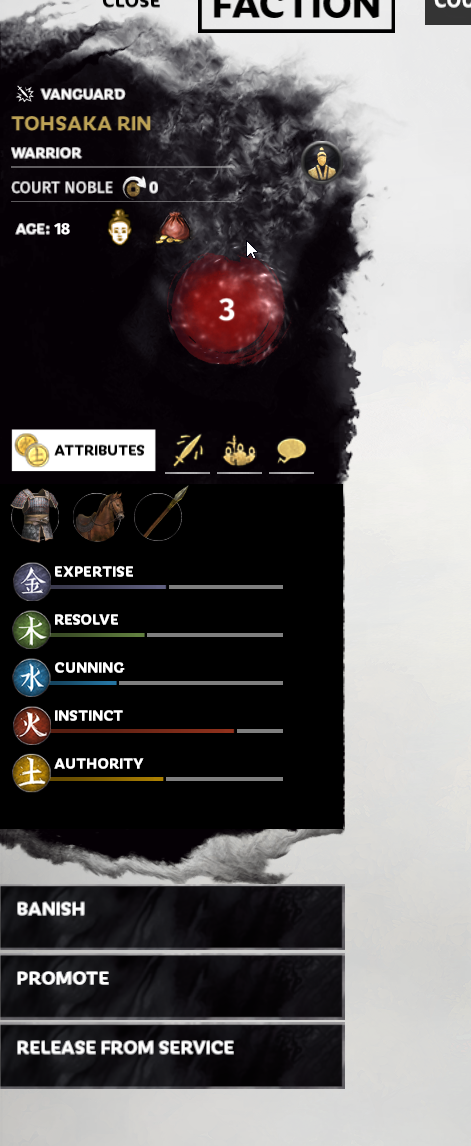
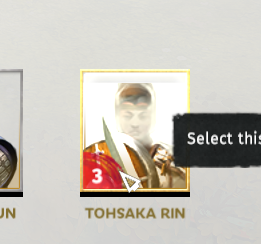
Art
I won't go into great detail here. I'll state what is needed and where and some extra caveats. How you make or get your images is up to you.
Your character folder will be the name you gave it in the arts_table. Tohsaka Rin example: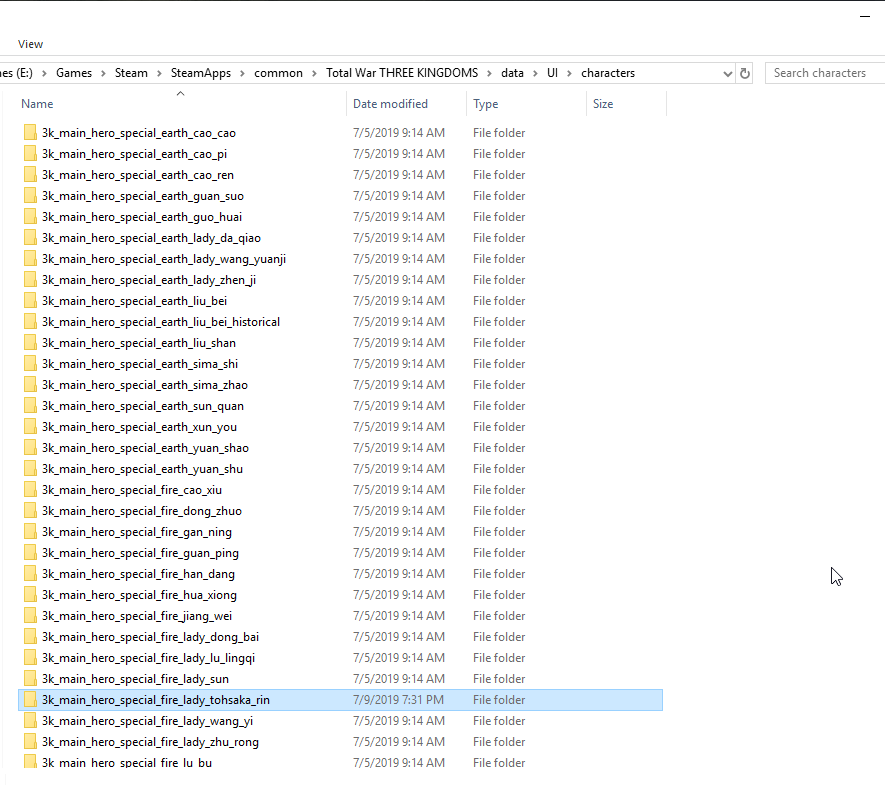 This is what the folder structure would look like: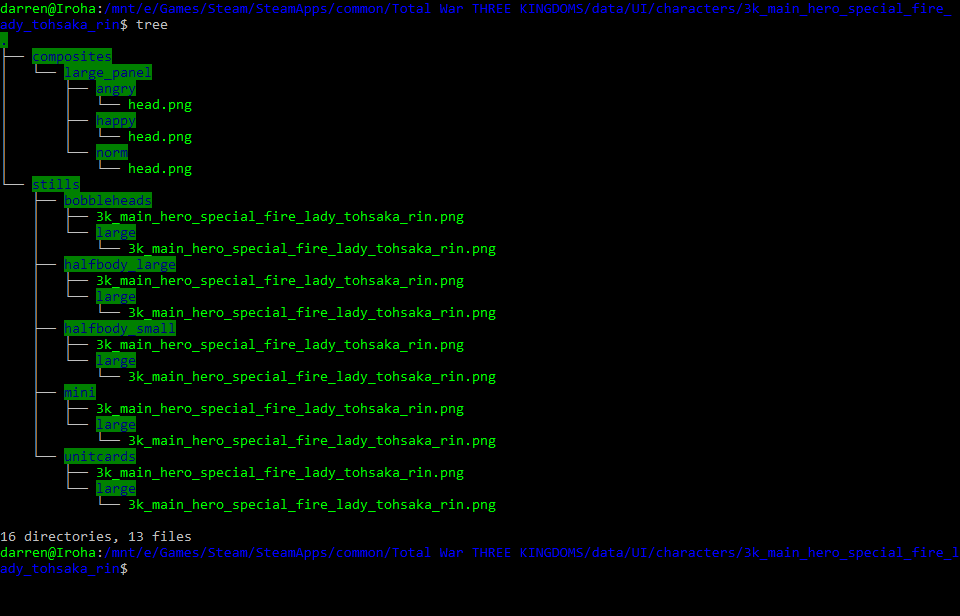
Now, this particular structure is only for unqiue characters. Fire and wood females fall under this category simple because no generic fire and wood females exist. Whether or not the game determines if your character will have a "generic" or "unique" folder structure depends on the ceos initial data you put in the database table above.
For example, this is a sample of a generic fold structure (this is for Xin Xianying which will be included in the example package):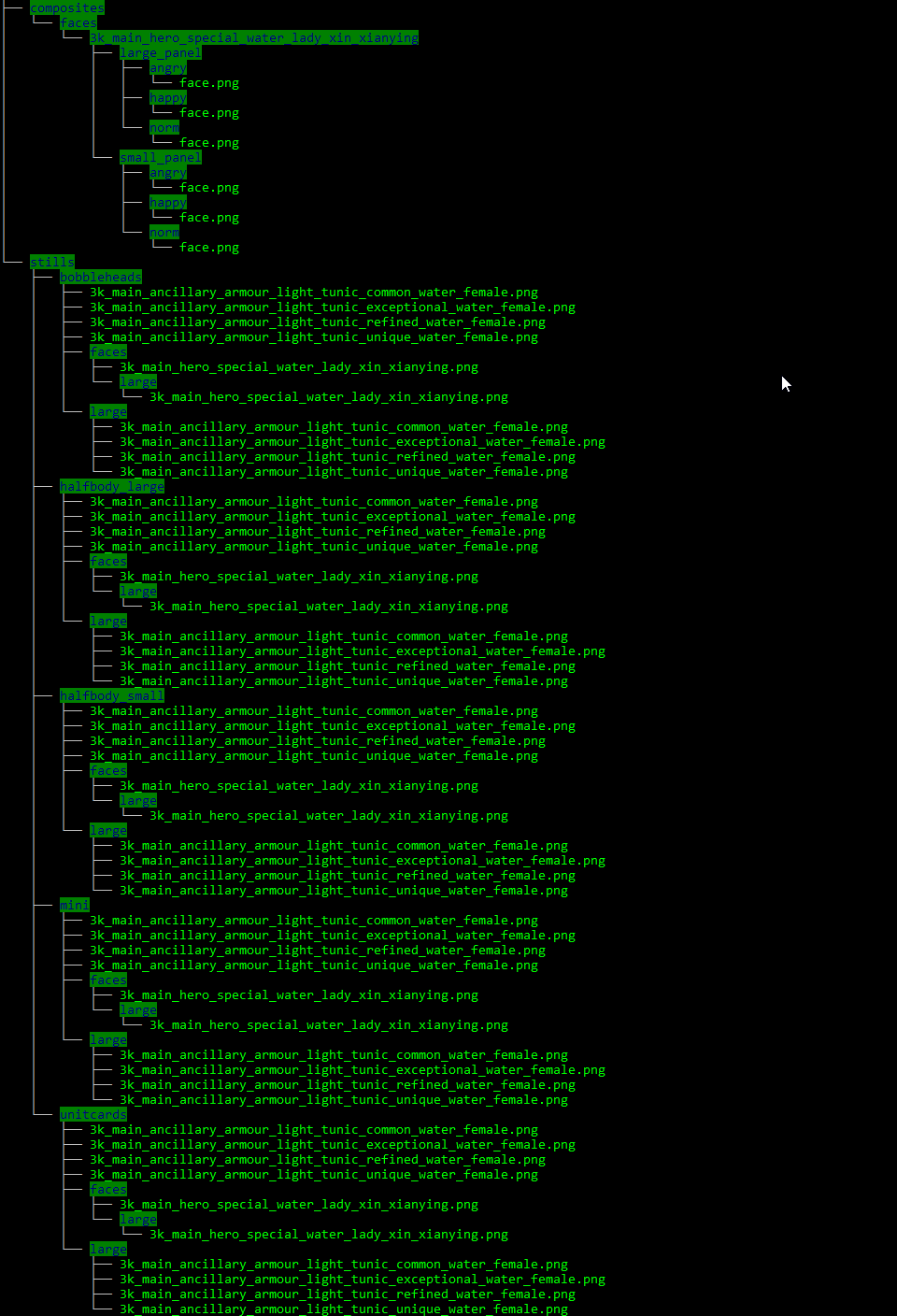
Just follow the folder structure for either unique or generic depending on your character.
All images must be PNG24 or else the game will not take it. To generate a PNG24 image in Photoshop, hit CONTROL+ALT+SHIFT+S and select PNG24 and save.
All images in the composites folder will need to have meta data inserted into it. You can open TweakPNG and look at the images in the sample: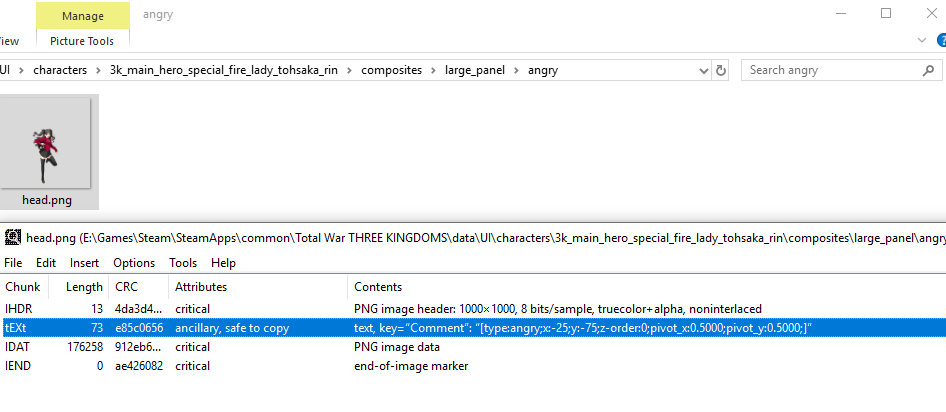
You will notice that they all have a line like this right below the header: [type:angry;x:-25;y:-75;z-order:0;pivot_x:0.5000;pivot_y:0.5000;]
The x and y determine where on the screen the image will appear, increasing x moves to the right and increasing y moves it down. I believe pivot is to tie together the other images if there are any, I just leave them at 0.5. There is a type for each mood, and it makes it so that the image will only render for that mood. I believe you can make one image with the comment being all 3 moods but I haven't tried.
Unlike other parts of modding, the comments can be adjusted and the changes will be applied if you reload your graphics. Simply changing resolutions and letting the game load again will change the positions in game. It makes it easier to position.
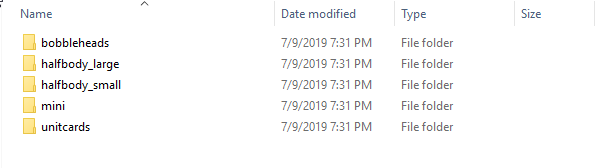
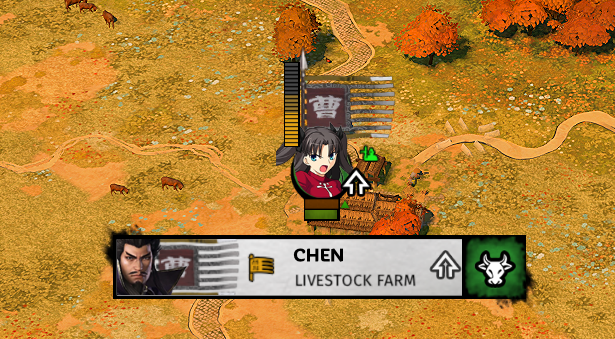
- bobbleheads These are the heads that show up above units in the campaign map and in battle, the heads to the left of each unit tab, the head of the leader above the cities as well as the heads in the relationship screen (either that or the minis)
- halfbody There are shown in the relationship tab in character details, above the battle dialog and some other places I don't remember
- mini These are the heads above units when you zoom really far out
- unitcards These are the cards that you see in the retinue at the bottom of the screen as well as the portraits in your court.
This is pretty straight forward for uniques, just make images with the correct sizes and you are all good.
It's a little more complicated for generics. First every subfolder will have 2 set (one normal size and one large) of armor ancillary images. These need to be blank. This is the armor/cloth switching you see when generic generals switch armor. Each element/gender will have a set of these and you need to have files of the same name to replace the vanilla one otherwise the game will go search for vanilla files. You can exact the game's data to find the generics and copy the names over. The files just need to be blank pngs, size doesn't matter. Or you can download my mod from the nexus and find generic characters with the same element/gender and just copy the blank images en-mass. Same thing needs to be done for the large folder in each sub folder. And the faces folder contains the actual image.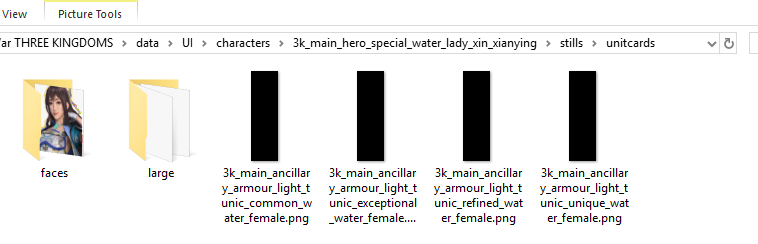
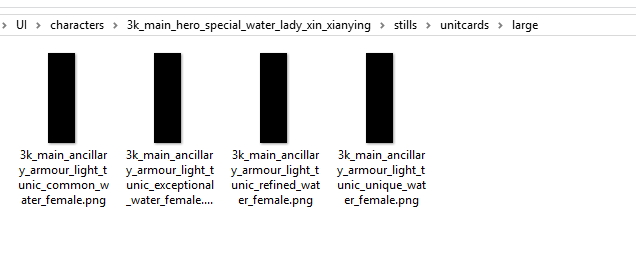
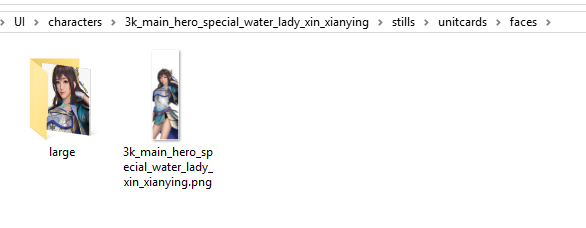
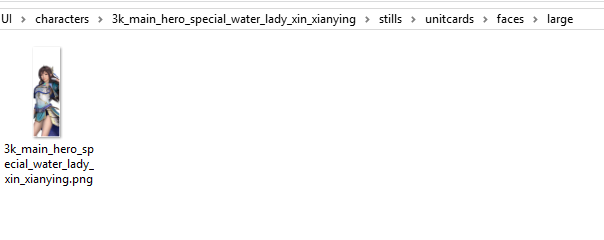
And then you have Rin
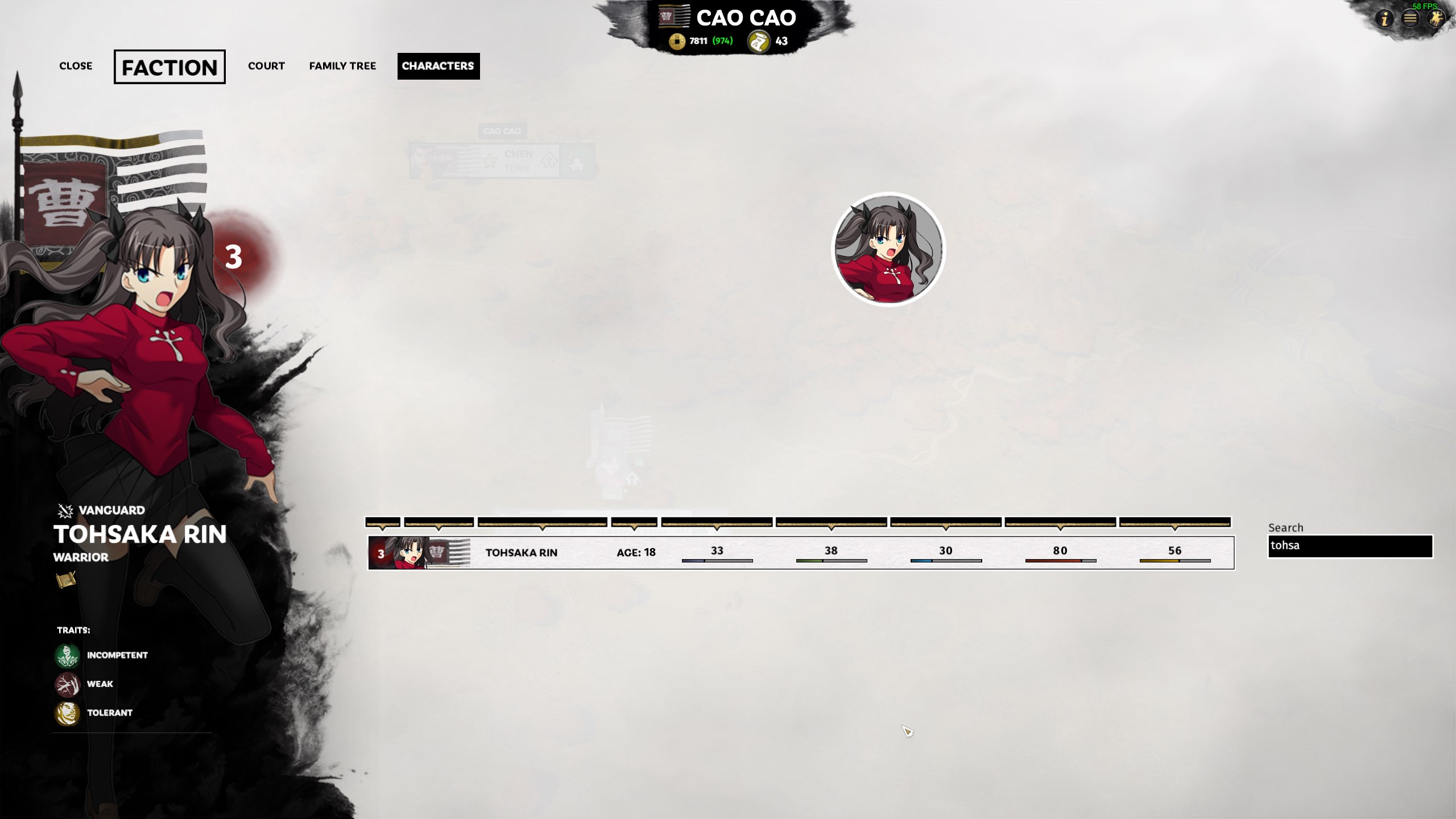
CEOs Example File
Same file as above, just posted here again for easy access
Contains Tohsaka Rin with changes and update_commands.txt for DAVE
https://drive.google.com/file/d/1TRcnKQTlMxk1Jbwb2InV1brKayEuMogi/view?usp=sharing
Campaign Effect Object (CEO)

We will be modifying CEOs data to add a variety of things including titles, traits, personality, armor, weapons, etc. Updates to this guide will be rolled out section by section.
To edit ceos_data, we will need to use the assembly kit and open DAVE. You can open DAVE directory or open tweak and then open DAVE from there.
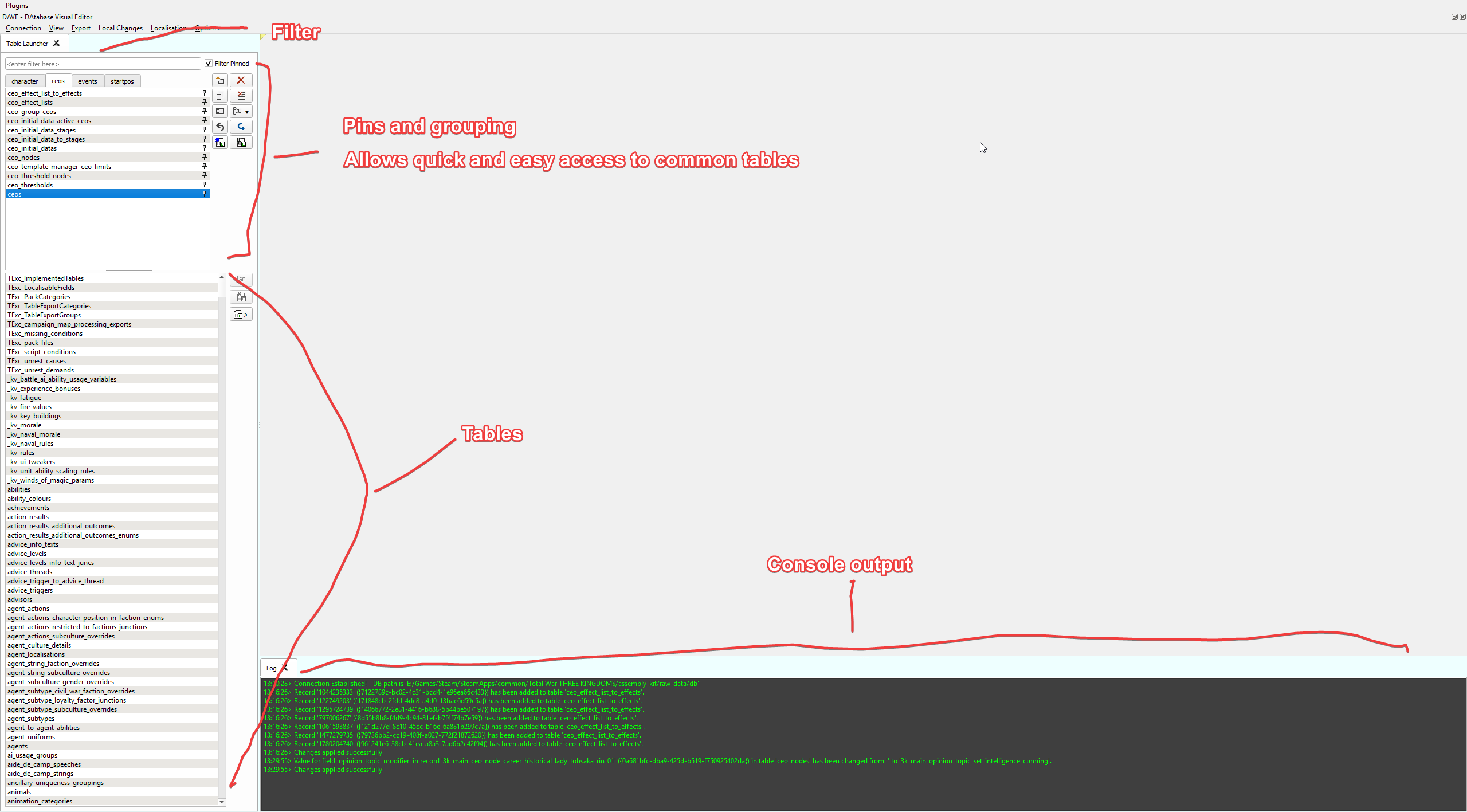
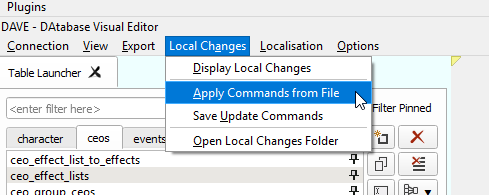
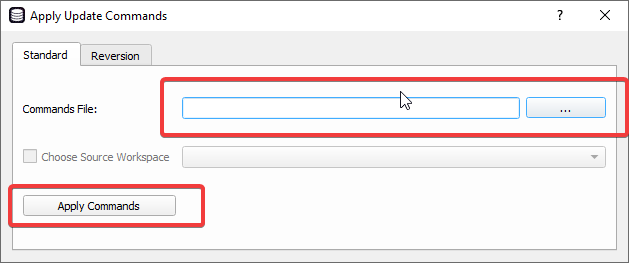
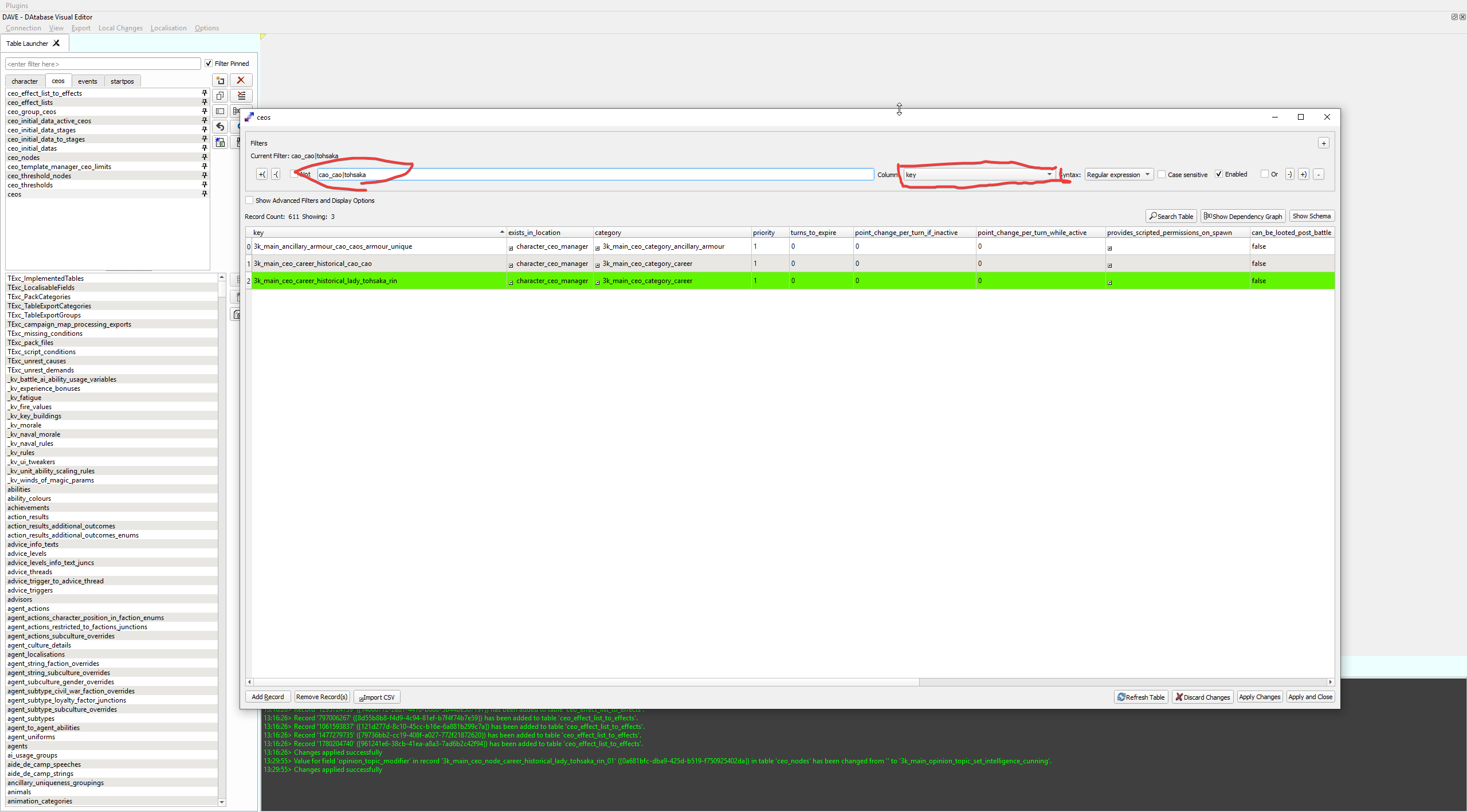
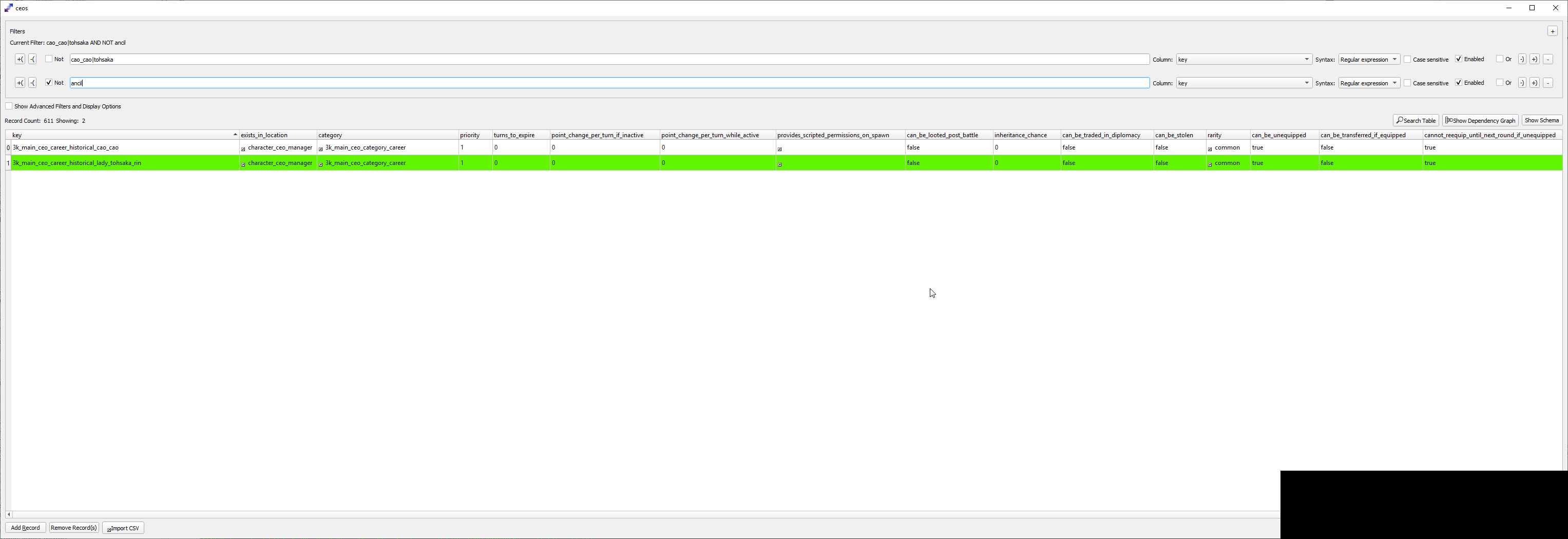
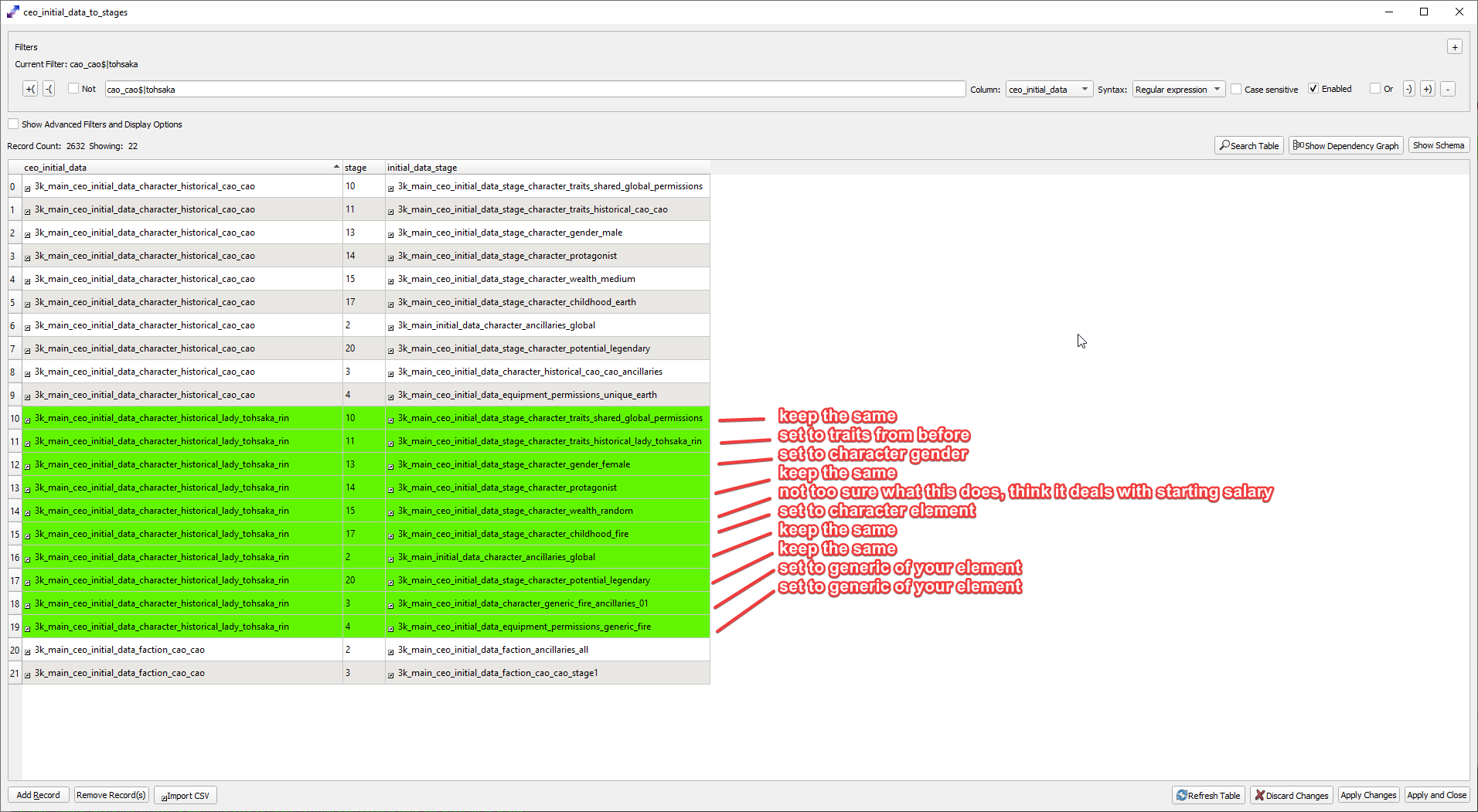
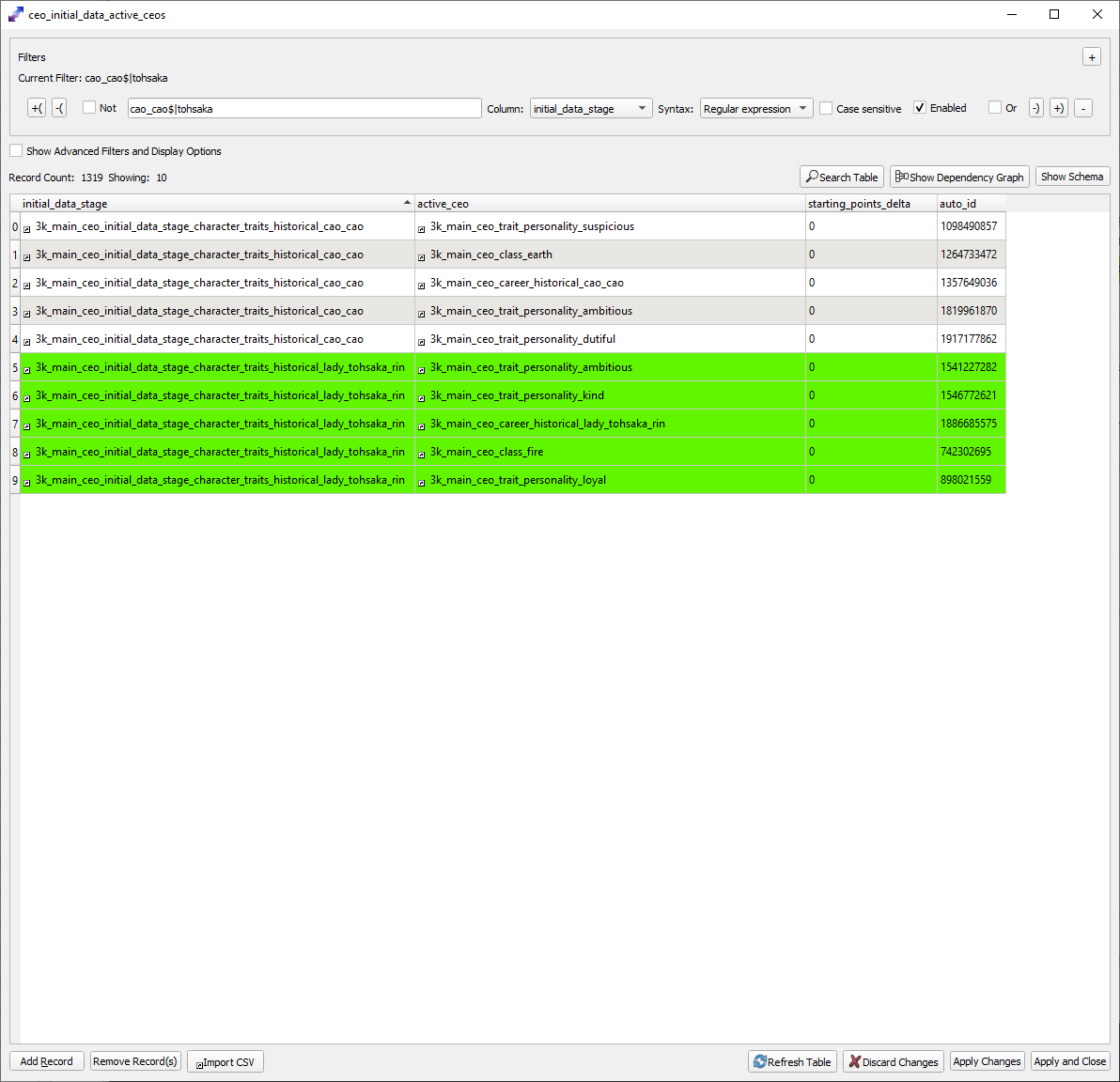
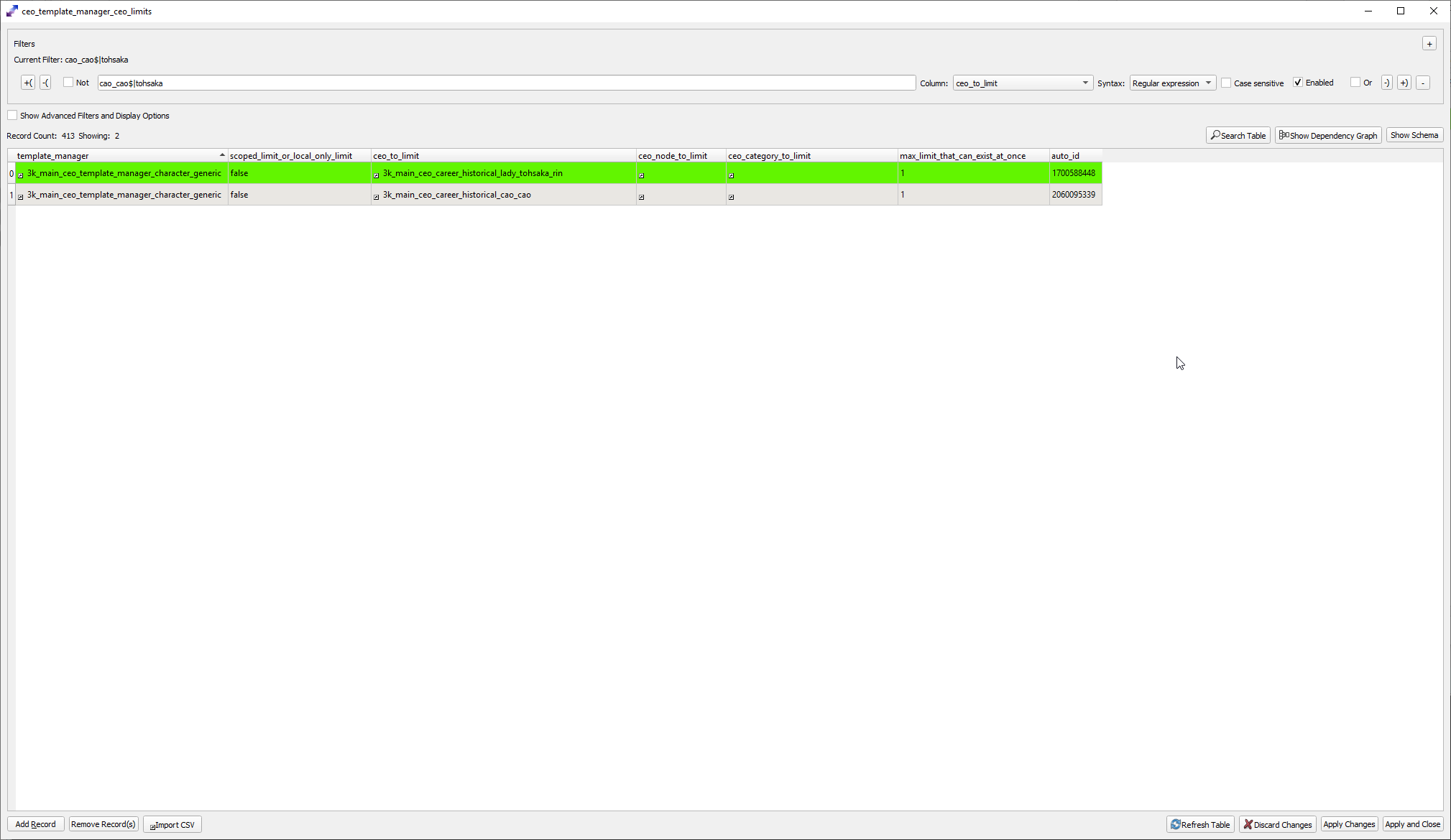
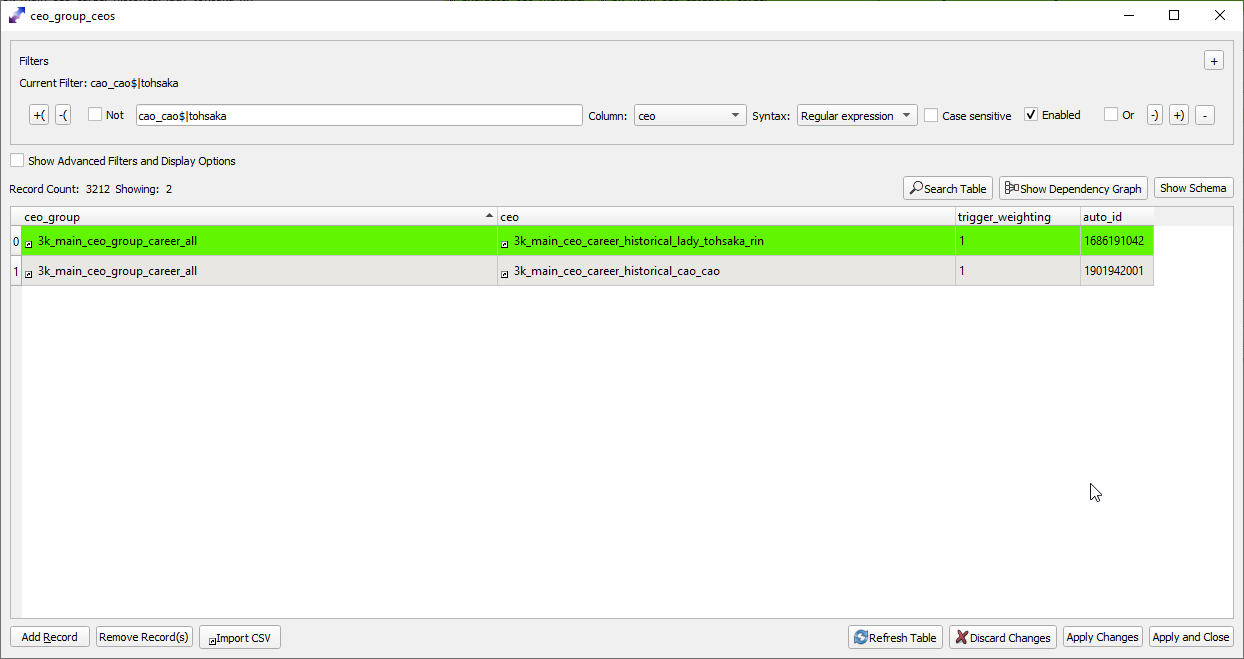
2 regex operators I've used in this guide are $ and | (this is not i or l, this is pipe, its the key above your enter, it's the shift version of the backslash key \). $ denotes end of line and | denotes OR. So cao_cao$ means that the line must end with cao_cao, and cao_cao$|tohsaka mean that the line must end with cao_cao or the line contains tohsaka. You can also add multiple filters for more complex conditions.
Please note COLUMN dropdown, sometimes you won't be finding things in the default column and will need to change it.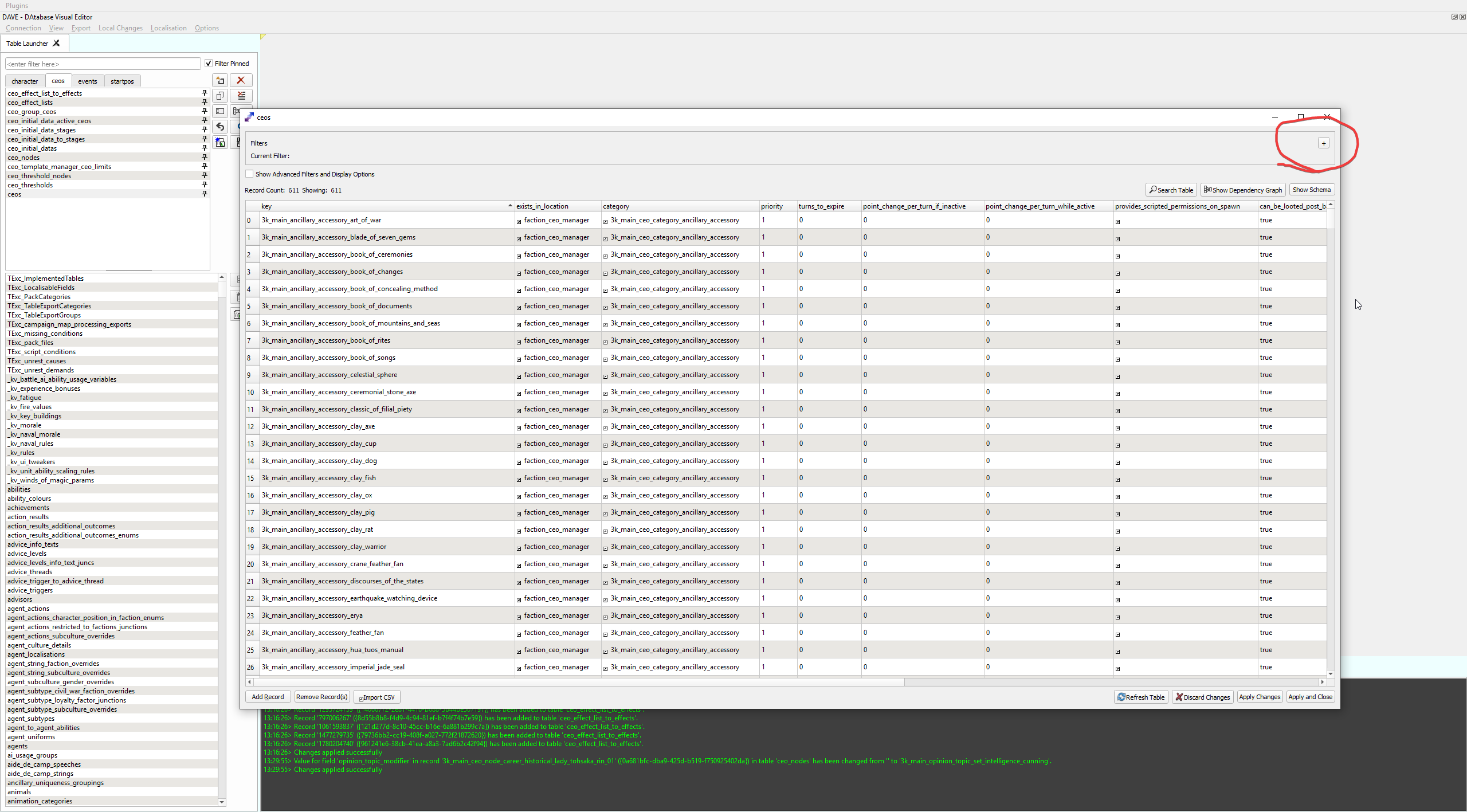
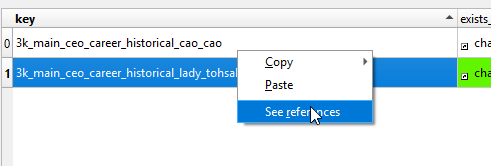
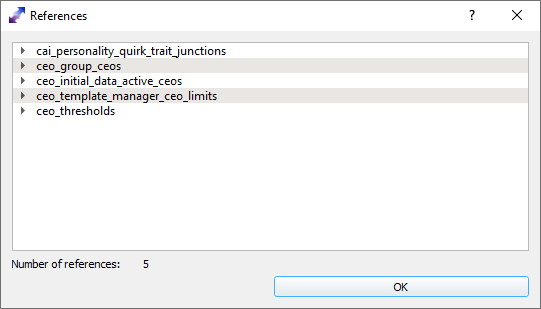
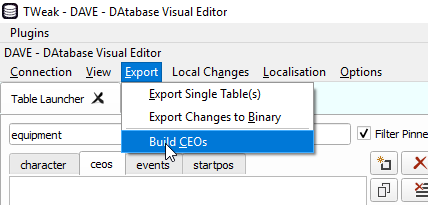
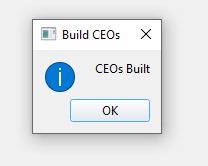
Title, Traits, Stats, Opinions
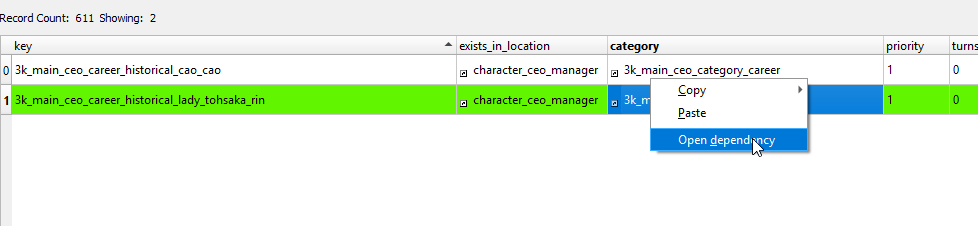
The main thing we are going to modify here is the career, which involves titles and traits, opinions, and stats. We do not modify the base stats. There are mods in the workshop that modify base class stats or create a new base class state in order to boost the character's stats. We are not going to be doing that here. Instead we will do it like how CA does it for vanilla characters, stats will be added through titles, traits, armor, weapons, etc.
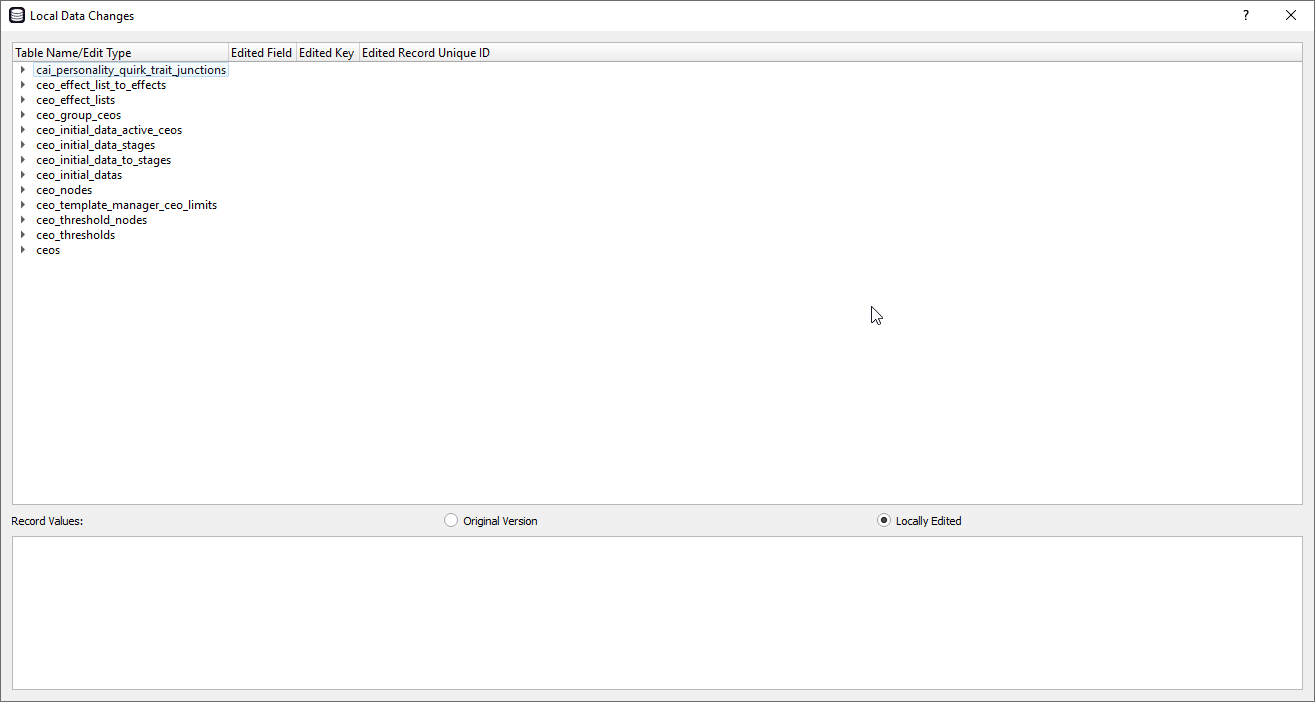
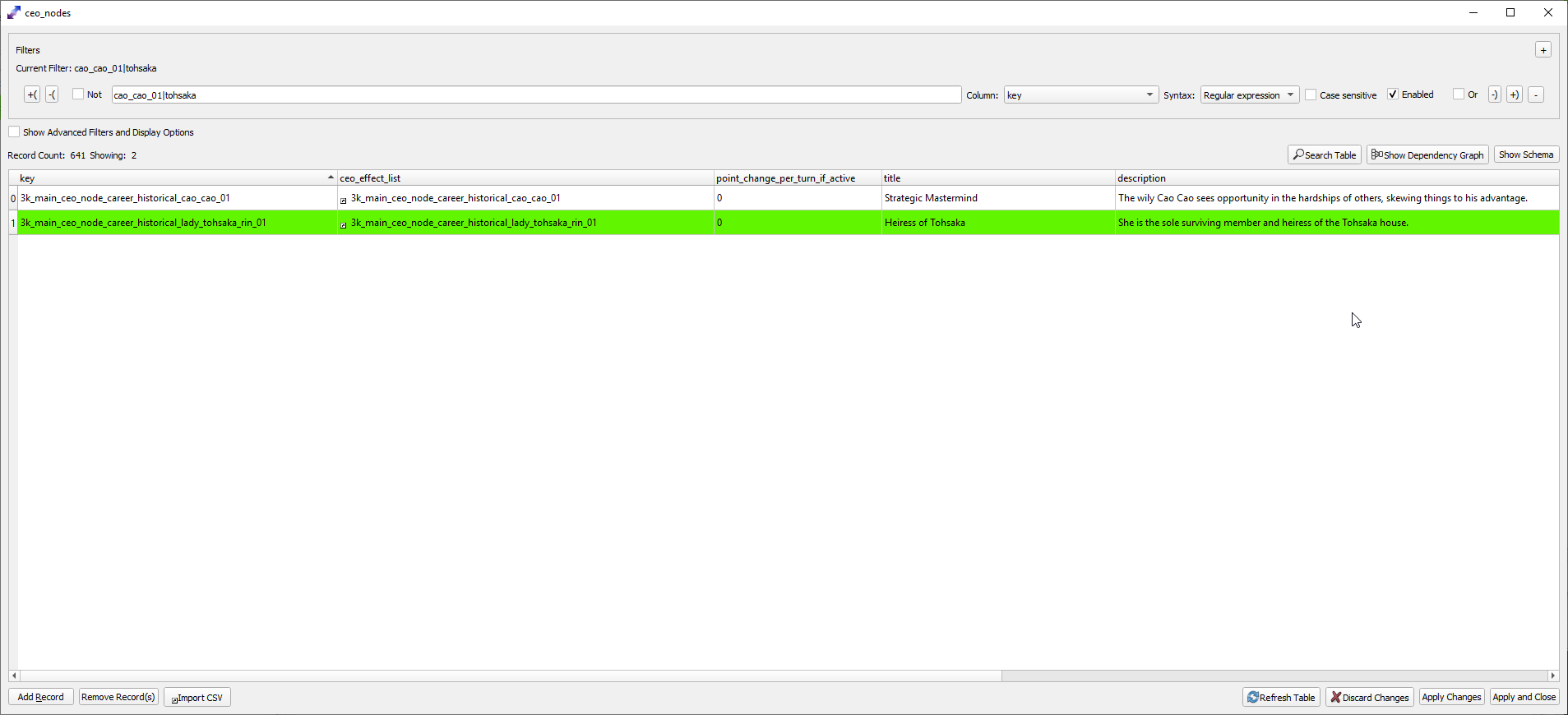
3k_main_effect_ai_hint_minister and 3k_main_effect_ai_hint_general tells the AI to use them, higher the value the more likely.
The effect_scope column dictates what the effect applies to. character_to_character_own applies to the character itself, character_minister_to_force_factionwide applies to the whole faction if ruler, hier, or prime minister. There are also options for own retinue, own army, factionwide without conditions, etc.
3k_main_effect_character_num_lives gives resilence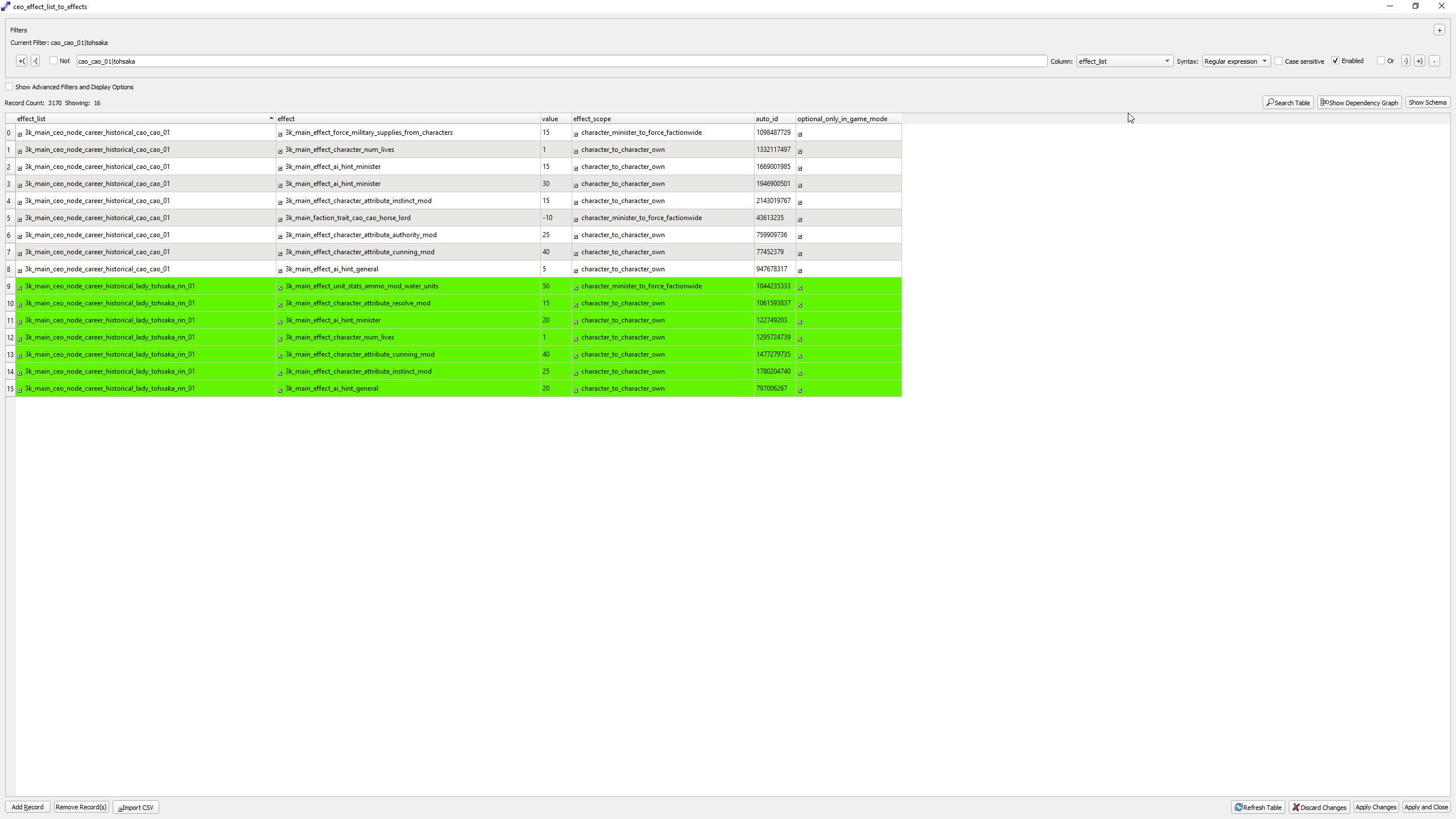
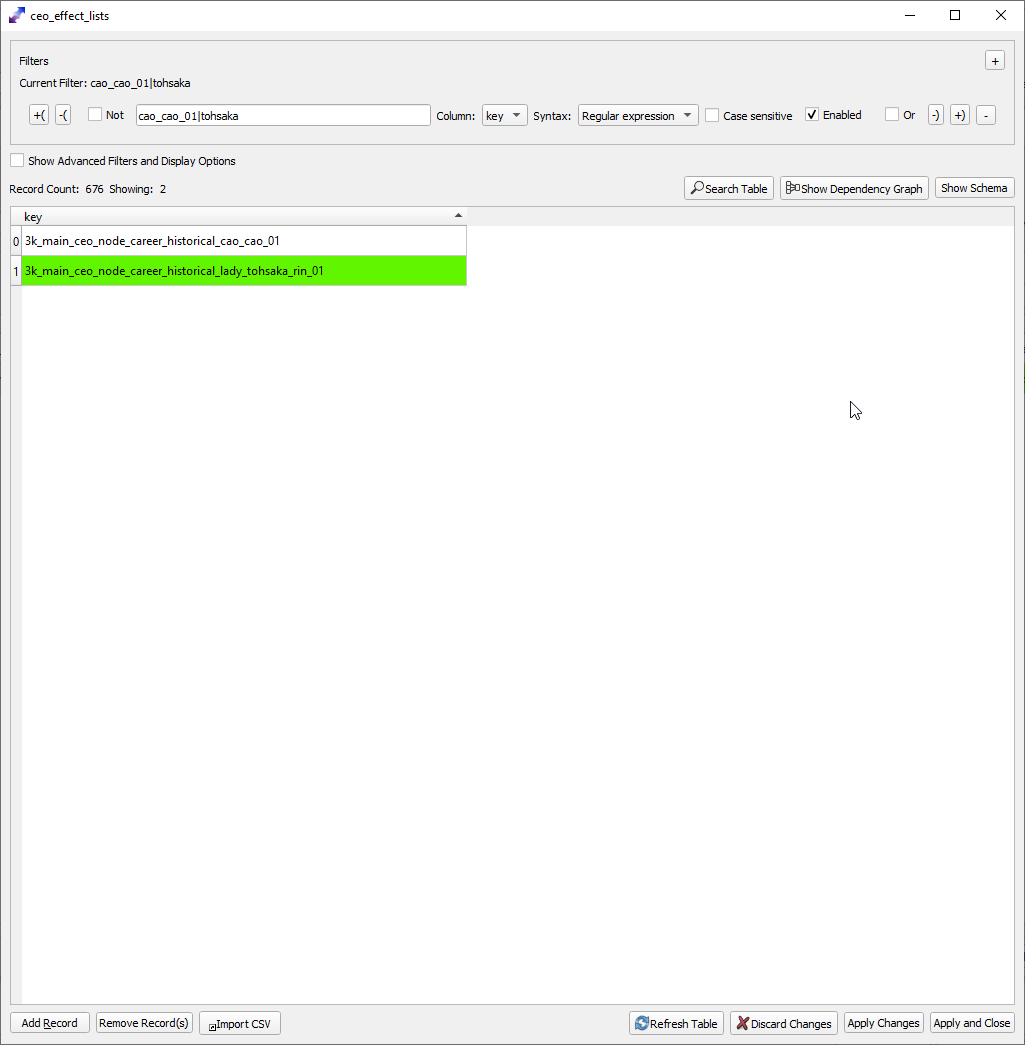
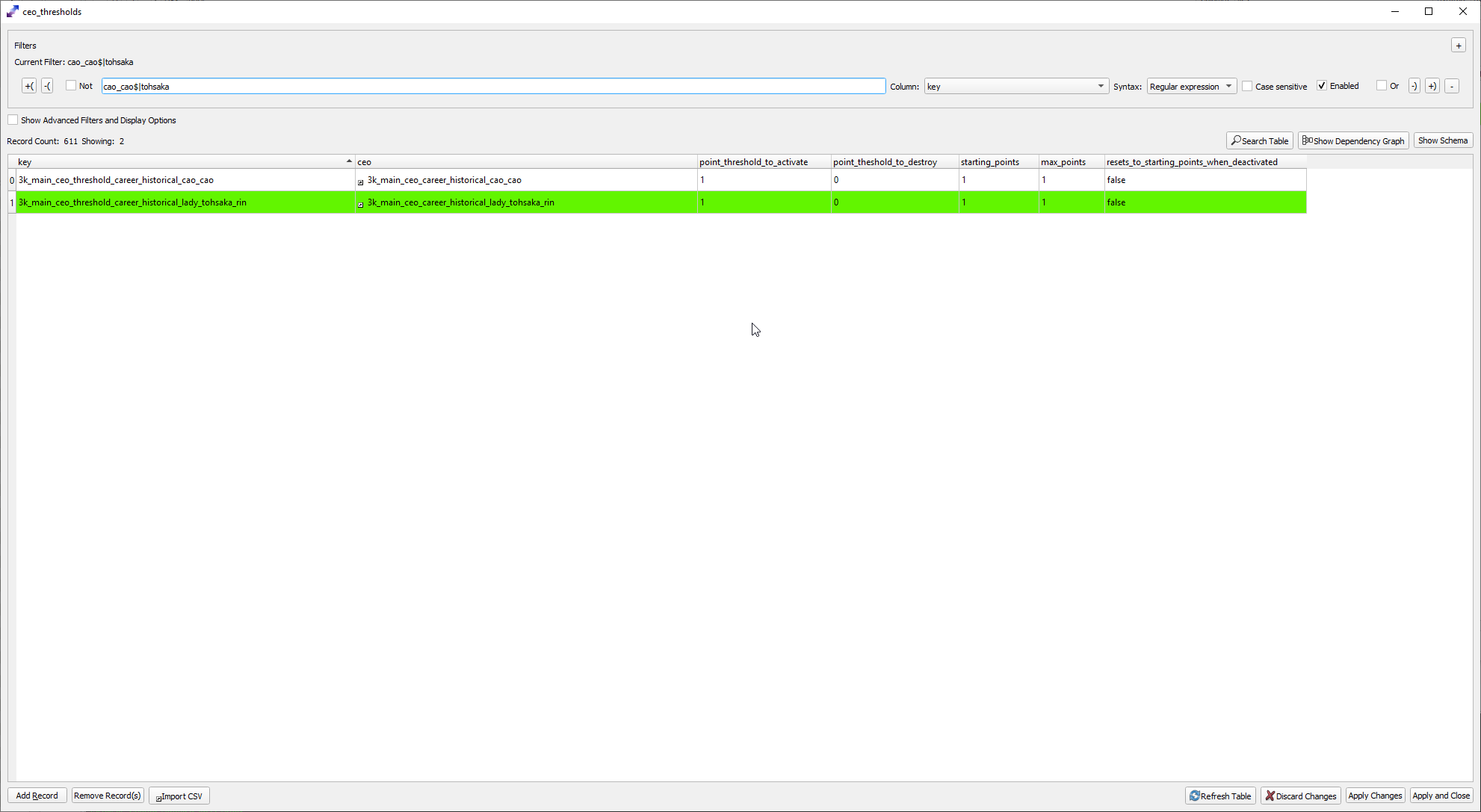
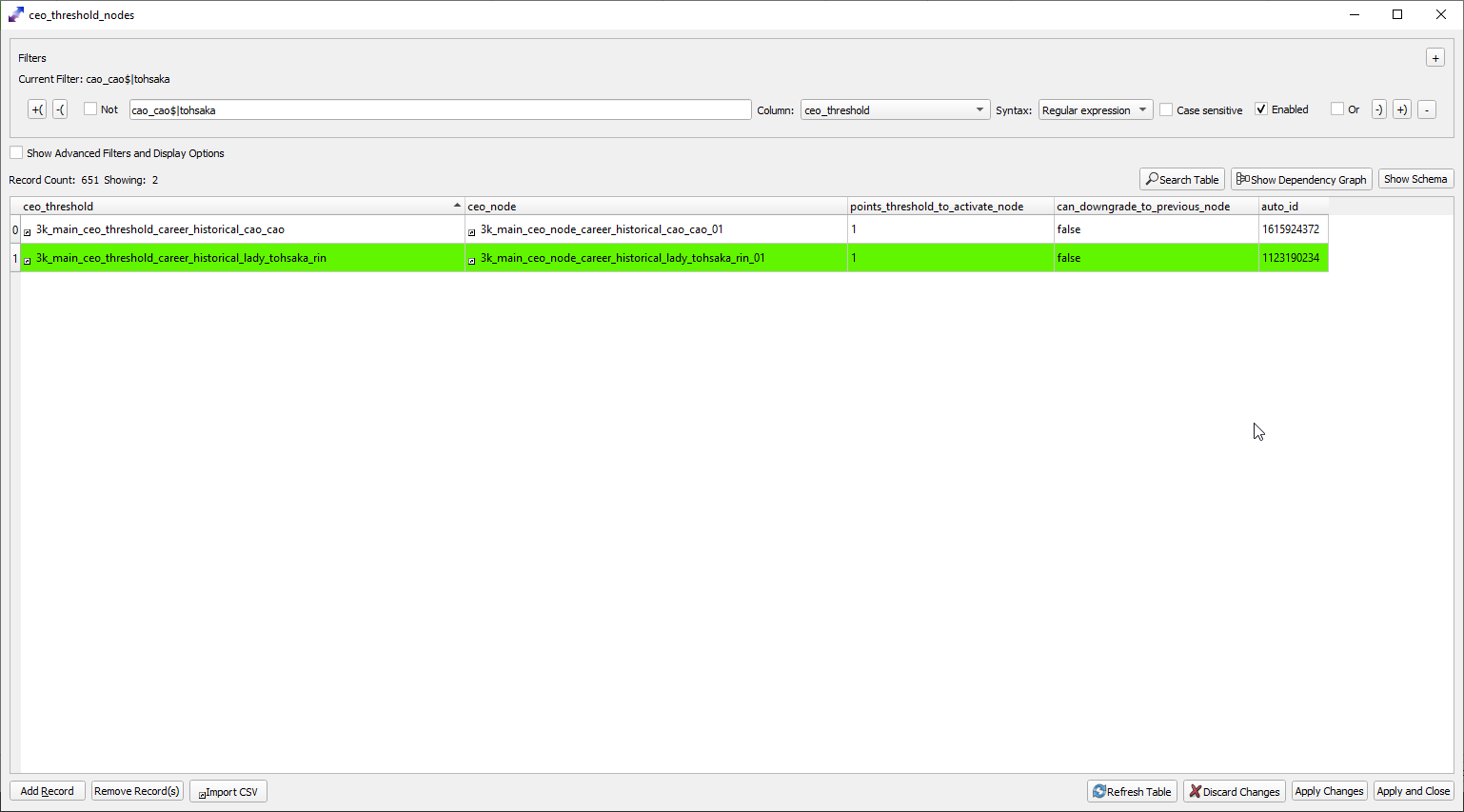
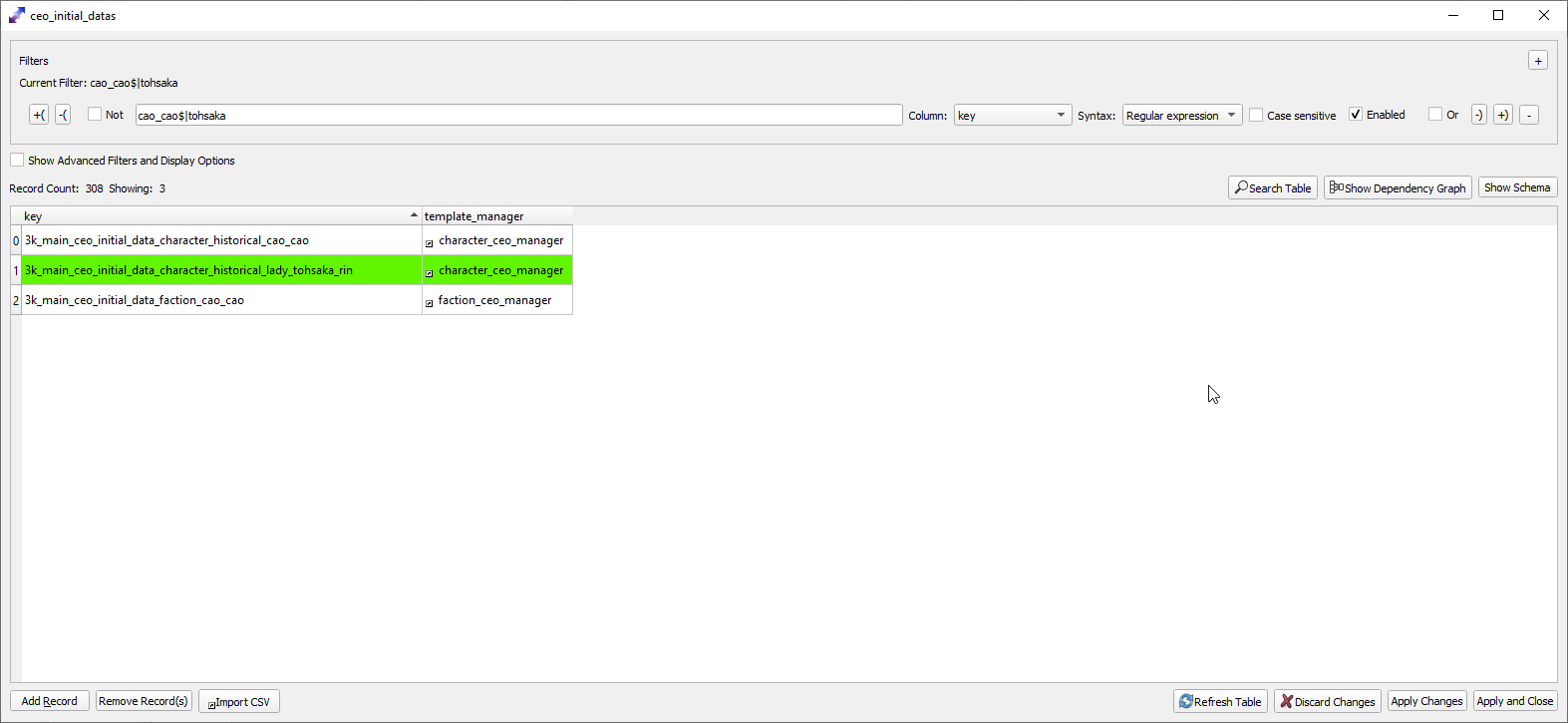
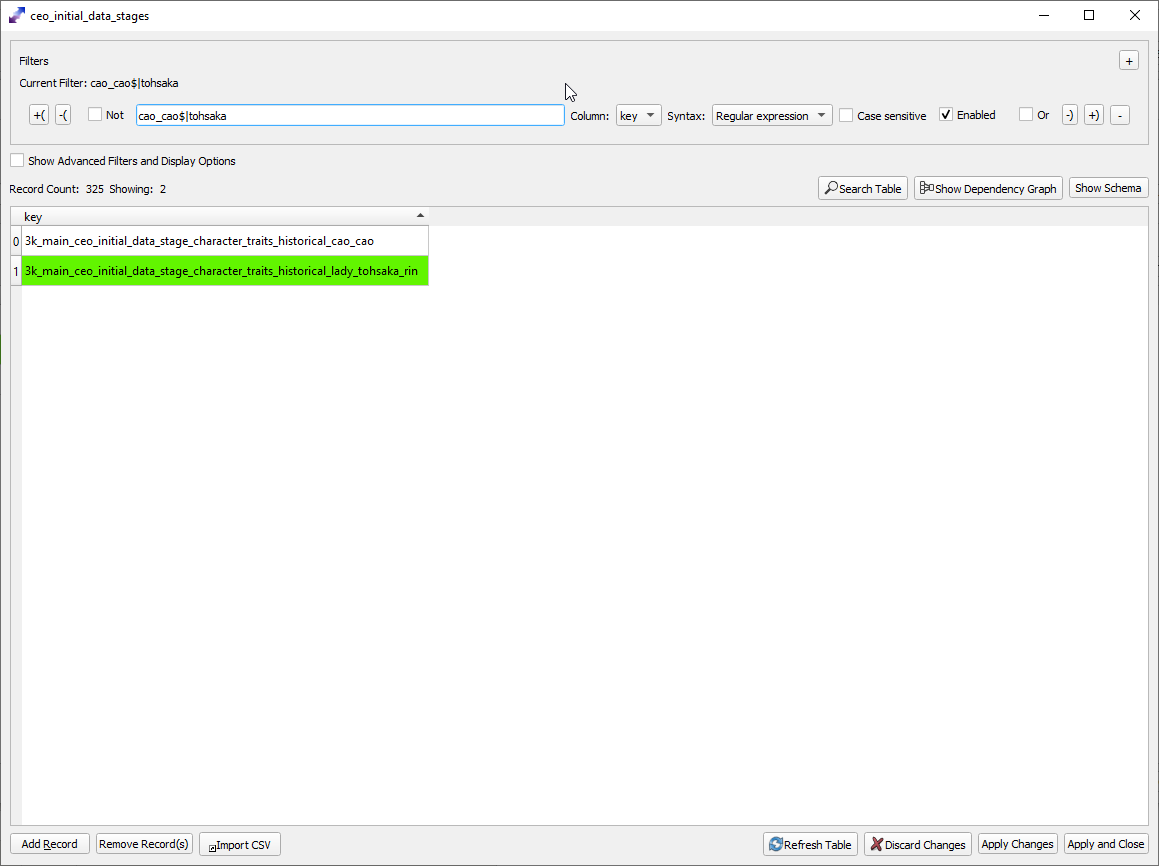
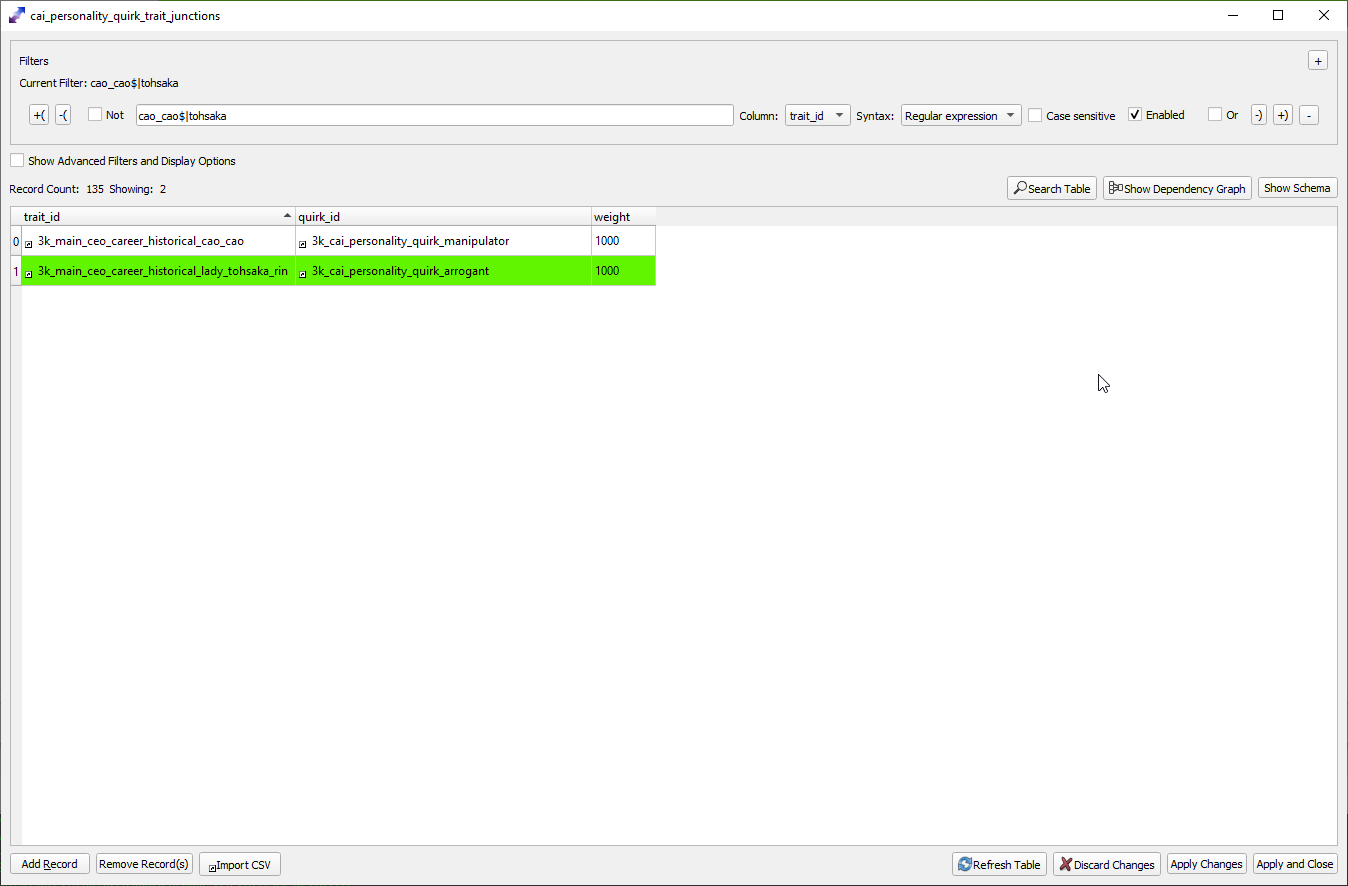
Adding Ceos and Changes to Pack File

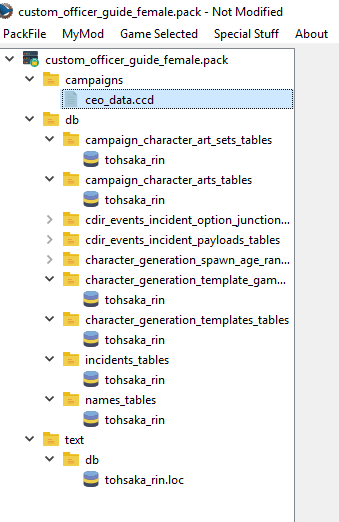
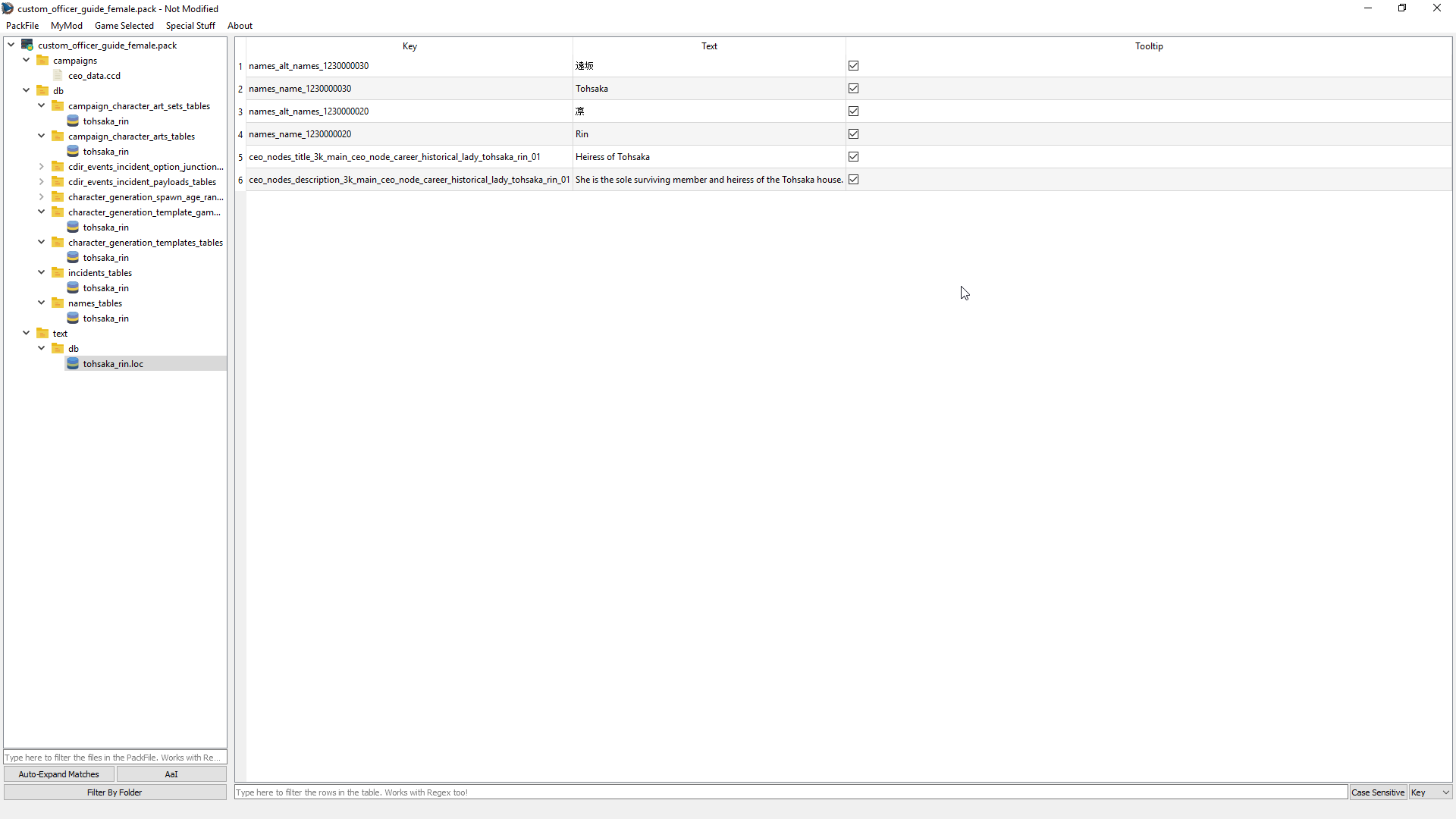
Title is Added
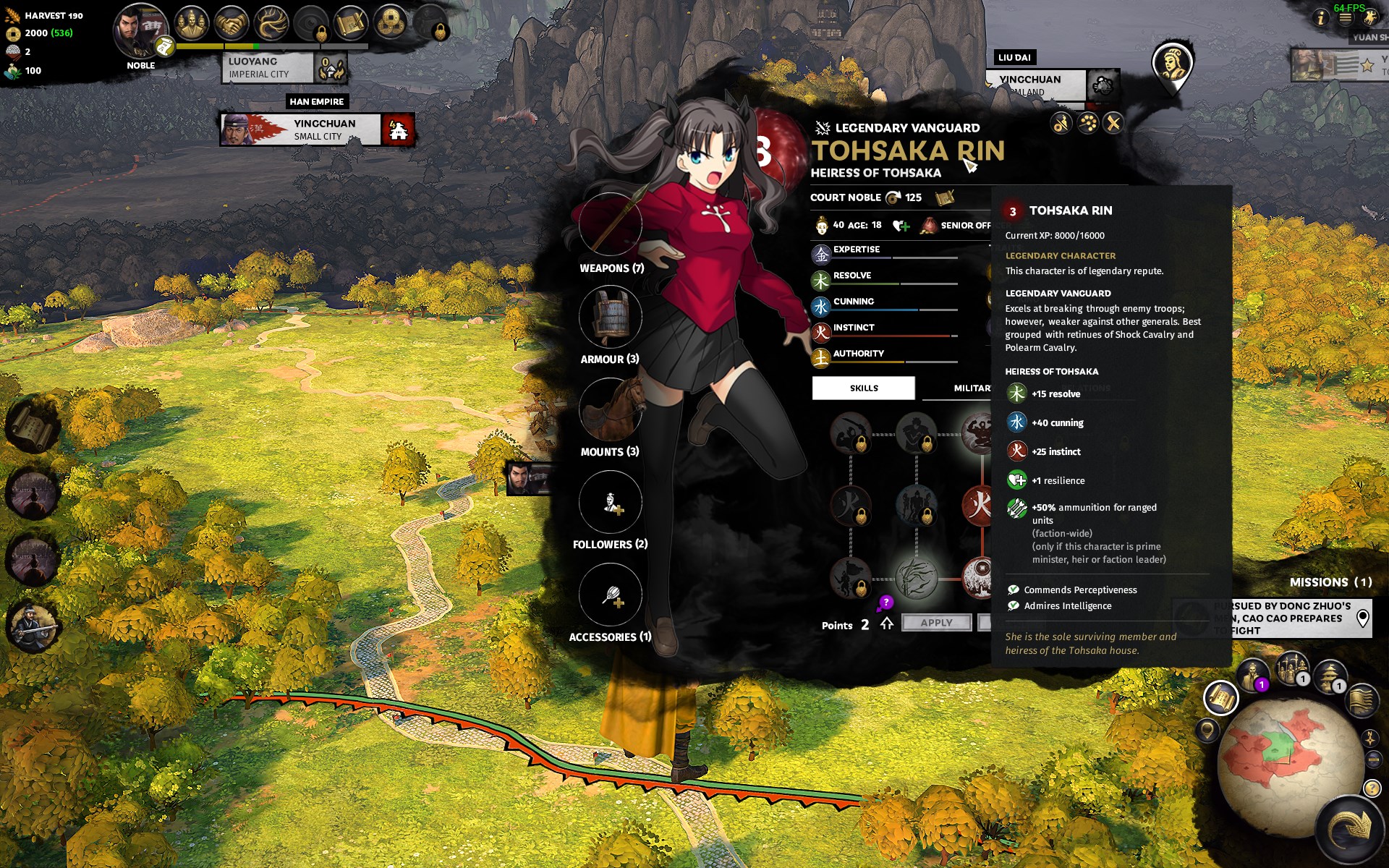
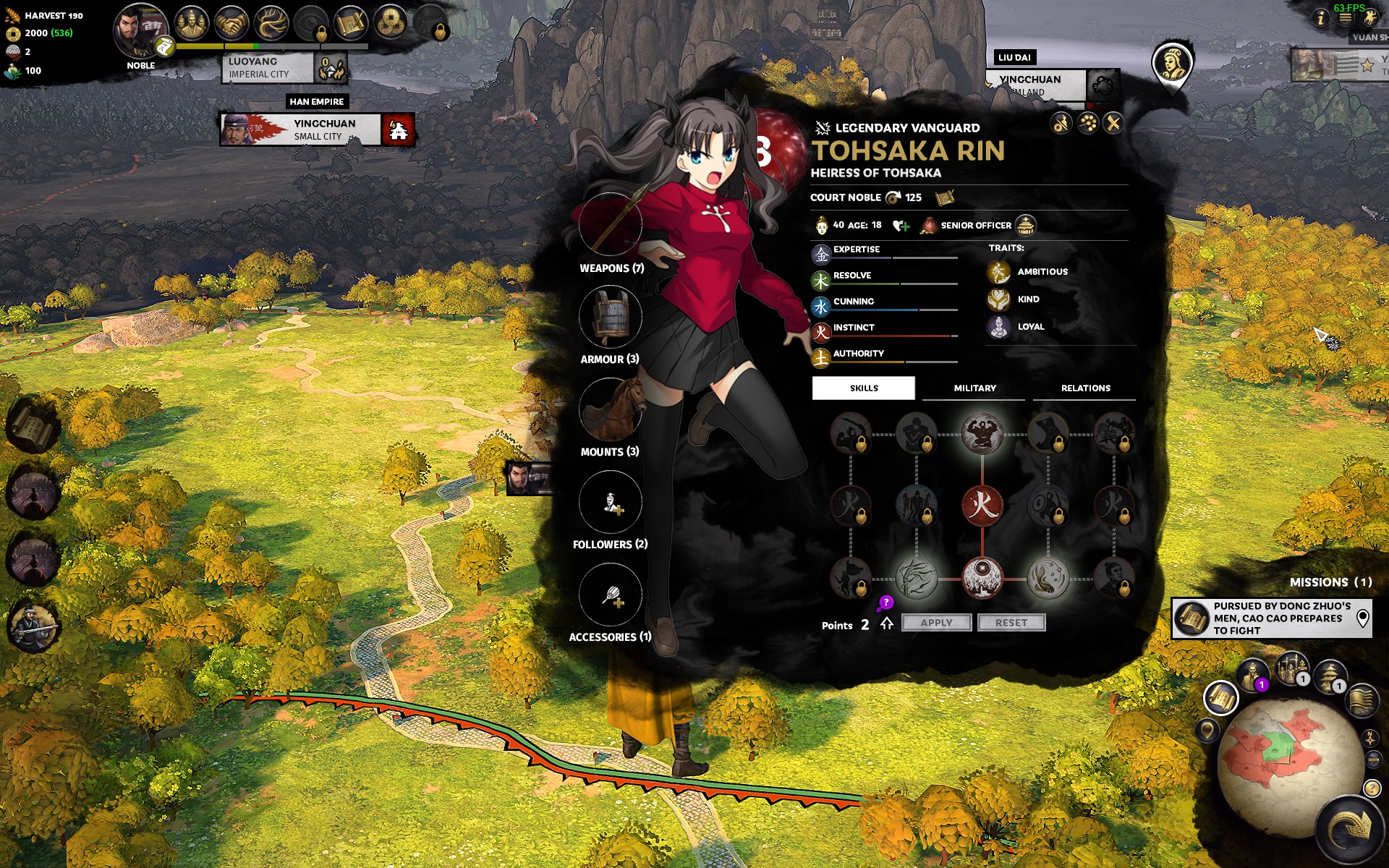
Armor and Weapons
- 《全面战争:三国》全方位懒人攻略★ 5 (685)39k views962 ♥3 minSimplified ChineseUpdated Mar 26, 2021
- Total War 3K: TheGathering sandbox mod★ 5 (312)37k views729 ♥76 minUpdated Jun 2, 2021
- 【更新日志】黑熊的非官方DLC (最后更新2024/6/28)★ 5 (312)36k views387 ♥3 minSimplified ChineseUpdated Jun 28, 2024
- Guide for TROM mod★ 5 (166)36k views395 ♥20 minUpdated Aug 7, 2023
- Three Kingdoms: Income guide★ 5 (382)27k views987 ♥17 minUpdated Jun 21, 2022
- Advanced Tips and Tricks★ 5 (329)25k views639 ♥42 minUpdated Jun 14, 2019


- Upgrading to PremiumTeam Fortress 2★ 5 (20k)1441k views11k ♥6 minUpdated May 11, 2022
- No More Room in Hell Official ManualNo More Room in Hell★ 5 (2.8k)569k views2.1k ♥29 minUpdated Apr 22, 2019
- NMRiH Community Hosting GuidesNo More Room in Hell★ 5 (526)351k views653 ♥1 minUpdated Aug 10, 2022
- ULTIMATE GUIDE FOR GAME DEV TYCOONGame Dev Tycoon★ 5 (5.8k)326k views10k ♥4 minUpdated 23 Jan, 2014
- How to 'Git Gud' Soon™MORDHAU★ 5 (2k)318k views3k ♥68 minUpdated Nov 16, 2024
- Лучшие кооперативные игры SteamPAYDAY 2★ 5 (1.5k)315k views2.1k ♥56 minRussianUpdated Apr 27, 2025






This guide was created by its original author on the Steam Community. Are you the author and want it removed? Request removal.