Mortal Kombat fixes and troubleshooting
Introduction
PLEASE RATE AND FAVOURITE THIS GUIDE IF IT'S HELPED YOU!
Mortal Kombat Komplete Edition is a great game, but some players may encounter technical problems. If you're tired of them as much as we are, then this guide is for you. In this guide we will list some of these problems and the solutions on how to fix them. We hope that this guide helps you fix your issues.
The game takes ages to launch!
- Defragment your HDD. It may help with your other games, too, or even speed up your entire system.
- Try running the game off your SSD (JUST DO NOT DEFRAGMENT YOUR SSD FOR THE LOVE OF GOD)
- Turn off User Account Control in your Action Center settings.
- Make sure you don't have 2 anti-virus programs running at the same time or both Windows Firewall and your Anti-Virus firewall at the same time. They could conflict between each other and impact the game's boot up time. (Thanks, BeautyBanana!)
I can't launch the game! The game crashes at startup!
If your game crashes or just quits at startup:
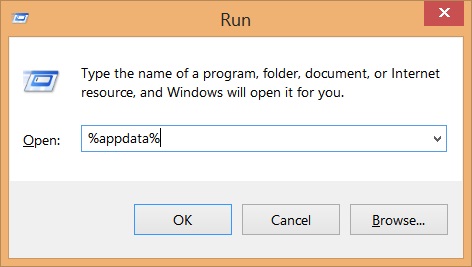
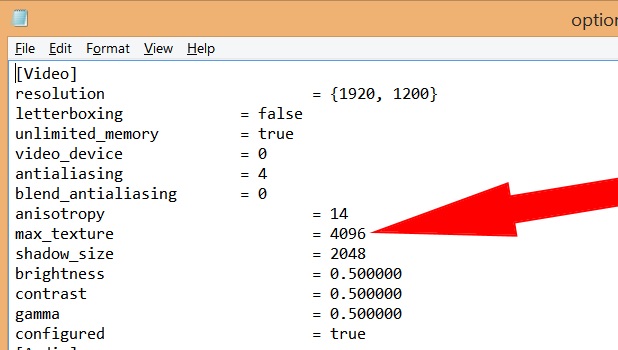
- Open AppData\Roaming\MKKE\options.ini
(Press the "windoes key" and "R" at the same time. A windows will pop up, type %appdata%) - Edit the value of max_texture to a higher number (eg. from 512 to 1024). Save the file and close it.
- If that doesn't work, delete the MKKE folder.
- Run both the game and Steam as an adminstrator.
- Don't forget to install DirectX and Visual C++ 2008 redist.
This game requires the June 2010 DirectX Redistributable Package. Please reinstall the game.
- Install DirectX Redistributable Package in Steam\steamapps\common\MortalKombat_KompleteEdition\DiscContentPC (duh)
- Make sure you have DirectPlay installed in Legacy Components section of the "Turn Windows features on or off" program.
Nothing happenens when I press "Run Advanced Options Configuration"!
- Run the MKLauncher.exe file manually in Steam\steamapps\common\MortalKombat_KompleteEdition\DiscContentPC
- Make sure you have Microsoft Visual C++ Redistributable 2008 and 2012 installed.
The game quits at "Video configuration for the first time"!
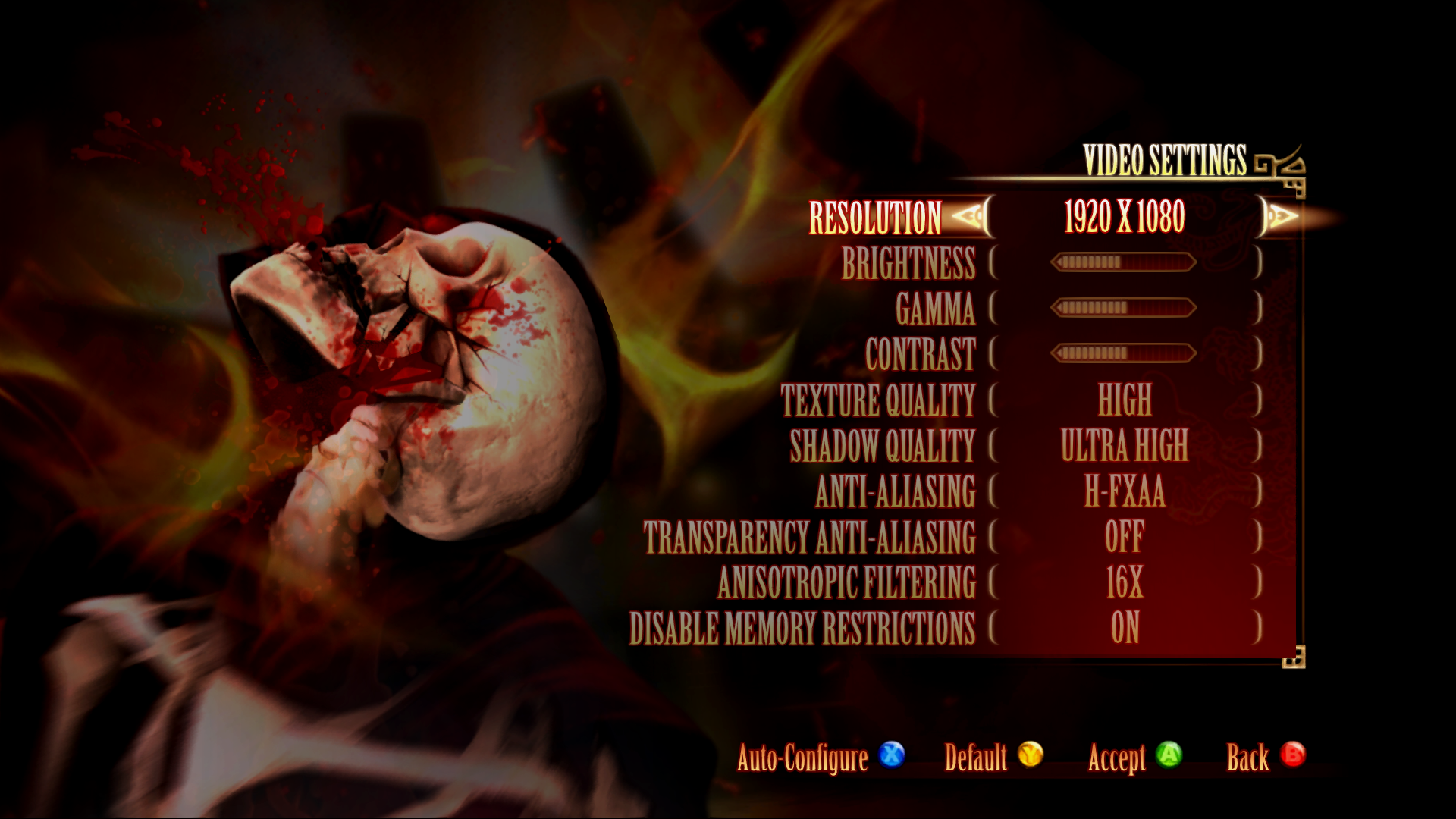
- Go to your Appdata\Roaming\MKKE folder and find options.ini file. There, find "configured" and try setting it to true. Turn antialiasing to 2 (H-FXAA in-game, this way you'll see people in multiplayer) and blend_antialiasing to 0 (in game Transparency AA off) Here are my (Sewpar's) config and in-game settings for reference:
resolution = {1920, 1080}letterboxing = falseunlimited_memory = truevideo_device = 0antialiasing = 2blend_antialiasing = 0anisotropy = 16max_texture = 4096shadow_size = 4096brightness = 0.500000contrast = 0.500000gamma = 0.500000configured = true[Audio]device_hash = 0xFFFFFFFF[Multiplayer]distance_filter = 3
The Program can't start because MSVCR110.dll is missing from your computer. Try reinstalling the program to fix this problem.
- Make sure you have Microsoft Visual C++ Redistributables installed (year 2012, 2008 etc.)
The game crashes when I enter Multiplayer!
- Change your screen resolution.
I can't see any players in multiplayer online lobbies!
- Turn Anti Aliasing to H-FXAA, L-FXAA or disable it completely, and turn Transparency AA off.
NOTE: More testing revealed that it's not necessary to turn Anti Aliasing to H-FXAA or L-FXAA. Other settings like MSAA work fine on a high-end PC, although it's still recommended to keep your Anti Aliasing at H-FXAA or L-FXAA. Reduce you shadows settings, this way you'll see players.
- Go to your Steam Library, right click on Mortal Kombat and press Advanced Options
Configuration. - There, set your Multiplayer Distance Filter to Worldwide.
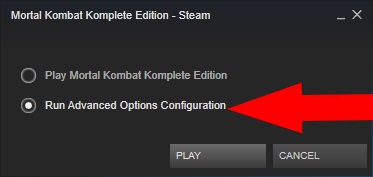
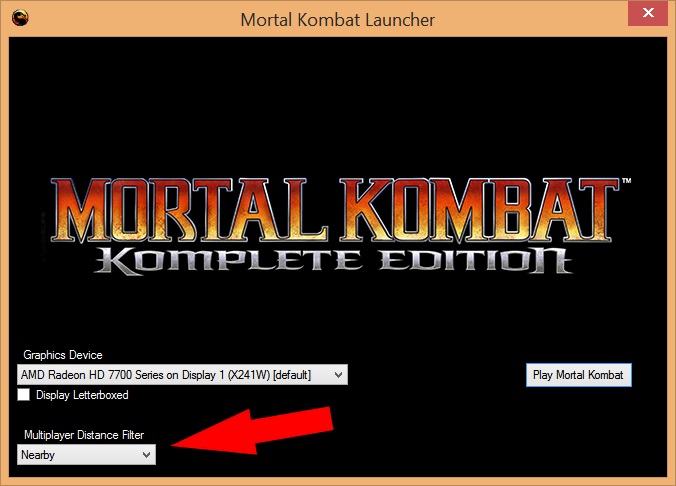
Also, the online rooms MAY DISPLAY 0 PLAYERS, BUT THERE MAY STILL BE PLAYERS IN THEM. If you still can't see players OR rooms, restart Steam and your router.
I get the "Game Session No Longer Available" error when playing online multiplayer!
There are three things that affect the online multiplayer experience:
- 1. Your internet connection. It has to be as fast as possible. Turn off uTorrent and other software that uses your bandwith.
- 2. The distance between players. The longer the distance between players, the bigger the chance that the online match will have lag. Set your Multiplayer Distance Filter to either Close, Nearby or Far.
- 3. Your computer specs. Your computer should exceed the recommended requirements for a solid experience, both multiplayer and singleplayer.
Sewpar's new PC specs (game still running at 60 FPS, obviously): 16 GB DDR3 RAM, Intel Core i7 4790K overclocked to 4.4 GHz, MSI Nvidia Geforce GTX 970 OC 4 GB
Update history
October 6th, 2014, 15:39 - Created the guide.
October 8th, 2014, 18:26 - Updated the "I get the "Game Session No Longer Available" error when playing online multiplayer!" section of the guide.
October 8th, 2014, 18:38 - Supreme profesional grade images added.
October 9th, 2014, 15:45 - Updated the "The game quits at "Video configuration for the first time"!"
section of the guide.
October 9th, 2014, 20:31 - Updated the "Introduction" section of the guide.
November 30th, 2014, 16:43 - Updated the "I get the "Game Session No Longer Available" error when playing online multiplayer!" section of the guide. Sewpar's new PC's specs added, just so he could show off his 1200 € PC.
November 30th, 2014, 16:47 - Updated the "I can't see any players in multiplayer online lobbies!" section of the guide.
January 3rd, 2015, 15:16 - Fixed some grammar errors and stuff.
January 16th, 2015, 20:52 - Added the "The game takes ages to launch!" section to the guide.
April 11th, 2015, 21:19 - New logo of the guide, fixed some grammatical errors.
April 11th, 2015, 23:25 - Added the "The game crashes when I enter Multiplayer!" section of the guide.
April 11th, 2015, 23:31 - Added the "This game requires the June 2010 DirectX Redistributable Package. Please reinstall the game." section of the guide.
- Русификатор для Mortal Kombat Komplete Edition★ 5 (683)30k views513 ♥1 minRussianUpdated Oct 4, 2016
- Достижения на русском языке +bonus подсказки.★ 5 (1.6k)24k views1.6k ♥12 minRussianUpdated Aug 18, 2016
- -=Карточки Комбо И Фаталити Персонажей=-★ 5 (397)22k views667 ♥3 minRussianUpdated Jul 28, 2013
- Mortal Kombat - Character Combo Cards★ 5 (1.1k)21k views1.3k ♥1 minUpdated Aug 31, 2013
- Ultimate Krypt Guide★ 5 (531)13k views641 ♥15 minUpdated Sep 9, 2013
- Mortal Kombat Komplete Edition Русификация★ 5 (258)13k views222 ♥1 minRussianUpdated Apr 14, 2015


- Upgrading to PremiumTeam Fortress 2★ 5 (20k)1441k views11k ♥6 minUpdated May 11, 2022
- No More Room in Hell Official ManualNo More Room in Hell★ 5 (2.8k)569k views2.1k ♥29 minUpdated Apr 22, 2019
- NMRiH Community Hosting GuidesNo More Room in Hell★ 5 (526)351k views653 ♥1 minUpdated Aug 10, 2022
- ULTIMATE GUIDE FOR GAME DEV TYCOONGame Dev Tycoon★ 5 (5.8k)326k views10k ♥4 minUpdated 23 Jan, 2014
- How to 'Git Gud' Soon™MORDHAU★ 5 (2k)318k views3k ♥68 minUpdated Nov 16, 2024
- Лучшие кооперативные игры SteamPAYDAY 2★ 5 (1.5k)315k views2.1k ♥56 minRussianUpdated Apr 27, 2025






This guide was created by its original author on the Steam Community. Are you the author and want it removed? Request removal.