Probably the easiest way to get custom skins for spelunky!
Tools and files you will need
Next you will need a custom skin image file. You can find some on gamebanana.com, or you can just search on google images. As an example, here is a custom skin of Madeline from the game Celeste. It can be downloaded here[gamebanana.com] (I did not create this skin).
Adding the skins to the game!
Now that you have downloaded Patchlunky and a custom skin image, it's time to add the skin to the game!
First, extract the Patchlunky .zip folder. Open the folder once it is extracted and run Patchlunky.exe.
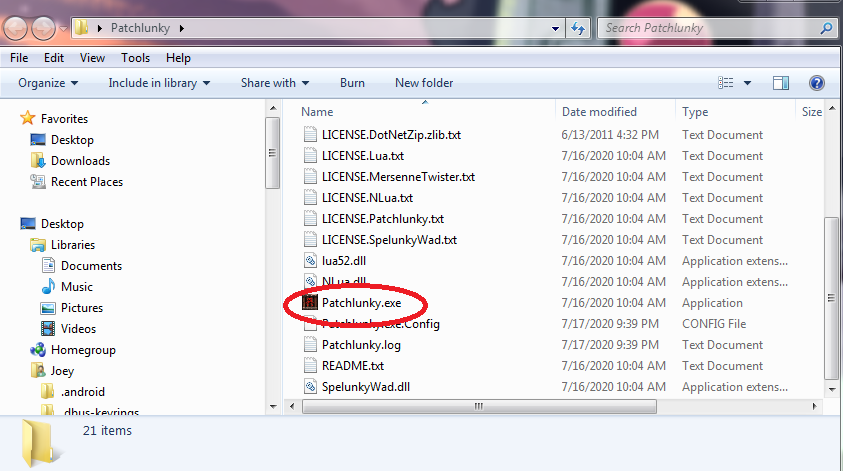
Follow the dialog that pops up. It should make a backup of Spelunky for you.
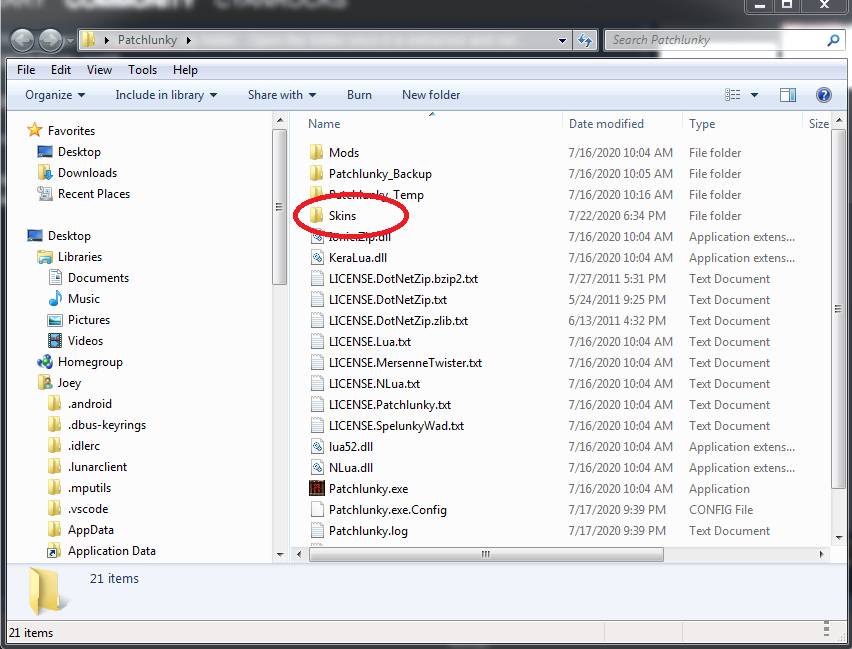
Now you need to close Patchlunky. After you close it, go back to the Patchlunky folder and drag and drop the image of your skin into the Skins folder.
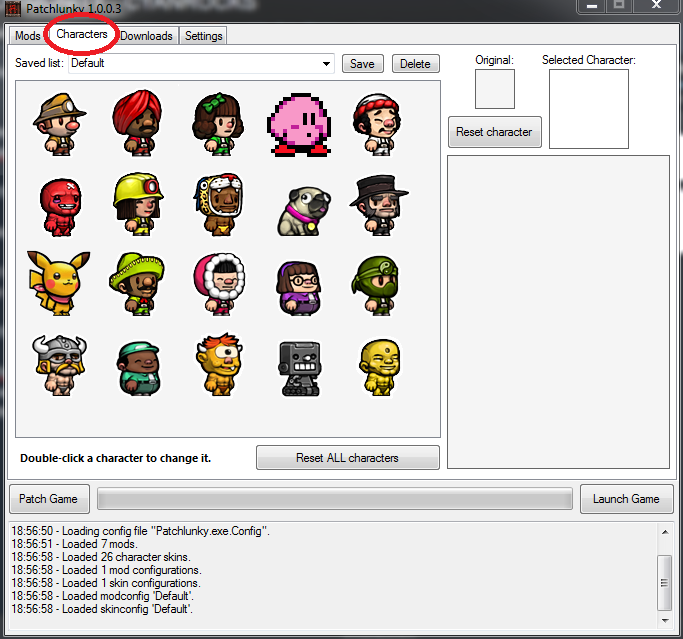
We're almost there! Open Patchlunky yet again, and go to the Characters tab on the top.
Next you need to double click on the character you would like to replace. The character that you put into the Skins folder should appear at the bottom of the app. Double click the new skin, and you should see that character take the spot of the original one.
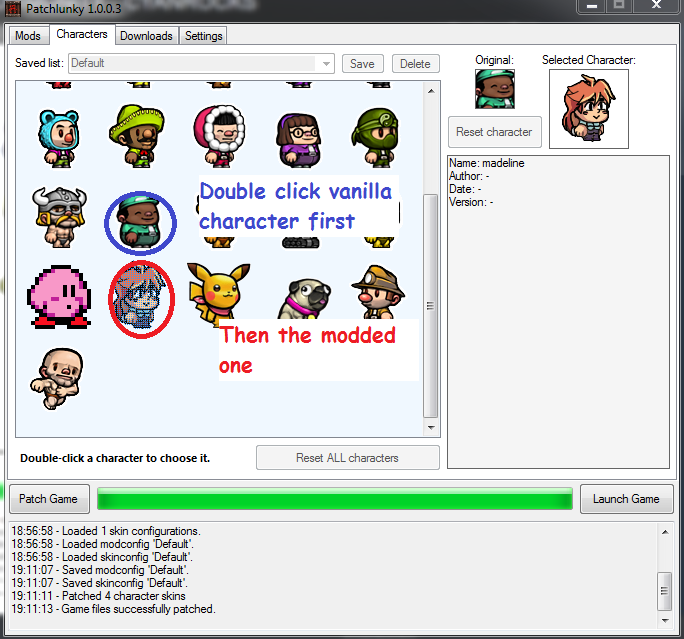
This is the last step so pay attention! Carefully move your mouse to the button that says patch game and click it. (DO NOT have Spelunky open while doing this)
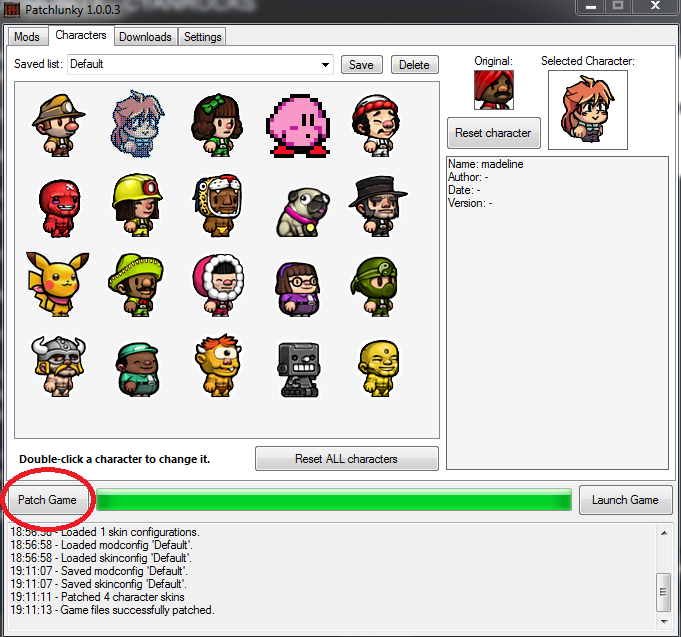
Once the green progress bar fills up and the dialog box at the bottom says "Game files successfully patched," you have done it! Your custom skins have been added to Spelunky! You can run the game from Steam or you can click the Launch Game button in Patchlunky.
Important Disclaimer
(DISCLAIMER: I did not create Patchlunky, Gamebanana, or any Custom Characters shown in this guide)
Patchlunky: https://github.com/Worst-vd-plas/Patchlunky/releases
GameBanana: https://gamebanana.com/
Madeline Skin: https://gamebanana.com/skins/164256
Kirby Skin: https://gamebanana.com/skins/166402
Pikachu Skin: https://gravelblock.tumblr.com/post/122263413757/i-finally-finished-my-pikachu-skin-for-spelunky
Pug Skin: https://www.reddit.com/r/spelunky/comments/38vqx4/spelunky_character_pug/
- SPELUNKY MEGA GUIDE★ 5 (1.3k)37k views1.5k ♥70 minUpdated Aug 14, 2020
- Characters & How to Unlock Them★ 5 (408)30k views456 ♥3 minUpdated Sep 9, 2013
- Robbing & Fighting Shopkeepers★ 5 (345)26k views301 ♥5 minUpdated Nov 30, 2013
- Developing good habits in Spelunky★ 5 (295)19k views333 ♥16 minUpdated Apr 8, 2014
- 10 Tips to Surviving Spelunky★ 5 (317)15k views118 ♥1 min
- Spelunky Achievement Guide★ 5 (267)13k views358 ♥10 minUpdated Aug 25, 2013


- Upgrading to PremiumTeam Fortress 2★ 5 (20k)1441k views11k ♥6 minUpdated May 11, 2022
- No More Room in Hell Official ManualNo More Room in Hell★ 5 (2.8k)569k views2.1k ♥29 minUpdated Apr 22, 2019
- NMRiH Community Hosting GuidesNo More Room in Hell★ 5 (526)351k views653 ♥1 minUpdated Aug 10, 2022
- ULTIMATE GUIDE FOR GAME DEV TYCOONGame Dev Tycoon★ 5 (5.8k)326k views10k ♥4 minUpdated 23 Jan, 2014
- How to 'Git Gud' Soon™MORDHAU★ 5 (2k)318k views3k ♥68 minUpdated Nov 16, 2024
- Лучшие кооперативные игры SteamPAYDAY 2★ 5 (1.5k)315k views2.1k ♥56 minRussianUpdated Apr 27, 2025






This guide was created by its original author on the Steam Community. Are you the author and want it removed? Request removal.