Square covers for Steam Workshop
Guide
!!! WARNING !!!
You may permanently damage your screen using this technique.
Not all screens fully support custom resolutions, some may not allow it.
Some monitors may work good, but after a long time they may also become permanent damaged, discoloration may appear in the corners of the screen, artifacts, dead pixels, etc.
No need for hiding UI by console command for doing a square cover. The game will do it for you when uploading to Workshop.

All you need to do a square cover picture:
Go to:
- Nvidia control panel from desktop right click menu
- Change resolution
- Customize...
- Create Custom Resolution
- ex. 1800x1800 or 1600x1600 (at 60Hz / default)
- Run the WoG in this square desktop
- Paint
- Upload (skin to Steam Workshop)
- Click Upload
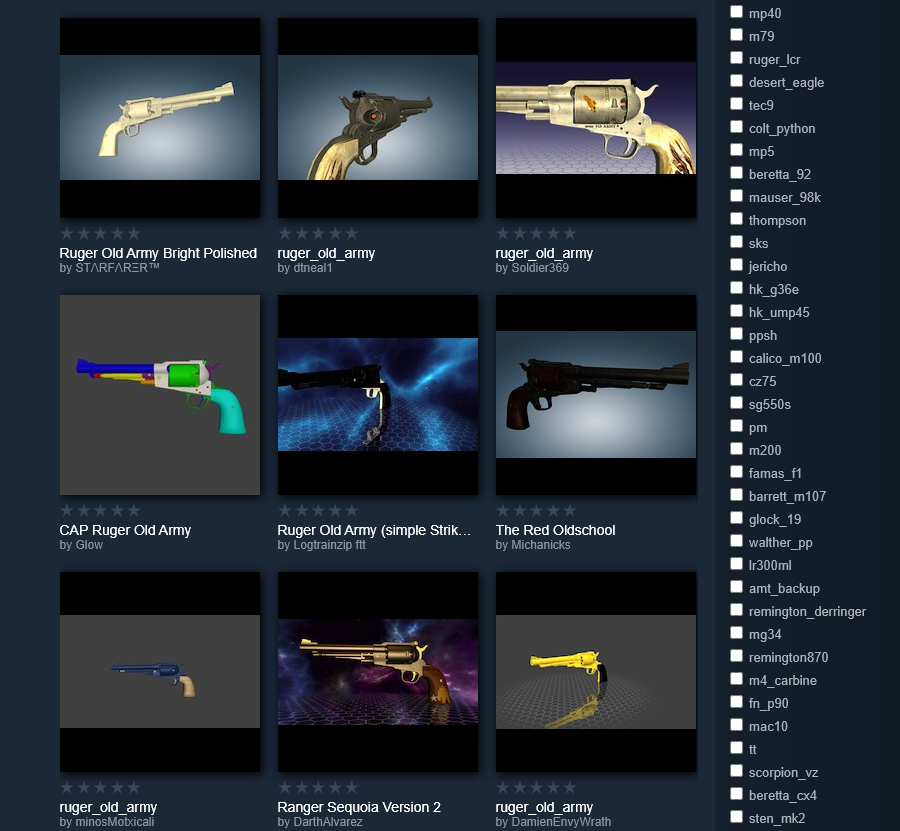
You will see menu showing how your work will look in Steam Workshop gallery and in the game workshop gallery. You want both square to look pretty.
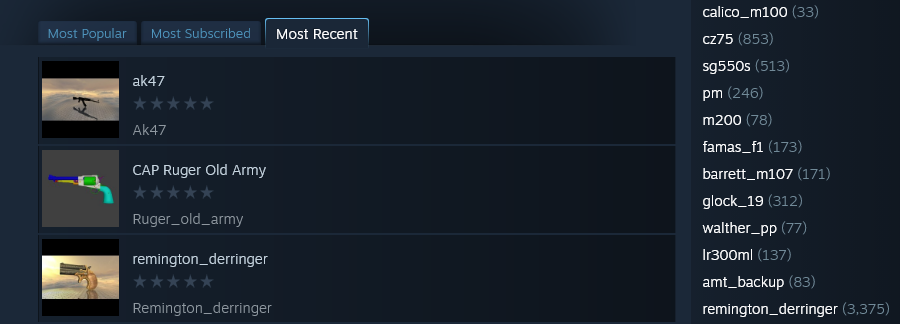
Custom resolution:
If you default screen resolution is 1920x1080 60Hz use smaller values, for ex. 1080x1080 60Hz I believe you should be saved from damaging your screen.
Watch temperature by touching screen at the back or top by hand. Some screens can get very hot rapidly. In general it's not recommended to use custom resolutions for longer period of time.
Don't blame me if your screen explode and put your face in fire.
One of my old Samsung screen is able to display even higher resolutions that officially supported like 2880x1800 at 57Hz. Others can't or doing this with nasty open window OSD.
Some screens not allow any custom resolutions higher than default and will display message about it. The OS will come back to previous settings automatically, so you can have a try. If you want to know more about it google: Custom Resolutions.
- Every Weapon's Path in the Tree [outdated]★ 5 (341)14k views291 ♥15 minUpdated 8 May, 2021
- How to get those crazy top times.★ 5 (221)12k views172 ♥3 minUpdated 11 Aug, 2020
- Free weapons promo code★ 5 (264)11k views320 ♥2 minUpdated 21 Jan, 2022
- Unlock Weapons for FREE, found new code★ 3 (96)10k views53 ♥1 minBulgarianUpdated 6 Oct, 2016
- How to get free Experience Points, Credits, models, and shooting ranges.★ 4 (65)8k views133 ♥8 minUpdated 24 Apr, 2024
- Daily Puzzle★ 5 (634)7.3k views956 ♥6 minUpdated 4 Dec, 2022






- Upgrading to PremiumTeam Fortress 2★ 5 (20k)1441k views11k ♥6 minUpdated May 11, 2022
- No More Room in Hell Official ManualNo More Room in Hell★ 5 (2.8k)569k views2.1k ♥29 minUpdated Apr 22, 2019
- NMRiH Community Hosting GuidesNo More Room in Hell★ 5 (526)351k views653 ♥1 minUpdated Aug 10, 2022
- ULTIMATE GUIDE FOR GAME DEV TYCOONGame Dev Tycoon★ 5 (5.8k)326k views10k ♥4 minUpdated 23 Jan, 2014
- How to 'Git Gud' Soon™MORDHAU★ 5 (2k)318k views3k ♥68 minUpdated Nov 16, 2024
- Лучшие кооперативные игры SteamPAYDAY 2★ 5 (1.5k)315k views2.1k ♥56 minRussianUpdated Apr 27, 2025






This guide was created by its original author on the Steam Community. Are you the author and want it removed? Request removal.