The chat window for dummies!
The chat window
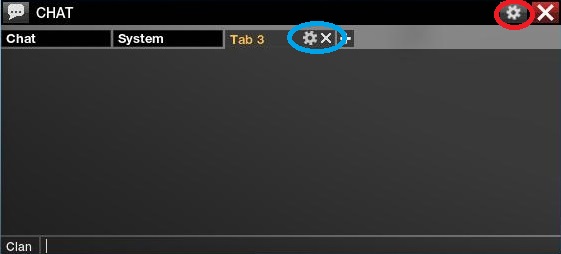
First things first, if you're using the default controls, you can press the "Home" button to access the chat window, it should look like this:
One of the many wonderful functions about this chat window is that if you click on someone's name, it'll appear as a /whisper message on your typing area for easy name selection. However, this does not work on broadcast or system, since they are not players.
One of the many wonderful functions about this chat window is that if you click on someone's name, it'll appear as a /whisper message on your typing area for easy name selection. However, this does not work on broadcast or system, since they are not players.
The little cog circled in red
Obviously, pressing the red "X" button will close the chat tab, pressing the little cog in the red circle gives you this menu:
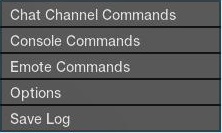
The first 3 things that you see on this part of the menu can be accessed by pressing the F9-F11 keys. Pressing the "Options" button opens up this menu:
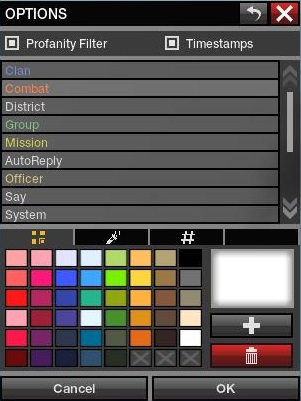
Here, you can color the chat channels with whatever color you wish to color it to. the profanity filter checkbox does nothing, apparently, the timestamp checkbox displays the time stamp of each chat message. Pressing the "Save Log" button saves the current chat log into the main APB directory, then APBGame/Config/Account/[Your account Number]/[Your in-game world]/ChatLog_[Time and Date].log
The first 3 things that you see on this part of the menu can be accessed by pressing the F9-F11 keys. Pressing the "Options" button opens up this menu:
Here, you can color the chat channels with whatever color you wish to color it to. the profanity filter checkbox does nothing, apparently, the timestamp checkbox displays the time stamp of each chat message. Pressing the "Save Log" button saves the current chat log into the main APB directory, then APBGame/Config/Account/[Your account Number]/[Your in-game world]/ChatLog_[Time and Date].log
The little cog circled in blue
If you press the little cog on the chat window that's circled in blue, you get this window:
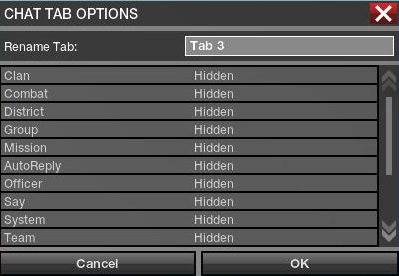
Here, you get to select which chat channels you'd like to be able to see (in this example, I have hidden all the channels to provide a clean chat window). You can block off chat channels you find annoying (such as annoying system messages about people spamming the /cointoss emote, or the annoying tutorial messages, or even yell chat)
Here, you get to select which chat channels you'd like to be able to see (in this example, I have hidden all the channels to provide a clean chat window). You can block off chat channels you find annoying (such as annoying system messages about people spamming the /cointoss emote, or the annoying tutorial messages, or even yell chat)
More APB Reloaded guides
- APB Reloaded - FREE CODES *2020*★ 5 (2.8k)57k views2.9k ♥1 minUpdated Apr 12, 2021
- New Engine Coming Soon! Magyarok Helo!★ 5 (713)41k views610 ♥2 minUpdated Jul 15, 2019
- APB Reloaded Redeem Codes★ 5 (674)35k views700 ♥1 minUpdated Sep 21, 2017
- PROMO СODE★ 4 (331)31k views333 ♥2 minBulgarianUpdated Sep 6, 2015
- (23rd January 2015 update) APB:R WEAPON GUIDE, TIPS, AND HOW TO AVOID NEWBIE TRAPS★ 5 (558)26k views637 ♥193 minUpdated Jan 25, 2015
- APB:R Vehicle Guide for the absolute dummy★ 5 (216)17k views236 ♥67 minUpdated Feb 4, 2015




🔥 Popular guides
- Upgrading to PremiumTeam Fortress 2★ 5 (20k)1441k views11k ♥6 minUpdated May 11, 2022
- No More Room in Hell Official ManualNo More Room in Hell★ 5 (2.8k)569k views2.1k ♥29 minUpdated Apr 22, 2019
- NMRiH Community Hosting GuidesNo More Room in Hell★ 5 (526)351k views653 ♥1 minUpdated Aug 10, 2022
- ULTIMATE GUIDE FOR GAME DEV TYCOONGame Dev Tycoon★ 5 (5.8k)326k views10k ♥4 minUpdated 23 Jan, 2014
- How to 'Git Gud' Soon™MORDHAU★ 5 (2k)318k views3k ♥68 minUpdated Nov 16, 2024
- Лучшие кооперативные игры SteamPAYDAY 2★ 5 (1.5k)315k views2.1k ♥56 minRussianUpdated Apr 27, 2025






This guide was created by its original author on the Steam Community. Are you the author and want it removed? Request removal.