The Sims 3 Performance & Bug Fix Guide 2026
Introduction
Hello!
Welcome to my guide for The Sims 3 and how to improve its performance on newer PC systems. Every step that I have listed are the steps I personally use to make my game run much more smoother on my PC system.
If a step has an "(Optional)" tag in the title means its up to you if you would like to add the tweaks to your game, If it has a "(Essential)" Tag in the title it is recommended that you use the step to get the best results with the game and its performance.
If you have any questions feel free to look at the F.A.Q Section for common questions that have been answered.
Happy Simming!!
This guide is intended to be used with game version 1.67 Steam on Windows 10 OS and Windows 11 OS, this guide was not made to be used with the game version 1.70 (64 bit Mac Update). Edit at your own risk if using game version 1.70.
1.69 EA App Is not supported but mods should work with that version.
Versions obtained without purchase are not supported at all!
LIKE ANY TYPE OF GAME GUIDE THAT MAKES YOU EDIT THE GAME FILES ALWAYS, ALWAYS BACK-UP YOUR FILES BEFORE STARTING!
https://steamcommunity.com/sharedfiles/filedetails/?id=3444689812

Welcome to my guide for The Sims 3 and how to improve its performance on newer PC systems. Every step that I have listed are the steps I personally use to make my game run much more smoother on my PC system.
If a step has an "(Optional)" tag in the title means its up to you if you would like to add the tweaks to your game, If it has a "(Essential)" Tag in the title it is recommended that you use the step to get the best results with the game and its performance.
If you have any questions feel free to look at the F.A.Q Section for common questions that have been answered.
Happy Simming!!
This guide is intended to be used with game version 1.67 Steam on Windows 10 OS and Windows 11 OS, this guide was not made to be used with the game version 1.70 (64 bit Mac Update). Edit at your own risk if using game version 1.70.
1.69 EA App Is not supported but mods should work with that version.
Versions obtained without purchase are not supported at all!
LIKE ANY TYPE OF GAME GUIDE THAT MAKES YOU EDIT THE GAME FILES ALWAYS, ALWAYS BACK-UP YOUR FILES BEFORE STARTING!
⠀⠀⠀⠀⠀⠀⠀⠀ ⠀⠀⠀My Other The Sims 3 Setup Guides
https://steamcommunity.com/sharedfiles/filedetails/?id=3323606378https://steamcommunity.com/sharedfiles/filedetails/?id=3444689812
Installing The Mods Folder
For new users to The Sims 3 Modding this will show you how to install the Mods Folder into your game so your game will be able to read and use ".Package" file mods.
The "Mods" Folder is for .package files, .sims3pack Files need to be installed through the games launcher. I recommend this depth video by @SimMattically for more information about the different package types can be found HERE!
Step 1 - Download the mods folder using the download button from ModTheSims HERE![modthesims.info]
Once on the download page scroll down a little until you see a "Download" button, once found click on this link and it will download the file.
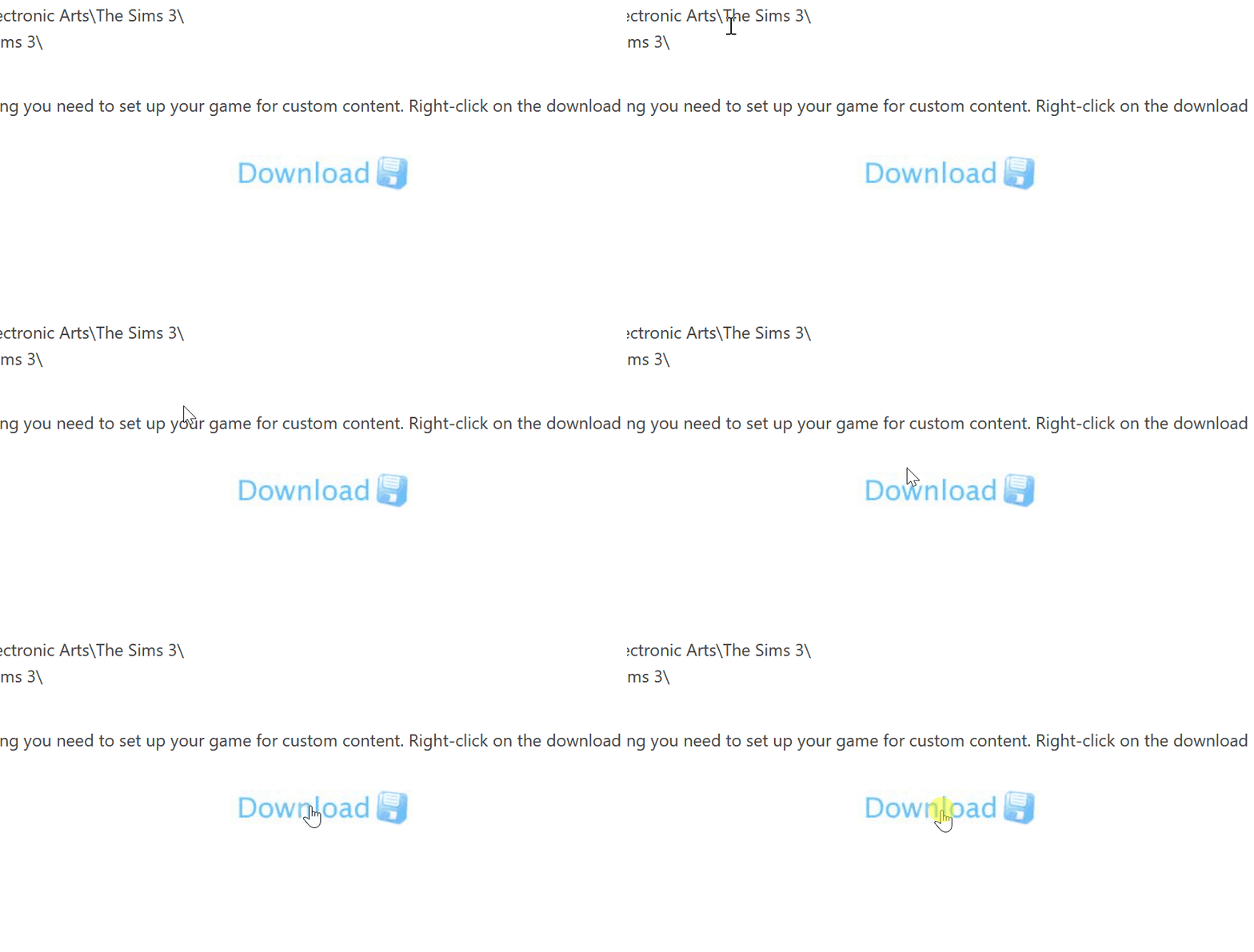
After the download is complete place the file somewhere easy to find like the desktop.
Step 2 - Once downloaded go to...
"Documents\Electronic Arts\The Sims 3"
Once there, open up the downloaded mods folder file and extract its contents right into The Sims 3 documents folder.

Step 4 - Just to make sure open up the mods folder and make sure the contents inside looks like this image below!
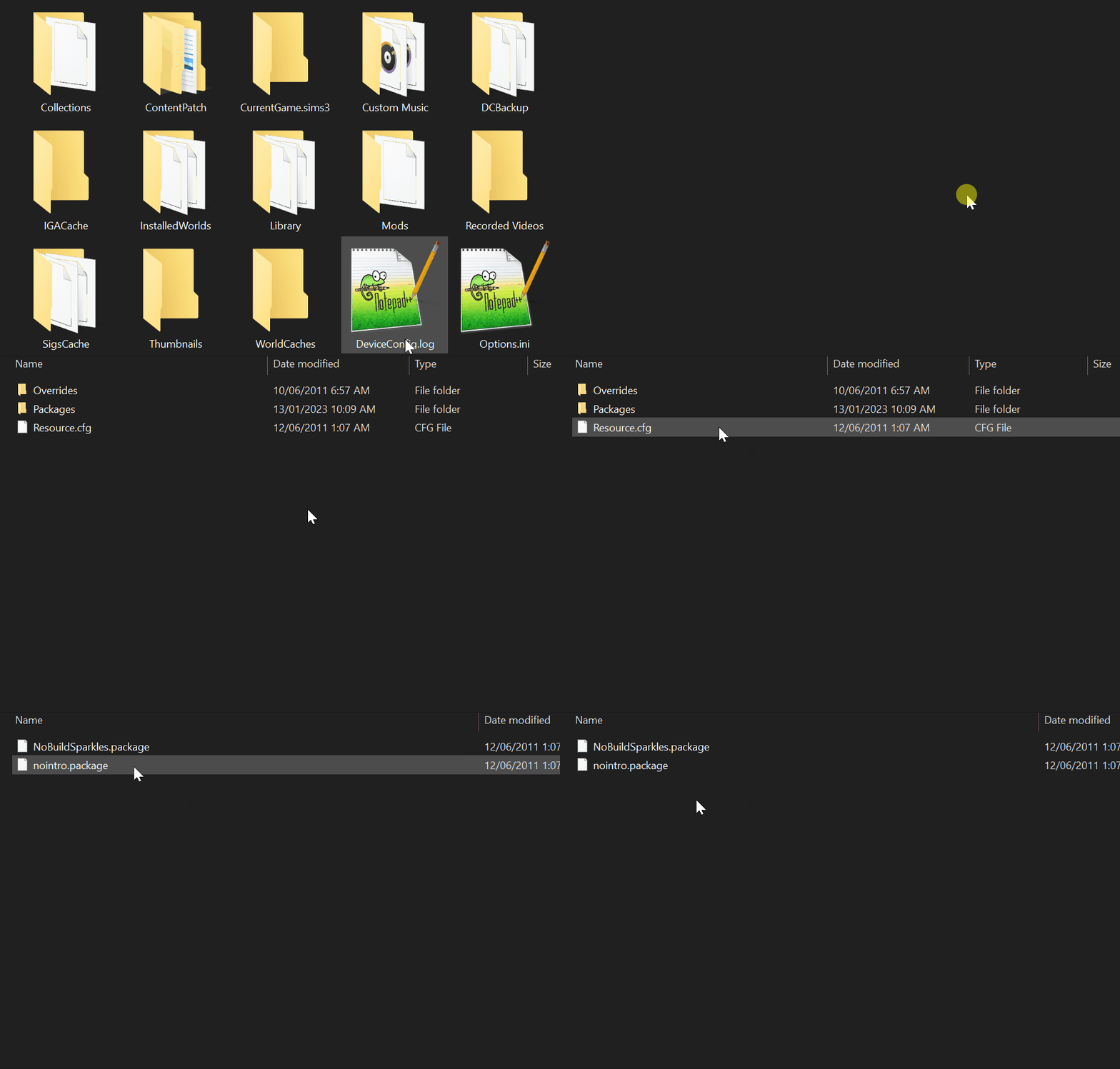 Files that should be present and that are needed are...
The two package files that come inside the packages folder called...
If the maxis logo is still showing up on startup even with the "nointro.package" present in the mods folder for testing this is normal since the "nointro.package" was made before that intro screen was added in a later patch and uses a different file path to the other intro videos.
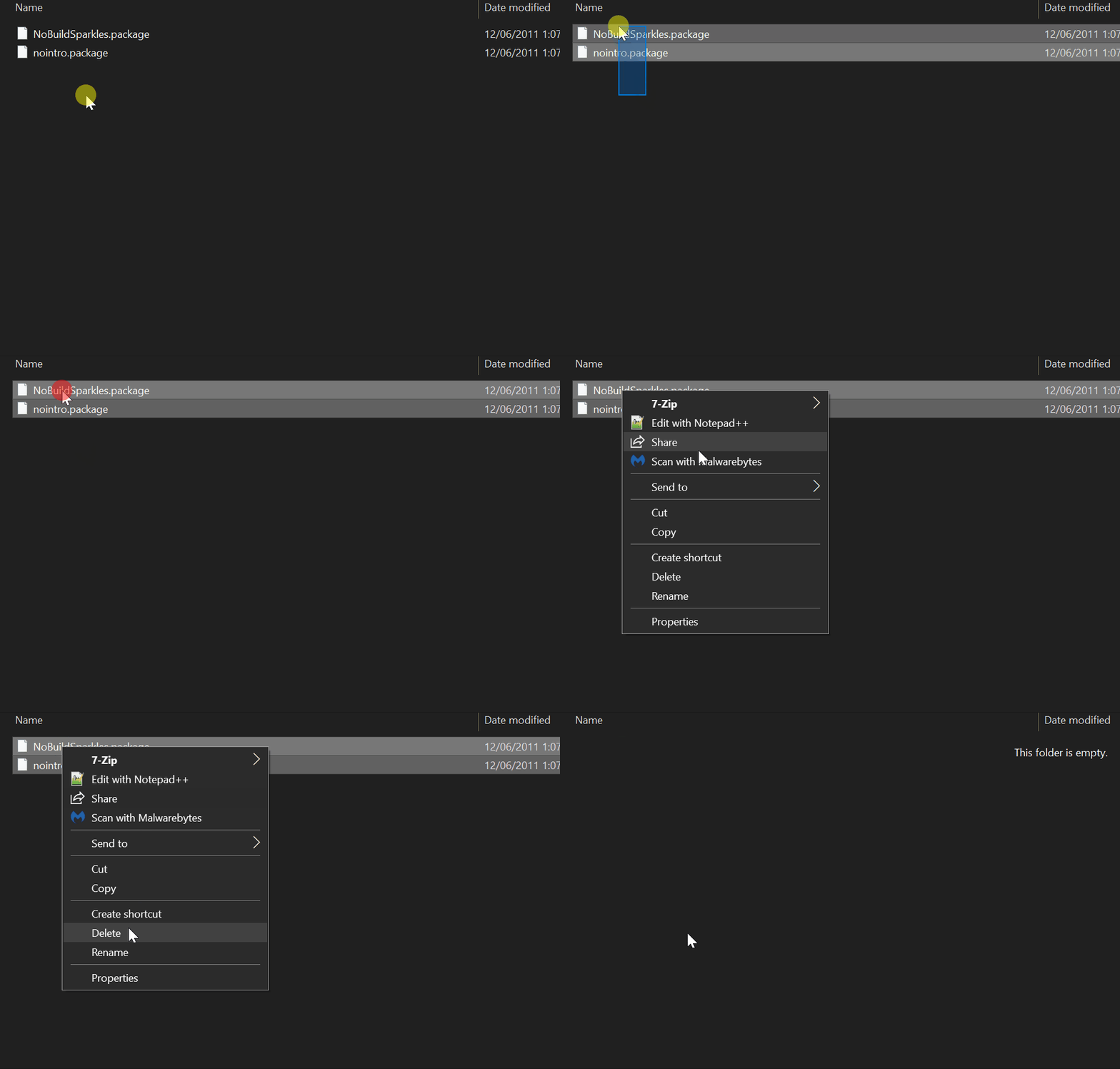
If you want to to remove the intro videos delete "nointro.package" and install this mod instead as it includes both intro videos you can download it HERE[modthesims.info]
The "Mods" Folder is for .package files, .sims3pack Files need to be installed through the games launcher. I recommend this depth video by @SimMattically for more information about the different package types can be found HERE!
Step 1 - Download the mods folder using the download button from ModTheSims HERE![modthesims.info]
Once on the download page scroll down a little until you see a "Download" button, once found click on this link and it will download the file.
After the download is complete place the file somewhere easy to find like the desktop.
Step 2 - Once downloaded go to...
"Documents\Electronic Arts\The Sims 3"
Once there, open up the downloaded mods folder file and extract its contents right into The Sims 3 documents folder.
Step 4 - Just to make sure open up the mods folder and make sure the contents inside looks like this image below!
Files that should be present and that are needed are...- Resource.cfg File
- Packages Folder
- Overrides Folder
The two package files that come inside the packages folder called...
- NoBuildSparkles.package
- nointro.package
If the maxis logo is still showing up on startup even with the "nointro.package" present in the mods folder for testing this is normal since the "nointro.package" was made before that intro screen was added in a later patch and uses a different file path to the other intro videos.
If you want to to remove the intro videos delete "nointro.package" and install this mod instead as it includes both intro videos you can download it HERE[modthesims.info]
The Mods folder is now installed!
Step 1 - Ultimate ASI Loader (Essential)
Step 1 - Download Ultimate ASI Loader from Github HERE![github.com]
The Sims 3 will need a specific version of Ultimate ASI Loader we are going to need to download the file named "wininet.dll" make sure to download the version under the "Win32" Column as The Sims 3 is a 32bit program.
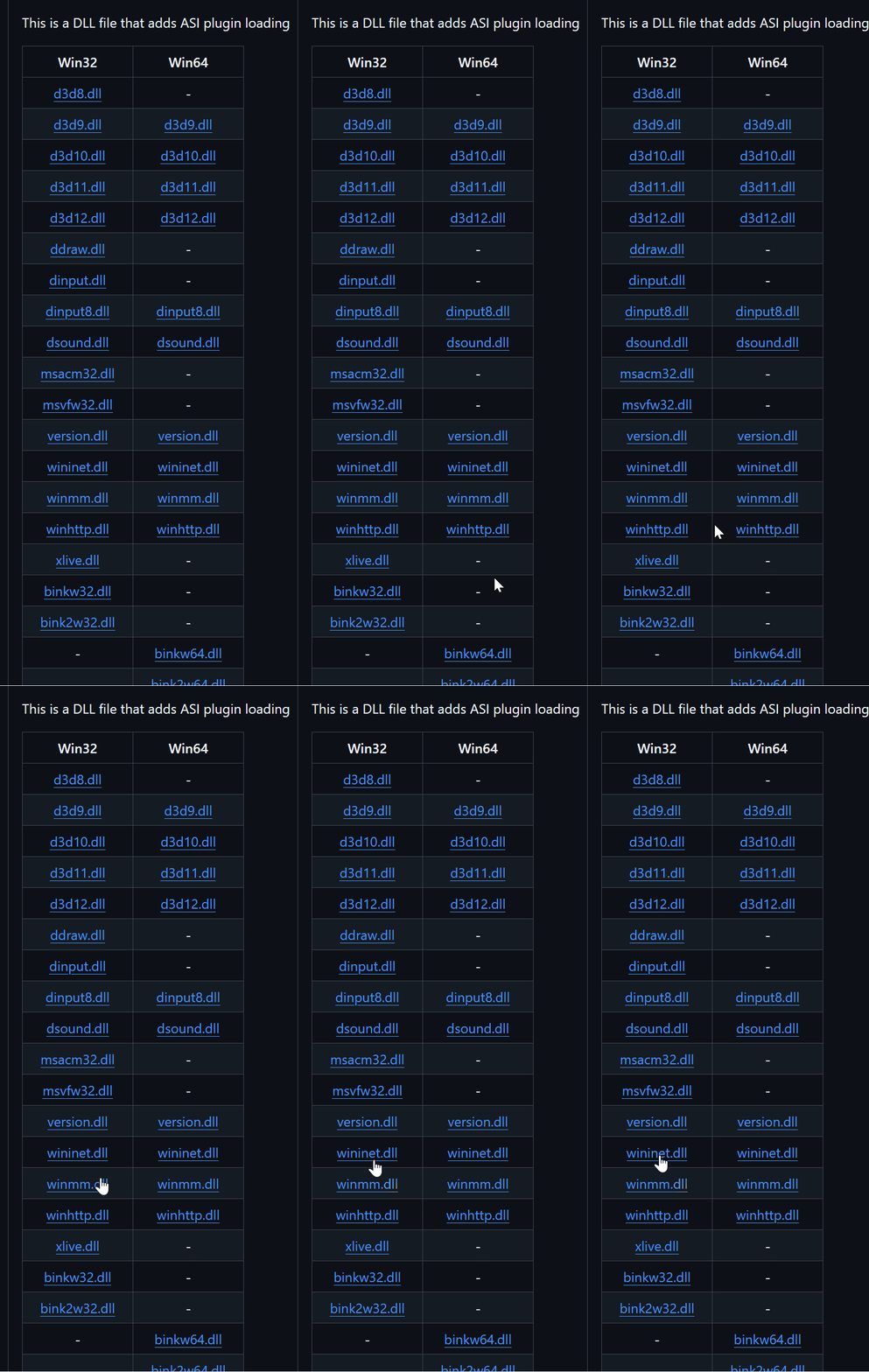
Step 2 - Once downloaded open the .zip file and extract only the file named "wininet.dll" and place it into your games "bin" Folder.
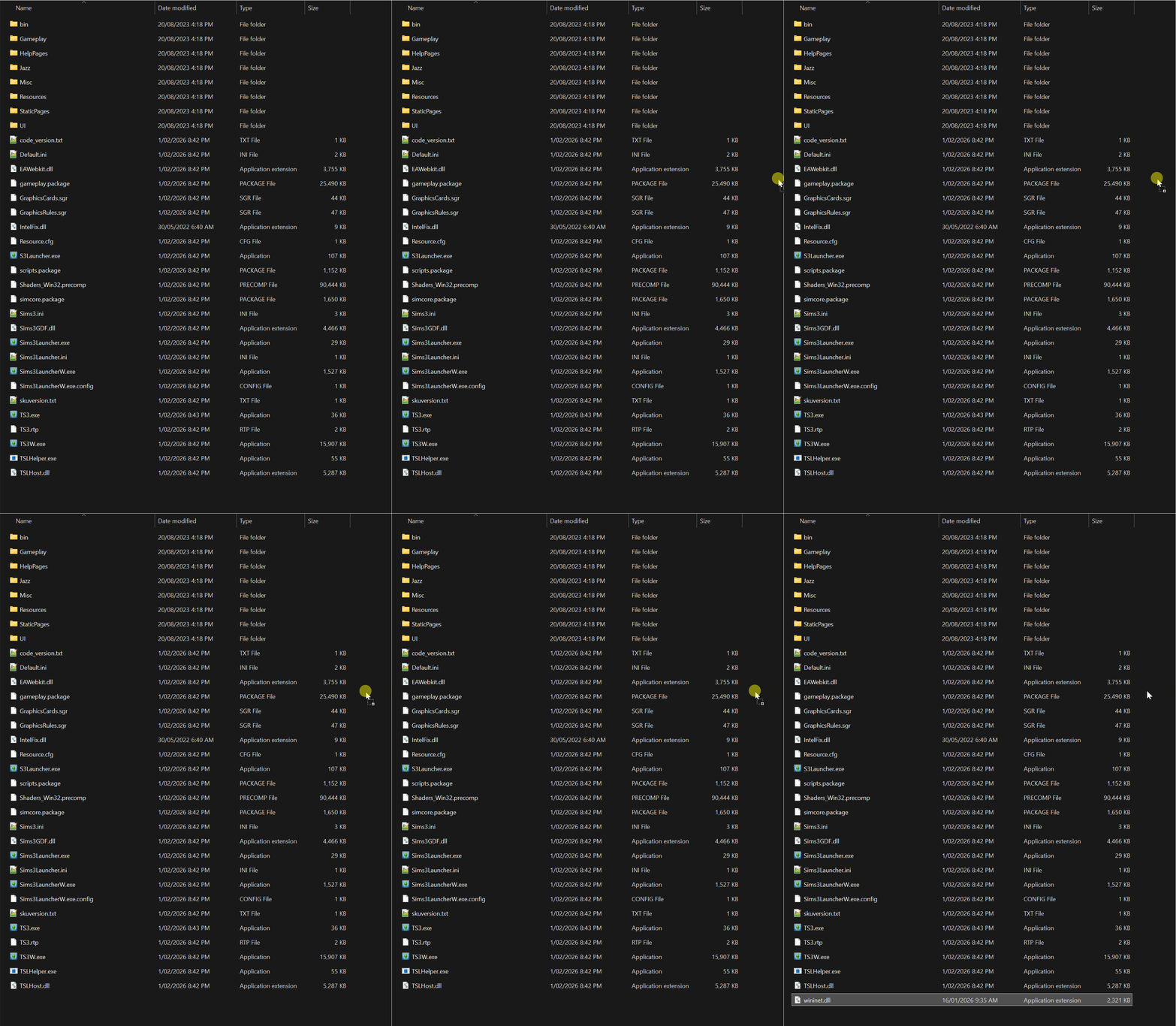
Step 3 - Once done Ultimate ASI loader should now load .asi plugins into your game on launch.
Consider supporting ThirteenAG for all their amazing work? You can HERE![www.patreon.com] or HERE![ko-fi.com]
The Sims 3 will need a specific version of Ultimate ASI Loader we are going to need to download the file named "wininet.dll" make sure to download the version under the "Win32" Column as The Sims 3 is a 32bit program.
Step 2 - Once downloaded open the .zip file and extract only the file named "wininet.dll" and place it into your games "bin" Folder.
Step 3 - Once done Ultimate ASI loader should now load .asi plugins into your game on launch.
Reshade & DXVK Compatabilty
Ultimate ASI Loader should work with Reshade & DXVK without any edits.Consider supporting ThirteenAG for all their amazing work? You can HERE![www.patreon.com] or HERE![ko-fi.com]
Step 2 - Sims 3 Settings Setter (Essential)
The Sims 3 Setting Setter by sims3fiend is a mod that brings great performance patches to The Sims 3 it also includes its own smooth patch and borderless window modes! It also fixes the game not starting up on modern Alder Lake Intel and above CPUs.
All AMD CPU Brands should work with the game automatically, its still recommended to use S3SS no matter what CPU brand you are using due to all the great performance improvment patches S3SS provides.
Step 1 - Download "Sims 3 Settings Setter" (S3SS) from HERE![github.com]
The download link should take you to the latest version. Once at the latest version of the mod download using the "Sims3SettingsSetter.asi" link.
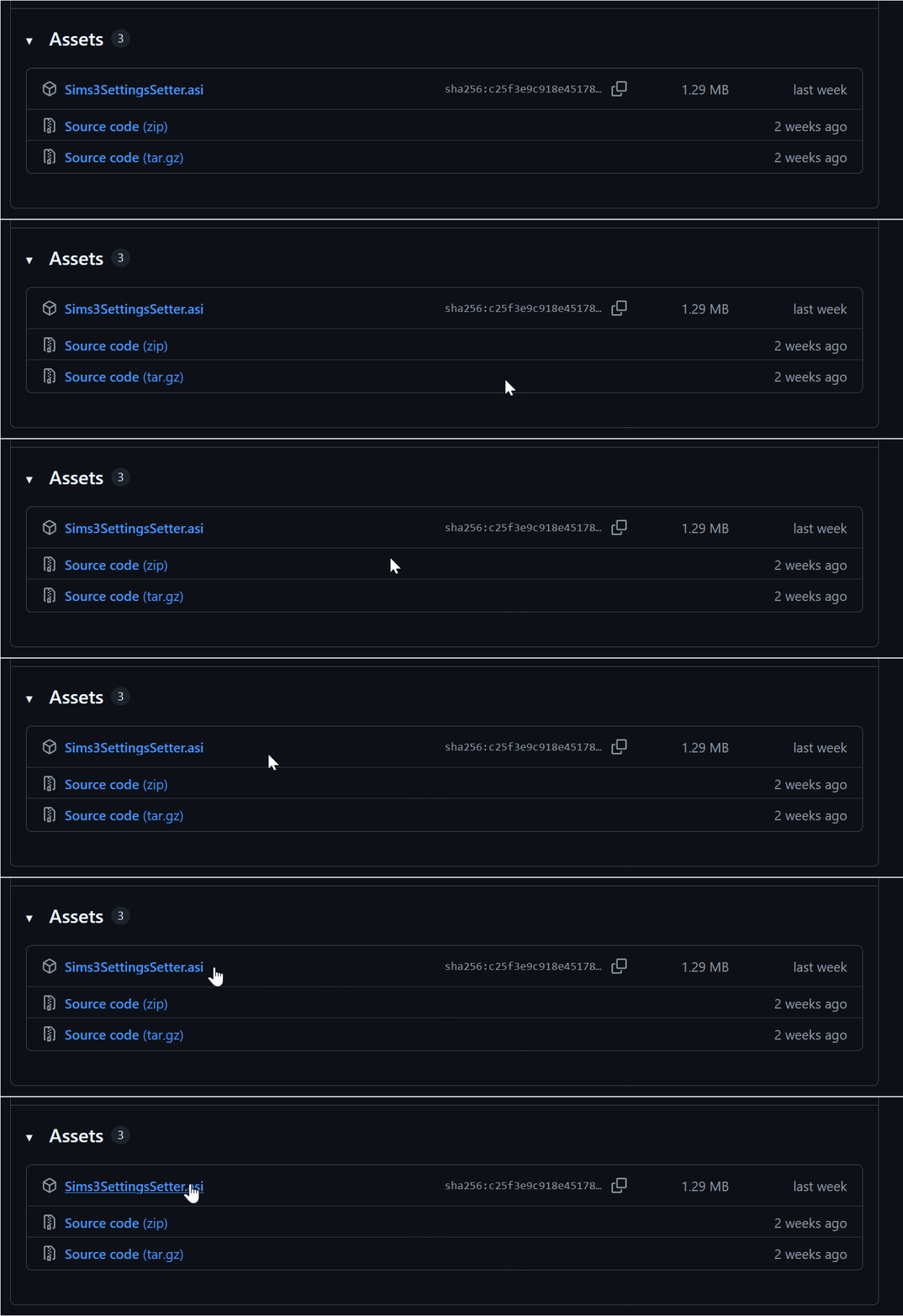
Step 2 - Once "Sims3SettingsSetter.asi" is finished downloading place the file at this location...
1.67 Steam - "SteamLibrary\steamapps\common\The Sims 3\Game\Bin"
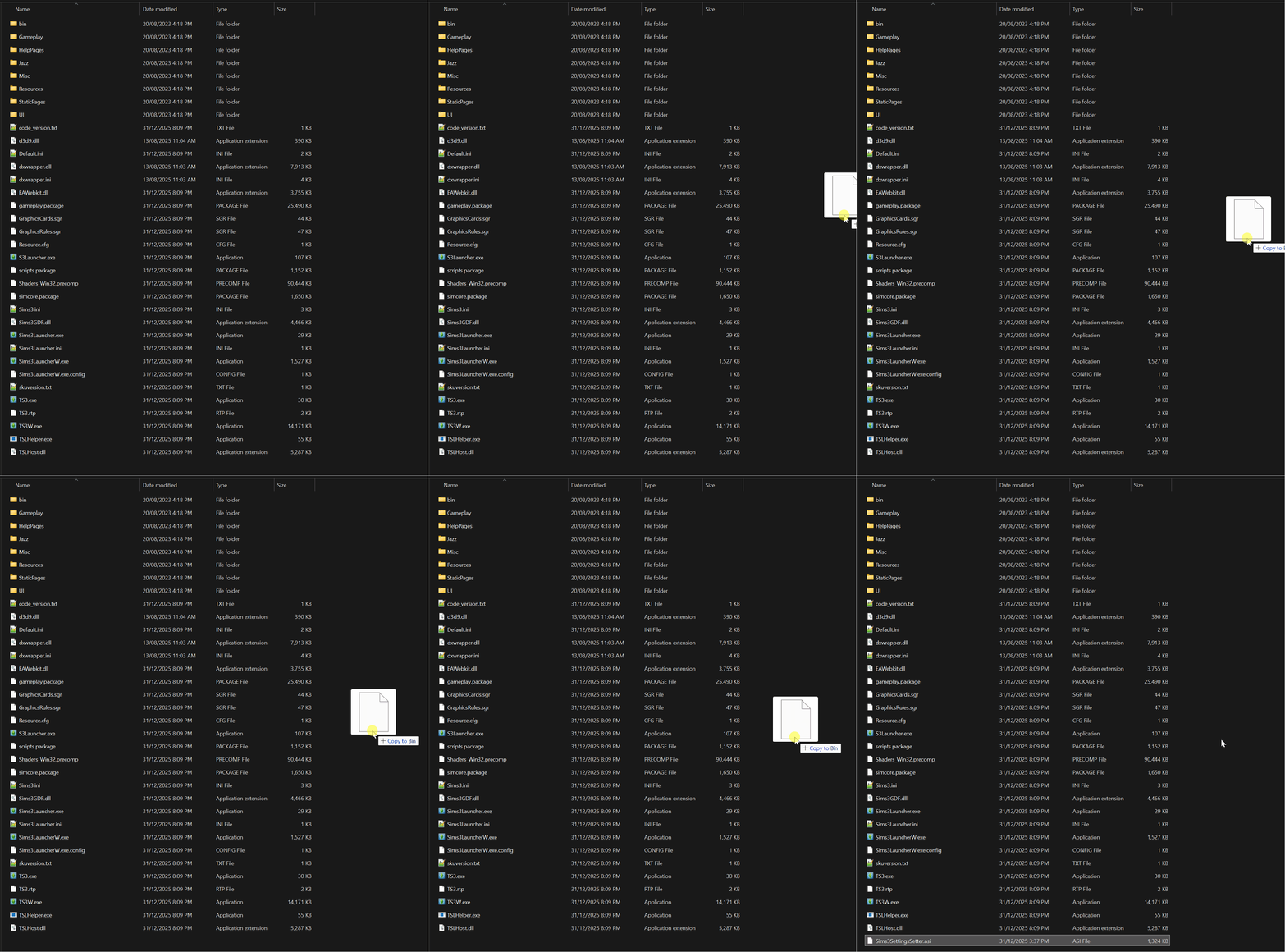
Step 3 - S3SS is now installed!
S3SS comes with great performance improvements some of them are switched on by default but others will need to be switched on. We will be doing this in game.
Step 1 - Launch the game.
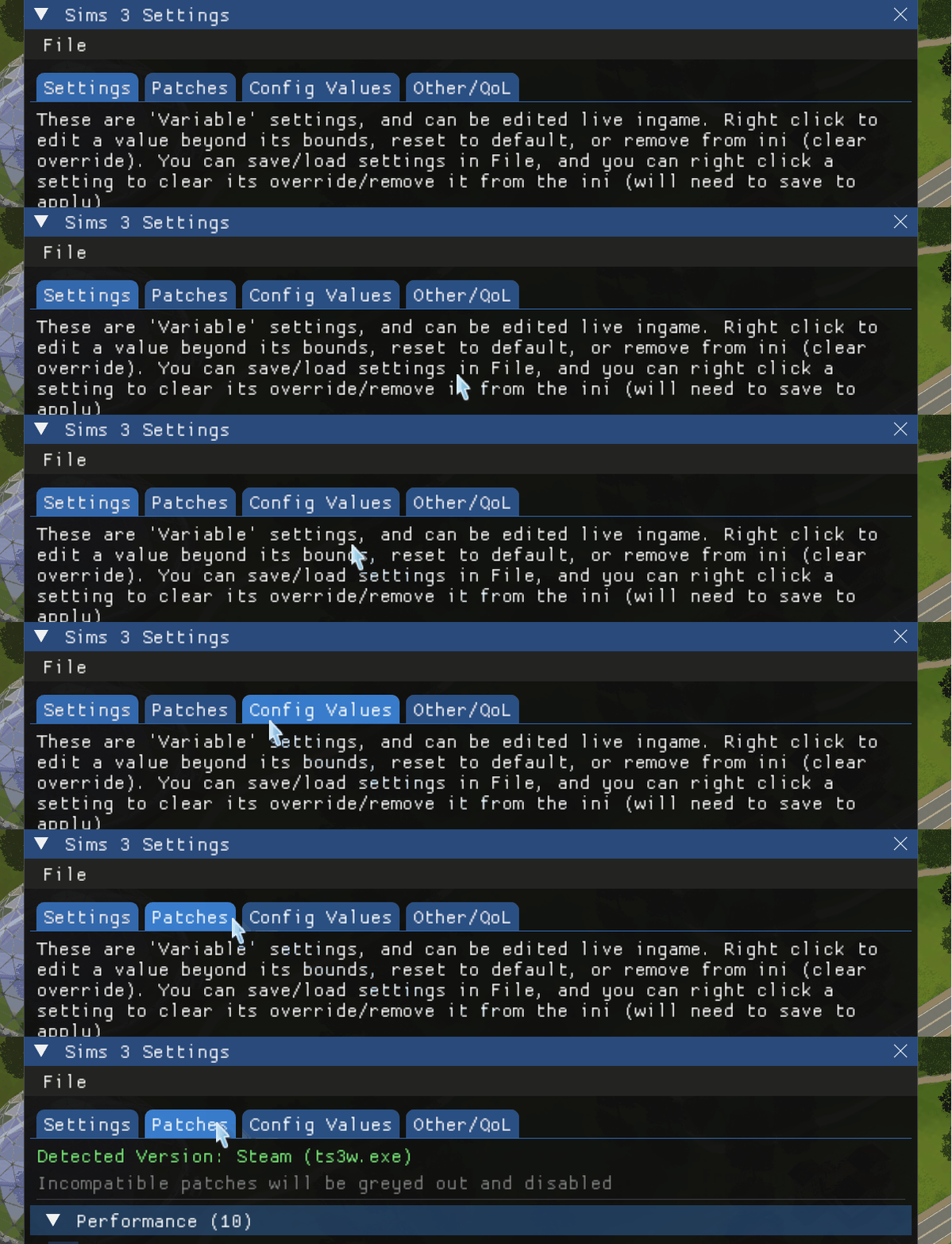
When the game has loaded into the main menu open "S3SS" by pressing the "Insert" key by default. The UI should open up and look like this.
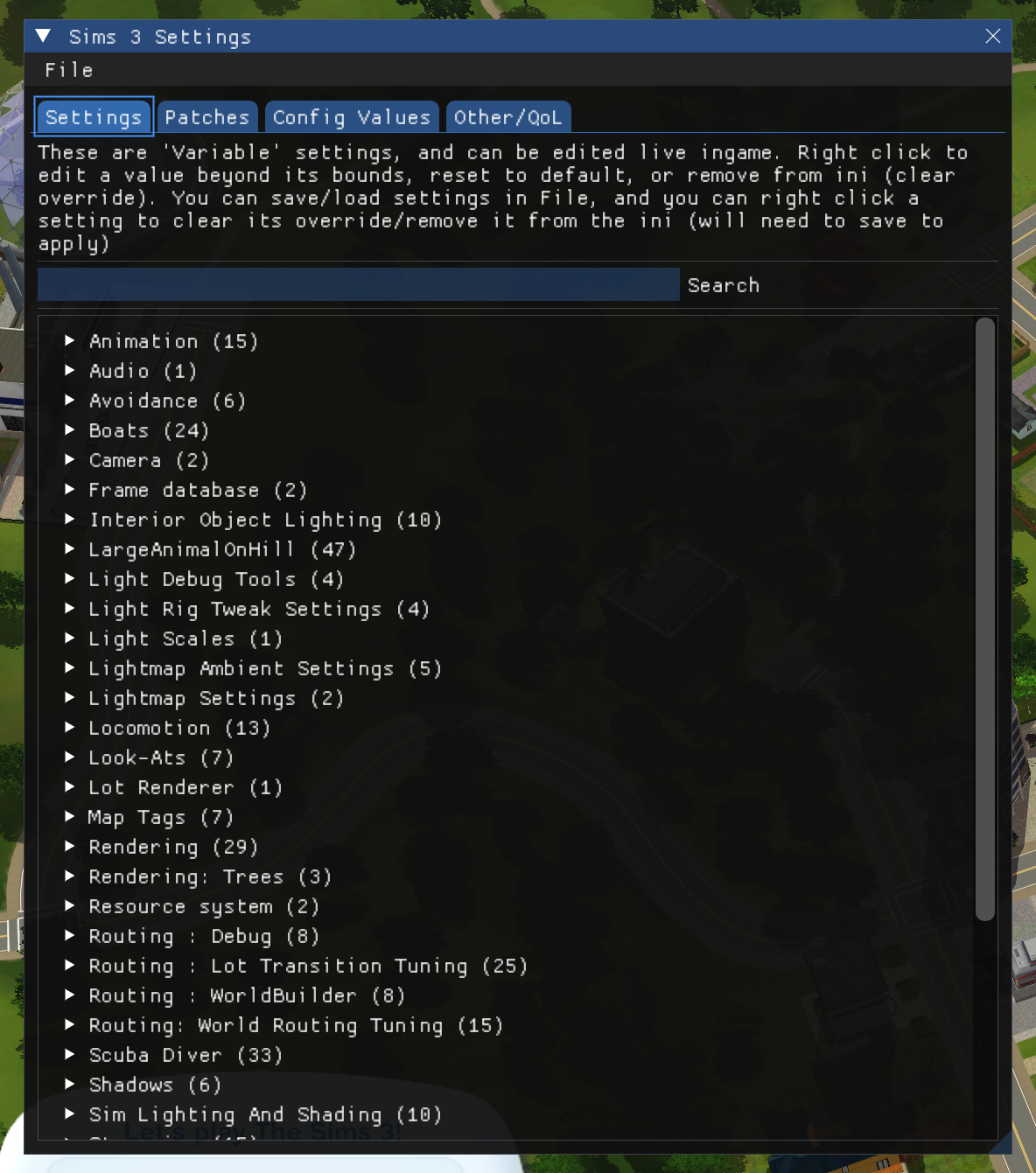
Once opened navigate to the "Patches" tab. Here you will find all Patches the mod offers.
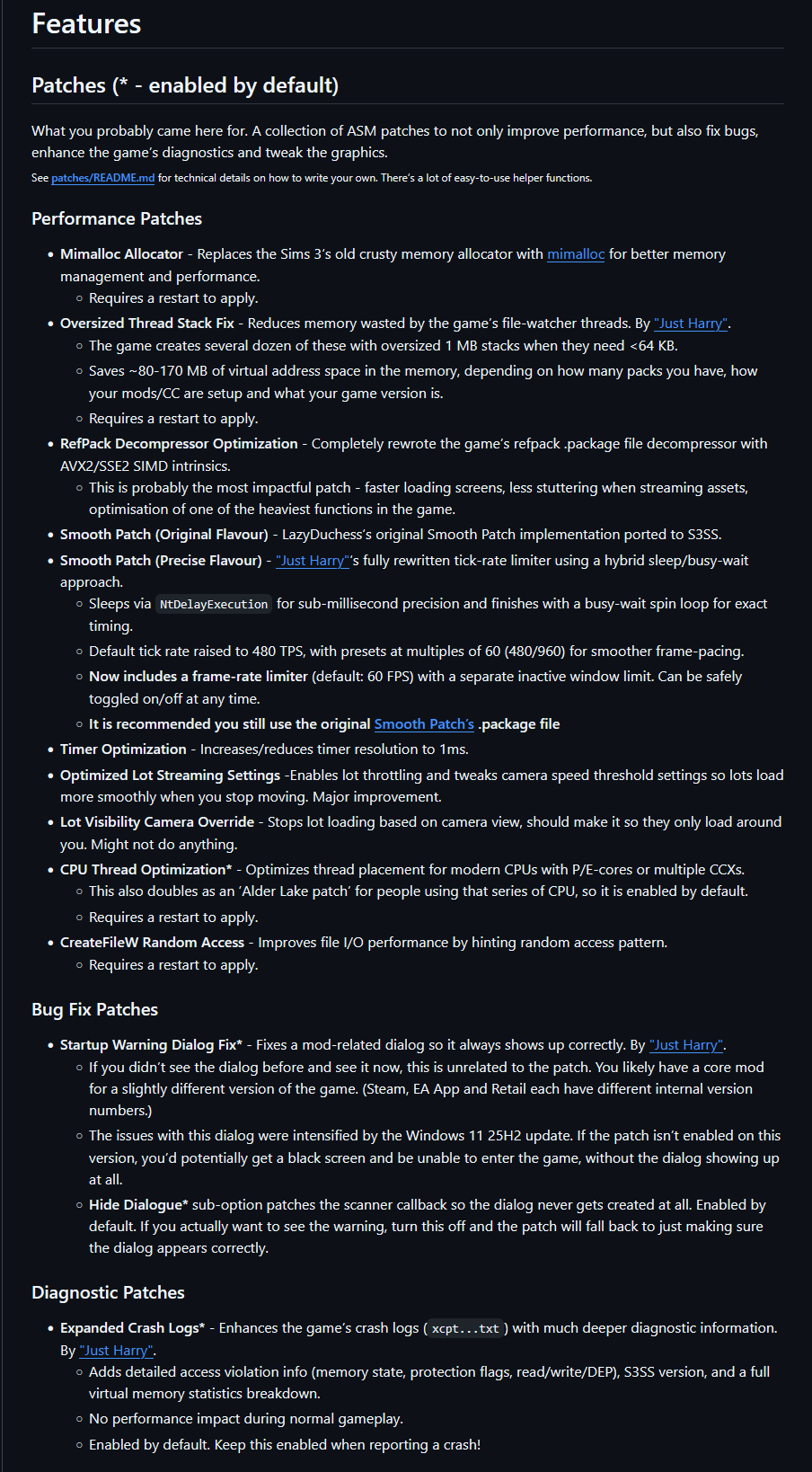
Original Post can be found HERE![github.com]
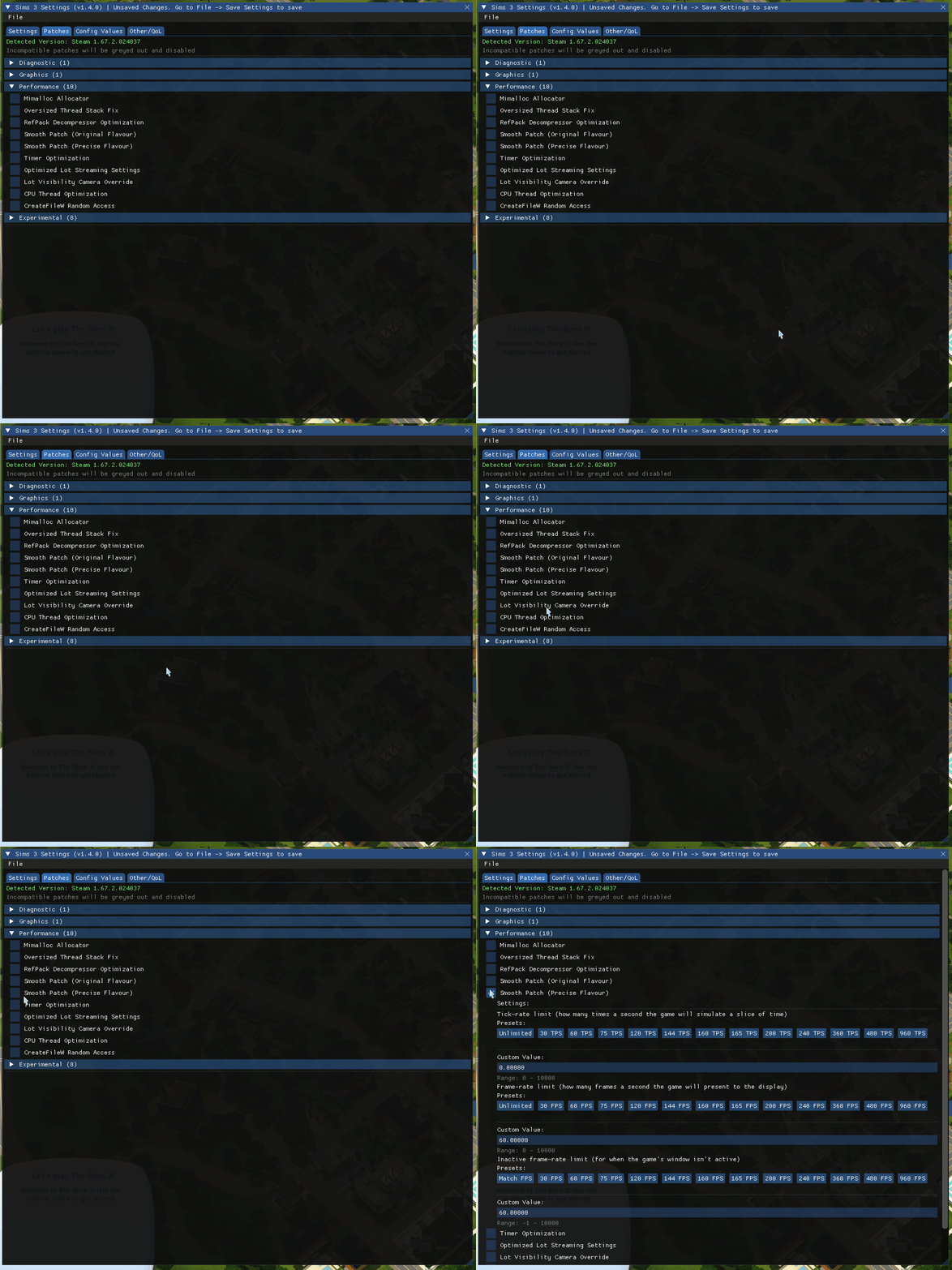
Step 1 - Check the Smooth Patch Precise Flavour in the "Patches" Tab.
The setting should extend to have some extra options.
Step 2 - Once "Smooth Patch Precise Flavour" has been checked make sure to select a speed setting. I will be selecting the "960" setting.
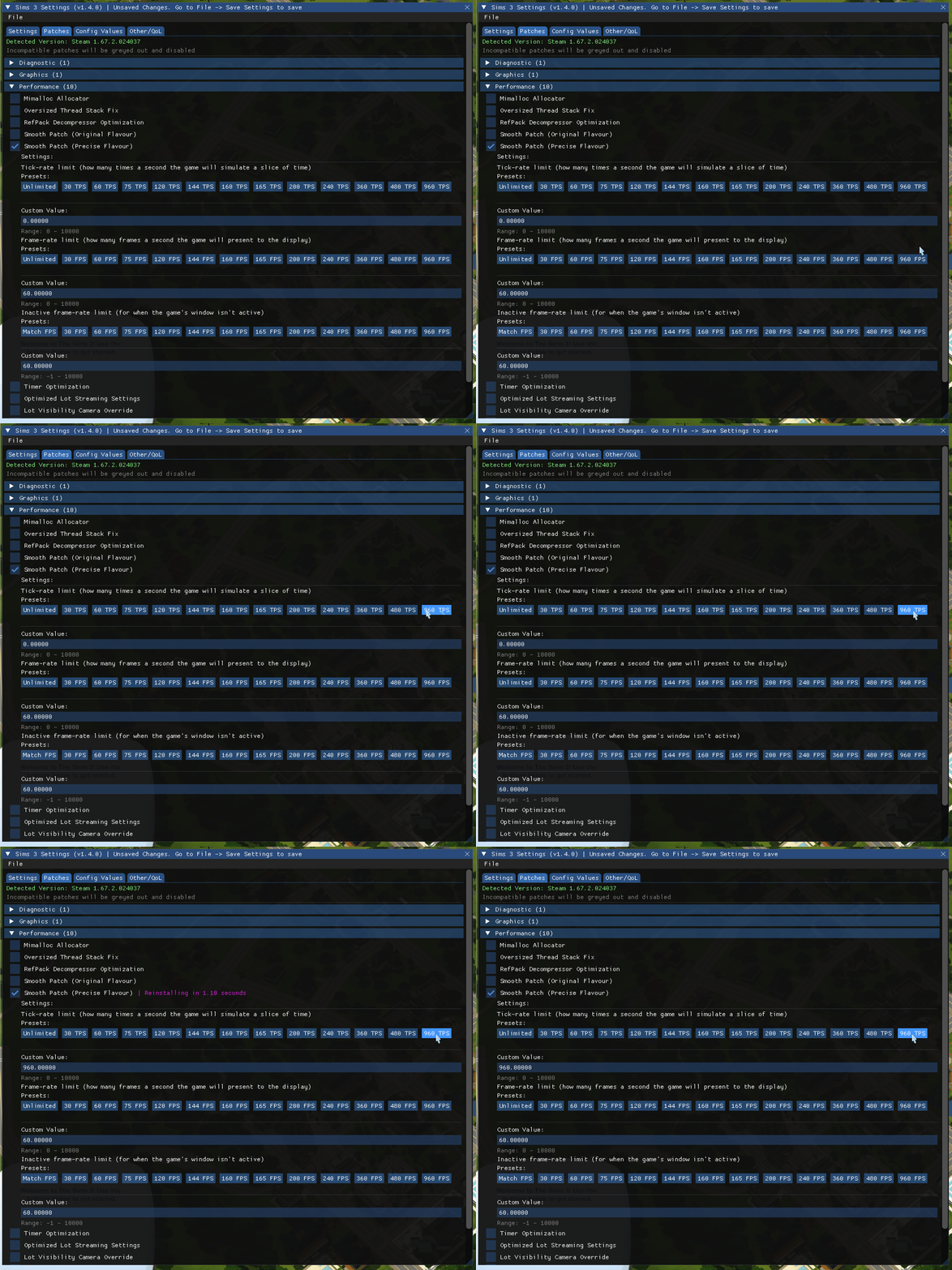
If 960 is a bit much for your PC feel free to try out the other speed settings.
Step 3 - Once entered Smooth Patch has now been activated!
Step 4 - Next select the frame rate you wish to set the game too, for this guide I will be setting the frame rate to "60 FPS". You can set it to your monitors refresh rate if listed as one of the buttons or set a custom value if you would like to.
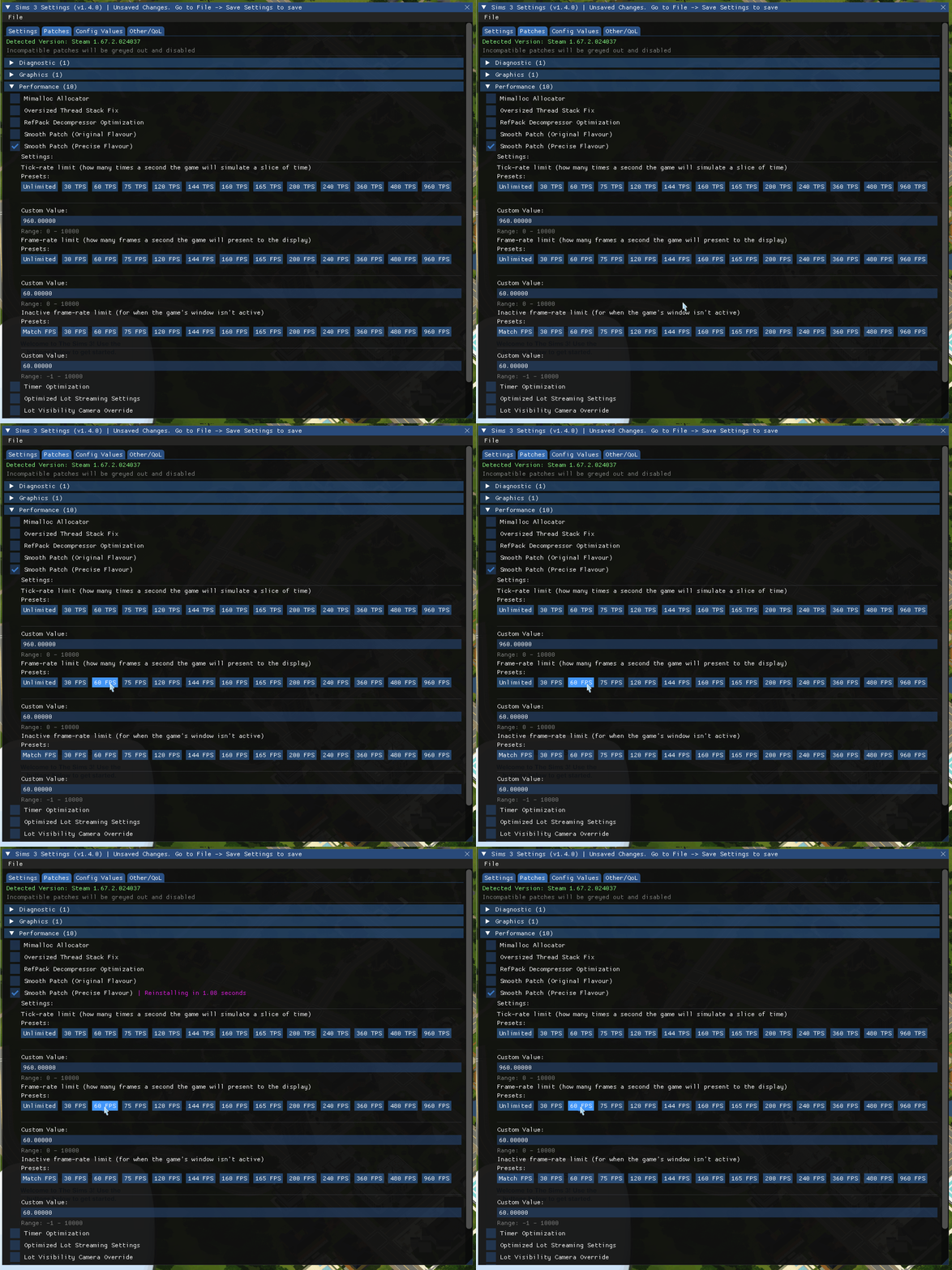
Step 5 - Once a frame rate setting has been selected the game frame rate has now been capped.
Step 1 - Launch the game and then LOAD INTO A SAVE FILE! This is important as you can not set settings until you have loaded into a save file.
Once loaded in click on "Other/QOL" tab loacted at the top of S3SS window.

Step 2 - Once "Other/QOL" tab has been selected go down to the option "Borderless Window" there will be four options...
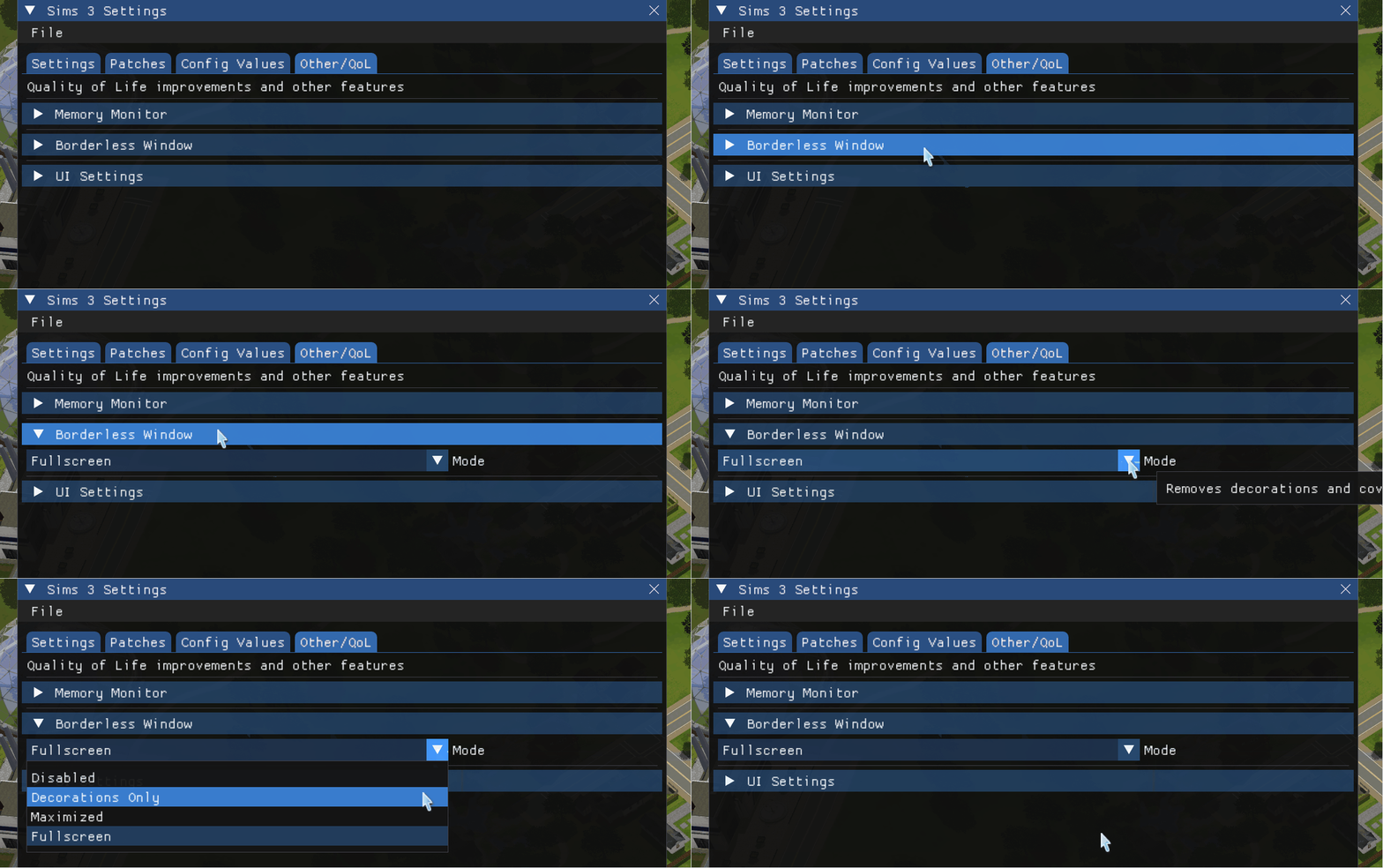
Step 3 - Once an option has been selected Window Borderless should now be active!
Step 1 - Click on the "File" tab at the top of the S3SS window.
Step 2 - Once "File" has been clicked press the button "Save Settings".
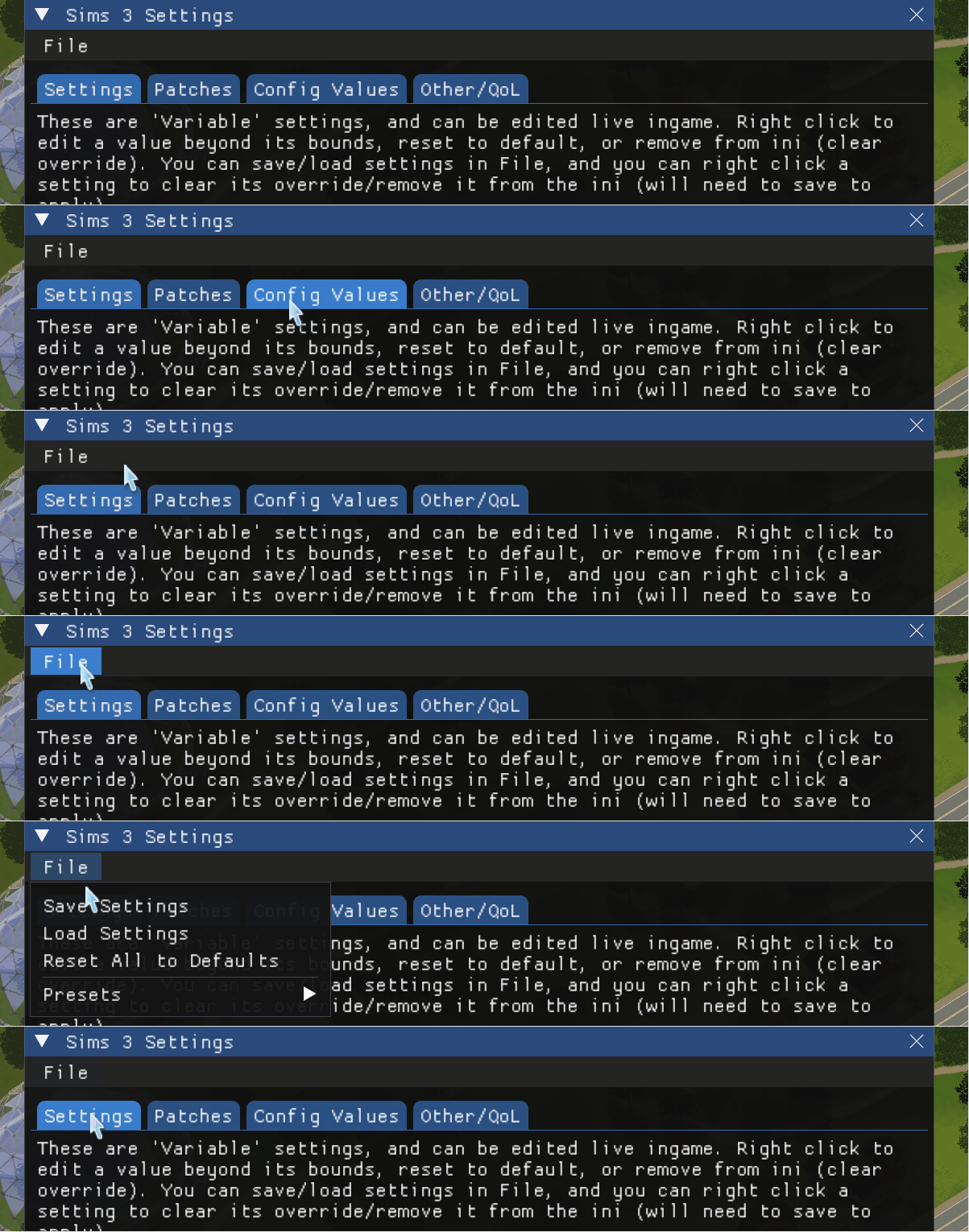
Step 3 - Your settings have now been saved!
If the game is not starting up S3SS will fix this if you are using these Intel Brand CPUs...
- Alder Lake 12th Gen CPU Range
- Raptor Lake 13th Gen CPU Range
- Raptor Lake 14th Gen CPU Range
- Possibly Future Intel CPU Releases.
All AMD CPU Brands should work with the game automatically, its still recommended to use S3SS no matter what CPU brand you are using due to all the great performance improvment patches S3SS provides.
Step 1 - Download "Sims 3 Settings Setter" (S3SS) from HERE![github.com]
The download link should take you to the latest version. Once at the latest version of the mod download using the "Sims3SettingsSetter.asi" link.
Step 2 - Once "Sims3SettingsSetter.asi" is finished downloading place the file at this location...
1.67 Steam - "SteamLibrary\steamapps\common\The Sims 3\Game\Bin"
Step 3 - S3SS is now installed!
SETTINGS
S3SS comes with great performance improvements some of them are switched on by default but others will need to be switched on. We will be doing this in game.
Step 1 - Launch the game.
When the game has loaded into the main menu open "S3SS" by pressing the "Insert" key by default. The UI should open up and look like this.
Once opened navigate to the "Patches" tab. Here you will find all Patches the mod offers.
Feature List
Here is a list of what each patch and feature does and contains.Original Post can be found HERE![github.com]
Smooth Patch Precise Flavour
S3SS has its own Smooth Patch settings! This setting acts like Lazy Duchess original Smooth Patch[modthesims.info] and we will be using this setting for the smooth patch in game.Step 1 - Check the Smooth Patch Precise Flavour in the "Patches" Tab.
The setting should extend to have some extra options.
Step 2 - Once "Smooth Patch Precise Flavour" has been checked make sure to select a speed setting. I will be selecting the "960" setting.
If 960 is a bit much for your PC feel free to try out the other speed settings.
Step 3 - Once entered Smooth Patch has now been activated!
Step 4 - Next select the frame rate you wish to set the game too, for this guide I will be setting the frame rate to "60 FPS". You can set it to your monitors refresh rate if listed as one of the buttons or set a custom value if you would like to.
Step 5 - Once a frame rate setting has been selected the game frame rate has now been capped.
Window Borderless
S3SS also comes with a built in Window Borderless mode. Window Borderless is great for people who have multiple screen setups or just like alt + tab out of their games! Sims 3 by default has issues with multi screen and alt + tab. It can also fix the miss coloured, high contrast and overly dark capturing of the game when screen recording or streaming with external streaming and recording software!Step 1 - Launch the game and then LOAD INTO A SAVE FILE! This is important as you can not set settings until you have loaded into a save file.
Once loaded in click on "Other/QOL" tab loacted at the top of S3SS window.
Step 2 - Once "Other/QOL" tab has been selected go down to the option "Borderless Window" there will be four options...
- Disabled
- Decorations Only
- Maximized
- Fullscreen
Step 3 - Once an option has been selected Window Borderless should now be active!
Saving Settings
Once you have finished selecting the settings you wish to have in your game make sure to save your settings so they will be there the nest time you launch the game.Step 1 - Click on the "File" tab at the top of the S3SS window.
Step 2 - Once "File" has been clicked press the button "Save Settings".
Step 3 - Your settings have now been saved!
Step 3 - DXVK (Essential)
DXVK requires a Vulkan compatible graphics card
A List of compatible GPUs can be found HERE![www.khronos.org]Steam Decks do not require DXVK to be installed as they use proton which has DXVK built in so installing it yourself is not needed.
DXVK helps the game manage its very limited graphics memory budget to make the game run smoother by converting its Directx 9 instructions into Vulkan which is faster and more modern. It will also help fix unrecognized graphics cards. It will also help prevent graphic options and settings resetting when you update your graphics drivers.
Step 1 - Download DXVK from HERE![github.com]
Once on the download page you will need to download DXVK Using the "dxvk-(Version Number).tar.gz" download option.
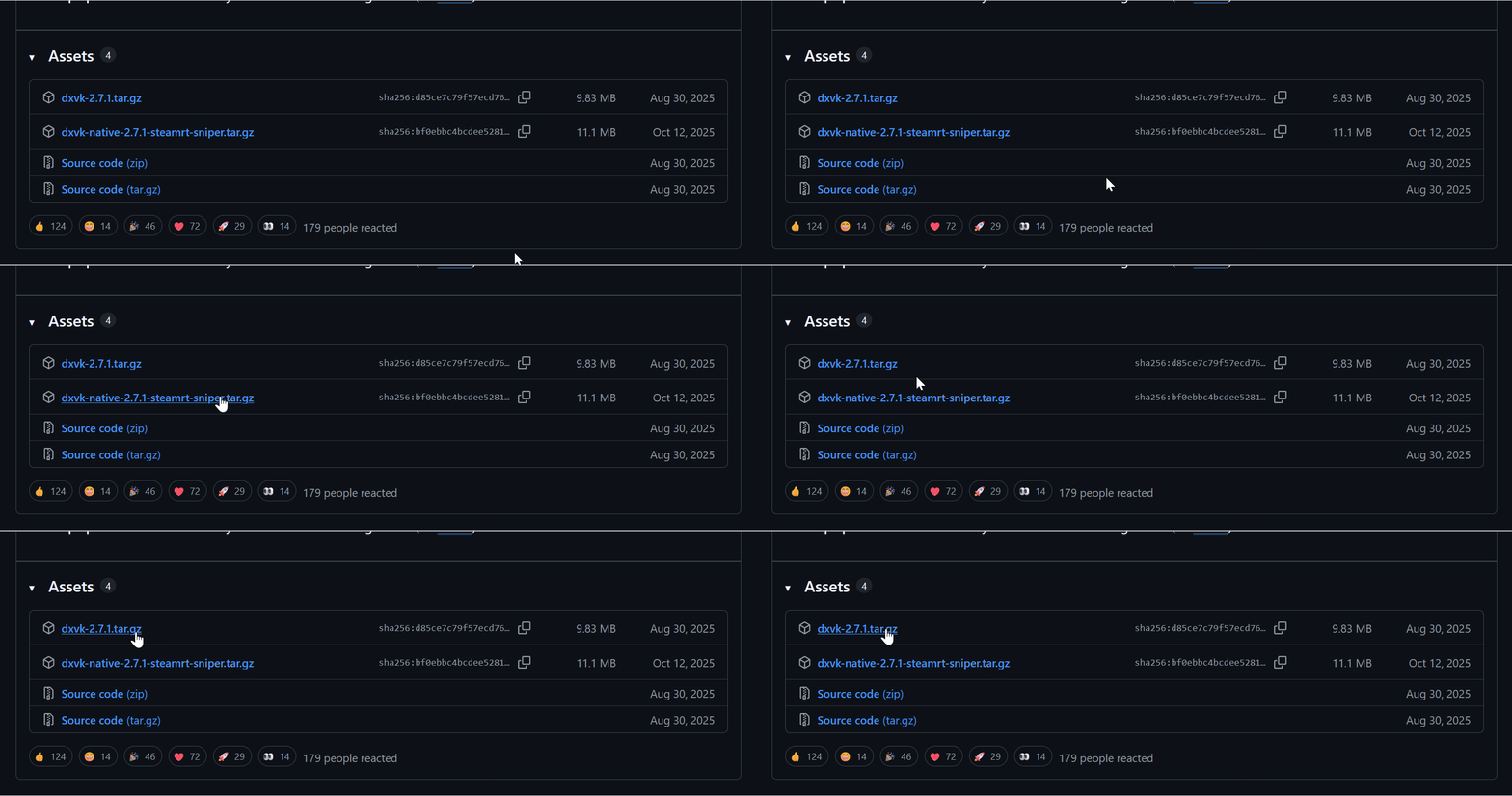
Step 2 - Once it DXVK has finished downloading you will need to naviage inside the download to the location of the file needed "d3d9.dll", it can be found at...
dxvk-(3.0)/ dxvk-(3.0)/x32/
Once "d3d9.dll" has been loacted place it inside you games bin folder located at...
1.67 Steam - "SteamLibrary\steamapps\common\The Sims 3\Game\Bin"
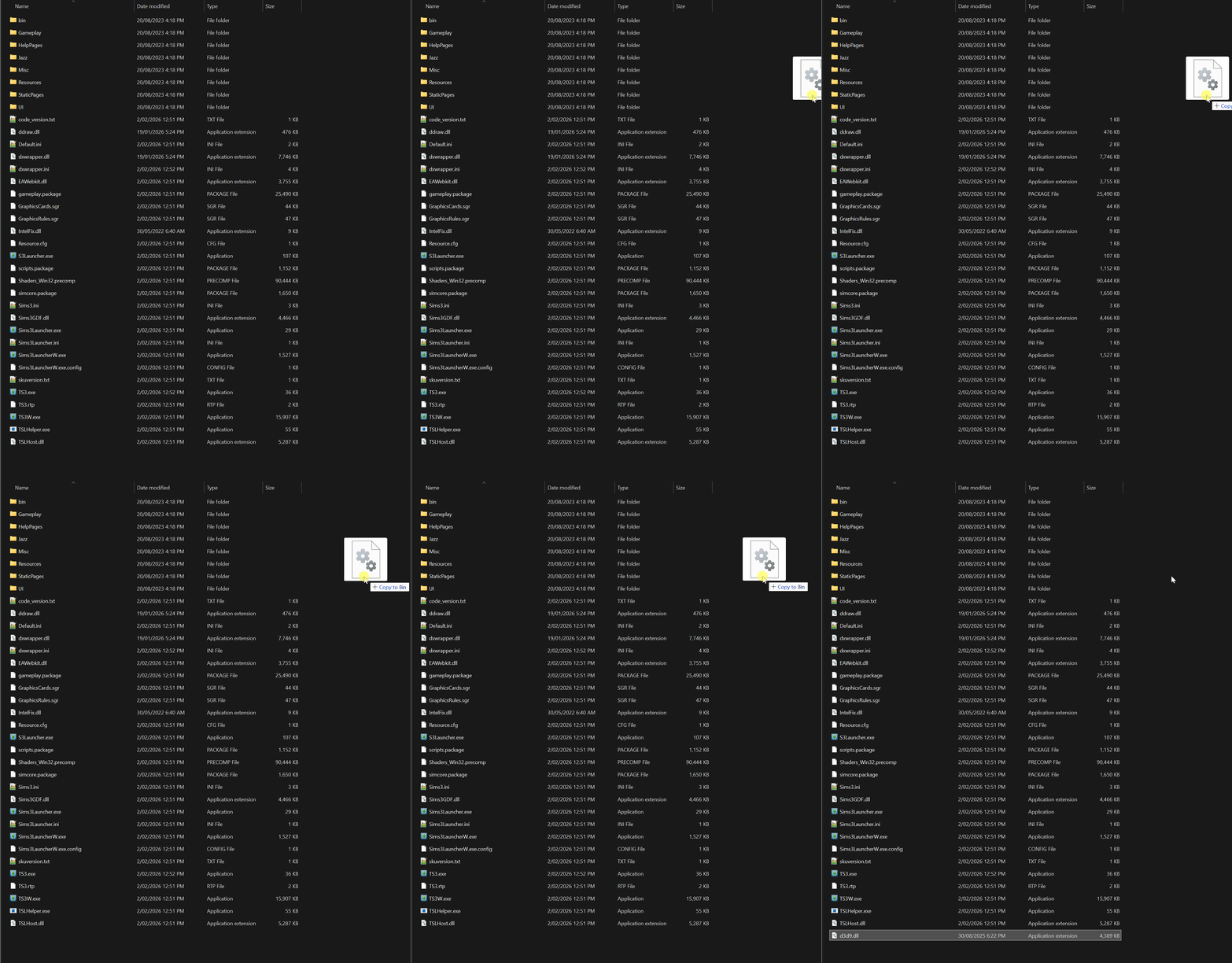
Step 3 - Once "d3d9.dll" has been placed into the games Bin folder you will also need to download DXVK Config File "dxvk.conf" from HERE![github.com]
Once on the page download using this icon in the top right hand corner of the page.
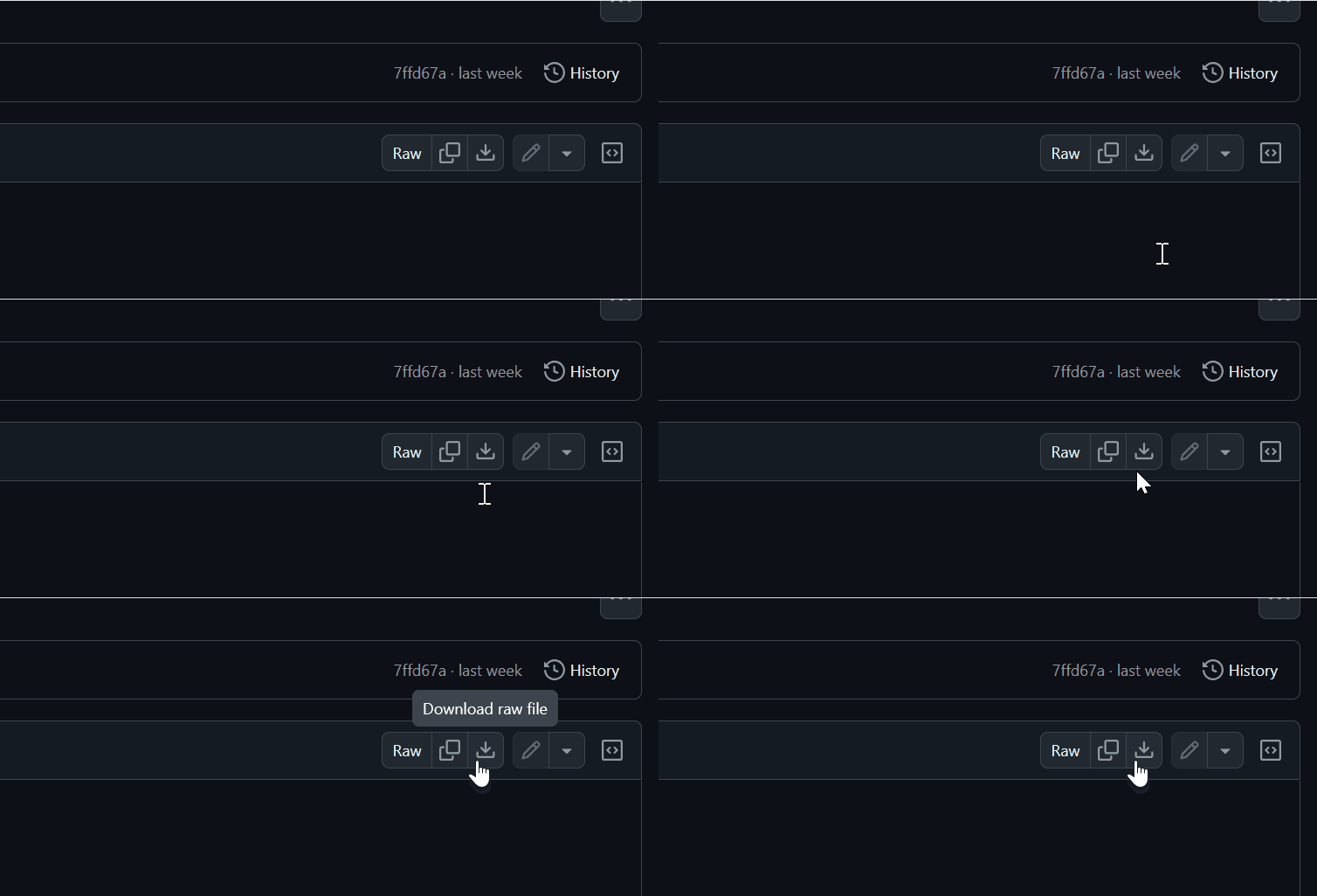
When downloading is complete place "dxvk.conf" into the games bin folder loacted at...
1.67 Steam - "SteamLibrary\steamapps\common\The Sims 3\Game\Bin"
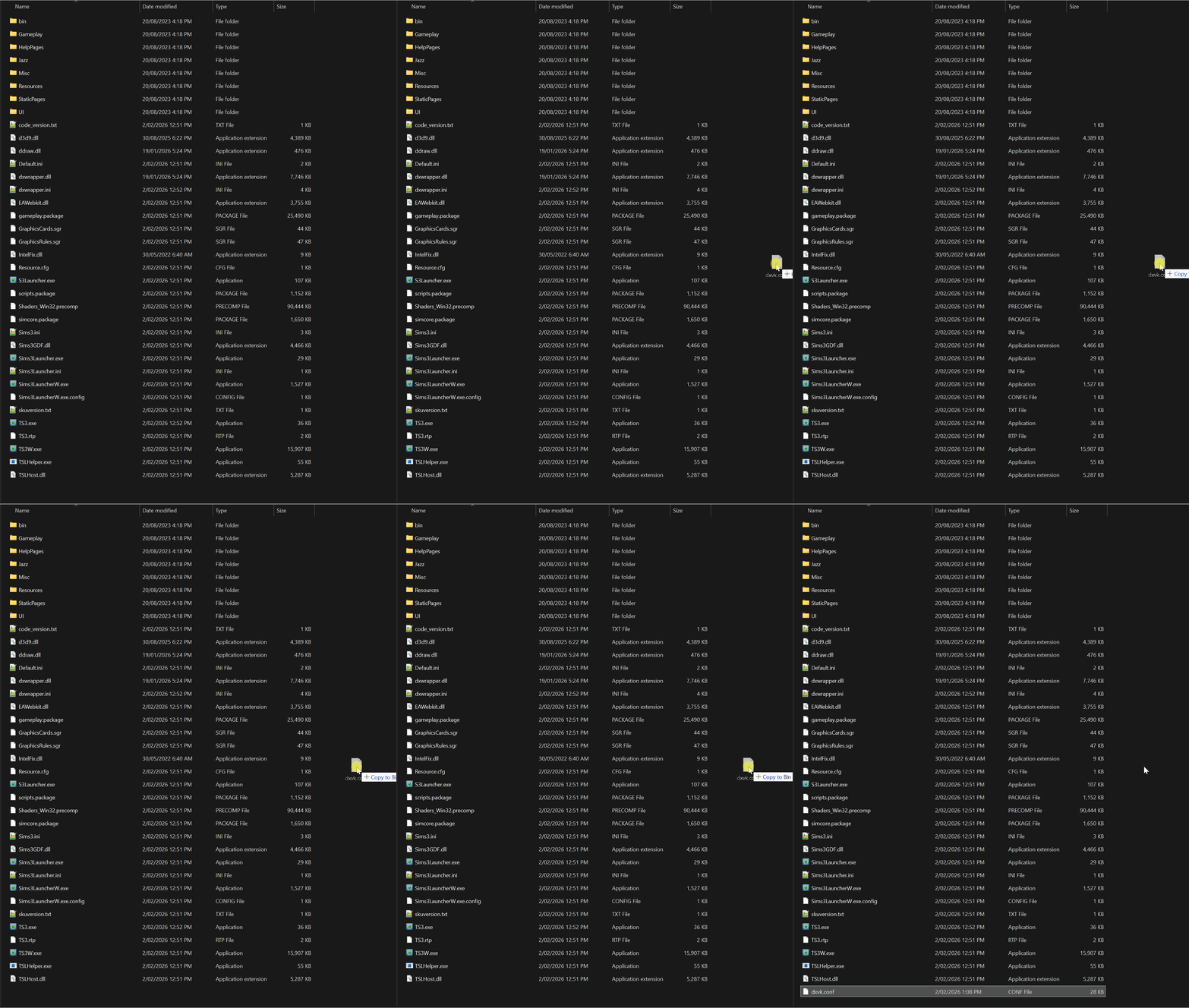
Step 4 - DXVK is now installed!
DXVK Settings
VSync
Enabling vsync will remove any screen tearing you will experince in game while moving the camera.
Step 1 - Open the "dxvk.conf" file using a text editor such as note pad or note pad ++ its located at...
1.67 Steam - "SteamLibrary\steamapps\common\The Sims 3\Game\Bin"
Step 2 - Once opened you will need to find this line...
# d3d9.presentInterval = -1

Once found remove the "#" from the line it should look like this...
d3d9.presentInterval = -1
Step 3 - Once done replace the value "-1" with "1".
From this
d3d9.presentInterval = -1
To this
d3d9.presentInterval = 1

Step 4 - Once done save "dxvk.conf" to save the changes.
Step 4 - Mono Patcher Library 0.3.0 (Essential)
Mono Patcher is a library that allows Script Modders to replace Sims 3 methods with as much compatibility as possible - No need to create core mods anymore to replace game functions. Some bug fixing mods in this guide require Mono Patcher to be installed.
Step 1: Download Mono Patcher Library from Github - HERE![github.com]
Step 2: Once downloaded go to your games mods folder located at...
"Documents\Electronic Arts\The Sims 3"
Once inside the Mods folder open up the "Packages" folder and create a new folder.
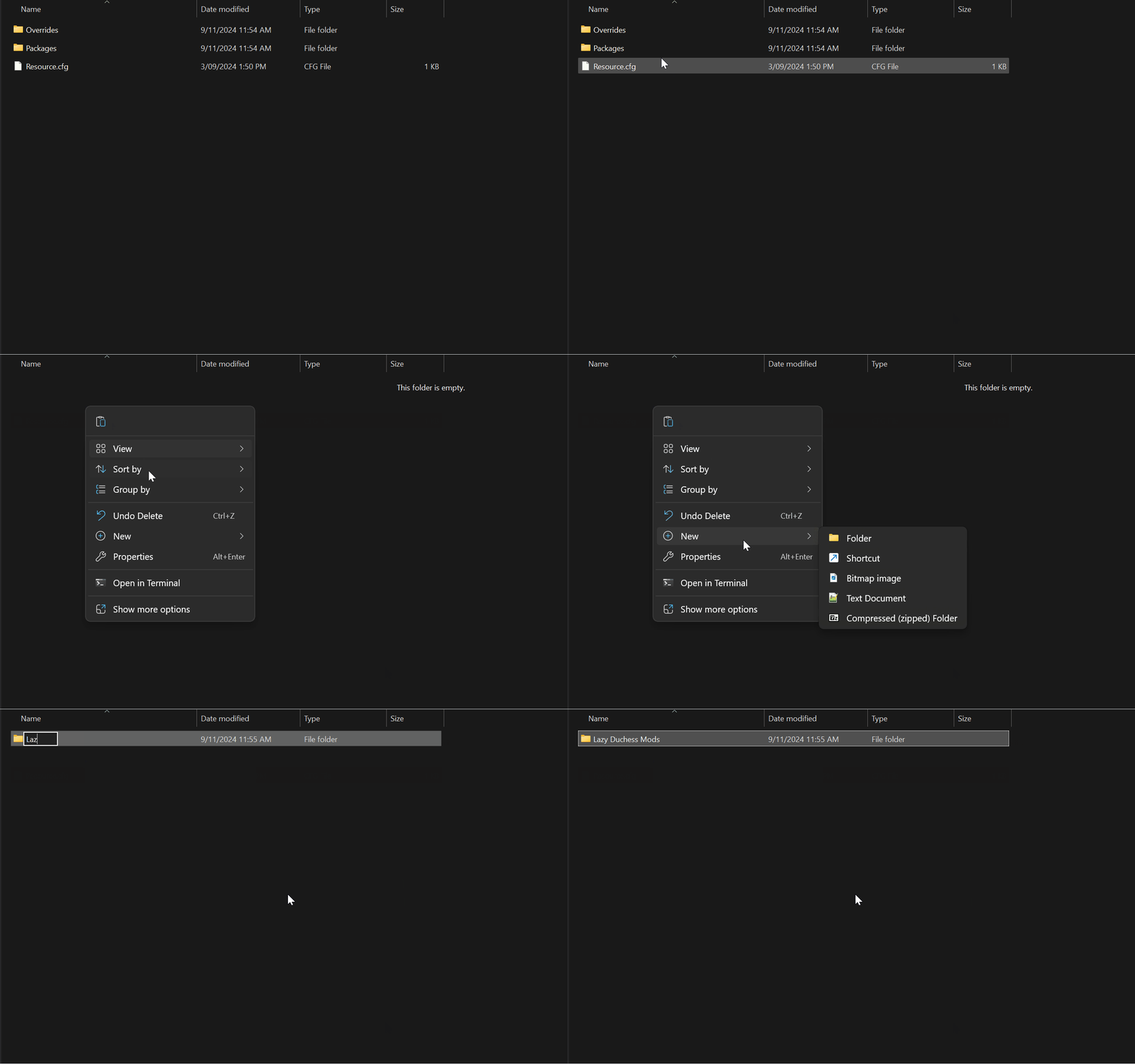
After creating the new folder place the "ld_MonoPatcher.package" file inside the newly created folder.
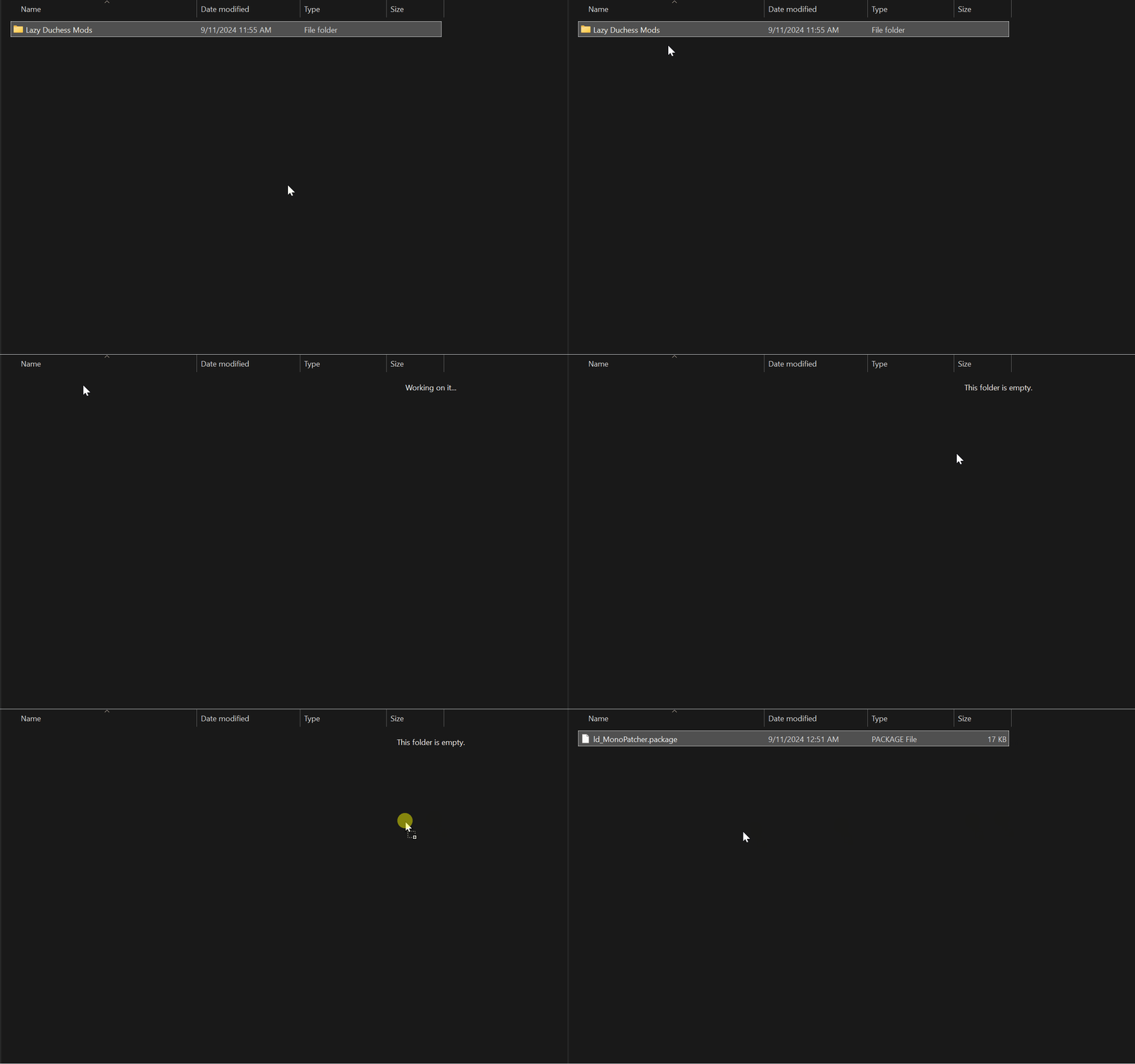
Step 3: Once that is done you will need to go to the games "Bin" Folder in the games install directory, it can be found at...
Steam 1.67 - "Steam\steamapps\common\The Sims 3\Game\Bin"
Once there place the file "MonoPatcher.asi" into the "Bin" folder in the games directory.
"wininet.dll" from Mono Patcher is not needed as Ultimate ASI Loader will load the .asi plugin!
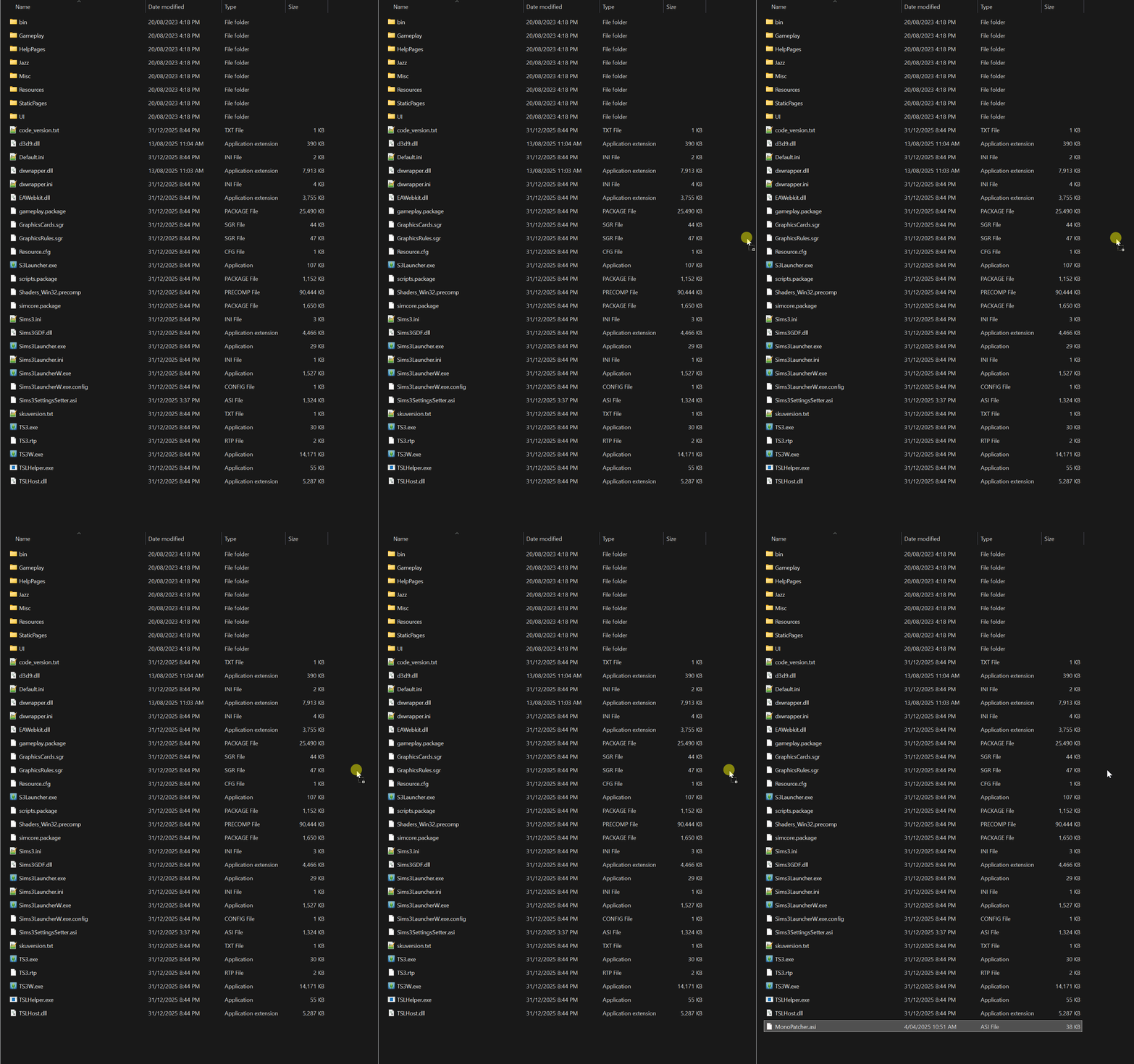
Step 4: Mono Patcher Library is now installed.
Consider supporting Lazy Duchess for all their amazing work? You can HERE![www.patreon.com]
Step 1: Download Mono Patcher Library from Github - HERE![github.com]
Step 2: Once downloaded go to your games mods folder located at...
"Documents\Electronic Arts\The Sims 3"
Once inside the Mods folder open up the "Packages" folder and create a new folder.
After creating the new folder place the "ld_MonoPatcher.package" file inside the newly created folder.
Step 3: Once that is done you will need to go to the games "Bin" Folder in the games install directory, it can be found at...
Steam 1.67 - "Steam\steamapps\common\The Sims 3\Game\Bin"
Once there place the file "MonoPatcher.asi" into the "Bin" folder in the games directory.
"wininet.dll" from Mono Patcher is not needed as Ultimate ASI Loader will load the .asi plugin!
Step 4: Mono Patcher Library is now installed.
Consider supporting Lazy Duchess for all their amazing work? You can HERE![www.patreon.com]
Step 5 - NRaas Mods (Essential)
Nraas mods will help your game run smoother and less likely to crash.
These Mods will be installed into your games "Mods" folder found at...
"Documents\Electronic Arts\The Sims 3\mods\Packages"
Here are the Nraas mods that are needed to make the game more stable...
These Mods will be installed into your games "Mods" folder found at...
"Documents\Electronic Arts\The Sims 3\mods\Packages"
Here are the Nraas mods that are needed to make the game more stable...
- NRaas Error Trap[www.nraas.net] - Error Trap is a mod that detects and catches corrupted data and lets save games be loaded/played and preventing crashes, Error trap will also create logs within the games documents folders to help narrow down the error cause.Download using this button!
Note: Only Error trap requires different download buttons for different game versions, all other Nraas mods use the same download button.
- NRaas Overwatch[www.nraas.net] - Overwatch resets stuck sims and puts them back to their home lot safely will also remove unused cars that slow down the game, turn off stereos that are not in use on non played sims homes ect.
- NRaas Master Controller [www.nraas.net]- Lets you become more of a god with option to set slider values edit any sims in CAS set skill levels and so on can also be used to reset lots and sims manually even an entire town to fix any issues.
- NRaas Register[www.nraas.net] - Allows the user to disable certain classes of npc's within town things such as paparazi's, strays, wild horses, unicorns and much more! This can help big with performance in worlds such as isla paradiso were horses cause lots of lag when spawned in by the game.
- Nraas Saver[www.nraas.net] - Has an option to set an in game time to have the game auto save or even in real time how often say every 20 to 30 minutes. You can even set it to pause the game on load so its guaranteed to be paused if you walk away while you wait for your save game to load.

Step 6 - Simler90's Gameplay Core Mod (Essential)
Simler90's Gameplay Core Mod fixes a long list of issue and bugs with the base game and many of the expansion packs.
Some of the bug fixes included are...
⠀⠀
⠀ ⠀
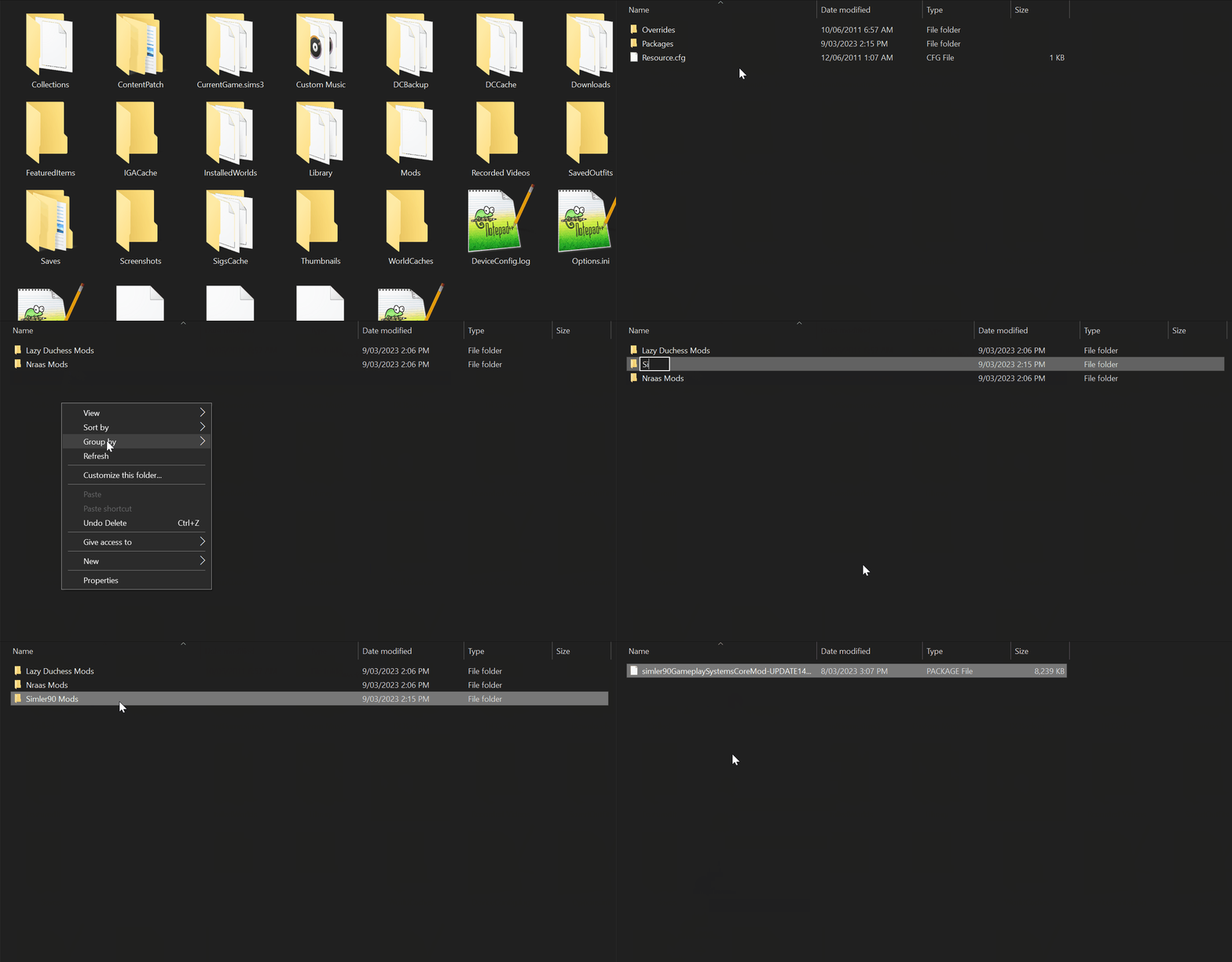
Step 1: Download Simler90's Gameplay Core Mod HERE[modthesims.info] Make sure to download the file with "Steam" in the file name!
Once downloaded place it in the folder at...
"Documents\Electronic Arts\The Sims 3\mods\Packages".
Step 2: Next while in game you will need to change a setting for NRaas Overwatch so that some mod functions do not overlap while playing between NRaas overwatch and Simler90's Core Mod.
Some of the bug fixes included are...
- Bonehilda will now take care of children and toddlers correctly!
- Child and Teen now can attend school while grounded, no more sneaking out to school!
- Butlers will now do their jobs correctly without interruption!
- Firefighter career job spawning has been fixed!
- Many vanilla story progression fixes!
- Pie selection menu sorting has been fixed and now should be instant.
- Fixed vacation world families from going bankrupt during long travel periods.
- Newly generated sims will not have the default "pudding face" when generated, other presets will be picked.
- Trait and hidden trait animations have been fixed and sims and occult sims will now perform them correctly!
- Fixes NPC Sims all using the "Sloppy Jalopy" as their travel car no matter their household funds. (This also includes letting NPC's drive stuff pack and expansion added cars)
- Fixes NPC Sims not being able to sneak into VIP sections at night clubs.
⠀⠀
Consider supporting simler90 for all their amazing work? You can HERE![ko-fi.com]
⠀ ⠀
Step 1: Download Simler90's Gameplay Core Mod HERE[modthesims.info] Make sure to download the file with "Steam" in the file name!
Once downloaded place it in the folder at...
"Documents\Electronic Arts\The Sims 3\mods\Packages".
Step 2: Next while in game you will need to change a setting for NRaas Overwatch so that some mod functions do not overlap while playing between NRaas overwatch and Simler90's Core Mod.
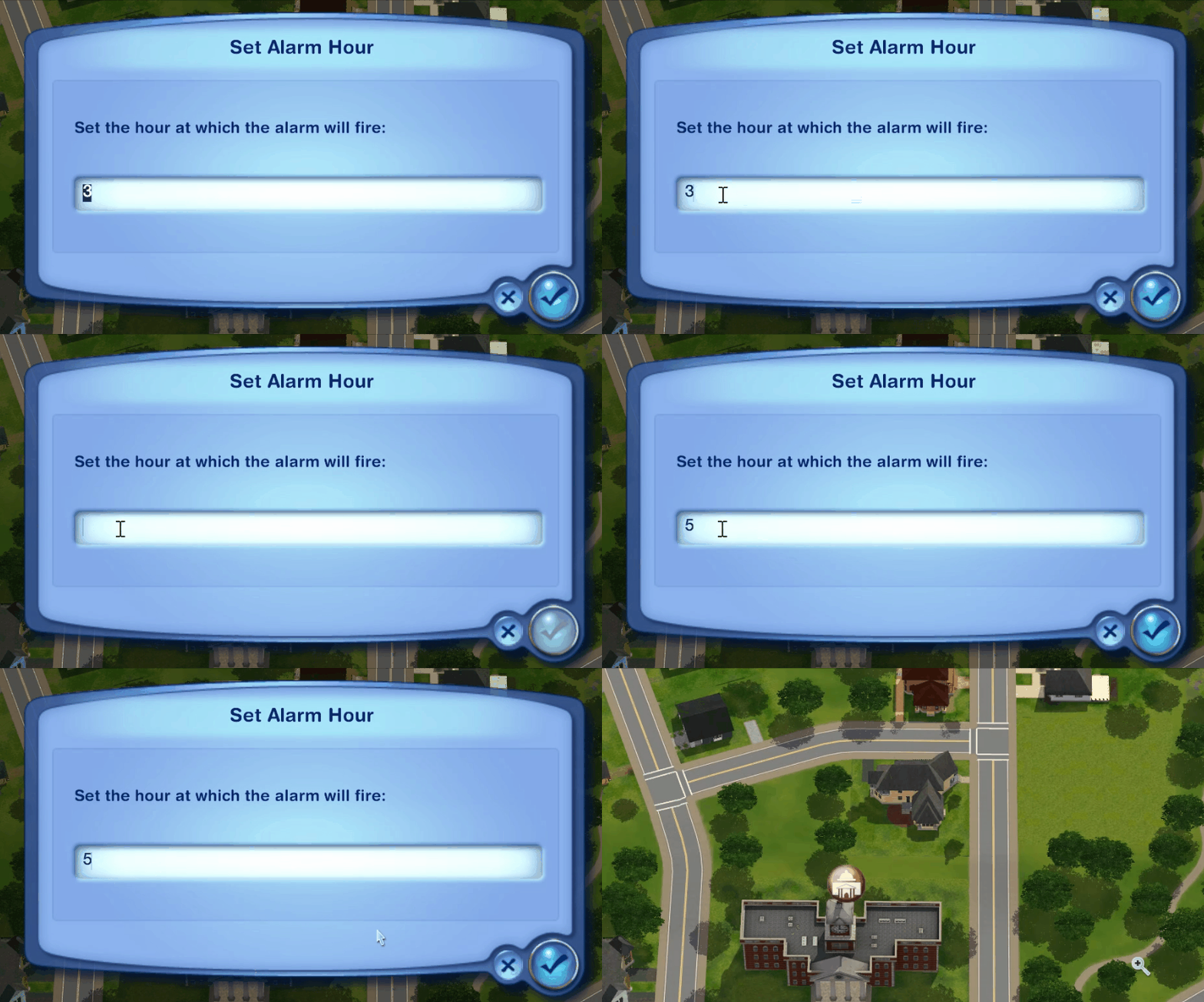
- While in game find the City hall rabbit hole in your save and click on it.
- Once the city hall rabbit hole has been selected you will need to go to "NRaas > Overwatch > Settings > Set Alarm Hour".
- A New window will popup with a defualt time of "3" this needs to be changed to "5", once changed press the check mark icon to accept the changes.
Disclaimer: This will need on be done on every brand new save.
Disclaimer: If you want to report a bug with an NRaas mod NRaas staff will not help with reported issues with their mods if Simler90's Core Mod is also installed. The NRaas mods listed on this guide work well enough together from my testing, however I do not use the full suite of NRaas mods so there may be conflicts with other NRaas modules or NRaas mods.
Step 7 - Routing Fixes (Essential)
Here are some essential mods that fix a lot issues with Sims and their not so good routing. Mods under the "Base Game Compatible" section will work no matter what packs you have other sections will require you to have the specific expansion pack installed.
These mods will be installed in the mods packages folder found at...
"Documents\Electronic Arts\The Sims 3\Mods\Packages"
These mods will be installed in the mods packages folder found at...
"Documents\Electronic Arts\The Sims 3\Mods\Packages"
Base Game Compatible
- Interaction on sloped terrain enabler[modthesims.info] - This mod will allow sims to interact on sloped terrain and will fix sims getting stuck when trying to interact with other sims on a slighty sloped terrain.
- Sims need less Space[modthesims.info] - Lets sims do certain interactions without needing as much space to do them as before which can help with routing issues..
- Guitar needs less Space for playing[modthesims.info] - Makes it so the guitar needs less space to be played.
- Toddler Routing Fix[modthesims.info] - Fixes toddlers routing being cancelled when the failing interaction is triggered but it does not properly play resulting in all of their actions being cancelled when the fall down animation is meant to trigger.
Consider supporting TheSweetSimmer for all their amazing work? You can HERE![www.patreon.com]
Late Night Expansion Compatible
- Bass needs less Space for playing[modthesims.info] - Makes it so the Bass needs less space to be played.
Pets Expansion Compatible
- Pets need less Space[modthesims.info] - Reduces the size of the area that all pets need to interact with objects, Sims and other pets reducing routing failures and unnecessary shuffling around.
Island Paradise Expansion Compatible
- Autonomous Play In The Ocean Fix[modthesims.info] - Prevents sims from autonomously attempting to play in the ocean outside of beach and resort lots this will help with routing issues.
- House Boat Fix[github.com] - Fixes an issue with sims not being able to properly route back to their house boats when they are docked at ports resulting in the game simulation freezing up every few seconds, this really helps in Isla Paradiso. Requires Mono Patcher download using the "fp.houseboatfix.package" button.
Step 8 - Bug Fixes | Base Game & Expansions (Optional)
In this section you will find mods that will fix issues and bugs that were never patched out by EA and The Sims Team and some tweaks to minor gameplay.
These ".package" Mod files will be installed into your games "Mods" folder found at...
"Documents\Electronic Arts\The Sims 3\mods"
There are two different folders present inside the mods folder for different types of mods...
These ".package" Mod files will be installed into your games "Mods" folder found at...
"Documents\Electronic Arts\The Sims 3\mods"
There are two different folders present inside the mods folder for different types of mods...
- Mods with the "🟩" icon go into the "Packages" Folder.
- Mods with the "🟥" icon go into the "Overrides" Folder.
Base Game Bug Fixes (Part 1)
BASE GAME COMPATIBLE MODS
- 🟩 No (or fewer) automatic memories[modthesims.info] - Makes only important memories recorded, memories like getting married or having a baby. this will help prevent save file bloating on long played saves.
- 🟩 Tile-able Items Shader FIX[modthesims.info] - Fixes lighting shaders on certain tile-able items.
Consider supporting Simsi45 for all their amazing work? You can HERE![www.patreon.com] - 🟩 Base Game Halfwalls FIXED!!![modthesims.info] - Fixes the base game half walls meshes and collision
- 🟩 S-Club ts3 EA Eyeball UVFix - Fixes the UV lighting on the sims eyes so that its facing in the right direction for both eyes and not just a mirrored effect.
Male Version - Will add a link when one is made?
Female Version[www.thesimsresource.com] - 🟥 EA Eyeshadow Texture Fix[linna.modthesims.info] - Fixes bad alpha mapping on the eye shadow textures done by EA.
- 🟩 Muscle Slider Fix for Teens and Elders[linna.modthesims.info] - Fixes the muscle tone sliders not working on teen and elder sims.
- 🟩 Get to Know Fix[www.patreon.com] - Fixes the "get to know" interaction and how often sims discover traits of other sims. Also has an option to discover hidden traits.
Consider supporting simbouquet for all their amazing work? You can HERE![www.patreon.com] - 🟩 Welcome Matt Deshined Rug[modthesims.info] - Fixes an issue with a base game rug having the wrong specular mapping applied to it making it very shiny.
- 🟩 Horizontal Clapboard - Fixed[modthesims.info] - Fixes an issue with wonky texture normals on the Horizontal Clapboard wall paint.
- 🟩 BG Altitute Quantizer Stair Fix[modthesims.info] - Fixes a mesh issue when placing the set of stairs inside.
- 🟩 No Auto-Placing Venues[modthesims.info] - Stops the game from placing expansion pack lots to EA worlds that don't have them when loading up a new save, this makes loading times way faster and you can still place the lots you want in edit town!
There are two versions only install one!- No Auto Venue Placement - Will exclude all expansion lots from being placed on a new save file.
- No Auto Placement + Festivals Left - Will exclude all lots excluding festival lots they will be placed if you have seasons installed.
- No Auto Venue Placement - Will exclude all expansion lots from being placed on a new save file.
- 🟥 TS3: Walk Cycle Edits[www.patreon.com] - Fixes an oversight with young adult males, adult males and elder males having the "happy" expression baked into their walking animations. They will now show their correct mood when walking and not just smiling even when sad.
Consider supporting simbouquet for all their amazing work? You can HERE![www.patreon.com] - 🟥 TS3: Facial Expressions Converted From The Sims Medieval[www.patreon.com] - changes 15 of the 20 base game facial animations with the ones from sims medieval. While not technically a bug fix it can fix clipping with certain facial animations like eye lashes going through sims brows when frowning and distorted facial features.
Consider supporting simbouquet for all their amazing work? You can HERE![www.patreon.com] - 🟩 Random Sim Fixes[modthesims.info] - Fixes an issue were in the base game the game would give every generated sim the same default value for face customisation, voice and fitness. Also fixes non future world sims wearing into the future clothing. Only sims in the future world will now wear the clothing from into the future. (Into the future is not require for this mod to function)
Consider supporting Lazy Duchess for all their amazing work? You can HERE![www.patreon.com] - 🟩 CAS Sim Bin Genetics as Presets[modthesims.info] - Adds in more CAS facial presets for the game to choose from when using mods that fix the pudding face bug. Use this mod along side Random Sim Fixes[modthesims.info] or simler90's Gameplay Systems Core Mod[modthesims.info].
- 🟩 Pick Up Toddler Fixes[modthesims.info] - Fixes some issues with how sims would approach their task of picking up toddler sims.
Consider supporting TheSweetSimmer for all their amazing work? You can HERE![www.patreon.com] - 🟩 Sims 3 Hidden Stencils Unlocked + Fixed![modthesims.info] - Fixes various objects missing their extra select-able stencils, they will now be un-hidden and select-able again.
Consider supporting simsi45 for all their amazing work? You can HERE![www.patreon.com] - 🟩 Cross-Eye Bug Fix[www.patreon.com] - Fixes an issue were sims sometimes go cross-eyed after certain events like ageing up.
Consider supporting Lazy Duchess for all their amazing work? You can HERE![www.patreon.com]
Base Game Bug Fixes (Part 2)
BASE GAME COMPATIBLE MODS
- 🟩 Pigtails Glitch Fix[modthesims.info] - Fixes an issue were if a sim uses custom content hair and they age up they will no longer default to the pigtails hairstyle.
- 🟩 Watery Grave Plaque Edit[modthesims.info] - Fixes issues with the watery grave death type gravestone using the fire icon by default, Also fixes Into the Future Expansion Pack gravestones but that pack is not required for the mod to work. REQUIRES MONO PATCHER
- 🟩 Skill Certificate Fix[modthesims.info] - Fixes skill certificate icons not being applied to the right skill certificates also adds in new icons for certificates that did not have a unique icon.
- 🟩 Late Night Townie Genetics as Presets For CAS[modthesims.info] - Adds in more CAS facial presets for the game to choose from when using mods that fix the pudding face bug. Use this mod along side Random Sim Fixes[modthesims.info] or simler90's Gameplay Systems Core Mod[modthesims.info]. The Late Night Expansion Pack is not required!
- 🟩 Chance To Learn Teen Hangout[modthesims.info] - Fixes an oversight by EA were the feature was disabled, it should now work and teen sims can find out what community lot is the current teen hangout spot.
- 🟩 Realistic Fish Mod[omedapixel.tumblr.com] - Fixes fish models not showing up as correct models when placing them outside of the inventory. Download using the link download link under the text "VERSION 2 NOW AVAILABLE!" at the bottom of the page. Monopatcher is required for the mod to function correctly also!
Consider supporting omedapixel for all their amazing work? You can HERE![ko-fi.com] - 🟩 Fishing Chest (collection page fixed)[modthesims.info] - Fixes the fishing chest you could catch from fishing not being able to be caught also fixes the collection page when the Fishing chest in re-enabled.
- 🟩 swiffy's Grocery Fixes[modthesims.info] - Fixes an oversight with the grocery menu when buying by recipe, sims will no longer need to cook at least once for the items to show up. Monopatcher is required for this mod to work.
Ambitions Bug Fixes
AMBITIONS COMPATIBLE MODS (Use Only if You Have Ambitions installed)
- 🟩 Spring Cleaning No Magic Clothesline[modthesims.info] - Fixes an issue/oversight with the cloths on the clothesline drying even when being rained on during rainy weather. Download the "Gamefreak130_NoMagicClothesline.rar" File from the file section! Seasons is required!
Consider supporting gamefreak130 for all their amazing work? You can HERE![www.patreon.com] - 🟩 Harvester Fix[modthesims.info] - Fixes various issues with the Harvester after a sim has used the object.
- 🟩 No More Non-Cases for Investigators[modthesims.info] - Fixes an issue were investigators could roll university and supernatural opportunities instead of the opportunities from the investigator career. University Life or Supernatural are required to also be installed otherwise the bug will not be present.
World Adventures Bug Fixes
WORLD ADVENTURES COMPATIBLE MODS (Use Only if You Have World Adventures installed)
- 🟩 Champs les Sims Distant Terrain Tree Fix[potato-ballad-sims.tumblr.com] - Fixes the distant terrain tree models to have proper transparency.
Consider Supporting Potato Ballad Sims for all of their amazing work? you can HERE![www.paypal.com] - 🟩 Asian Window emits light[modthesims.info] - Fixes an issue with a window from world adventures not emitting sunlight during day time when used.
Late Night Bug Fixes
LATE NIGHT COMPATIBLE MODS (Only Use if Late Night is Installed)
- 🟩 Inventor's Workbench fix for Bridgeport[modthesims.info] - Fixes an issue were you could not make a sim bot in bridgeport using the inventors table (Ambitions is required!!)
- 🟩 Late Night Plant Fix[modthesims.info] - Fixes an issue so that some of the plant objects that came with this EP are in the right buy mode category.
- 🟩 LN Celeb Fridge Texture Fix[modthesims.info] - Fixes an issue with the specular mapping on a fridge that was added by Late Night the fridge now has the proper reflective texture applied.
- 🟩 Elevator Shaft Placement FIX[modthesims.info] - Fixes an issue with the elevator shaft would not snap to full grid squares.
Generations Bug Fixes
GENERATIONS COMPATIBLE MODS (Only Use if Generations is Installed)
- 🟩 Read Toddler to Sleep - Fixed Interaction[danjaley.tumblr.com] - Fixes the interaction to read a toddler to sleep interaction
- 🟩 Generations: Fixes For "Natural"*Family Portrait & Dream of the Windrunner Paintings[modthesims.info] - Fixes an issue were you could only use one of the texture variants of certain paintings.
- 🟩 Generations Shirt & Sweater Top - Channel Fix[sweetdevil-sims.tumblr.com] - Fixes some texture channelling issues on a shirt from generations.
Pets Bug Fixes
PETS COMPATIBLE MODS (Only Use if Pets is Installed)
- 🟩 Gallop Fastest Animation Fix[simsasylum.com] - Fixes an issue with horses were their their animation used for galloping would display/play wrong when they ran at full speed (Registration RequiredFor Download)
- 🟩 Pet Tombstone Shadow Fix [modthesims.info]- Fixes badly rendered shadows on the pet tombstones.
- 🟩 Fixed horse tails (no more shiny horses!)[modthesims.info] - Fixes issues with horses being shiny due to specular shininess being set wrong on horses tails.
Consider supporting simsi45 for all their amazing work? You can HERE![www.patreon.com]
University Life Bug Fixes
UNIVERSITY LIFE COMPATIBLE MODS (Install only if you own University Life EP)
- 🟥 University Student Union / Library Shell Overrides[modthesims.info] - Fixes sims routing into the union building so they use both entrances on either side of the builing and not all try to use the front doors and get stuck which causes lag.
Download these files ONLY!!- "UNI_ ReplacementShells(overrides).rar"
- "UNI_SCRIPT_MoreShellEntries.rar"
- "UNI_ ReplacementShells(overrides).rar"
- 🟩 No More University Life NPC Protests[modthesims.info] - This will fix sims trying to start protest in the ocean and other rondom places that would casue lag.
- 🟩 University Life Alpha Omega Door Fix[modthesims.info] - Fixes a bug so the door can be changed to any color from the door frames color.
- 🟥 University Life Visual Fixes[www.patreon.com] - Fixes several issues with university life and some icons and images associated with texting and speech bubbles.
Consider supporting simbouquet for all their amazing work? You can HERE![www.patreon.com]
Showtime Bug Fixes
SHOWTIME COMPATIBLE MODS (Only use if you have Showtime EP)
None At This Time
Supernatural Bug Fixes
SUPERNATURAL COMPATIBLE MODS (Install only if you have Supernatural installed)
- 🟩 A Proper Fix to the Proper Trait[modthesims.info] - Fixes some bugs and issues with the Proper Trait.
- 🟩 Money Tree Bug Fix (Gatherer Trait Bug Fix)[simsasylum.com] - there is a chance if sims have the "gatherer" trait that they can not harvest from the money tree if they have harvested other plants beforehand and it corrupting the money tree and sims will no longer be able to use the money tree. (Requires Registration to Download)
- 🟩 Restoration Spell Fix[modthesims.info] - Fixes some interactions with objects with the restoration spell.
- 🟩 No More Zombies Generated At Full Moon[modthesims.info] - Makes it so the game does not spawn zombies at a full moon every lunar cycle lagging the game on nights with the full moon. Potions and elixirs can still transform people into zombies if you pick the mod version which keeps those methods in the game!
- 🟩 LLAMA Sound Fix[modthesims.info] - Fixes an issue were the LLAMA box would make sounds every time you go up a level or down a level on a lot.
Seasons Bug Fixes
SEASONS COMPATIBLE MODS (Install only if Seasons is Installed)
- 🟩 NRaas Tempest[www.nraas.net] - Has a feature that fixes an issue were fallen leaves do not de-spawn after the fall season is over.
- 🟥 No more ugly snowprints[www.modthesims.info] - fixes the ugly miss match of snow textures around certain objects.
Consider supporting Lyralei for all their amazing work? You can HERE![www.patreon.com] - 🟩 Spring Cleaning Weather Forecast Tweaks[modthesims.info] - Fixes issues with the rain weather type appearing way too often in the summer season. The mod also makes the weather forecast more accurate and easy to read! Download the "Gamefreak130_WeatherForecastTweaks.rar" File from the downloads section!
Consider supporting gamefreak130 for all their amazing work? You can HERE![www.patreon.com] - 🟩 Spring Cleaning Truly Eclipsing Fog[modthesims.info] - Fixes issues with the weather stone vampire weather and how it was not applying the correct buffs to vampires. Download the "Gamefreak130_TrulyEclipsingFog.rar" file from the file section!
Consider supporting gamefreak130 for all their amazing work? You can HERE![www.patreon.com] - 🟩 Apple Bobbing Tank - Fix for Children[modthesims.info] - Fixes an issue where children sims could not use the apple bobbing station if it was placed at certain angles.
Island Paradise Bug Fixes
ISLAND PARADISE COMPATIBLE MODS (Install Only if Island Paradise is Installed)
- 🟩 Hanging Lantern Fix[www.modthesims.info] - Fixes an issue so sims can pass under the the object and not be blocked off by it.
Into The Future Bug Fixes
INTO THE FUTURE COMPATIBLE MODS (Install only if Into The Future is Installed)
- 🟩 ITF Perigee Planter Fix[modthesims.info] - Fixes the snow placement on the fence during winter (seasons expansion required)
- 🟩 Watch Laser Rhythm-a-Con FIX [modthesims.info]- fixes an issue were the object would not put up the fun meter for sims who were watching unlike other musical items in the game.
Store Content Bug Fixes
Only use these fixes if you have the store content installed from the official The Sims 3 Store
- 🟩 Amour Perfume Moodlet Typo Fix[modthesims.info] - Fixes a type with the gain moodlets from the new objects.
Consider Supporting gamefreak130 for all their amazing work? You can HERE![www.patreon.com] - 🟩 Banquett Fan Routing Fix[modthesims.info] - Fixes routing issues with the Banquett Fan.
- 🟥 More Efficient Upgrade Name Fix[modthesims.info] - fixes an issue with the upgrade option on two store objects the The Legendary Wind Raker[store.thesims3.com] and the Day Star 3000[store.thesims3.com].
- 🟩 Haute Hacienda Fireplace Fixes[modthesims.info] - Fixes some issues with the Haute Hacienda Fireplace[au.store.thesims3.com] from the sims 3 store.
- 🟩 Now & Then Manor Curved Staircase FIXED![modthesims.info] - Fixes clipping issues when placing the objects next to stairs. Requires the Hang Left/Right Curved Colonial Stair Rail[store.thesims3.com] object from the sims 3 store.
Consider Supporting simsi45 for all their amazing work? You can HERE![www.patreon.com]
(Beta / Experimental) Sims 3 Performance Patch (Optional)
Sims 3 Performance Patch (S3PP) is a Beta .asi plugin mod that aims to improve the memory management and performance of The Sims 3. It is fully compatible with Sims 3 Setting Setter and it is recommended to use the two mods together for the best performance boost to you game.
It fixes various things like the games Memory headroom which will help prevent Error 12 out of memory crashes by lowering the virtual memory usage of the game, optimizing thread stacks, faster loading times, package index warm-up and more!
A full list of fixes and changes can be read on the mods description page[www.nexusmods.com].
S3PP is in BETA and may have some issues or bugs not adressed yet.
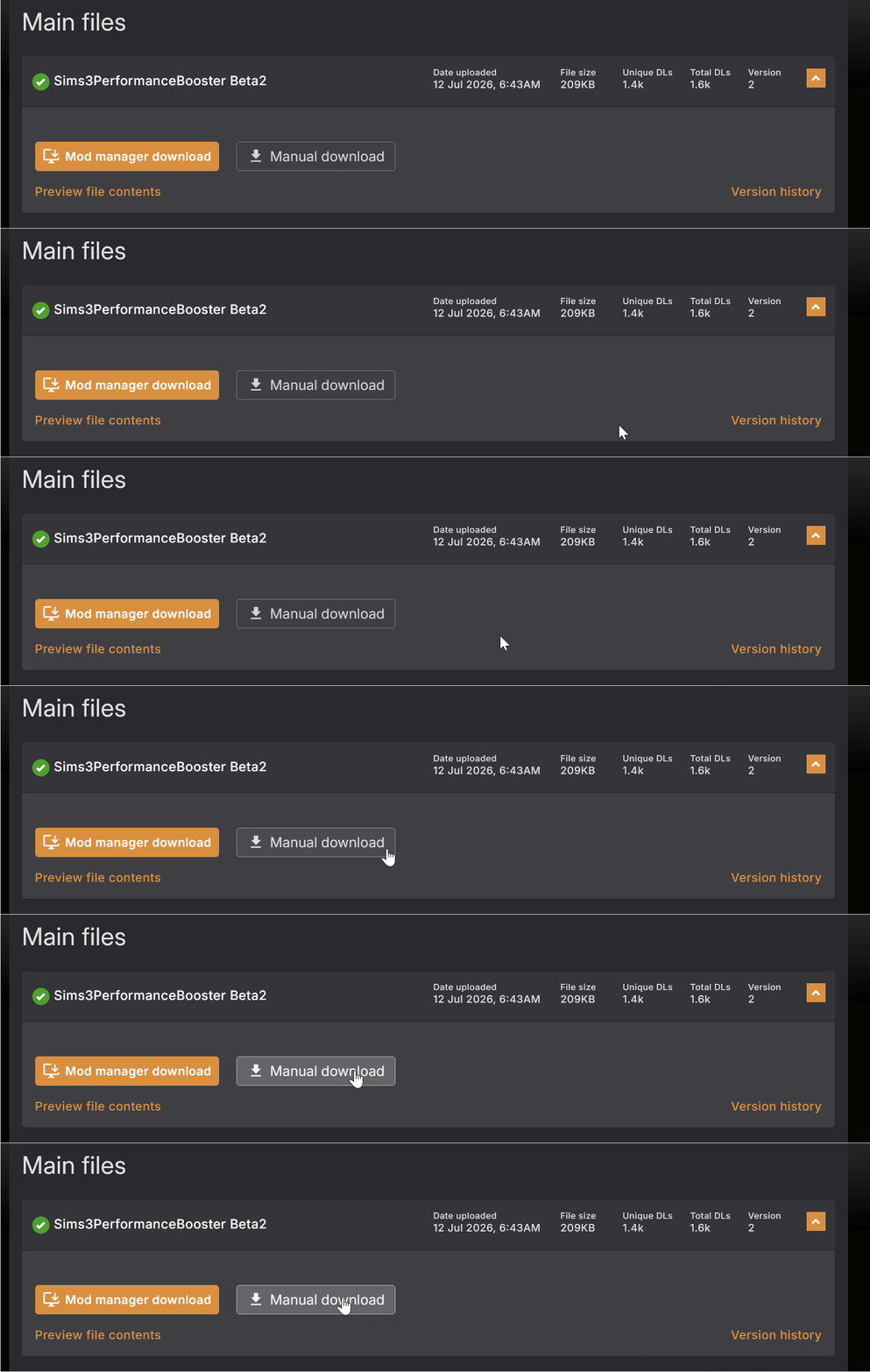
Step 1 - Download S3PP from HERE![www.nexusmods.com] (Account Required)
Download the latest version of the mod using the "Manual Download" button.
Step 2 - Once S3PP has finished downloading you will need to place these files...
Into the games Bin folder at this location
1.67 Steam - "SteamLibrary\steamapps\common\The Sims 3\Game\Bin"
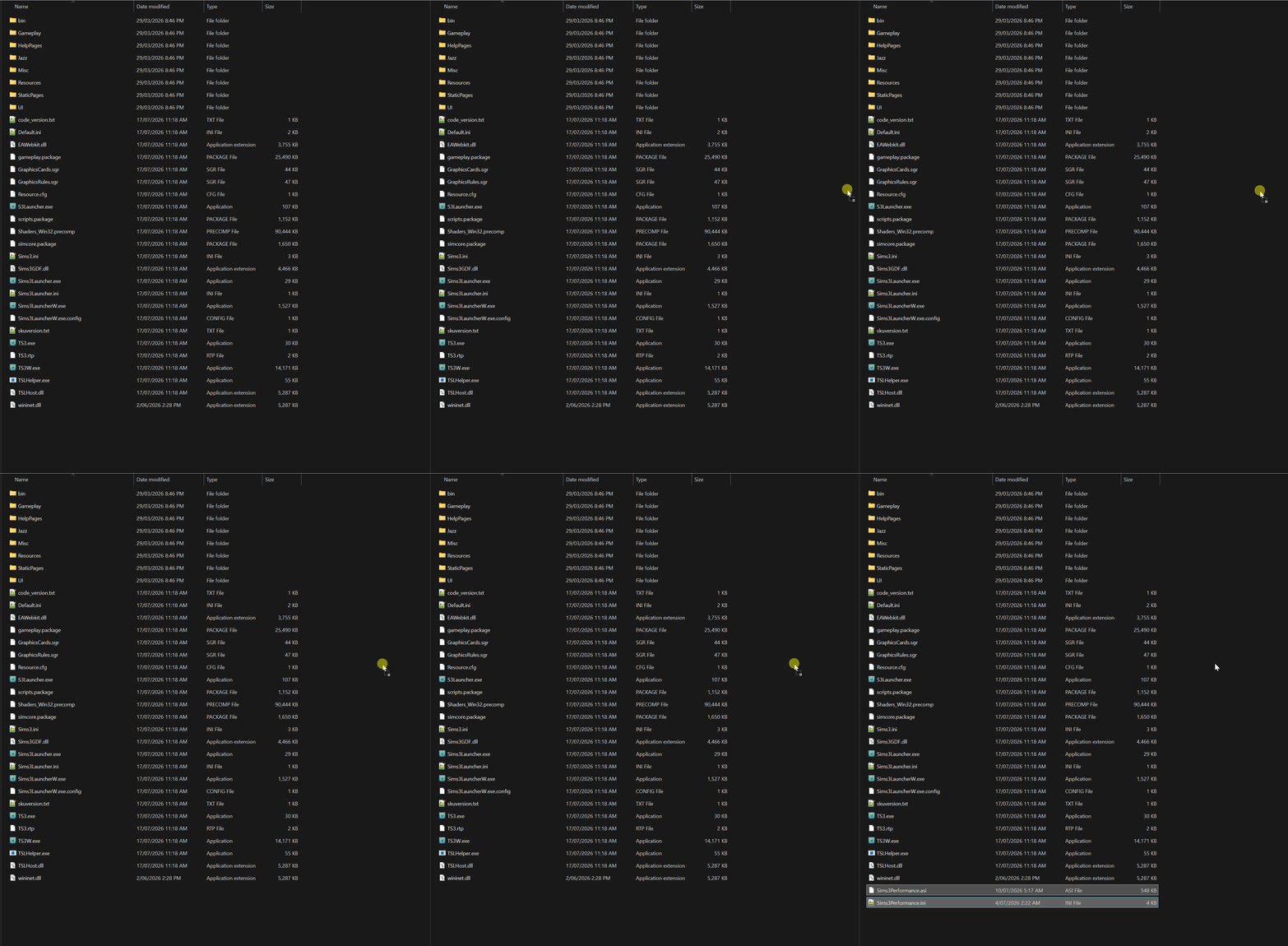
Step 3 - S3PP is now installed!
It fixes various things like the games Memory headroom which will help prevent Error 12 out of memory crashes by lowering the virtual memory usage of the game, optimizing thread stacks, faster loading times, package index warm-up and more!
A full list of fixes and changes can be read on the mods description page[www.nexusmods.com].
S3PP is in BETA and may have some issues or bugs not adressed yet.
Step 1 - Download S3PP from HERE![www.nexusmods.com] (Account Required)
Download the latest version of the mod using the "Manual Download" button.
Step 2 - Once S3PP has finished downloading you will need to place these files...
- Sims3Performance.asi
- Sims3Performance.ini
Into the games Bin folder at this location
1.67 Steam - "SteamLibrary\steamapps\common\The Sims 3\Game\Bin"
Step 3 - S3PP is now installed!
Bonus Step - In Game Options (Optional)
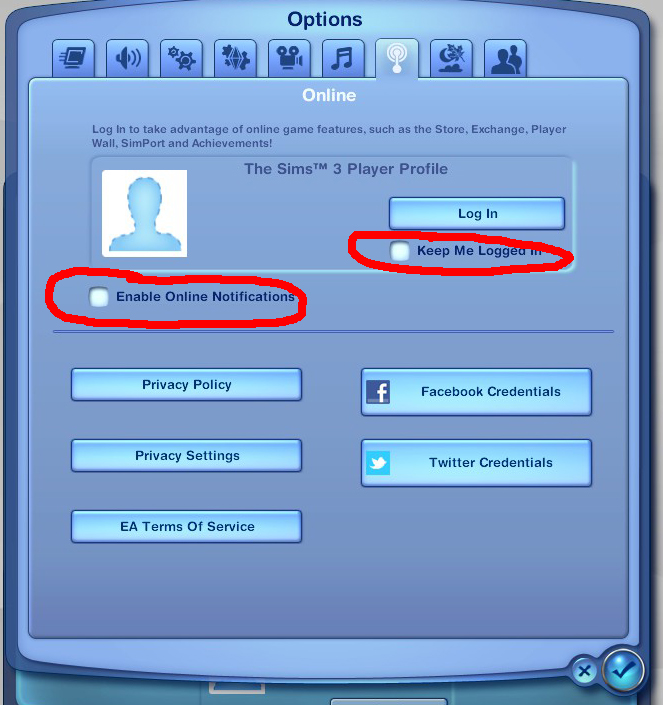
The game has some options that are on by default that can slow down the game if turned on. You may turn the off if you like.
Turning the options that I have circled in red to off will help the games performance greatly.
General Options (3rd tab - Gears) (Essential)
Turning the options that I have circled in red to off will help the games performance greatly.
- Shop Mode option - Turning this off should help game performance as the store featureuses quite a bit even when its not being used.
- Interactive loading Screens Option - This was a good concept but the final product can actually make loading up your game even longer so disabling this option can make the game load your save file quicker.
- Disable Memories - This feature is really good for story telling and legacy save files but it can become very laggy with every sim in town getting constant memories all the time setting this to off will help the games performance greatly. If you like this feature turned on but still want performance I would recommend looking at the mod No (or fewer) automatic memories[modthesims.info] this mod makes it so only important events in your sims life is saved and not useless ones.
⠀⠀
Online/Social Options (7th tab - Antenna) (Essential)
Turning off the options circled in red is highly recommend for performance since in game online stuff in the sims 3 was added poorly and results in a lot of lag on the games engine keeping the any online options off will improve performance greatly.
My Other Sims 3 Guides
F.A.Q Section (Part 1)
Q: Does Sims 3 Work on Windows 11?
A: Yes! An older version of the OS had issues with 32bit programs but that has now since been fixed. If there are any problems with saving disabling the OneDrive app or uninstalling the OneDrive app should fix saving issues! If you do not want to uninstall Onedrive or use Onedirve for other things refer to this video.
Q: Is there any way to make the game use more RAM?
A: No! The game is a 32bit program and there is no way to make it use more. Unfortunately no edits or magic can change this, its limit is 3.7gb at most no more than that unfortunately. The game is also already large address aware from the late night patch (1.17.60). Q: My game is crashing but I don't know why!
A: The tool Sims 3 Crash Log Analyzer[modthesims.info] may be able to help, the tool reads your crash logs that the game generates when crashing and tries to narrow down the issue the crash logs for the tool to read are found at..."Documents\Electronic Arts\The Sims 3"
Once at that location the files will be called "xcpt-(numbers).txt" let the tool read these files.
Q: I followed the guide but now my old save(s) file is having issues while playing!
A: Removing scripting mods from your game after the save is created will lead to the save files that relied on those removed mods to not function correctly or lead to save file corruption. This guide should be used with a fresh new save. Q: After following all the steps my game does not launch after pressing play on the launcher.
A: Make sure that you have installed Sims 3 Setting Setter Correctly and Ultimate ASI Loader, if you are using one of the listed intel CPUs in Step 2 section of the guide. AMD CPU users Should have no issues with launching the game but if the game is still crashing you may have installed a mod that is missing an expansion pack or missing Monopatcher. Q: The Mods folder is not being loaded in no matter what I try!
A: If you are using Windows 11 and your PC user name has any Special Characters/Emoji's in it the game/mods folder will have issues loading up game files from the documents folder. This might be since the game can not read these types of characters in file path names. Q: Why can't the downloads all just be in one big download?
A: A lot of the mods have an agreement section were you have to link to their sites to download and not redistribute. Respecting peoples work is the best thing to do for helping out the modding community for all their work. People put a lot if time into making mods so best to respect their wishes for their work! Q: The mods did not take effect but I have installed them correctly!
A: Make sure to clear your games cache as some mod data stored in the games cache files and it may need to be regenerated. DO NOT clean game cache all the time however! The game needs it and it will cause less performnce issue the less you delete cache. Q: There are no sims in my town this also happens when I start a new save file!
A: Under Step 11 in the University life Mods Section there is a mod called "University Student Union / Library Shell Overrides" if the file from that mod called "UNI_FIX_MissingScienceProfessor.rar" is installed all pre-made sims will be deleted from new and old saves. Deleting the mod file "University - FIX Missing Science Professor.package" will fix sims being missing. DISCLAIMER! : Save files saved after having the mod installed can not be reverted! Q: Why are the world fixes not included into this guide?
A: Some of the world fixes have corrupted data, they have a lot of good routing fixes but worlds with ghosts sims, mummies and simbots in them seems to have corrupted data. This is due to the Create a World Tool Having a bug were saving a world with ghosts, mummies or simbots in it will corrupt those sims data which can lead to save game corruption/errors, and these worlds were fixed using the CAW tool. More info can be read HERE[cawtool.fandom.com] under "A Warning about Ghosts & Mummies" and A Warning about Pets. Q: Why do my game settings reset every so often?
A: This happens when you update your graphics card drivers and the game resets the graphics settings to the default lowest settings. EA never fixed this bug before moving onto The Sims 4. DXVK should fix this issue when installed. Q: How do I know if my graphics card has been successfully detected by the game after using DXVK?
A: To know go to "Documents\Electronic Arts\The Sims 3" and find a file called "deviceconfig.log" open it, there should be a line that looks like this...- Name (database) "Geforce GTX 580" [found: 1, matched: 1]
- Name (database) "Geforce GTX 580" [found: 0, matched: 1]
- Name (database) "Geforce GTX 580" [found: 1, matched: 0]
- Name (database) "Geforce GTX 580" [found: 0, matched: 0]
Note: If you have used Regal Save Cleaner the file will be deleted, launching the game again will re-generate the file! Intel 12th gen CPU and above users on the steam version of the game also may need the Alder Lake Patch to be installed so the game can run and generate the file.
Q: I'm getting an error that says "A Serious Error Occurred While Loading (Save File Name)"!
A: This is usually due to Onedrive interfering with the games save file location under the my documents folder. Disabling Onedrive or uninstalling Onedrive should fix this issue from occurring.Q: My game is still stuttering even after following the essential or all the steps!
A: Unfortunately The Sims 3 will still have some micro stuttering occasionally as its just how the game is. If the stuttering is really bad the game may be running out of memory or if you are playing in custom worlds some of them are demanding on the games engine. Another reason can be a lot of custom content installed, this can also lag the game.Q: I am getting a "Unofficial game modification" message on game startup!
A: A full explanation on why you may be getting this message box on statup can be found HERE![swiffyjk.tumblr.com] Updating to the latest version of Sims 3 Setting Setter (1.6.1 and above) Also fixes this issue!F.A.Q Section (Part 2)
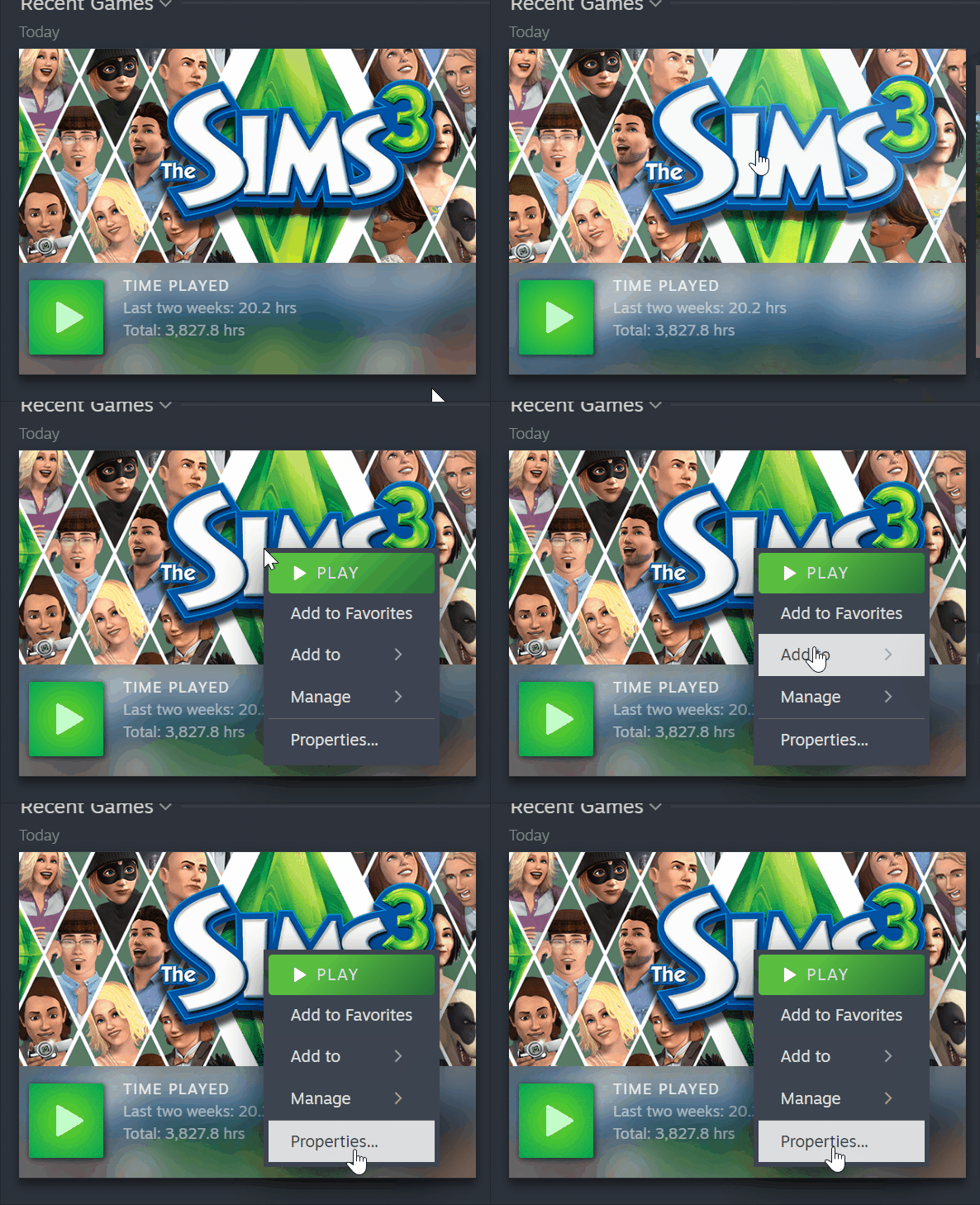
Q: How do I Bypass the games launcher on Steam?
A: To bypass the launcher on steam first you need to...- Step 1 - Find The Sims 3 in you steam library, right click on it and select "Properties".
- Step 2 - A new window will appear, under the general tab find the Advanced launch option settings section. Next paste this under the launch options section. "Game\Bin\TS3W" -%command%
Note: If your edit town library is empty reverting these changes will fix this issue!
Another Way to bypass the launcher is to rename "TS3W.exe" to "Sims3LauncherW.exe". Just make sure to back up the original Sims3LauncherW.exe and TS3W.exe by moving them somewhere safe for later use.
The .exe files are locted at...
"Steam\SteamLibrary\steamapps\common\The Sims 3\Game\Bin"
Bypassing the launcher on Steam Deck will make .ASI mods not initiate on game launch.
Change Log Section
- 09/10/2017 - Published The Sims 3 game guide.
- 09/10/2017 - 23/07/2021 - Various changes and fixes over the years.2021
- Made various changes through out the year.2022
- Made various changes through out the year.2023
- Made various changes through out the year.2024
- Made various changes through out the year.2025
- Made various changes through out the year.202601/01/2026 - Made big changes to the guide to correspond to the newest addition added the "Sims 3 Settings Setter".
- The Sims 3 Settings Setter comes with a lot of new performance improvments and also includes its own smooth patch features and borderless window modes. More about its features can be read on the mods page HERE![github.com]
- Removed the mod "Smooth Patch 2.1" from the guide as "Sims 3 Settings Setter" has its own built in.
- Removed references "wininet.dll" from the guide as now "dxwrapper" is used to load .asi plugins instead and "wininet.dll" will need to be removed before switching over to "dxwrapper".
- Removed Smooth Patches 2.1 Borderless Window section as Sims 3 Setting Setter Has its own window borderless mode included within the mod.
- The Sims 3 Settings Setter comes with a lot of new performance improvments and also includes its own smooth patch features and borderless window modes. More about its features can be read on the mods page HERE![github.com]
- 09/01/2026 - Made it a bit more clear who needs to use the Intel Alder Lake Patch Under "Step 4 - Lazy Duchess Mods" in the "Intel Alder Lake Patch" Section. Aldso Updated "Step 3 - Sims 3 Setting Setter" to use "Smooth Patch (Precise Flavour)" instead of Smooth Patch (Original Flavour) as its more precise than the original.
- 15/01/2026 - Added the mod "swiffy's Grocery Fixes " to "Step 11 - Bug Fixes | Base Game & Expansions".
- 25/01/2026 - Removed the disclaimer about nraas mods from "Step 7 - Simler90's Gameplay Core Mod".
- 26/01/2026 - Updated the FAQ Section about wininet.dll.
- 27/01/2026 - Updated Step 3 from "Step 3 - Dxwrapper" to "Step 3 - .ASI Loaders".
- 29/01/2026 - Updated dxwrapper section under "Step 3 - .asi Loaders" on how to get it working with Reshade and DXVK.
- 01/02/2026 - Updated and completed "Ultimate ASI Loader" section under "Step 3 - .asi Loaders".
- 02/02/2026 - Updated "Step 4 - DXVK" to have installation instructions, settings still to come. Default settings should however.
- 04/02/2026 - Removed Regul Save Cleaner from the guide as it now has its own guide.
- 05/02/2026 - Updated "Step 4 - DXVK" to have instructions on how to add your graphics card.
- 08/02/2026 - list of changes...
- Updated "Step 4 - DXVK" to have instructions on how to change Texture Memory settings.
- Removed "Step 9 - Limiting FPS" as DXVK is now used to limit framerate and vsync.
- Updated "Step 4 - DXVK" to have instructions on how to change Texture Memory settings.
- 15/02/2026 - Removed "Step 10 - Making The Game Use More Vram" as its no longer needed as DXVK is a better method.
- 16/02/2026 - Removed "Step 1 - Making The Game Recognise Newer GPU Models" as it is no longer needed as DXVK can make the game think you are using a card that is detectable without the need to editing "GraphicsCards.sgr" and "GraphicsRules.sgr". New DXVK instructions can be found in the DXVK section of the guide.
- 05/03/2026 - Updated "Step 4 - Sims 3 Settings Setter" to correspond to recent changes in newer version of the mod. Removed frame limiting from "Step 3 - DXVK" as S3SS now handels frame rate limiting.
- 11/03/2026 - Added the mod "Elevator Shaft Placement FIX" To Step 10 - Bug Fixes | Base Game & Expansions under the Late Night Expansion section.
- 21/03/2026 - Removed the step "Step 8 - Making The Game Use More CPU" as from testing the New CPU Thread Optimization setting from S3SS is better to use.
- 31/03/2026 - Removed the section "Intel Alder Lake Patch" as it is no longer needed as Sims 3 Setting Setter now has this fix built in by updating to the latest version. To remove the old patch verify your game files through steam and remove the file "IntelFix.dll" file from your games bin folder located at...
SteamLibrary\steamapps\common\The Sims 3\Game\Bin - 11/04/2026 - Removed DXwrapper in favour of Ultimate ASI Loader for ease of installation.
- 03/06/2026 - Replaced the mod "No Auto Placed Lots" with the mod "No Auto-Placing Venues" as it comes with two versions one to keep festival lots but exclude other expansion lots on a new save game or exclude all expansion lots.
- 13/06/2026 - Updated a lot of information on the guide thanks to swiffy for the feedback! Removed "Step 7 - Cleaning DCBackup Folder".
- 20/06/2026 - Added NRaas Saver to Step 5 - NRaas Mods.
- 22/06/2026 - Added a new section dedicated to routing fixes called "Step 7 - Routing Fixes" and moved all mods that fix routing into this section.
- 23/06/2026 - Added the mod "House Boat Fix" to "Step 7 - Routing Fixes".
- 24/06/2026 - Removed the mod "Reduce/Remove Lag caused by Houseboats" as the new mod "House Boat Fix" fixes this issue by fixing the pathing for house boats also from testing.
- 26/06/2026 - Removed the card spoofing section from "Step 3 - DXVK" as the latest version of DXVK (3.0) now does it automatically without the need of editing. I have updated the download link to the latest version. The latest update also fixes low quality shadows bug on AMD graphics cards.
- 01/07/2026 - Removed the memory editing section in "Step 3 - DXVK" as the default values that DXVK comes with are good for The Sims 3 and do not need editing.
- 17/07/2026 - Added a new mod called "Sims 3 Performance Patch" its listed as optional and Beta/Experimental as its still in Beta.
2017
More The Sims™ 3 guides
- Very Basic & Useful Mods★ 5 (612)46k views1.2k ♥7 minUpdated Jan 17, 2021
- The Sims(TM) 3 Cheats★ 5 (921)39k views1.8k ♥4 minUpdated Jun 5, 2016
- Toubleshooting for The Sims 3★ 5 (457)29k views983 ♥45 minUpdated Jan 2, 2022
- How to make Mac & Cheese According to the Sims 3★ 5 (1.2k)26k views671 ♥5 minUpdated Aug 28, 2016
- The Sims 3 Enhanced Vanilla Graphics★ 5 (235)24k views696 ♥10 minUpdated Jun 3
- How to Hobo: A sims guide★ 5 (405)22k views494 ♥5 minUpdated Feb 16, 2015


This guide was created by its original author on the Steam Community. Are you the author and want it removed? Request removal.