The ULTIMATE Video Settings Guide & Best Video Settings for Competitive Rocket League
Introduction
- I used a lot of sources from the internet and my experience in the game aswell to write this, so, I don't have all of the credit for this.
- Any suggestion or advice is welcomed and will help to improve this post.
- Every news after an update of this guide will be posted in comments.
- You can ask me anything in comments and, when I will have time, I'll answer 100%. So don't add me to your friends list for that because I'll decline your request.
Window Settings
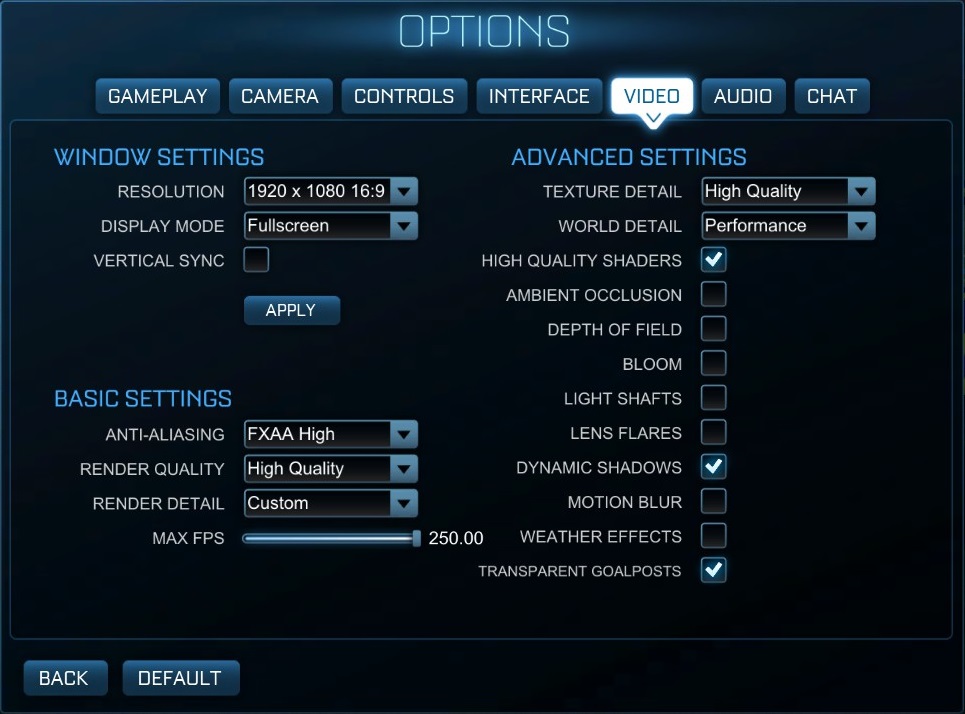
Vertical Sync or "VSync" synchronizes your GPU with your monitor's frame rate. In simple words, it limits the FPS to the Hz of your monitor. This keeps frames from display evenly and prevents screen tearing. I recommend having it always deactivated (unless the screen tearing is utterly unbearable that you cannot play the game any longer), since VSync causes input-lag and we want as many FPS as possible.
Basic Settings
There are only 3 viable options: OFF, FXAA Low, FXAA High. MLAA takes up a huge chunk of performance and it doesn’t make the game look all that much better when compared to FXAA.
A lot of pro players (ex: Ferra, Squishy) prefer to have this setting set to OFF because they don't want to see things blurred. The graphical differences between off and FXAA is huge.
If you want to go with an Anti-Aliasing effect, there isn't a big difference between FXAA Low and FXAA High in graphical terms. If your system can handle it, I suggest to choose FXAA High but if you want to maximize your FPS, then keep it at FXAA Low.
If you're not playing with this setting on High Quality you're playing another game, my friend. Anything lower will make your game look like !@#$ and, while there is something to be said about looks vs performance, you also don't want your game to look too grainy. Change this setting only if it's your last option in terms of FPS.
This option just let you choose from different presets for the Advanced Settings. We want to have this on CUSTOM because we're going to adjust the following settings by ourselves.
Set this to the highest possible option. The more FPS you get, the smoother your game will be and the better it'll respond to your input.
Advanced Settings
The difference of performance between High Quality and High Performance is minimal, so feel free to set this to High Quality if you want. I could say this setting is based on this question: "How much detail do you want on the textures?". Some people find distractions on High Quality. From my point of view it's 100% player's preference. Personally I have it set to High Quality.
This is another setting that won't have too much effect on your system performance. The lower you go the less "distractions" there are on and around the field though. Basically, how much unnecessary !@#$ do you want around the map? You can see some less trees, the grass on the field is cut more neatly, less mist in the background etc. I feel like the game becomes less cluttered. A lot of pro players choose Performance to avoid the distraction of additional background details.
Leave it ON unless you absolutely have to squeeze out performance since we lose a lot of quality and we will not gain much FPS by deactivating it. The game looks very grainy and flat with this setting off though.
This just provides extra shadows. Its effect isn't all that noticeable. Aesthetics for the price of FPS performance. I would recommend to turn this OFF.
This causes things that are far away to look blurry, making them harder to see, and makes objects closer to you appear sharper. Turning it off makes every object in the game world look equally sharp so you want to turn this setting OFF for clarity.
Bloom brings more life into the lights of the game, making them look less flat. Looks fine, but I'd rather be without it, for maps with a lot of lights, like Neo Tokyo, it can be distracting. Turn it OFF. It’s more of an aesthetic change then FPS related.
Beams of light that blind you every time when you try to do an aerial. It doesn't have a FPS performance affect, but it may cause game play issues, since on certain maps when you do aerials, the sun will not allow you to see well.
Similar to Light Shafts, this is the "blinding" effect you get when staring directly into a light source. While this might make the game feel more realistic, it also limits your vision, so turn this setting to OFF, no matter how good your system is.
This handles the moving shadows in the game. In a game such as Rocket League this can be of massive help (ex: you can see the shadow of an opposing player above you) but it does come at a relatively large cost performance wise. Turn this off if you need the FPS but otherwise I’d say it’s worth the tradeoff of leaving it ON.
There is no FPS performance impact but we don't want to see blurry things when we're in supersonic speed. We want maximum clarity possible so just disable this setting.
It’s only purpose is to make the game prettier. It distracts you when playing and has affects FPS. It looks nice, but in competitive play all I care about is optimizing and keeping my FPS from dropping.
Turn this ON because when you're in a goal you will want to see where's the ball without the indicator.
My Personal Video Settings
Last Words
If you have any suggestions or questions, feel free to post them as a comment.
If this guide helped you out, please, don't forget to rate it up and mark it as favorite!
Also make sure to Follow me for future guides I will create for other games.

- Pro's camera★ 5 (1.4k)101k views1.3k ♥1 minBulgarianUpdated 4 Feb, 2017
- Rocket League Workshop Maps Upload Guide★ 5 (606)64k views850 ♥3 min
- New Scamming Tactics★ 5 (760)62k views285 ♥2 minBulgarianUpdated 15 Oct, 2022
- Rocket League Trading★ 5 (2.4k)57k views1.7k ♥2 minUkrainianUpdated 4 Nov, 2024
- Rocket League Achievements★ 5 (565)36k views553 ♥24 minBulgarianUpdated 16 Oct, 2016
- In-depth Basic Aerial Guide [w/Gif illustrations]★ 5 (403)27k views476 ♥12 min



- Upgrading to PremiumTeam Fortress 2★ 5 (20k)1441k views11k ♥6 minUpdated May 11, 2022
- No More Room in Hell Official ManualNo More Room in Hell★ 5 (2.8k)569k views2.1k ♥29 minUpdated Apr 22, 2019
- NMRiH Community Hosting GuidesNo More Room in Hell★ 5 (526)351k views653 ♥1 minUpdated Aug 10, 2022
- ULTIMATE GUIDE FOR GAME DEV TYCOONGame Dev Tycoon★ 5 (5.8k)326k views10k ♥4 minUpdated 23 Jan, 2014
- How to 'Git Gud' Soon™MORDHAU★ 5 (2k)318k views3k ♥68 minUpdated Nov 16, 2024
- Лучшие кооперативные игры SteamPAYDAY 2★ 5 (1.5k)315k views2.1k ♥56 minRussianUpdated Apr 27, 2025






This guide was created by its original author on the Steam Community. Are you the author and want it removed? Request removal.