Updated "Missing Files" Fix!
Introduction
This is a guide on how to fix the "Missing Files" error that can sometimes appear when booting up Fall Guys. This guide is 100% real, verified as a fix, and is not one of the many "joke guides" that you see floating around on here.
For those interested, the main culprit of the "Missing Files" error is that something has gone screwy with the Epic Online Services executable. To fix this, all that needs to be done is uninstalling and reinstalling Epic Online Services, which then allows Fall Guys to run properly.
2/25/2022: This guide has been updated with new steps that should solve this not working for some users. Steam must be running in Administrator Mode for this fix to work.
I've made two versions for this guide: a quick version for the computer literate and a step-by-step guide for the less technologically inclined.
So if you're experiencing the "Missing Files" error, please read on so you can get back to falling as soon as possible!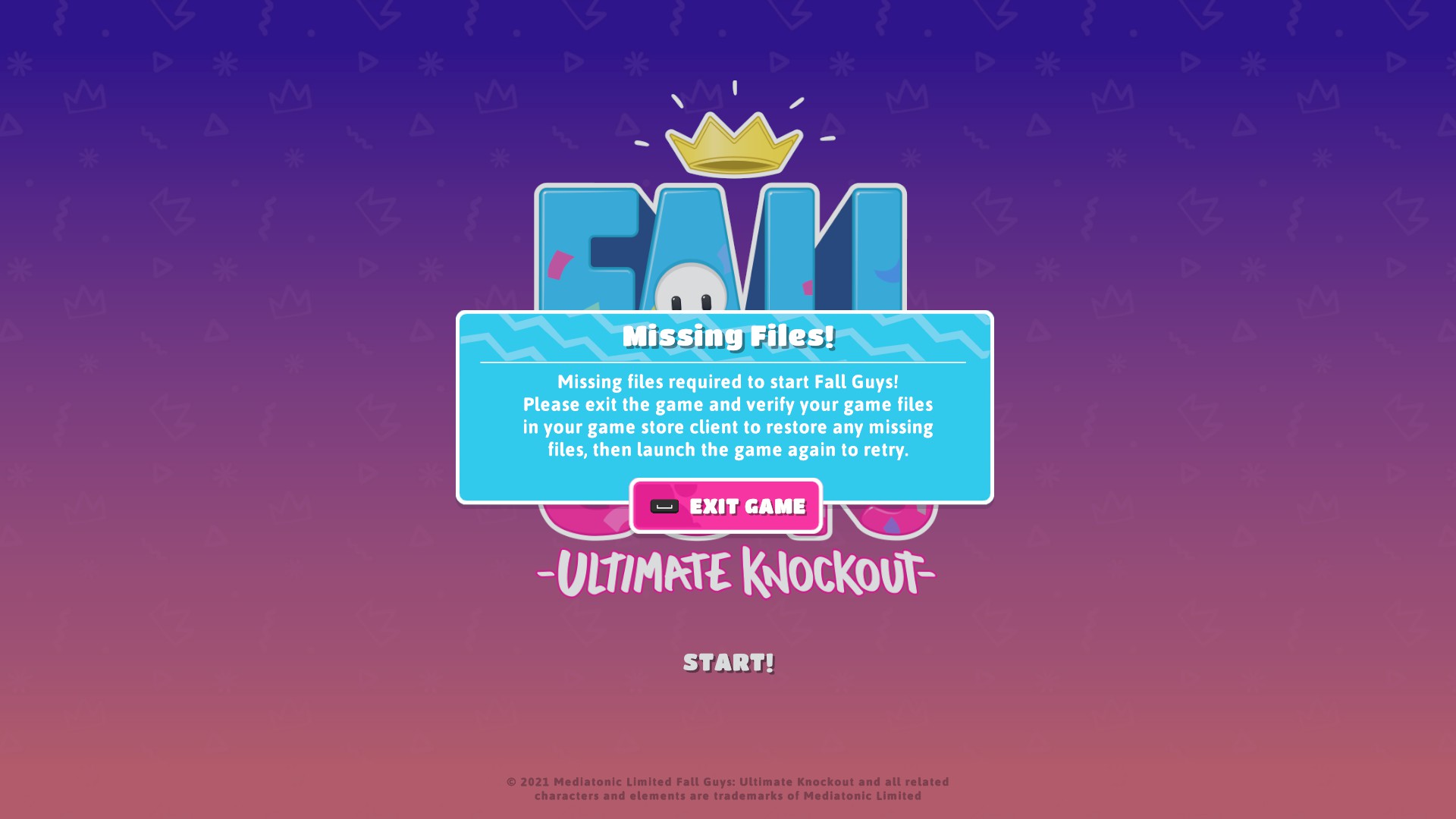
Quick Version (for Advanced Users)
- Make sure Steam is running in Administrator Mode; close and restart if needed.
- Find and uninstall Epic Online Services.
- Verify the integrity of the game files for Fall Guys.
- Boot up Fall Guys; it will re-install the latest version of Epic Online Services.
Step-by-Step Version
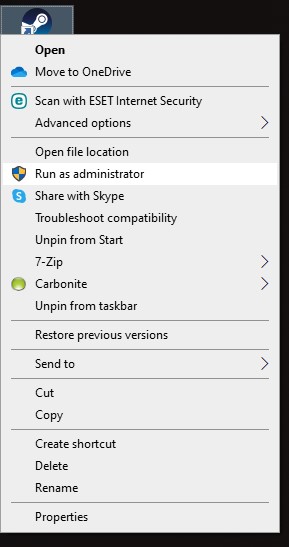
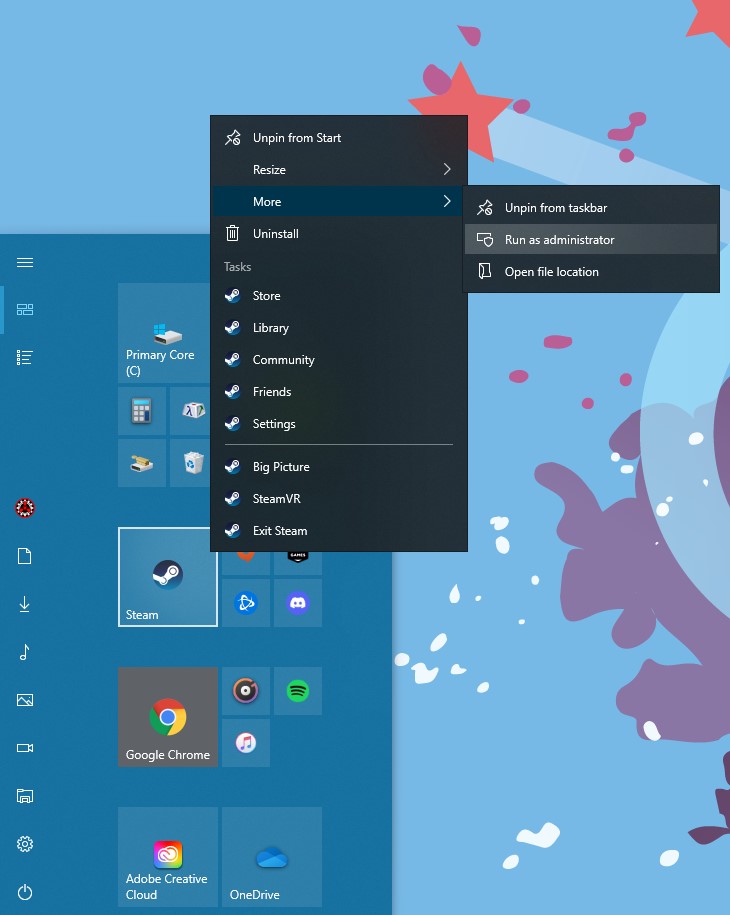
- Before starting, make sure that Steam is running in Administrator Mode. To do this, exit Steam completely and then right-click on your shortcut icon or your pinned Start Menu icon and select Run as administrator.
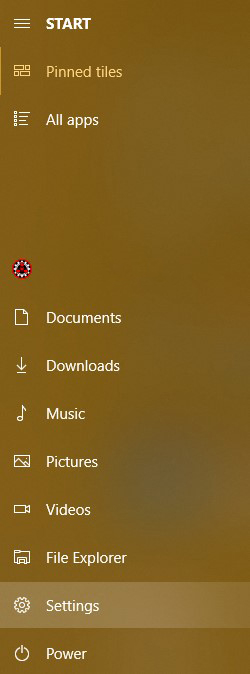
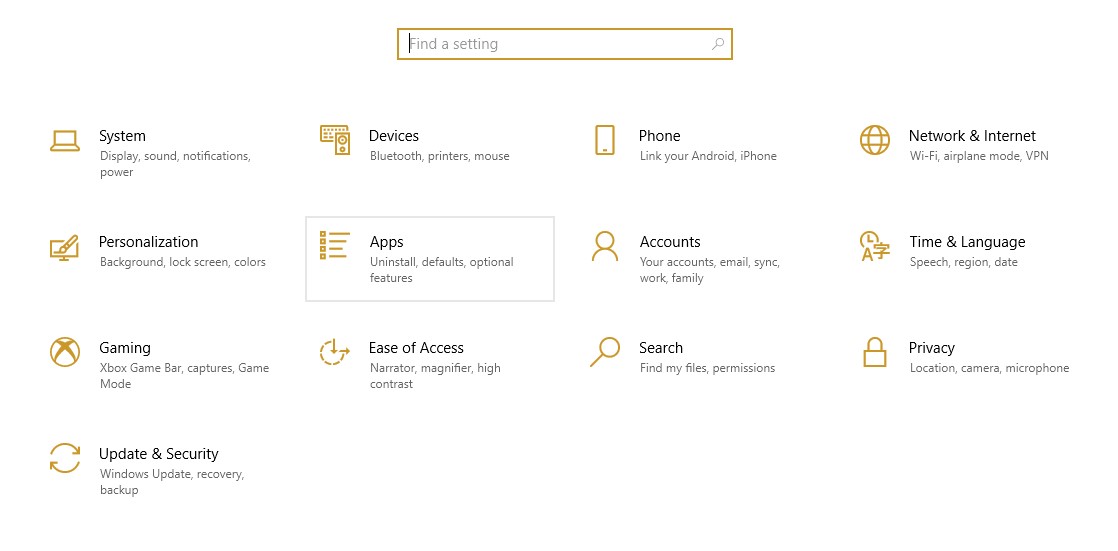
- Open the Start Menu (by pressing the Windows key or clicking the Windows icon in the lower left corner) and select Settings.
- Next, select Apps from the Settings menu.
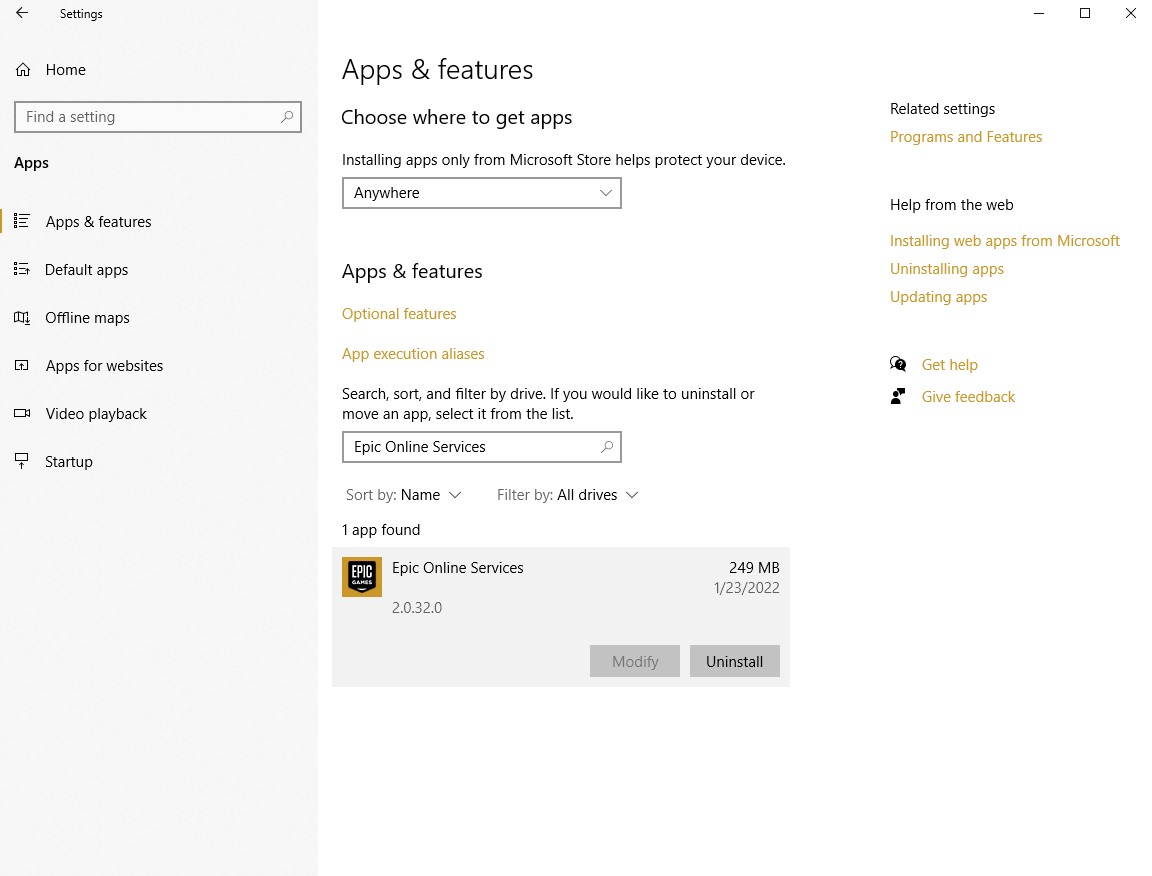
- In the Apps menu, search for Epic Online Services. Click it and select Uninstall.
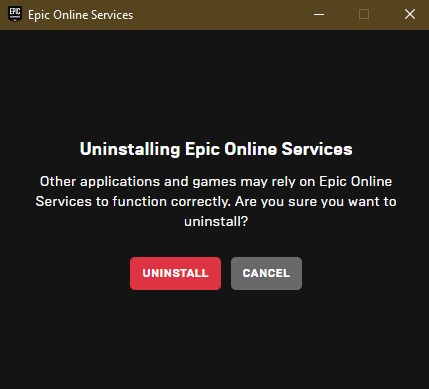
- While uninstalling, a pop-up from Epic should appear. Select Uninstall when prompted with this message.
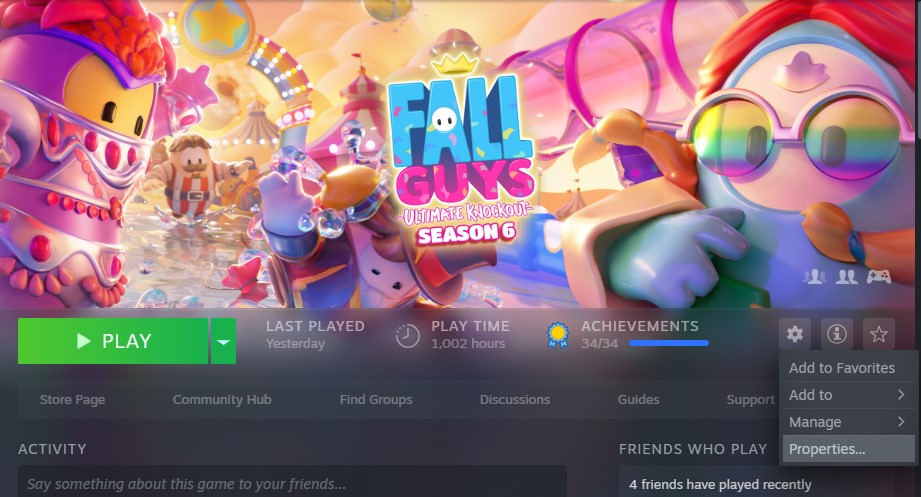
- Once the Epic Online Services has been uninstalled, go to the Fall Guys page in your library and click the gear icon on the right side of the header. Select Properties.
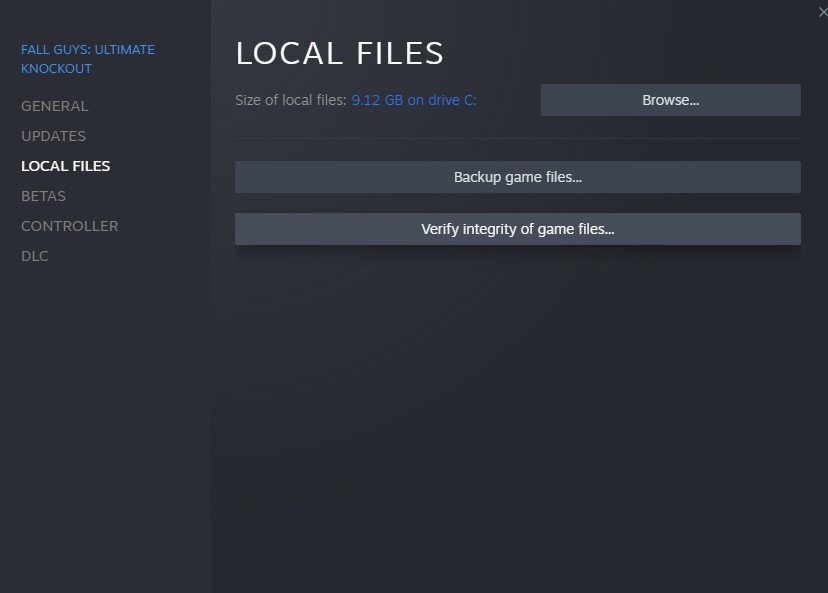
- In the Properties dialogue box, select Local Files on the left-hand side, then click Verify integrity of game files...
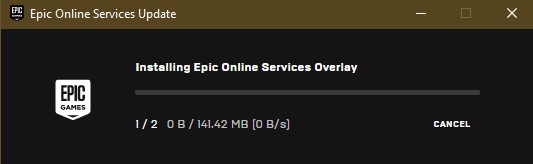
- Once all files have been verified, boot up Fall Guys as you usually do. As it's starting up, you should see this installation box appear:
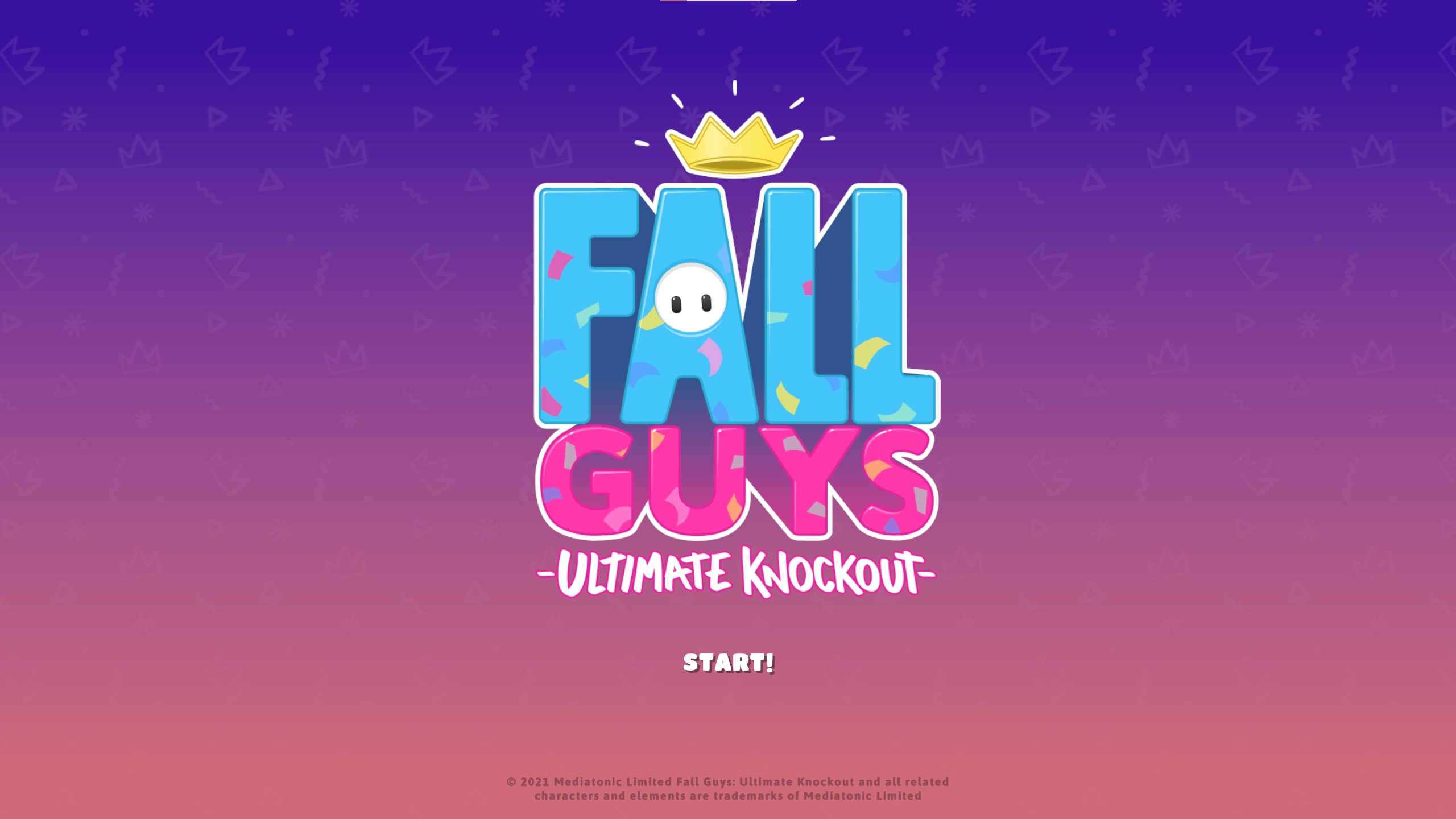
- After the Epic Online Services installation is complete, Fall Guys should boot normally and you can get back to falling!
Conclusion
And that's all there is to it! I hope that I've helped anyone out who has been experiencing this unfortunate problem!
Special thanks to Kongo Musha for figuring out that Steam needed to be run in Administrator Mode!
See you in the Blunderdome!
- Cosmetics Guide (Outfits & Emotes)★ 5 (544)29k views432 ♥9 minUpdated Aug 9, 2021
- Fall Guys Points System★ 5 (414)27k views167 ♥2 minUpdated Aug 13, 2020
- Players You'll Find in Fall Guys★ 5 (364)19k views122 ♥3 minUpdated Sep 17, 2020
- Tips For Winning Every Round★ 5 (240)16k views203 ♥15 minUpdated Aug 9, 2021
- Как играть с читами ?★ 4 (933)15k views24 ♥1 minRussianUpdated Sep 23, 2020
- Как создать патриотический костюм в Fall Guys★ 4 (311)9.5k views120 ♥1 minRussianUpdated Aug 19, 2021



- Upgrading to PremiumTeam Fortress 2★ 5 (20k)1441k views11k ♥6 minUpdated May 11, 2022
- No More Room in Hell Official ManualNo More Room in Hell★ 5 (2.8k)569k views2.1k ♥29 minUpdated Apr 22, 2019
- NMRiH Community Hosting GuidesNo More Room in Hell★ 5 (526)351k views653 ♥1 minUpdated Aug 10, 2022
- Лучшие кооперативные игры SteamPAYDAY 2★ 5 (1.5k)315k views2.1k ♥56 minRussianUpdated Apr 27, 2025
- Desert Eagle Heat Treated | Blue GemCounter-Strike 2★ 5 (1.6k)292k views1.5k ♥2 minUpdated Jan 16
- Treasure Hunt Puzzle SolutionsTotal War: WARHAMMER II★ 5 (6.9k)281k views15k ♥3 minUpdated Aug 19, 2021






This guide was created by its original author on the Steam Community. Are you the author and want it removed? Request removal.