Useful Arma 3 Scripts
Scripts:
Execute a Script:
Executes a script, make sure to define the correct location of the sqf file.
Local execution:
Delete a Object:
Can be used to delete objects place, variable name defines the name of the object.
Hide/Unhide a Object:
Hides and unhides a already placed object. (true = hides it, false = unhides it)
Add a AddAction:
Gives a scrollable action on a object/Ai, text color is done via HTML colors & "this" can be set to be a object's variable name instead.
Disable Ai Functions:
If placed directly on ai then use "this" otherwise use the variable name, prevents a Ai from doing the defined action.
Use "_this" if applied in Zeus.
Local Hint:
This will give a hint in the top right of the screen but only to the person who triggers the script.
Global Hint:
Will trigger for everyone, should be executed in a script/sqf file.
Screen fading with Text:
Can be done in the following ways: “BLACK OUT”, “BLACK IN”, “BLACK FADED”, “BLACK”, “WHITE OUT”, “WHITE IN”.
Screen Text:
Adds text on your screen.
Image Hint:
This shows a image in a hint, I would advise a paa image.
Trigger only activating if object is alive:
This is set as a trigger condition, and the trigger will only fire once x object(s) are not longer existing/dead.
Trigger only activating on specific players:
Otherwise known as "thisList", can be done with one and multiple.
Auto Bar Gate Opener:
Put a trigger over the bar gate, pref 3x7 square, set the the trigger to activate repeatedly and who you want to trigger it.
Create a big explosion on a map marker.
This spawns said explosive and detonates it on the marker. Should technically work with anything from
HERE[community.bistudio.com].
Create markers on the map via a script:
Creates a marker on the map, ensure you have a AI the variable name set, in my case it's "bob".
Delete a Map Marker:
This deleted a map marker via it's variable name.
3D Audio:
Plays 3D audio on the given object, this one can be tricky sometimes when it comes to volume. (smallRadio = the object)
Moveable Respawn:
Can be created on a object and will move the respawn there. (one = marker where the respawn gets moved)
Unlimited Ammo:
Gives a vehicle or player unlimted ammo.
Unlimted Ammo with delay:
40 in this case is how often it triggers the rearm. (Seconds)
Change texture on a flag:
This can be done in both jpg or paa. (1024x512 generally works)
Set Damage:
1 = destroyed/dead
No Surrender:
Forces a AI to fight, aka doesnt allow it to flee.
Disable/Enable Damage:
Can be done easily in Eden, but you never know when you need this.
[bTurn On/Off lights on vehicle.][/b]
Turns on and off the lights of a vehicle.
Earthquake:
Triggers a Earthquake:
Skip time:
Skips x hours.
Engine On/Off:
Turn on or off a engine.
If you know other useful ones then leave them in the comments and I'll add them.[/b]
Executes a script, make sure to define the correct location of the sqf file.
Local execution:
nul=execVM "scripts\test.sqf";
Global execution:[] remoteExec ["scripts\bluh.sqf", 0, false];
Delete a Object:
Can be used to delete objects place, variable name defines the name of the object.
- One Object = deleteVehicle obj1;
- Multiple Objects = {deleteVehicle _x} ForEach [obj1,obj2,obj3];
Hide/Unhide a Object:
Hides and unhides a already placed object. (true = hides it, false = unhides it)
objectname hideObject false;
Add a AddAction:
Gives a scrollable action on a object/Ai, text color is done via HTML colors & "this" can be set to be a object's variable name instead.
this addAction ["<t color='#FFFFFF'>Example Text</t>", "scripts\wall.sqf"];
Better add action with distance limit:
this addAction ["Call Artillery","scripts\arty.sqf",nil,1.5,false,true,"","",3,false,"",""];
Disable Ai Functions:
If placed directly on ai then use "this" otherwise use the variable name, prevents a Ai from doing the defined action.
Use "_this" if applied in Zeus.
this disableAI "PutActionHere";
- "TARGET" - stop the unit to watch the assigned target / group commander may not assign targets.
- "AUTOTARGET" - prevent the unit from assigning a target independently and watching unknown objects.
- "MOVE" - disable the AI's movement. (Allows it to still move it's head & body but not move)
- "ANIM" - disable ability of AI to change animation.
- "TEAMSWITCH" - AI disabled because of Team Switch.
- "WEAPONAIM" - no weapon aiming.
- "AIMINGERROR" - prevents AI's aiming from being distracted by its shooting, moving, turning, reloading, hit, injury, fatigue, etc.
- "SUPPRESSION" - prevents AI from being suppressed.
- "CHECKVISIBLE" - disables visibility raycasts.
- "COVER" - disables usage of cover positions by the AI.
- "AUTOCOMBAT" - disables autonomous switching to COMBAT when in danger.
- "PATH" - stops the AI’s movement but not the target alignment.
- "MINEDETECTION" - disable Ai mine detection.
- "ALL" - all of the above. (At this point you might as well turn off Simulation in Eden)
Local Hint:
This will give a hint in the top right of the screen but only to the person who triggers the script.
Hint "Write here";
Global Hint:
Will trigger for everyone, should be executed in a script/sqf file.
_textOne = "<t color='#E22020'>I am a script, everyone can see me.</t>";
hint parseText (_textOne);
Screen fading with Text:
Can be done in the following ways: “BLACK OUT”, “BLACK IN”, “BLACK FADED”, “BLACK”, “WHITE OUT”, “WHITE IN”.
titleCut ["I like text","BLACK IN",2.5];
Screen Text:
Adds text on your screen.
- Bottom middle (Small): ["I like text.","plain down"];
- Middle (Big): ["I like text",-1,-1,4,1,0,789] spawn BIS_fnc_dynamicText;
Image Hint:
This shows a image in a hint, I would advise a paa image.
hint parseText "<img image='images\image.paa' <img size='20' /> ";
Trigger only activating if object is alive:
This is set as a trigger condition, and the trigger will only fire once x object(s) are not longer existing/dead.
- One Object = !alive "object name"
- Multiple Objects = !(alive obj1) && !(alive obj2)
Trigger only activating on specific players:
Otherwise known as "thisList", can be done with one and multiple.
- One player = PlayerVariableName in thislist;
- Multiple objects = unit1 in thisList AND unit2 in thisList
Auto Bar Gate Opener:
Put a trigger over the bar gate, pref 3x7 square, set the the trigger to activate repeatedly and who you want to trigger it.
On Activation: GateName animate ["Door_1_rot", 1]
On Deactivation: GateName animate ["Door_1_rot", 0]
Create a big explosion on a map marker.
This spawns said explosive and detonates it on the marker. Should technically work with anything from
HERE[community.bistudio.com].
scriptedCharge = "Bo_Mk82_MI08" createVehicle (getMarkerPos "bombmrk");
Create markers on the map via a script:
Creates a marker on the map, ensure you have a AI the variable name set, in my case it's "bob".
- Icon Marker: bob = createMarker ["nameofmarker", [5150,5031]]; bob setMarkerShape "ICON"; "nameofmarker" setMarkerType "mil_objective"; "nameofmarker" setMarkerColor "ColorRed"; "nameofmarker" setMarkerDir 90; "nameofmarker" setMarkerText "ThisIsTheMarkersName";
- Area Marker: bob = createMarker ["nameofmarker", [5098,5071]]; bob setMarkerShape "ELLIPSE"; "nameofmarker" setMarkerColor "ColorBlack"; "nameofmarker" setMarkerSize [100, 100]; "nameofmarker" setMarkerBrush "SOLID";
Delete a Map Marker:
This deleted a map marker via it's variable name.
deleteMarker "NameOfMarker";
3D Audio:
Plays 3D audio on the given object, this one can be tricky sometimes when it comes to volume. (smallRadio = the object)
soundPath = [(str missionConfigFile), 0, -15] call BIS_fnc_trimString;
soundToPlay = soundPath + "sounds\radio_1.ogg";
playSound3D [soundToPlay, smallRadio, false, getPosASL smallRadio, 8, 1, 60];
Moveable Respawn:
Can be created on a object and will move the respawn there. (one = marker where the respawn gets moved)
this addAction["Take Respawn", {deleteMarker "respawn_west";_respawn = createMarker ["respawn_west",(getMarkerPos "one")];this removeAction 0;}, nil, 10, true, true, "", ""];
Unlimited Ammo:
Gives a vehicle or player unlimted ammo.
this addEventHandler ["Fired",{(_this select 0) setVehicleAmmo 1}];
Unlimted Ammo with delay:
40 in this case is how often it triggers the rearm. (Seconds)
nul = this spawn { while {alive _this} do { _this setVehicleAmmo 1; sleep 40 } };
Change texture on a flag:
This can be done in both jpg or paa. (1024x512 generally works)
this SetFlagTexture "images\imagename.jpg";
Set Damage:
1 = destroyed/dead
this setdammage 0.5;
No Surrender:
Forces a AI to fight, aka doesnt allow it to flee.
this allowFleeing 0;
Disable/Enable Damage:
Can be done easily in Eden, but you never know when you need this.
this allowdammage True/False;
[bTurn On/Off lights on vehicle.][/b]
Turns on and off the lights of a vehicle.
this Switchlight true/false;
Earthquake:
Triggers a Earthquake:
[1] call BIS_fnc_earthquake;
Skip time:
Skips x hours.
skipTime 4;
Engine On/Off:
Turn on or off a engine.
vehicleName engineOn false/true;
If you know other useful ones then leave them in the comments and I'll add them.[/b]
How to:
Activating scripts via a trigger:
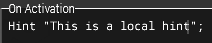
You can easily trigger allot of the scripts with a trigger, there are generally two way to do it.You either have the script activate in a sqf file:

Or directly in/by the trigger:
Creating a sqf file:
Make sure to turn on show "known file extensions" as shown below: (Win10)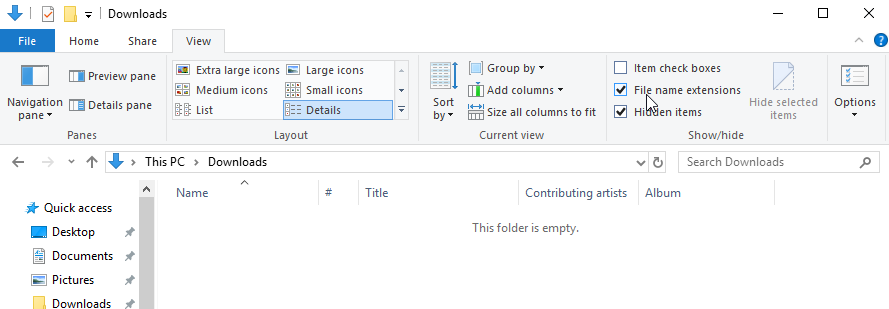
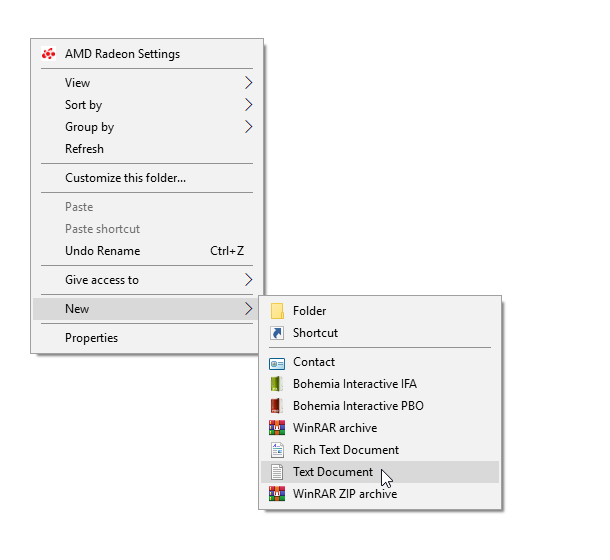
Create a text file:
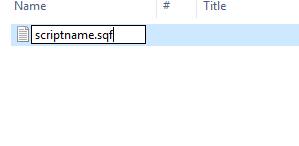
Name it what you want and end the extension with .sqf:
More Arma 3 guides
- How to increase FOV in ARMA★ 5 (323)51k views586 ♥2 minUpdated Oct 10, 2022
- ACE3 Adv Medical + Cheat Sheet★ 5 (973)48k views2.2k ♥11 minUpdated Feb 21, 2024
- Управление ArmA 3.★ 5 (752)48k views997 ♥4 minRussianUpdated Oct 11, 2015
- ARMA 3 Complete Performance Guide [2020] [ENG]★ 5 (686)48k views1.5k ♥12 minUpdated Oct 10, 2022
- Arma 3 Movement & Weapon Controls (List)★ 5 (513)44k views593 ♥1 minBulgarianUpdated Mar 7, 2016
- How to fly in Arma 3★ 5 (459)40k views746 ♥10 minUpdated Apr 8, 2019



This guide was created by its original author on the Steam Community. Are you the author and want it removed? Request removal.