Call of Duty 2 max quality graphics settings.
// Follow the steps below.
-------------------------------------------------------------------------------------------------------------------------------------------------------------------------------------
// Open (Create a new text file if needed and rename it to autoexec.cfg, not autoexec.cfg.txt) autoexec.cfg in your Call of Duty 2\main directory. Enter these lines in the text file and save it:
seta ai_corpseCount "64"
seta cg_brass "1"
seta cg_drawGun "1"
seta cg_marks "1"
seta cl_mouseAccel "0"
seta com_hunkMegs "512"
seta com_maxfps "144"
seta fx_enable "1"
seta r_aasamples "4"
seta r_anisotropy "16"
seta r_aspectRatio "auto"
seta r_aaAlpha "2"
seta r_autopriority "1"
seta r_blur "0"
seta r_drawDecals "0"
seta r_drawSun "1"
seta r_drawWater "1"
seta r_fog "1"
seta r_fullscreen "1"
seta r_gamma "1.1"
seta r_glow "1"
seta r_lodScale "1"
seta r_dlightLimit "32"
seta r_multigpu "0"
seta r_gpuSync "3"
seta r_mode "1920x1080"
seta r_rendererInUse "dx9"
seta r_rendererPreference "dx9"
seta r_skinCache "1"
seta r_textureMode "anisotropic"
seta r_zfeather "1"
seta sys_SSE "1"
seta r_fullbright "0"
seta sv_framerate_smoothing "1"
seta r_picmip_manual "1"
seta r_picmip "0"
seta r_picmip_bump "0"
seta r_picmip_spec "0"
seta scr_88ridge_fast "0"
seta scr_88ridge_fxlevel "2"
seta scr_demolition_fast "0"
seta scr_duhoc_assault_drones "2"
seta scr_duhoc_assault_fast "0"
seta scr_duhoc_defend_fast "0"
seta scr_elalamein_fxlevel "2"
seta scr_hill400defend_minspec "0"
seta scr_moscow_drones "0"
seta scr_moscow_fx "0"
seta scr_rhine_fast "0"
seta scr_silotown_minspec "0"
seta scr_toujane_ride_fast "1"
// Call of Duty 2 doesn't automatically run the autoexec.cfg file. You will need to add +exec autoexec.cfg to your COD 2's launch icon's Target Box. Your path may vary, depending on where you installed the game. The target box should look similar to this:
"C:\Program Files\Activision\Call of Duty 2\CoD2SP_s.exe" +exec autoexec.cfg
-------------------------------------------------------------------------------------------------------------------------------------------------------------------------------------
// Steam version only!!!
- Open your Steam Library
- Right click the game's title and select Properties.
- On the General tab you'll find Selected Launch Options section.
- Add: +exec autoexec.cfg
-------------------------------------------------------------------------------------------------------------------------------------------------------------------------------------
// Reduce visual popups in the distance and change field of view (fov) from 80 to 90. Download and extract into base installation folder.
https://www.moddb.com/games/call-of-duty-2/downloads/call-of-duty-2-single-player-improvement
That's all!
-------------------------------------------------------------------------------------------------------------------------------------------------------------------------------------
Take care!
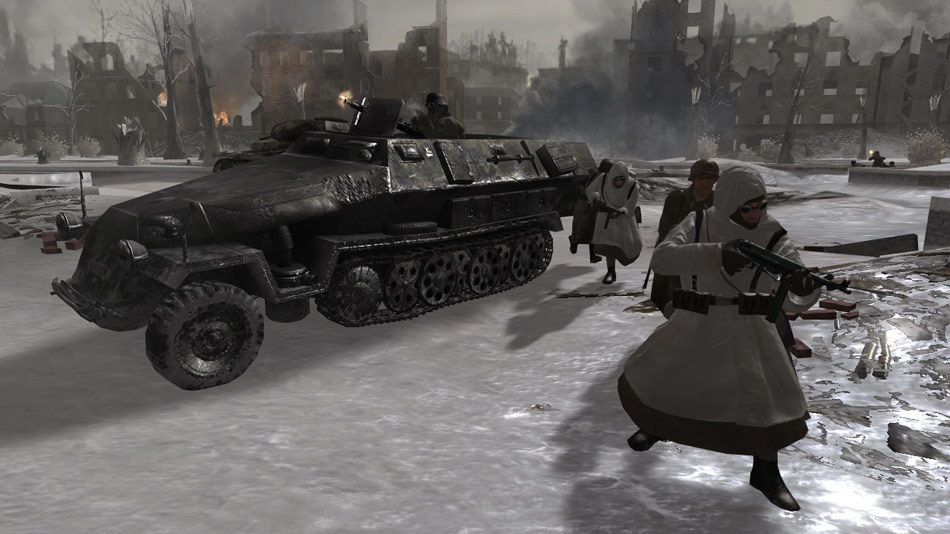
// Open (Create a new text file if needed and rename it to autoexec.cfg, not autoexec.cfg.txt) autoexec.cfg in your Call of Duty 2\main directory. Enter these lines in the text file and save it:
seta ai_corpseCount "64"
seta cg_brass "1"
seta cg_drawGun "1"
seta cg_marks "1"
seta cl_mouseAccel "0"
seta com_hunkMegs "512"
seta com_maxfps "144"
seta fx_enable "1"
seta r_aasamples "4"
seta r_anisotropy "16"
seta r_aspectRatio "auto"
seta r_aaAlpha "2"
seta r_autopriority "1"
seta r_blur "0"
seta r_drawDecals "0"
seta r_drawSun "1"
seta r_drawWater "1"
seta r_fog "1"
seta r_fullscreen "1"
seta r_gamma "1.1"
seta r_glow "1"
seta r_lodScale "1"
seta r_dlightLimit "32"
seta r_multigpu "0"
seta r_gpuSync "3"
seta r_mode "1920x1080"
seta r_rendererInUse "dx9"
seta r_rendererPreference "dx9"
seta r_skinCache "1"
seta r_textureMode "anisotropic"
seta r_zfeather "1"
seta sys_SSE "1"
seta r_fullbright "0"
seta sv_framerate_smoothing "1"
seta r_picmip_manual "1"
seta r_picmip "0"
seta r_picmip_bump "0"
seta r_picmip_spec "0"
seta scr_88ridge_fast "0"
seta scr_88ridge_fxlevel "2"
seta scr_demolition_fast "0"
seta scr_duhoc_assault_drones "2"
seta scr_duhoc_assault_fast "0"
seta scr_duhoc_defend_fast "0"
seta scr_elalamein_fxlevel "2"
seta scr_hill400defend_minspec "0"
seta scr_moscow_drones "0"
seta scr_moscow_fx "0"
seta scr_rhine_fast "0"
seta scr_silotown_minspec "0"
seta scr_toujane_ride_fast "1"
// Call of Duty 2 doesn't automatically run the autoexec.cfg file. You will need to add +exec autoexec.cfg to your COD 2's launch icon's Target Box. Your path may vary, depending on where you installed the game. The target box should look similar to this:
"C:\Program Files\Activision\Call of Duty 2\CoD2SP_s.exe" +exec autoexec.cfg
-------------------------------------------------------------------------------------------------------------------------------------------------------------------------------------
// Steam version only!!!
- Open your Steam Library
- Right click the game's title and select Properties.
- On the General tab you'll find Selected Launch Options section.
- Add: +exec autoexec.cfg
-------------------------------------------------------------------------------------------------------------------------------------------------------------------------------------
// Reduce visual popups in the distance and change field of view (fov) from 80 to 90. Download and extract into base installation folder.
https://www.moddb.com/games/call-of-duty-2/downloads/call-of-duty-2-single-player-improvement
That's all!
-------------------------------------------------------------------------------------------------------------------------------------------------------------------------------------
Take care!
More Call of Duty 2 guides
- Call of Duty 2 Cheats★ 5 (266)16k views397 ♥5 minUpdated Apr 18, 2016
- Technical solutions for Call of Duty 2.★ 4 (125)14k views192 ♥9 minUpdated Apr 12, 2025
- Failed to find steam : Call of Duty 2★ 4 (152)13k views78 ♥1 minUpdated Jul 30, 2013
- Fixing Cod2 Startup Problem★ 4 (52)8.5k views49 ♥1 minUpdated Feb 3, 2023
- How to play on Veteran difficulty tips :)★ 4 (128)7.9k views45 ♥2 min
- Русификация Call of Duty 2★ 5 (195)7.3k views295 ♥1 minRussianUpdated Jul 17, 2025


This guide was created by its original author on the Steam Community. Are you the author and want it removed? Request removal.